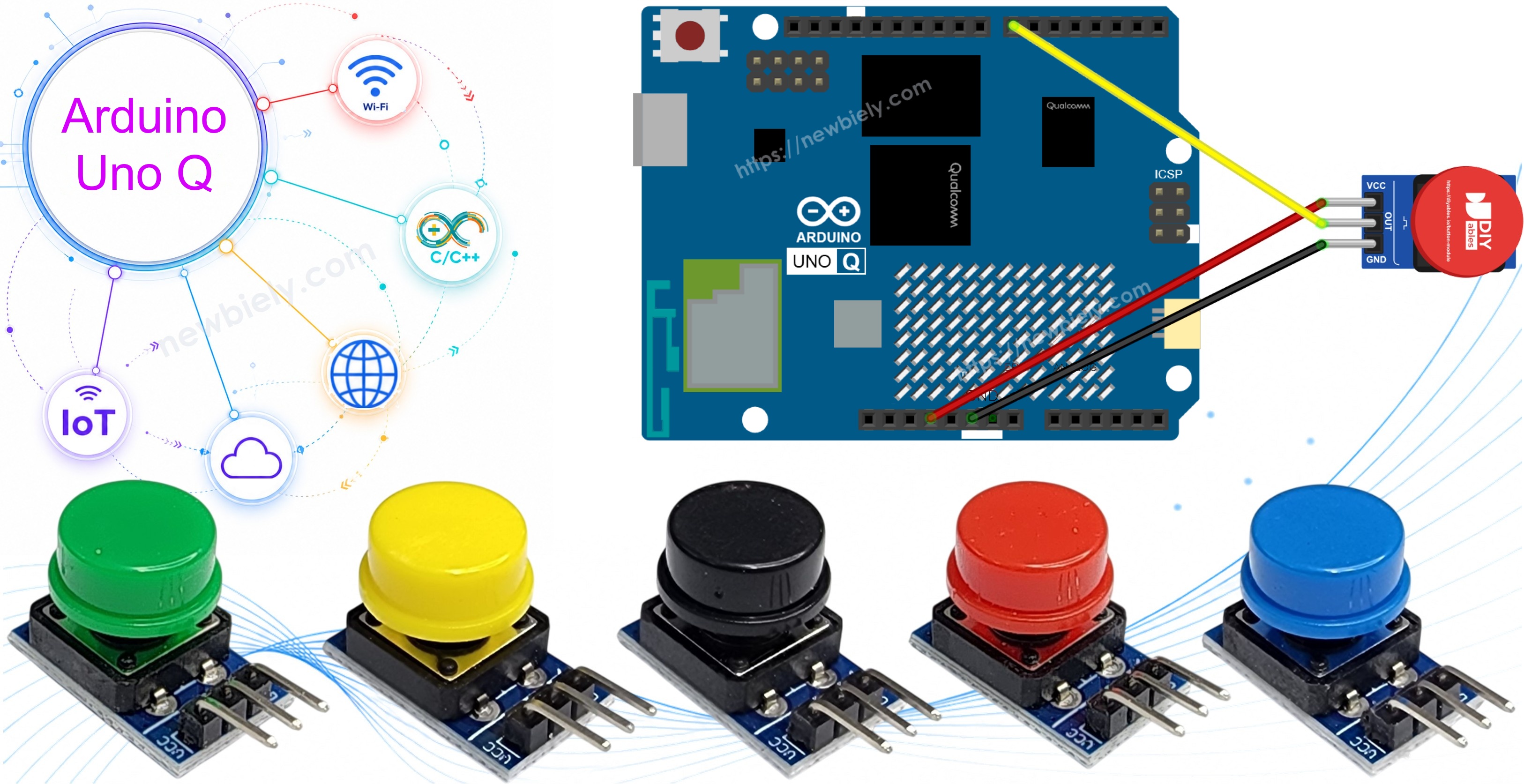
Think of a doorbell, a "start" key for a game, or a single key that sends a message to your phone. Each one begins with a press of a button. The button module makes that press easy to read: the resistor is already on the board, the pins have names, and a press gives a clean HIGH. On the Arduino UNO Q, the STM32 MCU watches the button, and the Linux side can turn each press into a Python event or a Telegram alert.
This page covers:
What the button module is, and why it needs no extra resistor
Why VCC must go to 3.3V on the Arduino UNO Q, not to 5V
How to read the raw pin level from the MCU
How to catch press and release events with a short delay debounce
How to read the button without blocking, using the ezButton library
How Python on Linux can ask the MCU for the button state and the number of presses through Bridge
How to build a Telegram doorbell that alerts you on every press and answers /status and /count
How to use OpenClaw on Arduino UNO Q with the button module
Disclosure: Some of the links provided in this section are Amazon affiliate links. We may receive a commission for any purchases made through these links at no additional cost to you. Additionally, some of these links are for products from our own brand, DIYables .
Overview of the Button Module
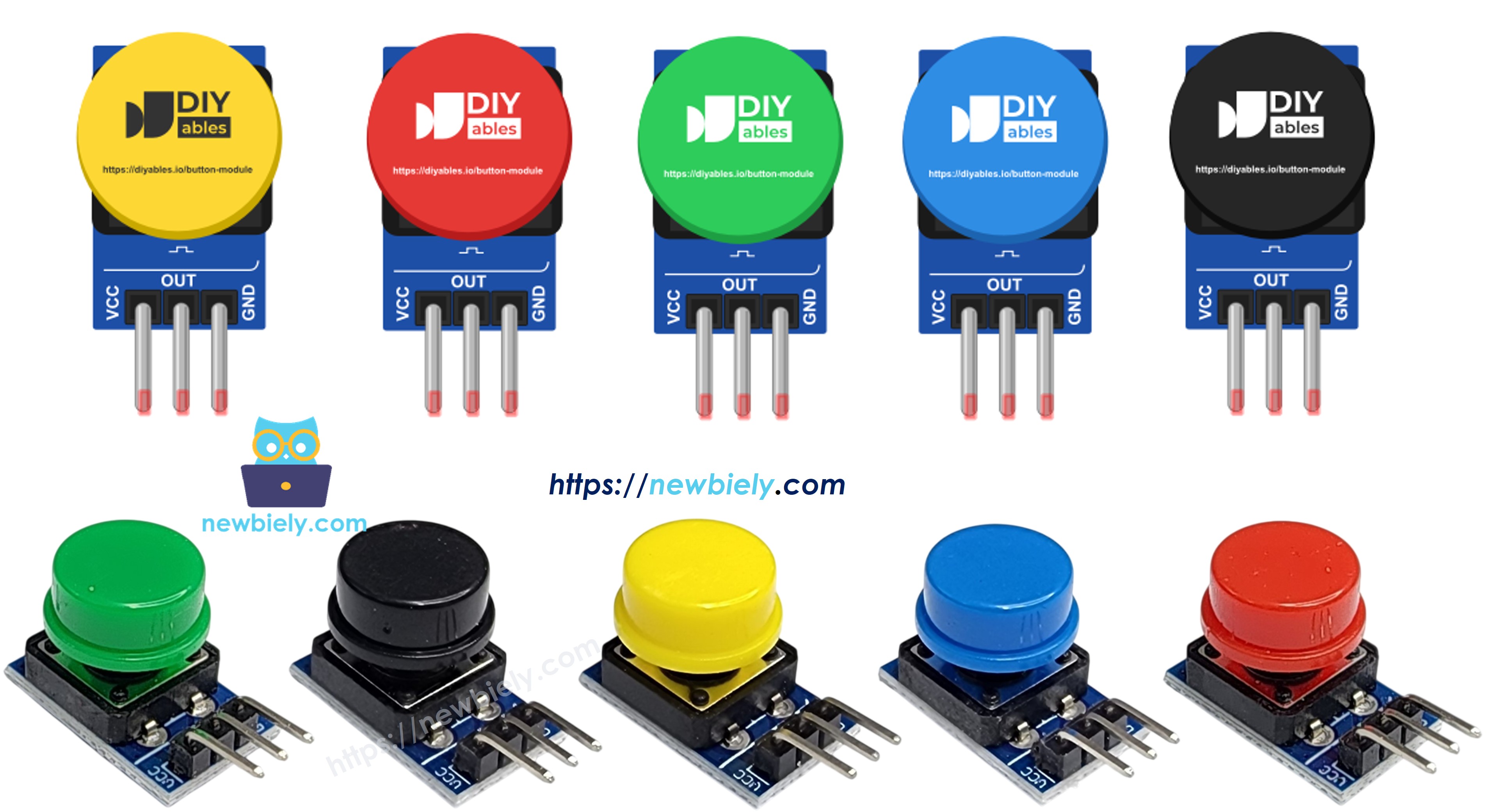
image source: diyables.io
The DIYables button module is a small board with one momentary tactile button and a colored cap on top. Simply put, it is a push button with its resistor already on board. That resistor is a pull-down: it holds the output LOW while nobody touches the cap. Press the cap and the output jumps to the VCC voltage. Let go and it falls back to LOW. One pack holds five modules, each with a different cap color: red, yellow, green, blue and white.
Item
Value
Operating voltage
3.3V to 5V DC
Button type
Momentary tactile button with cap
Built-in resistor
Pull-down on the OUT pin
Output when released
LOW
Output when pressed
HIGH (equal to VCC)
Header
3-pin, 2.54mm
The pins are labeled VCC, OUT and GND, in that order:
VCC: power for the module. On the Arduino UNO Q, use 3.3V
OUT: the signal. Goes to a digital input pin of the MCU
GND: connect to a GND pin of the board
※ NOTE THAT:
⚠️ Use 3.3V, not 5V. The I/O pins of the UNO Q's STM32 MCU work at 3.3V. When the button is pressed, OUT gives out whatever voltage is on VCC. If VCC were 5V, a press would push 5V into a 3.3V pin and could damage it.
Bouncing: the metal contacts inside the button do not close cleanly. For a few milliseconds they bounce, so a single press can look like several quick presses. Examples 2 and 3 below show two ways to clean this up.
Module or bare button? A bare 4-leg push button has two pairs of legs that are connected inside, which often confuses beginners. It also needs a pull-up or pull-down, usually INPUT_PULLUP, and then a press reads LOW. The module removes all of that: labeled pins, its own pull-down, and the logic is not inverted — pressed is simply HIGH. To learn the bare button, see Arduino UNO Q - Button.
Wiring Diagram
Three jumper wires are all you need — no breadboard and no resistor. OUT goes to pin 7, and VCC takes its power from the 3.3V header pin.
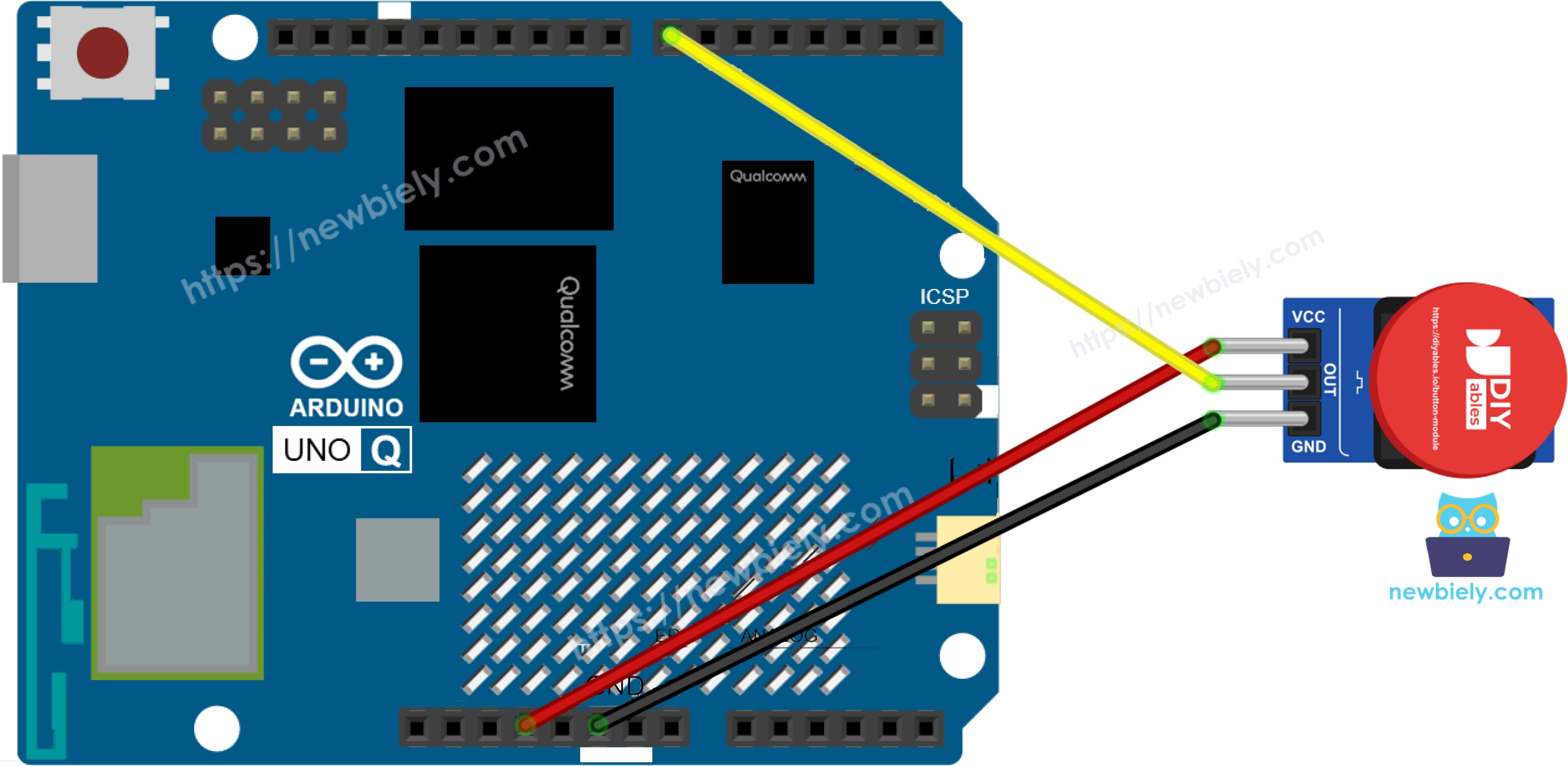
This image is created using Fritzing. Click to enlarge image
Button Module Pin
Arduino UNO Q
VCC
3.3V
OUT
Pin 7
GND
GND
※ NOTE THAT:
Any digital pin can read the module. If you choose another pin, change BUTTON_MODULE_PIN in every sketch on this page.
How To Program For Button Module
The board already pulls the output down, so the MCU only has to read one pin. Here are the steps:
Set the OUT pin as a plain input with pinMode(). Do not use INPUT_PULLUP — an internal pull-up would fight the pull-down on the module:
pinMode(BUTTON_MODULE_PIN, INPUT);
Read the level with digitalRead(). The module is active HIGH:
int level = digitalRead(BUTTON_MODULE_PIN); // HIGH = pressed, LOW = released
To find a press, compare the new level with the old one. LOW to HIGH means the button went down; HIGH to LOW means it came back up:
if (last_state == LOW && level == HIGH) { /* pressed */ }if (last_state == HIGH && level == LOW) { /* released */ }
With the ezButton library, pass EXTERNAL_PULLDOWN so the library knows that HIGH means pressed:
The STM32 MCU reads pin 7, so it is the part that "feels" each press
The Qualcomm MPU runs Debian Linux, Python and Wi-Fi
The three examples in this part run on the MCU only. The Linux side gets its turn in the Bridge section
Example 1 - Read the Raw State
The simplest possible test: read pin 7 four times per second and print the number. If you see 0 at rest and 1 while you hold the cap, your wiring is right.
/* * This Arduino UNO Q code was developed by newbiely.com * * This Arduino UNO Q code is made available for public use without any restriction * * For comprehensive instructions and wiring diagrams, please visit: * https://newbiely.com/tutorials/arduino-uno-q/arduino-uno-q-button-module */// Arduino UNO Q - Button Module: read the raw level of the OUT pin// Wiring: Button module VCC -> 3.3V, OUT -> D7, GND -> GND// The module has its own pull-down resistor: OUT is LOW when released, HIGH when pressed.#define BUTTON_MODULE_PIN 7 // The Arduino UNO Q pin connected to the OUT pin of the modulevoidsetup() {Serial.begin(115200);delay(1500);// Plain INPUT: the pull-down resistor on the module keeps the pin LOW.// Do NOT use INPUT_PULLUP here, it would fight the pull-down.pinMode(BUTTON_MODULE_PIN, INPUT);Serial.println("Arduino UNO Q Button Module raw reading started");}voidloop() {int level = digitalRead(BUTTON_MODULE_PIN); // 1 = pressed, 0 = releasedSerial.print("OUT pin: ");Serial.print(level);Serial.println(level == HIGH ? " -> pressed" : " -> released");delay(250); // slow the printing down so the console stays readable}
Wire it up:VCC to 3.3V, OUT to pin 7, GND to GND, as in the diagram. Check VCC twice — it must be 3.3V.
Plug in: Connect the Arduino UNO Q to your PC with the USB-C cable.
Start Arduino App Lab and let it detect the board.
Make a new App: Click Create New App.
Call it ButtonModuleRawState, then click Create.
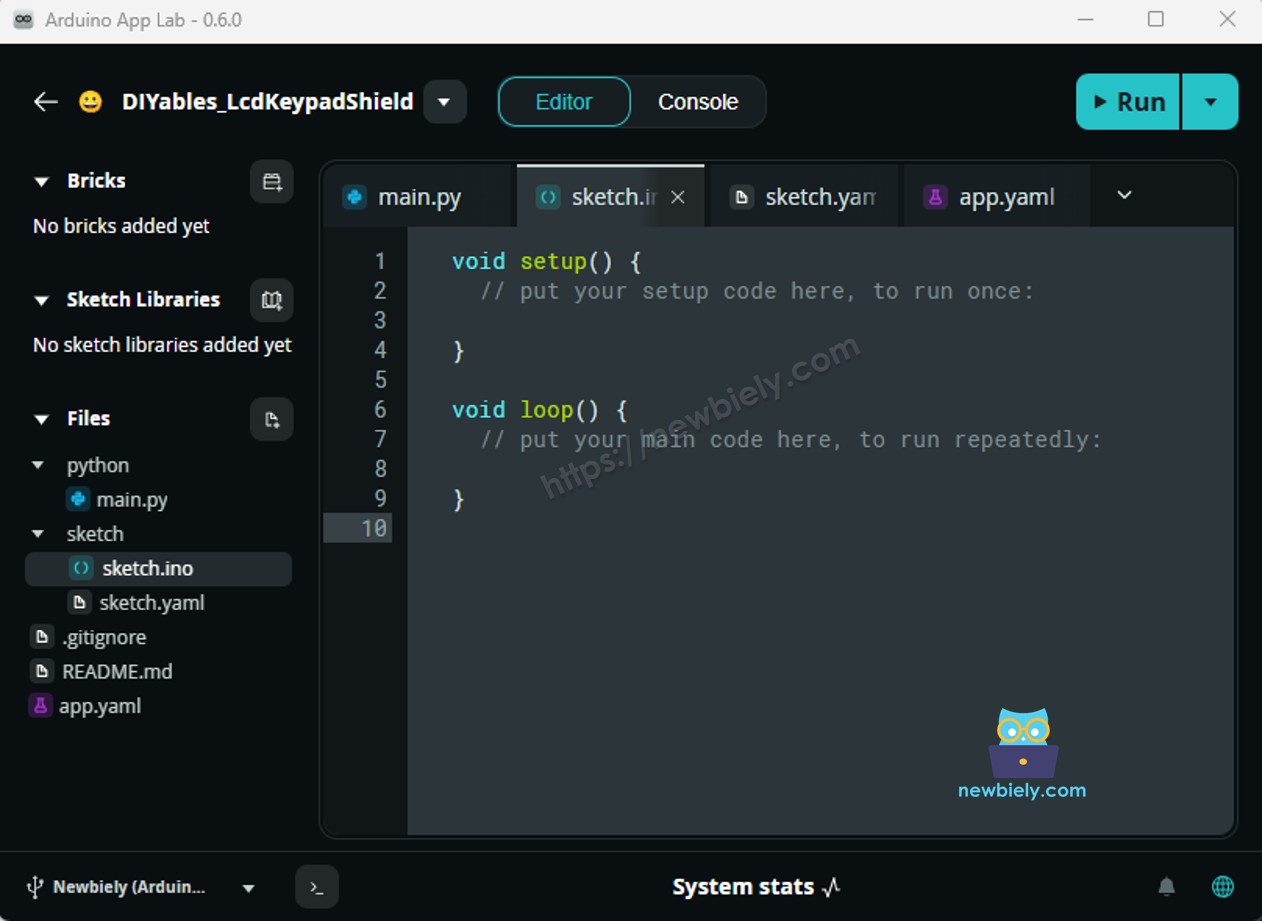
Add the code: Open sketch/sketch.ino, replace its content with the sketch above, and leave the other files alone. This example uses no library.
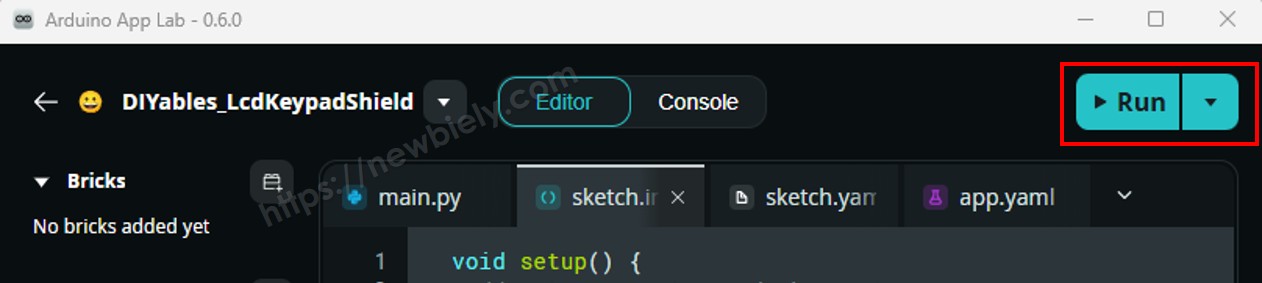
Run it: Press the Run button.
Test it: Hold the cap down for a second, then let go, and watch the console.
App Lab Console Output
DIYables_Apps
Stop
sketch.ino
1#include"Arduino_RouterBridge.h"
Serial Monitor
Python
Message (Enter to send a message to "Newbiely" on usb(2820070321))
New Line
9600 baud
[2026-10-23 09:12:01] Arduino UNO Q Button Module raw reading started
[2026-10-23 09:12:01] OUT pin: 0 -> released
[2026-10-23 09:12:02] OUT pin: 0 -> released
[2026-10-23 09:12:02] OUT pin: 1 -> pressed
[2026-10-23 09:12:02] OUT pin: 1 -> pressed
[2026-10-23 09:12:02] OUT pin: 1 -> pressed
[2026-10-23 09:12:03] OUT pin: 0 -> released
[2026-10-23 09:12:03] OUT pin: 0 -> released
The value stays at 0 when nobody touches the button — it never floats, because of the pull-down. If it stays at 0 even when you press, check that OUT really goes to pin 7.
Example 2 - Press and Release Events (Delay Debounce)
Most projects do not care about the level itself. They care about the moment it changes: "the doorbell was just pressed". This sketch remembers the last confirmed state. When a new reading differs, it waits 50 ms, reads again, and only reports the change if it is still there — so bounce is ignored.
/* * This Arduino UNO Q code was developed by newbiely.com * * This Arduino UNO Q code is made available for public use without any restriction * * For comprehensive instructions and wiring diagrams, please visit: * https://newbiely.com/tutorials/arduino-uno-q/arduino-uno-q-button-module */// Arduino UNO Q - Button Module: detect press and release events with a simple delay debounce// Wiring: Button module VCC -> 3.3V, OUT -> D7, GND -> GND// Active HIGH: a LOW -> HIGH change is a press, a HIGH -> LOW change is a release.#define BUTTON_MODULE_PIN 7 // The Arduino UNO Q pin connected to the OUT pin of the module#define DEBOUNCE_DELAY 50 // milliseconds to wait for the contacts to settleint last_state = LOW; // the confirmed state after the last change (released at start)voidsetup() {Serial.begin(115200);delay(1500);pinMode(BUTTON_MODULE_PIN, INPUT); // the module already has a pull-down resistorSerial.println("Arduino UNO Q Button Module event test started");}voidloop() {int reading = digitalRead(BUTTON_MODULE_PIN);if (reading != last_state) {delay(DEBOUNCE_DELAY); // wait until the bouncing is over (the loop stops here) reading = digitalRead(BUTTON_MODULE_PIN); // read againif (reading != last_state) { // the change is still there, so it is real last_state = reading;if (reading == HIGH)Serial.println("The button is pressed");elseSerial.println("The button is released"); } }}
Detailed Instructions
The wiring does not change.
Make a new App called ButtonModuleDebounceDelay (or reuse the last one), put the code in sketch/sketch.ino, and click Run.
Press the button three times, slowly. Each press should give exactly one "pressed" line and one "released" line.
App Lab Console Output
DIYables_Apps
Stop
sketch.ino
1#include"Arduino_RouterBridge.h"
Serial Monitor
Python
Message (Enter to send a message to "Newbiely" on usb(2820070321))
New Line
9600 baud
[2026-10-23 09:20:44] Arduino UNO Q Button Module event test started
[2026-10-23 09:20:47] The button is pressed
[2026-10-23 09:20:47] The button is released
[2026-10-23 09:20:49] The button is pressed
[2026-10-23 09:20:50] The button is released
[2026-10-23 09:20:52] The button is pressed
[2026-10-23 09:20:53] The button is released
The weak point: delay() freezes the whole loop for those 50 ms, so nothing else in the sketch can run while it waits.
Example 3 - Non-Blocking Debounce with ezButton
The ezButton library does the same job without stopping the loop. It keeps a timer inside and only accepts a change after the pin has been steady for the debounce time. You get three handy calls:
button.isPressed() — true once, right after a press
button.isReleased() — true once, right after a release
button.getState() — the clean, debounced level (HIGH = held down)
Remember to call button.loop() at the top of every loop(). It returns at once, so the rest of your sketch keeps running.
/* * This Arduino UNO Q code was developed by newbiely.com * * This Arduino UNO Q code is made available for public use without any restriction * * For comprehensive instructions and wiring diagrams, please visit: * https://newbiely.com/tutorials/arduino-uno-q/arduino-uno-q-button-module */// Arduino UNO Q - Button Module: non-blocking debounce with the ezButton library// Wiring: Button module VCC -> 3.3V, OUT -> D7, GND -> GND// Needs ezButton 1.0.6 or newer (for the EXTERNAL_PULLDOWN mode).#include <ezButton.h>#define BUTTON_MODULE_PIN 7 // The Arduino UNO Q pin connected to the OUT pin of the module// EXTERNAL_PULLDOWN: the resistor is on the module, and HIGH means pressedezButtonbutton(BUTTON_MODULE_PIN, EXTERNAL_PULLDOWN);unsignedlong last_report = 0; // time of the last steady-state linevoidsetup() {Serial.begin(115200);delay(1500);button.setDebounceTime(50); // ignore changes shorter than 50 msSerial.println("Arduino UNO Q Button Module + ezButton started");}voidloop() {button.loop(); // MUST be called first, on every loop. It never blocks.if (button.isPressed())Serial.println("Event: pressed");if (button.isReleased())Serial.println("Event: released");// Print the debounced (steady) state once every 2 secondsif (millis() - last_report >= 2000) { last_report = millis();int state = button.getState(); // HIGH = pressed, LOW = releasedSerial.println(state == HIGH ? "Steady state: HELD DOWN" : "Steady state: IDLE"); }}
Detailed Instructions
Make a new App named ButtonModuleEzButton and paste the code into sketch/sketch.ino.
Add the library to the App:
Install the library: Click the Add sketch library button (the open book icon with a + sign) in the left sidebar.
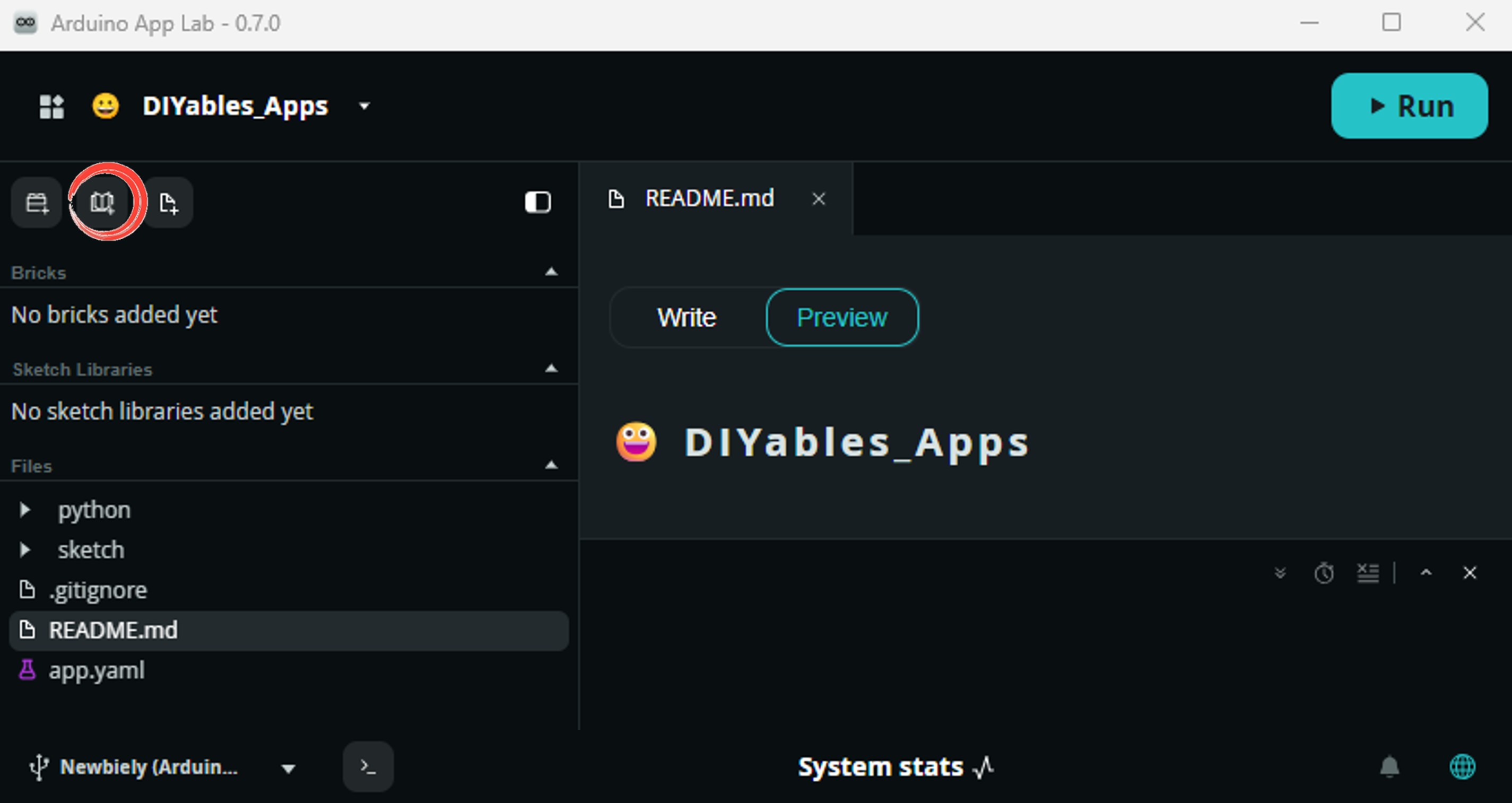
Search for ezButton created by ArduinoGetStarted.com and click the Install button.
My Apps/DIYables Apps
Run
Bricks
No bricks added...
Sketch Libraries
No sketch libra...
Files
python
sketch
.gitignore
README.md
app.yaml
sketch.ino
Add sketch library
ezButton
ezButtonArduinoGetStarted.com
Button library supports debounce, pressed/released events and the press counting. It is easy to use with multiple buttons. The library can be used for push-button, momentary switches, toggle switch, magnetic contact switch (door sensor)... It is designed for not only beginners but also experienced users.
1.0.6
Install
More Info
Use ezButton version 1.0.6 or newer. Older versions do not have the EXTERNAL_PULLDOWN mode.
Click Run. Tap the button a few times, then hold it down for about three seconds.
App Lab Console Output
DIYables_Apps
Stop
sketch.ino
1#include"Arduino_RouterBridge.h"
Serial Monitor
Python
Message (Enter to send a message to "Newbiely" on usb(2820070321))
New Line
9600 baud
[2026-10-23 09:34:10] Arduino UNO Q Button Module + ezButton started
[2026-10-23 09:34:12] Steady state: IDLE
[2026-10-23 09:34:13] Event: pressed
[2026-10-23 09:34:13] Event: released
[2026-10-23 09:34:14] Steady state: IDLE
[2026-10-23 09:34:15] Event: pressed
[2026-10-23 09:34:16] Steady state: HELD DOWN
[2026-10-23 09:34:18] Steady state: HELD DOWN
[2026-10-23 09:34:18] Event: released
[2026-10-23 09:34:20] Steady state: IDLE
The events appear the moment they happen, while the steady-state line keeps its own 2-second rhythm. That is the non-blocking style at work.
Bridge: Linux + MCU
A button is an input, so the data flows from the MCU to Linux. Python cannot touch pin 7 — it has to ask the MCU:
The MCU owns the button. It runs ezButton on pin 7 and counts every clean press
It shares three read-only values with Bridge.provide():
get_button_state — pressed or released, right now
get_press_count — the total number of presses since power-on
take_new_presses — the presses since the last call. The MCU then sets this number back to 0
Why take_new_presses? Python polls only every 0.2 seconds. A quick tap can start and end between two polls, so get_button_state alone could miss it. The counter on the MCU never misses one
Python polls with Bridge.call() and prints an event line for each new press and each state change
⚠️ /dev/ttyHS1 (Linux) and Serial1 (MCU) are RESERVED by the router — never open them in your code
In short: you press → the MCU counts it → Python calls take_new_presses → Python prints the event.
MCU Code (Bridge)
/* * This Arduino UNO Q code was developed by newbiely.com * * This Arduino UNO Q code is made available for public use without any restriction * * For comprehensive instructions and wiring diagrams, please visit: * https://newbiely.com/tutorials/arduino-uno-q/arduino-uno-q-button-module */// Arduino UNO Q - Button Module, read from Linux via Bridge// Wiring: Button module VCC -> 3.3V, OUT -> D7, GND -> GND// The MCU reads and debounces the button. Linux (Python) only asks for values.#include"Arduino_RouterBridge.h"#include <ezButton.h>#define BUTTON_MODULE_PIN 7ezButtonbutton(BUTTON_MODULE_PIN, EXTERNAL_PULLDOWN); // HIGH = pressedunsignedlong total_presses = 0; // all presses since the sketch startedunsignedlong new_presses = 0; // presses that Python has not collected yet// Returns "pressed" or "released" (the debounced state right now)String get_button_state(String arg) {returnbutton.getState() == HIGH ? "pressed" : "released";}// Returns the total number of presses since power-onString get_press_count(String arg) {returnString(total_presses);}// Returns how many presses happened since the last call, then clears that number.// Even a very short press between two polls is counted here, so Python never misses it.String take_new_presses(String arg) {unsignedlong n = new_presses; new_presses = 0;returnString(n);}voidsetup() {Bridge.begin(); Monitor.begin();button.setDebounceTime(50);// Read-only values, so plain provide() is enoughBridge.provide("get_button_state", get_button_state);Bridge.provide("get_press_count", get_press_count);Bridge.provide("take_new_presses", take_new_presses); Monitor.println("Arduino UNO Q Button Module Bridge ready");}voidloop() {button.loop(); // non-blocking, so Bridge calls are answered at onceif (button.isPressed()) { total_presses++; new_presses++; Monitor.println("Button module pressed, total " + String(total_presses)); }if (button.isReleased()) Monitor.println("Button module released");}
Python Code (Bridge)
"""This Arduino UNO Q script was developed by newbiely.comThis Arduino UNO Q script is made available for public use without any restrictionFor comprehensive instructions and wiring diagrams, please visit:https://newbiely.com/tutorials/arduino-uno-q/arduino-uno-q-button-module"""from arduino.app_utils import *import time# Linux side: ask the MCU about the button module and print what happened.# The MCU keeps a counter of new presses, so a quick tap between two polls is not lost.last_state = Nonedef loop():global last_state presses = int(str(Bridge.call("take_new_presses"))) # presses since the last poll state = str(Bridge.call("get_button_state")) # "pressed" or "released"if presses > 0: total = Bridge.call("get_press_count")print(f"{presses} new press(es), total {total}")if state != last_state:print(f"Button module is now {state.upper()}") last_state = state time.sleep(0.2)App.run(user_loop=loop)
Detailed Instructions
Create the App: In Arduino App Lab, click Create New App and name it ButtonModuleBridge.
MCU side: Paste the MCU sketch into sketch/sketch.ino, then add both libraries:
Install the library: Click the Add sketch library button (the open book icon with a + sign) in the left sidebar.
Search for ezButton created by ArduinoGetStarted.com and click the Install button.
My Apps/DIYables Apps
Run
Bricks
No bricks added...
Sketch Libraries
No sketch libra...
Files
python
sketch
.gitignore
README.md
app.yaml
sketch.ino
Add sketch library
ezButton
ezButtonArduinoGetStarted.com
Button library supports debounce, pressed/released events and the press counting. It is easy to use with multiple buttons. The library can be used for push-button, momentary switches, toggle switch, magnetic contact switch (door sensor)... It is designed for not only beginners but also experienced users.
1.0.6
Install
More Info
Search for Arduino_RouterBridge created by Arduino and click the Install button.
My Apps/DIYables Apps
Run
Bricks
No bricks added...
Sketch Libraries
No sketch libra...
Files
python
sketch
.gitignore
README.md
app.yaml
sketch.ino
Add sketch library
Arduino_RouterBridge
Arduino_RouterBridgeArduino
This library provides a simple RPC bridge for Arduino UNO Q boards, allowing communication between the board and other devices using MsgPack serialization.
0.4.1
Install
More Info
Linux side: Paste the Python code into the Python file of the same App.
Run: Click the Run button.
Try it: Press once and hold for a moment. Then tap it twice very fast.
Read both consoles: The MCU Monitor shows each press as it happens. The Python console shows what Linux learned from its calls.
App Lab Console Output
DIYables_Apps
Stop
sketch.ino
1#include"Arduino_RouterBridge.h"
Serial Monitor
Python
Message (Enter to send a message to "Newbiely" on usb(2820070321))
New Line
9600 baud
[2026-10-23 10:05:30] Arduino UNO Q Button Module Bridge ready
[2026-10-23 10:05:36] Button module pressed, total 1
[2026-10-23 10:05:37] Button module released
[2026-10-23 10:05:41] Button module pressed, total 2
[2026-10-23 10:05:41] Button module released
[2026-10-23 10:05:41] Button module pressed, total 3
[2026-10-23 10:05:41] Button module released
DIYables_Apps
Stop
sketch.ino
1#include"Arduino_RouterBridge.h"
Serial Monitor
Python
[2026-10-23 10:05:31] Button module is now RELEASED
[2026-10-23 10:05:36] 1 new press(es), total 1
[2026-10-23 10:05:36] Button module is now PRESSED
[2026-10-23 10:05:37] Button module is now RELEASED
[2026-10-23 10:05:41] 2 new press(es), total 3
Look at the last line: the two fast taps came between two polls, so Python never saw the state as PRESSED. Still, take_new_presses reported both of them.
Telegram
Now the button becomes a doorbell. Mount the module next to your front door, at your workbench, or by a sick person's bed. Every press sends a "Ding dong!" message to your phone, wherever you are. You can also ask the bot about the button at any time.
Command
What it does
/start
turn on doorbell alerts for this chat
/stop
turn off doorbell alerts for this chat
/status
is someone holding the button right now?
/count
how many presses since power-on
The bot sends alerts only to chats that sent /start, so you do not need to look up your chat ID. If several presses happen within one poll, they are joined into one message, so a fast finger does not flood your phone.
MCU sketch: Use the MCU sketch from the Bridge section without changes.
Python Code (Telegram)
"""This Arduino UNO Q script was developed by newbiely.comThis Arduino UNO Q script is made available for public use without any restrictionFor comprehensive instructions and wiring diagrams, please visit:https://newbiely.com/tutorials/arduino-uno-q/arduino-uno-q-button-module"""from arduino.app_utils import *import requestsimport time# Doorbell bot: a Telegram alert for every press of the button module,# plus /status and /count on request. Keep the MCU sketch from the Bridge section.TELEGRAM_BOT_TOKEN = "YOUR_TELEGRAM_BOT_TOKEN"API_URL = f"https://api.telegram.org/bot{TELEGRAM_BOT_TOKEN}"last_update_id = 0subscribers = set() # chats that sent /start and get the doorbell alertsHELP_TEXT = ("Arduino UNO Q Doorbell Bot\n""/start - get an alert each time the button is pressed\n""/stop - no more alerts\n""/status - is the button held down right now?\n""/count - how many presses since power-on")def get_updates():try: resp = requests.get(f"{API_URL}/getUpdates", params={"offset": last_update_id + 1, "timeout": 1}, timeout=5) data = resp.json()if data.get("ok"):return data["result"]exceptExceptionas e:print(f"Error getting updates: {e}")return []def send_message(chat_id, text):try: requests.post(f"{API_URL}/sendMessage", data={"chat_id": chat_id, "text": text}, timeout=10)exceptExceptionas e:print(f"Error sending message: {e}")def handle(chat_id, text):if text == "/start": subscribers.add(chat_id)return"Doorbell alerts are ON for this chat.\n\n" + HELP_TEXTif text == "/stop": subscribers.discard(chat_id)return"Doorbell alerts are OFF for this chat."if text == "/status": state = str(Bridge.call("get_button_state"))if state == "pressed":return"Someone is holding the button right now"return"The button is not pressed"if text == "/count": total = Bridge.call("get_press_count")return f"The button was pressed {total} time(s) since power-on"return HELP_TEXTdef loop():global last_update_id# 1. Doorbell alert: collect the presses the MCU counted since the last poll presses = int(str(Bridge.call("take_new_presses")))if presses > 0: alert = "Ding dong! Someone pressed the doorbell at " + time.strftime("%H:%M:%S")if presses > 1: alert += f" ({presses} presses)"print(alert)for chat_id in subscribers: send_message(chat_id, alert)# 2. Answer commands (getUpdates waits up to 1 second, which also paces the loop)for update in get_updates(): last_update_id = update["update_id"]if"message"notin update:continue chat_id = update["message"]["chat"]["id"] text = update["message"].get("text", "").strip().lower()print(f"Received: {text}") send_message(chat_id, handle(chat_id, text))App.run(user_loop=loop)
Detailed Instructions
Bot token: Make a bot with @BotFather and copy its token into TELEGRAM_BOT_TOKEN. Need help? See How to Create a Telegram Bot.
Python file: In your ButtonModuleBridge App, replace the Python code with the bot script. The sketch stays as it is.
Run: Click the Run button.
Subscribe: Open your bot in Telegram and send /start.
Ring it: Press the button module. The alert should arrive within a second or two.
Note: The list of subscribed chats lives in memory. After you restart the App, send /start again.
App Lab Console Output

DIYables_Apps
Stop
sketch.ino
1#include"Arduino_RouterBridge.h"
Serial Monitor
Python
[2026-10-23 18:41:02] Received: /start
[2026-10-23 18:41:15] Ding dong! Someone pressed the doorbell at 18:41:15
[2026-10-23 18:42:30] Ding dong! Someone pressed the doorbell at 18:42:30 (3 presses)
[2026-10-23 18:42:51] Received: /count
[2026-10-23 18:43:05] Received: /status
Telegram12:45
Welcome to Telegram!
ArduinoBot10:19
Chatting with Arduino...
BotFatherYesterday
Your bot has been created.
ArduinoBot
bot
Today
/start
10:15 AM✓✓
Doorbell alerts are ON for this chat.
10:16 AM
Ding dong! Someone pressed the doorbell at 18:41:15
10:17 AM
Ding dong! Someone pressed the doorbell at 18:42:30 (3 presses)
10:18 AM
/count
10:19 AM✓✓
The button was pressed 4 time(s) since power-on
10:20 AM
/status
10:21 AM✓✓
The button is not pressed
10:22 AM
OpenClaw
You can adapt the OpenClaw to this tutorial by refering the instruction on Arduino Uno Q - OpenClaw Tutorial
Project Ideas
One button and a Linux computer can do a surprising amount:
Smart Doorbell with Photo: Add a USB camera to the UNO Q. On each press, Python takes a picture and sends it with the Telegram alert.
Quiz Buzzer: Give each player a module with a different cap color. The MCU decides who pressed first, and Python shows the winner's name.
Meeting Timer Key: One press starts a 25-minute focus timer on the Linux side, a second press stops it and logs the time to a file.
Help Call Button: An elderly relative presses the module and the whole family chat gets a message at once.
Shortcut Key for Scripts: Each press runs a Python script — back up a folder, restart a service, or switch a smart plug.
Challenge Yourself
Try these on your own:
Easy: In Example 3, count the presses and print the total each time the button is released.
Medium: Add a long press to the Bridge sketch: when the button is held for more than 2 seconds, set a flag, and expose it to Python as get_long_press.
Advanced: Make the Telegram bot quiet at night. Between 22:00 and 07:00, store the presses and send one summary message in the morning instead.
Please feel free to share the link of this tutorial. However, Please do not use our content on any other websites. We invested a lot of effort and time to create the content, please respect our work!