
Arduino UNO Q - GUVA-S12SD UV Sensor
You cannot see ultraviolet light, but your skin keeps the score. A cloudy summer noon can still burn you, while a bright winter morning may be harmless. The GUVA-S12SD UV sensor turns that invisible UV into a small voltage, so a board can put a number on it. The Arduino UNO Q is a good partner here: its STM32 MCU samples the sensor, and its Linux side can share the result with Python or warn you on Telegram when it is time for sunscreen.
On this page you will find:
- What the GUVA-S12SD UV sensor module measures, and what it ignores
- How to wire its three pins to the Arduino UNO Q, with VCC on 3.3V
- How the MCU turns the 12-bit ADC value into the SIG voltage
- How to estimate the UV index from that voltage and name the risk level
- How Python on the Linux side gets the UV values from the MCU through Bridge
- How to build a Telegram bot that answers /uv and warns you when the UV index hits 6
- How to use OpenClaw on Arduino UNO Q with the UV sensor
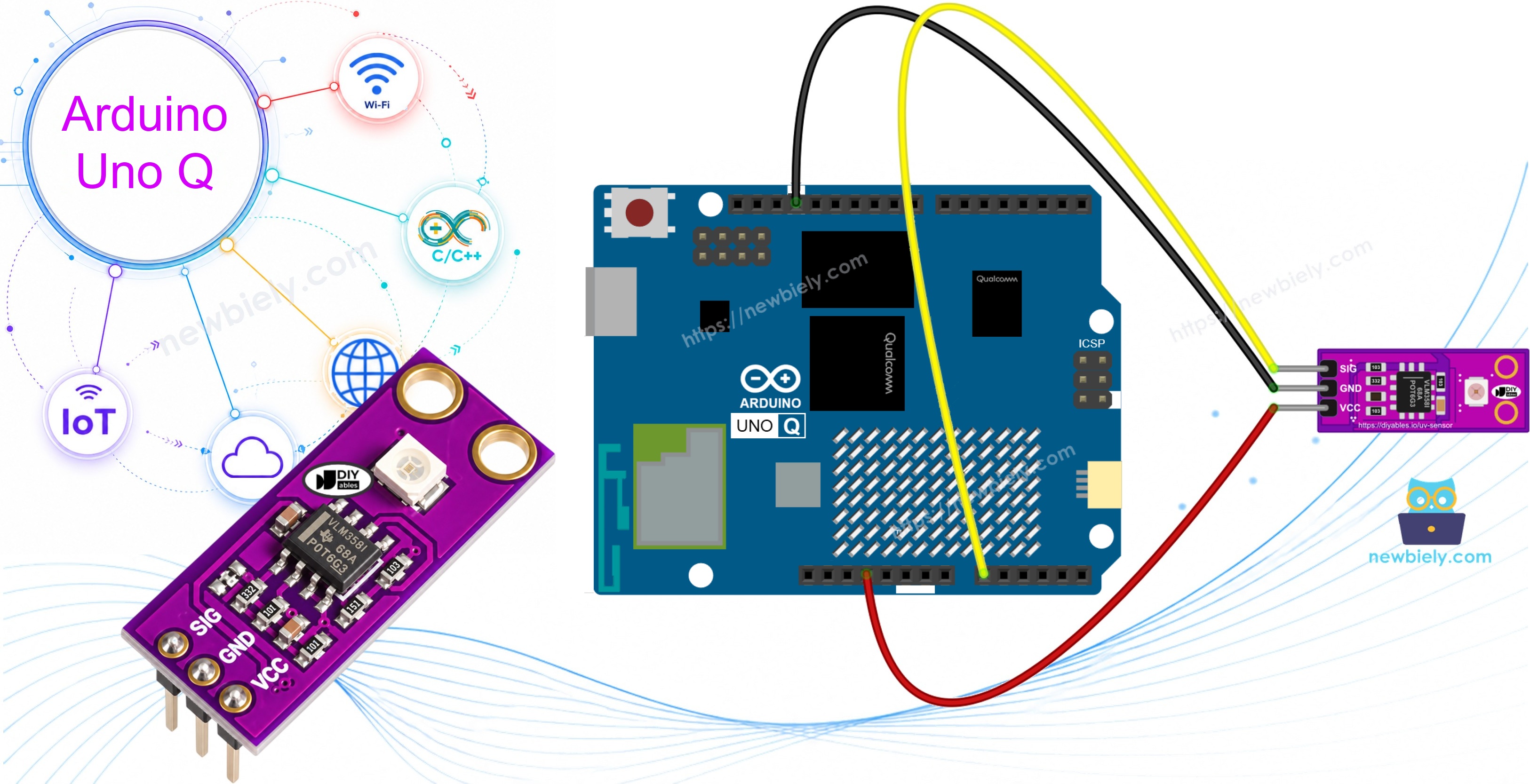
Hardware Preparation
Or you can buy the following kits:
| 1 | × | DIYables Sensor Kit (18 sensors/displays) |
Additionally, some of these links are for products from our own brand, DIYables .
Overview of the GUVA-S12SD UV Sensor
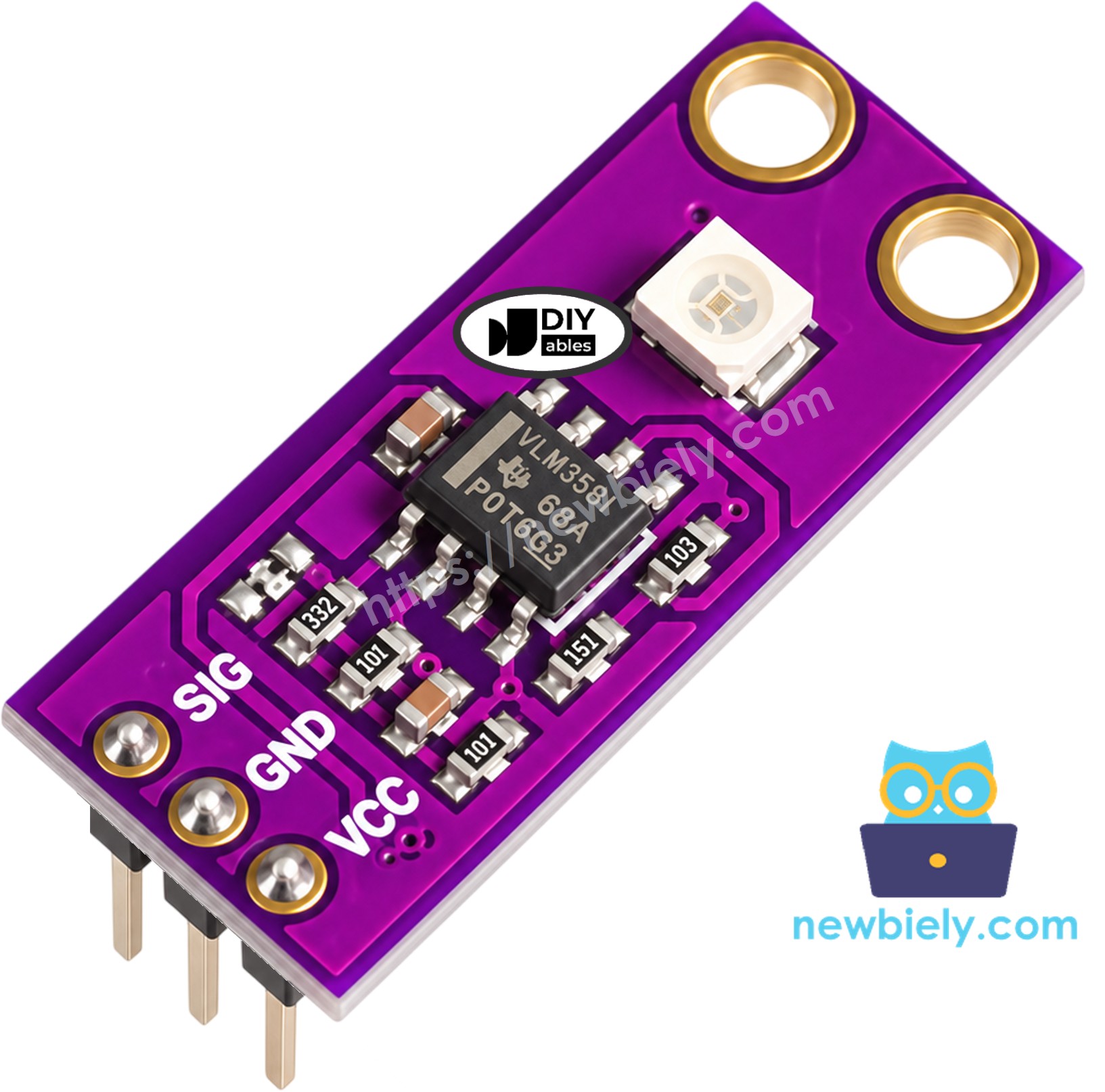
The DIYables GUVA-S12SD module is a little purple board, roughly 11mm x 27mm, with two mounting holes and a presoldered header. Look for the tiny white square: that is the GUVA-S12SD UV photodiode. When UV light lands on it, it lets through a very small current. That current is far too weak to read on its own, so a VLM358 op-amp next to it turns it into a voltage on the SIG pin. The MCU of the UNO Q reads that voltage with analogRead(). That is the whole idea — more UV, more volts. You get two modules in one pack.
| Item | Value |
|---|---|
| Sensor chip | GUVA-S12SD UV photodiode |
| Amplifier | VLM358 op-amp |
| Light it reacts to | UV-A and UV-B, 240nm to 370nm |
| Viewing angle | 130 degrees |
| Supply voltage | 2.5V to 5V DC |
| Output | Analog voltage, about 0V (no UV) to about 1V+ (strong sun) |
| Board size | about 11mm x 27mm |
The three pins are printed on the board as SIG, GND, VCC:
- SIG: the analog output. Wire it to an analog input of the MCU (A0 on this page)
- GND: goes to any GND pin of the Arduino UNO Q
- VCC: power. On the UNO Q, feed it from 3.3V so that SIG can never go above what the MCU pins accept
※ NOTE THAT:
Do not test it under the desk lamp. Normal room light and LED bulbs hold almost no UV, so indoors the sensor sits close to 0V. That is correct behavior, not a broken module. Take it to a window that is open, or better, outside in the sun. A UV flashlight also works for a quick check.
From voltage to UV index. Most makers use one simple rule for this module: every 0.1V on SIG is about one point of UV index, so UV index ≈ voltage / 0.1. It is an approximation for hobby use. It is good for "is the sun strong right now?", but it is not a calibrated meter. The UV index scale from the WHO splits the numbers into five levels:
| UV Index | Level | What to do |
|---|---|---|
| 0 to 2 | Low | no special care needed |
| 3 to 5 | Moderate | shade around noon, a hat helps |
| 6 to 7 | High | sunscreen, hat and sunglasses |
| 8 to 10 | Very High | avoid the midday sun |
| 11+ | Extreme | stay inside in the middle of the day |
The UNO Q side of the math. The STM32 MCU reads analog pins with a 12-bit ADC and a 3.3V reference, so analogRead() returns 0 to 4095. The sketches call analogReadResolution(12) to make sure of that range. To get volts back: voltage = raw × 3.3 / 4095. One step is only about 0.8mV, which is plenty for a signal that rarely goes above 1V.
Wiring Diagram
Just three jumper wires go from the sensor to the board. SIG lands on A0, and the module takes its power from the 3.3V header pin.
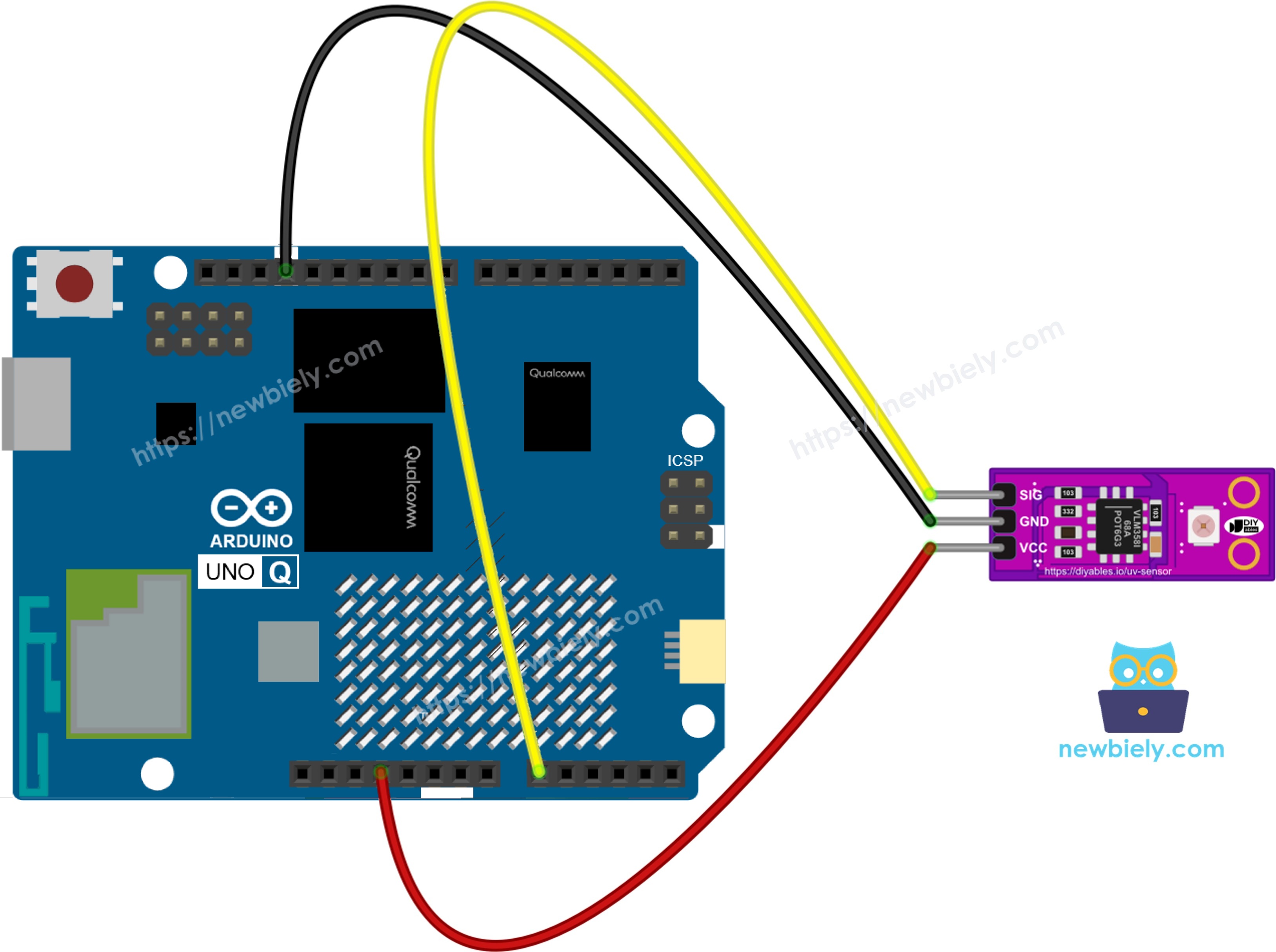
This image is created using Fritzing. Click to enlarge image
| UV Sensor Pin | Arduino UNO Q |
|---|---|
| SIG | A0 |
| GND | GND |
| VCC | 3.3V |
※ NOTE THAT:
Point the white photodiode up at the sky and keep it free of glass. Ordinary window glass blocks most UV-B, so a sensor behind a closed window reads lower than one outside.
How To Program For GUVA-S12SD UV Sensor
No library is needed. The sensor is a plain analog voltage, so the work is a few lines of math:
- Set the ADC to 12-bit, once, in setup():
- Read the SIG pin with analogRead():
- Turn the raw number into volts, using the 3.3V reference of the MCU:
- Estimate the UV index (about 0.1V per point), then pick the level name from the table above:
Arduino UNO Q Code
Before the code, a quick reminder of who does what on this board:
- The STM32 MCU owns pin A0, so every UV sample is taken there
- The Qualcomm MPU runs Debian Linux, Python and the Wi-Fi link
- Both examples below are MCU-only sketches. Linux joins in later, in the Bridge section
Example 1 - Raw ADC Value and SIG Voltage
A first sanity check. Once a second, the sketch prints the number from the ADC and the voltage it stands for. Indoors you should see tiny values. Outside they should jump.
Detailed Instructions
Never used the Arduino UNO Q before? Read Getting Started with Arduino UNO Q first. It shows how to install Arduino App Lab.
- Wiring: SIG to A0, GND to GND, VCC to 3.3V, just like the diagram.
- USB: Plug the Arduino UNO Q into your computer with the USB-C cable.
- App Lab: Open Arduino App Lab and wait until the board shows up.
- New App: Click Create New App.
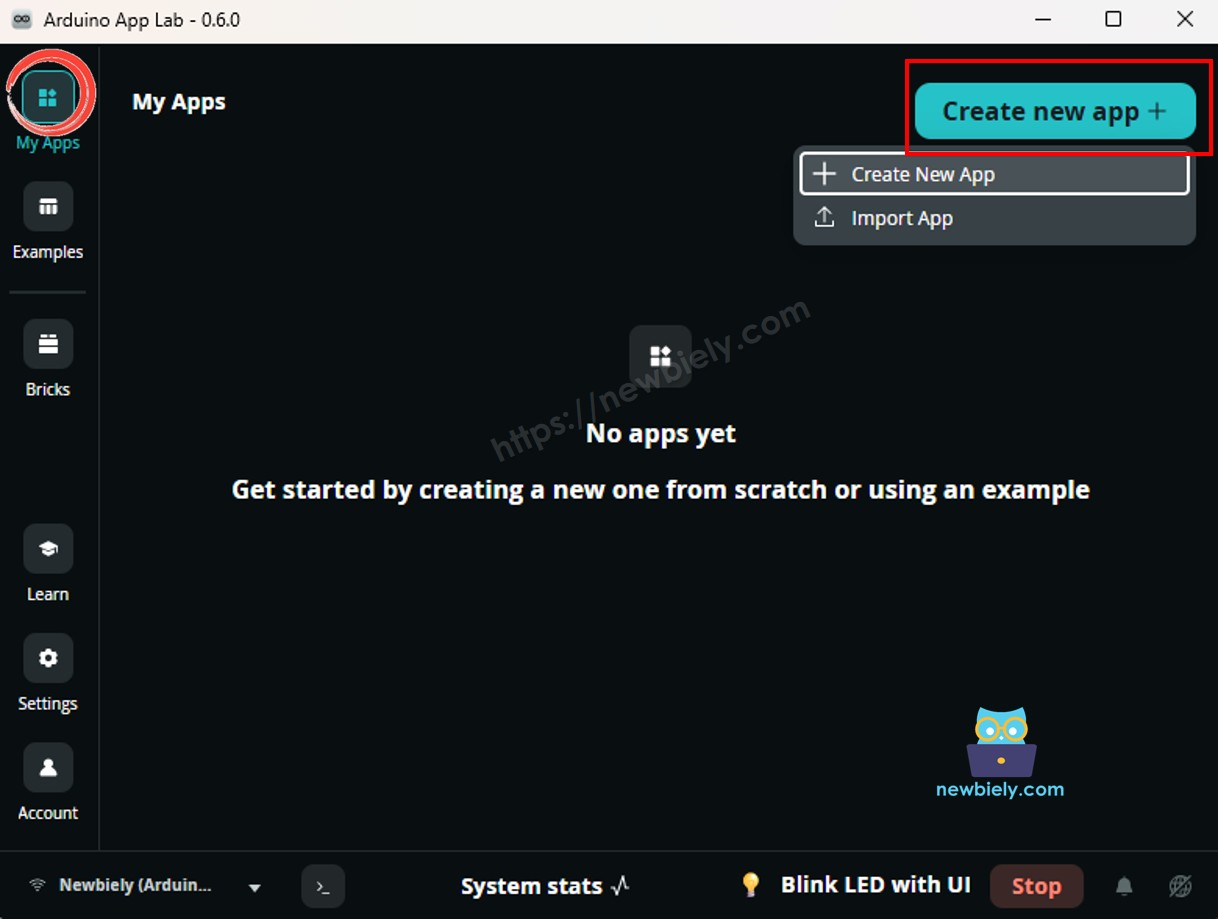
- Type GuvaS12sdRaw as the name and click Create.
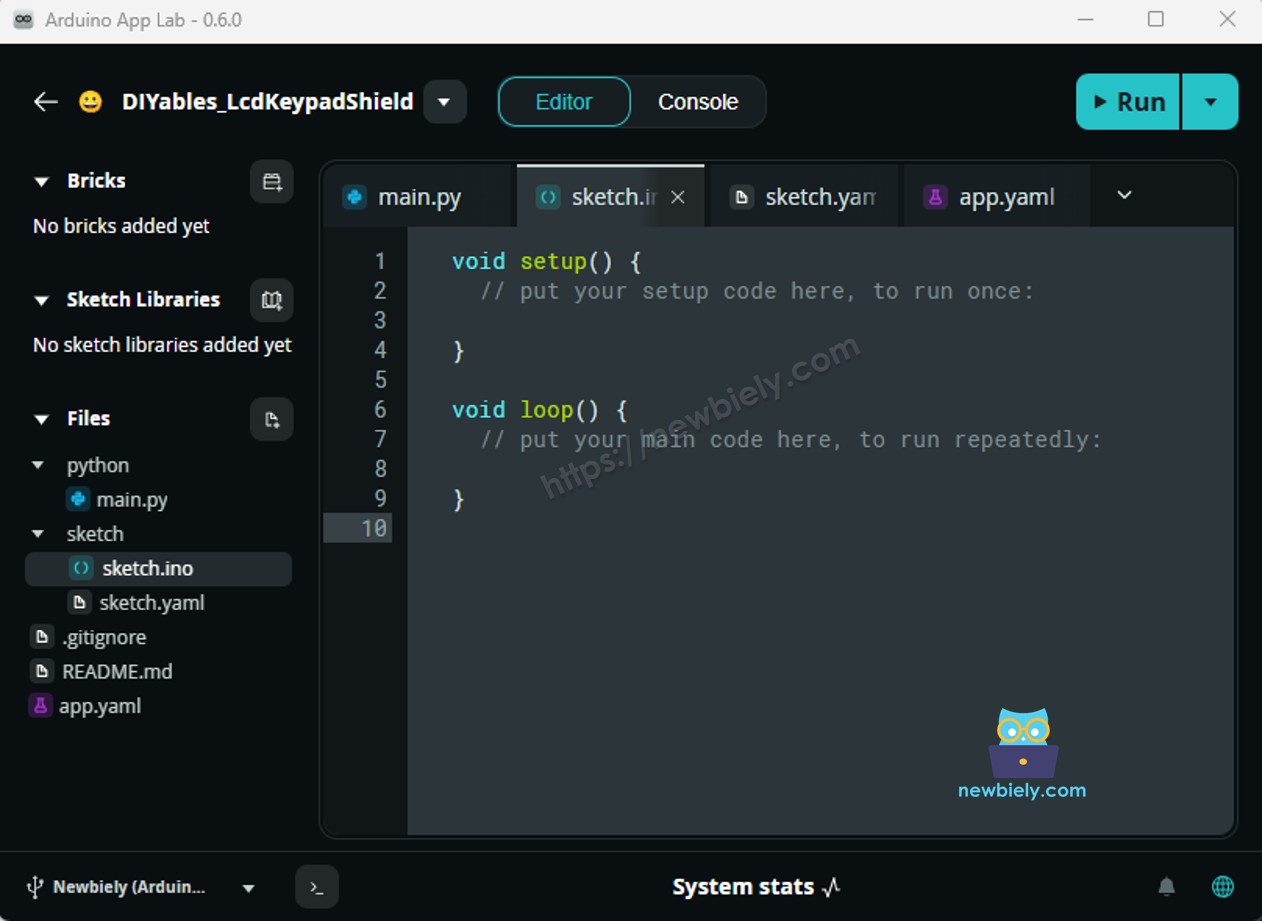
- Code: Open sketch/sketch.ino and replace everything in it with the code above. You do not need to install a library or change other files.
- Run: Press the Run button.
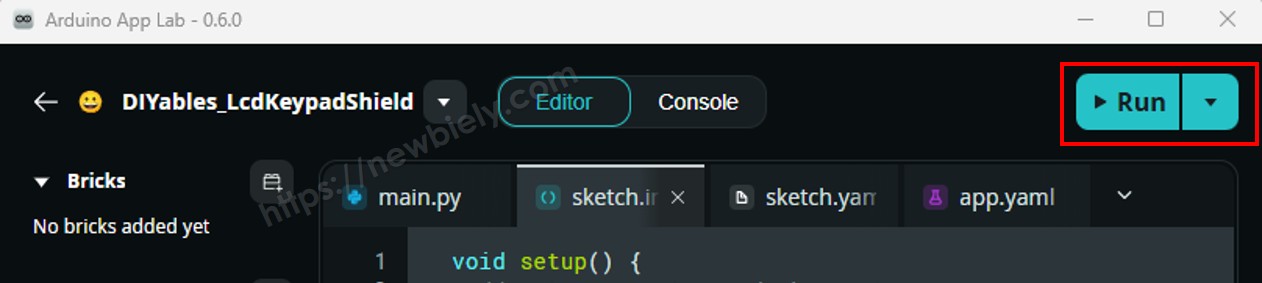
- Test: Leave the board on your desk for a few lines, then carry the sensor (on a long USB cable or a laptop) to an open window or outside.
App Lab Console Output
The first three lines are from the desk: almost nothing. The jump starts at the open door, and the last two lines are in full noon sun. If the value never leaves the low teens, even outdoors, check the SIG wire on A0.
Example 2 - UV Index and Risk Level
Now the voltage becomes something a person understands. The sketch takes 16 quick readings and averages them, so a single noisy sample does not make the number jump. It then divides by 0.1 to get the UV index and prints the WHO level name next to it.
Detailed Instructions
- Keep the same wiring.
- Create an App called GuvaS12sdUvIndex (or reuse the one from Example 1), paste this code into sketch/sketch.ino, and click Run.
- Watch the level name change as you move the sensor from shade into direct sun.
App Lab Console Output
A reading of 2.5 under a tree and 6.5 a few steps away in the open is normal. Shade cuts UV a lot, which is exactly why the level name is useful.
Bridge: Linux + MCU
The UV sensor only gives data, it takes no commands. So data moves one way: from the MCU up to Linux. Here is the plan:
- The MCU does the sampling. Every 500 ms it averages 16 readings of A0 and stores the voltage and the UV index
- It offers three read-only values through Bridge.provide():
- get_uv_voltage — the averaged SIG voltage, like 0.640
- get_uv_index — the estimated UV index with one decimal, like 6.4
- get_uv_level — the level name: Low, Moderate, High, Very High or Extreme
- Python asks for them with Bridge.call() every 2 seconds and prints one line. It adds a note when the level name changes
- The answers are instant. The MCU returns the stored numbers, so a Bridge call never waits for the ADC
- ⚠️ /dev/ttyHS1 (Linux) and Serial1 (MCU) are RESERVED by the router — never open them in your code
In short: the sun hits the photodiode → the MCU averages A0 → Python calls get_uv_index → Linux has the number.
MCU Code (Bridge)
Python Code (Bridge)
Detailed Instructions
- New App: In Arduino App Lab, click Create New App and call it GuvaS12sdBridge.
- MCU part: Put the MCU code into sketch/sketch.ino and add the Bridge library:
- Install the library: Click the Add sketch library button (the open book icon with a + sign) in the left sidebar.
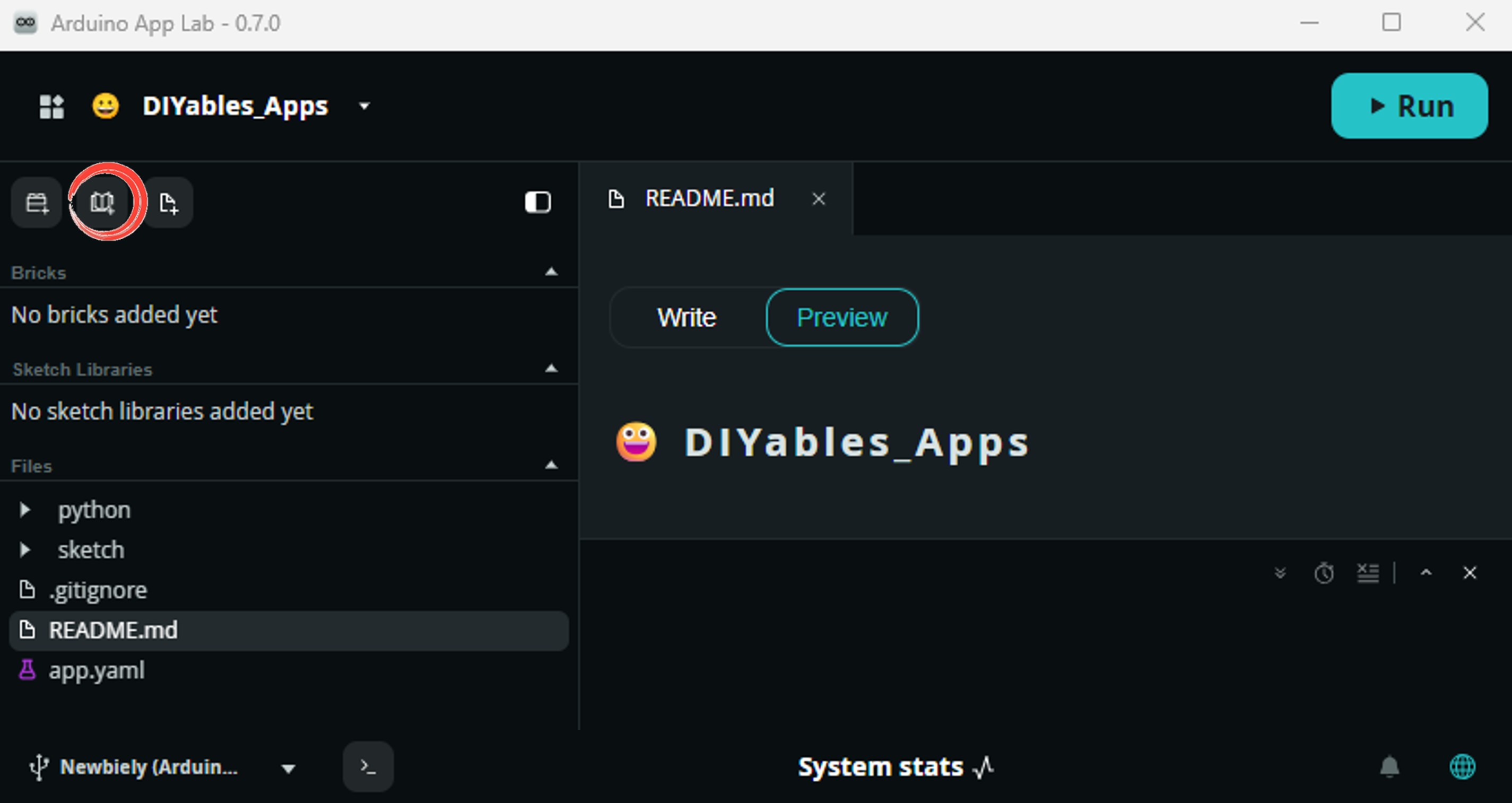
- Search for Arduino_RouterBridge created by Arduino and click the Install button.
- Linux part: Put the Python code into the Python file of the same App.
- Run: Click the Run button.
- Take it outside: Move the sensor from the room to the sunlight and look at the Python console.
App Lab Console Output
The MCU Monitor stays quiet after its "ready" line on purpose. All the reporting happens on the Linux side, where the values can go to a file, a web page or the Internet.
Telegram
Put the sensor on a balcony or a garden pole and let the UNO Q watch the sky for you. The bot answers /uv at any time. When the UV index reaches 6 (High), it sends you a "use sunscreen" message by itself.
| Command | What it does |
|---|---|
| /uv | current UV index and level |
| /start | turn on high-UV alerts for this chat |
| /stop | turn off high-UV alerts for this chat |
How the alert stays polite:
- It goes only to chats that sent /start, so you do not need to find your chat ID
- After one alert, the bot waits 30 minutes before it sends the next one, even if the UV stays high. On a sunny day you get a reminder every half hour, not one every second
- Change UV_ALERT_INDEX or ALERT_COOLDOWN_S at the top of the script if you want a different limit or pause
MCU sketch: Keep the MCU sketch from the Bridge section as it is.
Python Code (Telegram)
Detailed Instructions
- Token: Create a bot with @BotFather and paste its token into TELEGRAM_BOT_TOKEN. New to this? See How to Create a Telegram Bot.
- Script: In the GuvaS12sdBridge App, swap the Python code for the bot script. The sketch does not change.
- Run: Click the Run button.
- Sign up: Open the chat with your bot and send /start.
- Check: Send /uv. Then put the sensor in the midday sun and wait for the alert.
- Remember: The list of chats is kept in memory only. Send /start again after you restart the App.
App Lab Console Output


ArduinoBot
Look at the times: the second alert came 30 minutes after the first one, even though the UV was high the whole time. That is the cooldown at work.
OpenClaw
You can adapt the OpenClaw to this tutorial by refering the instruction on Arduino Uno Q - OpenClaw Tutorial
Project Ideas
Some ways to put a UV number to work with the UNO Q:
- Beach Bag Sun Guard: A battery pack, the UNO Q and the sensor in a clear box. Telegram tells the whole family when to put on sunscreen again.
- Daily UV Diary: Python saves the UV index to a CSV file every minute. In the evening it draws the curve of the day and finds the peak hour.
- Smart Window Blind: When the UV level reaches High, the MCU drives a servo or motor to lower the blind and protect plants or furniture.
- UV Lamp Tester: Hold a UV curing lamp or a UV LED over the sensor and see if it still gives the same reading as when it was new.
- Weather Station Add-on: Add the UV index next to temperature and humidity on a small web page served from the Linux side.
Challenge Yourself
Give these a try:
- Easy: In Example 2, keep the highest UV index seen since power-on and print it at the end of each line.
- Medium: Add a fourth Bridge value, get_uv_peak, that returns the highest UV index of the day. Add a /peak command to the Telegram bot that reads it.
- Advanced: Make a sunscreen timer. After the first alert, start a 2-hour timer in Python. If the UV is still High or worse when it ends, send "Time to put on sunscreen again".