
Arduino UNO Q - LED Module
A bare LED needs a resistor, the right orientation and a small breadboard circuit before it lights up even once. The LED module skips all of that: three labeled pins, plug in, done. On the Arduino UNO Q, the STM32 MCU switches the module, and the Linux side can turn it into a remote status light — dimmed from a Python script or switched from your phone with a Telegram message.
In this tutorial, you will learn:
- What is on the LED module board and why it needs no extra resistor
- How to connect the LED module to the Arduino UNO Q
- How to program the MCU (C/C++) to blink the module and to fade it with PWM
- How to set the LED on, off, blinking or dimmed from Linux (Python) through Bridge
- How to control the LED module from Telegram with /on, /off, /blink and /brightness
- How to use OpenClaw on Arduino UNO Q with the LED module
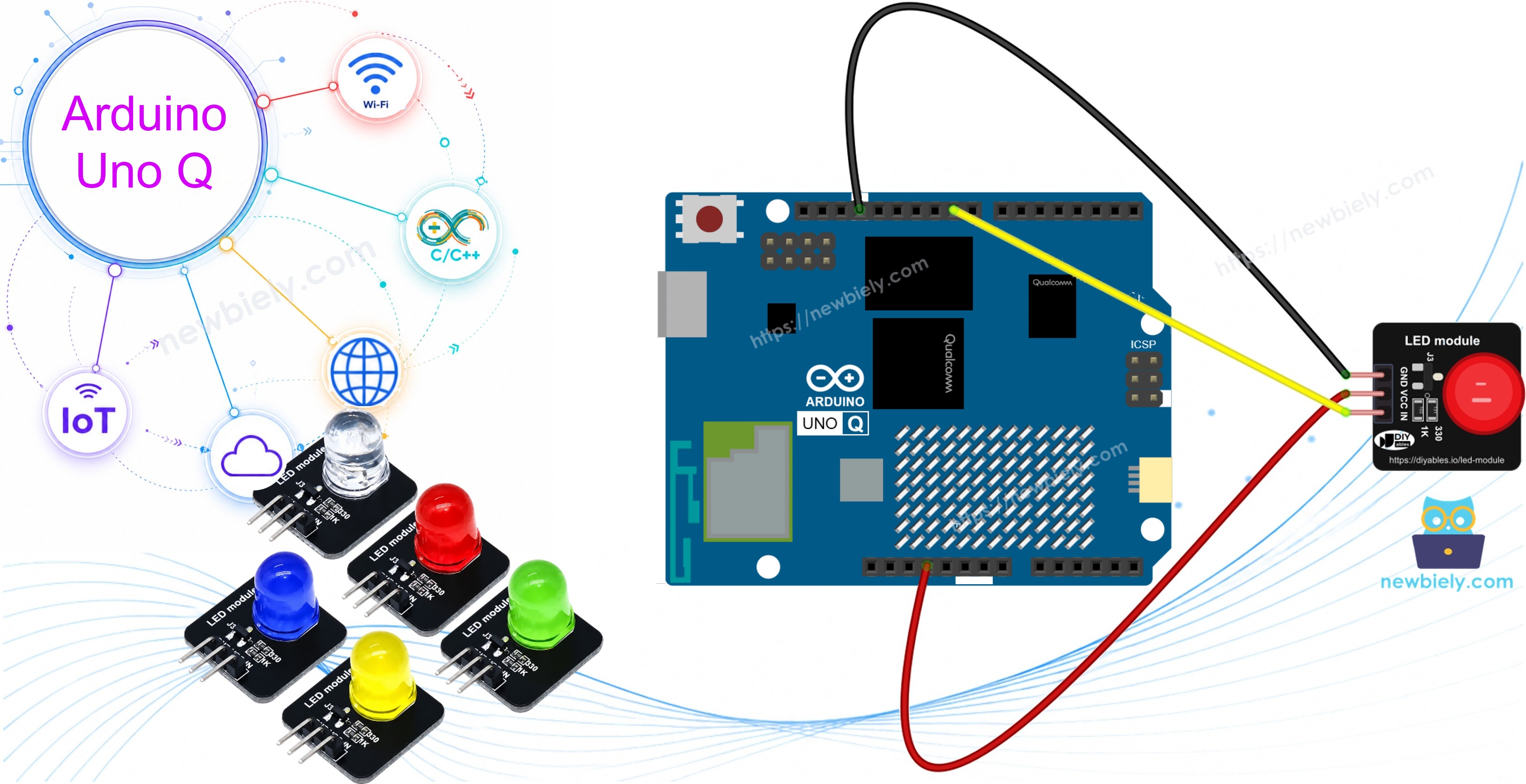
Hardware Preparation
Or you can buy the following kits:
| 1 | × | DIYables Sensor Kit (18 sensors/displays) |
Additionally, some of these links are for products from our own brand, DIYables .
Buy Note: Use the LED Module for easier wiring. It includes an integrated resistor.
Overview of the LED Module
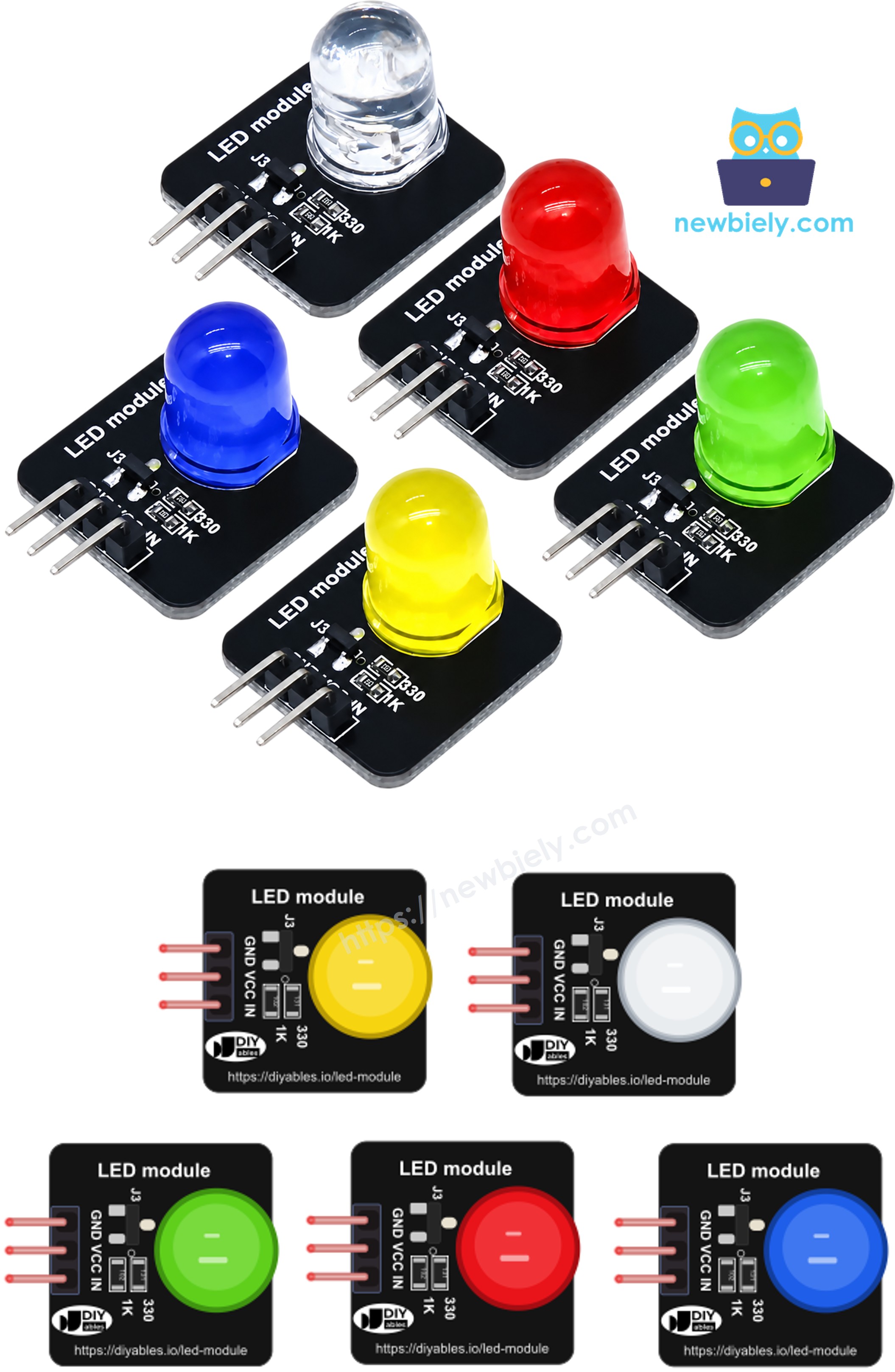
The DIYables LED module is a 10mm diffused round LED mounted on a small 20mm x 20mm black board. Next to the LED sit a 330Ω resistor, a 1KΩ resistor and a tiny transistor. In plain words, it is an LED with its resistor and its driver already on board. The LED takes its power from the VCC pin, and the IN pin only tells the transistor to open or close. The pack comes with five colors: red, yellow, blue, green and white.
| Item | Value |
|---|---|
| Operating voltage | 3.3V to 5V DC |
| LED | 10mm, diffused, round |
| Logic | Active HIGH (IN = HIGH turns the LED on) |
| Brightness control | PWM on the IN pin |
| Board size | 20mm x 20mm |
| Header | 3-pin, 2.54mm, right-angle, presoldered |
The three header pins are printed on the board in this order:
- GND: connect to a GND pin of the Arduino UNO Q
- VCC: connect to 5V (3.3V also works, with a slightly dimmer light)
- IN: the control input — connect to a digital pin of the MCU. Pick a PWM pin if you want to dim the LED
Why this matters on the Arduino UNO Q: the MCU pins give only 3.3V for HIGH. With a bare LED, the light then depends on that 3.3V pin and its small current. With the module, the pin only drives the transistor, while the LED itself runs from VCC — so it stays bright and the MCU pin is barely loaded.
※ NOTE THAT:
Compared with a bare LED: you do not add a resistor, and you cannot plug it in the wrong way round, because the pins are labeled instead of being a long leg and a short leg. If you want to learn the bare LED first, see Arduino UNO Q - Blink LED.
Wiring Diagram
The module needs just three jumper wires — no breadboard. IN goes to pin 9, which is one of the PWM pins of the STM32 MCU, so the same wiring works for blinking and for fading.
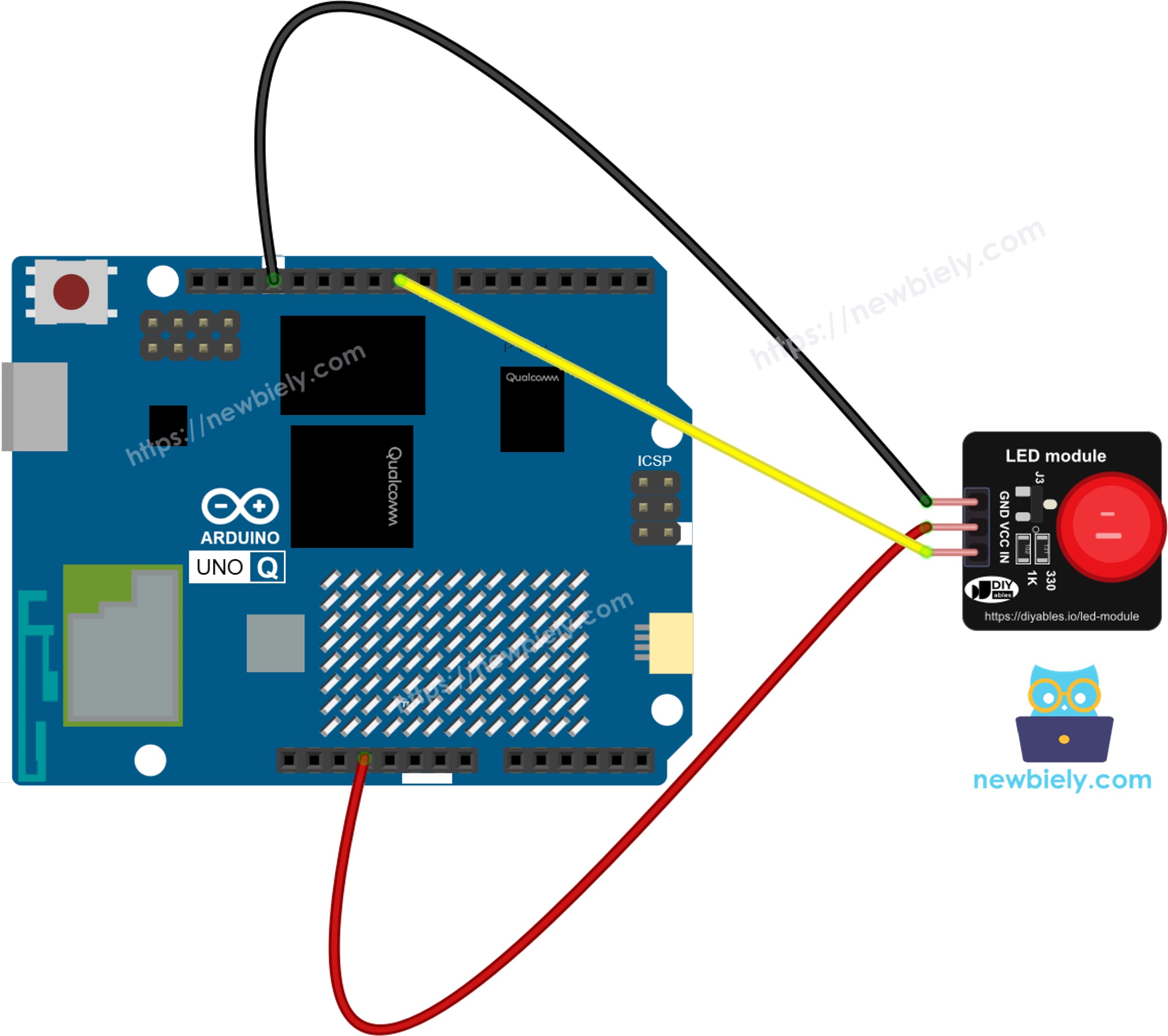
This image is created using Fritzing. Click to enlarge image
| LED Module Pin | Arduino UNO Q |
|---|---|
| GND | GND |
| VCC | 5V |
| IN | Pin 9 |
※ NOTE THAT:
Pins 3, 5, 6, 9, 10 and 11 of the Arduino UNO Q can make PWM. If you only need on/off, any digital pin works — just change LED_MODULE_PIN in the code.
How To Program For LED Module
Because the transistor and resistor are already on the board, the code is the same as for a single digital output. No library is needed.
- Make the IN pin an output in setup() with pinMode():
- Switch the LED fully on or off with digitalWrite(). The module is active HIGH:
- Set any brightness between 0 (dark) and 255 (full) with analogWrite(). This only works on a PWM pin:
Arduino UNO Q Code
The Arduino UNO Q has two processors:
- The STM32 MCU runs the sketch and drives pin 9, which goes to the IN pin of the module
- The Qualcomm MPU runs Debian Linux with Wi-Fi and Python
- In this part, only the MCU gets code. Linux joins in the Bridge section later
Example 1 - Blink the LED Module
This sketch keeps the LED on for one second and off for one second, and writes each change to the console.
Detailed Instructions
First time with Arduino UNO Q? Follow Getting Started with Arduino UNO Q before you continue.
- Wire: Connect GND, VCC and IN of the module as shown in the wiring diagram.
- Connect: Plug the Arduino UNO Q into your computer with the USB-C cable.
- Open Arduino App Lab: Wait until it finds your board.
- Create a new App: Click the Create New App button.
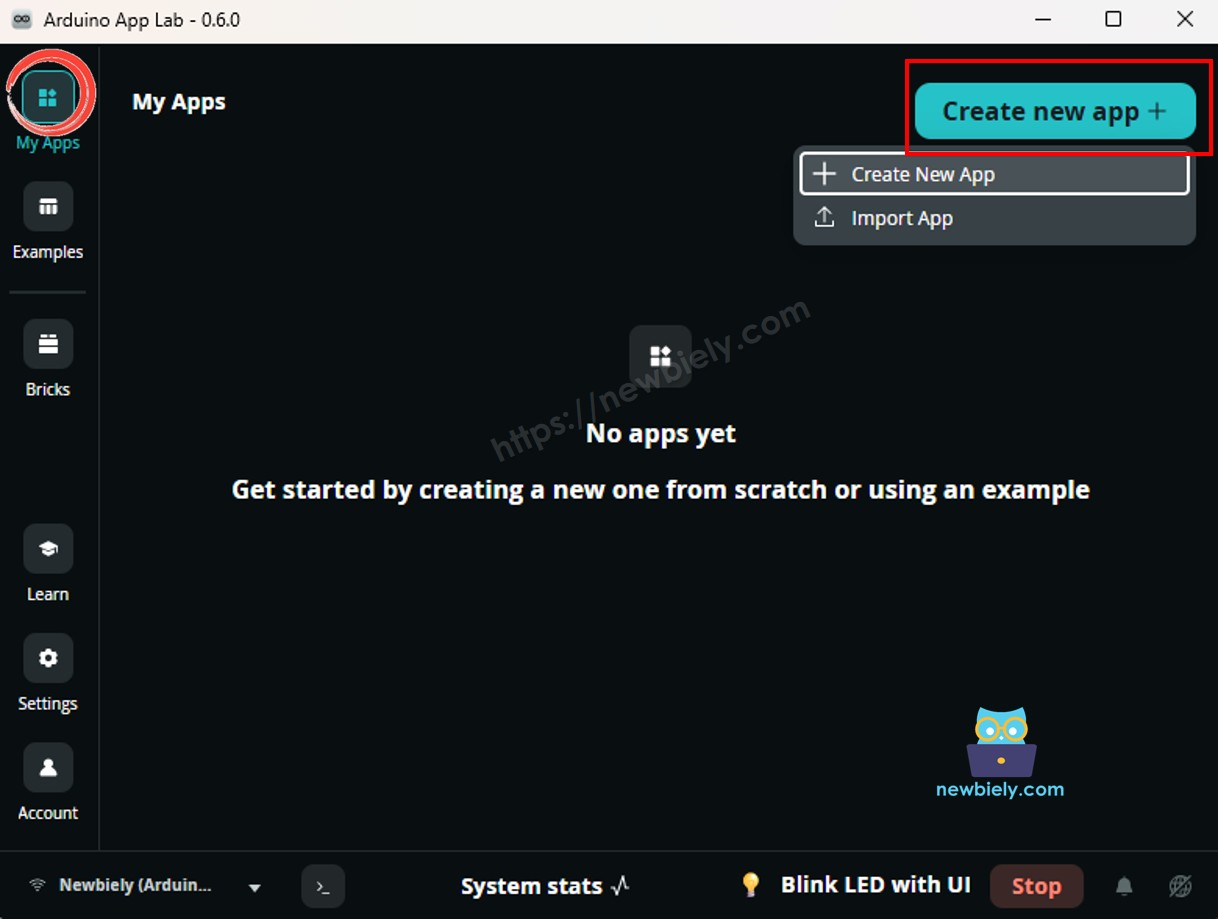
- Name it, for example LedModuleBlink, and click Create.
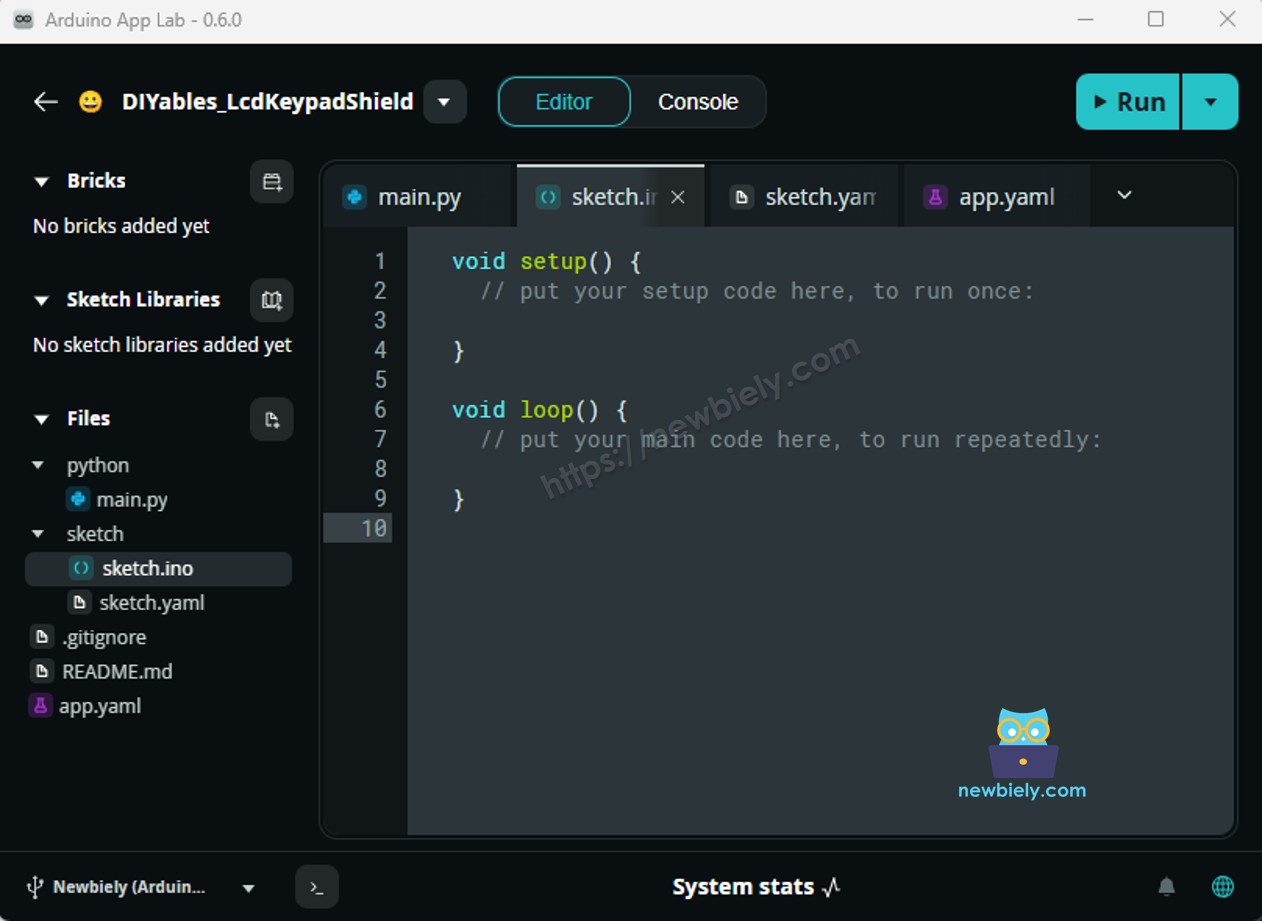
- Paste the sketch: Copy the code above into sketch/sketch.ino. Keep the other files as they are. No library is needed.
- Run: Click the Run button.
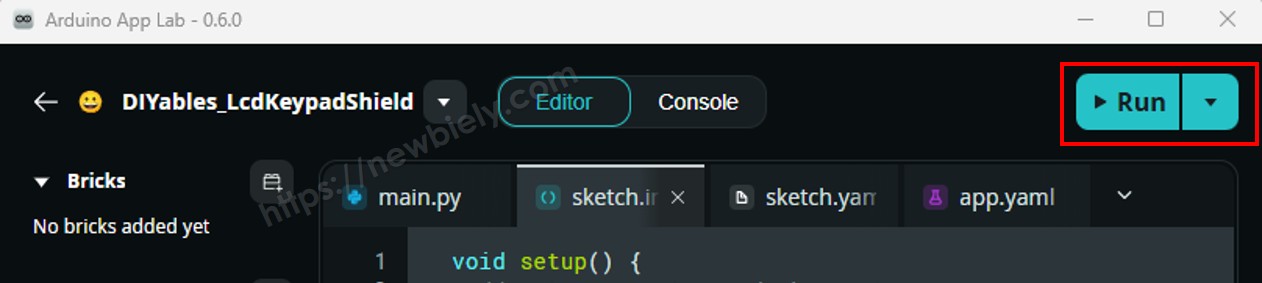
- Look at the module: The 10mm LED flashes once every two seconds — one second lit, one second dark.
App Lab Console Output
If the lines appear but the LED stays dark, check the VCC wire first: the IN pin only switches the LED, it does not power it.
Example 2 - Fade the LED Module
Now the LED breathes: the brightness climbs from 0 to 255 in steps of 15, then falls back to 0. One full cycle takes about two seconds. A line goes to the console at the top and at the bottom of each cycle.
Detailed Instructions
- Keep the same wiring. IN is already on pin 9, a PWM pin.
- Create a new App named LedModuleFade (or replace the sketch in the previous App), paste the code into sketch/sketch.ino, and click Run.
- The LED slowly glows brighter, then dims again, over and over.
- Try it: Make STEP_DELAY larger for a slower breath, or FADE_STEP smaller for a smoother one.
App Lab Console Output
Bridge: Linux + MCU
The LED module is an output, so this time Linux gives the orders and the MCU carries them out:
- The module is wired to the MCU — IN on pin 9. Only the MCU can write to that pin
- The MCU offers four actions with Bridge.provide_safe(): led_on, led_off, set_brightness (0 to 255) and start_blink (interval in ms)
- It also offers get_led with Bridge.provide(), which returns the state as text such as blink,255,500 (mode, brightness, interval)
- The blinking itself runs on the MCU with millis(), not delay(), so the sketch can answer the next Bridge call right away
- Python calls the actions with Bridge.call() and reads the state back after each one
- ⚠️ /dev/ttyHS1 (Linux) and Serial1 (MCU) are RESERVED by the router — never open them in your code
In short: Python calls set_brightness → the MCU runs analogWrite() on pin 9 → the module changes brightness.
MCU Code (Bridge)
Python Code (Bridge)
The script runs a short show: full on, four steps down in brightness, a fast blink, then off. Note that the blink keeps the last brightness (16), so it is a dim blink — call led_on first if you want a bright one.
Detailed Instructions
- Create a new App: In Arduino App Lab click Create New App, name it LedModuleBridge, and click Create.
- Paste the MCU sketch into sketch/sketch.ino and add the library:
- Install the library: Click the Add sketch library button (the open book icon with a + sign) in the left sidebar.
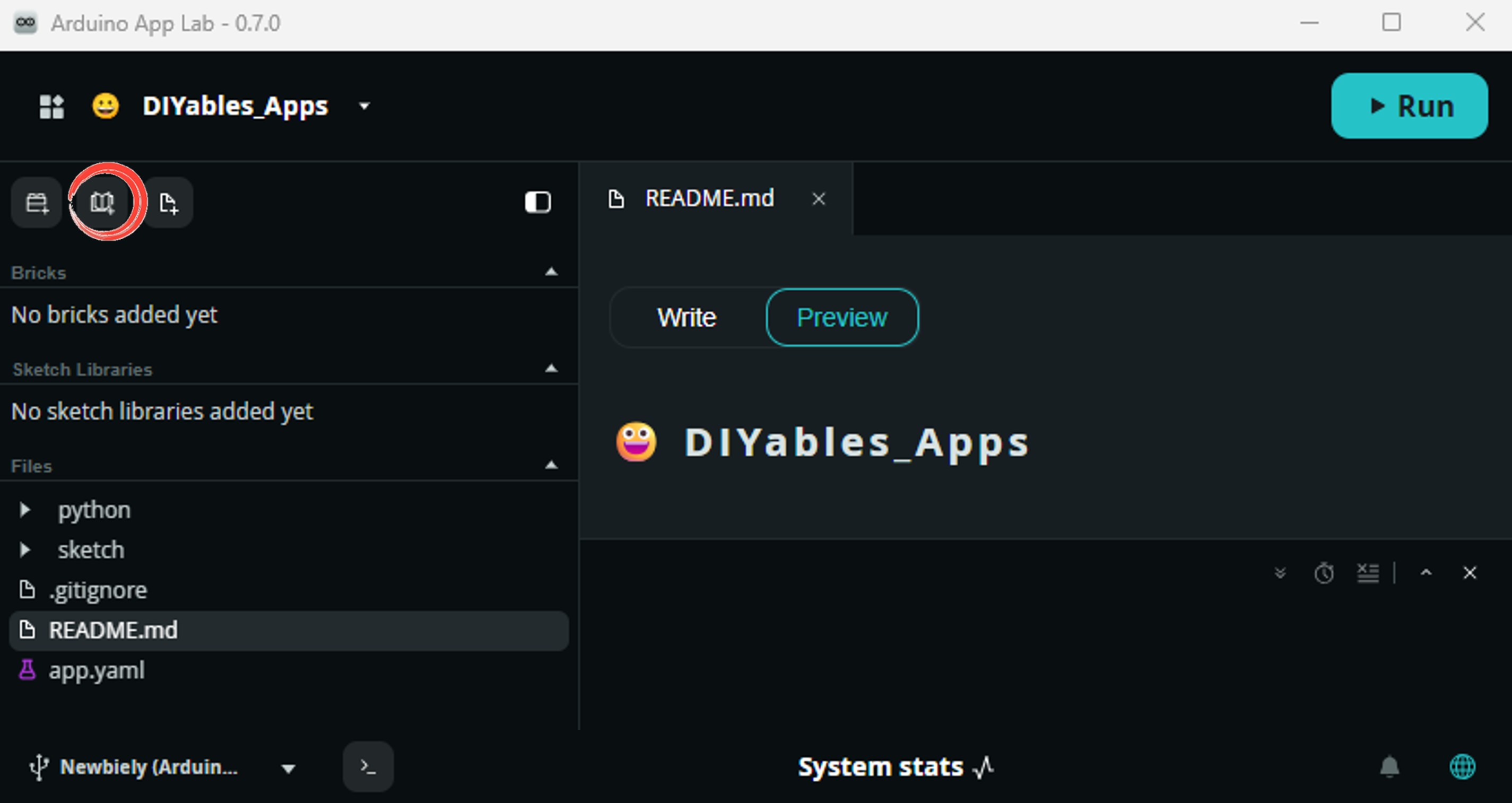
- Search for Arduino_RouterBridge created by Arduino and click the Install button.
- Paste the Python code into the Python file of the same App.
- Run: Click the Run button. The show starts and repeats.
- Check both consoles: The MCU Monitor prints every change it makes to pin 9; the Python console prints each call and the state it read back.
App Lab Console Output
Telegram
A colored light on your desk or shelf makes a nice remote signal: switch it on to tell your family you are on the way home, set it to blink when the coffee is ready, or dim it for the night. The bot below accepts five commands and always answers with the real state it reads back from the MCU, so you know the command arrived.
| Command | What it does |
|---|---|
| /on | LED on at full brightness |
| /off | LED off |
| /blink or /blink N | blink every 500 ms, or every N ms (50 to 5000) |
| /brightness N | set the brightness to N percent (0 to 100) |
| /status | report the current state |
The bot works in percent because that is easier to type on a phone. Python turns the percent into the 0 to 255 range before it calls set_brightness.
MCU sketch: Keep the same MCU sketch from the Bridge section.
Python Code (Telegram)
Detailed Instructions
- Get a bot token: Create a bot with @BotFather. See How to Create a Telegram Bot if you need help. Put the token in TELEGRAM_BOT_TOKEN.
- Paste the code into the Python file of your Bridge App. The MCU sketch stays the same.
- Run: Click the Run button.
- Test it: Open your bot in Telegram, send /brightness 30, then /blink 200. Any unknown text returns the list of commands.
App Lab Console Output


ArduinoBot
OpenClaw
You can adapt the OpenClaw to this tutorial by refering the instruction on Arduino Uno Q - OpenClaw Tutorial
Project Ideas
A plug-in light with a Linux computer behind it is more useful than it looks:
- Build Status Lamp: A green module and a red module on two PWM pins. Python checks your CI or a website every minute and lights the right one.
- "Do Not Disturb" Door Light: Put a red module outside your room and switch it from Telegram when you join a call.
- Server Heartbeat: The Linux side blinks a blue module slowly while a service is healthy, and fast when it stops answering.
- Sunrise Wake-Up Glow: Python raises a yellow module from 0% to 100% over 20 minutes before your alarm time.
- Plant Water Reminder: A soil moisture sensor on the MCU makes a white module blink when the pot is dry.
Challenge Yourself
Ready to do more with the LED module and the Arduino UNO Q?
- Easy: Change the blink sketch to a "heartbeat": two short flashes, then a long pause.
- Medium: Add a /fade command to the Telegram bot. Add a start_fade function to the MCU sketch that uses millis() to breathe the LED, like the blink does.
- Advanced: Wire all five colors to pins 3, 5, 6, 10 and 11, and let one Telegram command such as /color green 60 pick the module and set its brightness.