
Arduino UNO Q - 4-Channel Relay Module
Do you want one board to run a lamp, a fan, a pump and a heater, and switch each of them from your phone? A 4-channel relay module makes that possible. On the Arduino UNO Q, the STM32 MCU drives the four relay inputs, while the Linux side talks to the internet and passes your Telegram commands down to the MCU.
In this tutorial, you will learn:
- What a 4-channel relay module is and what its power, signal and output pins do
- How to wire it to the Arduino UNO Q with its own 5V supply
- How to program the MCU (C/C++) to click all four relays
- How to switch each relay from Python on the Linux side through Bridge
- How to turn any relay on or off, and check all of them, with Telegram commands
- How to use OpenClaw on Arduino UNO Q with the 4-channel relay module
WARNING
The relay contacts can carry mains voltage, and a mistake there can give a deadly shock. Only work on mains wiring if you really know how to do it safely, or ask a trained person for help. For your first tests, switch low-voltage DC loads (24V or less).
Why one 4-channel board and not four single relays? It takes up less room, it is usually cheaper, and you run fewer wires. The code does not change at all: every relay still has its own control pin.
Hardware Preparation
Or you can buy the following kits:
| 1 | × | DIYables Sensor Kit (18 sensors/displays) |
Additionally, some of these links are for products from our own brand, DIYables .
Overview of 4-Channel Relay Module
Think of the module as four switches that your code flips. The pins come in three groups, and each group has one job.
Pinout
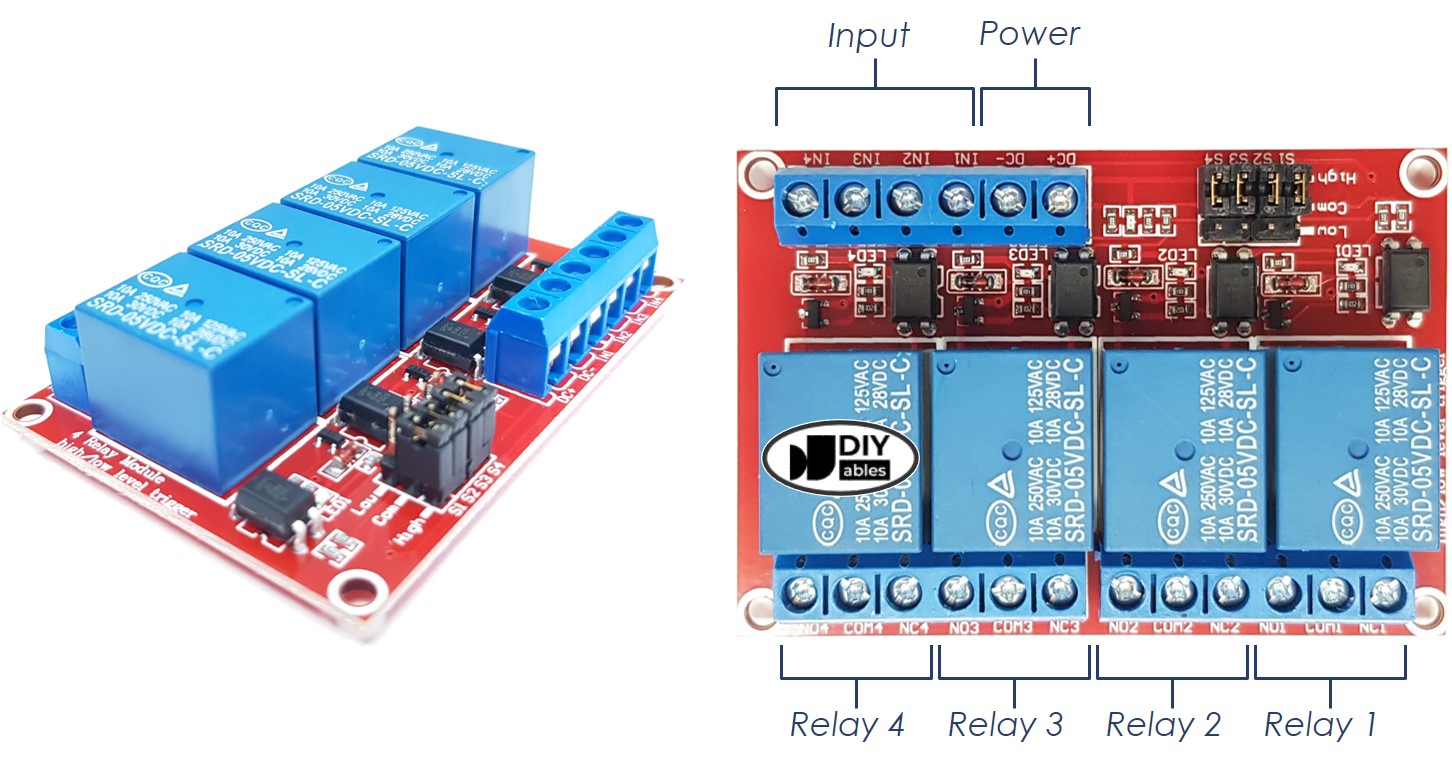
| Group | Pins | Job in your project |
|---|---|---|
| Power | DC+, DC- | Feed the four relay coils. DC+ goes to an external 5V supply, DC- to its GND |
| Signal | IN1, IN2, IN3, IN4 | One input per relay. The Arduino UNO Q MCU sets each one HIGH or LOW |
| Output | COMx, NOx, NCx (x = 1 to 4) | The switch side of each relay, where your load is wired |
| Trigger jumpers | 4 jumpers | Choose high-level or low-level trigger for each relay |
Power pins
The coils need real current, so they get their own 5V source. The DC- pin must also be joined to a GND pin of the Arduino UNO Q. Without that common ground, the MCU signal has no reference and the relays act at random.
Signal pins
IN1 drives relay 1, IN2 drives relay 2, and so on up to IN4. The MCU pins on the UNO Q output 3.3V for HIGH. Most of these modules use optocoupler inputs that switch fine at 3.3V. If a relay does not react, test it with the trigger jumper set to the other level.
Output pins
Every relay has three screw terminals:
- COMx (common): one wire of your load circuit always goes here.
- NOx (normally open): connected to COM only while the relay is active. Use it for a device that should stay off by default, such as a pump.
- NCx (normally closed): connected to COM while the relay is idle. Use it for a device that should keep running if the board loses power.
Trigger jumpers
With high-level trigger, a HIGH on INx makes the relay pull in. With low-level trigger, the logic is reversed. The code in this tutorial expects high-level trigger, so set all four jumpers that way.
Never used a single relay before? The Arduino UNO Q - Relay tutorial shows how to hook up a load and explains the difference between normally closed and normally open in more detail.
Wiring Diagram
Four coils together pull more current than the board's 5V pin should give, so the relay module gets its own 5V adapter. The MCU only sends 3.3V control signals on D2 to D5.
You work with three power sources here:
- The USB-C cable (or another supply) that powers the Arduino UNO Q. It is not drawn in the image.
- A 5V adapter just for the relay coils.
- The supply of your loads (for example 12VDC, 24VDC or 220VAC).
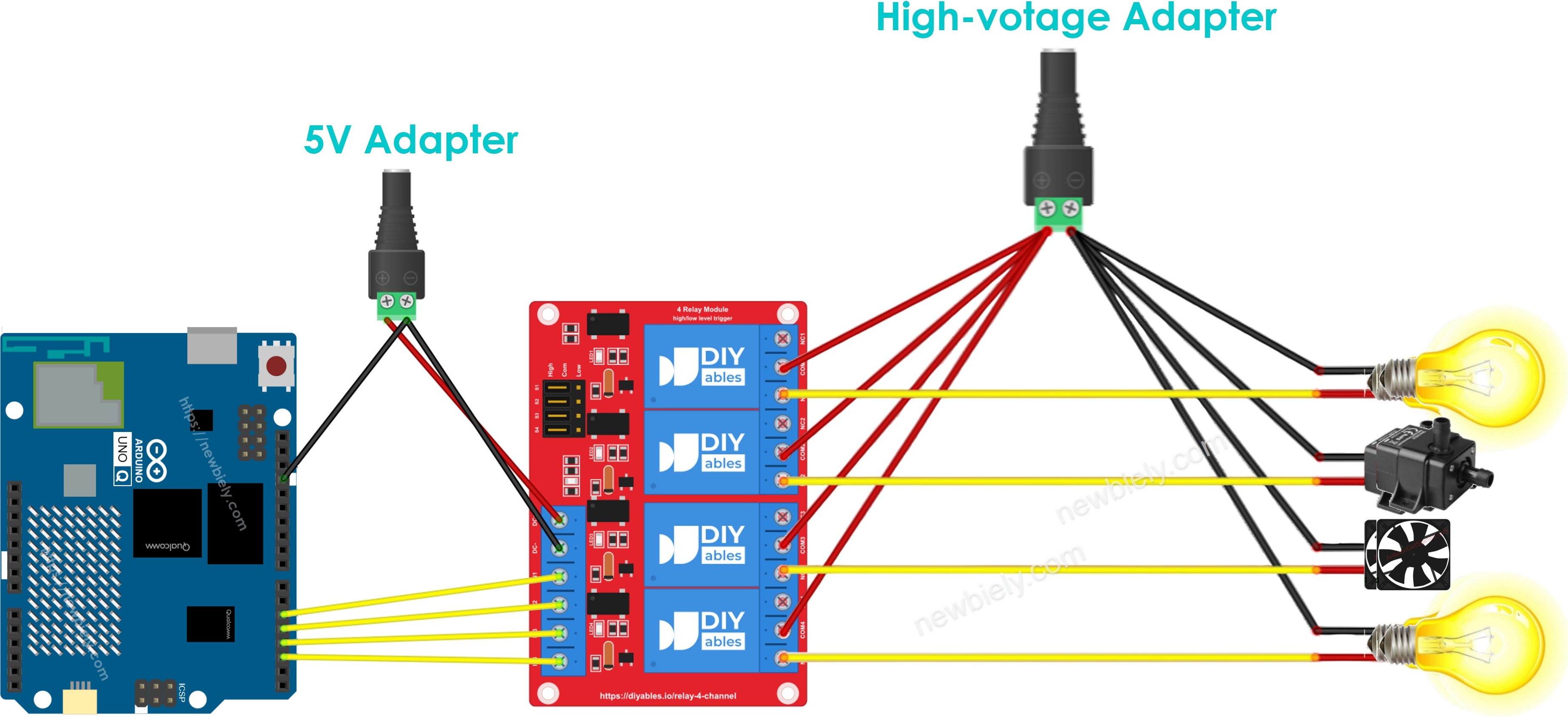
This image is created using Fritzing. Click to enlarge image
| Relay Module Pin | Arduino UNO Q |
|---|---|
| DC+ | 5V of the relay adapter (not the board) |
| DC- | GND of the relay adapter and GND of the Arduino UNO Q |
| IN1 | Pin 2 |
| IN2 | Pin 3 |
| IN3 | Pin 4 |
| IN4 | Pin 5 |
※ NOTE THAT:
On the load side, one adapter is enough when all four devices run on the same voltage. A 12V fan and a 24V valve, for example, each need a supply of their own.
How To Program For 4-Channel Relay Module
A relay input behaves like an LED pin: the MCU just writes HIGH or LOW to it.
- In setup(), make the four relay pins outputs with pinMode():
- Activate a relay by writing HIGH with digitalWrite(). Here relay 3 pulls in:
- Release it again with LOW. The other three relays keep their state:
Arduino UNO Q Code
The Arduino UNO Q has two processors:
- The STM32 MCU sets the four relay pins. Switching is simple, real-time hardware work, so it belongs here
- The Qualcomm MPU runs Debian Linux with Wi-Fi and Python
- In this first step, only the MCU runs code. The Bridge section later lets Linux take over the control
The sketch below is a quick wiring test. It pulls in all four relays, waits one second, drops them, waits again, and prints every step to the console.
Detailed Instructions
First time with Arduino UNO Q? Read Getting Started with Arduino UNO Q first.
- Wire: Follow the wiring diagram. Leave the high-voltage side unconnected for this test.
- Connect: Plug the Arduino UNO Q into your computer with the USB-C cable.
- Open Arduino App Lab: Wait until it finds your Arduino UNO Q.
- Create a new App: Click the Create New App button.
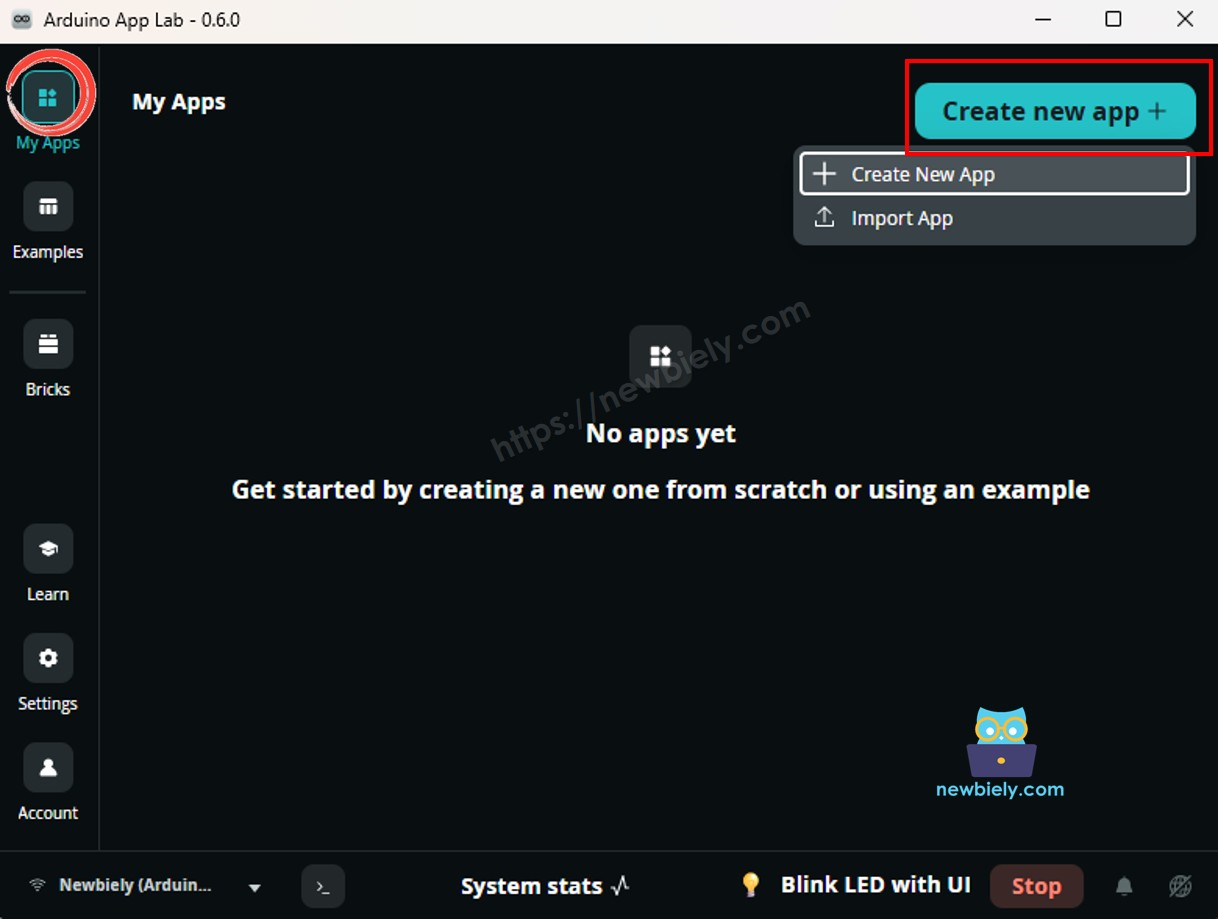
- Name it, for example FourRelayTest, and click Create.
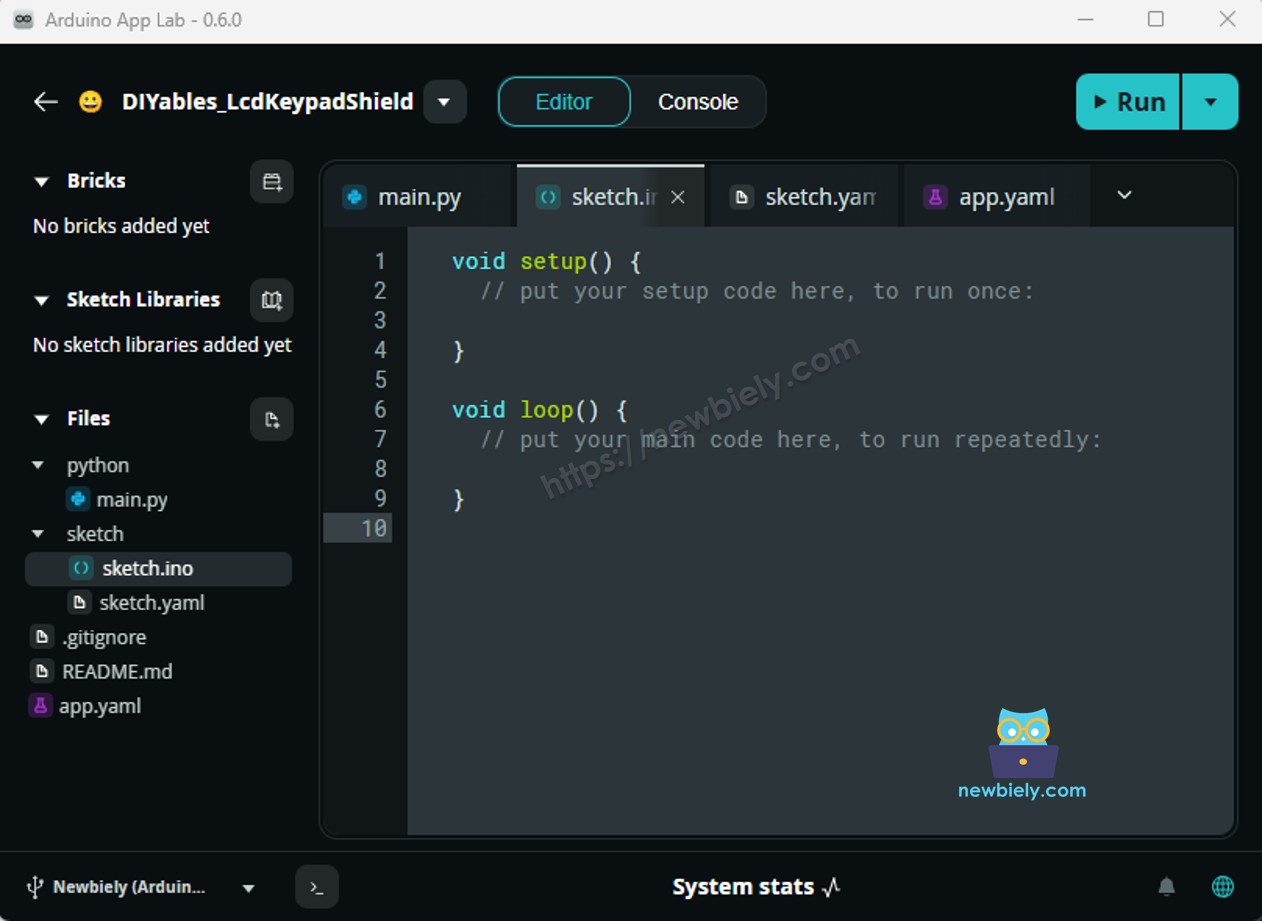
- Paste the sketch: Copy the code above into sketch/sketch.ino. Keep the other files as they are. No library is needed.
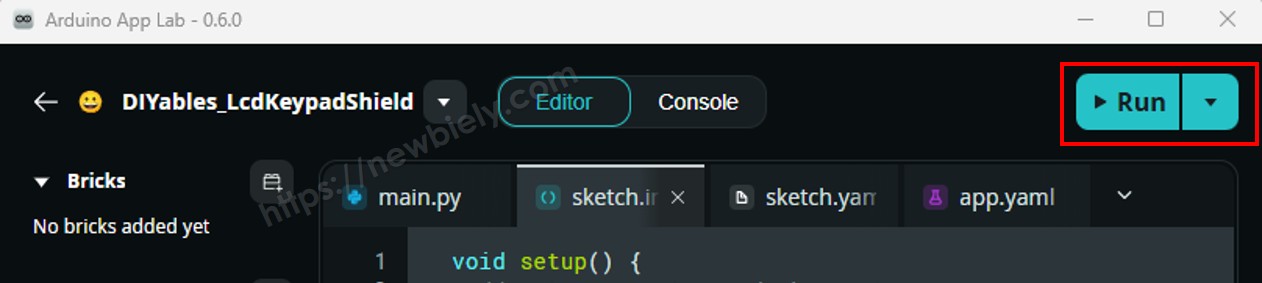
- Run: Click the Run button.
- Test it: Every second you should hear four clicks at once, and the four small LEDs on the module should blink together.
App Lab Console Output
The two lines take turns once per second. If only some relays click, one of the IN wires sits on the wrong pin or is loose. If they work in reverse (on when the console says off), move the trigger jumpers to high-level trigger.
Bridge: Linux + MCU
Now the Linux side gives the orders, and the MCU still does the switching:
- The relay module is wired to the MCU on D2 to D5. The MPU has no direct access to those pins
- The MCU offers relay_on and relay_off (each takes a channel number from 1 to 4), plus all_on and all_off, all registered with Bridge.provide_safe() because they write to pins
- It also offers get_states with Bridge.provide(). This returns the saved states as four characters, for example 1010, and never touches a pin
- Python calls these with Bridge.call(), for example Bridge.call("relay_on", 2)
- ⚠️ /dev/ttyHS1 (Linux) and Serial1 (MCU) are RESERVED by the router — never open them in your code
In short: Python picks a channel → MCU writes the matching pin → that relay switches its load.
MCU Code (Bridge)
Python Code (Bridge)
The Python script plays a small light show: it turns relays 1 to 4 on one by one, then off in the reverse order, reads back the states, and finally switches all four together.
Detailed Instructions
- Create a new App: In Arduino App Lab click Create New App, name it FourRelayBridge, and click Create.
- Paste the MCU sketch into sketch/sketch.ino, and add the library:
- Install the library: Click the Add sketch library button (the open book icon with a + sign) in the left sidebar.
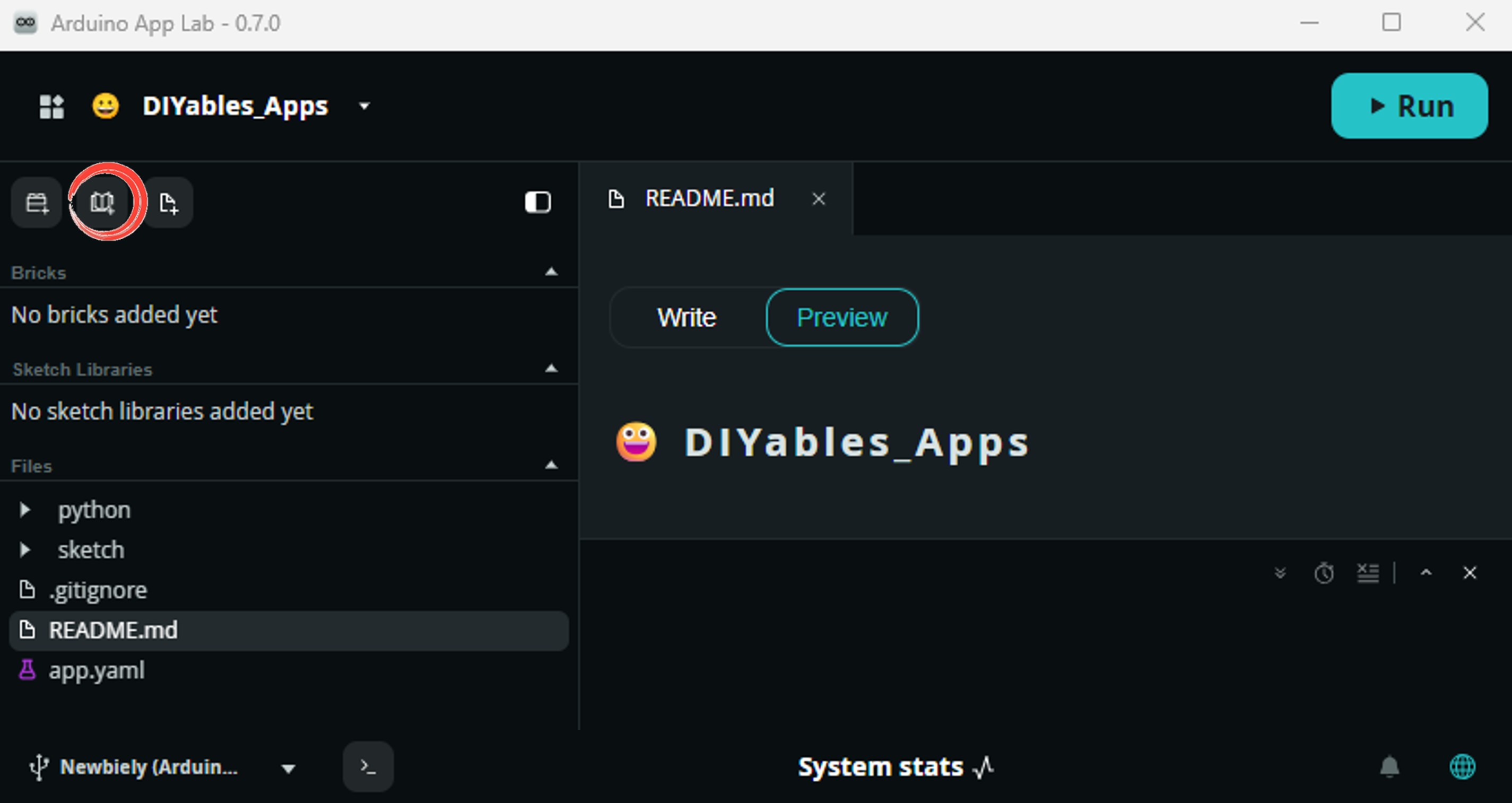
- Search for Arduino_RouterBridge created by Arduino and click the Install button.
- Paste the Python code into the Python file of the same App.
- Run: Click the Run button. The relays pull in one after another, then drop out from relay 4 back to relay 1.
- Check both consoles: The MCU Monitor shows what each pin did. The Python console shows what Linux asked for.
App Lab Console Output
Telegram
Four relays often means four rooms or four machines. With a bot, you can turn on the porch lamp on your way home, or check that the heater is really off after you left. Each relay gets a friendly name in the script, so the replies say "Fan" instead of "relay 2". The bot only obeys your own chat ID, so a stranger who finds your bot cannot switch your devices.
MCU sketch: Keep the same MCU sketch from the Bridge section.
Python Code (Telegram)
Detailed Instructions
- Replace YOUR_TELEGRAM_BOT_TOKEN with the token that BotFather gives you. No bot yet? Follow How to Create a Telegram Bot.
- Replace YOUR_CHAT_ID with your own Telegram chat ID. Messages from any other chat are refused.
- Change the names in RELAY_NAMES to match what you wired to each relay.
- Paste the code into the Python file of your App (keep the Bridge MCU sketch), then click Run.
- Send /status to your bot, then try /on 2 and /alloff.
App Lab Console Output


ArduinoBot
OpenClaw
You can adapt the OpenClaw to this tutorial by refering the instruction on Arduino Uno Q - OpenClaw Tutorial
Project Ideas
Here are some builds where the MCU handles the relays and Linux handles the brains:
- Four-Zone Garden Watering: One valve per relay. Python checks the weather forecast online and skips watering on rainy days
- Smart Room Panel: Lamp, fan, heater and night light on the four channels, with a Telegram command for each and a schedule kept in Python
- Aquarium Controller: Light, filter, air pump and heater, where Linux logs every switch to a file so you can see the daily pattern
- Tutorial Power Guard: Each tool socket gets a relay, and a Telegram /alloff cuts every tool at once when you leave
- Holiday Presence Simulator: Python switches lamps in different rooms at random times in the evening, so the house looks lived in
Challenge Yourself
Try these to get more out of the four channels:
- Easy: Change the test sketch so the relays switch one after another (a chaser) instead of all at once.
- Medium: Add a /toggle 1-4 Telegram command that reads get_states and flips just that relay.
- Advanced: Add a timer command such as /on 3 10 that turns the pump on for 10 minutes and then switches it off by itself, even if you forget.