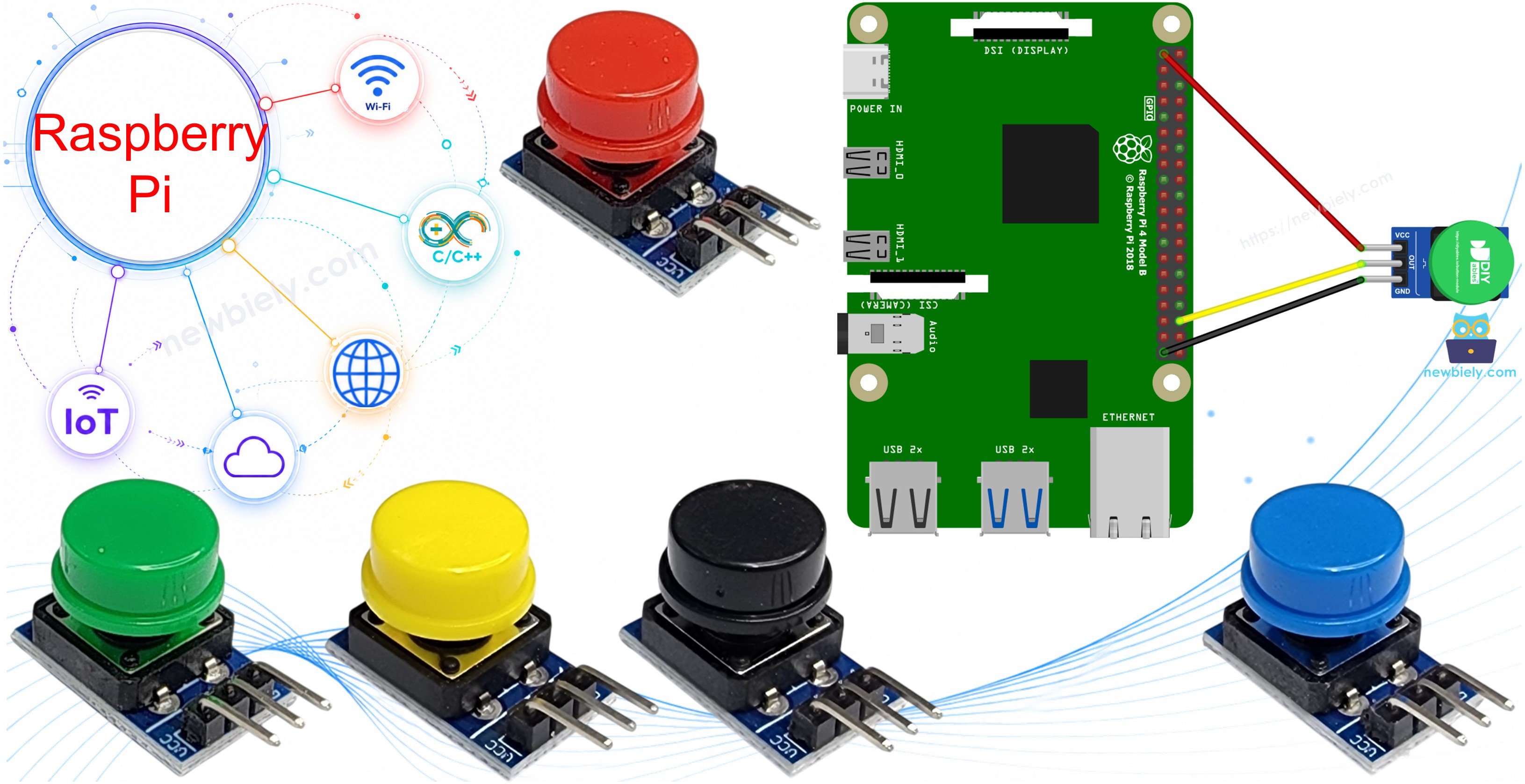
Raspberry Pi - Button Module

Many Raspberry Pi projects need one simple way for a person to say "go": take a photo, start a recording, shut the Pi down safely, or skip to the next song. A button module is the quickest way to add that, because the push button and its resistor sit together on one small board. This tutorial instructs you how to use Raspberry Pi to read a button module from a Python script running over SSH. In detail, we will learn:

Raspberry Pi Button Module

We suggest:

Hardware Preparation

1×Raspberry Pi 5
1×Button Module
1×Jumper Wires
1×Optionally, Breadboard
1×Recommended: Screw Terminal Block Shield for Raspberry Pi
1×Recommended: Raspberry Pi Prototyping Base Plate & Breadboard Kit

Or you can buy the following kits:

1×DIYables Sensor Kit (18 sensors/displays)
Disclosure: Some of the links provided in this section are Amazon affiliate links. We may receive a commission for any purchases made through these links at no additional cost to you.
Additionally, some of these links are for products from our own brand, DIYables .

Overview of Button Module

The DIYables button module is a momentary tactile push button mounted on a small PCB with a colored cap. Put simply, it is a push button with its resistor already on board. That resistor is a pull-down: it holds the OUT pin at 0V while nobody touches the button. When you press the cap, the button connects OUT to VCC, so OUT goes HIGH. When you let go, the resistor pulls OUT back to LOW. The module comes as a pack of 5 with red, yellow, green, blue and white caps, which helps when one project has several buttons with different jobs. It works from 3.3V to 5V DC.
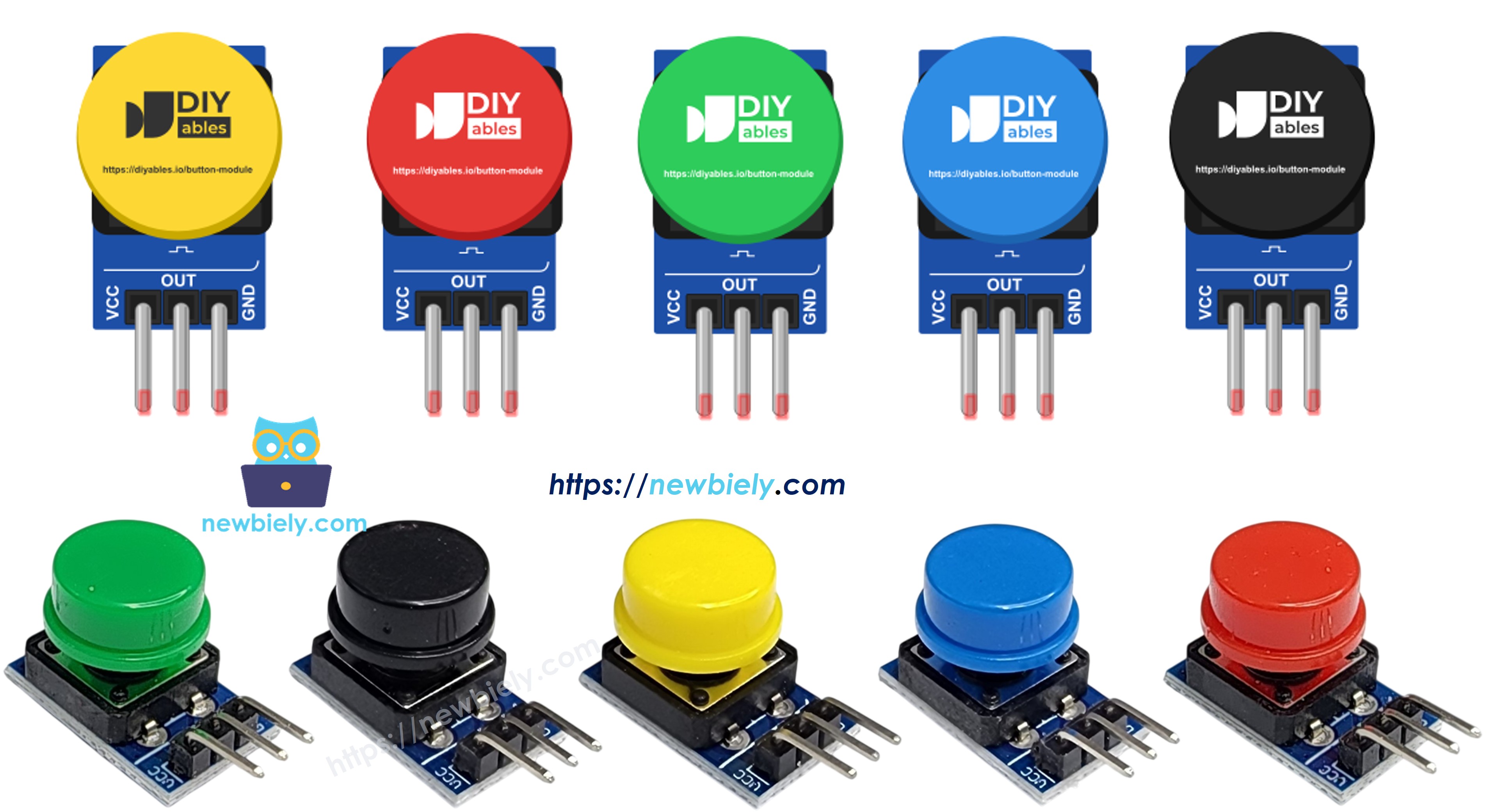
Button module pinout
image source: diyables.io

The module has a 3-pin 2.54mm header, labeled in this order:

  • VCC: This pin must be connected to the 3.3V supply of the Raspberry Pi (pin 1)
  • OUT: This pin must be connected to a GPIO pin of the Raspberry Pi. It carries the button state
  • GND: This pin must be connected to ground (0V) of the Raspberry Pi

What the Raspberry Pi reads on the OUT pin:

Button OUT pin voltage GPIO.input(16) returns
Released 0V (held down by the resistor on the module) 0 (LOW)
Pressed same voltage as VCC (3.3V) 1 (HIGH)

So the module is active HIGH. Pressed means 1, and released means 0. There is no inverted logic to remember.

A mechanical button has one small problem. Its metal contacts bounce for a few milliseconds when they close or open, so a single press can look like several quick presses to a fast Python loop. The second and third scripts below show two ways to filter this out.

※ NOTE THAT:

The arrangement of pins on a module can differ between manufacturers. It is essential to always use the labels printed on the module when working with it. Be sure to take a close look!

Wiring Diagram
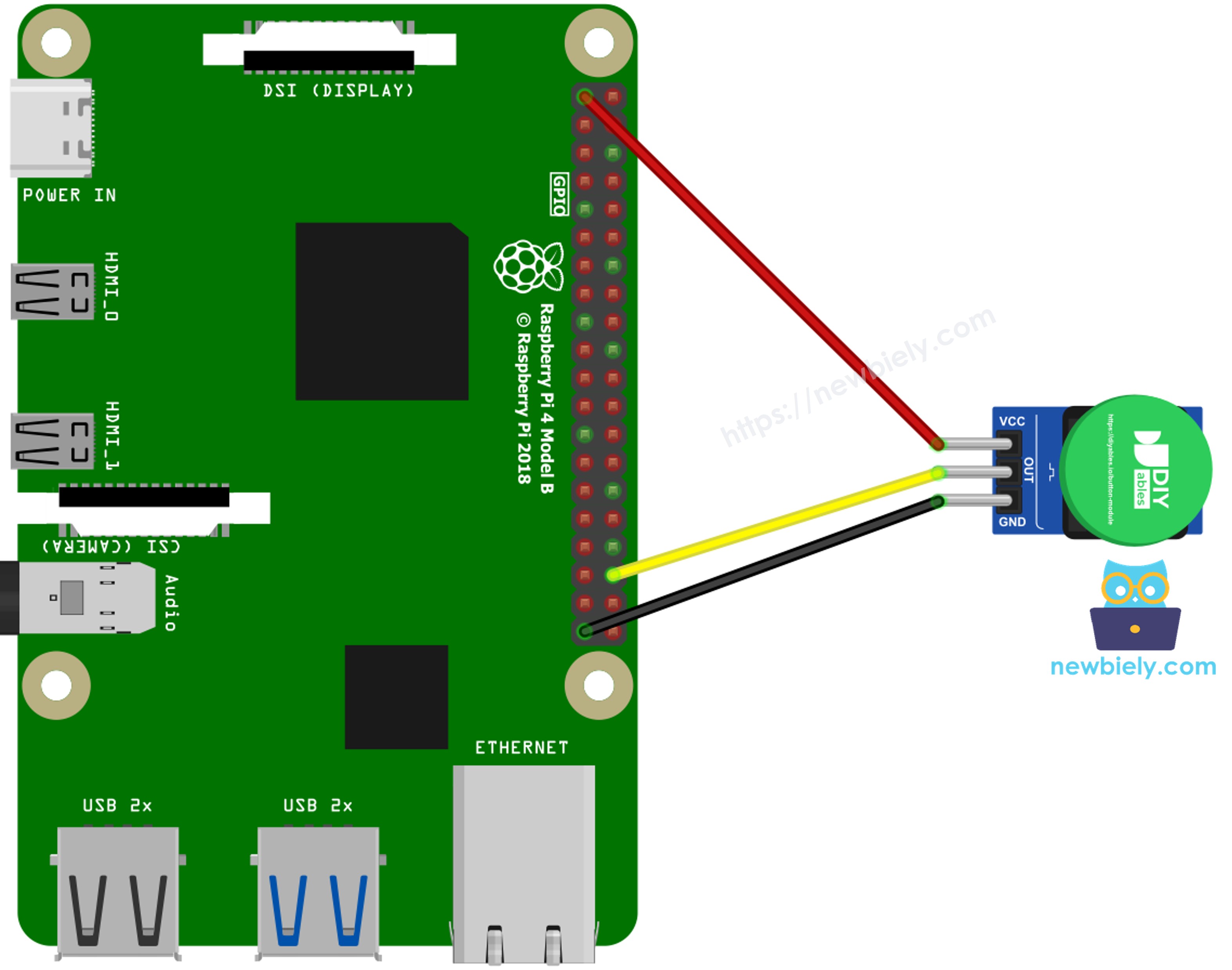
The wiring diagram between Raspberry Pi and button module

This image is created using Fritzing. Click to enlarge image

To simplify and organize your wiring setup, we recommend using a Screw Terminal Block Shield for Raspberry Pi. This shield ensures more secure and manageable connections, as shown below:
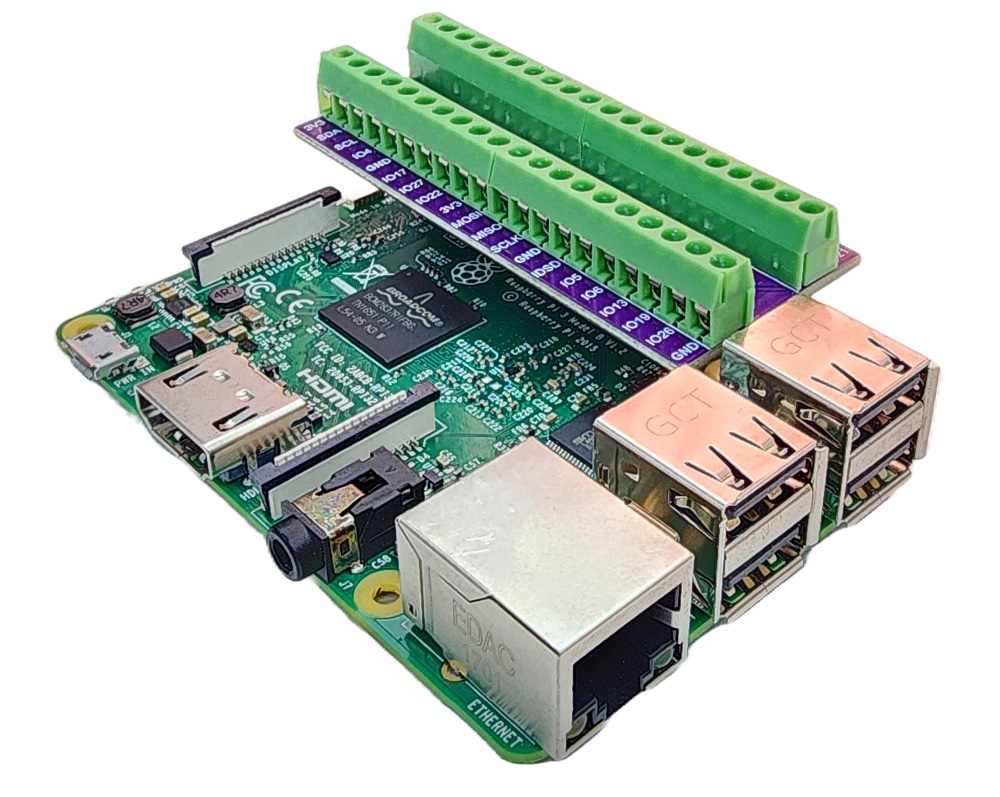
Raspberry Pi Screw Terminal Block Shield
  • Button module VCC pin to Raspberry Pi 3.3V (pin 1)
  • Button module OUT pin to Raspberry Pi GPIO16 (pin 36)
  • Button module GND pin to Raspberry Pi GND (pin 34, or any other GND pin)

※ NOTE THAT:

NEVER connect the VCC pin of the button module to a 5V pin (pin 2 or pin 4) of the Raspberry Pi. When the button is pressed, the OUT pin gives out the same voltage as VCC. With 5V on VCC, every press would push 5V into GPIO16. The GPIO pins of the Raspberry Pi work at 3.3V and are not 5V tolerant, so this can damage the pin or the whole Pi. Pin 1 (3.3V) and pin 2 (5V) sit right next to each other, so check twice before you power on.

Pin 36 is the physical position on the 40-pin header, and 16 is the GPIO number. All scripts in this tutorial use BCM numbering, so the code says 16, not 36.

The header pins of the module fit female jumper wires directly. A breadboard is only useful if you plan to add more modules later.

How To Program for Raspberry Pi to Read the Button Module State

This first script does the simplest thing: it reads GPIO16 five times per second and prints what it sees. It uses the RPi.GPIO library with this setup line:

GPIO.setup(16, GPIO.IN, pull_up_down=GPIO.PUD_DOWN)

GPIO.PUD_DOWN turns on the internal pull-down of the Raspberry Pi. It points the same way as the resistor on the module, so the two agree. Do not use GPIO.PUD_UP with this module. A pull-up would fight the pull-down on the board, and the released level would no longer be a clean 0.

Detailed Instructions

  • Make sure you have Raspbian or any other Raspberry Pi compatible operating system installed on your Pi.
  • Make sure your Raspberry Pi is connected to the same local network as your PC.
  • Make sure your Raspberry Pi is connected to the internet if you need to install some libraries.
  • If this is the first time you use Raspberry Pi, See how to set up the Raspberry Pi
  • Connect your PC to the Raspberry Pi via SSH using the built-in SSH client on Linux and macOS or PuTTY on Windows. See to how connect your PC to Raspberry Pi via SSH.
  • Make sure you have the RPi.GPIO library installed. If not, install it using the following command:
sudo apt-get update sudo apt-get install python3-rpi.gpio
  • Wire the button module to the Raspberry Pi as shown in the wiring diagram above. Double-check that VCC is on pin 1 (3.3V).
  • Create a Python script file button_module_raw.py and add the following code:
""" This Raspberry Pi code was developed by newbiely.com This Raspberry Pi code is made available for public use without any restriction For comprehensive instructions and wiring diagrams, please visit: https://newbiely.com/tutorials/raspberry-pi/raspberry-pi-button-module """ import RPi.GPIO as GPIO import time # BCM numbering: 16 means GPIO16, which is physical pin 36 GPIO.setmode(GPIO.BCM) GPIO.setwarnings(False) BUTTON_MODULE_PIN = 16 # GPIO16 (pin 36) connected to the OUT pin of the button module # The module already has a pull-down resistor on OUT. # PUD_DOWN agrees with it: the pin reads 0 when released and 1 when pressed. # Do NOT use PUD_UP here, it would work against the resistor on the module. GPIO.setup(BUTTON_MODULE_PIN, GPIO.IN, pull_up_down=GPIO.PUD_DOWN) try: while True: level = GPIO.input(BUTTON_MODULE_PIN) # 1 = pressed, 0 = released if level == GPIO.HIGH: print("OUT pin = 1 -> button is held down") else: print("OUT pin = 0 -> button is up") time.sleep(0.2) # print five lines per second, enough to follow by eye except KeyboardInterrupt: print("\nScript stopped") finally: GPIO.cleanup() # release GPIO16
  • Save the file and run the Python script by executing the following command in the terminal:
python3 button_module_raw.py
  • Leave the button alone for a second, then hold it down for about one second, then let it go.
  • Check the terminal:
PuTTY - Raspberry Pi
OUT pin = 0 -> button is up OUT pin = 0 -> button is up OUT pin = 0 -> button is up OUT pin = 1 -> button is held down OUT pin = 1 -> button is held down OUT pin = 1 -> button is held down OUT pin = 1 -> button is held down OUT pin = 1 -> button is held down OUT pin = 0 -> button is up OUT pin = 0 -> button is up

While the button is up, every line shows 0. While you hold it, every line shows 1. The readings are steady because the pull-down resistor never lets the pin float. Press Ctrl + C keys in the terminal to stop the script. It then calls GPIO.cleanup() to free GPIO16.

If the value never changes, check these points:

  • The OUT wire must be on pin 36 (GPIO16), not on pin 16 (which is GPIO23).
  • The GND wire must be on a GND pin, so the module and the Pi share the same 0V.
  • VCC must be on pin 1. Without power on VCC, pressing the button has no voltage to pass to OUT.

How To Program for Raspberry Pi to Detect Press and Release with a Delay Debounce

Printing the level over and over is good for testing, but a real project usually wants one message per action: one press starts the camera, one release stops it. To get that, the script keeps the last confirmed state and only reacts when the reading changes. Because of contact bounce, a change is not trusted at once. The script waits 50 milliseconds with time.sleep(0.05), reads the pin again, and accepts the change only if the new level is still there. Keep in mind that time.sleep() blocks: during those 50 milliseconds the script cannot do anything else.

Detailed Instructions

  • Keep the same wiring. OUT stays on GPIO16 (pin 36), and VCC stays on 3.3V (pin 1).
  • Create a Python script file button_module_debounce_delay.py and add the following code:
""" This Raspberry Pi code was developed by newbiely.com This Raspberry Pi code is made available for public use without any restriction For comprehensive instructions and wiring diagrams, please visit: https://newbiely.com/tutorials/raspberry-pi/raspberry-pi-button-module """ import RPi.GPIO as GPIO import time GPIO.setmode(GPIO.BCM) GPIO.setwarnings(False) BUTTON_MODULE_PIN = 16 # GPIO16 (pin 36) connected to the OUT pin of the button module DEBOUNCE_SECONDS = 0.05 # 50 ms, longer than the contact bounce of the button # Pull-down agrees with the resistor on the module: released = 0, pressed = 1 GPIO.setup(BUTTON_MODULE_PIN, GPIO.IN, pull_up_down=GPIO.PUD_DOWN) last_state = GPIO.input(BUTTON_MODULE_PIN) # the last confirmed state press_count = 0 try: while True: reading = GPIO.input(BUTTON_MODULE_PIN) if reading != last_state: # The level changed. It may be real, or it may be bounce. # Wait 50 ms, then read again. The script does nothing else during this wait. time.sleep(DEBOUNCE_SECONDS) reading = GPIO.input(BUTTON_MODULE_PIN) if reading != last_state: # still different after the wait -> real change last_state = reading if reading == GPIO.HIGH: press_count += 1 print("The button is pressed (press #{})".format(press_count)) else: print("The button is released") time.sleep(0.005) # short pause so the loop does not use 100% of one CPU core except KeyboardInterrupt: print("\nScript stopped") finally: GPIO.cleanup()
  • Save the file and run it with this command:
python3 button_module_debounce_delay.py
  • Press and release the button three times. Try one quick tap and one long hold.
  • Check the terminal:
PuTTY - Raspberry Pi
The button is pressed (press #1) The button is released The button is pressed (press #2) The button is released The button is pressed (press #3) The button is released

Every press gives exactly one "pressed" line and one "released" line, and the counter goes up by one each time. Without the 50 ms check, the counter could jump by two or three for one press. Press Ctrl + C keys to stop the script.

Code Explanation

Check out the line-by-line explanation contained in the comments of the source code!

How To Program for Raspberry Pi to Read the Button Module with gpiozero

The delay method is fine for a small script, but the blocking wait gets in the way when the Pi must also do other work, such as reading a sensor or serving a web page. The gpiozero library solves this. It watches the pin in a background thread, filters the bounce for you, and calls your own function when something happens. Your main code never waits for the button.

The script creates the button with one line:

button = Button(16, pull_up=None, active_state=True, bounce_time=0.05)
  • pull_up=None tells gpiozero not to add any internal resistor, because the module already has its own pull-down.
  • active_state=True tells gpiozero that HIGH means pressed. With pull_up=None, this setting is required.
  • bounce_time=0.05 ignores any change that comes less than 50 milliseconds after the last one.

After that, button.when_pressed and button.when_released take the functions to run on each event, and button.is_pressed gives the current state (True or False) at any time. The script ends with pause() from the signal module, which keeps the script alive while the callbacks do the work.

Detailed Instructions

  • Keep the same wiring as before.
  • gpiozero is already installed on Raspberry Pi OS. If your system does not have it, install it with this command:
sudo apt-get install python3-gpiozero
  • Create a Python script file button_module_library.py and add the following code:
""" This Raspberry Pi code was developed by newbiely.com This Raspberry Pi code is made available for public use without any restriction For comprehensive instructions and wiring diagrams, please visit: https://newbiely.com/tutorials/raspberry-pi/raspberry-pi-button-module """ from gpiozero import Button from signal import pause import time # GPIO16 (pin 36) is connected to the OUT pin of the button module. # pull_up=None -> gpiozero does not turn on any internal resistor, # because the module already has its own pull-down resistor # active_state=True -> a HIGH level means "pressed" (the module is active HIGH) # bounce_time=0.05 -> ignore changes that come less than 50 ms after the last one button = Button(16, pull_up=None, active_state=True, bounce_time=0.05) pressed_at = 0.0 def on_pressed(): global pressed_at pressed_at = time.monotonic() print("The button is pressed | is_pressed = {}".format(button.is_pressed)) def on_released(): held = time.monotonic() - pressed_at print("The button is released | is_pressed = {} | held for {:.2f} s".format(button.is_pressed, held)) # gpiozero calls these functions in its own background thread, # so the main script never has to wait inside a loop button.when_pressed = on_pressed button.when_released = on_released print("Waiting for the button module. Press Ctrl + C to stop.") print("Current state: {}".format("pressed" if button.is_pressed else "released")) try: pause() # sleep here and let the callbacks do the work except KeyboardInterrupt: print("\nScript stopped") finally: button.close() # release GPIO16
  • Save the file and run it with this command:
python3 button_module_library.py
  • Give the button one short tap, then hold it down for about two seconds.
  • Check the terminal:
PuTTY - Raspberry Pi
Waiting for the button module. Press Ctrl + C to stop. Current state: released The button is pressed | is_pressed = True The button is released | is_pressed = False | held for 0.18 s The button is pressed | is_pressed = True The button is released | is_pressed = False | held for 2.07 s

The "held for" time comes from time.monotonic(), saved when the press callback runs. You can use it to treat a short tap and a long hold as two different commands. Press Ctrl + C keys to stop the script. It calls button.close() to release GPIO16.

Code Explanation

Check out the line-by-line explanation contained in the comments of the source code!

Additional Knowledge

Button Module vs Bare Push Button

Let's compare the button module with a bare 4-pin push button on the Raspberry Pi:

Button Module Bare 4-pin Push Button
Pull resistor already on the board (pull-down) you must add one, or use the internal PUD_UP
Pins 3, labeled VCC, OUT and GND 4 unlabeled legs, joined in pairs inside
Logic when pressed HIGH (1), not inverted usually LOW (0) with PUD_UP, so the logic is inverted
Floating input risk none yes, if you forget the resistor
VCC choice on Raspberry Pi 3.3V only no VCC needed when wired to GND with PUD_UP

Evidently, the button module is easier to wire and its readings make sense at once: 1 means pressed. A bare button is smaller and cheaper, so it is a better fit when you solder many buttons onto one board.

Project Ideas with the Button Module

  • Safe shutdown button: run sudo shutdown -h now when the button is held for 3 seconds, so you never pull the power while the SD card is busy.
  • Photo booth trigger: take a picture with the Raspberry Pi camera on each press.
  • Quiz buzzer: give each player a module with a different cap color, and print who pressed first.
  • Media player control: use one press for play/pause and a long hold for the next track.
  • Door bell with notification: send a message to your phone each time a visitor presses the button.

Video Tutorial

※ OUR MESSAGES

  • As freelancers, We are AVAILABLE for HIRE. See how to outsource your project to us
  • Please feel free to share the link of this tutorial. However, Please do not use our content on any other websites. We invested a lot of effort and time to create the content, please respect our work!