
Raspberry Pi - LED Module
A Raspberry Pi usually runs without a screen, so it is hard to tell what your Python script is doing. One bright LED on the desk can tell you a lot: the script has started, the network is down, or the CPU is getting hot. This tutorial instructs you how to use Raspberry Pi to control a 10mm LED module, which is an LED that comes with its resistor and driver already on a small board. In detail, we will learn:
- What is on the LED module board, and why its IN pin is safe for the 3.3V GPIO pins of the Raspberry Pi
- How to connect the LED module to the Raspberry Pi 40-pin header
- How to write a Python script that blinks the LED module and prints its state in the terminal
- How to write a Python script that fades the LED module in and out with PWM
We suggest:
- Utilizing a plain LED with a resistor if you want to learn how a bare LED is wired on a breadboard.
- Utilizing an RGB LED if one light must show several colors, or see the LED fade tutorial for more PWM examples.
Hardware Preparation
| 1 | × | Raspberry Pi 5 | |
| 1 | × | LED Module | |
| 1 | × | Jumper Wires | |
| 1 | × | Optionally, Breadboard | |
| 1 | × | Recommended: Screw Terminal Block Shield for Raspberry Pi | |
| 1 | × | Recommended: Raspberry Pi Prototyping Base Plate & Breadboard Kit |
Or you can buy the following kits:
| 1 | × | DIYables Sensor Kit (18 sensors/displays) |
Additionally, some of these links are for products from our own brand, DIYables .
Buy Note: Use the LED Module for easier wiring. It includes an integrated resistor.
Overview of LED Module
The DIYables LED module is a 10mm diffused round LED soldered on a small 20mm x 20mm black PCB. You can think of it as an LED with its resistor and driver already on board. A 330Ω resistor limits the LED current, and a small transistor switches the LED. The LED takes its power from the VCC pin, not from the Raspberry Pi GPIO pin. The IN pin only tells the transistor to turn on or off, and a 1KΩ resistor on that line keeps the GPIO current very small. This matters on a Raspberry Pi: its GPIO pins work at 3.3V and can only give a little current, but the LED still gets full brightness from VCC. The module comes in a pack of 5 colors: red, yellow, blue, green and white. It works from 3.3V to 5V DC.
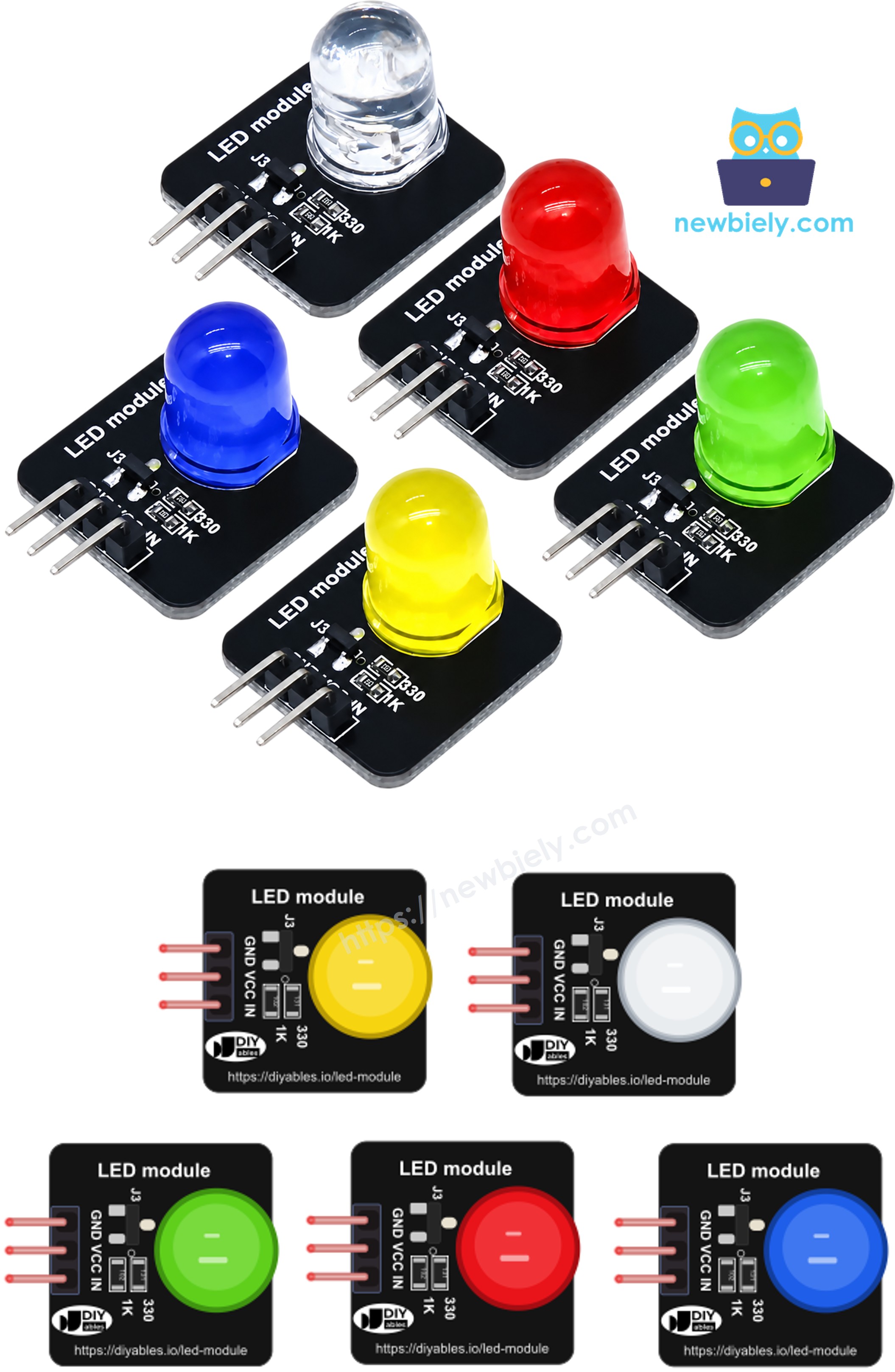
The module has a 3-pin 2.54mm right-angle male header, labeled in this order:
- GND: This pin must be connected to ground (0V) of the Raspberry Pi
- VCC: This pin must be connected to a supply of 3.3V or 5V. On the Raspberry Pi, you can use 3.3V (pin 1) or 5V (pin 2)
- IN: This pin must be connected to a GPIO pin of the Raspberry Pi. It controls the LED
How the IN pin controls the LED:
| IN pin | Python code | LED state |
|---|---|---|
| HIGH (3.3V) | GPIO.output(18, GPIO.HIGH) | ON |
| LOW (0V) | GPIO.output(18, GPIO.LOW) | OFF |
| PWM signal | pwm.ChangeDutyCycle(0 to 100) | ON, brightness follows the duty cycle |
The module is active HIGH. A higher PWM duty cycle keeps the LED on for a longer part of each period, so the LED looks brighter.
※ NOTE THAT:
The arrangement of pins on a module can differ between manufacturers. It is essential to always use the labels printed on the module when working with it. Be sure to take a close look!
Wiring Diagram
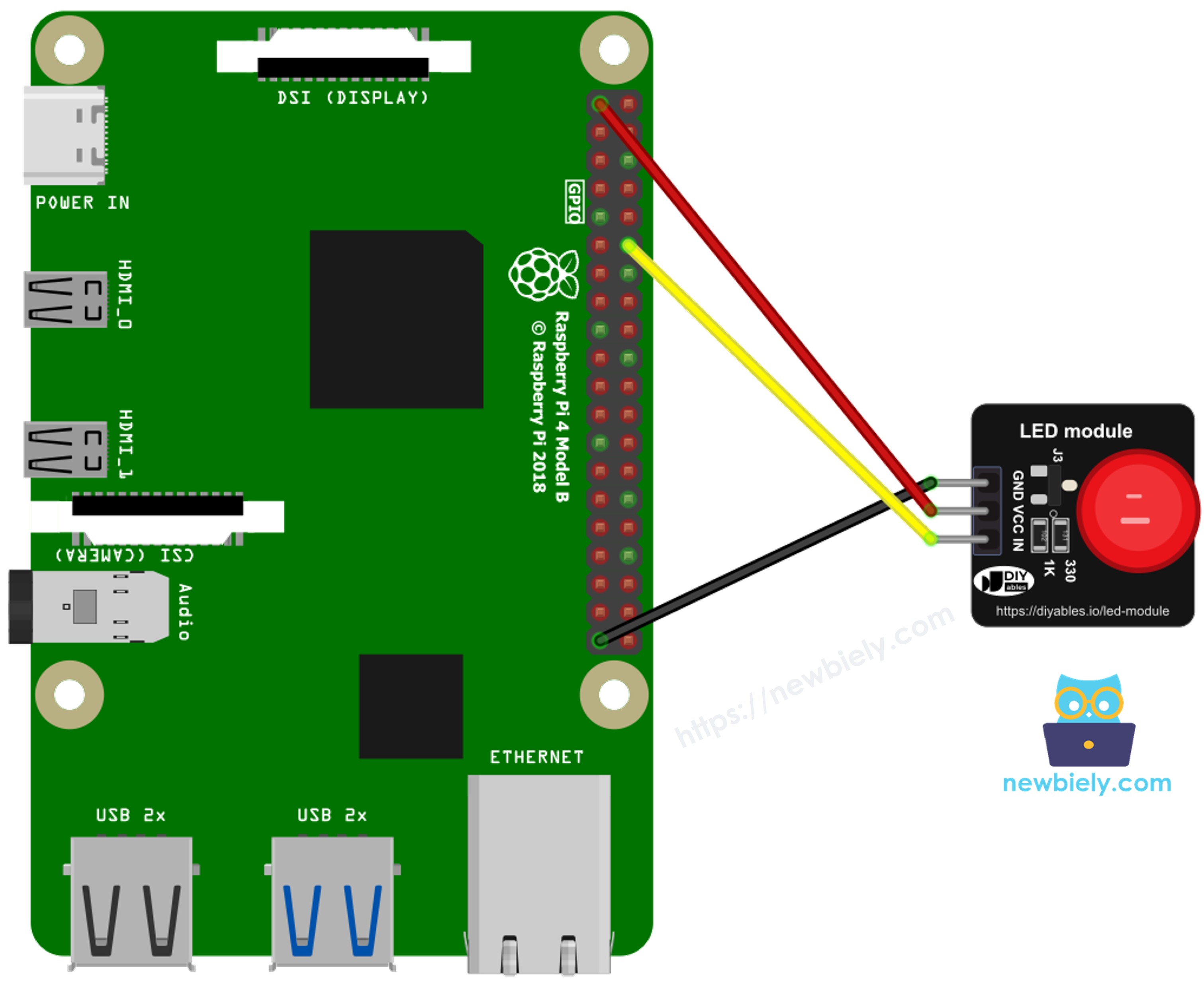
This image is created using Fritzing. Click to enlarge image
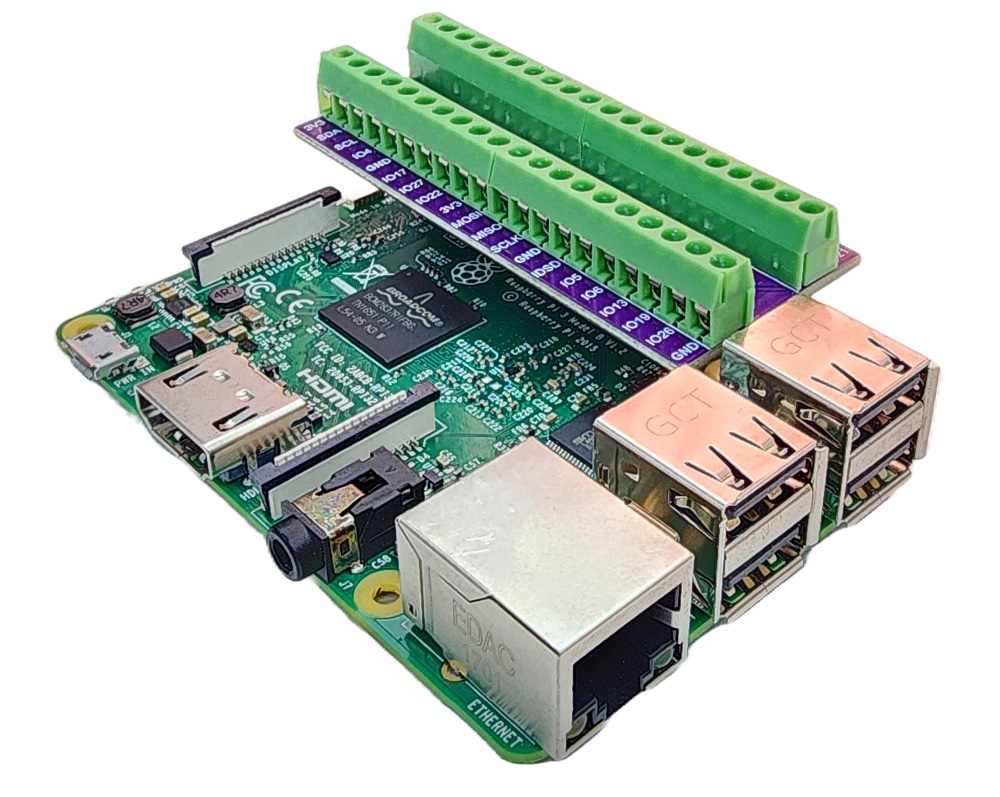
To simplify and organize your wiring setup, we recommend using a Screw Terminal Block Shield for Raspberry Pi. This shield ensures more secure and manageable connections, as shown below:
- LED module GND pin to Raspberry Pi GND (pin 14, or any other GND pin)
- LED module VCC pin to Raspberry Pi 3.3V (pin 1) or 5V (pin 2)
- LED module IN pin to Raspberry Pi GPIO18 (pin 12)
Is 5V on VCC safe for the Raspberry Pi? Yes. The 5V only feeds the LED through the transistor on the module. The IN pin is only an input that the GPIO pin drives, so no 5V comes back into GPIO18. Choose 5V if you want the LED a bit brighter, or 3.3V if you like to keep everything on the 3.3V rail.
The module pins plug straight into female jumper wires, so a breadboard is not required. Use one only if you want to place several modules side by side.
How To Program for Raspberry Pi to Blink LED Module
No extra library is needed for the LED module itself. The script uses the RPi.GPIO library, the same one as the plain LED tutorial, with BCM pin numbering:
- GPIO.setup(18, GPIO.OUT) makes GPIO18 a digital output.
- GPIO.output(18, GPIO.HIGH) turns the LED module on, and GPIO.output(18, GPIO.LOW) turns it off.
- time.sleep(1) keeps each state for one second.
Detailed Instructions
- Make sure you have Raspbian or any other Raspberry Pi compatible operating system installed on your Pi.
- Make sure your Raspberry Pi is connected to the same local network as your PC.
- Make sure your Raspberry Pi is connected to the internet if you need to install some libraries.
- If this is the first time you use Raspberry Pi, See how to set up the Raspberry Pi
- Connect your PC to the Raspberry Pi via SSH using the built-in SSH client on Linux and macOS or PuTTY on Windows. See to how connect your PC to Raspberry Pi via SSH.
- Make sure you have the RPi.GPIO library installed. If not, install it using the following command:
- Wire the LED module to the Raspberry Pi as shown in the wiring diagram above.
- Create a Python script file led_module_blink.py and add the following code:
- Save the file and run the Python script by executing the following command in the terminal:
- Look at the LED module. It turns on for one second, then off for one second, again and again.
- Check the terminal. Each state change prints one line:
A new line appears every second (from the time.sleep(1) lines). The script runs until you press Ctrl + C keys in the terminal. It then turns the LED off and releases GPIO18 with GPIO.cleanup(), so the LED does not stay on after the script ends.
If the LED does not light up, check these points:
- The IN wire must go to pin 12 (GPIO18). Pin 12 is the physical pin number, and 18 is the GPIO number used in the code.
- The GND wire must go to a GND pin. Without a shared ground, the IN signal has no reference.
- VCC must be on pin 1 or pin 2. If VCC is not connected, the transistor switches but the LED has no power.
How To Program for Raspberry Pi to Fade LED Module
GPIO18 can output a PWM signal. With RPi.GPIO, you create it with GPIO.PWM(18, 1000) and set the brightness with pwm.ChangeDutyCycle(), from 0 (off) to 100 (full). The script below raises the duty cycle from 0 to 100 in steps of 5, then lowers it back to 0. Each step lasts 40 milliseconds, so one full fade in and fade out takes about 1.7 seconds.
Detailed Instructions
- Keep the same wiring. The IN pin stays on GPIO18 (pin 12).
- Create a Python script file led_module_fade.py and add the following code:
- Save the file and run it with this command:
- Watch the LED module. It slowly gets brighter, then slowly gets dimmer, like breathing.
- Check the terminal. The script prints a line at the start and at the end of each fade:
Press Ctrl + C keys in the terminal to stop the script. It stops the PWM and cleans up the GPIO pin.
To make the fade slower, increase STEP_DELAY (for example 0.08). To make it smoother, decrease STEP (for example 2).
※ NOTE THAT:
RPi.GPIO makes PWM in software. When the Raspberry Pi is very busy, you may see a small flicker at low brightness. This is normal for a status light.
Code Explanation
Check out the line-by-line explanation contained in the comments of the source code!
Additional Knowledge
LED Module vs Bare LED
Let's compare the LED module with a bare LED on the Raspberry Pi:
| LED Module | Bare LED | |
|---|---|---|
| Resistor | on the board (330Ω) | you must add one (for example 220Ω) |
| Polarity | pins are labeled GND, VCC, IN | you must find the anode(+) and cathode(-) |
| Who powers the LED | VCC, through the transistor | the GPIO pin itself |
| Current from the GPIO pin | very small | the full LED current |
| Wires to connect | 3 | 2, plus the resistor |
Evidently, the LED module is easier and safer for a beginner, and it takes almost no current from the GPIO pin. A bare LED is cheaper and smaller, so it fits better when you build many lights on one board.
Project Ideas with the LED Module
- Script running light: turn the LED on at the start of your Python script, so you know the headless Pi is working.
- Network alarm: blink the red module fast when the Raspberry Pi cannot reach the internet.
- CPU temperature warning: read the CPU temperature and turn on a yellow module when it goes too high.
- Heartbeat light: fade a green module slowly to show the Pi is alive.
- Traffic light model: use the red, yellow and green modules on three GPIO pins.