
Arduino Nano ESP32 - SSD1309 OLED Display
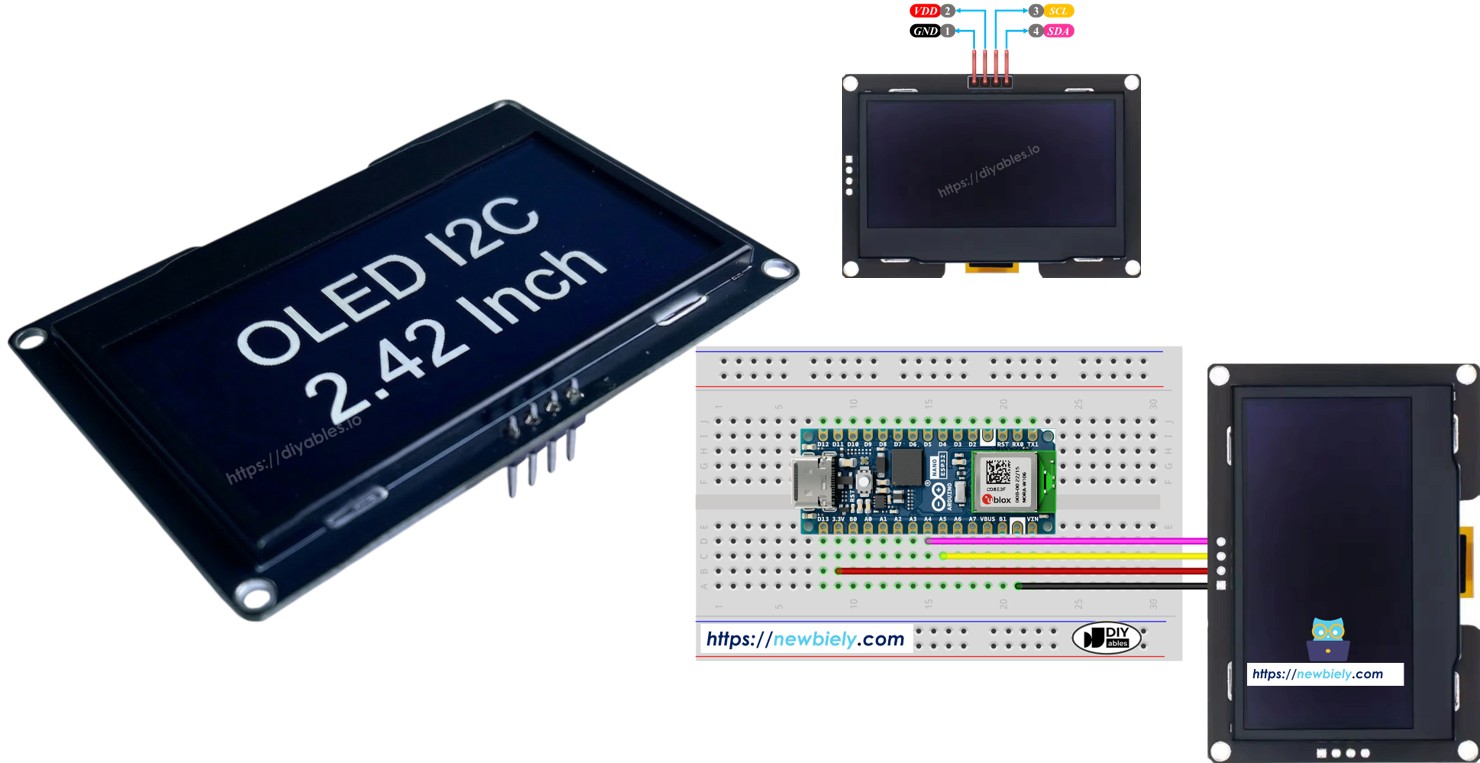
This tutorial provides instructions on how to use the SSD1309 OLED 128×64 (2.42-inch / 2.4-inch) with an Arduino Nano ESP32 via the I2C interface and the DIYables_OLED_SSD1309 library. In detail, we will learn:
- How to connect the 2.42-inch SSD1309 OLED to Arduino Nano ESP32 over I2C
- How to program Arduino Nano ESP32 to display text and numbers on the SSD1309 OLED
- How to center text vertically and horizontally on the SSD1309 OLED
- How to draw geometric shapes on the SSD1309 OLED
- How to display monochrome bitmap images on the SSD1309 OLED
- How to use hardware scrolling in four directions
- How to adjust contrast and dim the display
- How to use custom fonts from the Adafruit GFX font collection
Hardware Preparation
Or you can buy the following kits:
| 1 | × | DIYables Sensor Kit (18 sensors/displays) |
Additionally, some of these links are for products from our own brand, DIYables .
Overview of the SSD1309 2.42-Inch OLED Display
The SSD1309 is a single-chip CMOS OLED driver IC for 128×64 dot-matrix panels. It is register-compatible with the SSD1306, so many existing code examples port over with minimal changes. Notable hardware details:
- No built-in charge pump — the SSD1309 requires an external VCC rail, though virtually all breakout boards (including 2.42-inch modules) ship with an onboard boost converter, making this transparent to the user.
- Higher voltage tolerance — the SSD1309 accepts up to 16 V VCC, versus the SSD1306's ~4.2 V limit.
I2C communication requires only two signal wires (SDA and SCL), and the bus can be shared with other I2C peripherals at the same time.
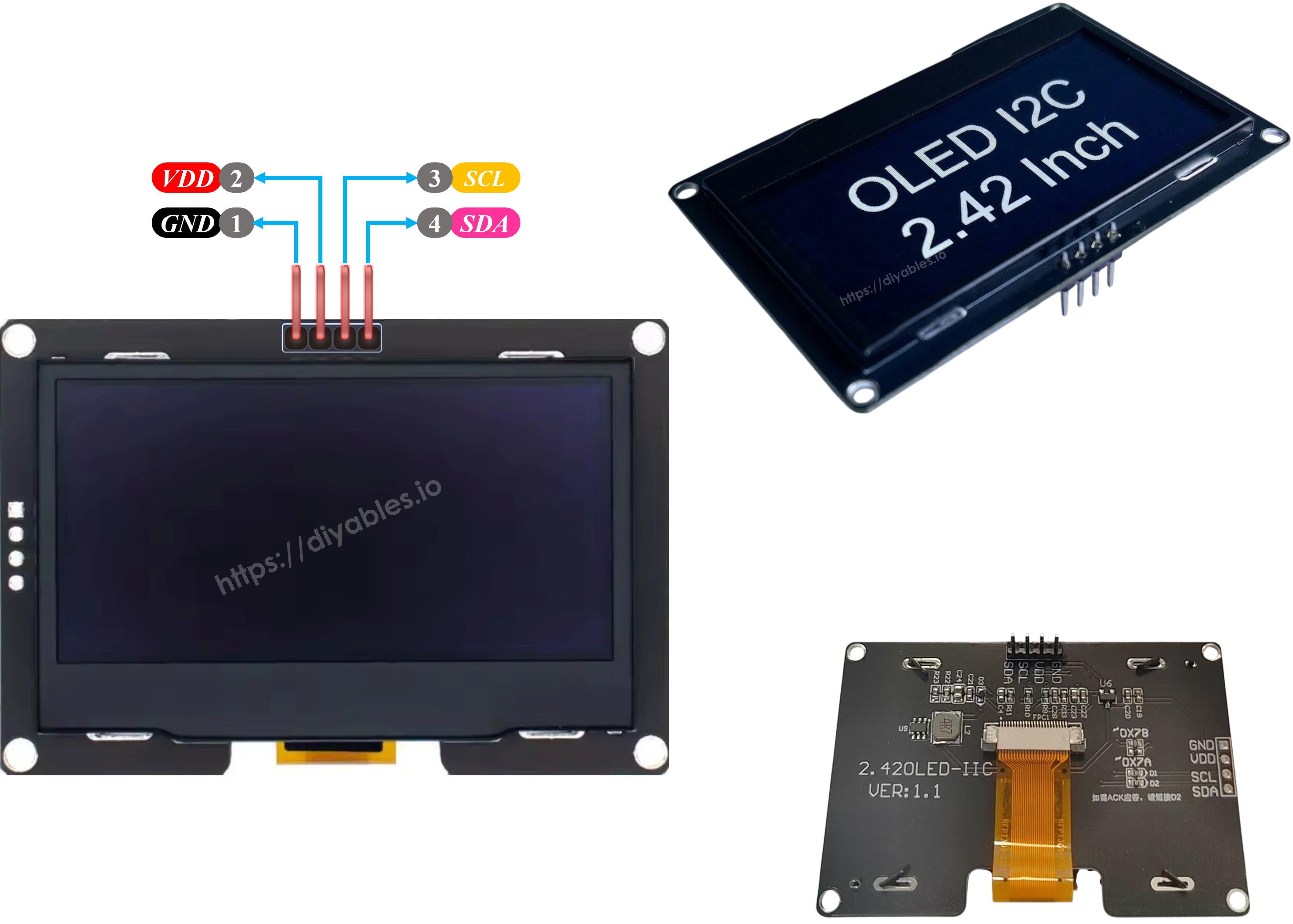
SSD1309 OLED Pinout (I2C Module)
- GND pin: Connect to GND on the Arduino Nano ESP32.
- VCC pin: Power supply for the display. Connect to 3.3V.
- SCL pin: Serial clock for I2C. Connect to A5.
- SDA pin: Serial data for I2C. Connect to A4.
※ NOTE THAT:
- The pin layout of the OLED module can differ depending on the manufacturer. Always use the labels printed on the module itself.
- This tutorial uses the SSD1309 I2C OLED from DIYables, which has been tested and confirmed to work.
Wiring Diagram
- Wiring diagram between Arduino Nano ESP32 and SSD1309 OLED 128x64

This image is created using Fritzing. Click to enlarge image
The wiring table between Arduino Nano ESP32 and SSD1309 OLED display:
| OLED Module | Arduino Nano ESP32 |
|---|---|
| VCC | 3.3V |
| GND | GND |
| SDA | A4 |
| SCL | A5 |
How to Program Arduino Nano ESP32 for SSD1309 OLED
Install the DIYables_OLED_SSD1309 Library
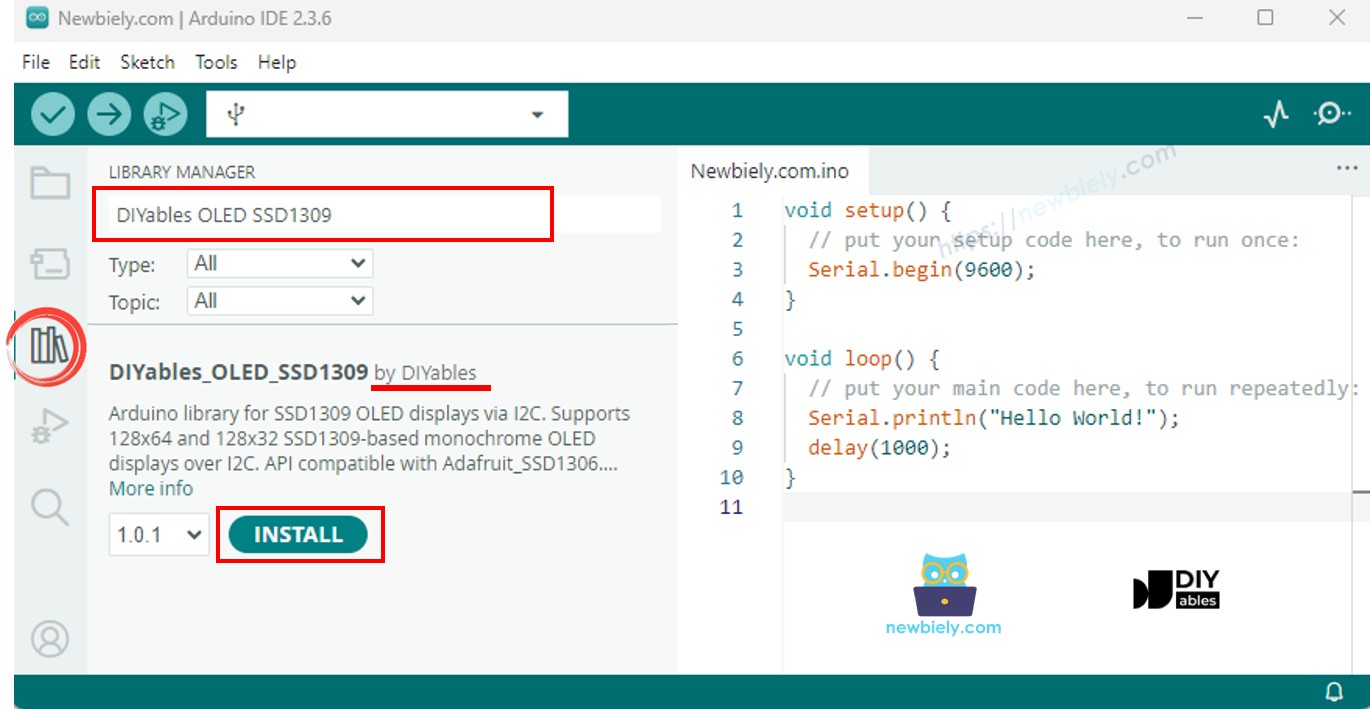
- Click to the Libraries icon on the left bar of the Arduino IDE.
- Search for DIYables_OLED_SSD1309, then find the DIYables OLED SSD1309 library by DIYables.
- Click Install to install the DIYables_OLED_SSD1309 library.
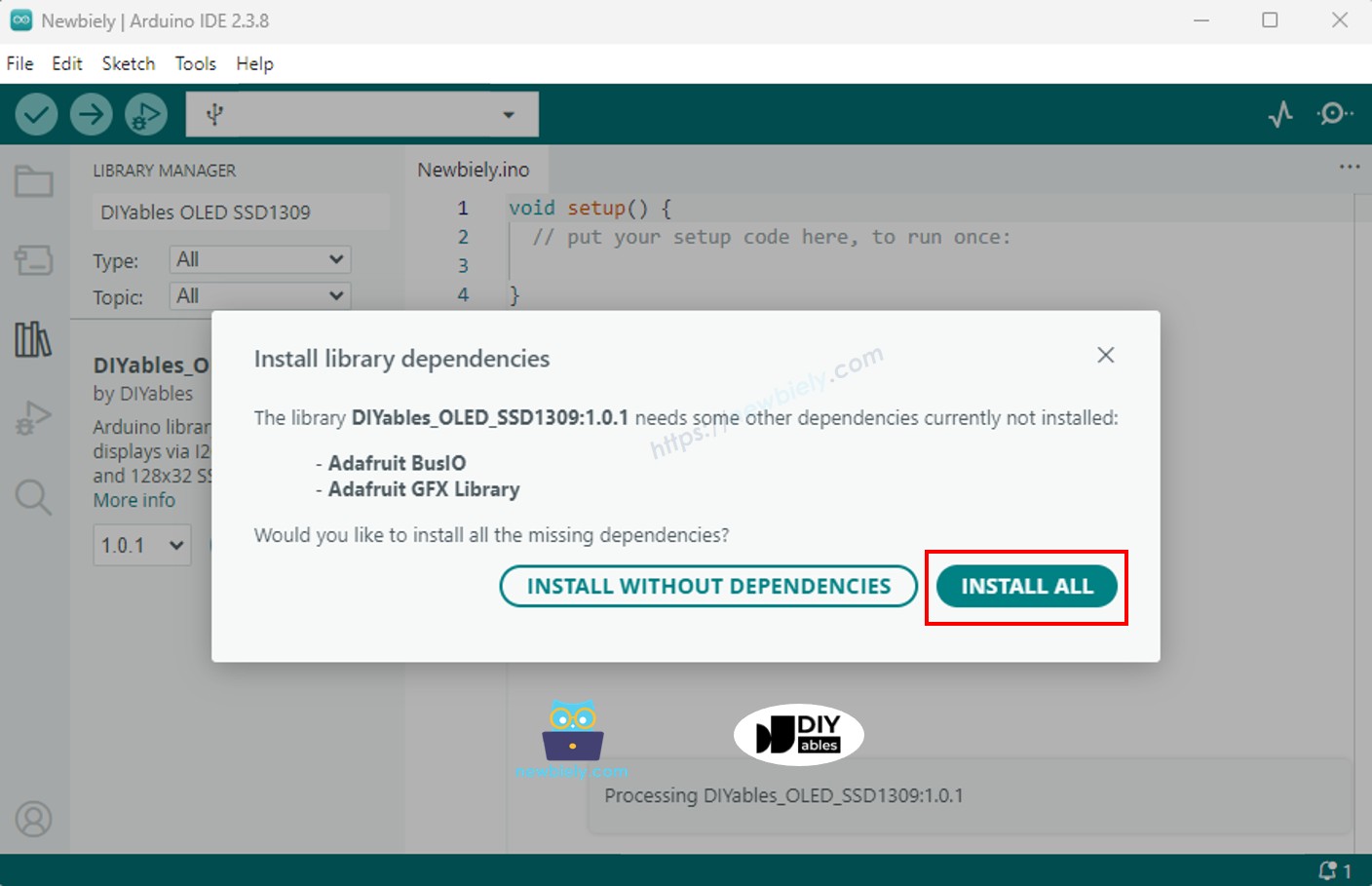
- You will be asked to install dependencies for the library.
- Click Install All to install all required dependencies.
Programming Steps
- Include the required libraries
- Define the screen dimensions
- Declare the display object
- Initialize the OLED in setup()
- Display content
Arduino Nano ESP32 Code — Hello World on SSD1309 OLED
The simplest starting point: print a few lines of text at different sizes.
Arduino Nano ESP32 Code — Display Text on SSD1309 OLED
The following example demonstrates more text features — multiple sizes, number formatting, and the F() macro for saving RAM.
Useful Display Functions Reference
- oled.clearDisplay() — wipe the frame buffer (all pixels off).
- oled.display() — transfer the buffer to the OLED so changes become visible.
- oled.drawPixel(x, y, color) — set or clear an individual pixel.
- oled.setTextSize(n) — scale the font by factor *n* (1 = 6×8, 2 = 12×16, …).
- oled.setCursor(x, y) — move the text cursor to pixel coordinates *(x, y)*.
- oled.setTextColor(SSD1309_PIXEL_ON) — text foreground only (transparent background).
- oled.setTextColor(SSD1309_PIXEL_OFF, SSD1309_PIXEL_ON) — text with explicit background colour.
- oled.println("message") — print a string and advance to the next line.
- oled.println(number) — print an integer in decimal.
- oled.println(number, HEX) — print an integer in hexadecimal.
- oled.startscrollright(start, stop) — hardware-scroll right between page *start* and *stop*.
- oled.startscrollleft(start, stop) — hardware-scroll left.
- oled.startscrolldiagright(start, stop) — hardware-scroll diagonally right.
- oled.startscrolldiagleft(start, stop) — hardware-scroll diagonally left.
- oled.stopscroll() — halt any active hardware scroll.
- oled.setContrast(value) — adjust display brightness (0–255).
- oled.dim(true/false) — quickly dim or restore the display.
- oled.invertDisplay(true/false) — hardware-level colour inversion.
How to Vertically and Horizontally Center Text on the SSD1309 OLED
Arduino Nano ESP32 Code — Draw Shapes on SSD1309 OLED
The DIYables_OLED_SSD1309 library extends Adafruit_GFX, giving you a full set of shape-drawing primitives: pixels, lines, rectangles, filled rectangles, circles, filled circles, triangles, filled triangles, and rounded rectangles.
Arduino Nano ESP32 Code — Hardware Scrolling on SSD1309 OLED
The SSD1309 includes a hardware scrolling engine that shifts display contents without CPU load. Four scroll directions are available: right, left, diagonal-right, and diagonal-left. Each function takes start and stop page numbers (pages are 8-pixel-high strips numbered 0–7).
※ NOTE THAT:
Call display() to push your content to the OLED before starting a scroll. Stop scrolling with stopscroll() before drawing new content.
Arduino Nano ESP32 Code — Display Bitmap Image on SSD1309 OLED
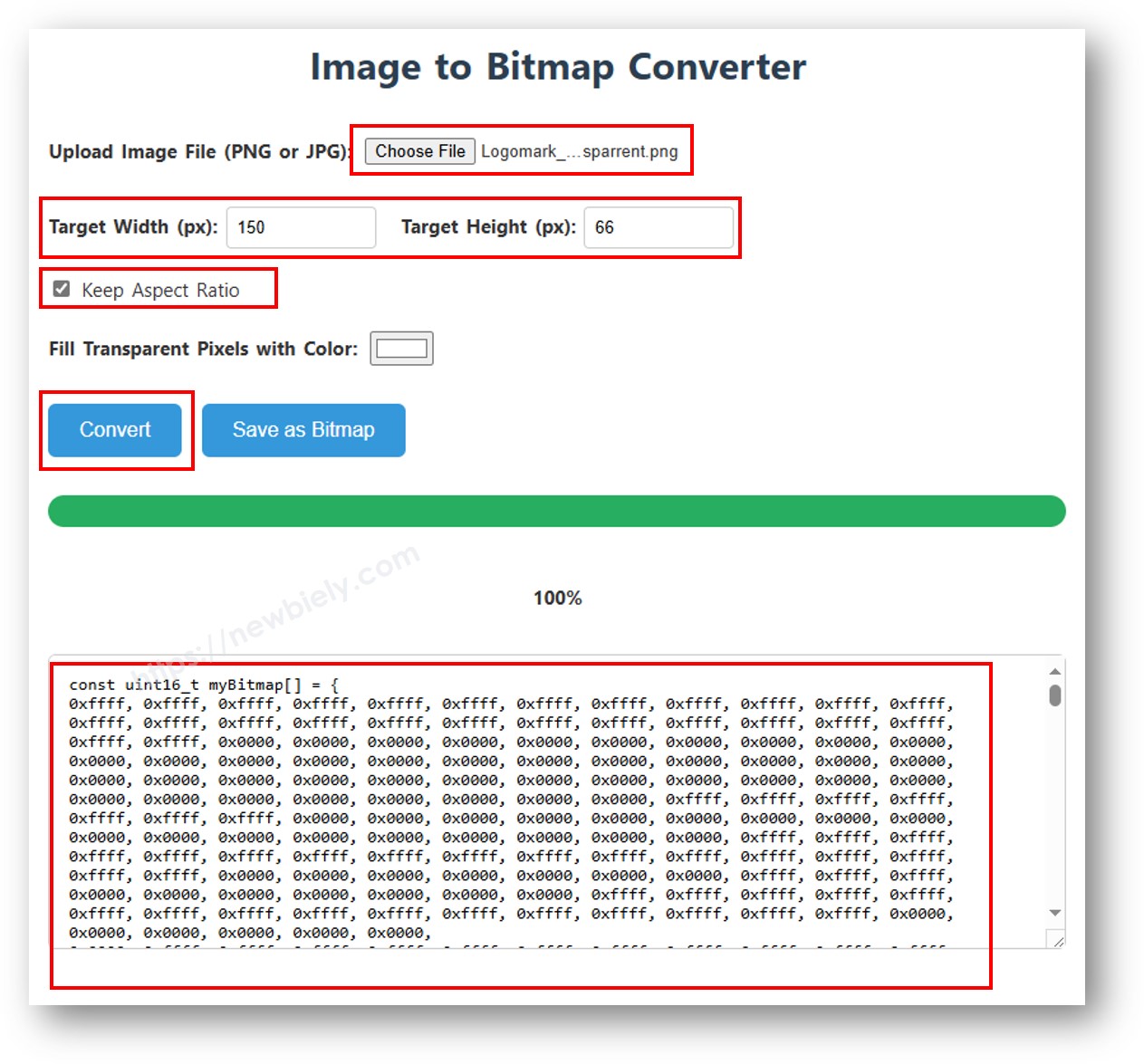
To display a bitmap you must first convert your image into a C byte array. Use the free image2cpp online tool:
- Upload your image (PNG, JPG, BMP, etc.).
- Set the canvas size to 128×64 (or smaller).
- Choose Arduino code as the output format.
- Copy the generated array into your sketch.
※ NOTE THAT:
- Bitmap dimensions must not exceed 128×64 for this module.
Arduino Nano ESP32 Code — Contrast and Dim on SSD1309 OLED
The SSD1309 supports 256 contrast levels (0–255). Use setContrast() for fine control and dim() for a quick toggle between minimum brightness and the previously configured level.
Arduino Nano ESP32 Code — Custom External Fonts on SSD1309 OLED
The Adafruit GFX library includes dozens of scalable FreeFont typefaces (Serif, Sans, Mono — Regular, Bold, Italic, four sizes each). Activate any of them by including the corresponding header and calling setFont().
※ NOTE THAT:
- When an external font is active, the cursor Y coordinate refers to the text baseline, not the top-left corner.
- External fonts are stored in flash (PROGMEM). Use them thoughtfully to stay within the Arduino Nano ESP32 flash budget.
SSD1309 OLED Troubleshooting with Arduino Nano ESP32
If nothing appears on the 2.42-inch SSD1309 OLED after uploading your sketch, work through these checks:
- Verify wiring — confirm SDA→A4, SCL→A5, VCC→3.3V, and GND→GND are all correctly connected.
- Confirm the driver chip — this library targets the SSD1309. Modules with a different controller (e.g. SH1106) will not respond correctly.
- Check the I2C address — most SSD1309 modules default to 0x3C, but some use 0x3D. Use the I2C scanner sketch below to find the actual address:
Expected Serial Monitor output when the SSD1309 is detected:
- Ensure display() is called — the SSD1309 uses a frame buffer. Drawing functions modify RAM only; nothing appears on screen until you call oled.display().
- Check power supply — the 2.42-inch module draws more current than smaller OLEDs. Confirm that 3.3V can supply sufficient current (typically 20–40 mA at full brightness).