
ESP32 UNO - 4-Channel Relay Module
Need to run a pump, a fan, a lamp and a valve from a single ESP32 Uno 4-channel relay setup? Hook a four-channel relay board to the ESP32 Uno form board and control every load with four output pins. You get the pin roles, a wiring plan with its own 5V supply, and short Arduino IDE code that clicks the four-channel relay module on and off.
What you will do:
- Identify the power, signal and output pins of a four-channel relay board
- Hook the relay inputs to the ESP32 Uno and feed the coils from a dedicated 5V adapter
- Drive four relays with pinMode() and digitalWrite() in Arduino code
- Upload the sketch and follow each switch step in the Serial Monitor
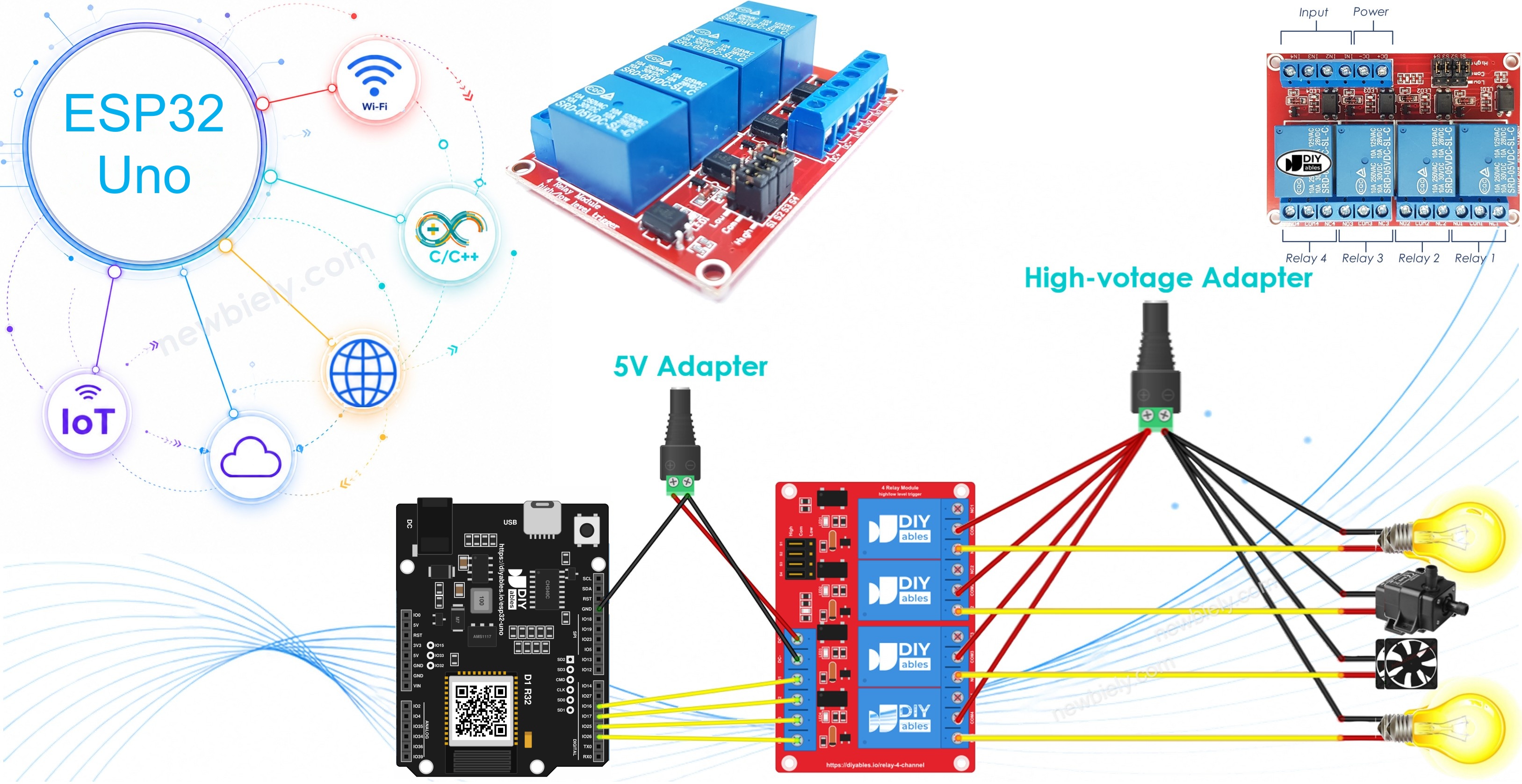
Why one 4-channel board and not four single relays? Compare them:
| Point | Four single relay modules | One 4-channel relay module |
|---|---|---|
| Wires to the board | 12 (power and signal for each) | 6 (shared power, four signals) |
| Space on the desk | Large | Compact |
| Price | Usually higher | Usually lower |
| Code | Same | Same |
Components You Need
| 1 | × | ESP32 Uno-form Board | |
| 1 | × | USB Cable Type-A to Type-C (for USB-A PC) | |
| 1 | × | USB Cable Type-C to Type-C (for USB-C PC) | |
| 1 | × | 4-channel Relay Module | |
| 1 | × | 5V Power Adapter | |
| 1 | × | Jumper Wires |
Or you can buy the following kits:
| 1 | × | DIYables Sensor Kit (18 sensors/displays) |
Additionally, some of these links are for products from our own brand, DIYables .
Meet the 4-Channel Relay Module
At the end of this part, you can name every terminal on the board and say where it goes.
Pinout
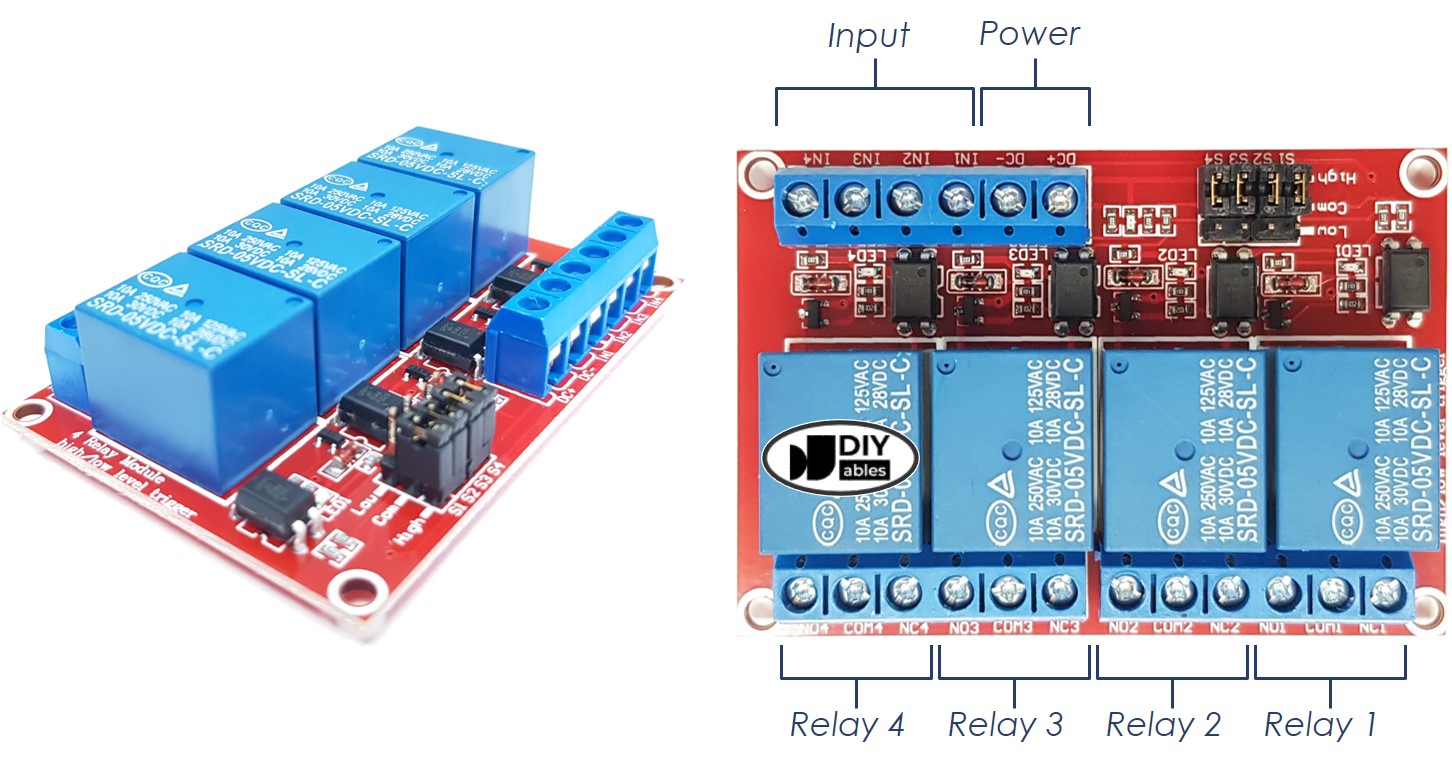
Pin groups at a glance
| Group | Pins | Job |
|---|---|---|
| Power | DC+, DC- | Feed the four relay coils from an external 5V adapter |
| Signal | IN1, IN2, IN3, IN4 | Receive the control level from the ESP32 Uno, one pin per relay |
| Output | NCx, NOx, COMx | Switch the high-voltage device of relay x |
| Jumpers | 4 trigger jumpers | Choose low-level or high-level trigger for each relay |
Power side
Wire DC+ to the 5V terminal of the relay adapter. Wire DC- to the GND terminal of that adapter, and run one more wire from DC- to a GND pin of the ESP32 Uno. Without that shared ground, the IN signals have no reference and the relays stay quiet.
Output side
Three screw terminals sit next to every relay: NCx (normally closed), NOx (normally open) and COMx (common). Relay 1 uses NC1, NO1 and COM1. Relay 4 uses NC4, NO4 and COM4. The two middle relays follow the same naming.
| Relay state | COM connected to | Use it for |
|---|---|---|
| Off (not energized) | NC | A device that must stay on unless you switch it off |
| On (energized) | NO | A device that must stay off unless you switch it on |
Good to know: the trigger jumpers decide whether a HIGH or a LOW on the IN pin turns the relay on. Set all four the same way to keep the code simple.
First time switching mains or a high-voltage load? Read ESP32 Uno - Relay before this project. It covers how to hook a single relay to a load and when to pick normally closed or normally open.
ESP32 Uno Pinout
On the ESP32 Uno form board, the printed header names (D2, D3...) are not the numbers you type in code. Find D2 to D5 in the diagram below and note their GPIO numbers.

How to Connect
By the end of this part, the four relay inputs sit on D2 to D5 and the module runs from its own supply.
Four coils switching together can pull more current than the board's 5V pin should give. So the module gets a separate 5V adapter, never the ESP32 Uno 5V pin.
| Power source | What it feeds |
|---|---|
| USB Type-C cable or power jack | The ESP32 Uno (not drawn in the image) |
| 5V adapter | The 4-channel relay module coils |
| High-voltage adapter (12VDC, 24VDC, 48VDC, 220VAC...) | The loads that the relays switch |
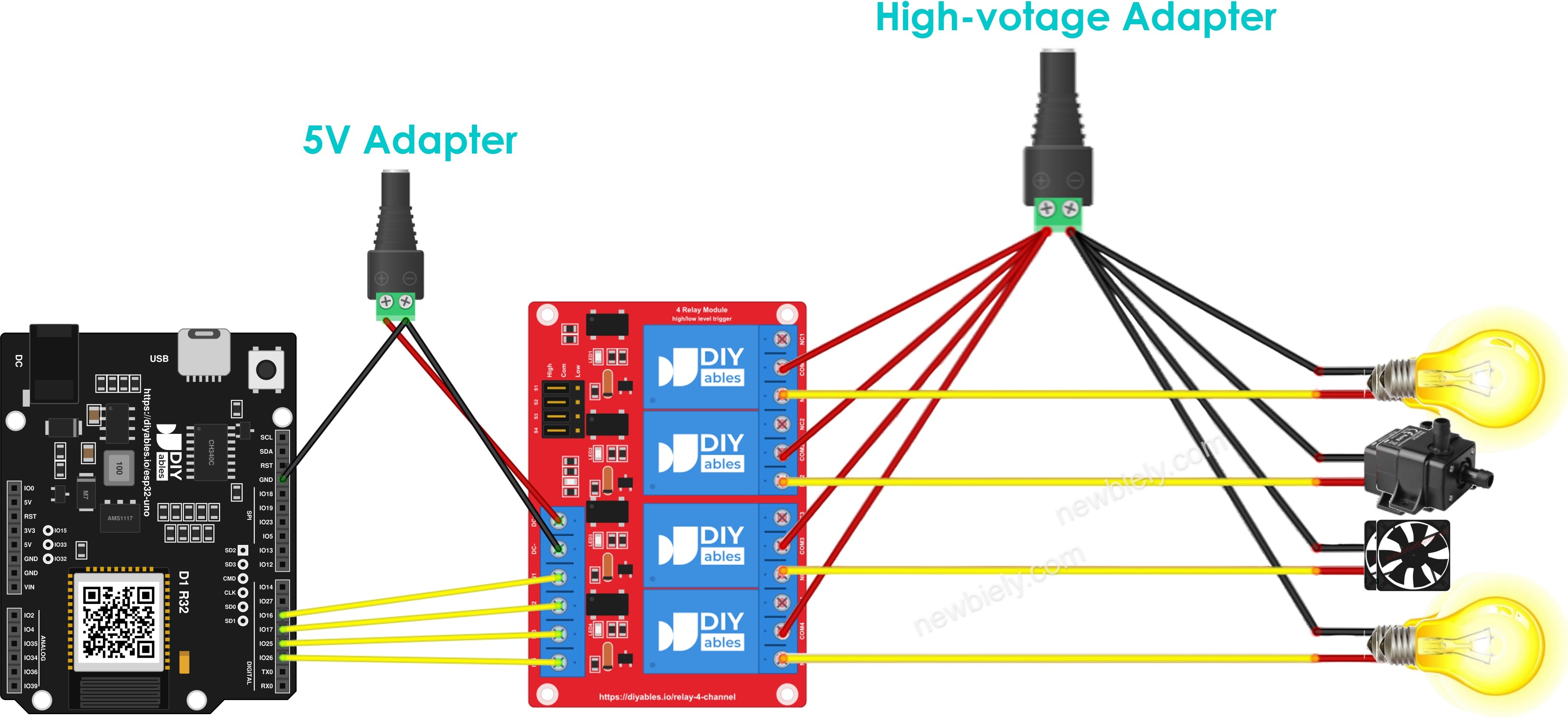
This image is created using Fritzing. Click to enlarge image
| Relay Module Pin | ESP32 Uno Pin |
|---|---|
| DC+ | Relay adapter 5V (+) output |
| DC- | Relay adapter GND (-) plus any ESP32 Uno GND pin |
| IN1 | D2 (GPIO26) |
| IN2 | D3 (GPIO25) |
| IN3 | D4 (GPIO17) |
| IN4 | D5 (GPIO16) |
Good to know: a HIGH on the ESP32 Uno is 3.3V. Most 5V relay boards with a transistor or optocoupler input react to it. The IN pins only receive signals, so no 5V goes back into the board. ESP32 Uno pins are NOT 5V tolerant, so keep it that way.
※ NOTE THAT:
Four loads with the same voltage can share one high-voltage adapter. Loads that need different voltages each need their own adapter.
Controlling Four Relays in Code
After this part, you know the only two functions the sketch needs.
| Function | Where | Effect |
|---|---|---|
| pinMode(pin, OUTPUT) | setup() | Lets the pin send a HIGH or LOW to one IN input |
| digitalWrite(pin, HIGH) | loop() | Energizes that relay (high-level trigger) |
| digitalWrite(pin, LOW) | loop() | Releases that relay |
Configure each of the four pins as an output with pinMode():
Set the level of each relay with digitalWrite():
ESP32 Uno Code
The sketch below energizes all four relays for one second, releases them for one second, and logs every change at 9600 baud.
Upload and Test
- First time with this board? Set it up with ESP32 Uno - Getting Started before you continue.
- Build the circuit by following the wiring table above.
- Plug in the USB Type-C cable between the ESP32 Uno and your computer.
- Select the board in Arduino IDE: pick ESP32 Dev Module and the COM port of the board (CH340).
- Paste the sketch into a new Arduino IDE window.
- Press Upload and wait for "Done uploading".
- Listen to the module: the four relays click together once per second, and the small LEDs blink with them.
- Open the Serial Monitor, set it to 9600 baud, and watch the log:
- Pro tip: before you connect any load, put a multimeter in continuity mode across COM1 and NO1. It should beep once per second, in time with the Serial Monitor. Repeat for relays 2 to 4.
Video Tutorial
See the ESP32 Uno build in action in the video below.
How the Sketch Works
| Code Part | What It Does |
|---|---|
| #define PIN_RELAY_1 ... PIN_RELAY_4 | Gives names to GPIO26, GPIO25, GPIO17 and GPIO16 (D2 to D5) |
| Serial.begin(9600) | Starts the USB serial log |
| pinMode(..., OUTPUT) x4 | Turns the four pins into outputs |
| digitalWrite(..., HIGH) then delay(1000) | Switches all relays on and holds for one second |
| digitalWrite(..., LOW) then delay(1000) | Switches all relays off and holds for one second |
The result is a steady on/off cycle of two seconds that repeats forever.
ESP32 Uno vs UNO R4 for This Project
This table lists what changes when you move this relay build from the UNO R4 to the ESP32 Uno.
| Item | Arduino UNO R4 | ESP32 Uno |
|---|---|---|
| Logic voltage | 5V | 3.3V |
| Pins for IN1 to IN4 | D2, D3, D4, D5 | D2 (GPIO26), D3 (GPIO25), D4 (GPIO17), D5 (GPIO16) |
| Numbers in the code | 2, 3, 4, 5 | 26, 25, 17, 16 |
| Libraries | None | None |
| WiFi and Bluetooth | WiFi on the WiFi model only | WiFi plus Bluetooth Classic and BLE |
| Arduino IDE board | Arduino UNO R4 WiFi or Minima | ESP32 Dev Module |
The wiring stays exactly the same; only the four pin numbers in the code change. Check that your relay board accepts a 3.3V input level.
Application Examples
Four relays mean four separate devices under one board. Pick an idea and grow the project.
| Idea | What to add | How the relays are used |
|---|---|---|
| Four-zone garden watering | Soil moisture sensors on A2 to A5 | One pump or valve per zone, on only when that zone is dry |
| Room control box | Four push buttons | Each button toggles a lamp, a fan, a heater or a night light |
| Climate control | DS18B20 or DHT22 sensor | Fan relay on when hot, heater relay on when cold |
| Timed switching | RTC module or internet time | Each relay follows its own daily schedule |
Go Wireless: A Four-Switch Phone Panel
After this part, you have an idea for switching the relays without touching the board.
The ESP32 Uno has WiFi and Bluetooth built in. Instead of a fixed one-second cycle, show four ON/OFF buttons on your phone and send each tap to D2, D3, D4 or D5. You can turn the pump on from the garden or switch off the heater from the couch, and the same wiring stays in place.
Try These Next
- Switch the relays one by one: relay 1, then 2, then 3, then 4, with half a second between them.
- Add a button on D7 (GPIO14) that steps through the relays on each press.
- Print the state of every relay as a line like "R1:ON R2:OFF R3:OFF R4:ON".
Function References
Troubleshooting
| Problem | Possible Cause | Solution |
|---|---|---|
| Board missing from the port list | CH340 driver not installed or power-only USB cable | Install the CH340 driver and swap to a USB Type-C cable that carries data |
| Upload stops at "Waiting for download" or "Failed to connect" | The chip did not enter download mode | Hold the BOOT button while the upload starts, then let go |
| Silence from all four relays | DC+ has no 5V or DC- is not tied to the board GND | Feed DC+ from the relay adapter and add a wire from DC- to an ESP32 Uno GND pin |
| One channel never switches | Its IN wire is loose or on another header | Trace IN1 to IN4 back to D2, D3, D4 and D5 |
| Nothing switches after a good upload | The sketch still uses 2, 3, 4 and 5 as pin numbers | Use 26, 25, 17 and 16 in the defines |
| Module LED glows but no click is heard | The relay input needs more than a 3.3V level | Pick a relay board rated for 3.3V input or one with a transistor driver |
| Relays are on when the code writes LOW | Jumpers set to low-level trigger | Set the jumpers to high-level trigger or swap HIGH and LOW |
| ESP32 Uno restarts each time the relays switch | Coil current is taken from the board | Move the module to its own 5V adapter |
| Garbage text in the Serial Monitor | Baud rate does not match | Choose 9600 baud in the Serial Monitor |
FAQ
Is it safe to run the relay module from the ESP32 Uno 5V pin?
Avoid it. Four coils switching at once can draw a few hundred milliamps, and the board can brown out and restart. A separate 5V adapter for DC+ and DC- is the reliable choice. Just remember to join its ground with the board ground.
Does a 5V relay board react to a 3.3V signal from the ESP32 Uno?
In most cases, yes. Boards with an optocoupler or a transistor on each input switch fine at 3.3V. If an input LED lights but the relay stays silent, use a relay board made for 3.3V logic.
Why are the pin numbers in the code 26, 25, 17 and 16?
The ESP32 Uno code works with GPIO numbers, not with the Uno header names. Header D2 maps to GPIO26, D3 to GPIO25, D4 to GPIO17, and D5 to GPIO16. Typing 2 would select GPIO2, which sits on the A0 header.
How do I switch only one relay and leave the others alone?
Call digitalWrite() for just that relay's pin. Each relay has its own IN input and its own GPIO, so the other three keep their state.
Can I drive a relay from A2, A3, A4 or A5 on the ESP32 Uno?
No. Those headers are GPIO35, GPIO34, GPIO36 and GPIO39, and they are input only. They cannot send a HIGH or LOW to an IN pin. Use digital headers such as D2 to D7, D9 or D11 to D13 for relays.
Is D8 a good choice for a fifth relay?
Use it with care. D8 is GPIO12, a boot strapping pin that must be LOW at power-up. Some relay boards pull their inputs HIGH, which can stop the ESP32 Uno from starting. D10 (GPIO5) and A0 (GPIO2) are also strapping pins, so try other headers first.
Do I need a driver for the ESP32 Uno USB port?
Yes, on many computers. The board talks over USB through a CH340 chip. Install the CH340 driver if no new COM port appears when you plug it in.
Will my UNO shields fit the ESP32 Uno?
They fit mechanically because the headers have the Uno layout. A shield works only if it runs at 3.3V logic and does not use A4/A5 for I2C. On this board, I2C is on the SDA (GPIO21) and SCL (GPIO22) header pins.
What if my project needs more pins than the Uno headers give?
The ESP32 Uno has a few extra holes near the power header. GPIO32 and GPIO33 are I/O, PWM and analog on ADC1, so they also work while WiFi is on. GPIO15 is I/O, PWM and analog on ADC2. Add pin headers with a soldering iron, then type the plain GPIO number in your sketch. For two more relays, GPIO32 and GPIO33 are the best pick. Two warnings: GPIO15 and GPIO0 (the IO0 pin at the unused Uno NC position) are boot strapping pins, and a wrong connection can stop the board from booting or uploading code, so use GPIO32/33 first. Never use the six holes under the digital header (SD0 to SD3, CMD, CLK = GPIO6 to GPIO11), because they are wired to the flash chip and using them crashes the board.
Can I flip the relays from my phone?
Yes. The ESP32 Uno has WiFi and Bluetooth. The DIYables Web Apps library can show a page with ON/OFF buttons for each pin, and the DIYables Bluetooth app can do the same over Bluetooth.