
ESP32 UNO - Blink LED Without Delay
Does your ESP32 Uno miss button presses while an LED is blinking? The culprit is delay(), and the cure is to blink the LED without delay. On the ESP32 Uno form board, a timer check based on millis() keeps the LED blinking on schedule while the loop stays free to read a push button. You get a non-blocking blink that never ignores the user.
What you will do:
- Run a blocking blink with delay() and watch button presses go missing
- Rewrite it as an LED blink using millis()
- Read a button and toggle an LED in the same loop on the ESP32 Uno
- Run two LEDs at two speeds next to a button check
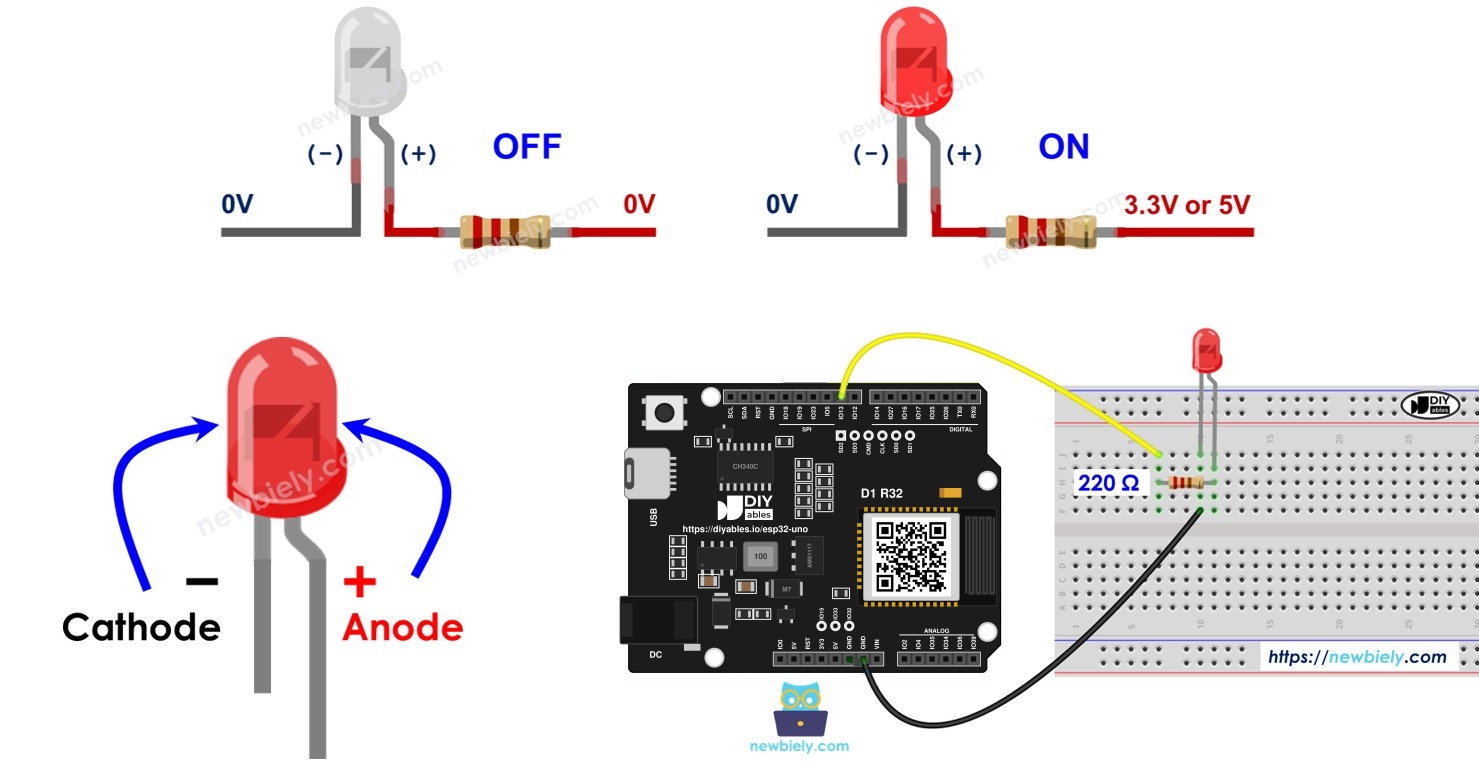
※ NOTE THAT:
- An LED and a button are just the demo. The real skill is cooperative multitasking: the ESP32 Uno handles several timed jobs in one loop, and no job freezes the rest.
- This page walks through the timing logic by hand. For a shortcut, the LED library (ezLED) wraps the same idea in a few function calls.
Components You Need
Or you can buy the following kits:
| 1 | × | DIYables Sensor Kit (18 sensors/displays) |
Additionally, some of these links are for products from our own brand, DIYables .
Buy Note: Use the LED Module for easier wiring. It includes an integrated resistor.
ESP32 Uno Pinout
The labels printed on the headers (D3, D7) are not the numbers your sketch uses. Find each label in this diagram and note the GPIO number next to it.

How to Connect the LED and Button
By the end of this part, the LED sits on D3 and the button sits on D7.
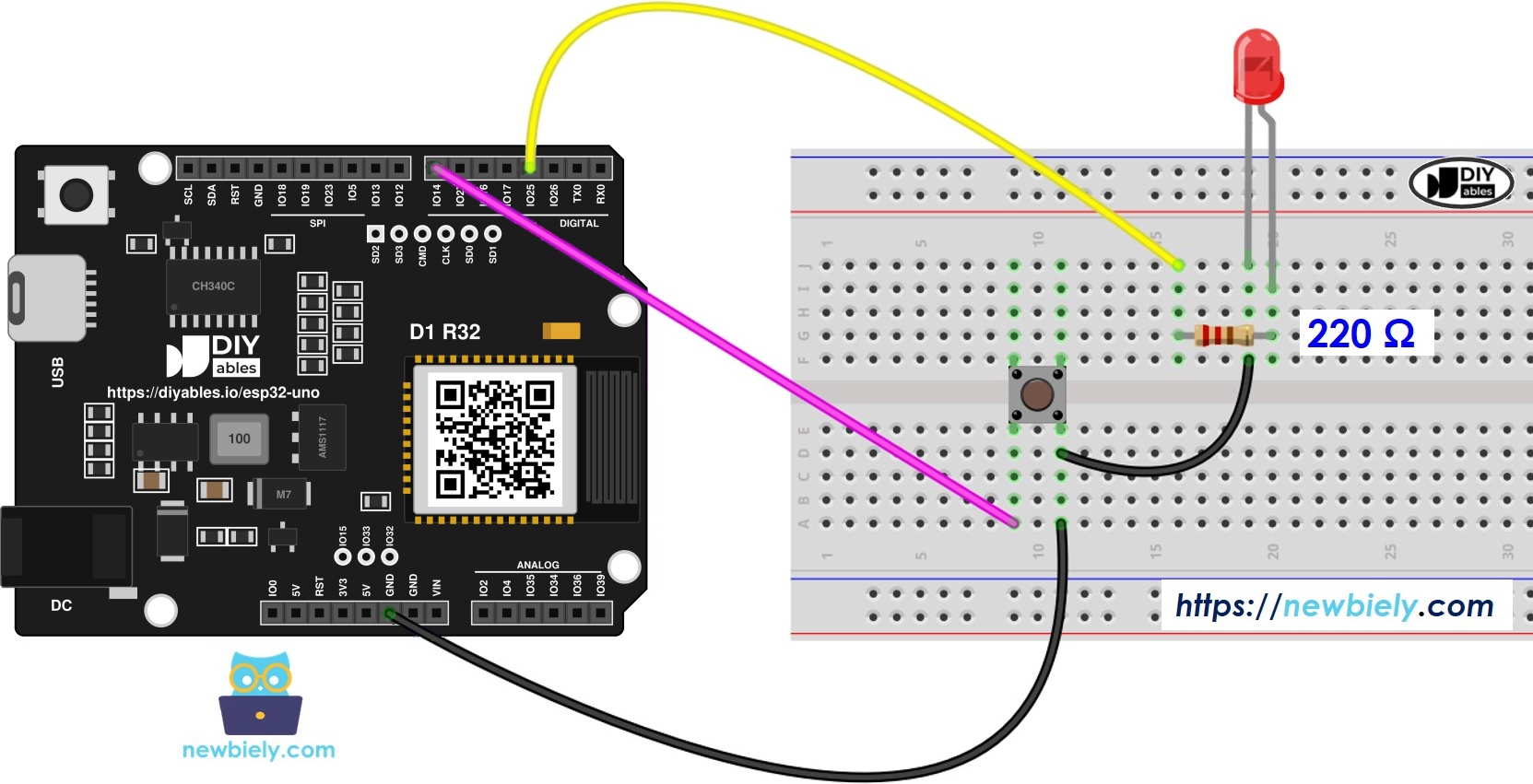
This image is created using Fritzing. Click to enlarge image
| Component Pin | ESP32 Uno Pin |
|---|---|
| LED long leg (anode) via 220 ohm resistor | D3 (GPIO25) |
| LED short leg (cathode) | GND |
| Button leg 1 | D7 (GPIO14) |
| Button leg 2 | GND |
Good to know: no pull-up resistor is needed for the button. The sketch enables the internal pull-up on GPIO14, so the pin idles HIGH and reads LOW while pressed.
ESP32 Uno Code - Blocking Blink with delay()
This first sketch shows the problem: it toggles the LED once per second with delay() and only checks the button after each wait.
Upload and Test
- First time with this board? Set it up with ESP32 Uno - Getting Started before you continue.
- Build the circuit by following the wiring table above.
- Plug in the USB Type-C cable between the ESP32 Uno and your computer.
- Select the board in Arduino IDE: pick ESP32 Dev Module and the COM port of the board (CH340).
- Paste the sketch into an empty Arduino IDE window.
- Click Upload (Upload) and wait for "Done uploading".
- Open the Serial Monitor and choose 9600 baud.
- Tap the button five times, quickly.
- Look at the LED: it changes state once every second.
- Read the Serial Monitor. A typical result looks like this:
- Pro tip: count the lines. Five quick taps should give ten changes, but only a couple of them got through. Each lost tap landed inside the one-second delay(), when the ESP32 Uno was not looking at GPIO14.
ESP32 Uno Code - Non-Blocking Blink with millis()
This second sketch removes the wait: it compares the current millis() value with the time of the last toggle, and flips the LED only when 1000 ms have gone by.
Upload and Test
- Upload this sketch to the ESP32 Uno the same way as before.
- Keep the Serial Monitor open at 9600 baud.
- Tap the button three times.
- Look at the LED: the one-second rhythm has not changed.
- Read the Serial Monitor. This time, every press and every release is listed:
- Pro tip: the first 1 appears right after reset. It is the idle level of the button, printed because prev_button_state starts as LOW.
Video Tutorial
See the ESP32 Uno build in action in the video below.
Code Explanation
This part breaks the non-blocking sketch into its working pieces.
| Code Part | What It Does |
|---|---|
| LED_PIN 25 and BUTTON_PIN 14 | Points the code at D3 (GPIO25) and D7 (GPIO14) |
| prev_millis | Stores the moment of the most recent LED toggle |
| current_millis - prev_millis >= BLINK_INTERVAL | Checks if 1000 ms have elapsed, without waiting |
| led_state ternary + digitalWrite() | Flips the LED level and sends it to GPIO25 |
| button_state != prev_button_state | Prints the button only when its level changes |
The timer check costs a few microseconds, so the loop spins thousands of times per second and polls the button on every pass.
Why the subtraction form matters
millis() is an unsigned long counter that starts at 0 on boot and wraps back to 0 after about 49.7 days. Writing current_millis - prev_millis >= BLINK_INTERVAL keeps the math correct across that wrap. A form like current_millis >= prev_millis + BLINK_INTERVAL breaks at the wrap.
Adding More Tasks
Here you scale the pattern up to two LEDs with two different rates, plus the button.
Wire a second LED with its own 220 ohm resistor from D4 (GPIO17) to GND, exactly like the first one.
| Task | Pin | Interval |
|---|---|---|
| LED 1 | D3 (GPIO25) | 1000 ms |
| LED 2 | D4 (GPIO17) | 500 ms |
| Button check | D7 (GPIO14) | every loop pass |
Every task owns three things: a pin, a state variable and a timestamp. For a third job, clone that trio and add one more if block in loop().
ESP32 Uno vs UNO R4 for This Project
Moving this project from the UNO R4 to the ESP32 Uno changes only the pin numbers and the logic level.
| Item | Arduino UNO R4 | ESP32 Uno |
|---|---|---|
| Logic voltage | 5V | 3.3V |
| LED 1 pin in code | 3 (D3) | 25 (D3) |
| LED 2 pin in code | 4 (D4) | 17 (D4) |
| Button pin in code | 7 (D7) | 14 (D7) |
| millis() and delay() | Same functions | Same functions |
| Arduino IDE board | Arduino UNO R4 WiFi or Minima | ESP32 Dev Module |
The wires go into the same header holes, so the circuit stays as it is. The LED is a little dimmer at 3.3V, and the internal pull-up works the same way.
Troubleshooting
| Problem | Possible Cause | Solution |
|---|---|---|
| Board has no COM port in Arduino IDE | CH340 driver missing or a charge-only cable | Install the CH340 driver and switch to a USB cable that carries data |
| Upload ends with "Failed to connect" or "Waiting for download" | Board did not enter download mode | Hold the BOOT button when the upload starts, then let go |
| LED never turns on | LED legs reversed or resistor not in the path | Put the long leg toward D3 (GPIO25) through the 220 ohm resistor and the short leg to GND |
| LED blinks but no button lines appear | Button not between D7 and GND | Move one leg to D7 (GPIO14) and the other to the GND rail |
| LED toggles at a strange rate | BLINK_INTERVAL edited or wrong sketch uploaded | Check that BLINK_INTERVAL is 1000 and the non-blocking sketch is loaded |
| Code from another board drives nothing | Old pin numbers such as 3 and 7 still in the sketch | Use 25 for the LED and 14 for the button |
| One press prints several 0 and 1 lines | Contact bounce in the button | Add a short millis() debounce or use the ezButton library |
| Serial Monitor shows random symbols | Baud rate mismatch | Pick 9600 baud in the Serial Monitor |
FAQ
What is the difference between delay() and millis() on the ESP32 Uno?
delay() pauses the sketch for a set number of milliseconds, and nothing else runs on that loop. millis() simply returns the time since boot. You compare it with a saved time, so the loop keeps moving and other code still runs.
Is it fine to drive an LED straight from an ESP32 Uno pin?
Yes, with a series resistor. A 220 ohm resistor limits the current to roughly 5 to 6 mA at 3.3V, which is safe for the pin and bright enough to see clearly.
Why do I get 1 when the button is not pressed?
INPUT_PULLUP connects GPIO14 to 3.3V through an internal resistor. The pin reads HIGH (1) at rest, and pressing the button connects it to GND, so it reads LOW (0).
Which pin numbers go in the code for D3, D4 and D7?
On the ESP32 Uno you write GPIO numbers. D3 is 25, D4 is 17 and D7 is 14. Writing 3, 4 or 7 would point at different chip pins.
Can I wire the button to A2 or A3 instead of D7?
Not with this code. A2 to A5 (GPIO35, 34, 36, 39) on the ESP32 Uno are input only and have no internal pull-up. They can read a button, but you must add an external 10k ohm resistor from the pin to 3.3V. D7 avoids that extra part.
Will an LED on A2 to A5 work for the second blink task?
No. Those four pins cannot output a signal on the ESP32 Uno. Keep LEDs on the digital header, such as D3 and D4 in this project.
How do I change the blink speed without touching the button logic?
Change the value of BLINK_INTERVAL, for example 250 for four toggles per second. The button check does not depend on it, so it keeps working at any speed.
Does millis() overflow on the ESP32 Uno?
Yes, after about 49.7 days of non-stop running. The subtraction current_millis - prev_millis in this sketch handles that wrap, so the LED keeps blinking normally.
Can the ESP32 Uno run WiFi while the LED blinks this way?
Yes. Because the loop is non-blocking, a web server or Bluetooth link can share it with the LED timer. That is a big reason to learn the millis() pattern on this board.
What if I want more LEDs and buttons than the Uno headers allow?
The ESP32 Uno has a few extra holes near the power header: GPIO32 and GPIO33 (I/O, PWM, analog on ADC1, so they also work while WiFi is on) and GPIO15 (I/O, PWM, analog on ADC2). Solder pin headers to them and use the bare GPIO number in your sketch. For extra LEDs or buttons in this project, GPIO32 and GPIO33 are the best fit. Two warnings: GPIO15 and GPIO0 (the IO0 pin at the unused Uno NC position) are boot strapping pins, and a wrong connection can stop the board from booting or uploading code, so use GPIO32/33 first. Never use the six holes under the digital header (SD0 to SD3, CMD, CLK = GPIO6 to GPIO11); they are wired to the flash chip and using them crashes the board.