
ESP32 UNO - Ultrasonic Sensor - OLED
How far away is that wall? Build a pocket distance meter with the ESP32 Uno form board. An HC-SR04 ultrasonic sensor measures the gap, and an SSD1306 OLED prints the result in centimeters, right in the middle of the screen. The same number also goes to the Serial Monitor.
By the end, you can:
- Wire an ultrasonic sensor and an I2C OLED to the board
- Protect the 3.3V input from the 5V ECHO signal
- Time the echo with pulseIn() and convert it to cm
- Draw the distance in the center of the OLED
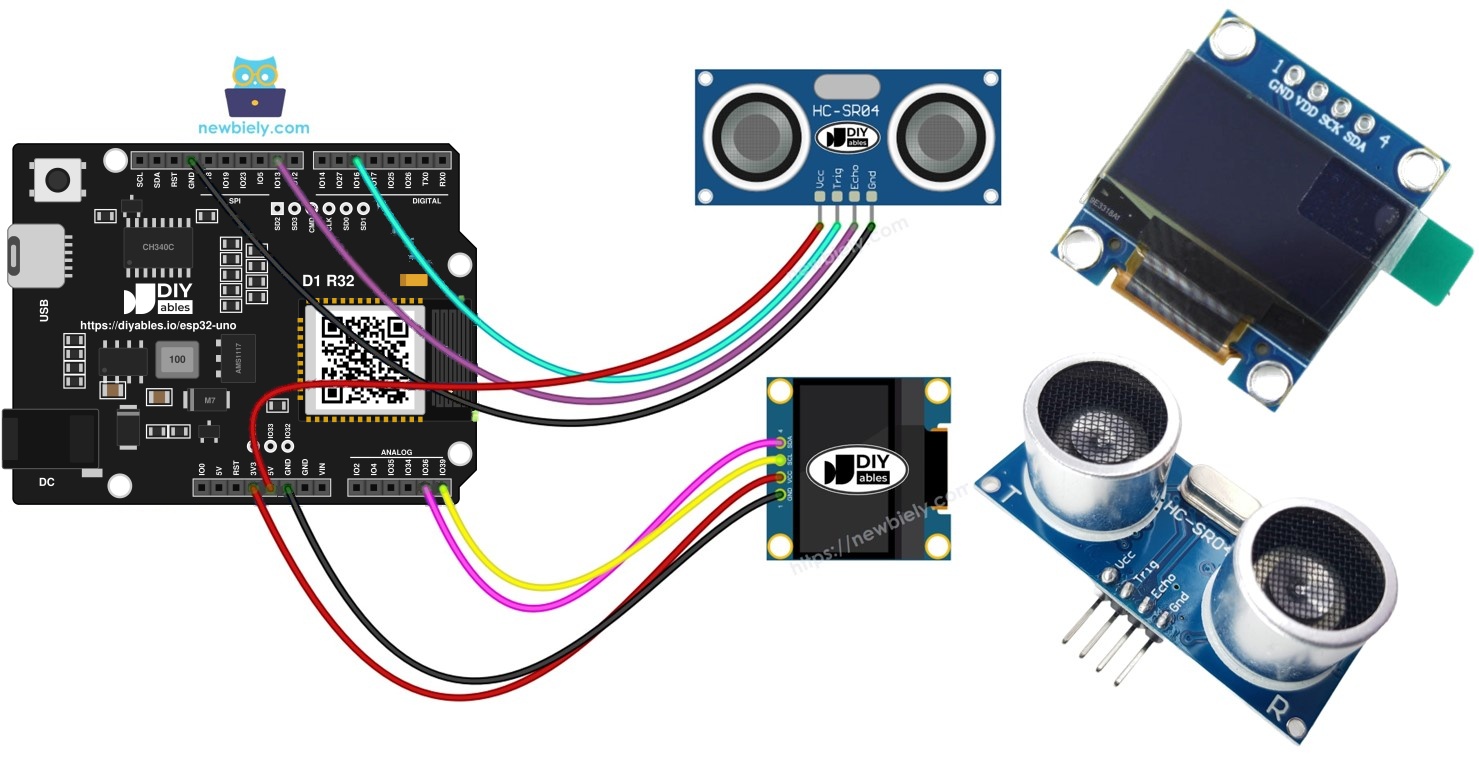
Components You Need
Or you can buy the following kits:
| 1 | × | DIYables Sensor Kit (18 sensors/displays) |
Additionally, some of these links are for products from our own brand, DIYables .
Buy Note: If you want a bigger OLED display, use the 2.42 inch OLED Display 128x64 .
Sensor and Display at a Glance
By the end of this part, you know what each module does in this project.
| Part | Job | Connection |
|---|---|---|
| HC-SR04 ultrasonic sensor | Sends a sound pulse and times the echo | TRIG and ECHO signal wires |
| SSD1306 OLED | Shows the distance as text | Two wires (I2C SDA and SCL) |
The sensor keeps ECHO HIGH while the sound travels to the object and back. The code measures that time. Sound covers about 1 cm in 58 microseconds (there and back), so the code multiplies the time by 0.017 to get cm.
Each part has its own tutorial with the pinout and more examples:
Good to know: the HC-SR04 needs 5V power, but the OLED is happy with 3.3V.
ESP32 Uno Pinout
Each Uno header pin on the ESP32 Uno form board has its own GPIO number, and your sketch uses that number. Find D5, D9, SDA and SCL in the diagram before you place a wire.

How to Connect
By the end of this part, the circuit is ready. TRIG goes to D5 (GPIO16), ECHO goes to D9 (GPIO13) through a level converter, and the OLED uses the SDA and SCL header pins.
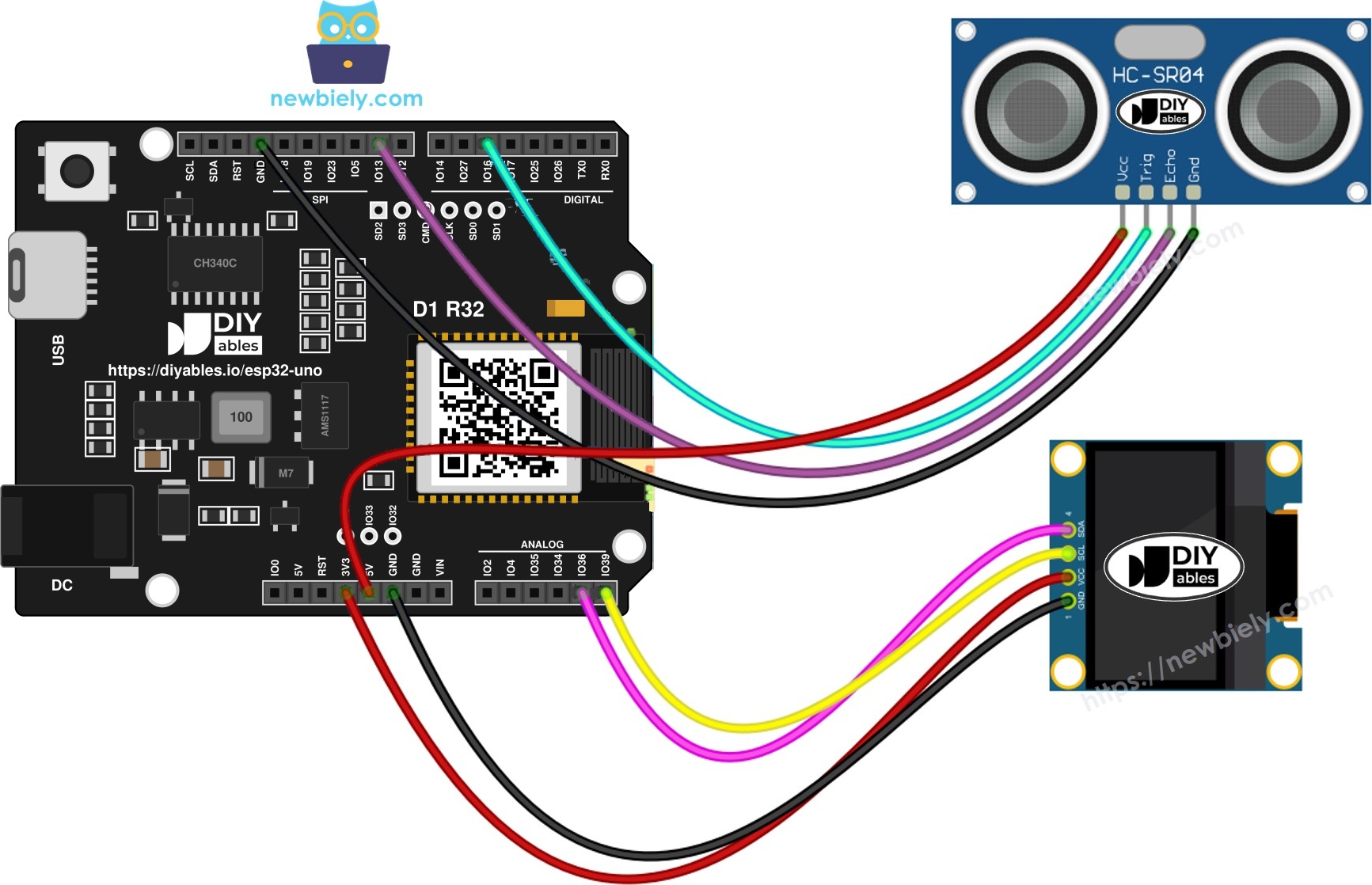
This image is created using Fritzing. Click to enlarge image
※ NOTE THAT:
The wiring diagram may not show the correct wiring for the ESP32 Uno. The HC-SR04 ECHO pin sends a 5V signal, and ESP32 Uno pins are 3.3V only. The picture shows ECHO wired straight to the board. On the ESP32 Uno, put a voltage divider or a level converter on ECHO, as this page shows. We will update the diagram soon. Until then, follow the wiring table and the text on this page, not the picture.
| Component Pin | ESP32 Uno Pin |
|---|---|
| Ultrasonic Sensor VCC | 5V |
| Ultrasonic Sensor GND | GND |
| Ultrasonic Sensor TRIG | D5 (GPIO16) |
| Ultrasonic Sensor ECHO (via level converter) | D9 (GPIO13) |
| OLED VCC | 3.3V |
| OLED GND | GND |
| OLED SDA | SDA (GPIO21) |
| OLED SCL | SCL (GPIO22) |
WARNING
The HC-SR04 sends a 5V pulse on ECHO. ESP32 Uno pins are NOT 5V tolerant. Put a 5V to 3.3V level converter on the ECHO wire, or build a divider (1kΩ from ECHO to D9, 2kΩ from D9 to GND). A 3.3V sensor model avoids the problem. TRIG can stay as it is, since a 3.3V pulse already triggers the sensor.
※ NOTE THAT:
Do not wire the OLED to A4 and A5 on this board, they are not I2C. Use the SDA (GPIO21) and SCL (GPIO22) header pins.
ESP32 Uno Code - Distance on the OLED
The sketch fires a trigger pulse, times the echo, turns the time into centimeters and draws the value on the screen.
| Code Part | What It Does |
|---|---|
| TRIG_PIN 16 | Sets the trigger output to GPIO16, which is header D5 |
| ECHO_PIN 13 | Sets the echo input to GPIO13, which is header D9 |
| pulseIn(ECHO_PIN, HIGH) | Measures the echo time in microseconds |
| 0.017 * duration_us | Converts the time to centimeters |
| oledDisplayCenter() | Measures the text size and draws it in the middle |
The screen refreshes with a new reading every time the loop runs.
Upload and Test
- First time with this board? Set it up with ESP32 Uno - Getting Started before you continue.
- Build the circuit by following the wiring table above.
- Plug in the USB Type-C cable between the ESP32 Uno and your computer.
- Select the board in Arduino IDE: pick ESP32 Dev Module and the COM port of the board (CH340).
- Open the Library Manager with the Libraries icon in the left bar.
- Search for "SSD1306" and find the library by Adafruit.
- Click Install to add it.
- Search for Adafruit SSD1306 created by Adafruit and click the Install button.
- Accept the dependencies. Click Install All to add Adafruit GFX and the other required libraries.
- Search for Adafruit GFX Library created by Adafruit and click the Install button.
- Copy the sketch from the code box into a new Arduino IDE window.
- Click Upload.
- Move a hand toward the sensor and away from it.
- Read the result on the OLED and in the Serial Monitor (9600 baud).
- Pro tip: tape a ruler next to the sensor and compare. Readings are best on a flat, hard surface facing the sensor.
※ NOTE THAT:
The code centers the text on the OLED both across and down. To learn how, read How to vertical/horizontal center on OLED.
Video Tutorial
See the ESP32 Uno build in action in the video below.
ESP32 Uno vs UNO R4 for This Project
By the end of this part, you know what changes when you move this distance meter from the UNO R4 to the ESP32 Uno.
| Item | Arduino UNO R4 | ESP32 Uno |
|---|---|---|
| Logic voltage | 5V | 3.3V |
| TRIG pin in code | 5 (D5) | 16 (D5 is GPIO16) |
| ECHO pin in code | 9 (D9) | 13 (D9 is GPIO13) |
| ECHO signal | Connect directly | Use a level converter or divider |
| OLED I2C pins | SDA and SCL header | SDA (GPIO21) and SCL (GPIO22) header |
| pinMode() calls | Not in the sketch | Added for TRIG and ECHO |
| Arduino IDE board | Arduino UNO R4 WiFi | ESP32 Dev Module |
The wiring positions stay the same. Add the level converter on ECHO, and the display libraries need no change.
Go Wireless: Distance on Your Phone
By the end of this part, you know how to read the distance without looking at the OLED.
The ESP32 Uno has WiFi and Bluetooth. Send the distance value to a web page or a phone app, and watch it live or draw a graph. The OLED can stay as a local display.
Try These Next
- Show the distance in inches (divide cm by 2.54)
- Use the 128x32 OLED and change SCREEN_HEIGHT to 32
- Print "Too close!" when the distance is under 10 cm
- Average five readings to calm down the jumping numbers
Troubleshooting
| Problem | Possible Cause | Solution |
|---|---|---|
| No COM port in Arduino IDE | CH340 driver missing or charge-only cable | Install the CH340 driver and use a USB cable that carries data |
| Failed to connect or Waiting for download | Board not in download mode | Hold the BOOT button while the upload starts |
| Sensor and OLED do not work at all | Wrong power wiring | Sensor VCC to 5V, OLED VCC to 3V3, and all GND wires joined |
| OLED stays blank | Wrong wires or wrong I2C address | Use SDA (GPIO21) and SCL (GPIO22), not A4 and A5, and try address 0x3D |
| Serial Monitor prints SSD1306 allocation failed | The screen does not answer on I2C | Re-check VCC, GND, SDA and SCL, then press RESET |
| Distance is always 0 cm | No echo arrives at ECHO_PIN | Check the ECHO wire, the level converter and the 5V sensor power |
| Distance jumps around | Soft or angled object, or noise | Aim at a flat hard surface and average several readings |
| Readings above 400 cm look wrong | Object is out of the sensor range | Stay within about 2 cm to 400 cm |
| Text is off-center on a 128x32 screen | SCREEN_HEIGHT is still 64 | Set SCREEN_HEIGHT to 32 |
| Compile error about a missing header | A library is not installed | Install Adafruit SSD1306 and Adafruit GFX |
FAQ
How does an ultrasonic sensor measure distance?
It sends out a short burst of sound you cannot hear and waits for the echo. The echo time tells the distance. The HC-SR04 reads from about 2 cm to 400 cm.
Why is TRIG_PIN 16 and ECHO_PIN 13 in the code?
The header labels are D5 and D9, but code uses GPIO numbers. D5 is GPIO16 and D9 is GPIO13 on the ESP32 Uno.
Is it safe to wire ECHO directly to a board pin?
No. ECHO gives 5V, and the board pins are not 5V tolerant. Use a level converter or a 1kΩ and 2kΩ divider.
Should I power the HC-SR04 from 3.3V?
The usual HC-SR04 needs 5V to work well. Power it from the 5V pin and protect the ECHO input. Only the 3.3V version of the sensor can use 3V3.
Why does the sketch set pinMode() here?
On the ESP32 Uno core, a pin must be set as output before digitalWrite() drives it. The code sets TRIG as output and ECHO as input, so the pulse really leaves the board.
Which I2C pins does the OLED use on the ESP32 Uno?
It uses the SDA (GPIO21) and SCL (GPIO22) header pins. Wire.begin() picks them by default. A4 and A5 are input-only analog pins here.
What is the OLED address, and what if it does not work?
Most SSD1306 modules use 0x3C. Some use 0x3D. Run an I2C scanner sketch and change the address in oled.begin().
Does this sketch need analogSetAttenuation()?
No. The code reads a timed pulse with pulseIn(), not an analog voltage, so the ADC range does not matter.
Can I use a 128x32 OLED instead?
Yes. Change SCREEN_HEIGHT to 32 so the text stays in the middle of the smaller screen.
Can I show the distance on a web page with the ESP32 Uno?
Yes. The board has WiFi and Bluetooth. See the Go Wireless section for ready tutorials.
What if my project needs more pins than the Uno headers give?
The ESP32 Uno has a few extra holes near the power header. GPIO32 and GPIO33 are I/O, PWM and analog pins on ADC1, so they also work while WiFi is on. GPIO15 is I/O, PWM and analog on ADC2. Solder pin headers to use them and write the GPIO number in code. For a second ultrasonic sensor, GPIO32 (TRIG) and GPIO33 (ECHO) are a good pair. Two warnings. First, GPIO15 and GPIO0 (the IO0 pin at the unused Uno NC position) are boot strapping pins, and a wrong connection can stop the board from booting or uploading code, so use GPIO32 and GPIO33 first. Second, never use the six holes under the digital header (SD0 to SD3, CMD, CLK = GPIO6 to GPIO11). They are wired to the flash chip, and using them crashes the board.