
ESP32 UNO - Web Server
Want to open a page hosted on your own board from a phone? The ESP32 Uno form board has WiFi on the chip, so it can act as a small web server for your home network. You can read sensor values in a browser and send commands back, with no extra WiFi module.
By the end, you can:
- Start a minimal ESP32 Uno web server with a text page
- Display a changing reading in the browser
- Understand how a browser request controls the board
- Move HTML, CSS and JavaScript into a separate index.h file in Arduino IDE
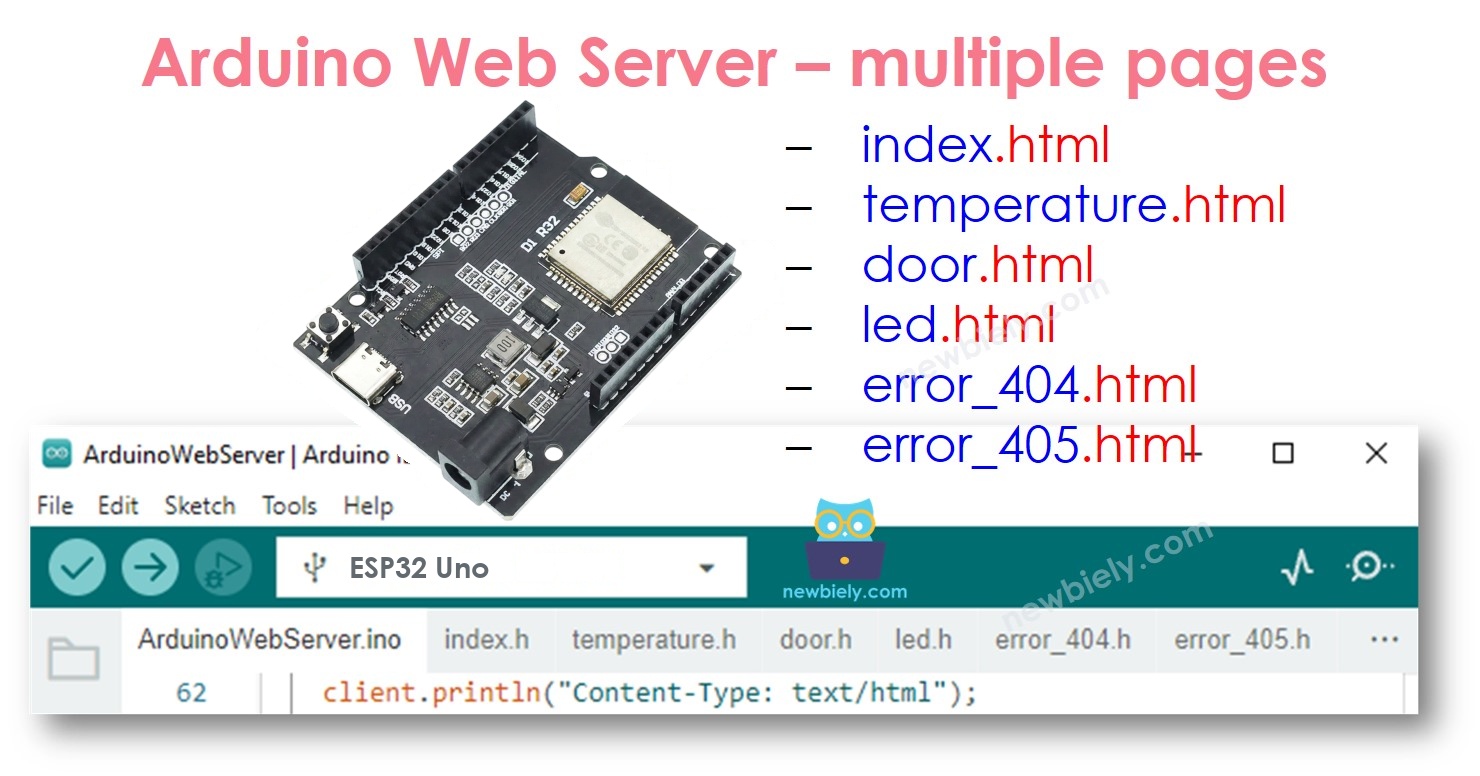
- Learn how a site with several pages (index, temperature, led, error 404 and 405) is organised
Components You Need
| 1 | × | ESP32 Uno-form Board | |
| 1 | × | USB Cable Type-A to Type-C (for USB-A PC) | |
| 1 | × | USB Cable Type-C to Type-C (for USB-C PC) |
Or you can buy the following kits:
| 1 | × | DIYables Sensor Kit (18 sensors/displays) |
Additionally, some of these links are for products from our own brand, DIYables .
ESP32 Uno Pinout
No wire is needed for this project, because the web server only uses the built-in WiFi. Keep the pinout below close for later, when you add a real sensor or an LED to the Uno header.

※ NOTE THAT:
This project uses no Uno header pin, so there is no wiring table. All values in the sketches are made up.
Serve a Simple Page from the ESP32 Uno
By the end of this part, your board answers a browser with a "Hello" page.
The sketch launches the server, then idles until a request arrives. For each home page request, the board returns an HTTP header plus a tiny HTML body. The DIYables ESP32 WebServer library handles the WiFi connection and request parsing for you.
| Code Part | What It Does |
|---|---|
| #include | Loads the web server library |
| WIFI_SSID, WIFI_PASSWORD | Your WiFi name and password |
| server.addRoute("/", handleHome) | Links the home address to the page handler |
| server.begin(...) | Joins WiFi and starts the server |
| server.handleClient() | Answers browser requests inside loop() |
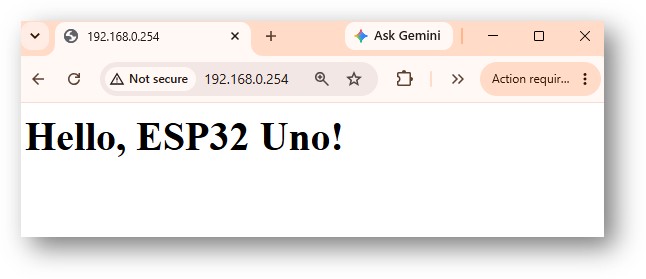
The result is a page that says "Hello, ESP32 Uno!" in any browser on the same network.
Good to know: The ESP32 Uno joins 2.4 GHz WiFi only. A 5 GHz-only network will not work.
Upload and Test
- First time with this board? Set it up with ESP32 Uno - Getting Started before you continue.
- Plug in the USB Type-C cable between the ESP32 Uno and your computer.
- Open Arduino IDE and pick ESP32 Dev Module and the COM port of the board (CH340).
- Open the library panel by clicking the Library Manager icon in the left bar.
- Search "DIYables ESP32 WebServer" and pick the entry published by DIYables.
- Install the library with the Install button.
- Search for DIYables ESP32 WebServer created by DIYables.io and click the Install button.
- Search for DIYables ESP32 WebServer created by DIYables.io and click the Install button.
- Copy the code above into Arduino IDE.
- Enter your WiFi details: replace YOUR_WIFI_SSID and YOUR_WIFI_PASSWORD with your own values.
- Send the sketch with the Upload button.
- Open the Serial Monitor (9600 baud). You see the connection result:
- Enter the IP address in a phone or PC browser. The Serial Monitor now logs the request:
- Check the browser. You see a plain page with the text "Hello, ESP32 Uno!"
- Pro tip: Give the board a fixed IP in your router settings, so the address never changes between tests.
Put a Live Reading on the Page
By the end of this part, the browser shows a number produced by the board.
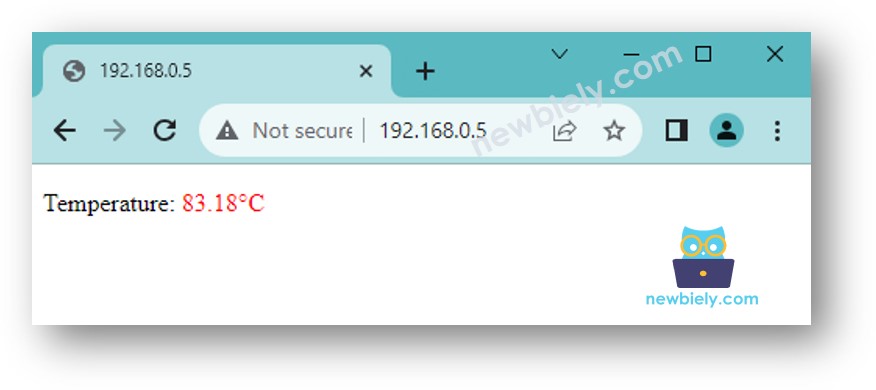
The sketch builds the HTML on every request and puts the temperature inside it. To keep the project wire-free, getTemperature() returns a random number from 0 to 100. Replace its body with your real sensor code later.
| Code Part | What It Does |
|---|---|
| getTemperature() | Gives a made-up temperature (swap in your sensor here) |
| String(temperature, 2) | Keeps two digits after the decimal point |
| html += ... | Builds the page text piece by piece |
| server.sendResponse(client, html.c_str()) | Sends the finished page to the browser |
Each reload gives a new number on the page.
Steps
- Copy the code above into Arduino IDE.
- Enter your WiFi details in the code.
- Upload it to the ESP32 Uno.
- Browse to the board's IP address. The page shows one temperature line:
- Pro tip: Press reload a few times and watch the number change. This proves a new page is built for each request.
※ NOTE THAT:
This version refreshes the number only on a manual page reload. The last part of this tutorial shows how the page can ask for new data in the background.
Send Commands from the Browser
By the end of this part, you know what the board must do to act on a browser command.
Sending data out is the simple half, since the board just replies. Taking commands is harder, because the board must decode what the browser wants. The flow inside the code looks like this:
| Step | What the ESP32 Uno Does |
|---|---|
| 1 | Runs an HTTP server and waits for browser requests |
| 2 | Reads the request and finds the command in the path or query string, such as /led?state=on |
| 3 | Switches the attached part (LED, relay, servo) as requested |
| 4 | Sends an HTTP response, with an optional HTML page that shows the new state |
For a full working project, see this guide:
When you add your own parts, connect them to the Uno header and use the GPIO numbers from the pinout image in code (D2 is GPIO26, for instance).
Move HTML into a Separate File
By the end of this part, your web page lives in its own index.h file, away from the board logic.
A small page fits in the sketch, as shown before. A rich page with lots of HTML, CSS and JavaScript turns the code into a pile of quotes and += lines. The clean way is two files:
- Keep the board logic inside the .ino sketch.
- The web page goes into a .h file, so you can change the design without touching the code.
Step 1 — Prepare the HTML
- Build an HTML file on your computer with your design (HTML, CSS and JavaScript).
- Where the board should show data, type any sample value for now.
- Open the file in a browser and tweak it until you like it.
- Copy the finished markup. You paste it into a .h tab.
Step 2 — Program the ESP32 Uno
The sketch has two routes. The / route sends the page. The /temperature route sends only the number, as plain text. A script in the page fetches /temperature every 4 seconds, which refreshes the number with no reload.
- Make a new sketch and save it as newbiely.com.ino.
- Paste this code into it:
- Enter your WiFi details in the code.
- Add a tab with the button under the Serial Monitor icon, choosing New Tab, or press Ctrl+Shift+N.
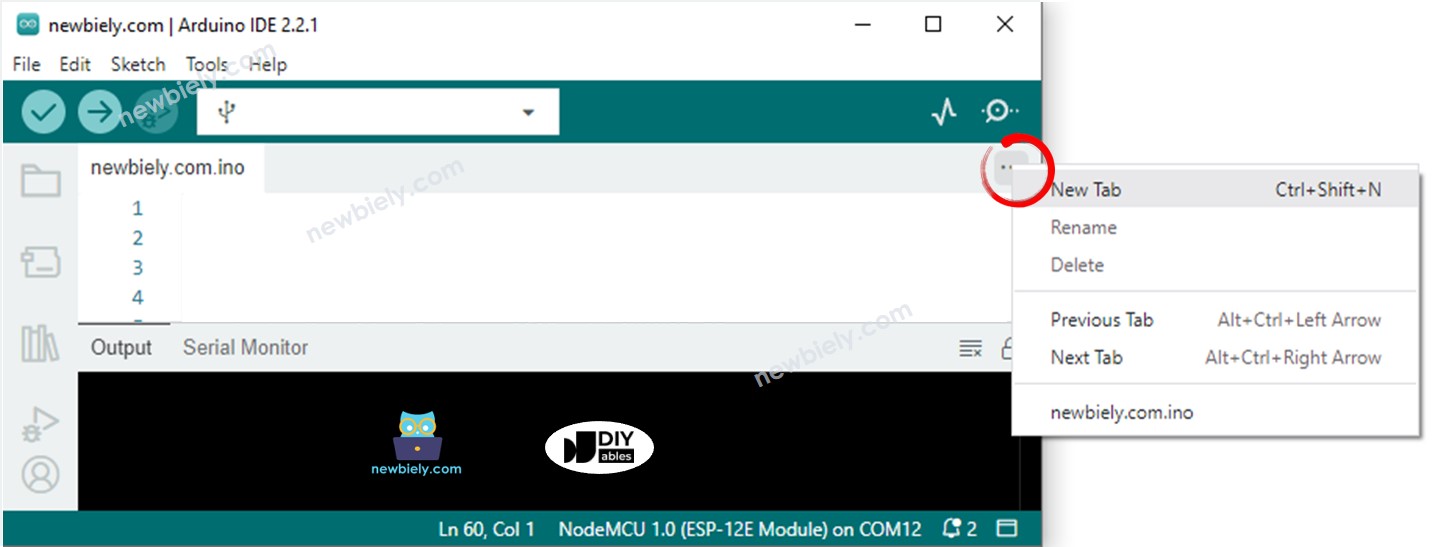
- Call it index.h and confirm with OK.
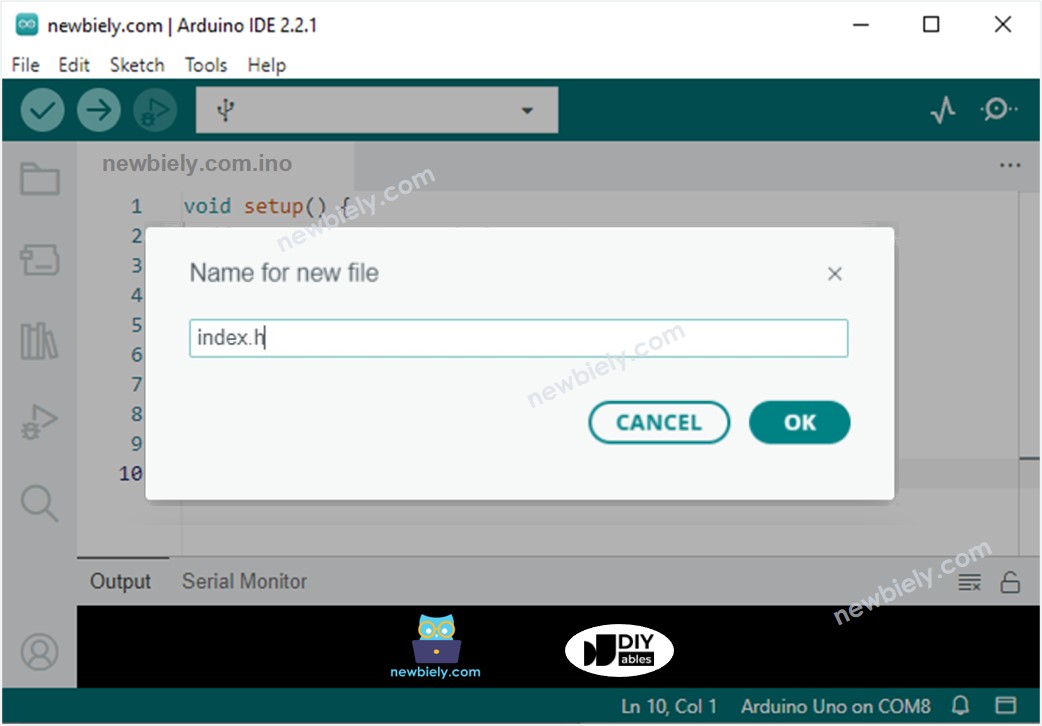
- Paste the empty template into index.h:
- Replace the placeholder: swap the line REPLACE_YOUR_HTML_CONTENT_HERE for your own HTML. Multi-line HTML works, since the template is a raw string. A finished example of index.h:
- Confirm the project holds two tabs: newbiely.com.ino and index.h.
- Send the sketch with the Upload button.
- Open the page with the board's IP address. It now updates by itself:
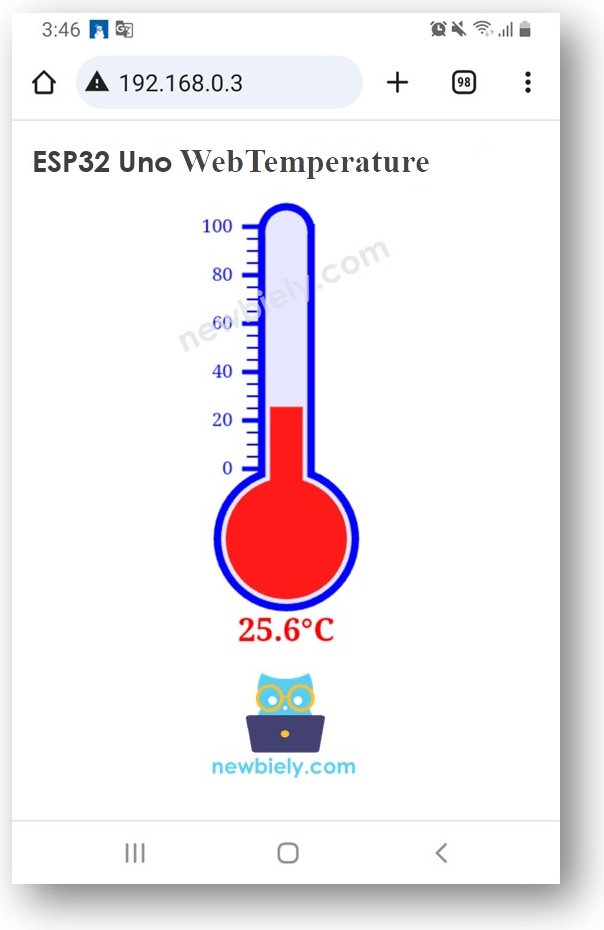
- Pro tip: To change the refresh speed, edit the 4000 in setInterval(fetchTemperature, 4000) inside index.h.
※ NOTE THAT:
If you edit only index.h and leave newbiely.com.ino alone, Arduino IDE may skip the rebuild, and the old HTML goes to the ESP32 Uno.
To force it, make a tiny change in newbiely.com.ino, such as a blank line or a comment.
ESP32 Uno vs UNO R4 for This Project
By the end of this part, you know what changes when you move this web server from the UNO R4 WiFi to the ESP32 Uno.
| Item | Arduino UNO R4 | ESP32 Uno |
|---|---|---|
| Logic voltage | 5V | 3.3V |
| WiFi header | WiFiS3.h | WiFi.h (handled by the DIYables library) |
| Web server library | Web Server for Arduino Uno R4 WiFi | DIYables ESP32 WebServer |
| Pins used | None | None |
| Arduino IDE board | Arduino UNO R4 WiFi | ESP32 Dev Module |
| USB driver | Not needed | CH340 |
Both boards use almost the same route handlers, so moving a project over is quick. Install the right library, and enter your WiFi details.
Next Step: Several Pages
A real project often needs more than one page and error pages for bad links. The same library gives you one route per page, for index.html, temperature.html, led.html, error_404.html and error_405.html. The ESP32 Uno handles this with the same code style shown above.
Troubleshooting
| Problem | Possible Cause | Solution |
|---|---|---|
| No COM port in Arduino IDE | CH340 driver missing or charge-only cable | Install the CH340 driver and use a data USB cable |
| Failed to connect or Waiting for download | Board is not in upload mode | Hold the BOOT button when the upload starts |
| Serial Monitor prints dots without end | SSID or password typo, or the router is 5 GHz only | Re-check both values and switch the router to 2.4 GHz |
| Garbled text in Serial Monitor | Baud rate mismatch | Set the Serial Monitor to 9600 baud |
| Browser shows a timeout | Your device uses a different network, or the address was mistyped | Connect to the board's WiFi network and copy the address from the Serial Monitor |
| Compile error for DIYables_ESP32_WebServer.h | Library not installed | Install DIYables ESP32 WebServer in the Library Manager |
| Page shows old HTML | Arduino IDE did not rebuild after an index.h edit | Add a blank line to the .ino file and upload again |
| Temperature never changes on the page | The /temperature route is missing, or JavaScript fails | Check the route in the sketch and read the browser console |
| Board restarts or WiFi drops | Weak USB power or weak signal | Use a good USB port and cable, and move closer to the router |
| Page works at first, then stops | Router gave the board a new IP address | Check the Serial Monitor for the new IP or set a fixed IP |
FAQ
Does the ESP32 Uno need a separate WiFi module for a web server?
No. WiFi is built into the chip. All you need is the board, a Type-C cable and a 2.4 GHz router.
Which library does this ESP32 Uno web server use?
It uses DIYables ESP32 WebServer. It joins WiFi, parses requests and sends responses, so your sketch only adds routes and handlers.
Where do I read the IP address of the web server?
Set the Serial Monitor to 9600 baud, then tap the RESET button. The code prints a "Web Server Address" line. Your router's device list shows the board too.
Is the page reachable from the internet?
Not by default. The page works on your local network only. To reach it from the internet you need port forwarding or a cloud service, and you should add a password first.
Will my UNO R4 WiFi server sketch compile for this board?
Not unchanged. The UNO R4 code uses WiFiS3.h and a different server library. On this board, include the DIYables ESP32 WebServer library, which brings in WiFi.h for you. The handlers look very similar.
Is the ESP32 Uno web server safe for 5V sensors?
The GPIO pins of this board cannot take 5V. You may power a 5V module from the 5V pin, but a 5V signal into a GPIO needs a voltage divider or level shifter.
Does analogRead() work while the web server runs?
Yes, on A2 to A5 (GPIO35, 34, 36, 39) and on GPIO32 and GPIO33. A0 (GPIO2) and A1 (GPIO4) use ADC2, which cannot be read while WiFi is on.
Can I use Uno shields with the ESP32 Uno?
Many work, because the board has the Uno shape. Check the voltage first. The ESP32 Uno uses 3.3V logic, and some shields expect 5V signals.
How do I show a real sensor instead of the random number?
Wire the sensor to a Uno header pin, then put its reading code inside getTemperature(). Use the GPIO number from the pinout image in your code.
Can I control an LED from this web page?
Yes. Add a route such as /led, read the state from the request, and call digitalWrite() on the LED pin. The Control section above lists the steps.
What if I run out of pins on the Uno headers?
The board has extra holes near the power header. GPIO32 and GPIO33 support I/O, PWM and analog (ADC1), so they also work while WiFi is on. GPIO15 supports I/O, PWM and analog (ADC2). Fit pin headers by soldering, then use the GPIO number directly in your sketch. For a WiFi project with an analog sensor, start with GPIO32 or GPIO33. Two warnings: (1) GPIO15 and GPIO0 (the IO0 pin at the unused Uno NC position) are boot strapping pins, and a wrong connection can stop the board from booting or uploading code, so use GPIO32 and GPIO33 first. (2) Never use the six holes under the digital header (SD0 to SD3, CMD, CLK = GPIO6 to GPIO11). They are wired to the flash chip, and using them crashes the board.