
ESP32 UNO - MySQL
Want every reading from your board stored in a real database? Log data from the ESP32 Uno into MySQL with one WiFi request and a tiny PHP file. The ESP32 Uno form board calls a web page on your PC, and that page writes the value into a MariaDB table. The same pattern lets you change rows or pull them back out later.
What you will do:
- Set up Apache, PHP and a MySQL server on your PC with XAMPP
- Make a local-only database account, a database and a table
- Write a PHP file that saves a temperature value
- Send that value from the ESP32 Uno with an HTTP GET call
Components You Need
| 1 | × | ESP32 Uno-form Board | |
| 1 | × | USB Cable Type-A to Type-C (for USB-A PC) | |
| 1 | × | USB Cable Type-C to Type-C (for USB-C PC) | |
| 1 | × | Optionally, DC Power Jack | |
| 1 | × | Breadboard | |
| 1 | × | Jumper Wires |
Or you can buy the following kits:
| 1 | × | DIYables Sensor Kit (18 sensors/displays) |
Additionally, some of these links are for products from our own brand, DIYables .
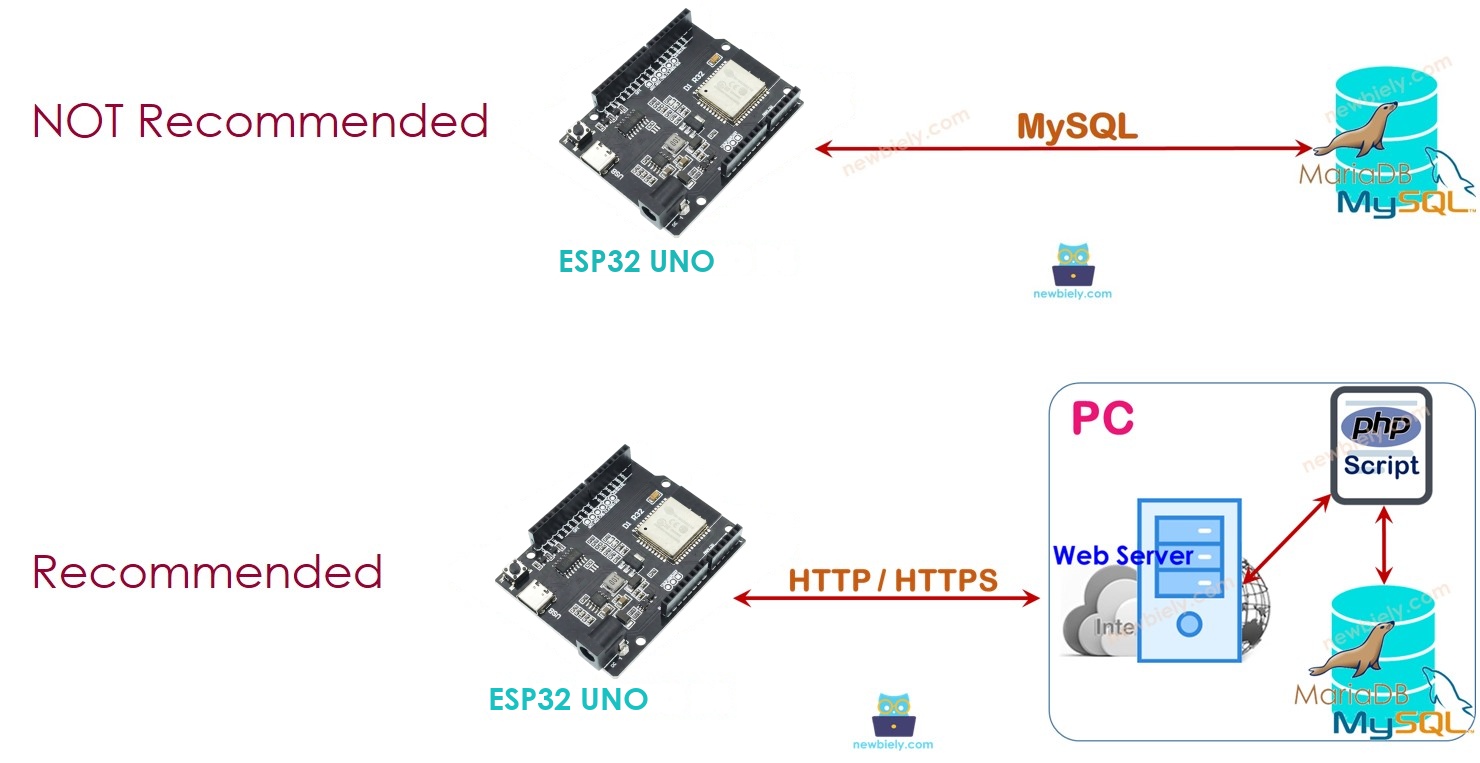
Two Ways to Reach a MySQL Database
By the end of this part, you know which link type to use and why.
People new to databases often mix up the MySQL Database and the MySQL server. The server is the running program. The database is the set of tables it looks after. For this project, you can treat both words as one idea.
| Method | How the Board Talks | Used Here |
|---|---|---|
| Direct | The ESP32 Uno opens a MySQL protocol session with the server | No |
| Indirect | The ESP32 Uno calls a web page, and PHP on the server runs the SQL | Yes |
Direct Link from the ESP32 Uno to the MySQL Server
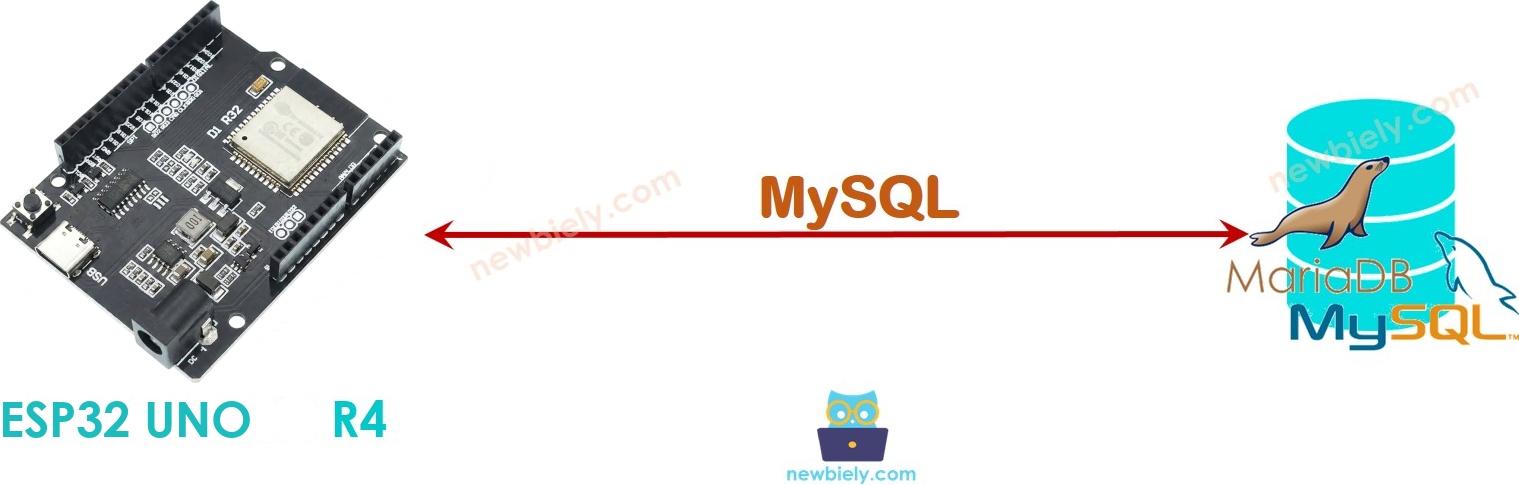
It sounds shorter, but the direct link has costs you should not accept on a small board.
| Weak Point | What Goes Wrong |
|---|---|
| Remote login | A database user must accept logins from other network devices, which is a security hole even with few rights |
| Board load | The sketch must hold SQL text and decode MySQL packets, so it eats RAM and CPU time |
| Big replies | One SELECT can send back more data than the board can hold, and it crashes |
| Raw data | The server gets unprocessed values, so the SQL side grows more complex |
| No TLS | Most microcontroller MySQL libraries skip encryption, so the login travels as plain text |
Indirect Link through a Web Server (HTTP/HTTPS)
A PHP page in the middle removes every weak point above. The board only sends a short web request, and the PC does the database work.
How It Works
- The ESP32 Uno adds the value to the URL of an HTTP/HTTPS request and sends it to the web server.
- Apache starts the matching PHP script.
- The script takes the value out of the request, builds the SQL and runs it on the MySQL database.
- The script answers with one short line, and the board reads it in the HTTP response.
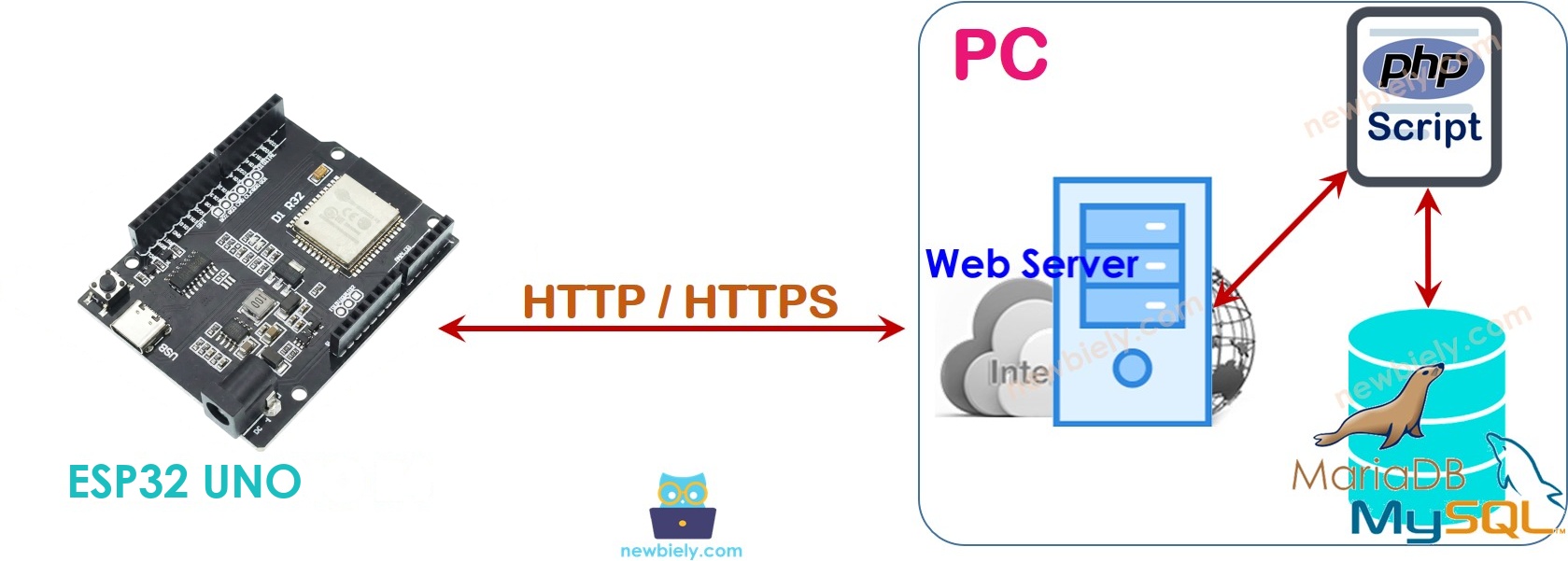
Here, XAMPP runs everything on your own PC. The same files also work on a rented server or a cloud machine such as AWS EC2.
| Benefit | Reason |
|---|---|
| Safer login | Apache and MySQL share one machine, so the database account can be locked to localhost |
| Secret stays home | The database password lives in the PHP file on the server, never in the sketch |
| Light sketch | PHP does the data work, so the board code stays short |
| No memory crash | PHP returns only the few bytes the board needs |
| Encryption ready | The ESP32 Uno can make HTTPS calls, so the data can travel encrypted |
Good to know: if you add a login between the board and the web server, give it a different username and password from the MySQL account.
Build the Server Side
By the end of this part, your PC accepts a URL and saves its value as a table row.
Work through these steps in order and test after each one. If a step fails, you then know exactly where to look.
| Step | Job | Result |
|---|---|---|
| 1 | Install XAMPP | MySQL, Apache and PHP on your PC |
| 2 | Make a database user | An account that only works from localhost |
| 3 | Make a database | An empty container for your tables |
| 4 | Make a table | A place for the temperature rows |
| 5 | Write a PHP script | A URL that inserts a value |
| 6 | Write the ESP32 Uno code | The board calls that URL |
Step 1 — Install XAMPP
XAMPP bundles the MySQL server, the Apache web server and PHP in one installer.
- Download XAMPP from this link and run the installer.
- Check that C:\xampp\htdocs now exists. Every PHP file for this project goes in there.
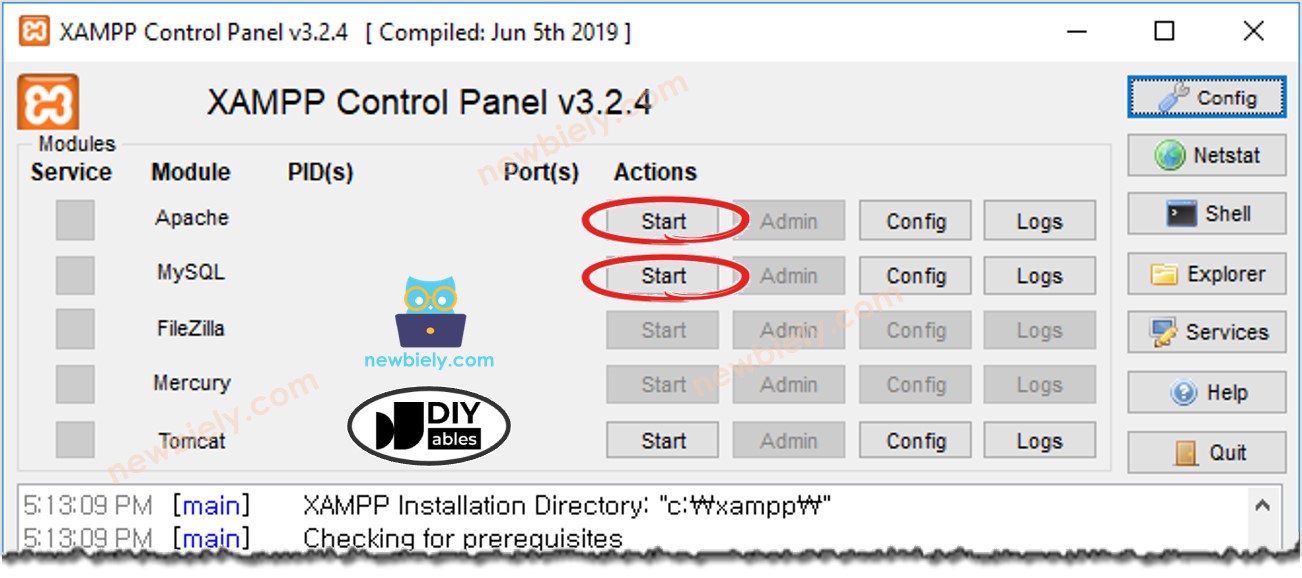
- Open the XAMPP Control Panel.
- Press Start on the MySQL row and on the Apache row, as in the picture.
Step 2 — Make a Database User
This account can log in only from the PC itself. A stranger who learns the password still cannot reach the database from another machine, but PHP on the same PC can.
This guide uses the username esp32_uno_user and the placeholder password YOUR_DB_PASSWORD. Pick your own strong password.
- Open a Command Prompt window and leave it open for the rest of the guide.
- Move into the MySQL tools folder:
- A fresh install leaves the root account with no password. Close that gap now (swap in your own value for YOUR_ROOT_PASSWORD):
- Sign in to the server as root:
- Enter the root password, then press Enter.
- Paste these three lines to create the account and give it rights:
Note the username and password somewhere safe. The PHP file in Step 5 needs both.
Step 3 — Make a Database
Run this line to create a database called db_esp32_uno:
Step 4 — Make a Table
The table tbl_temp has two columns.
| Column | Type | Job |
|---|---|---|
| temp_id | INT UNSIGNED, AUTO_INCREMENT | Row number that MySQL fills in by itself |
| temp_value | FLOAT | The temperature the board sends |
Paste these lines into the Command Prompt:
Step 5 — Write the PHP Script
This file links the board to the database. It looks for a temperature field in the URL and stores it as a fresh row. Open Notepad, Notepad++ or any plain text editor and save the code below as insert_temp.php.
- Put the file in C:\xampp\htdocs.
- Find the local IPv4 address of your PC. On Windows, type ipconfig in the Command Prompt and read the "IPv4 Address" line.
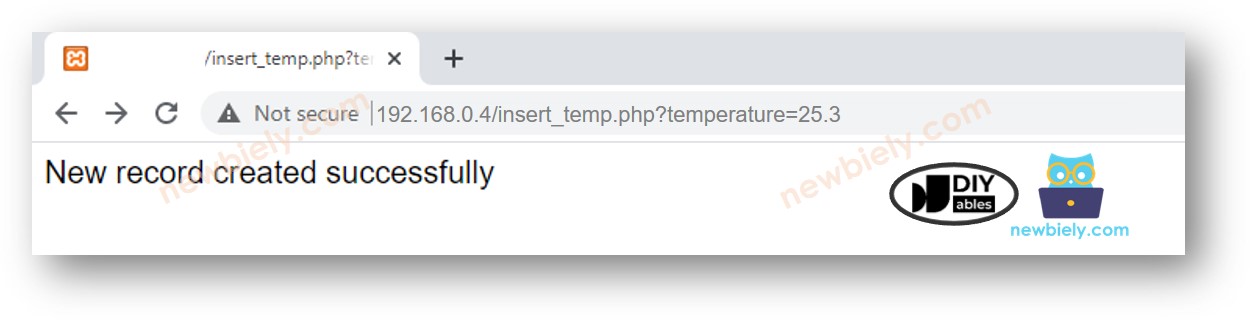
- In a browser on the same PC, open http://192.168.0.19/insert_temp.php?temperature=25.3. Swap 192.168.0.19 for the address you found.
- A short success line should appear:
- Confirm the row really landed in the table:
Row 1 holds 25.3, so the server side is done. Now the board only has to call the same URL.
ESP32 Uno Pinout
No wire goes to any header in this project, because the board uses its own WiFi radio. Keep the diagram below for later, when you add a real sensor and need the GPIO number behind each Uno label.

Step 6 — Write the ESP32 Uno Code
This sketch joins your WiFi, calls insert_temp.php once with a fixed 30.5°C and prints the server answer. It uses WiFi.h and HTTPClient.h, which ship with the esp32 by Espressif Systems core, so there is nothing extra to install.
Upload and Test
- First time with this board? Set it up with ESP32 Uno - Getting Started before you continue.
- Keep the server running: Apache and MySQL must both show green in the XAMPP Control Panel.
- Plug in the USB Type-C cable between the ESP32 Uno and your computer.
- Select the board in Arduino IDE: pick ESP32 Dev Module and the COM port of the board (CH340).
- Paste the sketch into a new Arduino IDE window.
- Fill in your WiFi: put your network name and password in place of YOUR_WIFI_SSID and YOUR_WIFI_PASSWORD.
- Point it at your PC: change 192.168.0.19 in HOST_NAME to the IPv4 address from Step 5.
- Upload the sketch with the arrow button.
- Open the Serial Monitor at 9600 baud.
- Pro tip: give your PC a fixed (reserved) IP address in your router settings. Then HOST_NAME keeps working after the PC restarts.
Check the table one more time:
Row 2 came from the ESP32 Uno. Press the board's EN (reset) button and a third row with 30.5 appears.
Video Tutorial
See the ESP32 Uno build in action in the video below.
Code Explanation
By the end of this part, you can find the line to change for each job.
| Code Part | What It Does | |
|---|---|---|
| WIFI_SSID / WIFI_PASSWORD | Hold the name and password of your 2.4 GHz network | |
| HOST_NAME + PATH_NAME + queryString | Join into the full URL, for example http | //192.168.0.19/insert_temp.php?temperature=30.5 |
| WiFi.begin() and the while loop | Start the WiFi link and print a dot every 500 ms until it is up | |
| http.begin() and http.GET() | Open the URL and send the GET request | |
| httpCode check | Prints the PHP reply on 200 OK, the code number on other replies, or the error text when the server cannot be reached | |
| http.end() | Frees the connection |
All the work sits in setup(), so the board sends exactly one value per reset, and loop() stays empty.
ESP32 Uno vs UNO R4 for This Project
Moving this database logger from the UNO R4 WiFi to the ESP32 Uno mainly changes the network code.
| Item | Arduino UNO R4 WiFi | ESP32 Uno |
|---|---|---|
| Logic voltage | 5V | 3.3V |
| WiFi library | WiFiS3.h | WiFi.h (built into the core) |
| HTTP code | Raw WiFiClient lines for the header | HTTPClient with http.GET() |
| Serial output | Full HTTP header plus body | Only the PHP reply line |
| Header pins used | None | None |
| Arduino IDE board | Arduino UNO R4 WiFi | ESP32 Dev Module |
No wiring is needed on either board. The PHP file, the database and the table stay exactly the same, so only the sketch changes.
Change, Read or Delete Rows
Inserting is only one job. To update or read data, the ESP32 Uno sends the same kind of request, and only the SQL inside the PHP file changes.
| Goal | SQL in the PHP File | Example URL |
|---|---|---|
| Add a row | INSERT INTO tbl_temp ... | insert_temp.php?temperature=30.5 |
| Change a row | UPDATE tbl_temp SET temp_value=... WHERE temp_id=... | update_temp.php?id=2&temperature=29.1 |
| Read the last value | SELECT temp_value FROM tbl_temp ORDER BY temp_id DESC LIMIT 1 | get_temp.php |
| Remove a row | DELETE FROM tbl_temp WHERE temp_id=... | delete_temp.php?id=1 |
For a full PHP and MySQL reference, see W3Schools. For a read script, keep the answer short (one number or a few lines), and print it with http.getString() on the board.
Make It Safer
This guide keeps the setup small on purpose. Before you put it on the internet, add these upgrades:
| Upgrade | Why |
|---|---|
| HTTPS with WiFiClientSecure | Encrypts the value and any login on the way |
| Basic access authentication | Stops strangers from writing rows to your table |
| Prepared statements in PHP | Blocks SQL injection through the URL |
| JSON and a REST style API | Makes larger data sets easy to send and check |
More on logins: Basic access authentication.
Try These Next
- Send a real reading from a DHT22 sensor on the ESP32 Uno instead of the fixed 30.5.
- Log a DS18B20 value, as in ESP32 Uno - Temperature Sensor.
- Move the request into loop() and post a value every 60 seconds.
- Add a second column, such as humidity, and pass two fields in the URL.
- Show the latest rows on a page served by the board itself, starting from ESP32 Uno - Web Server.
Troubleshooting
| Problem | Possible Cause | Solution |
|---|---|---|
| No COM port appears in Arduino IDE | CH340 driver missing or a charge-only cable | Install the CH340 driver and use a USB cable that carries data |
| "Failed to connect" or "Waiting for download" during upload | The board did not enter download mode | Hold the BOOT button while the upload starts, then let go |
| Endless dots after "Connecting" | Wrong SSID or password, or the router only offers 5 GHz | Check spelling and case, and join a 2.4 GHz network |
| "[HTTP] GET... failed, error - connection refused" | Apache stopped, wrong IP in HOST_NAME, or Windows firewall blocks port 80 | Start Apache, use the PC IPv4 address and allow Apache through the firewall |
| Reply says "MySQL connection failed" | MySQL stopped, or the user, password or database name in PHP is wrong | Start MySQL in XAMPP and compare insert_temp.php with Steps 2 and 3 |
| "[HTTP] GET... code - 404" | insert_temp.php is not in htdocs or PATH_NAME is misspelled | Move the file into C\xampp\htdocs and check the file name |
| Reply says "temperature is not set in the HTTP request" | The query string is missing | Make sure the URL ends with ?temperature= and a number |
| It worked yesterday but fails today | The PC got a new IP address from the router | Read the IP again with ipconfig, or reserve a fixed IP for the PC |
| Board reboots while sending | Weak USB port or long thin cable | Use a short cable and a powered USB port or the DC jack |
FAQ
Does the ESP32 Uno need an extra WiFi shield to log data to MySQL?
No. The WiFi radio is part of the ESP32 Uno chip. You only need the board, a USB cable and a computer or server that runs MySQL, Apache and PHP.
Why use a PHP page instead of a MySQL library on the board?
A PHP page keeps the database password off the board and lets you lock the MySQL account to localhost. The sketch only sends one URL, so it stays small. MySQL libraries for microcontrollers are heavier and often have no encryption.
Is MariaDB in XAMPP the same as MySQL?
For this project, yes. MariaDB is a fork of MySQL and accepts the same SQL commands and the same PHP mysqli code.
Can the PHP script run on a web host instead of my PC?
Yes. Upload insert_temp.php to any host with PHP and MySQL, make the database there, and change HOST_NAME to the host address. Use HTTPS and a login on a public server.
How do I log a value every few minutes instead of once?
Move the HTTPClient part from setup() into loop() and add a delay() or a millis() timer. Build the query string from your sensor value each time, for example with String(value).
Which ESP32 Uno pins can read an analog sensor while WiFi is on?
Use A2 to A5 (GPIO35, GPIO34, GPIO36, GPIO39). A0 (GPIO2) and A1 (GPIO4) sit on ADC2, and analogRead() on ADC2 does not work while WiFi is running. The ESP32 Uno ADC returns 0 to 4095, not 0 to 1023.
My UNO R4 WiFi sketch for MySQL does not compile on the ESP32 Uno. Why?
The UNO R4 WiFi sketch includes WiFiS3.h and calls WiFi.firmwareVersion(), which exist only for that board. The ESP32 Uno uses WiFi.h and HTTPClient.h from the esp32 core, as in the code above. The PHP and database parts do not change.
Do I need a driver before Arduino IDE can see the ESP32 Uno?
Usually yes on Windows. The ESP32 Uno uses a CH340 USB-to-serial chip. Install the CH340 driver once, then a new COM port appears when you plug in the board.
What if my project needs more pins than the Uno headers give?
The ESP32 Uno has a few extra holes near the power header: GPIO32 and GPIO33 (I/O, PWM, analog on ADC1, so they also work while WiFi is on) and GPIO15 (I/O, PWM, analog on ADC2). Solder pin headers to them and write the GPIO number in your code. For a WiFi data logger, put extra analog sensors on GPIO32 or GPIO33. Two warnings. First, GPIO15 and GPIO0 (the IO0 pin at the unused Uno NC position) are boot strapping pins, and a wrong connection can stop the board from booting or uploading code, so use GPIO32/33 first. Second, never use the six holes under the digital header (SD0 to SD3, CMD, CLK = GPIO6 to GPIO11). They are wired to the flash chip, and using them crashes the board.
Can I see the logged values on my phone?
Yes. Write a small PHP page that runs a SELECT and prints the rows as an HTML table, then open it in the phone browser on the same network. For a public view, move the files to a web host.