
ESP32 UNO - Touch Sensor
Want a button that has no moving part? Connect a touch sensor to the ESP32 Uno form board and read it with a few lines of Arduino code. A touch switch acts like a push button, so you can use it for touch lamps, tap controls and sleek panels.
By the end, you can:
- Wire a touch sensor to the ESP32 Uno
- Read the touch state with digitalRead()
- Catch the moment of touch and the moment of release
- Watch the result in the Arduino IDE Serial Monitor
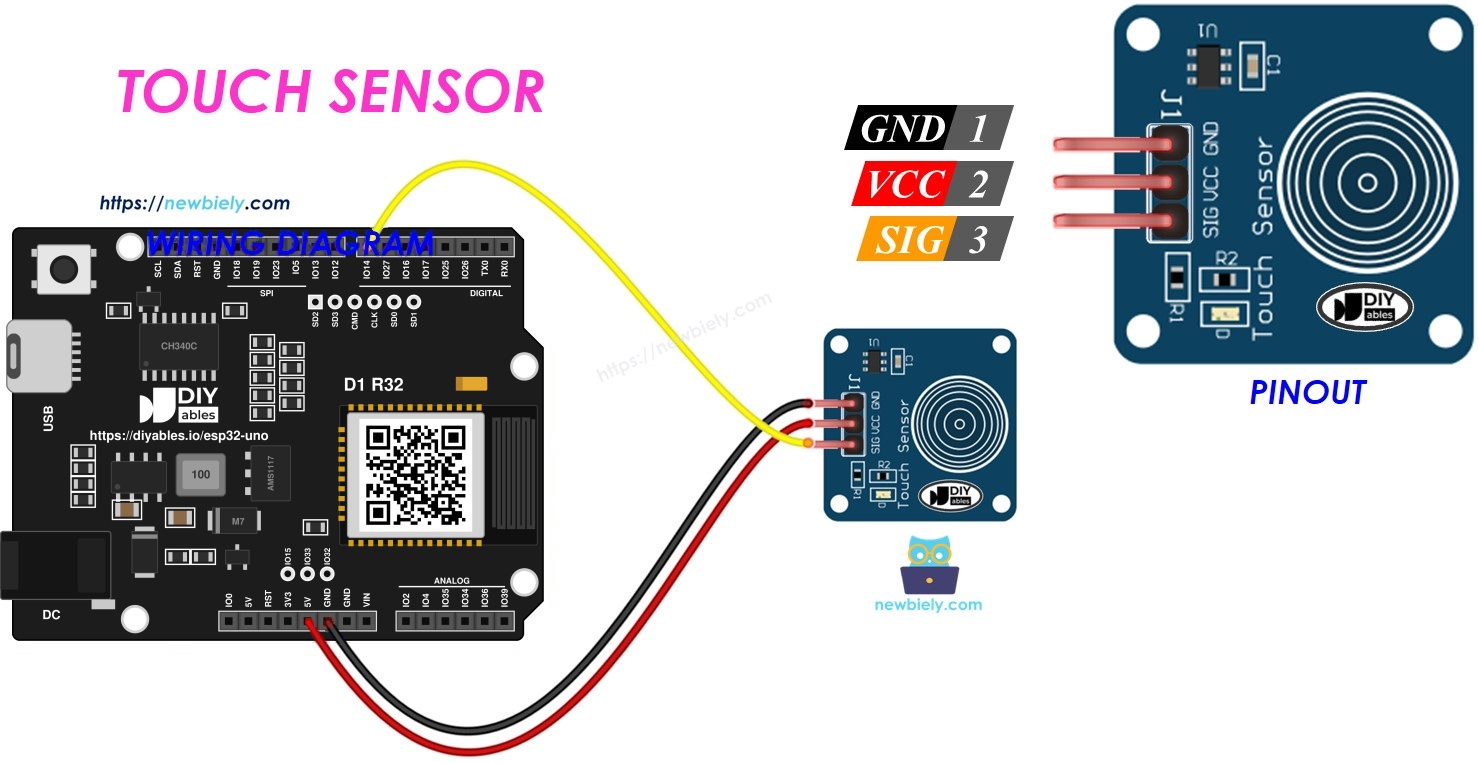
Components You Need
| 1 | × | ESP32 Uno-form Board | |
| 1 | × | USB Cable Type-A to Type-C (for USB-A PC) | |
| 1 | × | USB Cable Type-C to Type-C (for USB-C PC) | |
| 1 | × | Touch Sensor | |
| 1 | × | Jumper Wires |
Or you can buy the following kits:
| 1 | × | DIYables Sensor Kit (18 sensors/displays) |
Additionally, some of these links are for products from our own brand, DIYables .
Overview of the Touch Sensor
By the end of this part, you know what each pin does and what the signal means.
Pinout
| Sensor Pin | Job |
|---|---|
| GND | Ground (0V) |
| VCC | Power. Use 3.3V with the ESP32 Uno |
| SIGNAL | LOW when nobody touches the pad, HIGH while a finger is on it |
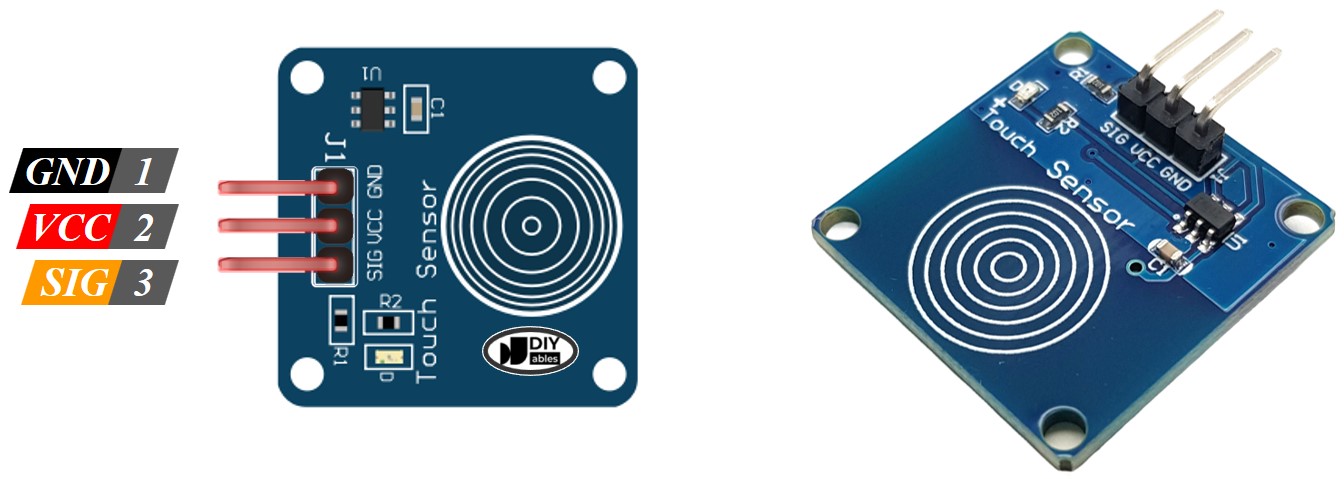
Good to know: The module has a small chip that feels your finger through the pad. It turns that feeling into a clean HIGH or LOW signal, so you need no extra parts.
How It Works
| Pad State | SIGNAL Pin |
|---|---|
| Not touched | LOW |
| Touched | HIGH |
Sensor and Board
The SIGNAL pin goes to one input pin of the ESP32 Uno. Your sketch reads that pin: HIGH means a touch, LOW means no touch.
ESP32 Uno Pinout
Every Uno header pin of the ESP32 Uno form board has its own GPIO number, and the code uses that number. Find D7 in the diagram below before you connect a wire.

How to Connect
By the end of this part, three wires link the sensor to the board.
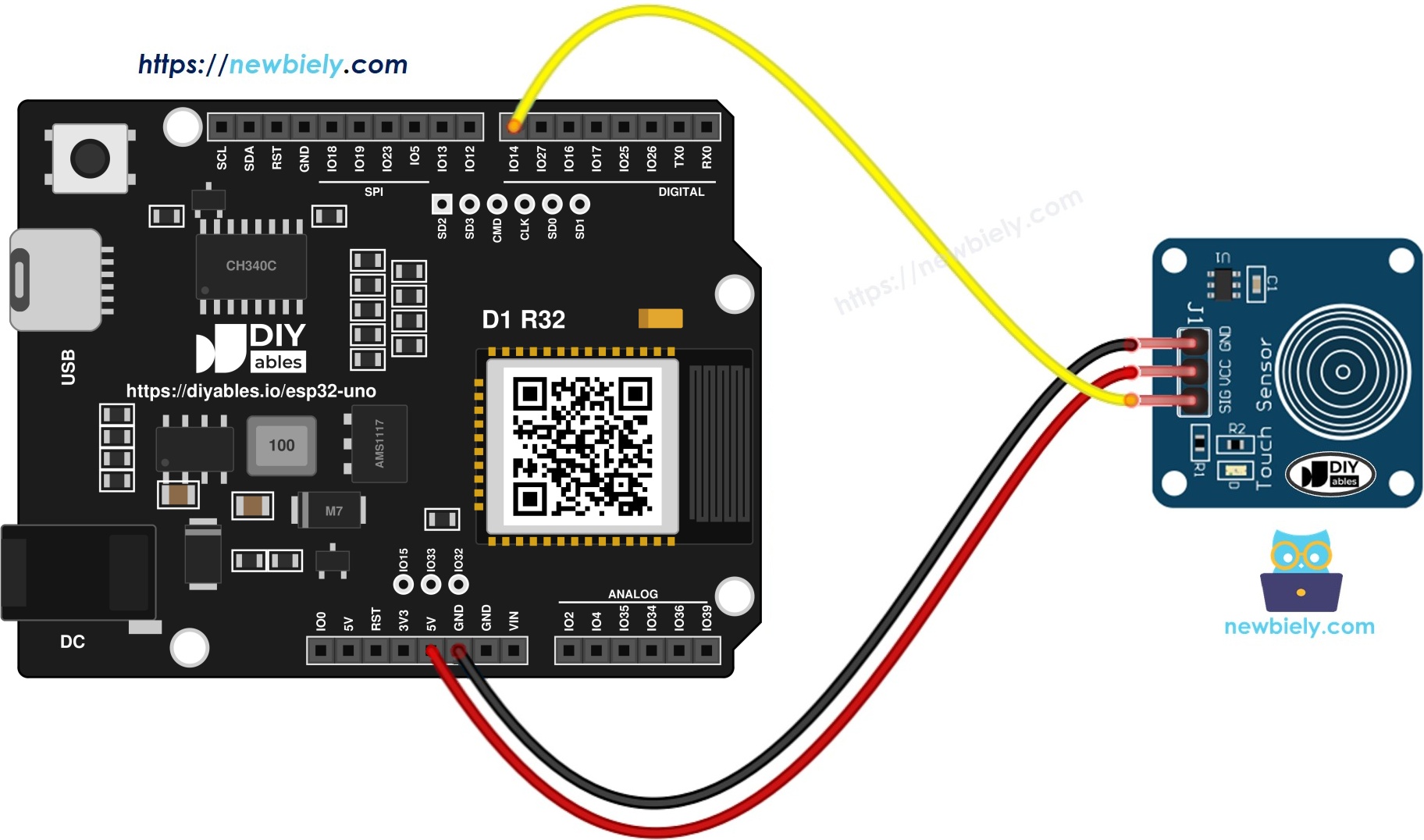
This image is created using Fritzing. Click to enlarge image
※ NOTE THAT:
The wiring diagram may not show the correct pin. In the demo, the buzzer goes to D6 (GPIO27) on the ESP32 Uno, not D8 as the picture may show. We will update the diagram soon. Until then, follow the wiring table and the code on this page, not the picture.
| Touch Sensor Pin | ESP32 Uno Pin |
|---|---|
| VCC | 3.3V |
| GND | GND |
| SIGNAL | D7 (GPIO14) |
Good to know: ESP32 Uno pins use 3.3V logic and are not 5V tolerant. Power the sensor from 3.3V, so the SIGNAL output stays at 3.3V.
WARNING
If you power the sensor from 5V, the SIGNAL pin can also output 5V when touched. That can damage GPIO14. Keep VCC on 3.3V, or add a voltage divider or level shifter on the SIGNAL wire.
How to Program the Touch Sensor
By the end of this part, you know the two calls that read the sensor.
Step 1 — Make the pin an input
Call pinMode() once in setup(). D7 is GPIO14, so that number goes in the call.
Step 2 — Read the pin
The digitalRead() function returns HIGH or LOW.
※ NOTE THAT:
You can use the reading in two ways:
- By level: do one thing while the pin is HIGH, and the opposite while it is LOW.
- By change: act only when the pin switches from LOW to HIGH, or from HIGH to LOW.
Example with an LED. To light the LED only while a finger rests on the pad, read the level. To flip the LED each time you tap, react to the change.
Touch Sensor - ESP32 Uno Code
This part has two sketches: one prints the raw state, the other prints touch and release events.
Print the Touch State to the Serial Monitor
The sketch reads GPIO14 in every loop() pass and prints 0 or 1.
| Code Part | What It Does |
|---|---|
| #define SENSOR_PIN 14 | Names GPIO14 (header pin D7) |
| pinMode(SENSOR_PIN, INPUT) | Turns the pin into an input |
| digitalRead(SENSOR_PIN) | Gets HIGH (1) or LOW (0) |
| Serial.println(state) | Prints the value on its own line |
The Serial Monitor shows a stream of 0 and 1 values that follows your finger.
Upload and Test
- First time with this board? Set it up with ESP32 Uno - Getting Started before you continue.
- Build the circuit by following the wiring table above.
- Plug in the USB Type-C cable between the ESP32 Uno and your computer.
- Select the board in Arduino IDE: pick ESP32 Dev Module and the COM port of the board (CH340).
- Copy the code above into Arduino IDE.
- Click Upload and wait until it finishes.
- Start the Serial Monitor at 9600 baud.
- Touch the pad, hold for a moment, then lift your finger.
- Pro tip: Many modules have a small LED that lights when you touch the pad. If that LED reacts but the Serial Monitor stays at 0, check the SIGNAL wire.
Detect Touch and Release
This sketch keeps the previous reading and compares it with the new one. It prints one message for each touch and one for each release.
| Code Part | What It Does |
|---|---|
| touch_state | Newest reading of the pin |
| prev_touch_state | Reading from the pass before |
| LOW then HIGH | Prints "The sensor is touched" |
| HIGH then LOW | Prints "The sensor is is released" |
You get one line per event instead of a long stream of numbers.
Upload and Test
- Copy the code into Arduino IDE.
- Click Upload to send it to the ESP32 Uno.
- Put a finger on the pad and keep it there.
- Read the Serial Monitor.
- Lift your finger.
- Read the Serial Monitor again.
- Pro tip: Use the event style when one tap must trigger one action, such as flipping a relay or changing a song.
Video Tutorial
See the ESP32 Uno build in action in the video below.
In the demo, each of two touch sensors starts a song on a buzzer, while two LEDs blink to the beat. It uses this code:
| Part | Uno Pin |
|---|---|
| Touch sensor 1 (Happy Birthday) | D2 (GPIO26) |
| Touch sensor 2 (Jingle Bells) | D3 (GPIO25) |
| LED A | D4 (GPIO17) |
| LED B | D5 (GPIO16) |
| Buzzer | D6 (GPIO27) |
ESP32 Uno vs UNO R4 for This Project
By the end of this part, you know what changes when you move this touch project from the UNO R4 to the ESP32 Uno.
| Item | Arduino UNO R4 | ESP32 Uno |
|---|---|---|
| Logic voltage | 5V | 3.3V |
| Sensor power | 5V or 3.3V | 3.3V |
| Sensor pin in code | 7 | 14 (D7 is GPIO14) |
| Demo buzzer pin | 8 | 27 (D6 is GPIO27) |
| Arduino IDE board | Arduino UNO R4 WiFi | ESP32 Dev Module |
| USB chip | none needed | CH340 driver |
| Wireless | WiFi on R4 WiFi only | WiFi and Bluetooth |
The sensor wires stay on the same header positions as the UNO R4. Only the demo buzzer moves to D6 (GPIO27), because D8 (GPIO12) is a boot pin on the ESP32 Uno. Just power the sensor from 3.3V and write GPIO numbers in code.
Go Wireless: Touch Alerts on Your Phone
By the end of this part, you have an idea to show the touch state on a phone.
The ESP32 Uno has WiFi and Bluetooth. You can send the touch state to a web page or a phone app, so a tap on the pad shows up as a message on your screen. This works well for a doorbell pad or a "someone is here" alert.
Troubleshooting
| Problem | Possible Cause | Solution |
|---|---|---|
| No COM port in Arduino IDE | CH340 driver missing or a charge-only cable | Install the CH340 driver and use a USB cable that carries data |
| Failed to connect or Waiting for download | Board is not in upload mode | Hold the BOOT button when the upload starts |
| Serial Monitor shows 0 all the time | SIGNAL wire loose or sensor has no power | Check VCC on 3.3V, GND and the wire to D7 (GPIO14) |
| Serial Monitor shows 1 all the time | SIGNAL wire is on a wrong pin or the pad is touched at power-on | Move the wire to D7 and do not touch the pad while the board starts |
| Garbage text in Serial Monitor | Wrong baud rate | Set the baud rate to 9600 |
| Value flickers 0 and 1 | Wire loose or noise from long wires | Use short jumper wires and press them in firmly |
| Sensor gets warm or board resets | 5V on the SIGNAL line or short circuit | Power the sensor from 3.3V and check the wiring |
| Code does not compile | Wrong board selected | Choose ESP32 Dev Module |
FAQ
How does a capacitive touch sensor work?
The chip on the module senses the small change in capacitance when your finger comes near the pad. It then switches the SIGNAL pin to HIGH. When the finger leaves, the pin goes back to LOW.
Should I use 3.3V or 5V for the sensor?
Use 3.3V. The module works at 3.3V, and the SIGNAL output then matches the 3.3V logic of the ESP32 Uno. A 5V output is not safe for the board pins.
Can I use another pin than D7?
Yes. Any normal digital pin works. Change the number in #define SENSOR_PIN. Stay away from D0, D1 (USB serial) and the strapping pins.
Do I need a pull-up resistor?
No. The module drives the SIGNAL line itself, both HIGH and LOW. That is why the sketch uses plain INPUT.
Can I use A2 to A5 for the sensor?
Yes, because the sensor only gives a signal. Those pins are input only, which is fine here. They have no internal pull-up, but this sensor does not need one.
How do I use two touch sensors?
Give each sensor its own pin, like in the video demo with D2 (GPIO26) and D3 (GPIO25). Read each pin with its own digitalRead() call.
Does the ESP32 Uno have built-in touch pins?
The chip has capacitive touch inputs, but they are not on the Uno headers of this board. This tutorial uses an external touch module on a normal digital pin, which is simpler.
Do I have to rewrite the UNO R4 sketch?
Only the pin number changes. D7 is GPIO14, so the code uses 14 instead of 7. The logic is the same.
Can I show the touch state on my phone with the ESP32 Uno?
Yes. The ESP32 Uno has WiFi and Bluetooth. See the Go Wireless section for web and Bluetooth monitor tutorials.
What if my project needs more pins than the Uno headers give?
The board has a few extra holes near the power header: GPIO32 and GPIO33 (I/O, PWM, analog on ADC1, so they also work while WiFi is on) and GPIO15 (I/O, PWM, analog on ADC2). Solder pin headers on them first, then use the GPIO number in your sketch. For a touch sensor, GPIO32 or GPIO33 is the best choice. Two warnings: (1) GPIO15 and GPIO0 (the IO0 pin at the unused Uno NC position) are boot strapping pins, and a wrong connection can stop the board from booting or uploading code, so use GPIO32 and GPIO33 first. (2) Never use the six holes under the digital header (SD0-SD3, CMD, CLK = GPIO6-GPIO11). They are wired to the flash chip, and using them crashes the board.