
ESP32 UNO - Color Sensor via Web

Hold a red cup in front of a sensor and see a cartoon turn red on your phone. That is the ESP32 Uno color sensor via web project. A TCS3200D/TCS230 color recognition module measures red, green and blue, and the ESP32 Uno form board pushes the result as a HEX code to a browser over WebSocket. The DIYables ESP32 WebApps library serves the page and keeps the link open.

By the end, you can:

  1. Connect a TCS3200/TCS230 RGB sensor to the Uno headers with five signal wires
  2. Turn three filter readings into one #RRGGBB code with map() and sprintf()
  3. Stream that code to a phone or PC browser with DIYables ESP32 WebApps
  4. Paint an animated Minion in the color your sensor sees, about once per second
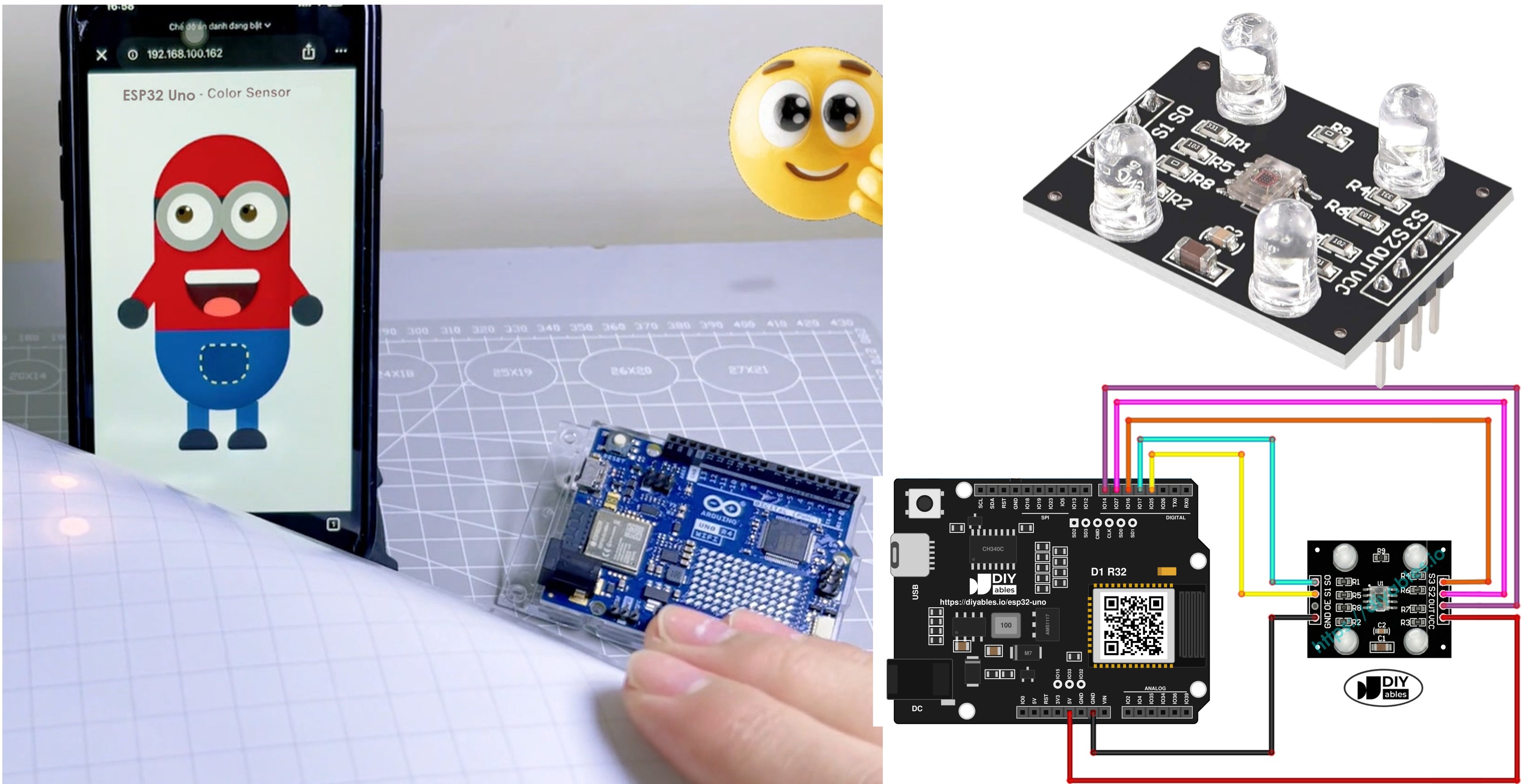
ESP32 Uno color sensor via web

The demo video sits further down, right after the upload steps.

Components You Need

1×ESP32 Uno-form Board
1×USB Cable Type-A to Type-C (for USB-A PC)
1×USB Cable Type-C to Type-C (for USB-C PC)
1×TCS3200D/TCS230 Color Recognition Sensor Module
1×Jumper Wires

Or you can buy the following kits:

1×DIYables Sensor Kit (18 sensors/displays)
Disclosure: Some of the links provided in this section are Amazon affiliate links. We may receive a commission for any purchases made through these links at no additional cost to you.
Additionally, some of these links are for products from our own brand, DIYables .

Before You Start

After this part, you know which two guides fill the gaps if the sensor or the web framework is new to you.

Topic Guide
Sensor basics and calibration ESP32 Uno - TCS3200D/TCS230 Color Sensor
Custom web page framework ESP32 Uno - DIYables ESP32 WebApps Custom WebApp

Good to know: the calibration guide gives you six numbers (min and max for each color). You type them into this sketch later.

ESP32 Uno Pinout

On the ESP32 Uno form board, every header label like D4 or D7 belongs to one GPIO number. The sketch talks to the GPIO number, so compare the labels with the diagram before you plug in the sensor.

ESP32 Uno pinout diagram

How to Connect the Color Sensor

When this part is done, the TCS3200 sits on five digital pins of the ESP32 Uno and gets 3.3V power.
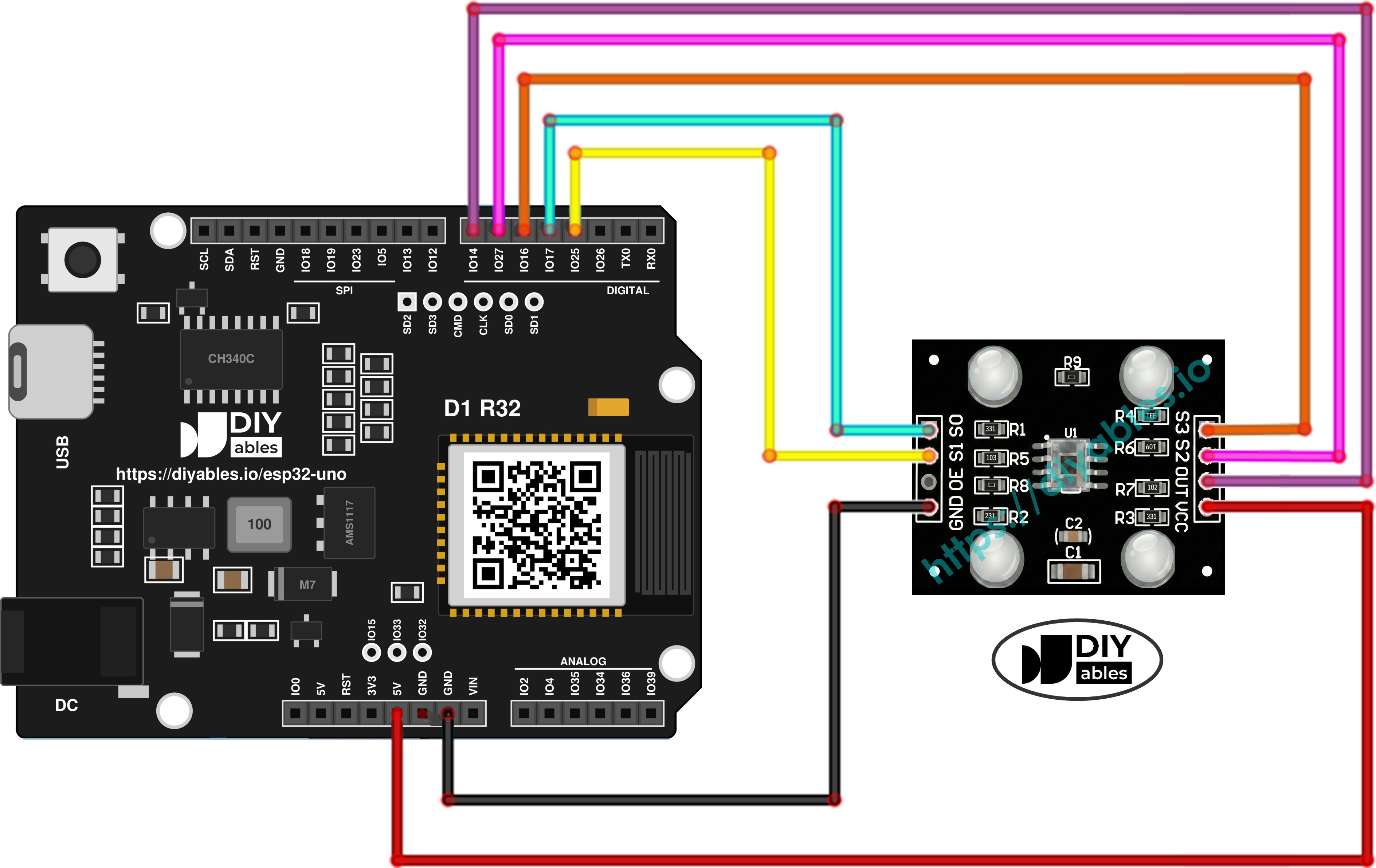
The wiring diagram between ESP32 Uno and TCS3200 color sensor

This image is created using Fritzing. Click to enlarge image

※ NOTE THAT:

The wiring diagram may not show the correct wiring for the ESP32 Uno. On the ESP32 Uno, connect VCC to 3.3V, not 5V. We will update the diagram soon. Until then, follow the wiring table and the text on this page, not the picture.

TCS3200 Color Sensor ESP32 Uno Pin
VCC 3.3V
GND GND
S0 D4 (GPIO17)
S1 D3 (GPIO25)
S2 D6 (GPIO27)
S3 D5 (GPIO16)
OUT D7 (GPIO14)

WARNING

The ESP32 Uno runs on 3.3V logic, and its pins cannot take 5V. Feed the module VCC from the 3.3V pin. The TCS3200 is fine from 2.7V to 5.5V, and its OUT pulses then stay at a safe 3.3V. If the drawing shows VCC on 5V, move only that wire. If you really need 5V on VCC, add a resistor divider (2.2kΩ from OUT to D7, 3.3kΩ from D7 to GND) so D7 (GPIO14) never sees more than about 3V.

Good to know: none of these five pins is a boot strapping pin, so the board starts and uploads with the sensor plugged in.

From Color to Web Page: the Data Flow

After this part, you can follow one color sample from the sensor chip to the screen.

Step 1 — Measure

Every 1000 ms, the sketch switches S2/S3 to the red, then the green, then the blue filter. For each filter, pulseIn() times one LOW pulse on OUT.

Step 2 — Scale

map() turns each pulse time into 0–255, using your numbers from the calibration guide. A short pulse means a strong color, so the scale runs backward (min time gives 255).

Step 3 — Pack

sprintf() writes the three values as one HEX text, for example #E63C1E for a tomato red.

Step 4 — Send

DIYables ESP32 WebApps adds the tag Color sensor: and broadcasts the text to every open browser over WebSocket (port 81).

Step 5 — Paint

JavaScript on the page drops the tag and sets the color on the Minion's body, arms and eyelids.

ESP32 Uno Code - Minion Color Web App

This part gives you four files. Together they read the sensor, join your WiFi and serve the Minion page.

File Job
ColorSensorESP32.ino The heart of the build. It sets the sensor pins, connects to WiFi, samples the color each second and sends it
CustomWebApp.h Declares the custom page class
CustomWebApp.cpp Sends and receives WebSocket text tagged Color sensor
custom_page_html.h The Minion page itself, with its styles and script

ColorSensorESP32.ino

/* * This ESP32 Uno code was developed by newbiely.com * * This ESP32 Uno code is made available for public use without any restriction * * For comprehensive instructions and wiring diagrams, please visit: * https://newbiely.com/tutorials/esp32-uno/esp32-uno-color-sensor-via-web */ #include <DIYables_ESP32_Platform.h> #include <DIYablesWebApps.h> #include "CustomWebApp.h" // put your own WiFi name and password here const char WIFI_SSID[] = "YOUR_WIFI_SSID"; const char WIFI_PASSWORD[] = "YOUR_WIFI_PASSWORD"; // TCS3200 wires on the ESP32 Uno headers const int S0 = 17; // D4 (GPIO17) sets output scaling, bit 0 const int S1 = 25; // D3 (GPIO25) sets output scaling, bit 1 const int S2 = 27; // D6 (GPIO27) picks the color filter, bit 0 const int S3 = 16; // D5 (GPIO16) picks the color filter, bit 1 const int sensorOut = 14; // D7 (GPIO14) reads the square wave from OUT // web server, home page and the Minion page ESP32ServerFactory serverFactory; DIYablesWebAppServer webAppsServer(serverFactory, 80, 81); DIYablesHomePage homePage; CustomWebAppPage customPage; unsigned long lastColorRead = 0; void setup() { Serial.begin(9600); delay(1000); Serial.println("Starting Custom WebApp..."); // filter and scaling pins are outputs, OUT is an input pinMode(S0, OUTPUT); pinMode(S1, OUTPUT); pinMode(S2, OUTPUT); pinMode(S3, OUTPUT); pinMode(sensorOut, INPUT); // S0 HIGH + S1 LOW = 20% output frequency digitalWrite(S0, HIGH); digitalWrite(S1, LOW); // register both pages with the server webAppsServer.addApp(&homePage); webAppsServer.addApp(&customPage); // join the WiFi network and start the server; halt here on failure if (!webAppsServer.begin(WIFI_SSID, WIFI_PASSWORD)) { while (1) { Serial.println("Failed to connect to WiFi!"); delay(1000); } } Serial.println("Custom WebApp ready!"); customPage.sendToWeb("Arduino is ready!"); } void loop() { // keep HTTP and WebSocket clients served webAppsServer.loop(); // take a new color sample once per second if (millis() - lastColorRead > 1000) { // red filter: S2 LOW, S3 LOW digitalWrite(S2, LOW); digitalWrite(S3, LOW); int r = map(pulseIn(sensorOut, LOW), 31, 150, 255, 0); // green filter: S2 HIGH, S3 HIGH digitalWrite(S2, HIGH); digitalWrite(S3, HIGH); int g = map(pulseIn(sensorOut, LOW), 35, 180, 255, 0); // blue filter: S2 LOW, S3 HIGH digitalWrite(S2, LOW); digitalWrite(S3, HIGH); int b = map(pulseIn(sensorOut, LOW), 30, 150, 255, 0); // build a #RRGGBB string and push it to the Minion page char hexColor[8]; sprintf(hexColor, "#%02X%02X%02X", constrain(r, 0, 255), constrain(g, 0, 255), constrain(b, 0, 255)); customPage.sendToWeb(String(hexColor)); Serial.println("Sent to Minion: " + String(hexColor)); lastColorRead = millis(); } }

CustomWebApp.h

/* * This ESP32 Uno code was developed by newbiely.com * * This ESP32 Uno code is made available for public use without any restriction * * For comprehensive instructions and wiring diagrams, please visit: * https://newbiely.com/tutorials/esp32-uno/esp32-uno-color-sensor-via-web */ #ifndef CUSTOM_WEBAPP_H #define CUSTOM_WEBAPP_H #include <DIYablesWebApps.h> /** * Color Sensor page for the ESP32 Uno * * A small custom web app class. It serves the Minion page and * swaps live WebSocket messages with the ESP32 Uno sketch. */ class CustomWebAppPage : public DIYablesWebAppPageBase { private: // tag put in front of every WebSocket message of this page static const String APP_IDENTIFIER; public: CustomWebAppPage(); // ======================================== // LIBRARY HOOKS - THE LIBRARY CALLS THESE, KEEP THEM AS-IS // ======================================== void handleHTTPRequest(IWebClient& client) override; void handleWebSocketMessage(IWebSocket& ws, const char* message, uint16_t length) override; const char* getPageInfo() const override; String getNavigationInfo() const override; // ======================================== // METHODS FOR YOUR SKETCH - CALL THESE FROM THE .INO FILE // ======================================== void onCustomMessageReceived(void (*callback)(const String& payload)); void sendToWeb(const String& message); }; #endif

CustomWebApp.cpp

/* * This ESP32 Uno code was developed by newbiely.com * * This ESP32 Uno code is made available for public use without any restriction * * For comprehensive instructions and wiring diagrams, please visit: * https://newbiely.com/tutorials/esp32-uno/esp32-uno-color-sensor-via-web */ #include "CustomWebApp.h" #include "custom_page_html.h" // the tag that marks messages for this page const String CustomWebAppPage::APP_IDENTIFIER = "Color sensor:"; // pointer to the sketch function that gets browser messages void (*customMessageCallback)(const String& payload) = nullptr; CustomWebAppPage::CustomWebAppPage() : DIYablesWebAppPageBase("/custom") { } void CustomWebAppPage::handleHTTPRequest(IWebClient& client) { // reply with the Minion HTML page sendHTTPHeader(client); client.print(CUSTOM_PAGE_HTML); } void CustomWebAppPage::handleWebSocketMessage(IWebSocket& ws, const char* message, uint16_t length) { String messageStr = String(message, length); Serial.print("Color sensor WebApp received: "); Serial.println(messageStr); // skip any message that does not carry our tag if (messageStr.startsWith(APP_IDENTIFIER)) { String payload = messageStr.substring(APP_IDENTIFIER.length()); // cut off the tag // pass the rest of the text to the sketch, if a handler is set if (customMessageCallback) { customMessageCallback(payload); } } } void CustomWebAppPage::onCustomMessageReceived(void (*callback)(const String& payload)) { customMessageCallback = callback; } void CustomWebAppPage::sendToWeb(const String& message) { // add the tag, then push the text to every open browser String fullMessage = APP_IDENTIFIER + message; broadcastToAllClients(fullMessage.c_str()); } const char* CustomWebAppPage::getPageInfo() const { return "🔧 Color sensor WebApp"; } String CustomWebAppPage::getNavigationInfo() const { String result = "<a href=\""; result += getPagePath(); result += "\" class=\"app-card custom\" style=\"background: linear-gradient(135deg, #007bff 0%, #0056b3 100%);\">"; result += "<h3>🔧 Color sensor WebApp</h3>"; result += "<p>Simple template for your own apps</p>"; result += "</a>"; return result; }

custom_page_html.h

/* * This ESP32 Uno code was developed by newbiely.com * * This ESP32 Uno code is made available for public use without any restriction * * For comprehensive instructions and wiring diagrams, please visit: * https://newbiely.com/tutorials/esp32-uno/esp32-uno-color-sensor-via-web */ #ifndef CUSTOM_PAGE_HTML_H #define CUSTOM_PAGE_HTML_H const char CUSTOM_PAGE_HTML[] PROGMEM = R"HTML_WRAPPER( <!DOCTYPE html> <html lang="en"> <head> <meta charset="UTF-8"> <meta name="viewport" content="width=device-width, initial-scale=1.0, maximum-scale=1.0, user-scalable=no"> <title>Mobile Laughing Minion</title> <style> /* page styles: layout, Minion body parts and animations */ body { margin: 0; padding: 20px; box-sizing: border-box; display: flex; flex-direction: column; justify-content: flex-start; align-items: center; background-color: #f0f8ff; font-family: sans-serif; overflow-x: hidden; } .text { font-size: clamp(16px, 5vw, 24px); font-weight: bold; color: #333; margin-bottom: 20px; text-align: center; z-index: 10; } .scale-wrapper { transform-origin: top center; display: flex; justify-content: center; align-items: flex-start; } .minion-container { position: relative; width: 200px; height: 400px; } .body { position: absolute; top: 20px; left: 25px; width: 150px; height: 300px; background-color: #FFD90F; border-radius: 75px; box-shadow: inset -10px -10px 20px rgba(0,0,0,0.1); overflow: hidden; z-index: 2; transition: background-color 0.5s; } .overalls { position: absolute; bottom: 0; width: 100%; height: 90px; background-color: #225A94; border-radius: 0 0 75px 75px; box-shadow: inset -10px -10px 20px rgba(0,0,0,0.2); } .pocket { position: absolute; bottom: 30px; left: 50px; width: 50px; height: 40px; background-color: #1A4674; border-radius: 10px 10px 20px 20px; border: 2px dashed #fce144; } .strap { position: absolute; top: 65px; left: 0; width: 100%; height: 25px; background-color: #333; z-index: 1; } .goggles-wrapper { position: absolute; top: 50px; left: -5px; width: 160px; display: flex; justify-content: center; z-index: 3; } .goggle { position: relative; width: 50px; height: 50px; background-color: white; border: 12px solid #999; border-radius: 50%; box-shadow: 3px 3px 8px rgba(0,0,0,0.2), inset 3px 3px 8px rgba(0,0,0,0.1); margin: 0 -2px; overflow: hidden; } .pupil { position: absolute; top: 50%; left: 50%; width: 20px; height: 20px; background-color: #4B3621; border-radius: 50%; transform: translate(-50%, -50%); transition: transform 0.2s ease-out; } .pupil::after { content: ''; position: absolute; top: 4px; left: 4px; width: 6px; height: 6px; background-color: black; border-radius: 50%; } .catchlight { position: absolute; top: 2px; right: 4px; width: 4px; height: 4px; background-color: white; border-radius: 50%; z-index: 4; } .eyelid { position: absolute; top: 0; left: 0; width: 100%; height: 100%; background-color: #FFD90F; border-bottom: 3px solid #D4B200; transform-origin: top; transform: scaleY(0); z-index: 5; animation: blink 4s infinite; } .mouth { position: absolute; top: 145px; left: 35px; width: 80px; height: 45px; background-color: #3E2723; border-radius: 10px 10px 60px 60px; overflow: hidden; z-index: 3; box-shadow: inset 0 5px 10px rgba(0,0,0,0.5); animation: laugh 0.2s infinite alternate ease-in-out; } .teeth { position: absolute; top: 0; left: 0; width: 100%; height: 14px; background-color: #fff; border-radius: 0 0 5px 5px; } .tongue { position: absolute; bottom: -5px; left: 20px; width: 40px; height: 25px; background-color: #FF5252; border-radius: 50%; animation: wag 0.2s infinite alternate ease-in-out; } .arm { position: absolute; top: 140px; width: 25px; height: 80px; background-color: #FFD90F; border-radius: 12px; z-index: 1; transition: background-color 0.5s; } .arm.left { left: 10px; transform: rotate(35deg); } .arm.right { right: 15px; transform: rotate(-35deg); } .glove { position: absolute; bottom: -15px; left: -5px; width: 35px; height: 35px; background-color: #333; border-radius: 50%; } .leg { position: absolute; bottom: 50px; width: 25px; height: 40px; background-color: #225A94; z-index: 1; } .leg.left { left: 60px; } .leg.right { left: 115px; } .shoe { position: absolute; bottom: -15px; left: -10px; width: 45px; height: 20px; background-color: #222; border-radius: 20px 20px 5px 5px; border-bottom: 5px solid #111; } @keyframes blink { 0%, 94%, 100% { transform: scaleY(0); } 97% { transform: scaleY(1); } } @keyframes laugh { 0% { height: 40px; transform: scaleX(1); } 100% { height: 55px; transform: scaleX(1.05); } } @keyframes wag { 0% { transform: translateY(0); } 100% { transform: translateY(-3px); } } </style> </head> <body> <div class="text" id="status-text">Just watch him look around! 👀</div> <div class="scale-wrapper" id="minionWrapper"> <div class="minion-container"> <div class="arm left" id="armL"><div class="glove"></div></div> <div class="arm right" id="armR"><div class="glove"></div></div> <div class="leg left"><div class="shoe"></div></div> <div class="leg right"><div class="shoe"></div></div> <div class="body" id="minionBody"> <div class="overalls"> <div class="pocket"></div> </div> <div class="strap"></div> <div class="goggles-wrapper"> <div class="goggle"><div class="pupil"><div class="catchlight"></div></div><div class="eyelid" id="eyelidL"></div></div> <div class="goggle"><div class="pupil"><div class="catchlight"></div></div><div class="eyelid" id="eyelidR"></div></div> </div> <div class="mouth"> <div class="teeth"></div> <div class="tongue"></div> </div> </div> </div> </div> <script> // open the WebSocket link to the ESP32 Uno and react to color messages const APP_IDENTIFIER = 'Color sensor:'; let ws = null; function connectWebSocket() { ws = new WebSocket('ws://' + location.hostname + ':81'); ws.onopen = () => document.getElementById('status-text').textContent = "ESP32 Uno - Color Sensor"; ws.onclose = () => setTimeout(connectWebSocket, 2000); ws.onmessage = (event) => { if (event.data.startsWith(APP_IDENTIFIER)) { let color = event.data.substring(APP_IDENTIFIER.length); // paint the body, both arms and both eyelids with the new color document.getElementById('minionBody').style.backgroundColor = color; document.getElementById('armL').style.backgroundColor = color; document.getElementById('armR').style.backgroundColor = color; document.getElementById('eyelidL').style.backgroundColor = color; document.getElementById('eyelidR').style.backgroundColor = color; document.getElementById('status-text').style.color = color; } }; } // fit the Minion to the screen and move its eyes function resizeMinion() { const wrapper = document.getElementById('minionWrapper'); const availableWidth = window.innerWidth - 40; const minionTrueWidth = 260; const minionHeight = 400; let scaleFactor = availableWidth / minionTrueWidth; if (scaleFactor > 1.5) scaleFactor = 1.5; wrapper.style.transform = `scale(${scaleFactor})`; wrapper.style.height = `${minionHeight * scaleFactor}px`; } window.addEventListener('resize', resizeMinion); resizeMinion(); connectWebSocket(); const pupils = document.querySelectorAll('.pupil'); function moveEyesAutomatically() { const angle = Math.random() * Math.PI * 2; const distance = Math.random() * 15; const pupilX = Math.cos(angle) * distance; const pupilY = Math.sin(angle) * distance; pupils.forEach(pupil => { pupil.style.transform = `translate(calc(-50% + ${pupilX}px), calc(-50% + ${pupilY}px))`; }); } setInterval(moveEyesAutomatically, 600); </script> </body> </html> )HTML_WRAPPER"; #endif

Upload and Test

When you finish this list, the Minion on your screen copies the color of whatever you hold in front of the sensor.

  1. First time with this board? Set it up with ESP32 Uno - Getting Started before you continue.
  2. Calibrate first. Run the TCS3200D/TCS230 guide and note redMin, redMax, greenMin, greenMax, blueMin and blueMax.
  3. Build the circuit by following the wiring table above.
  4. Plug in the USB Type-C cable between the ESP32 Uno and your computer.
  5. Select the board in Arduino IDE: pick ESP32 Dev Module and the COM port of the board (CH340).
  6. Open the Library Manager with the Libraries icon on the left side of Arduino IDE.
  7. Find the library: type "DIYables ESP32 WebApps" and choose the entry by DIYables.
  8. Install it: press Install, then Install All so the helper libraries come too.
  • Search for DIYables ESP32 WebApps created by DIYables and click the Install button.
∞
Newbiely | Arduino IDE 2.3.8
──
☐
✕
File
Edit
Sketch
Tools
Help
ESP32 Dev Module
Library Manager
Type:
All
Topic:
All
DIYables ESP32 WebApps by DIYables
A comprehensive library designed for ESP32 that provides multiple professional web applications including Web Monitor, Chat, Digital Pin Control, Sliders, Joystick, Analog Gauge, Rotator Control, and Temperature Display via WebSocket communication. Features modular architecture for memory efficiency, automatic config handling, and perfect for IoT projects, robotics, sensor monitoring, servo/stepper control, temperature monitoring, and remote ESP32 control. More info
1.0.1
INSTALL
Newbiely.ino
···
1 void setup() {
Output
Serial Monitor
Ln 1, Col 1
ESP32 Dev Module on COM15
1
  1. Make the project: save a new sketch as ColorSensorESP32, then add three new tabs and paste the other files into them. You should end up with four tabs:
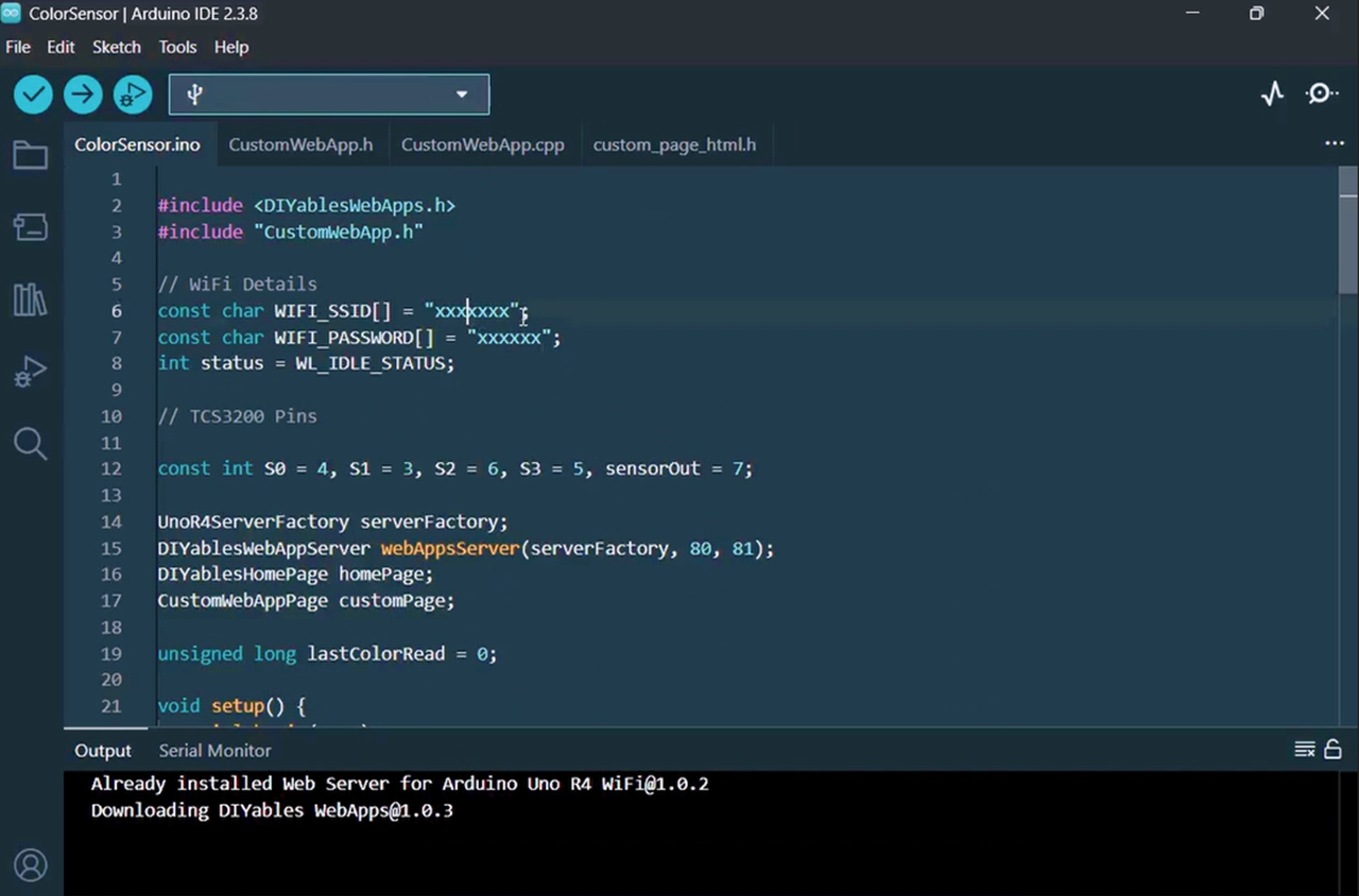
ESP32 Uno Color Sensor Web App project files in Arduino IDE
  1. Enter your WiFi details in ColorSensorESP32.ino:
const char WIFI_SSID[] = "YOUR_WIFI_SSID"; const char WIFI_PASSWORD[] = "YOUR_WIFI_PASSWORD";
  1. Enter your calibration numbers in the three map() lines of loop(). Say your test gave redMin = 27, redMax = 164, greenMin = 33, greenMax = 196, blueMin = 25, blueMax = 141. Then the lines read:
int r = map(pulseIn(sensorOut, LOW), 27, 164, 255, 0); int g = map(pulseIn(sensorOut, LOW), 33, 196, 255, 0); int b = map(pulseIn(sensorOut, LOW), 25, 141, 255, 0);
  1. Flash the board: click Upload and wait for "Done uploading".
  2. Open the Serial Monitor and set it to 9600 baud. The output looks similar to this:
∞
Newbiely | Arduino IDE 2.3.8
──
☐
✕
File
Edit
Sketch
Tools
Help
ESP32 Dev Module
Newbiely.ino
···
8 Serial.println("Hello World!");
Output
Serial Monitor
Message (Enter to send message to 'ESP32 Dev Module' on 'COM15')
New Line
9600 baud
Starting Custom WebApp... Custom WebApp ready! INFO: Added app / INFO: Added app /custom DIYables ESP32 WebApp Library Network connected! IP address: 192.168.1.47 HTTP server started on port 80 WebSocket server started on port 81 ========================================== DIYables WebApp Ready! ========================================== 📱 Web Interface: http://192.168.1.47 🔗 WebSocket: ws://192.168.1.47:81 📋 Available Applications: 🏠 Home Page: http://192.168.1.47/ 🔧 Color sensor WebApp: http://192.168.1.47/custom ========================================== Sent to Minion: #E63C1E Sent to Minion: #2DB45A Sent to Minion: #1E50D7 Sent to Minion: #F0DC28
Ln 11, Col 1
ESP32 Dev Module on COM15
2
  1. No output? Press the EN (reset) button once and watch again.
  2. Open the page: type the IP address from the Serial Monitor into a browser on a phone or PC on the same WiFi, for example http://192.168.1.47.
  3. Pick the app: tap Color sensor WebApp on the home page, or go straight to http://192.168.1.47/custom.
  4. Test it: show the sensor a green leaf, a blue pen cap, a yellow sticky note. The Minion follows each one within a second.
  5. Pro tip: use matte paper cards for testing. Shiny plastic reflects the sensor's own white LEDs, and the Minion then looks pale and washed out.

Watch It Work

See the ESP32 Uno build in action in the video below.

Inside the Code

After this part, you know which file does what, and where to edit when you want changes.

The Sketch (ColorSensorESP32.ino)

Code Part What It Does
digitalWrite(S0, HIGH) and digitalWrite(S1, LOW) Sets the output frequency to 20%, a good speed for pulseIn()
webAppsServer.begin(WIFI_SSID, WIFI_PASSWORD) Joins the WiFi and starts HTTP on port 80 and WebSocket on port 81
millis() check with 1000 Takes a new sample once per second without blocking the server
S2/S3 pairs + pulseIn() + map() Reads red (LOW LOW), green (HIGH HIGH) and blue (LOW HIGH) and scales each to 0–255
constrain() + sprintf() Clamps the values and builds the #RRGGBB text
customPage.sendToWeb() Broadcasts the color to all open browsers

The result is one short text message per second, light enough for any phone.

The Web Page (custom_page_html.h)

Page Part What It Does
CSS Minion Draws the character with blinking eyes, a laughing mouth and roaming pupils
WebSocket client Connects to the board on port 81 and listens for tagged messages
Color handler Applies the HEX code to body, arms and eyelids with a smooth CSS transition
Reconnect timer Tries again every 2 seconds if the link drops
Resize logic Scales the Minion to fit phones, tablets and desktops

The Message Format

Each message starts with a tag, so this page only reacts to its own data.

  • ESP32 Uno sends: Color sensor:#2DB45A
  • Page keeps: #2DB45A after it cuts off the tag

To build a page of your own on the same pattern, read ESP32 Uno - DIYables ESP32 WebApps Custom WebApp.

ESP32 Uno vs UNO R4 for This Project

This table lists what changes when the Minion project moves from the UNO R4 WiFi to the ESP32 Uno.

Item Arduino UNO R4 ESP32 Uno
Logic voltage 5V 3.3V
Sensor VCC 5V 3.3V (pins are not 5V tolerant)
S0, S1, S2, S3, OUT D4, D3, D6, D5, D7 GPIO17, GPIO25, GPIO27, GPIO16, GPIO14
Library DIYables WebApps DIYables ESP32 WebApps
Server factory UnoR4ServerFactory ESP32ServerFactory
WiFi setup WiFi.begin() loop in setup() webAppsServer.begin(ssid, password)
Arduino IDE board Arduino UNO R4 WiFi ESP32 Dev Module

The sensor wires go to the same Uno header spots as before. Only the VCC wire changes, from 5V to 3.3V, so the OUT signal stays safe for the ESP32 Uno.

Try These Next

  • Show the HEX code as large text under the Minion, so you can copy it.
  • Add a "Freeze" button on the page that stops the updates, and handle it with onCustomMessageReceived().
  • Name the color too: send "RED", "GREEN" or "BLUE" when one value is far above the other two.
  • Save the last 10 colors and draw them as a strip of swatches on the page.

Troubleshooting

Problem Possible Cause Solution
No COM port in Arduino IDE CH340 driver missing or a charge-only USB cable Install the CH340 driver and use a USB cable that carries data
Upload stops at Failed to connect or Waiting for download Board did not enter download mode Hold the BOOT button while the upload starts, release it when the percent count begins
Failed to connect to WiFi! repeats Wrong SSID or password, or the router offers only 5 GHz Check the two lines and join a 2.4 GHz network
Browser says the site cannot be reached Phone is on mobile data or a guest network Put the phone on the same WiFi as the board and use the printed IP
Minion never changes color WebSocket on port 81 blocked or page opened before the board was ready Reload the page and look for Sent to Minion lines in the Serial Monitor
Every color shows as #000000 or #FFFFFF OUT not on D7 or calibration numbers too narrow Check the OUT and S0 to S3 wires, then redo the calibration
Colors flicker between samples Room light changes or the object moves Hold the object 1 to 2 cm away and cover the sensor with a small tube
Sensor LEDs are on but values are random VCC or GND loose Press the jumpers in firmly and check 3.3V on VCC with a meter
Board restarts right after Network connected USB port gives too little current when the WiFi radio starts Plug into another USB port or a powered hub

FAQ

Does the TCS3200 module run on 3.3V?

Yes. It works from 2.7V to 5.5V, and 3.3V is the best choice here. The OUT pulses then match the 3.3V input level of the ESP32 Uno.

What happens if I power the sensor from 5V by mistake?

OUT then sends 5V pulses into D7 (GPIO14). ESP32 Uno pins are rated for 3.3V, so this can damage the pin over time. Move VCC to 3.3V, or add a resistor divider on the OUT wire.

Why do I write 17 and 14 in code and not D4 and D7?

The ESP32 Uno core knows only GPIO numbers. D4 maps to GPIO17, D3 to GPIO25, D6 to GPIO27, D5 to GPIO16 and D7 to GPIO14. The D labels just show where the pins sit on the Uno-shaped board.

Can I run the UNO R4 version of this sketch on the ESP32 Uno?

No. The UNO R4 sketch uses UnoR4ServerFactory and the UNO R4 WiFi firmware checks. The ESP32 Uno needs the DIYables ESP32 WebApps library and ESP32ServerFactory. The color reading part is the same.

How accurate is the color the Minion shows?

It is a fair match, not a lab result. The TCS3200 has simple photodiode filters, and light, distance and surface gloss change the readings. Calibrate in the same light you test in.

How do I make the Minion update faster?

Change 1000 in the millis() check to a smaller value, like 300. Each sample still needs three pulseIn() calls, so going much below 100 ms gives little gain.

Can two phones watch the same Minion at once?

Yes. sendToWeb() broadcasts to every connected client, so each open browser gets the same color at the same time.

Can I put an Uno shield on the ESP32 Uno for this project?

Often yes, if the shield works with 3.3V logic and does not use D3 to D7. Check that the shield does not drive any of the five sensor pins.

What if this build needs more pins than the Uno headers offer?

The ESP32 Uno has extra holes near the power header: GPIO32 and GPIO33 (I/O, PWM, analog on ADC1, so they still read analog while WiFi is on) and GPIO15 (I/O, PWM, analog on ADC2). Solder pin headers and use the GPIO number in code. For this project, GPIO32/33 are a good spot for a light sensor or a second module next to the color sensor. Two warnings: GPIO15 and GPIO0 (the IO0 pin at the unused Uno NC spot) are boot strapping pins, so a wrong connection can stop booting or uploading; use GPIO32/33 first. Never use the six holes under the digital header (SD0 to SD3, CMD, CLK = GPIO6 to GPIO11); they go to the flash chip and using them crashes the board.

Can I view the colors from outside my home WiFi?

Not with this sketch alone. The server only lives on your local network. For remote access, you need port forwarding, a VPN, or a cloud service such as MQTT.

※ OUR MESSAGES

  • As freelancers, We are AVAILABLE for HIRE. See how to outsource your project to us
  • Please feel free to share the link of this tutorial. However, Please do not use our content on any other websites. We invested a lot of effort and time to create the content, please respect our work!