
ESP32 UNO - Potentiometer Servo Motor
Want to move a servo with a simple knob? Connect a potentiometer and a servo motor to the ESP32 Uno form board, and the servo arm follows your hand from 0° to 180°. Here is how to wire it and program it in the Arduino IDE.
By the end, you can:
- Connect a knob and a hobby servo to the ESP32 Uno header pins
- Read the knob position with analogRead()
- Turn the 0–4095 reading into a servo angle with map()
- Drive the servo with the ESP32Servo library
Components You Need
Or you can buy the following kits:
| 1 | × | DIYables Sensor Kit (18 sensors/displays) |
Additionally, some of these links are for products from our own brand, DIYables .
Buy Note: For controlling multiple servo motors, use the PCA9685 16 Channel PWM Servo Driver Module to save MCU pins and simplify wiring.
Servo and Potentiometer Basics
Goal: know what each part does before you join them.
| Part | Role in This Project | Signal |
|---|---|---|
| Potentiometer | Knob that gives a changing voltage | 0V to 3.3V on the wiper |
| Servo motor | Holds an arm at a chosen angle | PWM pulse on the signal wire |
If either part is new to you, read its own guide first:
ESP32 Uno Pinout
Each Uno header pin on the ESP32 Uno form board maps to one GPIO number, and your code uses that GPIO number. Check the diagram below to match them before you connect any wire.

How to Connect
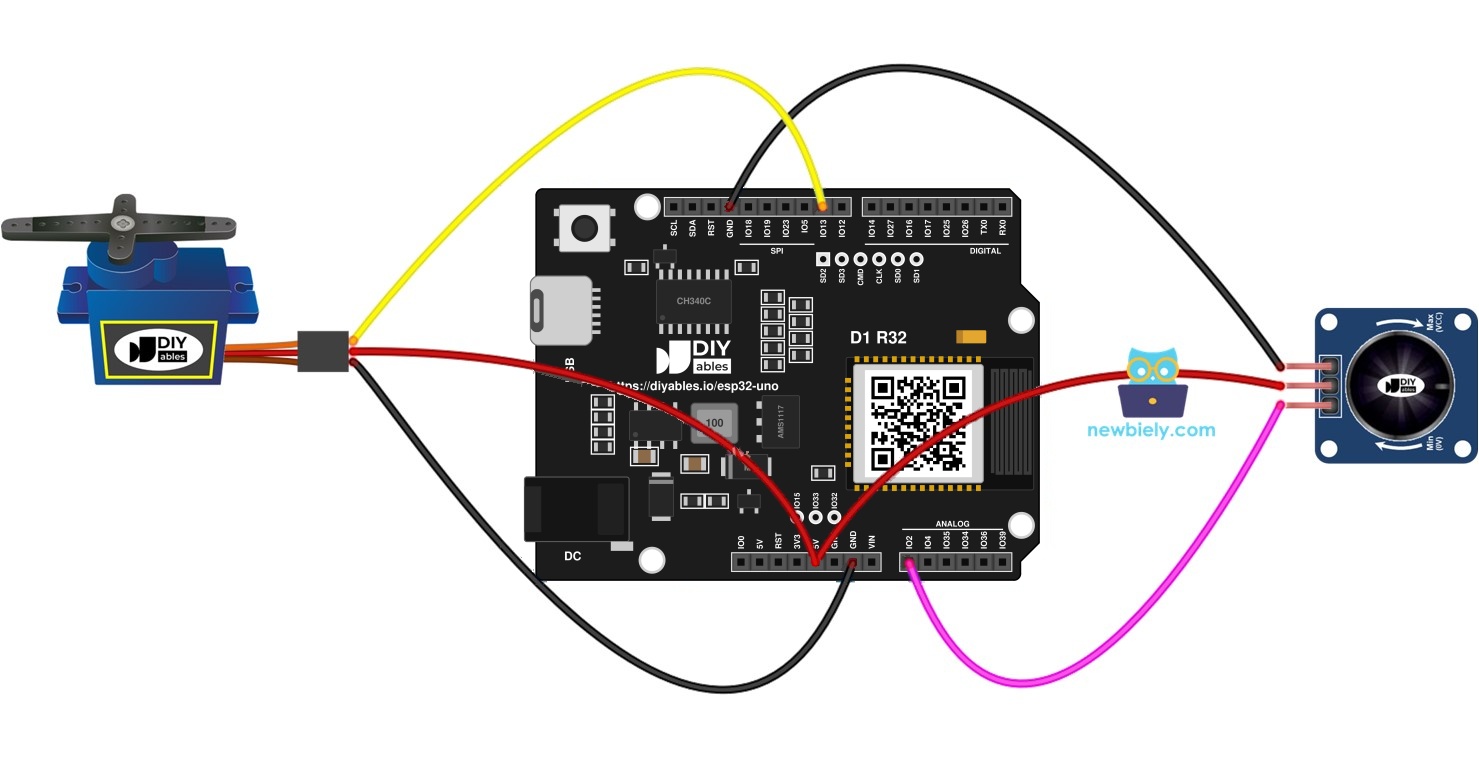
Goal: finish the circuit in two signal wires. Knob output to A0, servo signal to D9. A classic three-pin part and a knob module connect in the same way.
Classic potentiometer
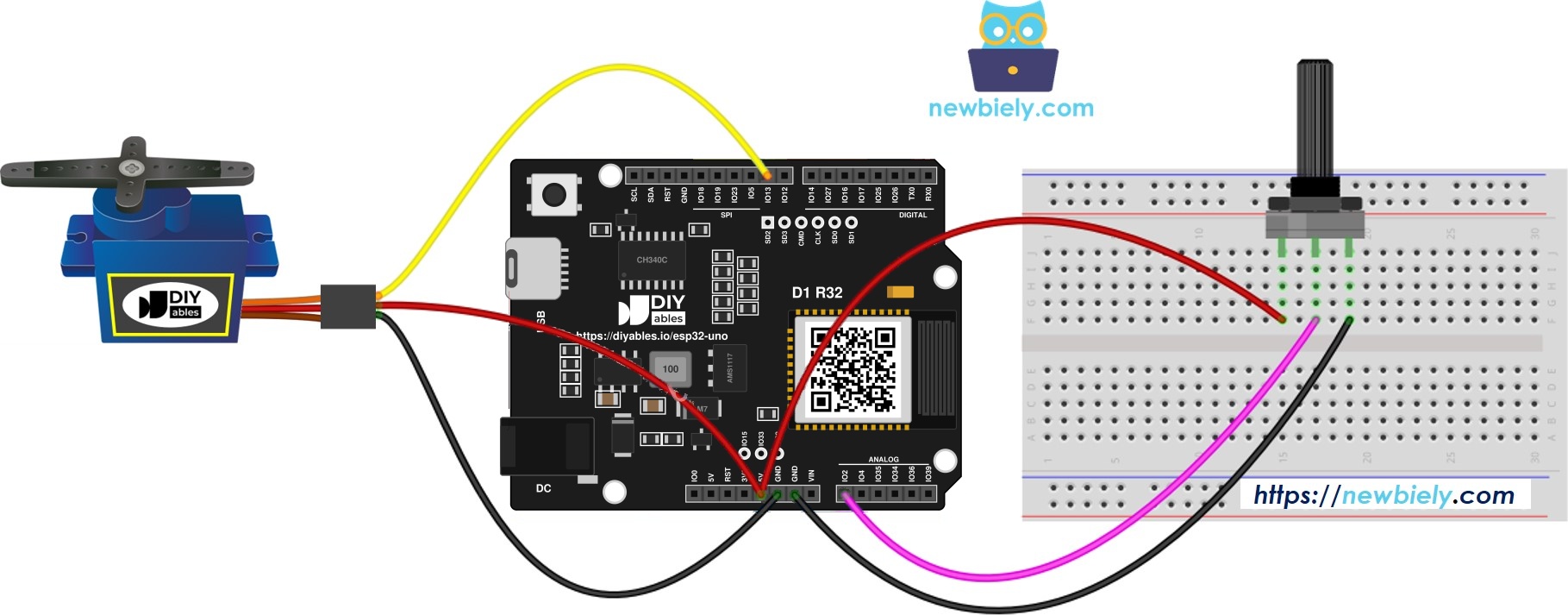
This image is created using Fritzing. Click to enlarge image
Potentiometer module
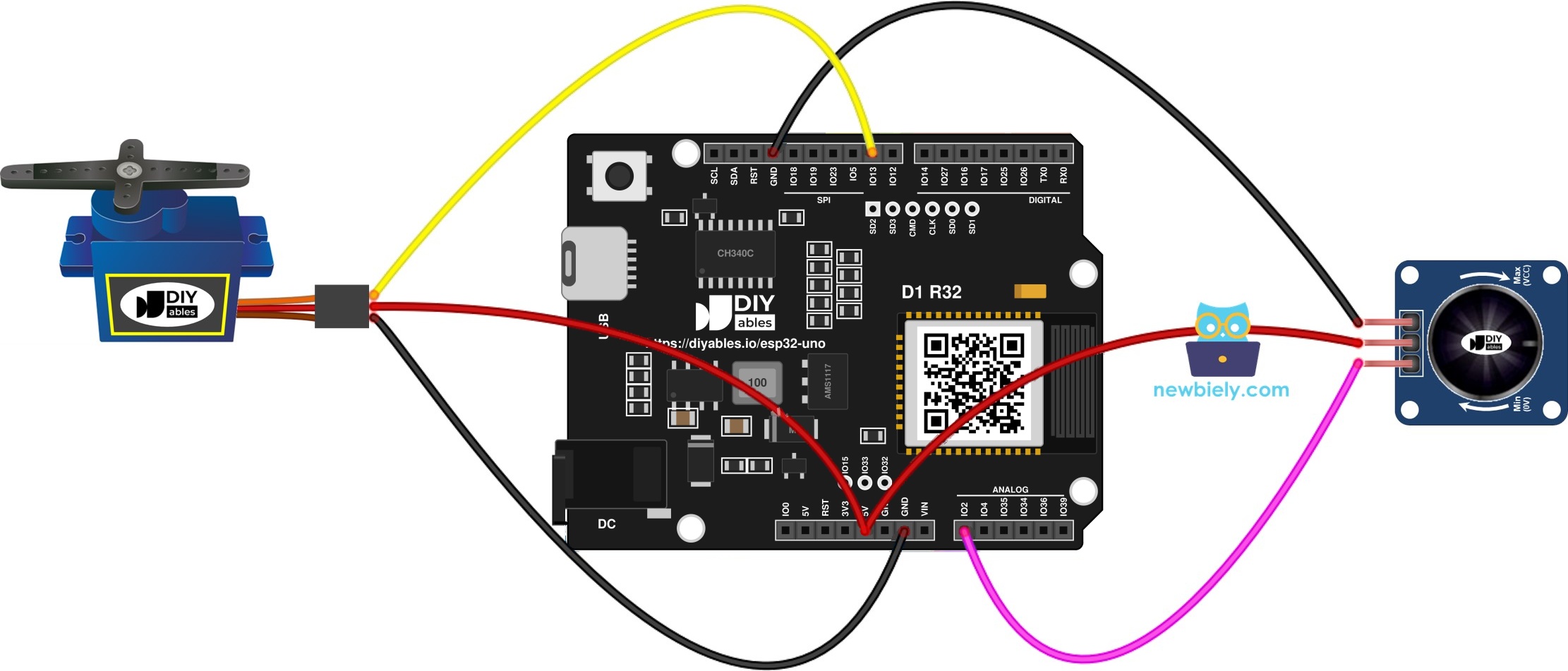
This image is created using Fritzing. Click to enlarge image
| Component Pin | ESP32 Uno Pin |
|---|---|
| Potentiometer VCC | 3.3V |
| Potentiometer GND | GND |
| Potentiometer Output | A0 (GPIO2) |
| Servo VCC (red) | 5V |
| Servo GND wire (brown or black) | GND |
| Servo Signal wire (orange or yellow) | D9 (GPIO13) |
Good to know: ESP32 Uno pins are not 5V tolerant. Feed the potentiometer from 3.3V so the wiper never goes above 3.3V. The servo can still take 5V power, because its signal wire only receives the 3.3V pulse from the board.
WARNING
A0 (GPIO2) is a boot strapping pin. The chip reads it at startup to pick the boot mode. A potentiometer wiper is usually harmless here, but if the board does not boot or upload with the knob connected, unplug the wiper wire, upload the code, then plug it back in.
How It Works
Goal: see the three steps that repeat in the loop.
Step 1 — Read the knob
The 12-bit ADC gives a number from 0 to 4095. A0 is GPIO2.
Step 2 — Scale it to an angle
Squeeze the 0–4095 range into 0–180 degrees.
Step 3 — Move the servo
Send the angle to the servo.
Code
The sketch reads A0 (GPIO2) every 100 ms, moves the servo on D9 (GPIO13), and prints the value and the angle.
| Code Part | What It Does |
|---|---|
| #include | Loads the servo library made for the ESP32 core |
| analogSetAttenuation(ADC_11db) | Opens the ADC range to about 3.3V |
| analogRead(POT_PIN) | Reads the knob as 0–4095 |
| map(...) | Converts the reading to 0–180 degrees |
| myServo.write(angle) | Moves the servo arm |
The servo follows the knob, and the Serial Monitor shows the numbers.
Good to know: the 11 dB attenuation lets the ESP32 Uno analog pin read the full range, from 0V up to about 3.3V. With a narrow range the number tops out early, so the arm hits 180° while the knob still has travel left.
Upload and Test
- First time with this board? Set it up with ESP32 Uno - Getting Started before you continue.
- Build the circuit by following the wiring table above.
- Plug in the USB Type-C cable between the ESP32 Uno and your computer.
- Select the board in Arduino IDE: pick ESP32 Dev Module and the COM port of the board (CH340).
- Add the servo library: in Library Manager, type ESP32Servo and press Install on the entry from Kevin Harrington.
- Copy the code above into the Arduino IDE.
- Click Upload to send the sketch to the board.
- Start the Serial Monitor and choose 9600 baud.
- Turn the knob slowly from one end to the other and watch the servo arm.
- Pro tip: Mark the knob at the middle. The servo arm should then sit near 90°, so you can check the setup in one look.
Video Tutorial
See the ESP32 Uno build in action in the video below.
Code Explanation
Goal: understand how setup() and loop() share the work.
| Part | What It Does |
|---|---|
| setup() | Starts Serial, sets the ADC range, and attaches the servo to GPIO13 |
| loop() | Reads, maps, writes, prints, then waits 100 ms |
| POT_PIN | GPIO2, the A0 header |
| SERVO_PIN | GPIO13, the D9 header |
Every line in the code also has a short comment. Read them from top to bottom to follow the flow.
ESP32 Uno vs UNO R4 for This Project
Goal: know what changes when you move this project from the UNO R4 to the ESP32 Uno.
| Item | Arduino UNO R4 | ESP32 Uno |
|---|---|---|
| Logic voltage | 5V | 3.3V |
| Potentiometer pin | A0 | A0 (GPIO2) |
| Servo pin | D9 | D9 (GPIO13) |
| ADC range | 0–1023 | 0–4095 |
| Servo library | Servo.h | ESP32Servo.h |
| Extra code line | none | analogSetAttenuation(ADC_11db) |
| Arduino IDE board | Arduino UNO R4 WiFi | ESP32 Dev Module |
The wiring uses the same Uno header positions, so you do not move any wire. Just power the potentiometer from 3.3V and update the map() range to 4095.
Go Wireless: Control the Servo from Your Phone
Goal: move the same servo without touching the knob.
The ESP32 Uno has WiFi and Bluetooth. You can add a slider on a web page or in a phone app, and use its value as the servo angle in place of the potentiometer reading. Or send the knob angle to a page to watch it live.
Try These Next
- Add a second servo on D10 or another PWM pin and move both with one knob.
- Use constrain() to limit the servo to 30°–150°.
- Average five readings to remove jitter.
Function References
Troubleshooting
| Problem | Possible Cause | Solution | |
|---|---|---|---|
| No COM port in Arduino IDE | CH340 driver missing or charge-only cable | Install the CH340 driver and use a USB cable that carries data | |
| Failed to connect or Waiting for download | Board is not in upload mode | Hold the BOOT button while the upload starts | |
| Board does not boot or upload with the knob connected | A0 (GPIO2) is a boot strapping pin pulled the wrong way | Unplug the wiper wire while uploading, then plug it back in | |
| Error | Servo.h not found or does not compile | Servo.h is built for AVR boards | Swap it for ESP32Servo.h and install that library |
| Servo hits 180 before the knob ends | ADC range too small or knob powered from 5V | Keep analogSetAttenuation(ADC_11db) and power the knob from 3.3V | |
| Servo does not move | Signal wire on the wrong pin or no shared ground | Check the signal wire is on D9 and servo GND is joined to board GND | |
| Board resets when the servo moves | Servo draws too much current | Use an external 5V supply and share GND with the board | |
| Servo shakes while the knob is still | ADC noise on the wiper | Put 100 nF between A0 and GND, or average a few samples | |
| Garbled Serial Monitor text | Wrong baud rate | Set the Serial Monitor to 9600 |
FAQ
How does a potentiometer control a servo?
The potentiometer works as a voltage divider. Its wiper voltage changes with the knob. The code reads that voltage as a number and maps it to an angle for the servo.
What range does analogRead() give on the ESP32 Uno?
It gives 0 to 4095, because the ADC is 12-bit. The UNO R4 sketch uses 0 to 1023 by default, so the map() call here uses 4095 as the top value.
Which supply voltage should the knob use?
Use 3.3V. ESP32 Uno pins are not 5V tolerant, so a knob on 5V could send up to 5V into A0 and damage it.
Can the ESP32 Uno 5V pin power the servo?
A small servo like the SG90 usually works on USB power. Big servos pull more current than USB can give, and the board may restart. Use an external 5V supply and join its GND to the board GND.
Does the standard Servo library work here?
Not on this board. Add the ESP32Servo library (author Kevin Harrington) and put #include
What is analogSetAttenuation(ADC_11db) for in this sketch?
It sets the ESP32 Uno ADC input range to about 0–3.3V, so the full knob signal maps to 0–4095. With a smaller range, readings saturate early. The UNO R4 does not need this line, it is ESP32-only. Keep the knob output at 3.3V or less.
Is A0 safe to use as an analog input?
A0 is GPIO2, an ADC2 pin and a boot strapping pin. It works fine here because this sketch does not use WiFi. If you add WiFi, analogRead() on ADC2 stops working, so move the knob to A2 (GPIO35) and change POT_PIN in the code.
Can I use the UNO shields or the same wiring as the UNO R4?
The Uno header positions are the same, so the wiring stays. Check the 3.3V logic and the GPIO numbers in the pin table, because the code uses GPIO numbers and not A0 or D9.
Can I show the knob angle on a web page?
Yes. The ESP32 Uno has WiFi and Bluetooth, so you can send the angle to a web page or phone app. See the Go Wireless section for ready tutorials.
What if my project needs more pins than the Uno headers give?
The ESP32 Uno has a few extra holes near the power header: GPIO32 and GPIO33 (I/O, PWM, analog on ADC1, so they also work while WiFi is on) and GPIO15 (I/O, PWM, analog on ADC2). Add pin headers by soldering, then use the plain GPIO number in your sketch. For this project, a second potentiometer fits GPIO32 or GPIO33, and a second servo fits GPIO33. Two warnings: (1) GPIO15 and GPIO0 (the IO0 pin at the unused Uno NC position) are boot strapping pins, and a wrong connection can stop the board from booting or uploading code, so use GPIO32 and GPIO33 first; (2) never use the six holes under the digital header (SD0–SD3, CMD, CLK = GPIO6–GPIO11), because they are wired to the flash chip and using them crashes the board.