
ESP32 UNO - Flame Sensor
Need a small fire alarm? Hook an ESP32 Uno flame sensor up in five minutes and get a clear "fire detected" line on your computer. The module is also sold as an infrared fire sensor or IR flame detector. It answers two questions: is there a flame right now, and how bright is it? The ESP32 Uno form board reads both with a short Arduino IDE sketch.
By the end, you can:
- Connect an infrared flame sensor to the ESP32 Uno with four wires.
- Spot a fire with digitalRead() on the DO output.
- Measure flame brightness on the AO output as a 0 to 4095 number.
- Tune the detection distance with the small blue trimmer.
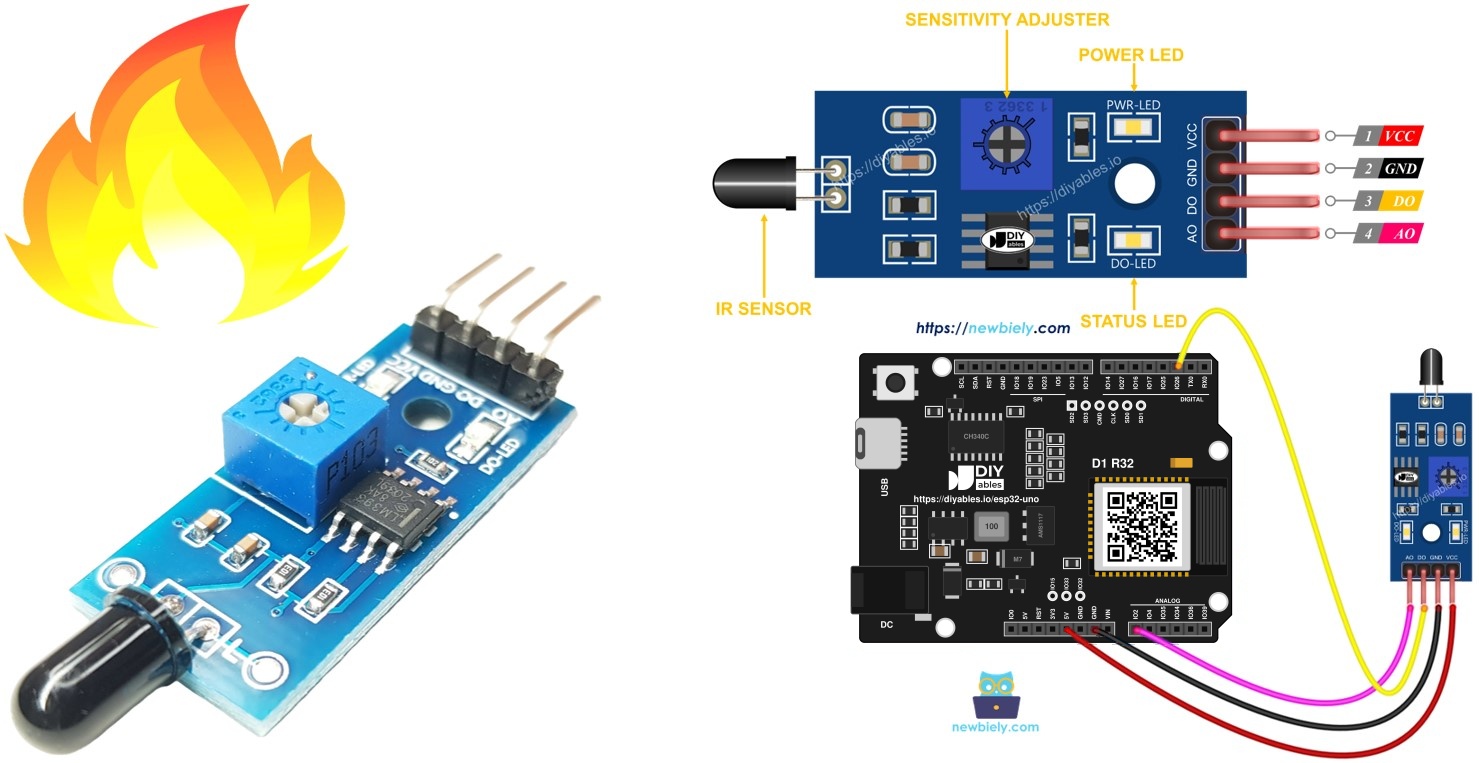
Next idea: hook a relay to the board and let it switch on a loud siren the moment a fire shows up.
Components You Need
| 1 | × | ESP32 Uno-form Board | |
| 1 | × | USB Cable Type-A to Type-C (for USB-A PC) | |
| 1 | × | USB Cable Type-C to Type-C (for USB-C PC) | |
| 1 | × | Flame Sensor | |
| 1 | × | 5-in-1 5-way Flame Sensor | |
| 1 | × | Jumper Wires |
Or you can buy the following kits:
| 1 | × | DIYables Sensor Kit (18 sensors/displays) |
Additionally, some of these links are for products from our own brand, DIYables .
Flame Sensor Basics
This part tells you what the module senses, so the readings make sense later.
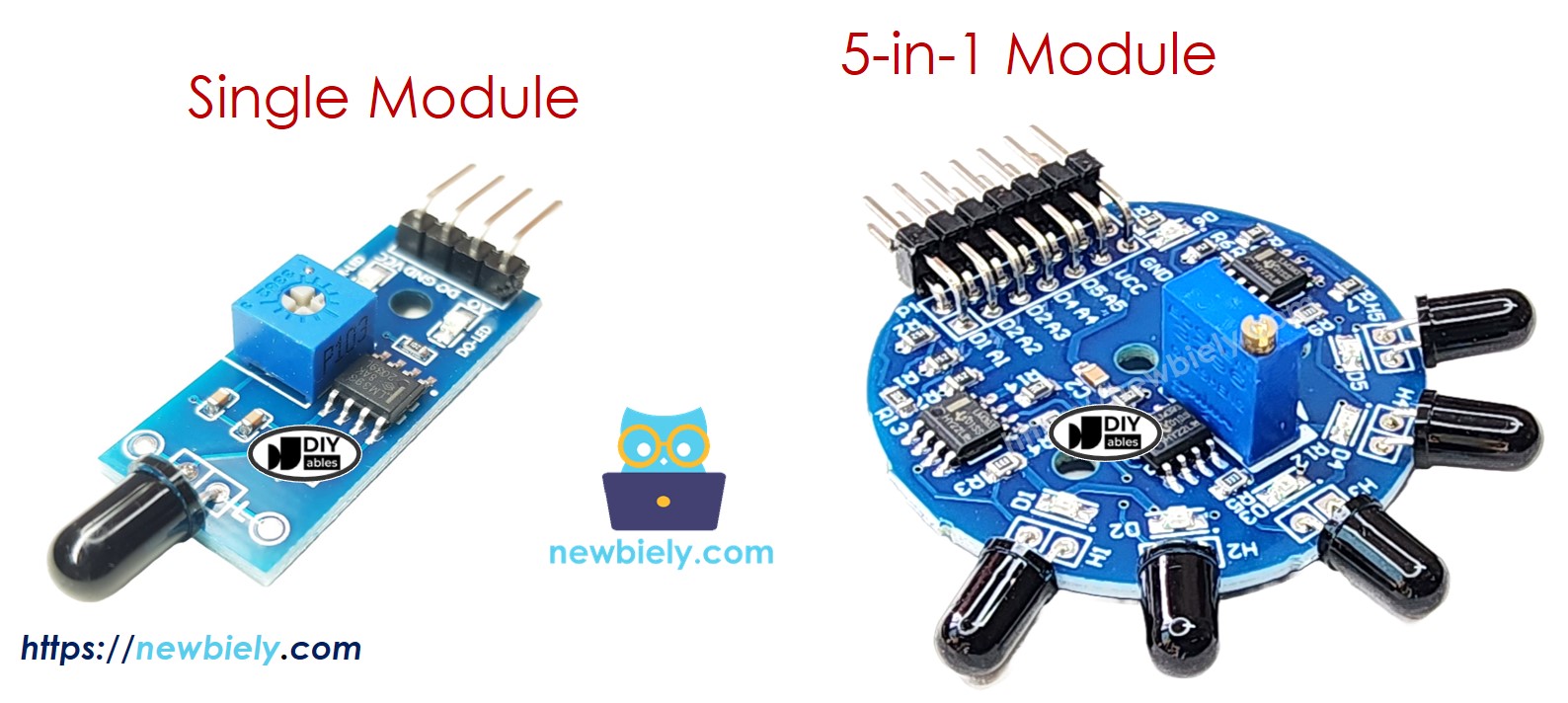
A burning flame gives off a strong band of infrared light. The photodiode on this board is tuned to that band. A comparator chip turns the light level into a yes/no signal, and the raw light level is also sent out as a voltage.
| Feature | Value |
|---|---|
| Sensing element | Infrared photodiode (flame wavelength band) |
| Supply voltage | 3.3V to 5V |
| Outputs | DO (digital) and AO (analog) |
| DO logic | Active LOW (LOW = flame found) |
| Sensitivity control | On-board potentiometer (DO only) |
| Typical range | Around 20 cm to 80 cm for a lighter flame |
The filter cuts out much of the heat from people and normal room lights. It is still a simple hobby part. Strong sunlight can fool it, and a small flame at an angle can be missed. Use it for learning and alerts, never as the only fire safety device in a home.
Module Pins
Pick the version that fits your build. The code on this page runs on both.
Single module
| Pin | Role |
|---|---|
| VCC | Power in. Feed it 3.3V from the ESP32 Uno |
| GND | Common ground |
| DO | Yes/no flame signal. Sits HIGH with no fire and drops LOW when fire is seen. The trimmer moves the trigger point |
| AO | Light level as a voltage. Rises as infrared gets stronger, falls as it gets weaker |
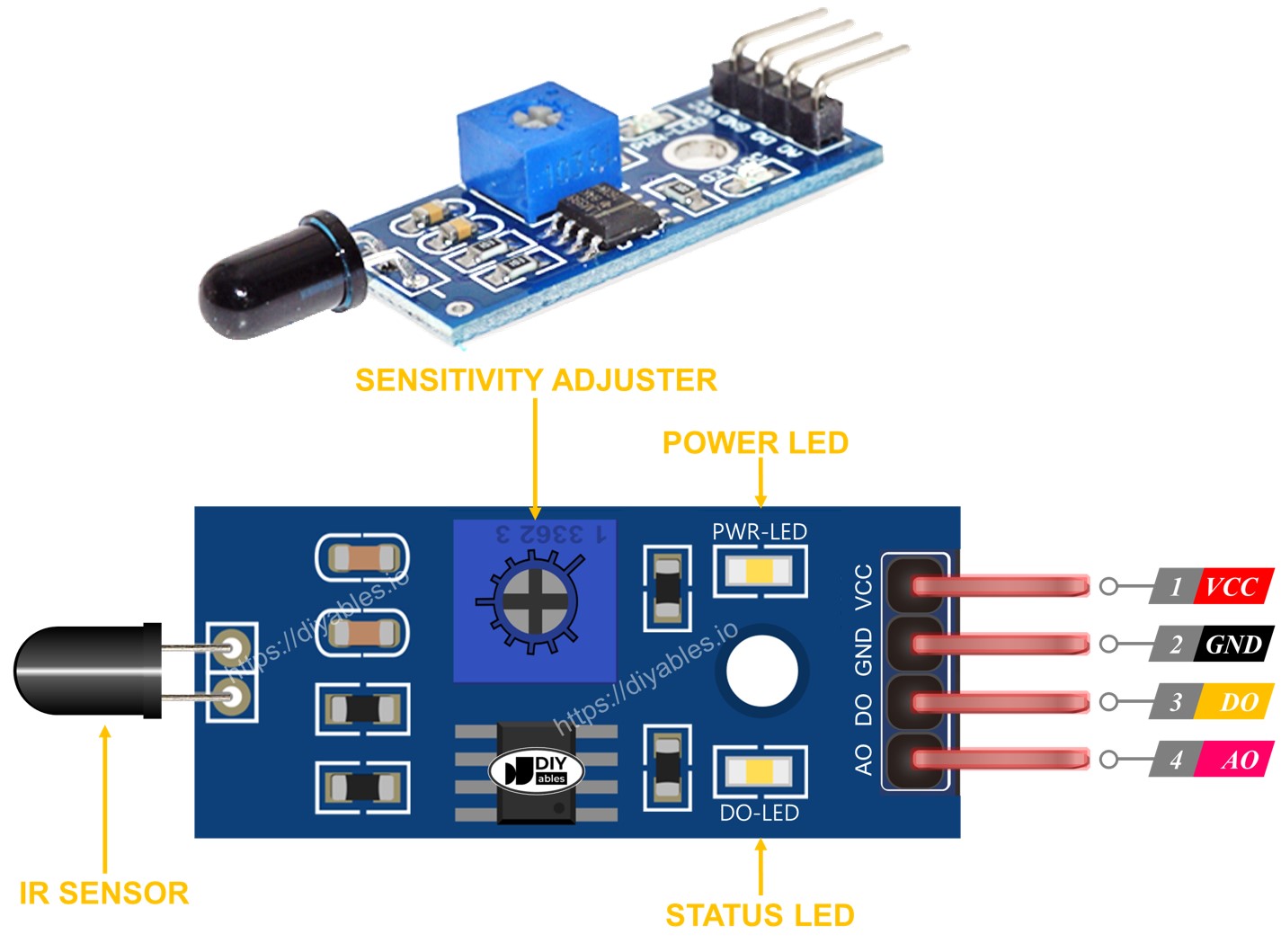
Two tiny LEDs sit on the board. PWR-LED glows whenever VCC is present. DO-LED glows each time the DO pin goes LOW, so you can test the trimmer setting with no code at all.
5-in-1 module
This board carries five photodiodes, each one aimed in its own direction. All five share VCC, GND and one trimmer. Every photodiode still has a separate DO and AO pin, so you can tell which side the fire is on. The spread of angles gives a far wider view than one sensor alone.
How the Outputs Behave
Here is what each output does, so you know which one to wire.
| Output | What Changes It | Effect of the Trimmer |
|---|---|---|
| DO | Infrared above the set level pulls DO LOW and lights DO-LED; below it, DO stays HIGH and DO-LED is dark | Moves the trigger level |
| AO | Voltage climbs with more infrared and drops with less | None |
Good to know: turning the trimmer only shifts the DO trigger point. The AO voltage stays the same.
ESP32 Uno Pinout
Your sketch talks to GPIO numbers, while the board shows Uno labels like D2 and A0. Use the diagram below to match each label to its GPIO before wiring.

How to Connect
After this step, the sensor has power and both signals reach the board. Wire DO only, AO only, or both.
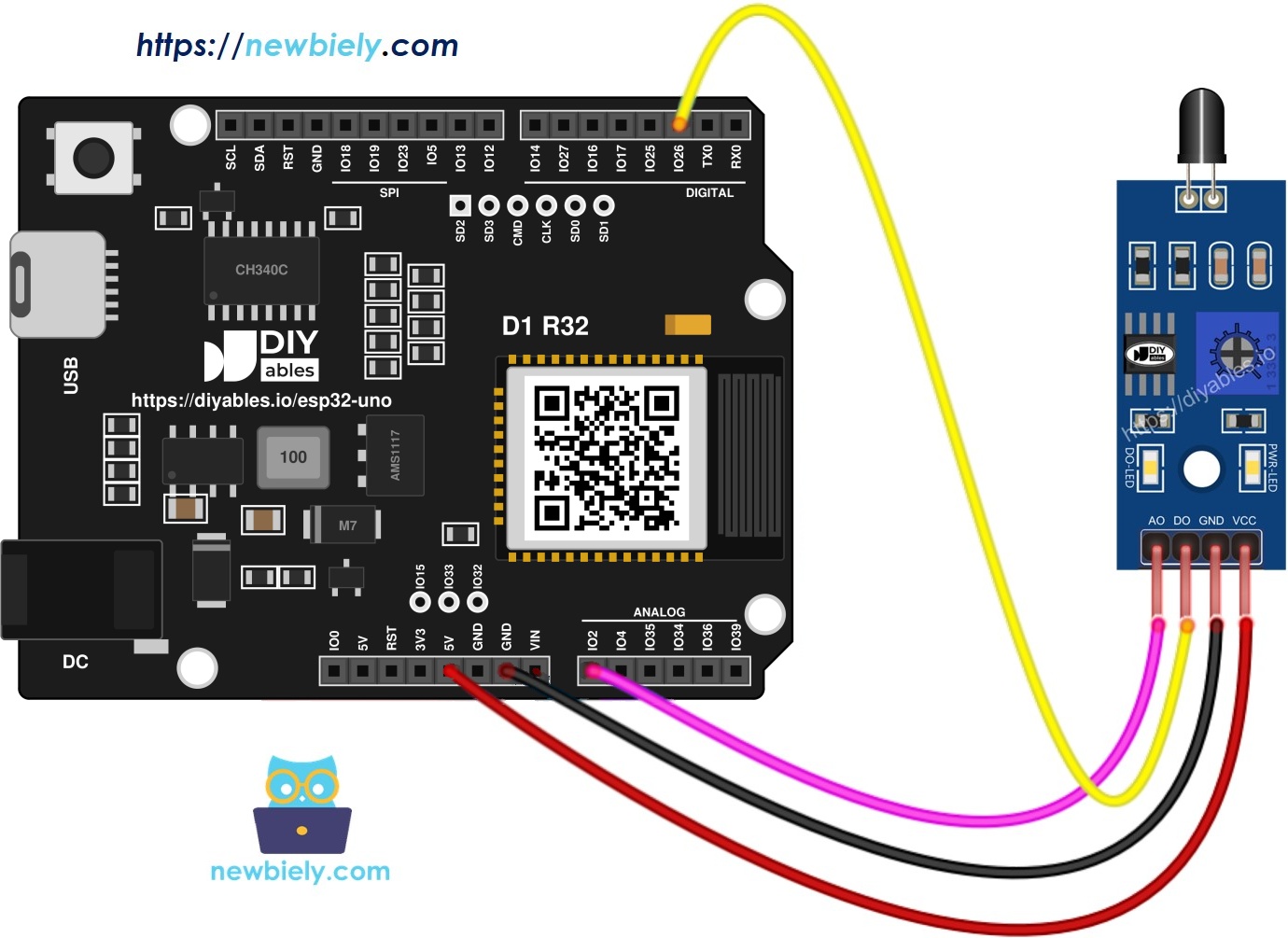
This image is created using Fritzing. Click to enlarge image
| Flame Sensor Pin | ESP32 Uno Pin |
|---|---|
| VCC | 3.3V |
| GND | GND |
| DO | D2 (GPIO26) |
| AO | A0 (GPIO2) |
Good to know: ESP32 Uno pins run at 3.3V and are NOT 5V tolerant. With VCC on 3.3V, DO and AO can never go above 3.3V.
WARNING
A0 is GPIO2, a boot strapping pin. The chip checks it at power-on to choose the boot mode. The flame sensor's AO output is normally fine here, but if the board will not boot or upload, unplug the AO wire during the upload and plug it back in after.
WARNING
If you feed the sensor from 5V, DO and AO can swing up to 5V and damage the ESP32 Uno. Keep VCC on 3.3V, or put a voltage divider on each signal line.
ESP32 Uno Code - Flame Detection on the DO Pin
The sketch below checks D2 (GPIO26) in a loop and prints one line for "fire" or "no fire".
Upload and Test
- First time with this board? Set it up with ESP32 Uno - Getting Started before you continue.
- Build the circuit by following the wiring table above.
- Plug in the USB Type-C cable between the ESP32 Uno and your computer.
- Select the board in Arduino IDE: pick ESP32 Dev Module and the COM port of the board (CH340).
- Paste the sketch into a new Arduino IDE window.
- Press Upload (Upload) and wait for "Done uploading".
- Open the Serial Monitor at 9600 baud.
- Light a lighter about 30 cm in front of the sensor, then take it away.
- Pro tip: Set the trimmer in the room where the alarm will live. Hold the flame at the farthest spot you care about and turn the screw until DO-LED just turns on. Then sunlight and lamps at that spot will not trip it as easily.
ESP32 Uno Code - Flame Strength on the AO Pin
This sketch reads A0 (GPIO2) and prints the raw light level as one number per line.
Good to know: analogSetAttenuation(ADC_11db) opens the ESP32 Uno analog input to the full 0V to about 3.3V span. Leave it out and the reading jumps to 4095 with even a weak flame, so you lose the useful middle values.
Upload and Test
- Paste this sketch into the Arduino IDE over the old one.
- Click Upload to flash the new sketch.
- Open the Serial Monitor at 9600 baud.
- Bring a flame slowly closer, hold it, then pull it back.
- Pro tip: Log a minute of readings with the room lights on and off. Pick your alarm threshold well above the highest "no flame" number you saw.
Video Tutorial
See the ESP32 Uno build in action in the video below.
The demo uses the sketch below. It shows the fire status on a 20x4 I2C LCD, and pulses an LED and a buzzer while a flame is seen. In this sketch, D2 (GPIO26) reads the sensor DO pin, D3 (GPIO25) drives the buzzer and D4 (GPIO17) drives the LED. The LCD goes to the SDA (GPIO21) and SCL (GPIO22) header pins.
Code Explanation
Here is how the two short sketches work.
| Code Part | What It Does |
|---|---|
| #define DO_PIN 26 / #define AO_PIN 2 | Name the GPIO behind D2 and A0 |
| pinMode(DO_PIN, INPUT) | Makes D2 (GPIO26) a plain digital input |
| digitalRead(DO_PIN) == HIGH | HIGH means no fire, because DO is active LOW |
| analogSetAttenuation(ADC_11db) | Sets the analog input span to about 0V to 3.3V |
| analogRead(AO_PIN) | Turns the AO voltage into a 0 to 4095 value |
| Serial.println() | Sends the result to the Serial Monitor |
Both loops have no delay, so the board prints new lines as fast as the serial link allows. Add delay(200) at the end of loop() if the text scrolls too fast.
ESP32 Uno vs UNO R4 for This Project
Moving this flame sensor project from the UNO R4 to the ESP32 Uno changes only a few lines.
| Item | Arduino UNO R4 | ESP32 Uno |
|---|---|---|
| Logic voltage | 5V | 3.3V |
| Sensor VCC | 5V or 3.3V | 3.3V only |
| DO pin in code | 2 | 26 (D2) |
| AO pin in code | A0 | 2 (A0) |
| Analog range | 0 to 1023 | 0 to 4095 |
| Extra setup line | None | analogSetAttenuation(ADC_11db) |
| Arduino IDE board | Arduino UNO R4 WiFi | ESP32 Dev Module |
The wiring positions stay the same, so the same diagram works. Just keep the sensor on 3.3V, and multiply any old analog threshold by about four.
Go Wireless: Fire Alert on Your Phone
Here is how to send the flame status to a phone instead of a USB cable.
The ESP32 Uno has WiFi and Bluetooth built in. Push the DO state to a phone and get a "FIRE" message from the next room. You can also stream the AO number to a live gauge to see how close the flame is.
Good to know: A0 (GPIO2) is an ADC2 pin, and analogRead() on it stops working while WiFi is on. For a WiFi version, send the DO state, or move AO to A2 to A5 or GPIO32/33.
Try These Next
- Add an active buzzer on D3 (GPIO25) that sounds when DO goes LOW.
- Print "weak", "medium" or "strong" based on three AO ranges.
- Wire the 5-in-1 module and print which side the fire is on.
- Keep a running average of the AO value to smooth out flicker.
Function References
More about each function used above:
Troubleshooting
| Problem | Possible Cause | Solution |
|---|---|---|
| Board has no COM port in Arduino IDE | CH340 driver not installed or a charge-only cable | Install the CH340 driver and swap to a USB cable that carries data |
| Upload stops at "Failed to connect" or "Waiting for download" | Chip did not enter download mode | Hold the BOOT button as the upload starts, release it once writing begins |
| Board will not boot or upload with AO connected | A0 (GPIO2) is a boot strapping pin pulled the wrong way | Pull the AO wire off while uploading, then reconnect it |
| Sensor PWR-LED stays dark | VCC or GND wire loose | Reseat the jumpers and confirm VCC sits on 3.3V |
| DO reads "detected" with no flame nearby | Trimmer set too sensitive, or a window lets in sun | Turn the trimmer back a little and shade the sensor |
| DO never reports fire | Trimmer set too dull, or the flame is off to the side | Turn the trimmer the other way and point the sensor straight at the flame |
| AO is stuck near 4095 | Sensor runs on 5V, or the attenuation line was deleted | Move VCC to 3.3V and keep analogSetAttenuation(ADC_11db) |
| AO always reads 0 in a WiFi sketch | ADC2 on A0 is blocked while WiFi is on | Move AO to A2 to A5 or GPIO32/33 and change AO_PIN |
| Garbled text in the Serial Monitor | Baud rate mismatch | Choose 9600 baud in the Serial Monitor |
FAQ
How far away can this flame sensor spot a lighter?
Most modules notice a lighter flame at roughly 20 cm to 80 cm. A bigger flame works from farther away. The trimmer and the angle to the flame change the distance a lot, so test it in your own room.
Is it safe to run the flame sensor on 5V with the ESP32 Uno?
Not directly. At 5V, the DO and AO pins can send 5V into the ESP32 Uno, which only accepts 3.3V. Run VCC from the 3.3V pin, or add a voltage divider on each signal wire.
Why is the reading LOW when a fire is present?
The DO output is active LOW by design. The comparator pulls it down to GND when the infrared level passes the trimmer setting. Check for LOW in your code to trigger an alarm.
Does the trimmer change the analog number?
No. The trimmer only sets the DO trigger level. The AO voltage always follows the raw infrared level, so set your own threshold in code if you use AO.
What is analogSetAttenuation(ADC_11db) doing in the flame sketch?
It sets the ESP32 Uno ADC to measure from 0V up to about 3.3V, so the whole AO signal fits into 0 to 4095. With a smaller span, a mild flame already reads 4095. The UNO R4 does not need this line; it only matters on the ESP32 Uno. Keep AO at 3.3V or lower.
Why are my flame numbers about four times bigger than in older examples?
The ESP32 Uno ADC is 12-bit, so values run from 0 to 4095. The UNO R4 example used a 0 to 1023 range. Multiply the old threshold by about 4, so 500 becomes about 2000. Then fine-tune it with real readings.
Can I read the AO value while the ESP32 Uno is on WiFi?
Not on A0. A0 (GPIO2) and A1 (GPIO4) are ADC2 pins, and ADC2 cannot be read while WiFi is on. Move the AO wire to A2 to A5 (GPIO35, 34, 36, 39) or GPIO32/33, and change AO_PIN in the code. The DO pin works fine with WiFi.
Is A0 a risky pin to use on the ESP32 Uno?
A0 is GPIO2, which the chip checks during power-up. A flame sensor rarely causes trouble here. If uploads fail with the sensor attached, unplug AO for the upload.
Can I fit Uno shields on top of the ESP32 Uno?
Yes, the headers are in the Uno places. But the signals are 3.3V, and A4/A5 are not I2C on this board. Check that a shield works with 3.3V logic first.
The 5-in-1 module has ten outputs. Where do I find more pins than the Uno headers give?
The ESP32 Uno has a few extra holes near the power header: GPIO32 and GPIO33 (I/O, PWM, analog on ADC1, so they also work while WiFi is on) and GPIO15 (I/O, PWM, analog on ADC2). Add a pin header strip there, then use the plain GPIO number in your sketch. GPIO32/33 are the best spots for extra AO wires, even in a WiFi project. Two warnings: GPIO15 and GPIO0 (the IO0 pin at the unused Uno NC position) are boot strapping pins, and a wrong connection can stop the board from booting or uploading, so use GPIO32/33 first. Also, never use the six holes under the digital header (SD0 to SD3, CMD, CLK = GPIO6 to GPIO11). They are wired to the flash chip, and using them crashes the board.
Can the ESP32 Uno send me a message when it sees fire?
Yes. The ESP32 Uno has WiFi and Bluetooth built in. Show the DO state on a web page or a phone app, as in the Go Wireless section. Use the DO pin, or move AO to an ADC1 pin, for WiFi projects.