
ESP32 UNO - Control Car via Web
Want to drive a robot car from your phone with no extra remote? Turn the ESP32 Uno into an RC car brain that serves its own control page over WiFi. The ESP32 Uno form board pushes every arrow tap to an L9110S motor driver through a WebSocket, so the 2WD robot car moves the moment you touch the screen and stops when you let go.
By the end, you can:
- Connect an L9110S motor driver and a 2WD robot car to the ESP32 Uno
- Explain why a WebSocket beats page reloads for real-time car control
- Add the DIYables ESP32 WebServer library through the Library Manager
- Steer the car in four directions from any phone or laptop browser
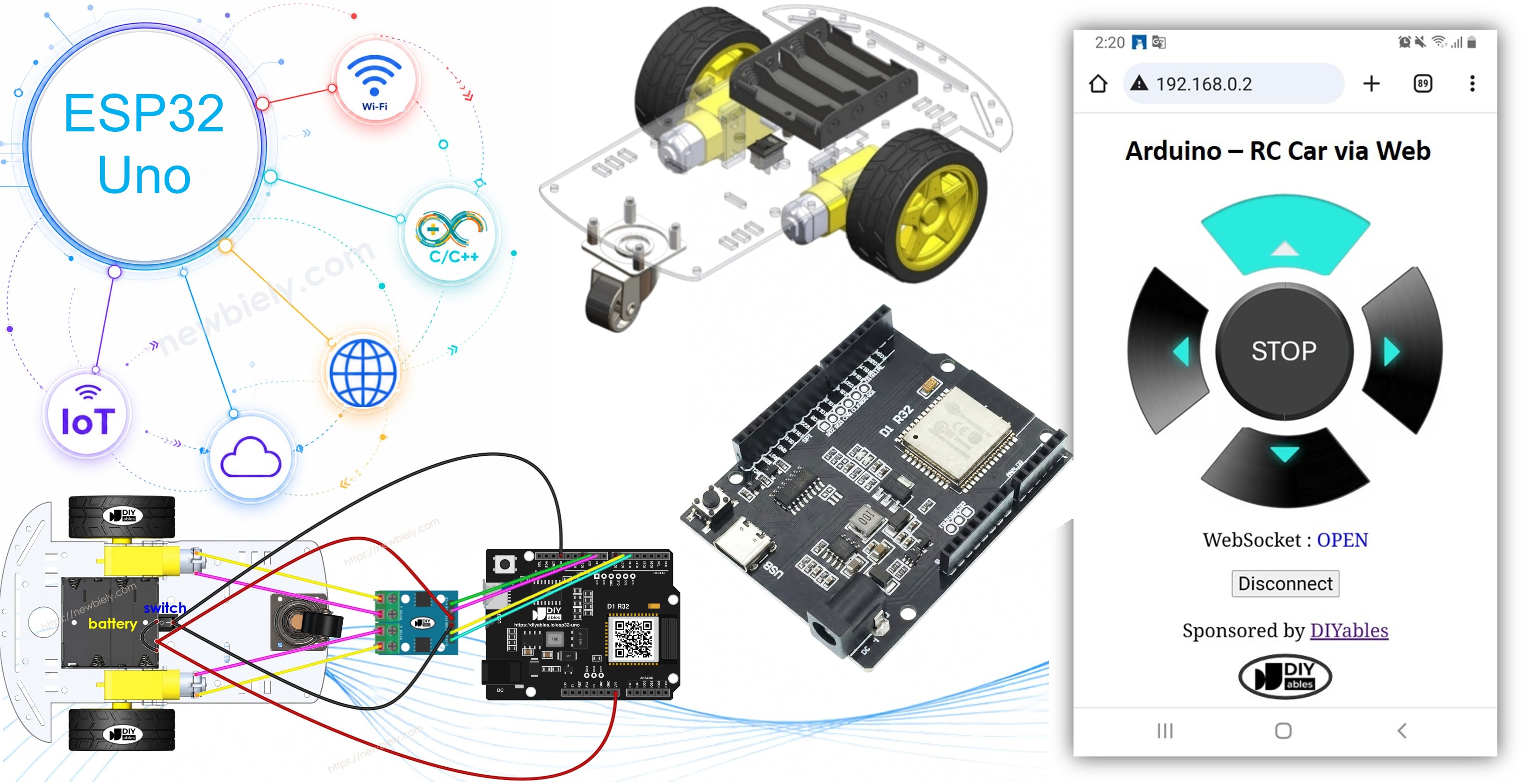
Components You Need
Or you can buy the following kits:
| 1 | × | DIYables Sensor Kit (18 sensors/displays) |
Additionally, some of these links are for products from our own brand, DIYables .
The Car, the Driver and the WebSocket
After this part, you know what each piece does and why the browser link must stay open.
| Part | Job in This Project |
|---|---|
| 2WD robot car | Two DC motors turn the two drive wheels, and a castor wheel keeps the car level |
| L9110S module | Takes four logic signals from the board and feeds battery power to the two motors |
| ESP32 Uno | Joins your WiFi, hosts the control page and sets the four driver inputs |
| WebSocket | Keeps one open channel between the browser and the board for instant commands |
A normal web page needs a full reload for each new request. For a car, that means a delay every time you change direction, and the car feels slow. A WebSocket opens once and stays open. Each button press then travels to the board in a few milliseconds, with no reload, so steering feels direct.
Good to know: the ESP32 Uno pins cannot supply the current a motor needs. The L9110S does the heavy work, and the board only sends low-current 3.3V control signals.
Dig deeper with ESP32 Uno - WebSocket and ESP32 Uno - DC Motor.
How It Works
This part shows the path of one button press, from your finger to the wheels.
Step 1 — The page comes from the board
Enter the ESP32 Uno IP address in the address bar of a browser. The web server on port 80 replies with the control page, made of HTML, CSS and JavaScript stored in index.h.
Step 2 — The browser opens the WebSocket
You tap Connect. The JavaScript on the page opens a WebSocket to port 81 on the same IP address, and the state label turns to OPEN.
Step 3 — Buttons become numbers
Touching an arrow sends one small number. Lifting your finger always sends 0. The sketch reads that number and sets the L9110S inputs.
| Button on Page | Number on Press | Number on Release | What the Car Does While Held |
|---|---|---|---|
| UP | 1 | 0 | Drives forward |
| DOWN | 2 | 0 | Drives backward |
| LEFT | 4 | 0 | Turns left |
| RIGHT | 8 | 0 | Turns right |
| STOP | 0 | 0 | Stays still |
Because a release always sends 0, the car moves only while you hold a button. That makes desk tests safe.
Step 4 — Numbers become motor signals
Each command puts one fixed pattern on the four driver inputs:
| Command | A-IA | A-IB | B-IA | B-IB |
|---|---|---|---|---|
| Forward (1) | HIGH | LOW | HIGH | LOW |
| Backward (2) | LOW | HIGH | LOW | HIGH |
| Left (4) | HIGH | LOW | LOW | LOW |
| Right (8) | LOW | LOW | HIGH | LOW |
| Stop (0) | LOW | LOW | LOW | LOW |
ESP32 Uno Pinout
Your sketch talks to GPIO numbers, while the wires go into Uno header holes. Match the two with the diagram below before you plug in the driver.

How to Connect the Car to the ESP32 Uno
When this part is done, the driver, the motors and the battery pack share one circuit with the board.
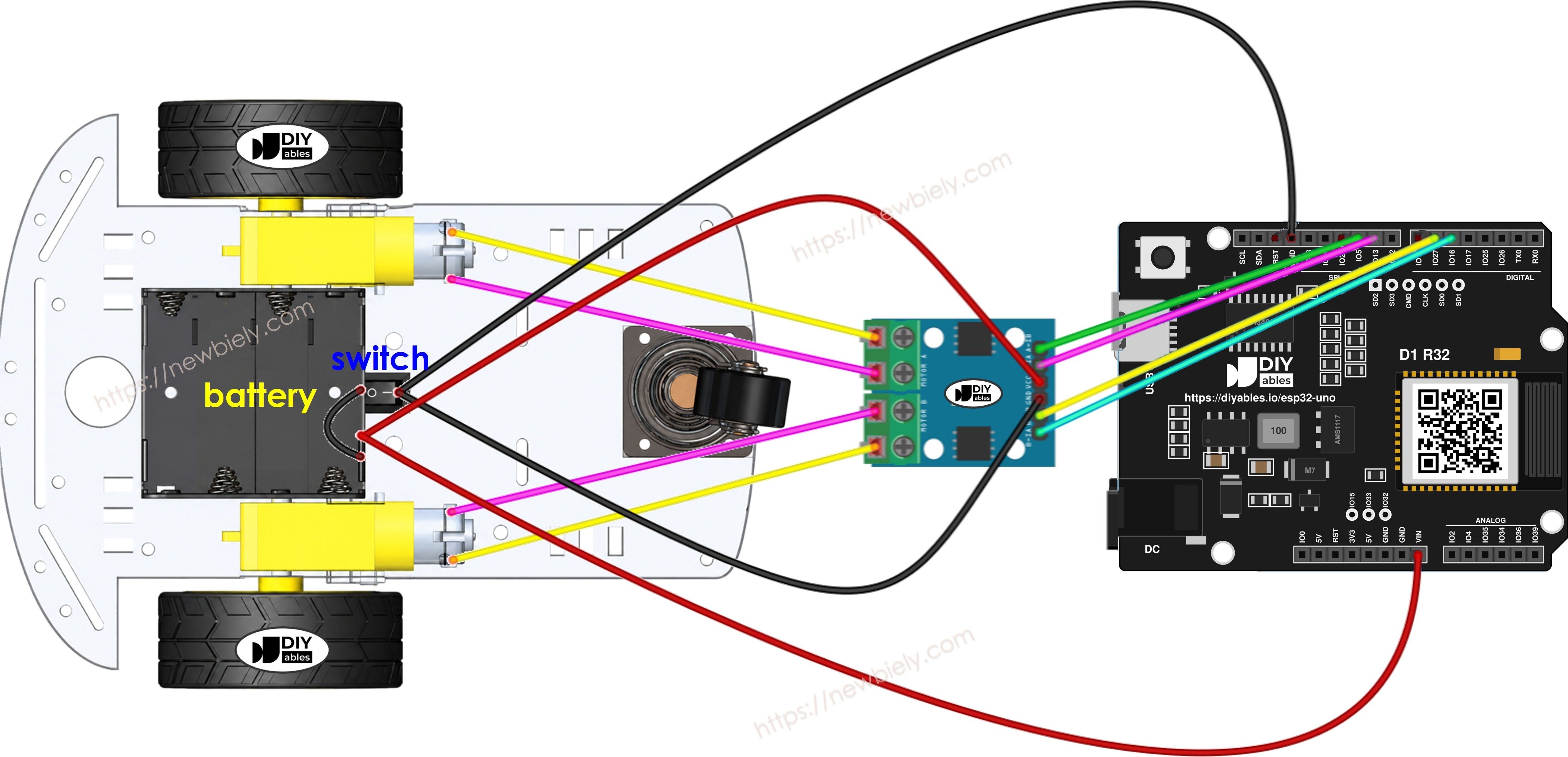
This image is created using Fritzing. Click to enlarge image
| L9110S Pin | ESP32 Uno Pin |
|---|---|
| A-IA | D5 (GPIO16) |
| A-IB | D6 (GPIO27) |
| B-IA | D9 (GPIO13) |
| B-IB | D10 (GPIO5) |
| VCC | Battery + (6V) |
| GND | Battery - and ESP32 Uno GND |
WARNING
D10 (GPIO5) is a boot strapping pin on the ESP32 Uno. The chip checks it at power-up, and it can also send a short pulse during boot, so motor B may twitch for a moment when you switch on. The L9110S input rarely pulls it to a bad level. If the board does not start or will not take an upload, pull the B-IB wire out of D10, upload, and plug it back in.
Good to know: the L9110S accepts the 3.3V HIGH level of the ESP32 Uno, so you need no level shifter for the four input wires.
Power for the whole car
The L9110S runs the motors straight from its VCC and GND pins, and it has no 5V regulator on board. One pack of four 1.5V AA cells (6V) can run everything:
- Wire the 6V pack to VCC and GND on the L9110S. This feeds the motors.
- Wire the same pack to VIN and GND on the ESP32 Uno. This feeds the board.
- Join the L9110S GND and the ESP32 Uno GND. Without a shared ground, the driver cannot read the control signals.
The L9110S is easier to wire than an L298N. You will not find ENA/ENB jumpers or a 12V screw terminal on it.
The car chassis has an on/off switch. Put it in the battery line if you want one-touch power. To keep the build short, you can leave the switch out.
ESP32 Uno Code
The project is split into two tabs, so the motor logic and the web page stay apart.
| File | What It Holds |
|---|---|
| newbiely.com.ino | WiFi setup, web server, WebSocket server and the five car functions |
| index.h | The control page (HTML, CSS and JavaScript) stored as one text string |
Upload and Test
- First time with this board? Set it up with ESP32 Uno - Getting Started before you continue.
- Build the circuit by following the wiring table above.
- Plug in the USB Type-C cable between the ESP32 Uno and your computer.
- Select the board in Arduino IDE: pick ESP32 Dev Module and the COM port of the board (CH340).
- Open the Library Manager with the Library Manager icon in the left bar of the Arduino IDE.
- Install the web server library: search for "DIYables ESP32 WebServer", then press Install on the DIYables entry.
- Search for DIYables ESP32 WebServer created by DIYables.io and click the Install button.
- Start a new sketch and save it under a name such as newbiely.com.ino.
- Paste the main code below into that sketch.
- Enter your network details: put your WiFi name and password in place of YOUR_WIFI_SSID and YOUR_WIFI_PASSWORD. The board joins 2.4GHz networks only.
- Add the index.h tab:
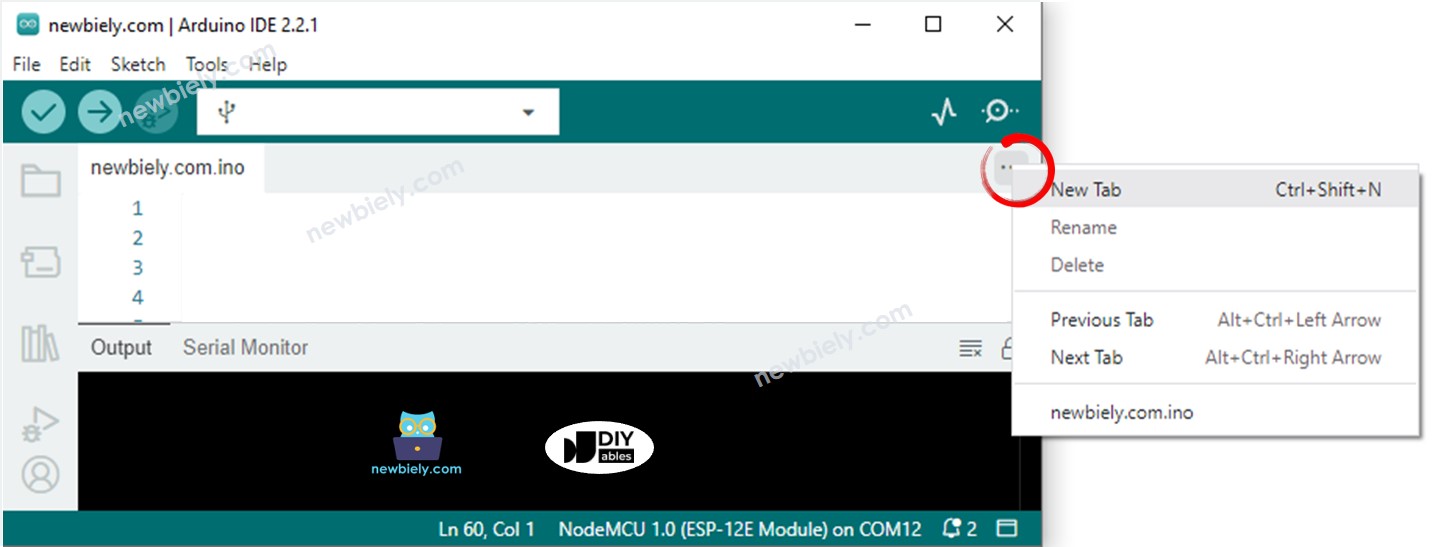
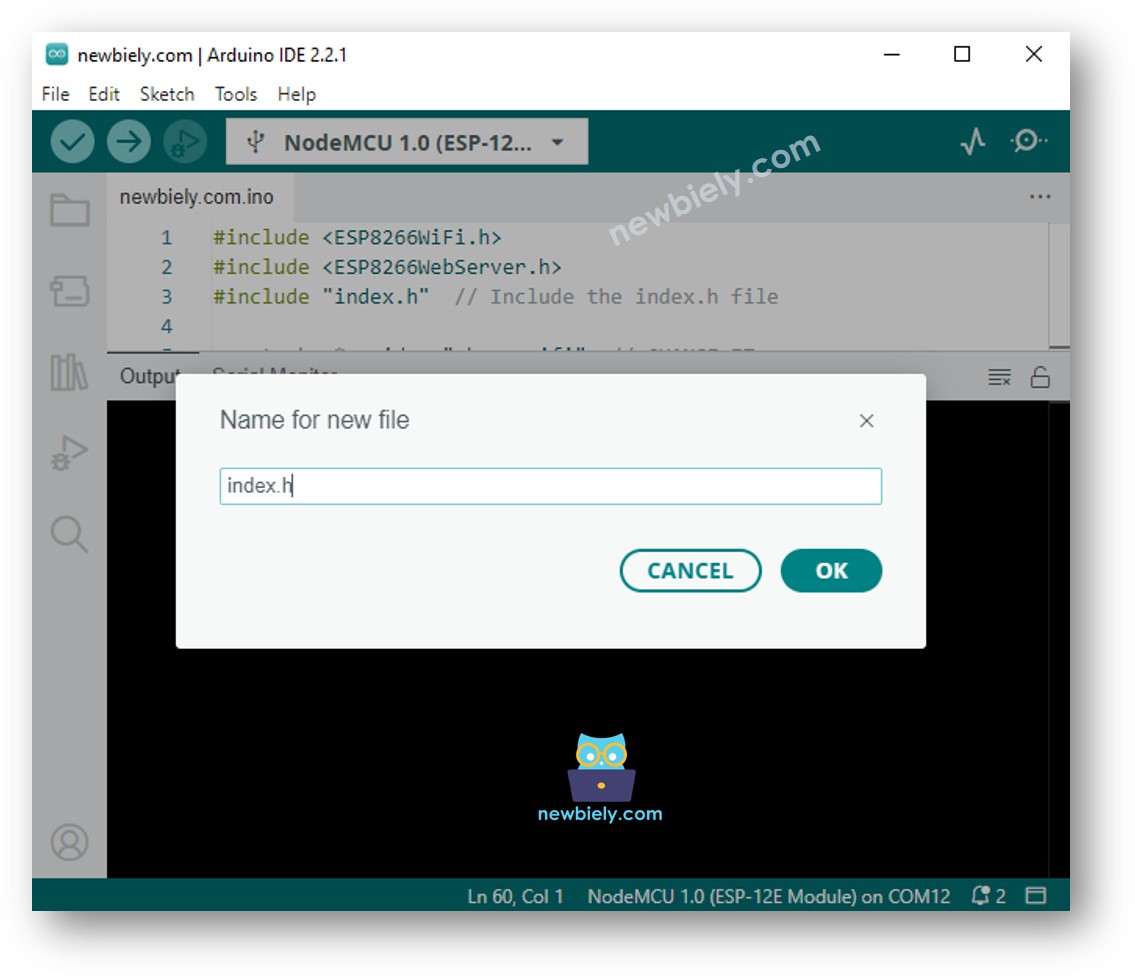
- Press Ctrl+Shift+N, or click the button under the Serial Monitor icon and pick New Tab.
- Enter index.h as the file name and confirm with OK.
- Paste the page code below into the new tab.
- Check the tabs: two tabs are open now, newbiely.com.ino plus index.h.
- Upload: press Upload and wait until the IDE reports "Done uploading".
- Open the Serial Monitor at 9600 baud and press the reset (EN) button once. The log looks similar to this:
- Load the control page: type the IP address from the log into a browser on a phone or PC that uses the same WiFi.
- Check the page: it should look like this.
- Tap Connect and wait until the WebSocket label reads OPEN.
- Drive: hold an arrow to move or turn, and lift your finger to stop. Each press also shows up in the Serial Monitor:
- Pro tip: test with the wheels off the table first. Put the car on a small box, press each arrow, and watch which wheel turns. Fix any wrong direction before the car goes on the floor.
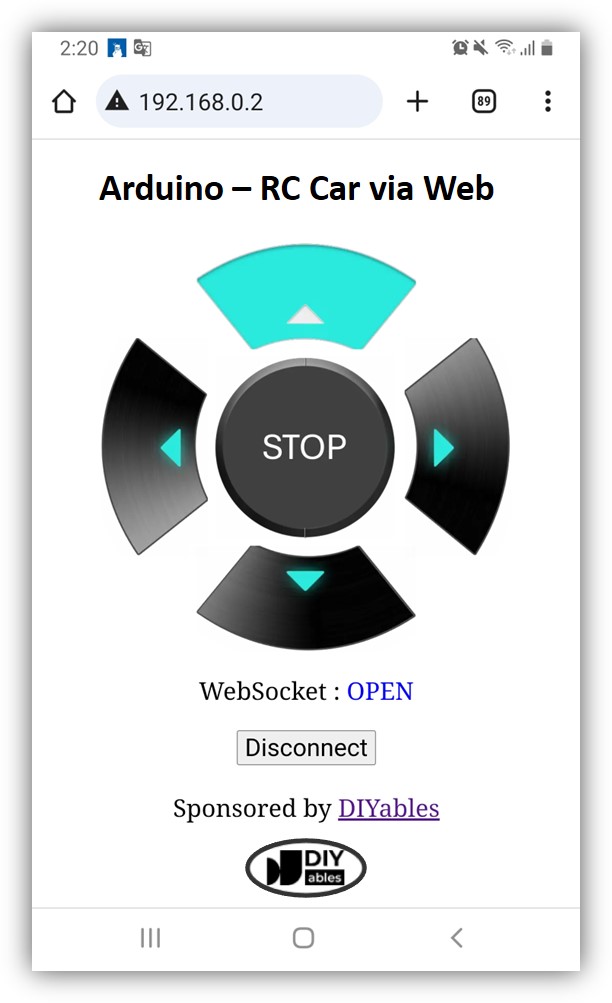
The arrow pictures on the page are not stored in the ESP32 Uno flash. The browser downloads them from the internet, so your phone or PC needs internet access to show them.
※ NOTE THAT:
The Arduino IDE may skip a rebuild when only index.h has changed. If your page edits do not appear, add a blank line or a comment to newbiely.com.ino, then upload again.
Code Explanation
Every line of the sketch has a comment, so read the code itself for details. The table below shows the main blocks.
| Code Part | What It Does |
|---|---|
| MOTOR_..._PIN defines | Name the four driver inputs on D5, D6, D9 and D10 (GPIO16, 27, 13, 5) |
| server.begin(WIFI_SSID, WIFI_PASSWORD) | Joins your WiFi and starts the web server on port 80 |
| server.enableWebSocket(81) | Opens the WebSocket server and returns a pointer to it |
| onWebSocketMessage() | Turns the text it gets into a number and picks a car function with switch |
| CAR_moveForward() and the other CAR_ functions | Write one HIGH/LOW pattern to the four pins |
| loop() | Calls handleClient() and handleWebSocket() again and again |
The result is a car that reacts only to WebSocket commands and stops itself on every button release.
ESP32 Uno vs UNO R4 for This Project
Moving this car from the UNO R4 WiFi to the ESP32 Uno changes the library and the GPIO numbers, not the wiring holes.
| Item | Arduino UNO R4 | ESP32 Uno |
|---|---|---|
| Logic voltage | 5V | 3.3V |
| Driver pins | D5, D6, D9, D10 | D5 (GPIO16), D6 (GPIO27), D9 (GPIO13), D10 (GPIO5) |
| Web server library | UnoR4WiFi_WebServer | DIYables ESP32 WebServer |
| WiFi chip | Separate WiFi module with its own firmware | Built into the main chip |
| Firmware update step | Sometimes needed | Not needed |
| Arduino IDE board | Arduino UNO R4 WiFi | ESP32 Dev Module |
The same wires go into the same Uno holes, and the L9110S works with 3.3V signals. The one pin to watch is D10, a boot strapping pin on the ESP32 Uno.
Try These Next
- Speed control: add a slider to the page and use analogWrite() on the IA pins so the car can creep or rush.
- Status back to the page: send the current direction from the board to the browser with the WebSocket and show it under the arrows.
- Auto brake: add an ultrasonic sensor and stop forward motion when a wall is closer than 15 cm.
- Keyboard drive: add arrow-key listeners to index.h so you can steer from a laptop keyboard.
Troubleshooting
| Problem | Possible Cause | Solution |
|---|---|---|
| No COM port appears in Arduino IDE | CH340 driver missing or a charge-only USB cable | Install the CH340 driver and use a USB cable that carries data |
| Upload stops at "Failed to connect" or "Waiting for download" | Board did not enter upload mode | Hold the BOOT button while the upload starts, then release it |
| Board does not boot or upload with the car connected | D10 (GPIO5) boot strapping pin pulled the wrong way | Unplug the B-IB wire from D10 while uploading, or use another pin |
| Serial Monitor stops at "Connecting To WiFi" | Wrong WiFi name or password, or a 5GHz-only network | Check the two WiFi lines in the code and use a 2.4GHz network |
| Serial Monitor shows garbage text | Baud rate does not match the code | Set the Serial Monitor to 9600 baud |
| Page opens but the arrows are blank | Phone or PC has no internet access | Use a network with internet, since the arrow images load online |
| Arrows react but nothing prints and the car stays still | WebSocket is not open | Tap Connect and wait for the OPEN label |
| Commands print but the wheels do not move | No shared GND or flat batteries | Join the L9110S GND to the board GND and fit fresh AA cells |
| Car turns when it should go straight | One motor is wired in reverse | Swap the two wires of that motor on the L9110S output |
| Board restarts as soon as the car starts | Battery voltage dips under motor load | Fit fresh cells, add a large capacitor across the pack, or power the board on its own |
FAQ
How fast does the car react to a button press?
On a normal home network, a command reaches the ESP32 Uno in a few milliseconds. The WebSocket stays open, so there is no page reload in between. You will not notice any lag while driving indoors.
Do I need a level shifter between the ESP32 Uno and the L9110S?
No. The L9110S reads the 3.3V HIGH from the ESP32 Uno as a logic 1. The motor current comes from the battery via the VCC pin of the module, and the board supplies none of it.
Can I run the board and the motors from one battery pack?
Yes. Feed the 6V pack into VIN on the ESP32 Uno and into VCC on the L9110S, and join the grounds. Never feed the pack into the 3.3V pin. If the board resets when the motors start, the cells are too weak or need a capacitor across them.
Why does motor B twitch when I turn the car on?
B-IB sits on D10 (GPIO5), a boot strapping pin of the ESP32 Uno. During boot, this pin can change state for a short moment before your code takes over. The twitch is harmless and stops once setup() sets the pins to OUTPUT.
Can I copy the UNO R4 WiFi sketch to the ESP32 Uno?
Not as-is. The UNO R4 WiFi sketch uses the UnoR4WiFi_WebServer library, while the ESP32 Uno uses DIYables ESP32 WebServer. The calls look almost the same, but the GPIO numbers are different too, so use the code on this page.
Which board do I select for the ESP32 Uno in Arduino IDE?
Install the "esp32 by Espressif Systems" core, then pick ESP32 Dev Module. Also install the CH340 driver if the COM port does not show up.
Can I fit an Uno motor shield on the ESP32 Uno instead of the L9110S?
Many Uno shields fit the headers. Check two things first. The shield must work with 3.3V logic, and it must not use the A2 to A5 pins (GPIO35, 34, 36, 39) as outputs, because those pins are input only on the ESP32 Uno.
Can I change the motor speed from the web page?
Yes. The ESP32 Uno supports PWM with analogWrite() on D5, D6, D9 and D10. Add a slider to index.h, send its value over the WebSocket, and write it to the IA pins instead of HIGH.
Can I drive the car from outside my home?
Not with this sketch. The control page opens only on devices inside your home network. Remote access needs port forwarding, a VPN or a cloud service, which this guide does not cover.
What if my car build needs more pins than the Uno headers give?
The ESP32 Uno has a few extra holes near the power header. GPIO32 and GPIO33 give I/O, PWM and analog on ADC1, so they still read analog values while WiFi is on. GPIO15 gives I/O, PWM and analog on ADC2. To use them, solder on pin headers and put the GPIO number in your sketch. For this car, GPIO32 and GPIO33 suit an ultrasonic sensor or a battery voltage divider. Two warnings: GPIO15 and GPIO0 (the IO0 pin at the unused Uno NC position) are boot strapping pins, and a wrong connection can stop the board from booting or uploading, so use GPIO32/33 first. Also, never use the six holes under the digital header (SD0 to SD3, CMD, CLK = GPIO6 to GPIO11). They are wired to the flash chip, and using them crashes the board.