
ESP32 UNO - 74HC595 4-Digit 7-Segment Display
Need a bright four-digit readout for your ESP32 Uno project? A 74HC595 4-digit 7-segment display gives you one with just three signal wires. Hook the shift register module to the ESP32 Uno form board, add the DIYables library in the Arduino IDE, and print counters, decimal values, short words, temperatures or a clock face.
By the end, you can:
- Connect a 74HC595 shift register display to the ESP32 Uno with three GPIO pins.
- Add the DIYables_4Digit7Segment_74HC595 library from the Arduino IDE Library Manager.
- Print whole numbers and decimal numbers on the 7-segment LED display.
- Show words, a degree sign and a temperature reading.
- Make an HH.MM clock readout with a flashing middle dot.
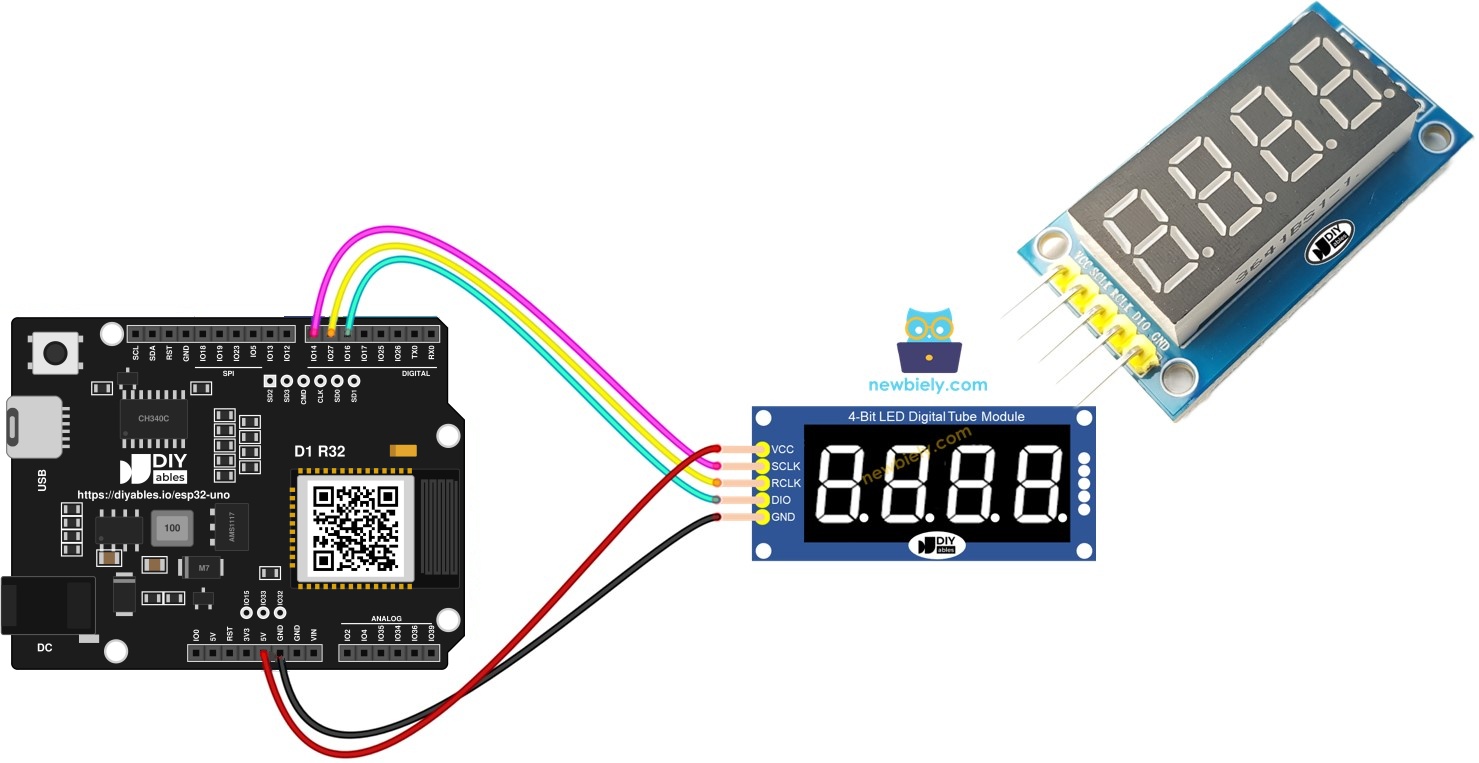
Components You Need
| 1 | × | ESP32 Uno-form Board | |
| 1 | × | USB Cable Type-A to Type-C (for USB-A PC) | |
| 1 | × | USB Cable Type-C to Type-C (for USB-C PC) | |
| 1 | × | 74HC595 4-digit 7-segment Display | |
| 1 | × | Jumper Wires |
Or you can buy the following kits:
| 1 | × | DIYables Sensor Kit (18 sensors/displays) |
Additionally, some of these links are for products from our own brand, DIYables .
Inside the 74HC595 4-Digit Display Module
After this part, you know what each of the five module pins does.
| Item | Value |
|---|---|
| Digits | 4, each with 7 segments and a decimal point |
| Total LEDs | 32 |
| Driver chip | 74HC595 serial-in, parallel-out shift register |
| Signal pins used | 3 (clock, latch, data) |
| Supply | 3.3V or 5V |
| Refresh method | Multiplexing, done in software by the library |
Only one digit glows at any instant. The library jumps from digit to digit many hundreds of times per second, so your eye sees a steady four-digit number. Your sketch sets the value with print(), and display.loop() keeps the scan running.
Pin Roles
| Module Pin | Signal Name | Job |
|---|---|---|
| SCLK (SH_CP) | Shift clock | Each pulse pushes one data bit into the register |
| RCLK (ST_CP) | Latch clock | Moves the shifted bits to the outputs in one step |
| DIO (DS) | Serial data | Carries the bits, one per clock pulse |
| VCC | Supply | Accepts anything from 3.3V to 5V |
| GND | Ground | Shared ground with the board |
ESP32 Uno Pinout
On the ESP32 Uno form board, every Uno header label has its own GPIO number, and the sketch needs that number. Look at the diagram to pair D5, D6 and D7 with their GPIOs before you wire.

How to Connect
After this part, the display module sits on three ESP32 Uno digital pins plus power.
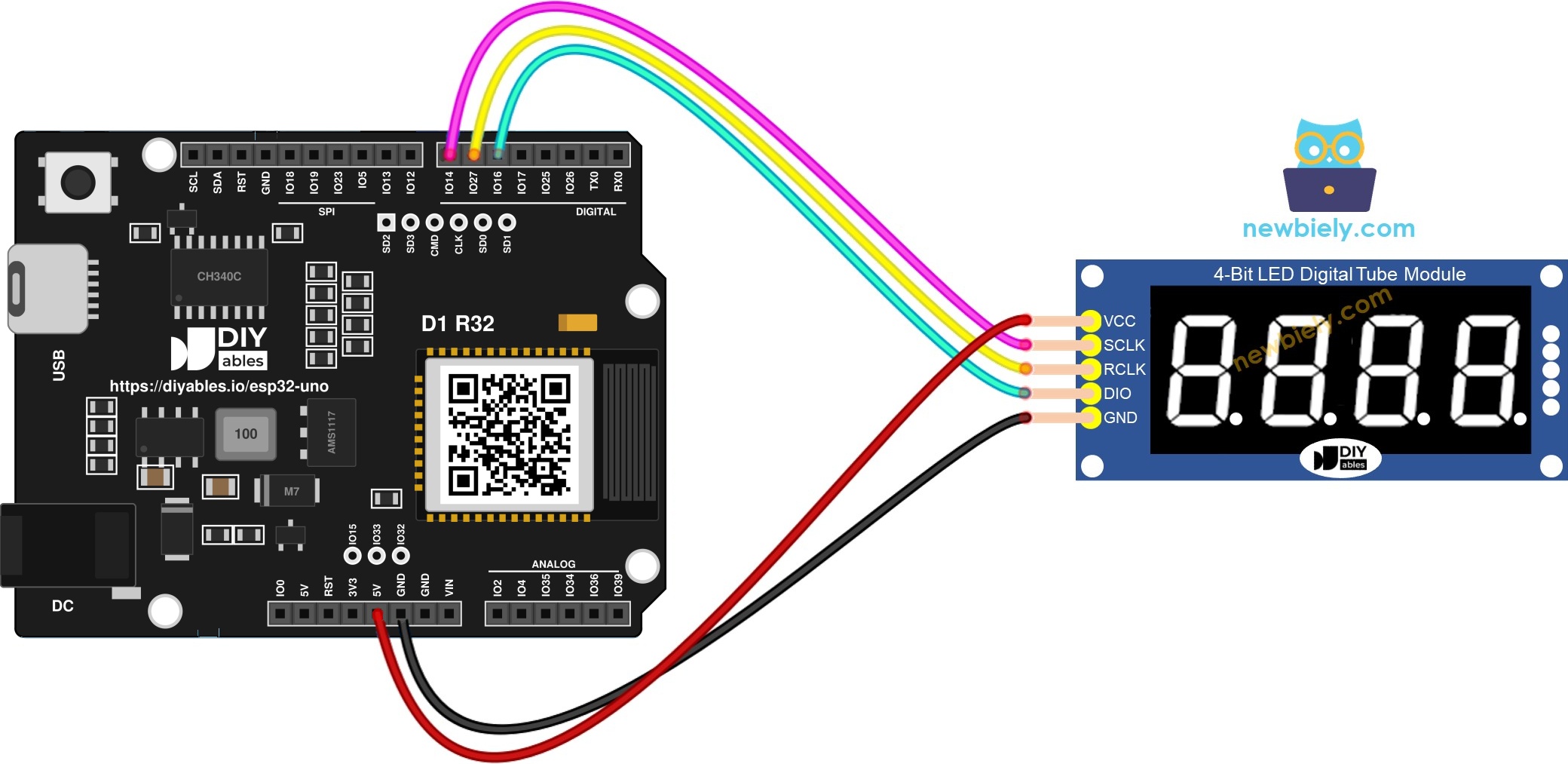
This image is created using Fritzing. Click to enlarge image
| Display Pin | ESP32 Uno Pin |
|---|---|
| SCLK | D7 (GPIO14) |
| RCLK | D6 (GPIO27) |
| DIO | D5 (GPIO16) |
| VCC | 5V |
| GND | GND |
Good to know: D5, D6 and D7 are plain I/O pins on the ESP32 Uno. None of them is a boot strapping pin, so the board starts and uploads normally with the module plugged in.
※ NOTE THAT:
The three signal lines travel from the ESP32 Uno to the module, never back. So no 5V level ever lands on an ESP32 Uno pin, which matters because ESP32 Uno pins are NOT 5V tolerant. The board drives 3.3V logic. A 74HC595 on a 5V supply usually reads that fine, but if segments look scrambled, power the module from the 3V3 pin instead. It runs a bit dimmer there.
Add the Library in Arduino IDE
After this part, the IDE can compile every example on this page.
- Plug in the board. Use a USB Type-C cable between the ESP32 Uno and your computer.
- Pick the board. In the Arduino IDE, choose ESP32 Dev Module and the COM port of the board (CH340).
- Go to the Library Manager. It is the Libraries button (book icon) in the sidebar.
- Search. Enter "DIYables_4Digit7Segment_74HC595" and find the entry by DIYables.
- Install. Press Install and choose version 2.0.0 or later.
- Search for DIYables_4Digit7Segment_74HC595 created by DIYables.io and click the Install button.
The package pulls in nothing else. It is built only on core Arduino calls.
Basic Sketch Skeleton
After this part, you can read any of the examples below at a glance.
| Code Part | What It Does |
|---|---|
| #define SCLK_PIN / RCLK_PIN / DIO_PIN | Sets the GPIO numbers of D7, D6 and D5 |
| display(...) | Creates the display object with those three pins |
| display.begin() | Sets the pins as outputs, runs once |
| display.print(1234) | Stores the value to show |
| display.loop() | Lights the next digit, so it must run all the time |
The number stays on screen until your sketch prints a new one. When you need a pause, call display.delay(ms) in place of delay(), so the digit scan never stops.
Show Whole Numbers
After this part, the display counts through a list of positive and negative values.
A millis() timer swaps the value every 2 seconds without blocking. The list is 0, 42, 1234, -5, -123 and 9999, then the sketch shows 42 as 0042 with leading zeros and starts over.
Upload and Test
- First time with this board? Set it up with ESP32 Uno - Getting Started before you continue.
- Build the circuit by following the wiring table above.
- Plug in the USB Type-C cable between the ESP32 Uno and your computer.
- Select the board in Arduino IDE: pick ESP32 Dev Module and the COM port of the board (CH340).
- Paste the sketch into a new Arduino IDE window.
- Click Upload and wait for "Done uploading".
- Open the Serial Monitor at 9600 baud and compare its lines with the digits.
- Pro tip: the values -5 and -123 use the far-left digit for the minus sign, so the largest negative number that fits is -999.
Method Cheat Sheet
| Method | Result | Example |
|---|---|---|
| print(int) | Shows a whole number from -999 to 9999 | display.print(1234) |
| print(int, true) | Fills empty digits with zeros | display.print(42, true) |
| loop() | Runs one step of the digit scan | display.loop() |
| begin() | Prepares the three pins | display.begin() |
Show Decimal Numbers
After this part, you see how the decimal point is placed for you or by your own choice.
Upload and Test
- Paste the sketch into the Arduino IDE.
- Press Upload and wait for the IDE to finish.
- Open the Serial Monitor to see the name of each format.
| Call | Display Shows |
|---|---|
| display.print(3.141) | 3.141 (point placed automatically) |
| display.print(-1.2) | -1.20 |
| display.print(23.5, 1) | 23.5 (one fixed decimal) |
| display.print(1.5, 2) | 1.50 (two fixed decimals) |
| display.print(1.5, 2, true) | 01.50 (zero-padded) |
This sketch uses display.delay(2000) between values, so the digits keep scanning during each 2-second wait.
Show Words and Temperature
After this part, the module prints short words and degree readings.
Upload and Test
- Send the sketch to the board with the Upload button.
- Check the Serial Monitor - each line names the item now on the digits.
The order is "HELP", "Hi", "COOL", "done", then printTemperature(25, 'C') and printTemperature(72, 'F'). Next comes a hand-built string that places DEGREE_CHAR in slot three, and last "1.2.3.4" with a dot after each digit.
Good to know: seven segments cannot draw every letter well. Letters such as M, W and X look odd, so pick words like "HOLD", "Lo" or "End".
Show a Clock
After this part, the display reads 12.30 with a flashing middle dot.
Upload and Test
- Flash this clock sketch onto your board.
- Read the Serial Monitor - two start-up lines confirm the sketch runs.
Every 500 ms the sketch calls printTime(hours, minutes, colonOn) and flips colonOn, so the dot after the hour digits turns on and off once per second. To make a real clock, fill hours and minutes from internet time (NTP), which the ESP32 Uno can fetch over its own WiFi.
Flash the Display On and Off
After this part, three different values flash in turn.
Upload and Test
- Load the blink sketch onto your board.
- Watch the Serial Monitor - it names the value that flashes now.
The module flashes 1234 five times, rests for 1 second, flashes 12.34, rests again, then flashes "HELP" and loops. The 300 in the code is the on/off step in milliseconds.
Method Cheat Sheet
| Method | Result | Example |
|---|---|---|
| off() | Blanks all digits | display.off() |
| on() | Brings the digits back | display.on() |
| delay(ms) | Waits while the scan keeps going | display.delay(2000) |
| yield() | Runs one scan step inside a long loop | display.yield() |
ESP32 Uno vs UNO R4 for This Project
This table lists what changes when you move this display project from the UNO R4 to the ESP32 Uno.
| Item | Arduino UNO R4 | ESP32 Uno |
|---|---|---|
| Logic voltage | 5V | 3.3V |
| SCLK pin in code | 7 (D7) | 14 (D7) |
| RCLK pin in code | 6 (D6) | 27 (D6) |
| DIO pin in code | 5 (D5) | 16 (D5) |
| Library | DIYables_4Digit7Segment_74HC595 | Same library, no change |
| Arduino IDE board | Arduino UNO R4 WiFi or Minima | ESP32 Dev Module |
| WiFi and Bluetooth | WiFi only on the R4 WiFi | WiFi plus Bluetooth Classic and BLE |
The wires go to the same header holes, so the UNO R4 wiring works as-is. Only the three pin numbers in the sketch change. If the 5V-powered module shows wrong segments, run it from 3.3V.
Library Compatibility
The library is built on pinMode, digitalWrite and millis only. Those calls exist in the esp32 by Espressif Systems core, so the ESP32 Uno runs every example without changes beyond the pin numbers.
Go Wireless: Send a Number from Your Phone
With this idea, the four digits show whatever you type on your phone.
The ESP32 Uno has WiFi and Bluetooth on board. Open a chat page on your phone, type a value like "1234" or "Hi", and pass the received text to display.print(). You can also send each shown value back to a web monitor page to log it.
Troubleshooting
| Problem | Possible Cause | Solution |
|---|---|---|
| No COM port shows in the Arduino IDE | CH340 driver missing or charge-only USB cable | Install the CH340 driver and use a USB cable that carries data |
| Upload stops at "Failed to connect" or "Waiting for download" | Board did not enter download mode | Hold the BOOT button while the upload starts, then let go |
| All digits stay dark | VCC or GND loose, or display.loop() is never called | Check the power wires and make sure loop() calls display.loop() every pass |
| Only one digit lights or digits look frozen | A blocking delay() stops the digit scan | Swap delay() for display.delay() or a millis() timer |
| Segments show nonsense patterns | Pin numbers in the sketch do not match the wires | Use 14 for SCLK, 27 for RCLK and 16 for DIO, or check the D7, D6 and D5 wires |
| Every segment is inverted | Module is common cathode, the default is common anode | Add false as the fourth constructor argument |
| Segments flicker randomly on a 5V supply | 3.3V logic is borderline for the module | Move the VCC wire to 3V3 |
| "DIYables_4Digit7Segment_74HC595.h No such file" | Library not installed | Install version 2.0.0 or later from the Library Manager |
FAQ
How many digits and LEDs does this 74HC595 module drive?
It has four digits. Each digit has seven segments plus a decimal point, so 32 LEDs in total. A single 74HC595 chip and software multiplexing control all of them through three wires.
What is the biggest and smallest number the display can show?
Whole numbers go from -999 up to 9999. The minus sign takes one digit, so negative values have only three digits left. Decimals depend on how many digits sit before the point, for example 12.34 or 3.141.
Should I power the module from 5V or 3.3V on the ESP32 Uno?
Both supplies work. 5V gives brighter segments. 3.3V matches the ESP32 Uno logic level exactly and is the safe choice if segments look random. The signal wires are the same either way.
Do I need a level shifter between the ESP32 Uno and the display?
No. Data only flows from the ESP32 Uno into the module, so no 5V signal enters the board. A level shifter would only be needed if a 5V output had to drive an ESP32 Uno input.
How do I use a common cathode module with this library?
Add false as a fourth argument when you create the object, for example DIYables_4Digit7Segment_74HC595 display(SCLK_PIN, RCLK_PIN, DIO_PIN, false);. The library treats the module as common anode by default.
Can I run two 74HC595 displays from one ESP32 Uno?
Yes. Create a second display object on three other free output pins, such as D2 (GPIO26), D3 (GPIO25) and D4 (GPIO17). Call loop() on both objects in your main loop.
Why does the code use 14, 27 and 16 and not 7, 6 and 5?
ESP32 Uno code uses GPIO numbers, not Uno header labels. D7 is GPIO14, D6 is GPIO27 and D5 is GPIO16. If you write 7, 6 and 5, the sketch drives the wrong pins and the display stays dark.
Can I wire the display to A2 to A5 on the ESP32 Uno?
No. A2 to A5 (GPIO35, 34, 36 and 39) are input only, and this module needs three output pins. Keep the wires on the digital header, like D5, D6 and D7 in this guide.
Does the board need a driver before Arduino IDE can see it?
The ESP32 Uno talks to your computer through a CH340 USB chip. Windows and macOS often need the CH340 driver once. After that, the board appears as a COM port.
What if my project needs more pins than the Uno headers give?
The ESP32 Uno has a few extra holes near the power header: GPIO32 and GPIO33 (I/O, PWM, analog on ADC1, so they also work while WiFi is on) and GPIO15 (I/O, PWM, analog on ADC2). To reach them, solder on a short header strip, then put the plain GPIO number in your sketch. For this display, GPIO32 and GPIO33 are good spare outputs, for example for a buzzer next to a timer readout. Two warnings: GPIO15 and GPIO0 (the IO0 pin at the unused Uno NC position) are boot strapping pins, and a wrong connection can stop the board from booting or uploading code, so use GPIO32 and GPIO33 first. Never use the six holes under the digital header (SD0 to SD3, CMD and CLK, which are GPIO6 to GPIO11). They are wired to the flash chip, and using them crashes the board.
Can the ESP32 Uno show internet time on this display?
Yes. Connect the ESP32 Uno to WiFi, read the time from an NTP server, and pass the hours and minutes to printTime(). That turns the clock example into a real clock without an RTC module.