
ESP32 UNO - TCS3200D/TCS230 Color Sensor
Want your ESP32 Uno to tell red from green from blue? Connect a TCS3200D/TCS230 color sensor to the ESP32 Uno form board, and the board turns light into RGB numbers you can print, compare or use to sort objects. A short calibration makes the readings fit your own room.
By the end, you can:
- Connect a TCS3200D/TCS230 color module to the ESP32 Uno
- Use the S0-S3 pins to pick the color filter and the output scaling
- Run a calibration sketch to find the pulse width range of your setup
- Read RGB values with pulseIn() in Arduino IDE
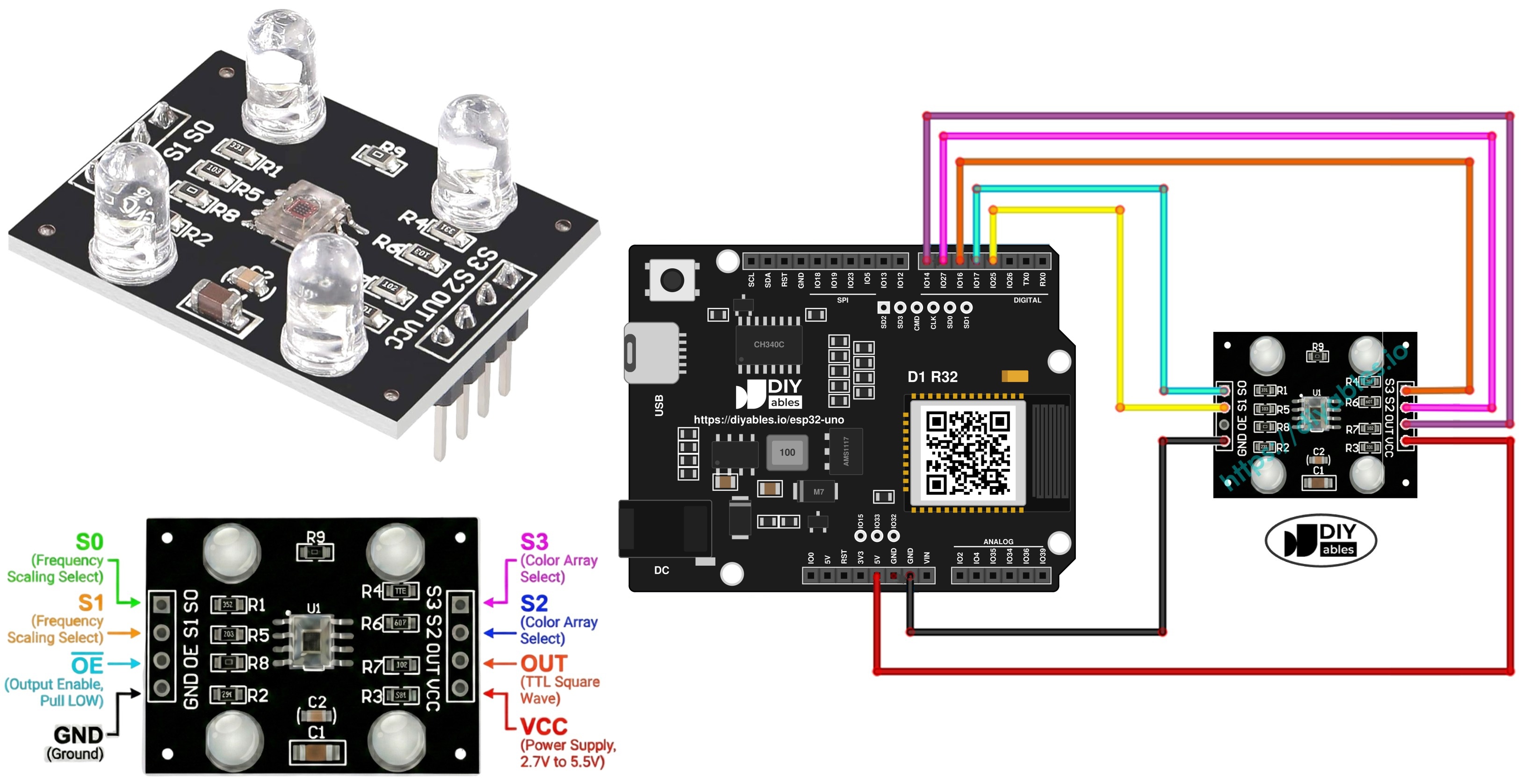
Components You Need
| 1 | × | ESP32 Uno-form Board | |
| 1 | × | USB Cable Type-A to Type-C (for USB-A PC) | |
| 1 | × | USB Cable Type-C to Type-C (for USB-C PC) | |
| 1 | × | TCS3200D/TCS230 Color Recognition Sensor Module | |
| 1 | × | Jumper Wires |
Or you can buy the following kits:
| 1 | × | DIYables Sensor Kit (18 sensors/displays) |
Additionally, some of these links are for products from our own brand, DIYables .
Overview of the TCS3200D/TCS230 Color Sensor
By the end of this part, you know how the sensor turns light into a signal.
| Item | Value |
|---|---|
| Light sensor | 8x8 array of 64 photodiodes |
| Red filter | 16 photodiodes |
| Green filter | 16 photodiodes |
| Blue filter | 16 photodiodes |
| No filter (clear) | 16 photodiodes |
| Output | Square wave, about 2 Hz to 500 kHz |
| Supply voltage | 2.7V to 5.5V |
The chip changes the light it sees into a square wave. Switch the filters one by one and time each wave. The timings show how much red, green and blue the object sends back. Most modules also have white LEDs around the sensor, so the target is lit the same way each time, even in a dark room.
Good to know: The ESP32 Uno uses 3.3V logic. Power the module from 3.3V, so the OUT signal is also 3.3V.
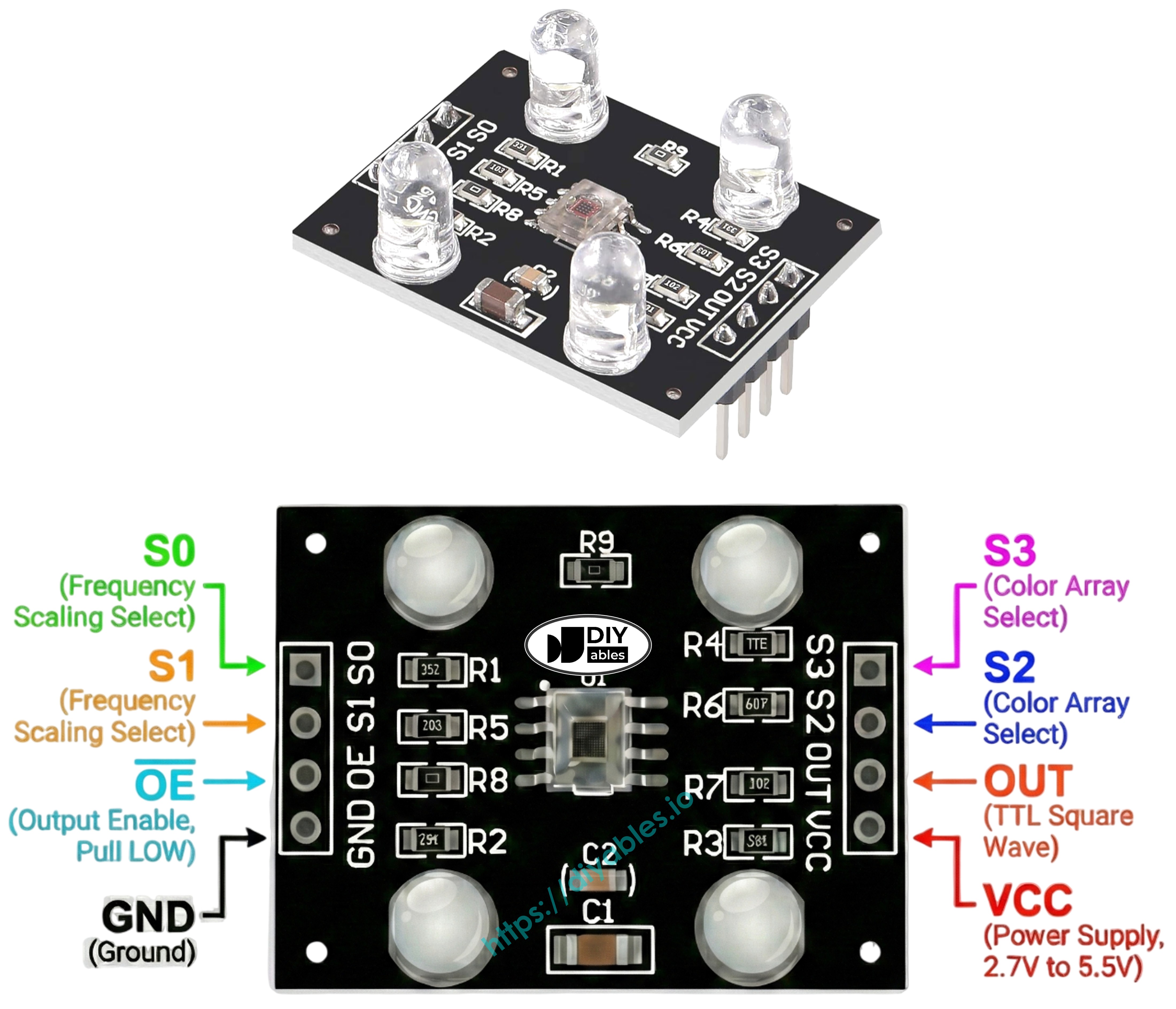
Pinout
By the end of this part, you know what each pin does.
| Pin | Job |
|---|---|
| VCC | Power. Connect it to 3.3V on the ESP32 Uno |
| GND | Ground (0V) |
| S0, S1 | Choose the output frequency scaling |
| S2, S3 | Choose the color filter |
| OUT | Square-wave output with the color signal |
| OE | Output enable, active LOW. Most modules tie it to GND already. If yours does not, connect it to GND |
How It Works
By the end of this part, you know which pin levels pick which setting.
Two pairs of control pins do all the work. The first pair sets the output speed. The second pair picks the color.
Output scaling (S0, S1)
| S0 | S1 | Scaling |
|---|---|---|
| LOW | LOW | Power down |
| LOW | HIGH | 2% |
| HIGH | LOW | 20% |
| HIGH | HIGH | 100% |
Color filter (S2, S3)
| S2 | S3 | Filter |
|---|---|---|
| LOW | LOW | Red |
| LOW | HIGH | Blue |
| HIGH | LOW | Clear (no filter, all light) |
| HIGH | HIGH | Green |
Reading the output
A brighter color gives a faster wave, so each pulse is shorter. The sketches use pulseIn() to time one pulse for each color. After calibration, the code changes the pulse width into a value between 0 and 255.
Tips for Stable Readings
- Keep the sensor about 2 cm from the object. Keep the same angle every time.
- Leave the white LEDs on, so the light does not change.
- Cover the sensor with a small dark tube or a piece of card to block room light.
ESP32 Uno Pinout
Each Uno header pin on the ESP32 Uno form board maps to one GPIO number. Find D3 to D7 in the diagram below before you plug in the color sensor.

How to Connect
By the end of this part, the sensor is wired and ready. You need five signal wires: four outputs (S0-S3) and one input (OUT).
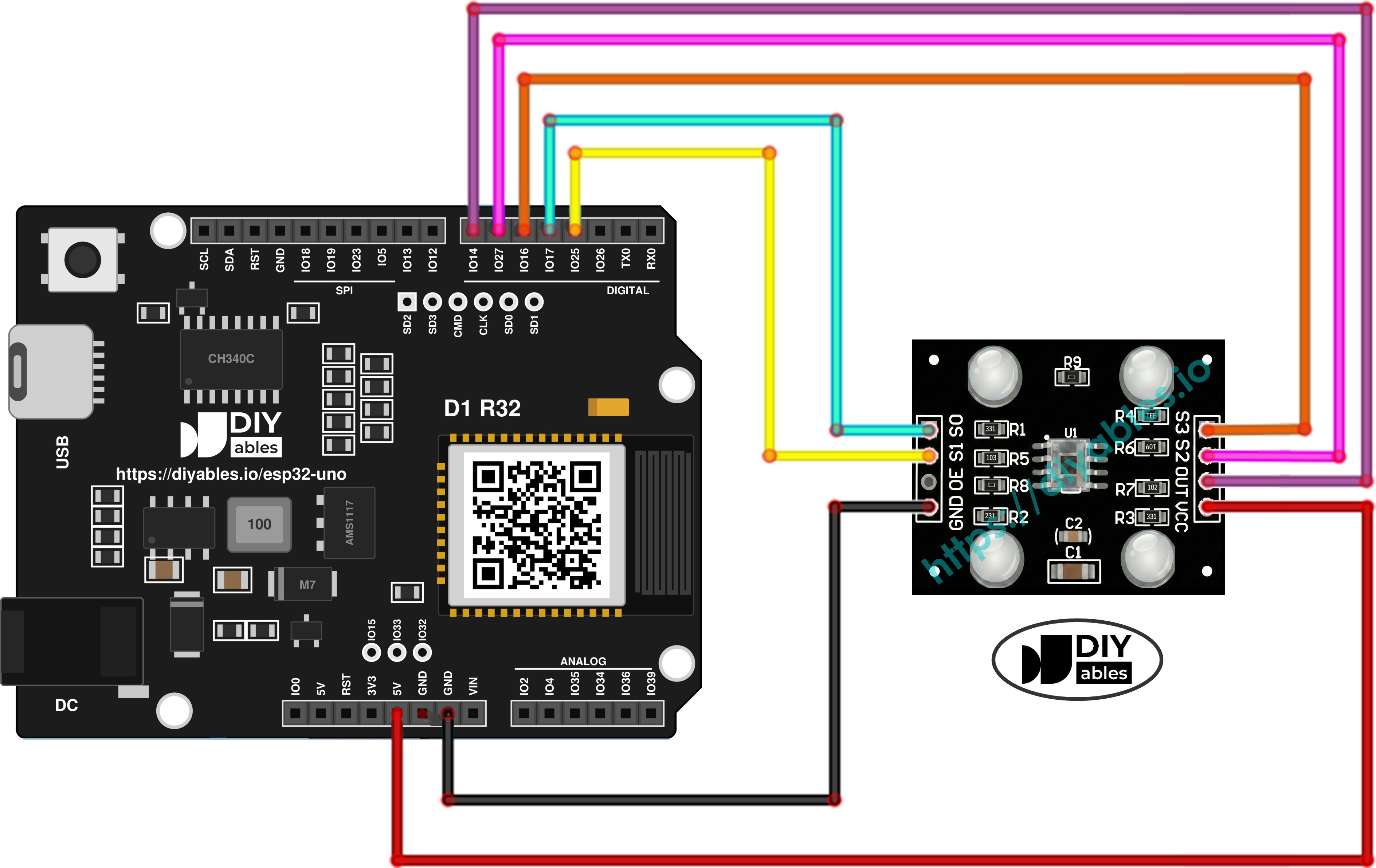
This image is created using Fritzing. Click to enlarge image
| Component Pin | ESP32 Uno Pin |
|---|---|
| VCC | 3.3V |
| GND | GND |
| S0 | D4 (GPIO17) |
| S1 | D3 (GPIO25) |
| S2 | D6 (GPIO27) |
| S3 | D5 (GPIO16) |
| OUT | D7 (GPIO14) |
WARNING
The pins of the ESP32 Uno cannot take 5V. Power the sensor from 3.3V, so OUT sends a 3.3V signal. Check the VCC wire and put it on 3.3V, not 5V. If you must run the module at 5V, add a level shifter or a voltage divider (for example 10k and 20k) on the OUT line to D7 (GPIO14).
Good to know: None of these five pins is a boot strapping pin or an input-only pin, so you can wire them as shown without special care.
Step A: Calibrate the Sensor (Pulse Width)
By the end of this part, you have the min and max pulse width for red, green and blue.
The raw numbers change with LED brightness, distance, surface and room light. This sketch finds the lowest and highest pulse width for each color, so the next sketch can scale them to 0-255.
| Code Part | What It Does |
|---|---|
| #define S0 ... sensorOut | Names the five GPIO pins used by the sensor |
| digitalWrite(S0, HIGH); digitalWrite(S1, LOW); | Sets 20% output scaling |
| getRedPW(), getGreenPW(), getBluePW() | Switch the filter and time one pulse with pulseIn() |
| if (redPW < redMin) ... | Remembers the lowest and highest value of each color |
| Serial.print(...) | Prints the current reading and the Min and Max rows |
The sketch prints a new block of readings about every 0.6 seconds, and the Min and Max rows grow as you scan new objects.
Upload and Test
- First time with this board? Set it up with ESP32 Uno - Getting Started before you continue.
- Build the circuit by following the wiring table above.
- Plug in the USB Type-C cable between the ESP32 Uno and your computer.
- Select the board in Arduino IDE: pick ESP32 Dev Module and the COM port of the board (CH340).
- Paste the calibration code above into a new sketch.
- Press Upload and wait for Done uploading.
- Open the Serial Monitor at 9600 baud. Live readings appear with Min and Max rows under them.
- Scan a few objects: white paper, something black, and some colored items.
- Wait 10-20 seconds until the Min and Max rows stop changing. Write the numbers down.
- Pro tip: run the calibration at the same distance and in the same light as your final project. If either one changes, calibrate again.
With this output, your values are redMin = 38, redMax = 236, greenMin = 47, greenMax = 214, blueMin = 52 and blueMax = 198.
Step B: Read RGB Values
By the end of this part, the Serial Monitor shows red, green and blue as numbers from 0 to 255.
The sketch measures each color, then map() scales your min-max range to 255-0. A short pulse means a lot of light, so it becomes a high value.
| Code Part | What It Does |
|---|---|
| int redMin = 0; ... | Holds your six calibration numbers |
| map(redPW, redMin, redMax, 255, 0) | Converts a pulse width into a 0-255 value |
| delay(200) | Gives the sensor time to settle after each filter change |
| Serial.print("Red = ") ... | Prints the three values on one line |
Step 1 — Add your calibration numbers
Look at the top of the code for these lines:
Replace all six zeros with your own numbers. With the example above, the lines become:
Step 2 — Upload and read
- Send the sketch to the ESP32 Uno with Upload.
- Hold a colored object 1-3 cm in front of the sensor.
- Watch the Serial Monitor for the three numbers.
- Pro tip: a value below 0 or above 255 means the object is darker or brighter than anything you scanned. Scan that object during calibration, then repeat.
Now each color is a standard 0-255 RGB number. A longer pulse means less light, so it gives a lower value.
Video Tutorial
See the ESP32 Uno build in action in the video below.
ESP32 Uno vs UNO R4 for This Project
Moving this color sensor from the UNO R4 to the ESP32 Uno needs only new pin numbers and a 3.3V supply.
| Item | Arduino UNO R4 | ESP32 Uno |
|---|---|---|
| Logic voltage | 5V | 3.3V |
| Sensor VCC | 5V | 3.3V |
| S0, S1 pins | 4, 3 | D4 (GPIO17), D3 (GPIO25) |
| S2, S3 pins | 6, 5 | D6 (GPIO27), D5 (GPIO16) |
| OUT pin | 7 | D7 (GPIO14) |
| Library | None | None |
| Arduino IDE board | Arduino UNO R4 WiFi | ESP32 Dev Module |
The wires stay on the same Uno header positions. Only VCC moves from 5V to 3.3V, and the sketches use GPIO numbers instead of pin numbers.
Applications
Once the board reads RGB values, you can build projects like these:
- Color sorter: send red, green and blue items to separate boxes
- Color matching game: check if two objects have the same color
- Line follower robot: follow a colored line on the floor
- Quality control: spot products with the wrong color
- Color alarm: turn on a buzzer or LED when one color shows up
Go Wireless: Color Values on Your Phone
By the end of this part, you know how to see the color readings without a USB cable.
The ESP32 Uno has WiFi and Bluetooth built in. Send the three RGB values to a web page or to a phone app, and you can watch the colors change live from across the room. The charts also show how stable your readings are.
Troubleshooting
| Problem | Possible Cause | Solution |
|---|---|---|
| No COM port in Arduino IDE | CH340 driver missing or charge-only cable | Install the CH340 driver and use a USB cable that carries data |
| Upload fails with Failed to connect | Board is not in download mode | Hold the BOOT button when the upload starts, then release it |
| All readings are 0 or the sketch seems stuck | OUT not connected, or S0 and S1 both LOW | Check the wire from OUT to D7 (GPIO14) and the S0 and S1 wires |
| Readings jump around | Room light changes or the object moves | Keep a fixed distance of 1-3 cm and shade the sensor |
| Values go below 0 or above 255 | Object is outside the calibration range | Run the calibration once more with that object, or clamp the value with constrain(value, 0, 255) |
| Red and blue look exchanged | S2 and S3 wires are crossed | S2 must go to D6 (GPIO27) and S3 to D5 (GPIO16) |
| Board reboots or hangs | The module runs at 5V and OUT feeds 5V into a 3.3V GPIO | Power it from 3.3V, or fit a level shifter on OUT |
| Sensor LEDs are off or dim | OE or power not connected | Check VCC and GND, and connect OE to GND if your module needs it |
| Garbled text on screen | Baud rate does not match | Choose 9600 in the Serial Monitor drop-down |
FAQ
How does the TCS3200 detect color?
It has 64 photodiodes, and each group of 16 sits behind a red, green, blue or clear filter. You pick one filter at a time with S2 and S3. The chip then outputs a wave whose speed depends on how much of that color it sees.
Can I power the TCS3200 from 3.3V on the ESP32 Uno?
Yes. The chip accepts 2.7V to 5.5V. Use 3.3V so the OUT signal stays safe for the board. The white LEDs may look a bit dimmer, and calibration handles that.
Why do I need to calibrate the sensor?
Raw pulse widths depend on light, distance and the surface. Calibration records the shortest and longest pulse for your setup. The second sketch then maps that range to 0-255.
Why do I get RGB numbers outside 0-255?
map() does not limit its result. If an object is darker or brighter than anything you scanned, the value leaves the 0-255 range. Calibrate with more objects, or use constrain().
Does this code need a library on the ESP32 Uno?
No. It uses only pinMode(), digitalWrite(), pulseIn() and map(), which are part of the core. Just select ESP32 Dev Module in Arduino IDE.
Is the ESP32 Uno code different from the UNO R4 code?
Only the pin numbers. In the new sketches, D4, D3, D6, D5 and D7 become GPIO17, 25, 27, 16 and 14. The logic is the same, and the sensor now runs from 3.3V.
Does the ESP32 Uno ADC matter for this sensor?
No. The sensor sends a pulse signal, not an analog voltage. The board times the pulse with pulseIn() on a digital pin, so the 12-bit ADC is not used here.
Can I use an input-only pin like A2-A5 for OUT?
Yes, OUT is an input, so GPIO35, 34, 36 and 39 can work. Do not use them for S0-S3, because those are outputs and input-only pins cannot drive a signal. This tutorial keeps OUT on D7 (GPIO14).
What if my project needs more pins than the Uno headers give?
The ESP32 Uno has a few extra holes near the power header: GPIO32 and GPIO33 (I/O, PWM, analog on ADC1, so they also work while WiFi is on) and GPIO15 (I/O, PWM, analog on ADC2). Solder pin headers to use them and write the GPIO number in code. For this project, GPIO32 and GPIO33 are good choices for a second sensor's OUT pin or an extra control line. Two warnings: GPIO15 and GPIO0 (the IO0 pin at the unused Uno NC position) are boot strapping pins, and a wrong connection can stop the board from booting or uploading code, so use GPIO32/33 first. Never use the six holes under the digital header (SD0-SD3, CMD, CLK = GPIO6-GPIO11), because they are wired to the flash chip and using them crashes the board.
Will the board print names like RED or BLUE?
Not on its own, because it only gives numbers. Write your own rule, such as: red high, green and blue low, so print RED. Scan your real objects first, then pick limits from the readings.
Can I show the color values on a web page with the ESP32 Uno?
Yes. The board has WiFi and Bluetooth, so you can send the RGB values to a web monitor or a phone app. See the Go Wireless section above for links.