
ESP32 UNO - LED Strip
Need your ESP32 Uno LED strip to blink, change color or fade? Hook a 12V LED tape to the ESP32 Uno form board through a relay, and a few lines of Arduino code take over the light. The same build works for a 12V RGB LED strip, which can show seven mixed colors. For smooth brightness control, swap the relay for a silent MOSFET module.
What you will do:
- Tell addressable and non-addressable LED ribbons apart
- Wire a relay module between the board and a 12V LED strip
- Run code that switches a single-color strip on a timer
- Mix red, green and blue relays into seven colors on an RGB strip
- Dim a 12V LED tape with PWM through a MOSFET module
https://newbiely.com/images/cover/esp32-uno-controls-led-strip.jpg
Components You Need
Or you can buy the following kits:
| 1 | × | DIYables Sensor Kit (18 sensors/displays) |
Additionally, some of these links are for products from our own brand, DIYables .
LED Strip Basics
After this part, you know which kind of strip this guide drives.
An LED strip (LED tape, LED ribbon) is a bendable printed board with rows of LEDs glued along it. Makers stick it behind monitors, along stairs or inside shelves for accent light.
| Strip Kind | How It Is Controlled | Covered Here? |
|---|---|---|
| Addressable | each LED has its own address, so every LED gets its own color and level | no |
| Non-addressable | all LEDs share the same wires, so the whole strip changes together | yes |
Good to know: addressable strips (NeoPixel, WS2812B, DotStar) need a data signal and a library. This page only handles the simpler non-addressable 12V type.
To dim a non-addressable strip, a MOSFET module does the job. Its pins and its working are explained in the ESP32 Uno - MOSFET Module tutorial.
Relay or MOSFET Module?
Pick your switching part here, before you buy or wire anything.
| Feature | Relay | MOSFET Module |
|---|---|---|
| What it can do | full on or full off | on, off and any level in between (PWM) |
| Sound | audible click | none |
| Switch time | several milliseconds | microseconds |
| Life span | contacts wear out with use | no moving parts, lasts long |
| Supply type | AC or DC | DC only |
| Strip supply voltage | up to the relay rating | around 6V and up (12V and 24V work) |
| Isolation | coil and contacts are separate | PC817 optocoupler |
| Pick it for | mains lamps, plain switching | DC strips with dimming or quick effects |
For a 12V strip, the MOSFET module wins because you get brightness control. An RGB strip has three color wires, so it takes three MOSFET modules, just like it takes three relays.
Non-Addressable LED Strip Pins
By the end of this part, you can name every wire on your strip.
Single-color strip
The LED color is set in the factory. There are two pads:
| Pad | Goes To |
|---|---|
| 12V/24V | plus (+) side of the 12V or 24V DC adapter |
| GND | minus (-) side of the 12V or 24V DC adapter |
RGB strip
Three separate color lines let you build many colors. There are four pads:
| Pad | Goes To |
|---|---|
| 12V/24V | plus (+) side of the DC adapter |
| R | red line. Pull it to the adapter minus (-) and red lights up |
| G | green line. Pull it to the adapter minus (-) and green lights up |
| B | blue line. Pull it to the adapter minus (-) and blue lights up |
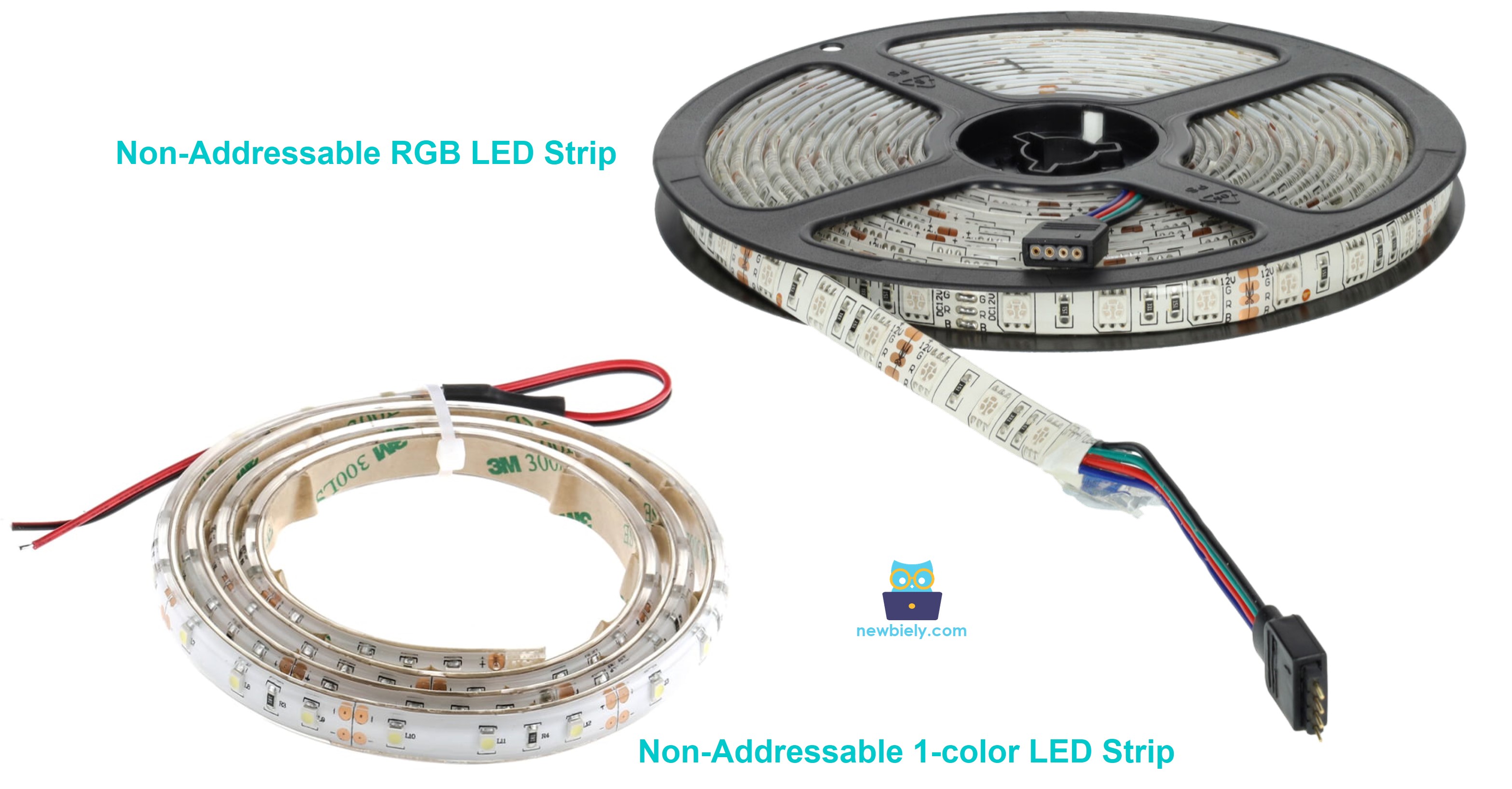
The sections below drive each strip type from the ESP32 Uno, one after the other.
Switching a Single-Color Strip with a Relay
Here you see why a relay sits between the board and the strip.
A 12V strip glows the moment it meets a 12V supply. The ESP32 Uno pins give only 3.3V and a few milliamps, far too little for the strip. So the board only toggles the relay coil, and the relay contacts open or close the 12V line. Relay pins, wiring and coding are covered in the ESP32 Uno - Relay tutorial.
ESP32 Uno Pinout
Your code never uses the D3 or D7 labels printed on the board; it uses the GPIO number behind each Uno header pin. Find D3, D5, D6, D7 and D9 in the picture below before you plug in the relay wires.

How to Connect
When this part is done, the 12V side and the 3.3V side are wired and kept apart.
The board touches only the relay input pins. The strip, the 12V adapter and the DC power jack all sit on the relay contact side.
Single-Color LED Strip Wiring
A single relay switches the whole strip. Its IN wire lands on D3.
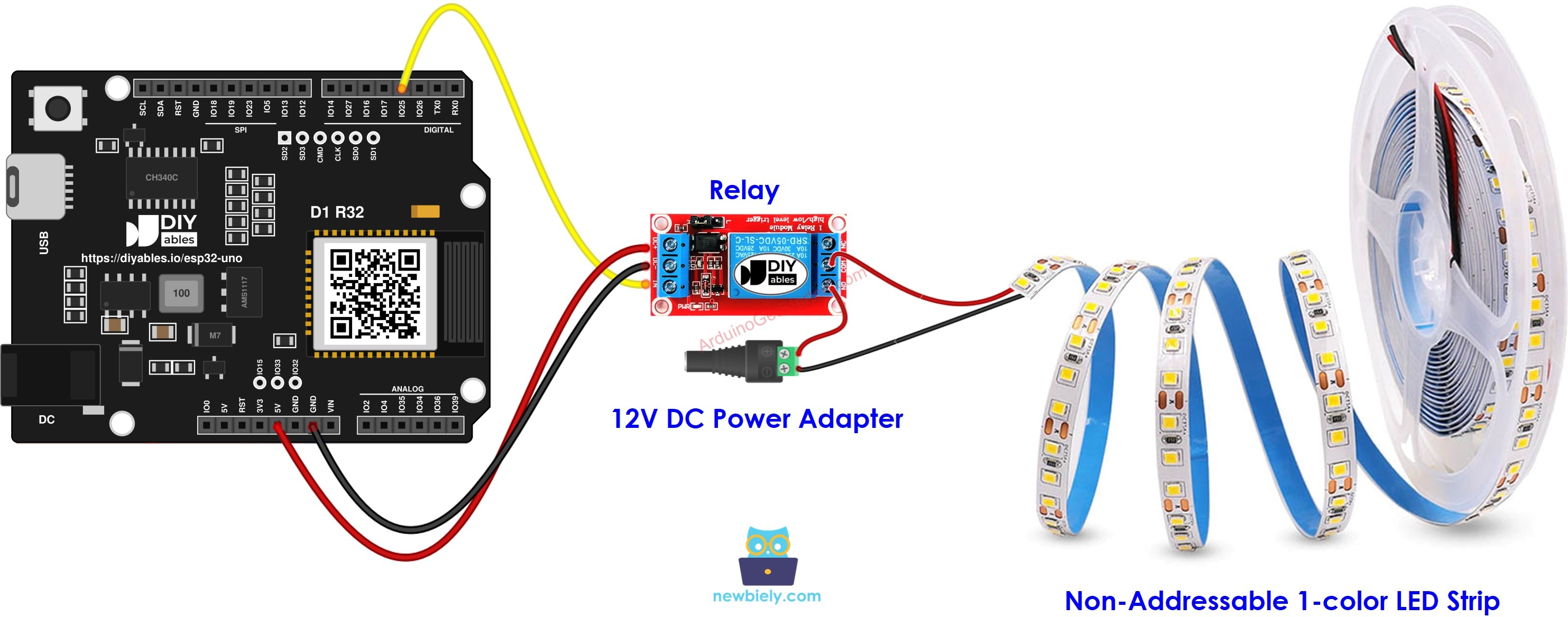
This image is created using Fritzing. Click to enlarge image
| Component Pin | ESP32 Uno Pin |
|---|---|
| Relay VCC | 5V |
| Relay GND | GND |
| Relay IN | D3 (GPIO25) |
RGB LED Strip Wiring
One relay per color line, so three relays in total (a 4-channel relay board also works).
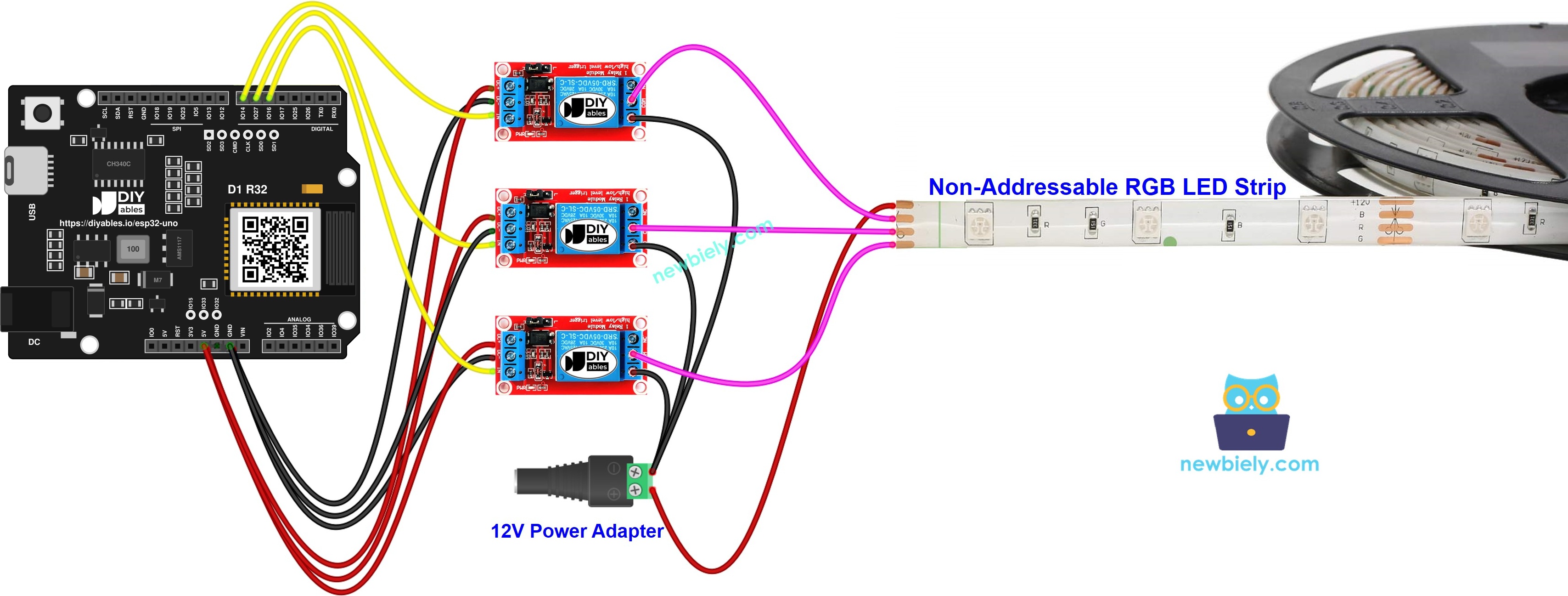
This image is created using Fritzing. Click to enlarge image
| Component Pin | ESP32 Uno Pin |
|---|---|
| Relay VCC (all three) | 5V |
| Relay GND (all three) | GND |
| Relay 1 IN (blue line) | D5 (GPIO16) |
| Relay 2 IN (red line) | D6 (GPIO27) |
| Relay 3 IN (green line) | D7 (GPIO14) |
Good to know: D3, D5, D6 and D7 are normal I/O pins on the ESP32 Uno, with no boot or input-only limits, so the relays will not block uploads.
※ NOTE THAT:
Feed the relay coil from the 5V pin, since most modules use a 5V coil. The IN pin only sees the 3.3V output, which most transistor-input modules accept. The ESP32 Uno pins are NOT 5V tolerant, so never route any 5V signal back into a GPIO.
ESP32 Uno Code
Two sketches follow, one per strip type. Both rely on digitalWrite() only, so you install no library.
Code for the Single-Color LED Strip
This sketch flips the relay on D3 (GPIO25) every 5 seconds and prints each change.
Code for the RGB LED Strip
This sketch steps through red, green, blue, yellow, magenta, cyan and white, holding each color for 2 seconds.
Upload and Test
- First time with this board? Set it up with ESP32 Uno - Getting Started before you continue.
- Build the circuit by following the wiring table above.
- Plug in the USB Type-C cable between the ESP32 Uno and your computer.
- Select the board in Arduino IDE: pick ESP32 Dev Module and the COM port of the board (CH340).
- Paste the sketch that fits your strip into a new Arduino IDE window.
- Press Upload (Upload) and wait for "Done uploading".
- Plug in the 12V adapter only after the upload ends.
- Set the Serial Monitor to 9600 baud and compare its lines with the strip.
- Pro tip: test the relay side first with the 12V adapter unplugged. The relay LED should flash in time with the Serial Monitor lines; once that works, power the strip.
Sample output from the RGB sketch:
Video Tutorial
See the ESP32 Uno build in action in the video below.
How the Code Works
This table sums up the parts that matter in both relay sketches.
| Code Part | What It Does |
|---|---|
| #define LED_STRIP_PIN 25 | names the GPIO behind D3 that feeds the relay |
| #define BLUE_PIN / RED_PIN / GREEN_PIN | names GPIO16, GPIO27 and GPIO14 for the three color relays |
| pinMode(..., OUTPUT) | turns each relay pin into an output in setup() |
| digitalWrite(pin, HIGH) | energizes a relay, so that strip line gets 12V current |
| digitalWrite(pin, LOW) | releases a relay, so that line goes dark |
| delay(5000) / delay(2000) | keeps each state on screen for 5 or 2 seconds |
Two or three relays on at once mix the colors, for example red plus green gives yellow.
A relay is always fully on or fully off. To get dimming or soft in-between shades, drive the strip with a PWM driver such as the L298N driver or the MOSFET module below.
ESP32 Uno vs UNO R4 for This Project
This table shows what moves when you port the LED strip build from the UNO R4 to the ESP32 Uno.
| Item | Arduino UNO R4 | ESP32 Uno |
|---|---|---|
| Logic voltage | 5V | 3.3V |
| Single relay pin in code | 3 | 25 (D3) |
| RGB relay pins in code | 5, 6, 7 | 16, 27, 14 (D5, D6, D7) |
| MOSFET PWM pin in code | 9 | 13 (D9) |
| Arduino IDE board | Arduino UNO R4 WiFi | ESP32 Dev Module |
| WiFi and Bluetooth | WiFi only on the WiFi model | WiFi and Bluetooth (Classic and BLE) |
The wiring stays on the same header positions, so the same circuit works as-is. Only check that your relay module switches with a 3.3V IN signal.
Fade the Strip with a MOSFET Module
After this part, your single-color strip fades up and down with no click at all.
Take the relay out and put the MOSFET module in its place. The ESP32 Uno sends PWM on D9 (GPIO13), and the duty cycle sets the strip brightness.
MOSFET Module Wiring
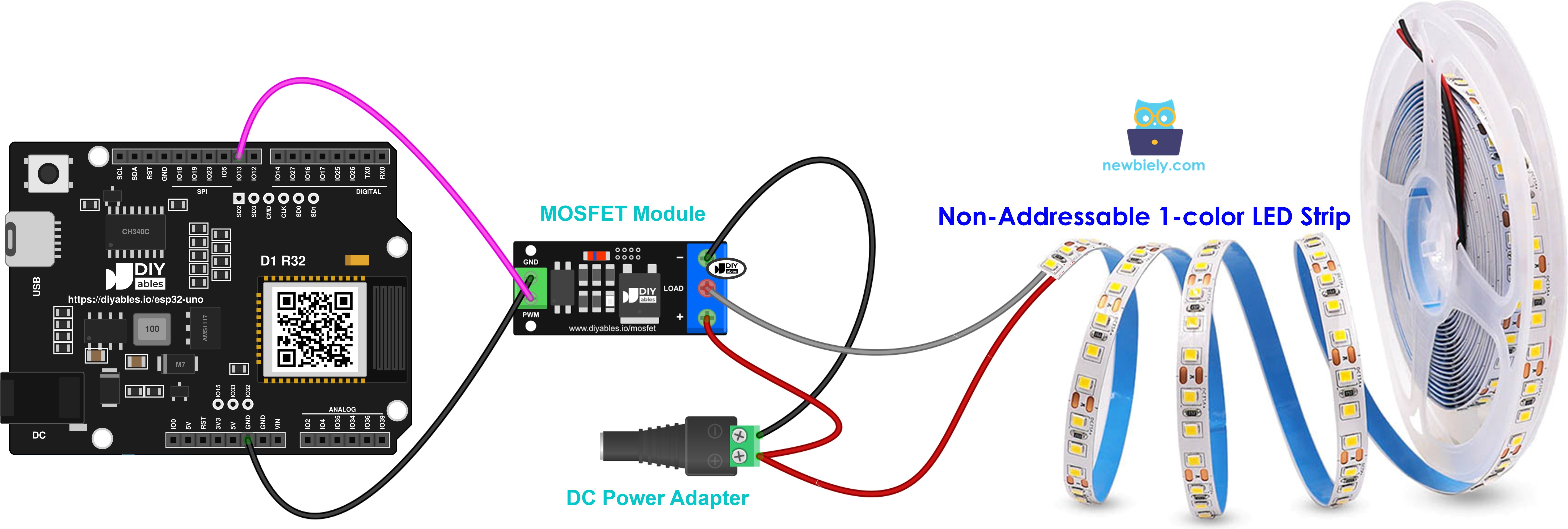
This image is created using Fritzing. Click to enlarge image
| From | To |
|---|---|
| ESP32 Uno D9 (GPIO13) | module PWM pin |
| ESP32 Uno GND | module GND pin |
| 12V adapter plus (through the DC power jack) | + terminal |
| strip 12V pad | + terminal (shared with the adapter plus) |
| strip GND pad | LOAD terminal |
| 12V adapter minus (through the DC power jack) | − terminal |
Good to know: a strip is not a coil, so you skip the flyback diode.
Dimming Code
| Code Part | What It Does |
|---|---|
| const int MOSFET_PIN = 13 | D9 (GPIO13) carries the PWM signal |
| map(percent, 0, 100, 0, 255) | turns a 0 to 100 percent value into an 8-bit duty |
| analogWrite(MOSFET_PIN, duty) | outputs PWM, so the strip gets that share of power |
| two for loops | ramp from 10% up to 100%, then down to 0%, in 0.5 second steps |
The strip runs at 100% for 2 seconds, sits dark for 2 seconds, fades up, fades down, and the cycle restarts.
Upload and Test the Dimmer
- Reuse the board setup from the relay steps above.
- Wire the module and strip with the 12V adapter unplugged.
- Upload the sketch to the ESP32 Uno.
- Connect the 12V adapter to the DC power jack.
- Start the Serial Monitor with 9600 baud selected.
- Watch the fade go up and down in 10% steps.
※ NOTE THAT:
The MOSFET module handles DC only, and it needs a strip supply of roughly 6V or more. A 5V strip will glow weakly or not at all. For mains lamps, stay with the relay.
Go Wireless: Switch and Dim the Strip from Your Phone
After this part, you know how to turn the strip into phone-controlled mood lighting.
The ESP32 Uno has WiFi and Bluetooth built in, so you can drop the timer and decide yourself when the strip lights up. Show ON and OFF buttons for the three color relays on a phone screen, or move a slider to set the MOSFET brightness. Keep the same pins as above: D3, D5, D6, D7 for the relays and D9 (GPIO13) for the PWM.
Troubleshooting
| Problem | Possible Cause | Solution |
|---|---|---|
| Arduino IDE shows no COM port | CH340 driver missing or a charge-only USB cable | Install the CH340 driver and use a USB cable that carries data |
| Upload stops at "Failed to connect" or "Waiting for download" | the board did not enter download mode | Hold the BOOT button while the upload starts, then release it |
| Relay stays silent | coil has no power or the GND wire is loose | Feed relay VCC from 5V and recheck the shared GND |
| Relay LED glows but there is no click | 3.3V IN signal too weak for that module | Use a relay module rated for 3.3V input |
| Click is heard but the strip stays dark | adapter off, or strip wired to the wrong contacts | Check the DC power jack polarity and use the COM and NO contacts |
| Strip lights when the code says off | low-level trigger relay or strip on the NC contact | Move the wire to NO, or swap HIGH and LOW in the sketch |
| RGB strip shows the wrong color | color lines swapped between relays | Red to the D6 relay, green to D7, blue to D5 |
| MOSFET strip never dims, only full or off | PWM wire on the wrong pin | Put the module PWM wire on D9 (GPIO13) |
| Board restarts when a relay switches | supply dip from the relay coils | Use a solid USB port or power supply and keep the strip on its own 12V adapter |
FAQ
Is it safe to run the 12V strip off the ESP32 Uno 5V or VIN pin?
No. The strip draws far more current than the board can pass, and 12V must never reach the 3.3V GPIOs. Give the strip its own 12V adapter and let the relay or MOSFET module do the switching.
How much current can one relay handle for an LED strip?
Most hobby relay modules are rated about 10A at 30V DC. A typical 12V strip draws about 1A to 2A per 5 meters, so one relay is plenty. Check the label on your strip and adapter to be sure.
Does a 5V relay module accept the 3.3V output of the ESP32 Uno?
Usually yes, when the module has a transistor or optocoupler input. Power VCC from 5V and wire IN to the GPIO. If the module LED lights but nothing clicks, get a 3.3V relay module.
Why does the code use 25 when the wire goes to D3?
On the ESP32 Uno, each Uno label hides a different GPIO number. D3 is GPIO25, D5 is GPIO16, D6 is GPIO27, D7 is GPIO14 and D9 is GPIO13. The sketch must hold the GPIO number, never the D label.
Do I need a library or extra setup code on the ESP32 Uno compared with the UNO R4?
No library is needed. The sketches are the same as on the UNO R4 except for the pin numbers. analogWrite() works on the ESP32 Uno with the current esp32 by Espressif Systems core, so the MOSFET dimming code runs unchanged.
Can I make orange or purple on the RGB strip?
Not with relays, because each color line is only on or off, which gives seven colors. Use three MOSFET modules and analogWrite() on each line to mix any shade.
Will a 24V LED tape work with the same circuit?
Yes. Swap in a 24V adapter that matches the strip, and make sure the relay contacts or MOSFET module are rated for it. The code does not change.
Can I fit a Uno relay shield on the ESP32 Uno?
The headers match the Uno layout, so most shields plug in. Check which D pins the shield uses, map them to GPIOs, and make sure the shield works with a 3.3V control signal.
What if my project needs more pins than the Uno headers give?
The ESP32 Uno has extra holes near the power header. GPIO32 and GPIO33 offer I/O, PWM and analog on ADC1, so they still read analog values while WiFi is on. GPIO15 offers I/O, PWM and analog on ADC2. Solder pin headers to them and write the GPIO number in code; GPIO32 and GPIO33 are good spots for a fourth relay or a second MOSFET module. Two warnings: GPIO15 and GPIO0 (the IO0 pin at the unused Uno NC position) are boot strapping pins, and a wrong connection can stop the board from booting or uploading code, so use GPIO32 and GPIO33 first. Never use the six holes under the digital header (SD0 to SD3, CMD, CLK = GPIO6 to GPIO11), because they are wired to the flash chip and using them crashes the board.
Can I turn the strip on at sunset or on a schedule?
Yes. Add a light sensor on an analog pin, or fetch the time over WiFi with NTP, and switch the relay in code when the condition is met. Keep the strip wiring exactly as it is.