
ESP32 UNO - Door Sensor - LED
Need a light that tells you a door is open? Pair a magnetic door sensor with an LED on the ESP32 Uno and you get a simple status lamp in a few minutes. The same parts also work as a window sensor LED, or as a door sensor toggle LED that changes state on every close. Everything runs on the ESP32 Uno form board with plain Arduino code.
What you will do:
- Wire a magnetic reed switch and a 220 ohm LED circuit to the ESP32 Uno
- Read the door with digitalRead() and the internal pull-up
- Keep the LED lit only while the door stands open
- Flip the LED once each time the door shuts
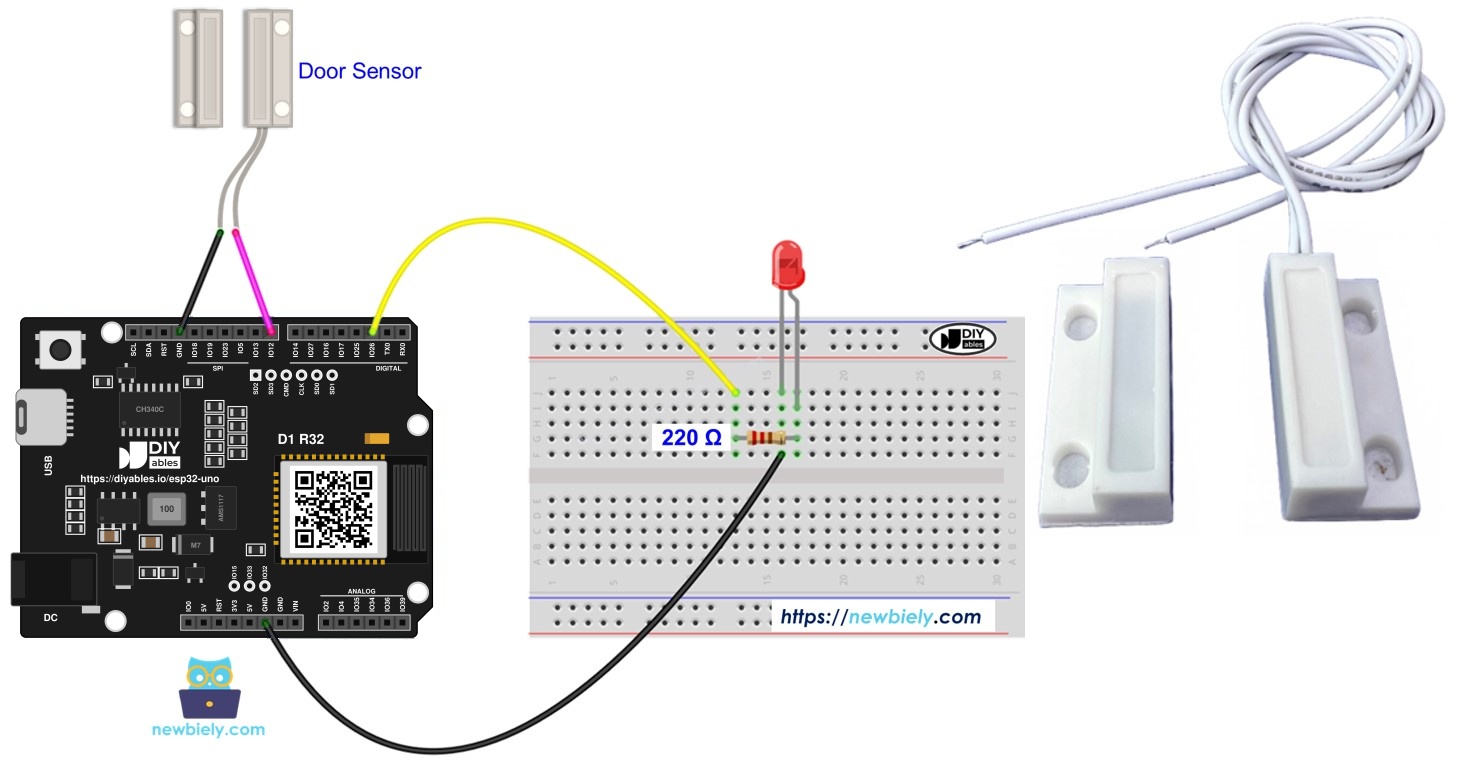
| Program | Door Action | LED Result |
|---|---|---|
| Application 1 (status light) | Door opens | LED goes on |
| Application 1 (status light) | Door shuts | LED goes off |
| Application 2 (toggle) | Door shuts (HIGH to LOW) | LED swaps between on and off |
| Application 2 (toggle) | Door opens | LED keeps its state |
Components You Need
Or you can buy the following kits:
| 1 | × | DIYables Sensor Kit (18 sensors/displays) |
Additionally, some of these links are for products from our own brand, DIYables .
Buy Note: Use the LED Module for easier wiring. It includes an integrated resistor.
The Reed Switch, the LED and Their Roles
After this part, you know what each piece does in the circuit.
| Part | Job Here | Learn It Alone |
|---|---|---|
| Door sensor (reed switch + magnet) | Input, joins D8 to GND while the magnet is close | ESP32 Uno - Door Sensor |
| LED + 220 ohm resistor | Output, glows when D2 is HIGH | ESP32 Uno - LED |
The sensor comes in two pieces. Screw the switch body to the frame and the magnet to the door. With the door shut, the magnet holds the switch contacts together. Swing the door open, the magnet moves away, and the contacts spring apart.
| Door Position | Switch Contacts | Level on D8 (with INPUT_PULLUP) |
|---|---|---|
| Shut | Touching | LOW |
| Open | Apart | HIGH |
Good to know: an ESP32 Uno GPIO gives 3.3V when HIGH. That still drives a red or green LED well through a 220 ohm resistor.
ESP32 Uno Pinout
Your sketch talks to GPIO numbers, while the board shows Uno names such as D2 and D8. Find both project pins in the picture before you plug in a wire.

How to Connect It
When this part is done, the reed switch sits between D8 and GND, and the LED hangs off D2.
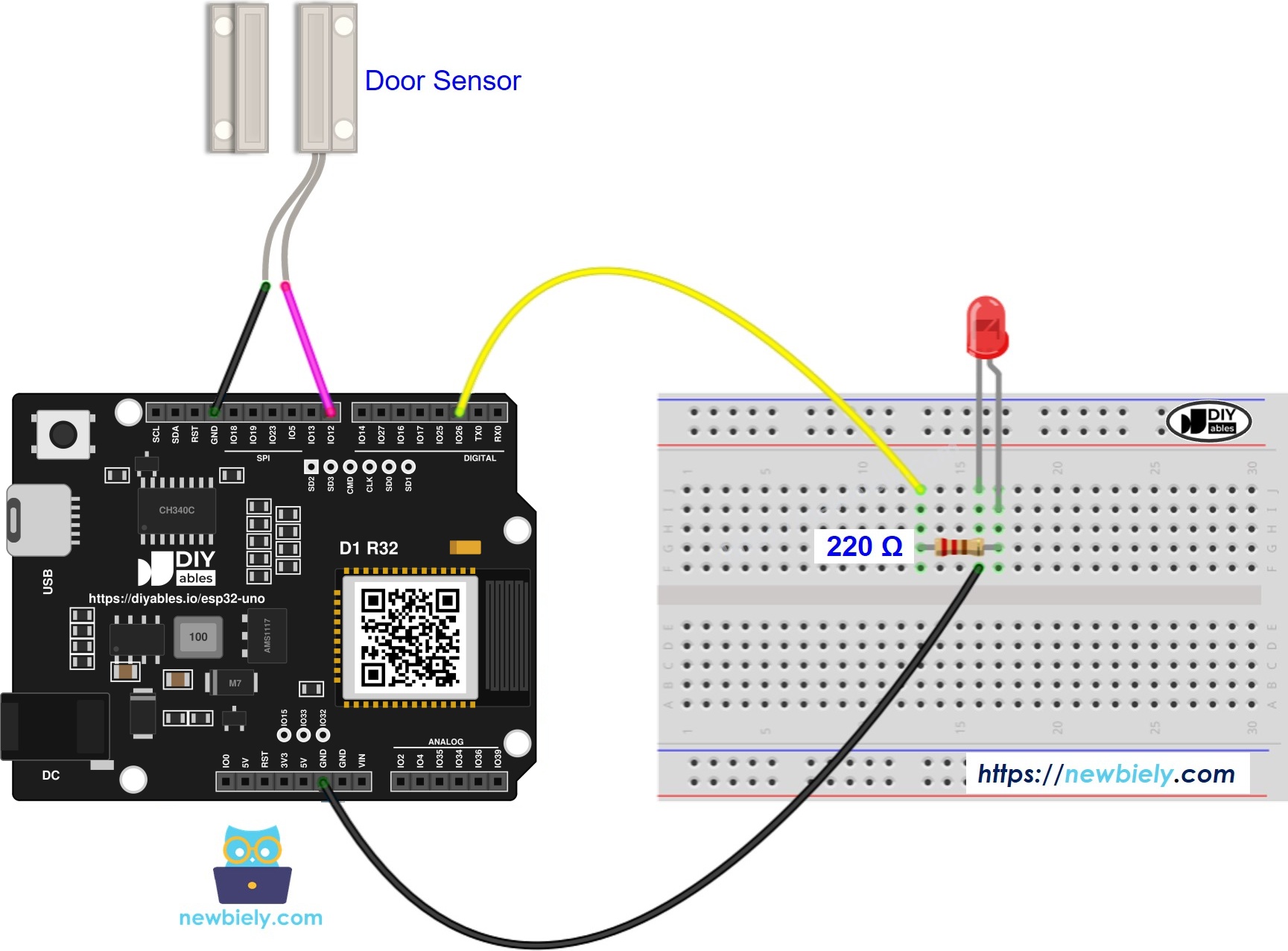
This image is created using Fritzing. Click to enlarge image
| Component Pin | ESP32 Uno Pin |
|---|---|
| Door sensor wire 1 | D8 (GPIO12) |
| Door sensor wire 2 | GND |
| LED anode (long leg) via 220 ohm resistor | D2 (GPIO26) |
| LED cathode (short leg) | GND |
WARNING
D8 is GPIO12, a boot strapping pin on the ESP32 Uno. The chip checks it at power-up, and it must be LOW then. If something pulls GPIO12 HIGH at boot, the flash gets the wrong voltage and the board will not start. The reed switch in this project only ever connects the pin to GND, so it is safe. Never add an external pull-up resistor to 3.3V on D8, and never wire the sensor to 3.3V instead of GND.
Good to know: the reed switch has no polarity, so either wire can go to D8. It needs no power line, because INPUT_PULLUP turns on a resistor inside the chip. ESP32 Uno pins are not 5V tolerant, so keep 5V away from D8.
Application 1 - LED as a Door Status Light
Here you get the plainest link: door open, LED on. Use it to check the wiring.
ESP32 Uno Code - Status Light
The sketch reads GPIO12 over and over, copies the result to the LED on GPIO26, and prints the door state each pass.
Upload and Test
- First time with this board? Set it up with ESP32 Uno - Getting Started before you continue.
- Build the circuit by following the wiring table above.
- Plug in the USB Type-C cable between the ESP32 Uno and your computer.
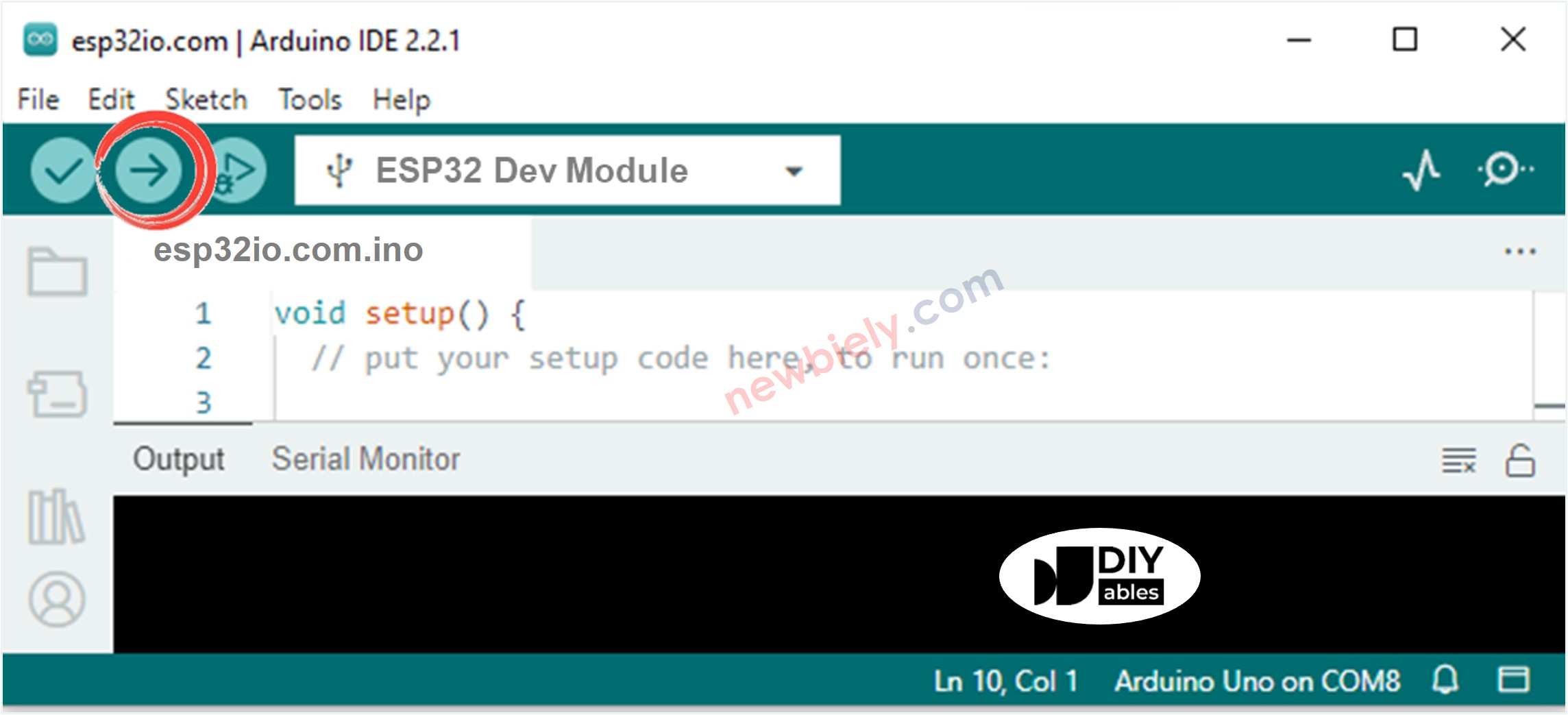
- Select the board in Arduino IDE: pick ESP32 Dev Module and the COM port of the board (CH340).
- Paste the sketch into an empty Arduino IDE window.
- Press Upload (Upload) and wait for "Done uploading".
- Start the Serial Monitor and choose 9600 baud.
- Pull the magnet away from the switch, hold it there, then bring it back.
- Check the LED: it glows while the magnet is away and goes dark when it returns.
- Pro tip: test on the desk first. Tape the switch to the table and slide the magnet past it by hand to find the gap where the state flips, before you drill any holes in the door frame.
Code Explanation
| Code Part | What It Does |
|---|---|
| DOOR_SENSOR_PIN 12 and LED_PIN 26 | Tie the names to D8 (GPIO12) and D2 (GPIO26) |
| pinMode(DOOR_SENSOR_PIN, INPUT_PULLUP) | Enables the inner pull-up, so an open door reads HIGH |
| digitalRead(DOOR_SENSOR_PIN) | Gets the door level on every loop pass |
| door_state == HIGH | Door is open, so the LED pin goes HIGH |
| else branch | Door is shut, so the LED pin goes LOW |
The result is an LED that matches the door with no visible lag.
Application 2 - Each Door Close Flips the LED
Now the LED holds its new state after the door moves. To get that, the code must catch the single moment the door shuts.
ESP32 Uno Code - Toggle on Close
The sketch keeps the last door reading. A HIGH followed by a LOW means the door just shut, and that flips the LED.
Code Explanation
| Code Part | What It Does |
|---|---|
| prev_door_state | Stores the reading from the last loop pass |
| prev HIGH and now LOW | Spots the falling edge, which is one close |
| led_state = !led_state | Swaps LOW to HIGH or HIGH to LOW |
| digitalWrite(LED_PIN, led_state) | Sends the new level to GPIO26 |
The ! sign is shorthand. Written out in full, it equals this block:
Upload and Test
- Paste this sketch into the Arduino IDE.
- Upload it to the ESP32 Uno.
- Open and shut the door four times.
- Watch the LED after each close: on, off, on, off.
- Pro tip: opening the door never changes the LED here. If you want the LED to flip on opening instead, change the test to prev_door_state == LOW && door_state == HIGH.
One change of the LED happens per door close.
Video Tutorial
See the ESP32 Uno build in action in the video below.
ESP32 Uno vs UNO R4 for This Project
Moving this door light from the UNO R4 to the ESP32 Uno changes only the pin numbers, the voltage and one boot rule.
| Item | Arduino UNO R4 | ESP32 Uno |
|---|---|---|
| Logic voltage | 5V | 3.3V |
| Door sensor pin in code | 8 (D8) | 12 (D8) |
| LED pin in code | 2 (D2) | 26 (D2) |
| Internal pull-up | Yes | Yes |
| Boot rule on D8 | None | GPIO12 must be LOW at power-up |
| Arduino IDE board | Arduino UNO R4 WiFi or Minima | ESP32 Dev Module |
The wires stay in the same header holes, so the breadboard moves over as it is. The LED looks slightly dimmer at 3.3V, which is normal.
Go Wireless: Door Alerts on Your Phone
This idea lets you see the door state when you are not in the room.
The ESP32 Uno has WiFi and Bluetooth (Classic and BLE) built in. Keep the reed switch and LED as they are, and send the same door state to your phone. A web page or app can show the door pin as an ON or OFF light, or print a line each time the door shuts. You can also switch the LED from the phone.
Good to know: both sketches here never call delay(), so a WiFi or Bluetooth library gets enough time to run inside the same loop().
Troubleshooting
| Problem | Possible Cause | Solution |
|---|---|---|
| No COM port shows up in Arduino IDE | CH340 driver missing or the cable only charges | Install the CH340 driver and use a USB cable that carries data |
| Upload stops at "Failed to connect" or "Waiting for download" | Board did not enter download mode | Hold the BOOT button as the upload begins, then release it |
| Board does not boot or upload with the sensor wired | D8 (GPIO12) is a boot strapping pin pulled the wrong way | Make sure the sensor goes to GND, not 3.3V, and unplug the D8 wire while uploading if needed |
| LED stays dark in both sketches | LED turned around or resistor not in the path | Long leg goes to the resistor and D2 (GPIO26), short leg to GND |
| Monitor always shows "The door is open" | Magnet too far from the switch or GND wire loose | Line up the magnet within about 1 cm of the switch and reseat the GND wire |
| Monitor jumps between open and closed by itself | D8 wire loose, so GPIO12 floats | Push the jumper firmly into the D8 hole and the sensor row |
| LED flips twice on one close | Reed contacts bounce | Add a short delay(50) after a change or use debounce code |
| Sketch copied from another board does nothing | Pins 8 and 2 left in the code | Change them to 12 and 26 |
| Strange symbols in the Serial Monitor | Baud mismatch | Pick 9600 baud in the Serial Monitor |
FAQ
How does a magnetic door sensor work with the ESP32 Uno?
It is a reed switch plus a magnet. With the magnet close, the switch closes and connects D8 to GND, so the ESP32 Uno reads LOW. When the door opens and the magnet leaves, the switch opens and the pull-up makes the pin read HIGH.
Is this the same part as a window sensor?
Yes. A window sensor is the same reed switch and magnet, often in a smaller case. The wiring and the code in this guide work for doors, windows, drawers and lids.
Should the reed switch go to 3.3V or to GND?
Connect it to GND. The code uses INPUT_PULLUP, so the pin rests HIGH and the switch pulls it LOW. On D8 this matters even more, because GPIO12 must not be pulled HIGH at boot.
Is D8 a safe pin for the door sensor on the ESP32 Uno?
D8 is GPIO12, a boot strapping pin, but it is fine in this circuit. The switch can only connect it to GND, and a LOW level at boot is exactly what the chip wants. Trouble starts only if you add a pull-up resistor or wire the pin to 3.3V.
Why does the sketch use 12 and 26 instead of 8 and 2?
ESP32 Uno code uses GPIO numbers. The D8 hole is GPIO12 and the D2 hole is GPIO26. Typing 8 or 2 would point to different chip pins.
Can I move the door sensor to A2 or A3?
Only with an extra resistor. A2 to A5 (GPIO35, 34, 36, 39) are input only and have no internal pull-up on the ESP32 Uno, so INPUT_PULLUP does nothing there. Add a 10k ohm resistor from the pin to 3.3V, and change the pin number in code.
How do I make the LED toggle when the door opens instead of closes?
Swap the edge test in Application 2. Use prev_door_state == LOW && door_state == HIGH. The LED then flips each time the door opens, and closing it does nothing.
Can one ESP32 Uno watch several doors?
Yes. Give each reed switch its own pin, its own state variable and its own INPUT_PULLUP line. D4 (GPIO17), D6 (GPIO27) and D7 (GPIO14) are good free choices for more sensors.
Will the same circuit run with a buzzer instead of the LED?
Yes for an active buzzer. Wire it in place of the LED and keep the code. A loud buzzer that draws more than about 20 mA should go through a transistor, because an ESP32 Uno pin cannot supply much current.
Can I get a phone message when the door opens?
Yes. The ESP32 Uno has WiFi and Bluetooth, so the same door reading can go to a web page, a phone app, or an email or Telegram message. See the Go Wireless part above for the app pages.
What if my project needs more pins than the Uno headers give?
The ESP32 Uno has a few extra holes near the power header: GPIO32 and GPIO33 (I/O, PWM, analog on ADC1, so they also work while WiFi is on) and GPIO15 (I/O, PWM, analog on ADC2). Solder pin headers there and write the GPIO number in code. For extra door sensors or LEDs, GPIO32 and GPIO33 are the best picks, since both have an internal pull-up. Two warnings: GPIO15 and GPIO0 (the IO0 pin at the unused Uno NC position) are boot strapping pins, and a wrong connection can stop the board from booting or uploading code, so use GPIO32/33 first. Never use the six holes under the digital header (SD0 to SD3, CMD, CLK = GPIO6 to GPIO11); they are wired to the flash chip and using them crashes the board.