
ESP32 UNO - Keypad 1x4
Need four simple input keys for a menu or a mode picker? Hook an ESP32 Uno keypad 1x4 strip to the board and get one clean key number per press. The ESP32 Uno form board reads this 4-key keypad on four Uno header pins, and the Arduino IDE sketch filters out contact bounce for you.
By the end, you can:
- Match each pin of a 1x4 keypad to the key it serves
- Wire the 4-key keypad to D2, D3, D4 and D5 without extra resistors
- Debounce all four keys at the same time with the ezButton library
- Show the number of the pressed key in the Serial Monitor
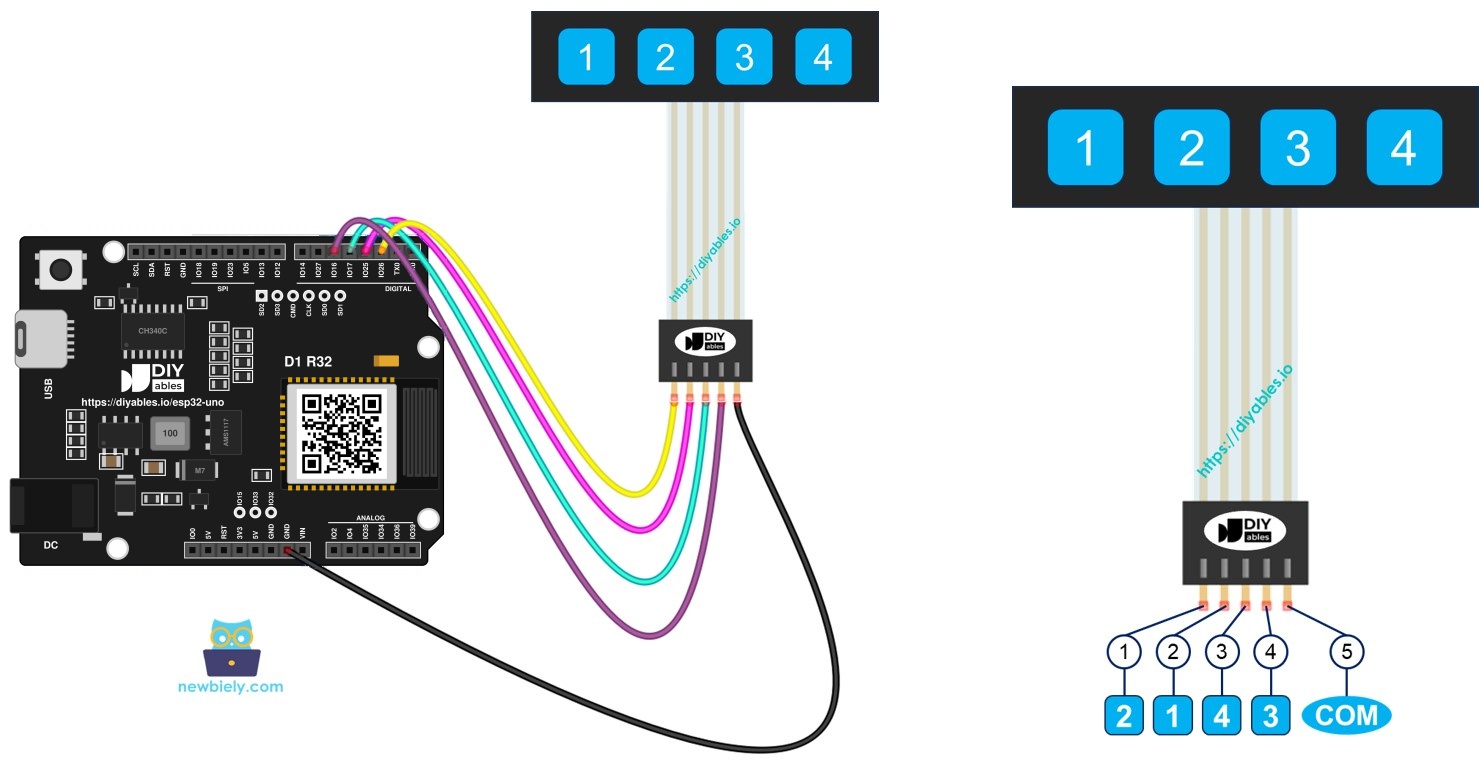
Components You Need
| 1 | × | ESP32 Uno-form Board | |
| 1 | × | USB Cable Type-A to Type-C (for USB-A PC) | |
| 1 | × | USB Cable Type-C to Type-C (for USB-C PC) | |
| 1 | × | Keypad 1x4 | |
| 1 | × | Jumper Wires |
Or you can buy the following kits:
| 1 | × | DIYables Sensor Kit (18 sensors/displays) |
Additionally, some of these links are for products from our own brand, DIYables .
Meet the 1x4 Keypad
After this part, you know what sits inside the strip and how a press reaches your code.
The part is a flat membrane strip with four keys side by side. Makers use it for short PIN codes, menu up/down/select/back controls, or a four-way mode choice.
| Feature | Details |
|---|---|
| Number of keys | 4, in a single row |
| Number of pins | 5 (four key pins plus one shared pin) |
| Switch type | momentary contact, closed only while held |
| Power pin | none, the keypad needs no supply voltage |
| Typical uses | passcode entry, menu control, mode selection |
Every key is a tiny switch. Hold it down and it shorts its own pin to the shared pin. Let go and the link opens again.
Pin Layout
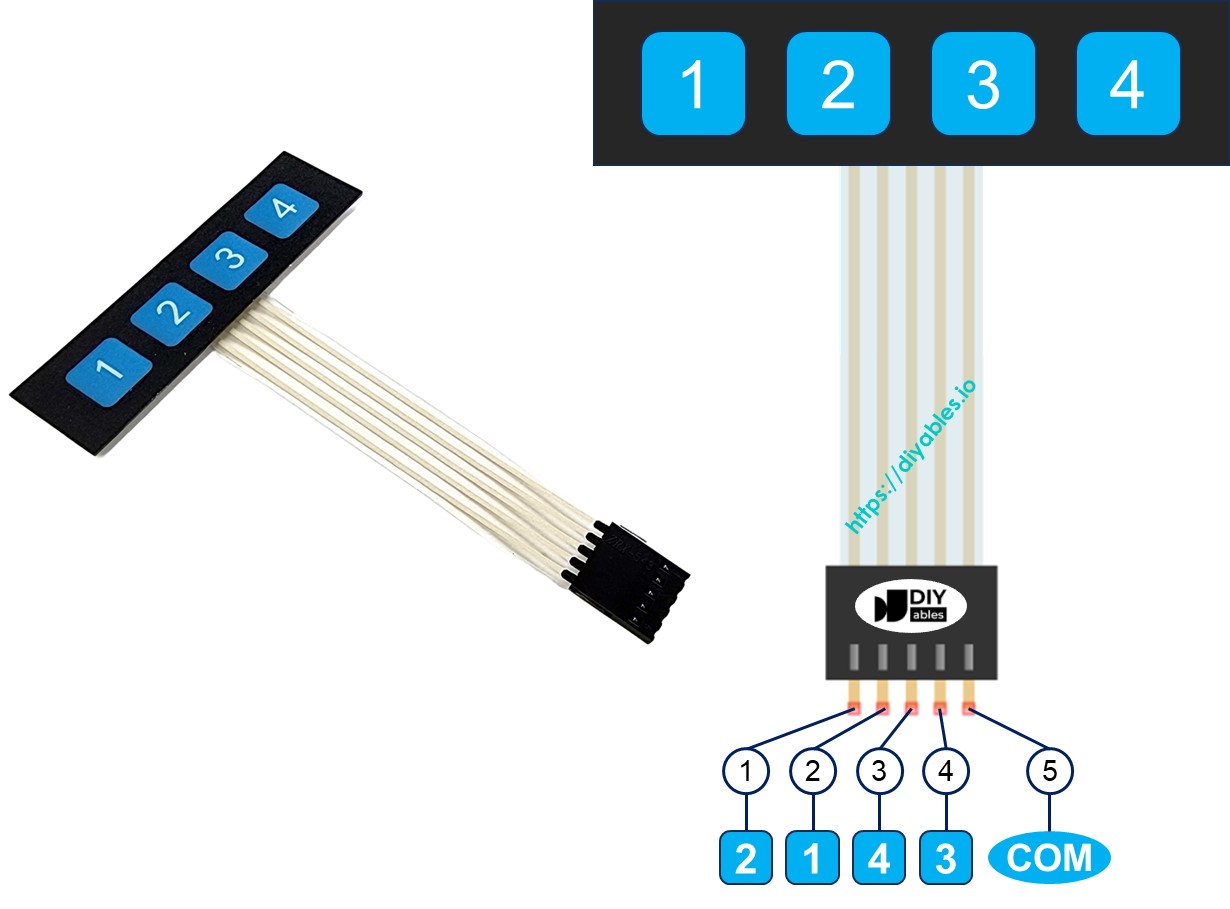
The pin order does not follow the key labels, so keep this table next to you while you wire.
| Keypad Pin | Goes To |
|---|---|
| Pin 1 | Key 2 |
| Pin 2 | Key 1 |
| Pin 3 | Key 4 |
| Pin 4 | Key 3 |
| Pin 5 | Shared line of all four keys |
ESP32 Uno Pinout
The board shows Uno names like D2 and D5, but the sketch needs the GPIO number behind each one. Look up the four key pins on this diagram first.

How to Connect
When this part is done, every key has its own input pin and the shared line sits on GND.
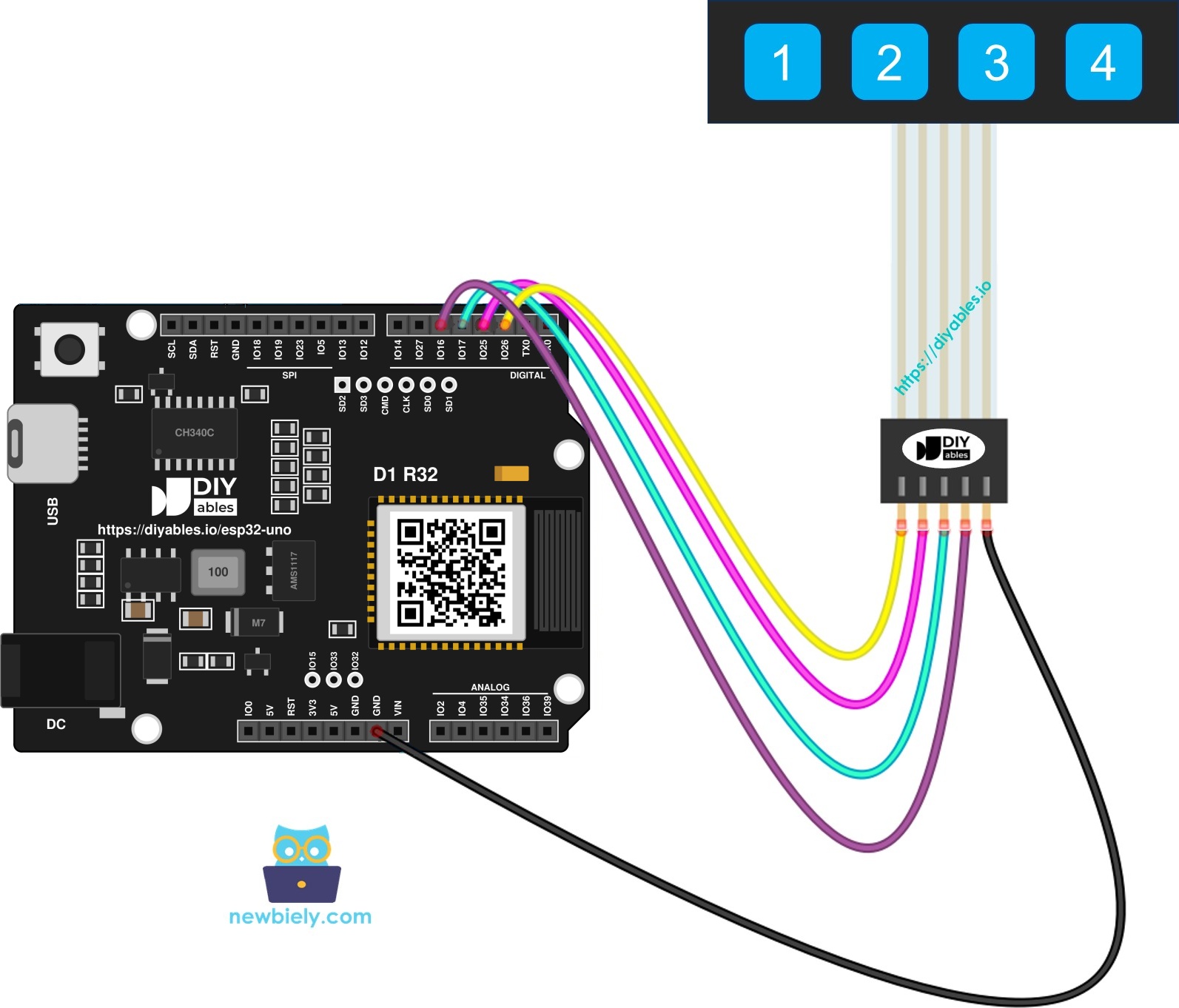
This image is created using Fritzing. Click to enlarge image
| Keypad Pin | ESP32 Uno Pin |
|---|---|
| Pin 1 (Key 2) | D2 (GPIO26) |
| Pin 2 (Key 1) | D3 (GPIO25) |
| Pin 3 (Key 4) | D4 (GPIO17) |
| Pin 4 (Key 3) | D5 (GPIO16) |
| Pin 5 (Shared) | GND |
Good to know: ezButton switches each input to INPUT_PULLUP, so an idle key reads HIGH and a held key reads LOW. No resistor is needed.
※ NOTE THAT:
The keypad only ever pulls a pin down to GND. No 5V signal touches the board, which is good, because ESP32 Uno pins run at 3.3V and are NOT 5V tolerant.
ESP32 Uno Code
This sketch treats each key as its own button and prints the key number once for every press.
Reading the keys with digitalRead() alone gives messy results. The metal contacts bounce for a few milliseconds, so one tap can look like five. Filtering four keys by hand without freezing loop() is a pain, so the code uses the ezButton library for that job.
Upload and Test
- First time with this board? Set it up with ESP32 Uno - Getting Started before you continue.
- Build the circuit by following the wiring table above.
- Plug in the USB Type-C cable between the ESP32 Uno and your computer.
- Select the board in Arduino IDE: pick ESP32 Dev Module and the COM port of the board (CH340).
- Open the Library Manager with the Libraries icon in the left bar.
- Search for the library: enter ezButton and find the entry from ArduinoGetStarted.com.
- Add it to the IDE by clicking Install.
- Search for ezButton created by ArduinoGetStarted.com and click the Install button.
- Paste the sketch from above into a new Arduino IDE window.
- Send the sketch to the board by clicking Upload.
- Open the Serial Monitor and pick 9600 baud in its menu.
- Tap the keys in any order you like, for example 3, 1, 4, 4.
- Read the output. Each tap gives one line:
- Pro tip: Hold a key down for two seconds. You still get only one line, because isPressed() fires on the press edge, not while the key stays down.
Code Explanation
| Code Part | What It Does |
|---|---|
| #define PIN_KEY_1 to PIN_KEY_4 | Stores the GPIO for each key (25, 26, 16, 17) |
| ezButton keypad_1x4[KEY_NUM] | Creates one debounced button object per key |
| setDebounceTime(100) | Ignores state changes shorter than 100 ms |
| keypad_1x4[i].loop() | Refreshes every key and must run before any check |
| isPressed() | Returns true once, at the moment a key goes down |
| getKeyPressed() | Gives back 1 to 4 for a new press, or 0 if nothing happened |
The result: loop() never blocks, and the Serial Monitor shows exactly one line per tap.
ESP32 Uno vs UNO R4 for This Project
Moving this keypad build to the ESP32 Uno changes only the numbers in the code.
| Item | Arduino UNO R4 | ESP32 Uno |
|---|---|---|
| Logic voltage | 5V | 3.3V |
| Key 1 pin (D3) | 3 | GPIO25 |
| Key 2 pin (D2) | 2 | GPIO26 |
| Key 3 pin (D5) | 5 | GPIO16 |
| Key 4 pin (D4) | 4 | GPIO17 |
| Library | ezButton | ezButton, no change |
| Arduino IDE board | Arduino UNO R4 WiFi | ESP32 Dev Module |
The same wires go to the same header holes, so your circuit works as-is. The keypad is a passive part with no supply pin, so the lower 3.3V logic level causes no trouble.
Go Wireless: Send Key Presses to Your Phone
After this part, you have an idea for a remote keypad log.
The ESP32 Uno has WiFi and Bluetooth built in. Instead of the USB Serial Monitor, push each key number to a web page or a phone app. That turns the strip into a wireless remote, or lets you log who typed what code at a door.
Try These Next
- Store the last four key presses and compare them with a secret code
- Use key 1 and key 2 to move up and down through a menu on an LCD
- Add a short beep from a buzzer every time a key is pressed
- Detect when a key is let go with isReleased()
Troubleshooting
| Problem | Possible Cause | Solution |
|---|---|---|
| No COM port appears in Arduino IDE | CH340 driver missing or charge-only USB cable | Install the CH340 driver and try a USB cable that carries data |
| Upload stops at Connecting or Waiting for download | Board did not enter download mode | Hold the BOOT button while the upload starts, then let go |
| No line appears for any key | Shared keypad pin is not on GND | Put keypad pin 5 on a GND header pin and press each jumper firmly |
| Keys 1 and 2 swap their numbers | Pins wired in the order of the key labels | Pin 1 belongs to key 2 and pin 2 to key 1, so follow the wiring table |
| One key never prints | Broken jumper or wrong GPIO in the sketch | Test the wire, then check that the define matches the header pin |
| A single tap prints two lines | Worn contacts bounce longer than 100 ms | Raise setDebounceTime() to 150 or 200 |
| Text looks like random symbols | Baud rate does not match | Choose 9600 baud in the Serial Monitor |
| ezButton.h no such file | Library not installed | Add ezButton through the Library Manager |
FAQ
How does a 1x4 membrane keypad work?
Each of the four keys is a simple switch. Pressing a key joins its pin to the shared pin. The board reads that pin as LOW while the key is held.
Why are the keypad pins not in the same order as the keys?
That is how the trace layout inside the membrane is made. Pin 1 serves key 2, pin 2 serves key 1, pin 3 serves key 4 and pin 4 serves key 3. Wire by the table, not by the labels.
Does the 1x4 keypad need 3.3V or 5V power?
Neither. It has no supply pin at all. Only the shared pin goes to GND, and the four key pins go to inputs.
Should I add pull-up resistors to the key pins?
No. ezButton enables the built-in pull-up on every key input. D2 to D5 (GPIO26, GPIO25, GPIO17, GPIO16) all have one.
Could I wire the keys to A2 to A5 instead?
Be careful. On the ESP32 Uno, A2 to A5 are GPIO35, 34, 36 and 39. They are input only and have no internal pull-up, so INPUT_PULLUP does nothing there. You would need an external 10kΩ resistor from each pin to 3.3V.
Which Uno pins should I avoid for the keys on the ESP32 Uno?
Skip D0 and D1, because they carry the USB serial link. Also avoid D8 (GPIO12), D10 (GPIO5) and A0 (GPIO2) if you can. They are boot strapping pins, and a held key at power-on can stop the board from starting.
How do I change the time the code waits for a stable key?
Edit the value in setDebounceTime(). 100 ms suits most strips. Try 50 for a faster feel or 200 for an old, noisy keypad.
Can I connect two 1x4 keypads to one ESP32 Uno?
Yes. Add four more ezButton objects on four free pins, set KEY_NUM to 8 and grow the array. Both shared pins go to GND.
Do I need to change UNO R4 keypad code to run it here?
Only the pin numbers. The UNO R4 uses 2 to 5, while the ESP32 Uno uses GPIO26, 25, 17 and 16 for the same D2 to D5 holes. The ezButton calls stay the same.
What if my keypad project needs more pins than the Uno headers offer?
The ESP32 Uno has a few extra holes near the power header: GPIO32 and GPIO33 (I/O, PWM, analog on ADC1, so they also work while WiFi is on) and GPIO15 (I/O, PWM, analog on ADC2). Add pin headers with a soldering iron, then put the plain GPIO number in your sketch. For a second keypad or extra keys, use GPIO32 and GPIO33 first. Two warnings: (1) GPIO15 and GPIO0 (the IO0 pin at the unused Uno NC position) are boot strapping pins, and a wrong connection can stop the board from booting or uploading code. (2) Never use the six holes under the digital header (SD0 to SD3, CMD, CLK = GPIO6 to GPIO11). They go to the flash chip, and using them crashes the board.
Can the ESP32 Uno show the pressed key on a web page?
Yes. The board has WiFi and Bluetooth, so you can send each key number to a browser or a phone app. See the Go Wireless section above for ready-made tutorials.