
ESP32 UNO - Relay
How do you turn a lamp, a fan or a door lock on and off from code? The answer is a relay module on the ESP32 Uno. A single control wire from the ESP32 Uno form board flips the relay, and the relay switches the high-voltage load for you.
By the end, you can:
- Explain how a 1-channel relay module switches a load
- Wire the relay IN pin to D3 of the ESP32 Uno
- Connect a 12V device to the COM and NO terminals
- Turn the relay on and off with digitalWrite() in Arduino IDE
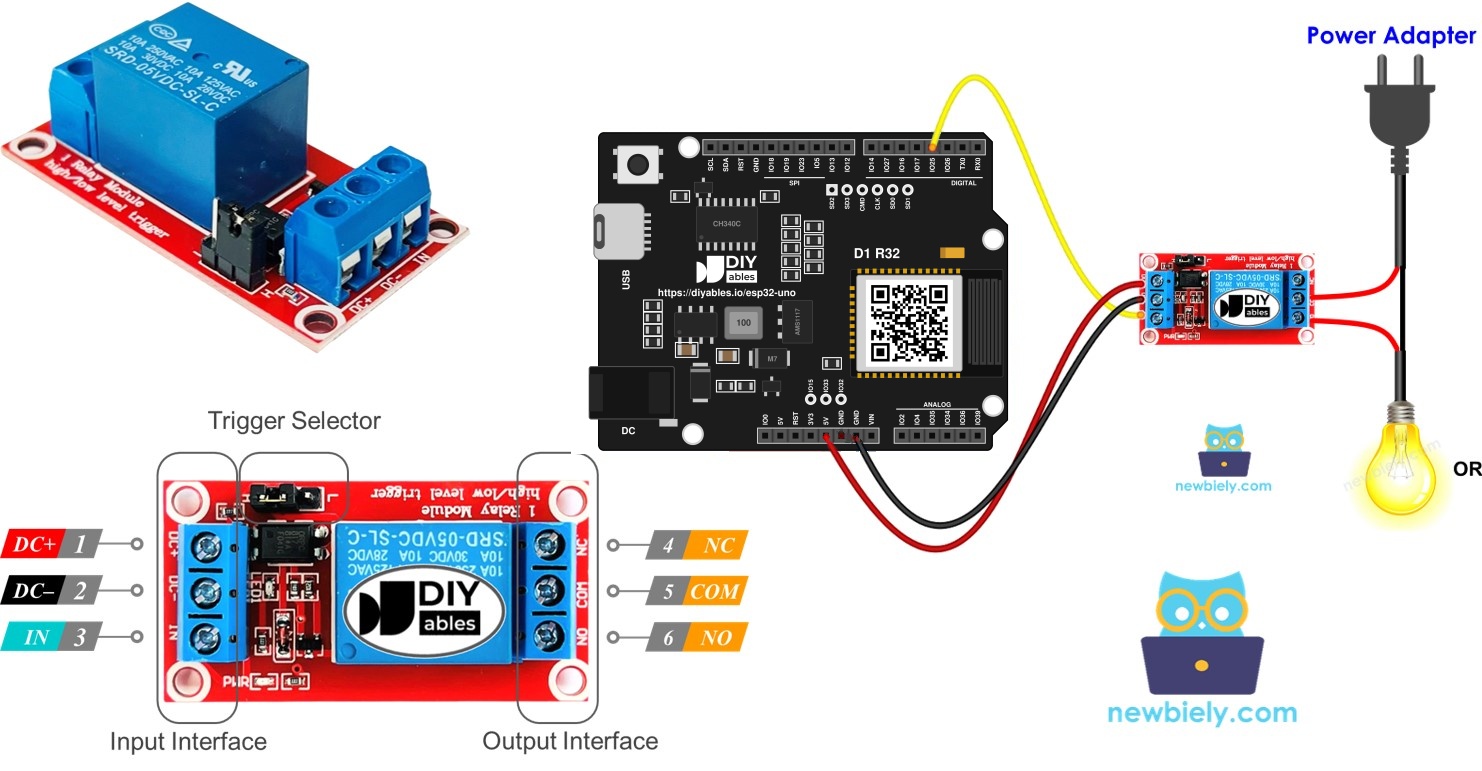
Components You Need
| 1 | × | ESP32 Uno-form Board | |
| 1 | × | USB Cable Type-A to Type-C (for USB-A PC) | |
| 1 | × | USB Cable Type-C to Type-C (for USB-C PC) | |
| 1 | × | Relay | |
| 1 | × | LED Strip | |
| 1 | × | 12V Power Adapter | |
| 1 | × | DC Power Jack | |
| 1 | × | Breadboard | |
| 1 | × | Jumper Wires |
Or you can buy the following kits:
| 1 | × | DIYables Sensor Kit (18 sensors/displays) |
Additionally, some of these links are for products from our own brand, DIYables .
What Is a Relay?
After this part, you know why a pin of the ESP32 Uno cannot power a lamp, and how a relay fixes that.
A relay is an electrically controlled switch. A small signal from the ESP32 Uno closes or opens a contact. That contact can carry far more voltage and current than any pin of the board. The relay is the link between the low-voltage board and the high-voltage load.
WARNING
Mains power can hurt or kill you. Do not touch mains wiring unless you are sure you know what you are doing. If you are unsure, ask an experienced person to help.
Many relays can switch both AC and DC loads. For your first tests, use a DC load of 24V or less.
Relay Pinout
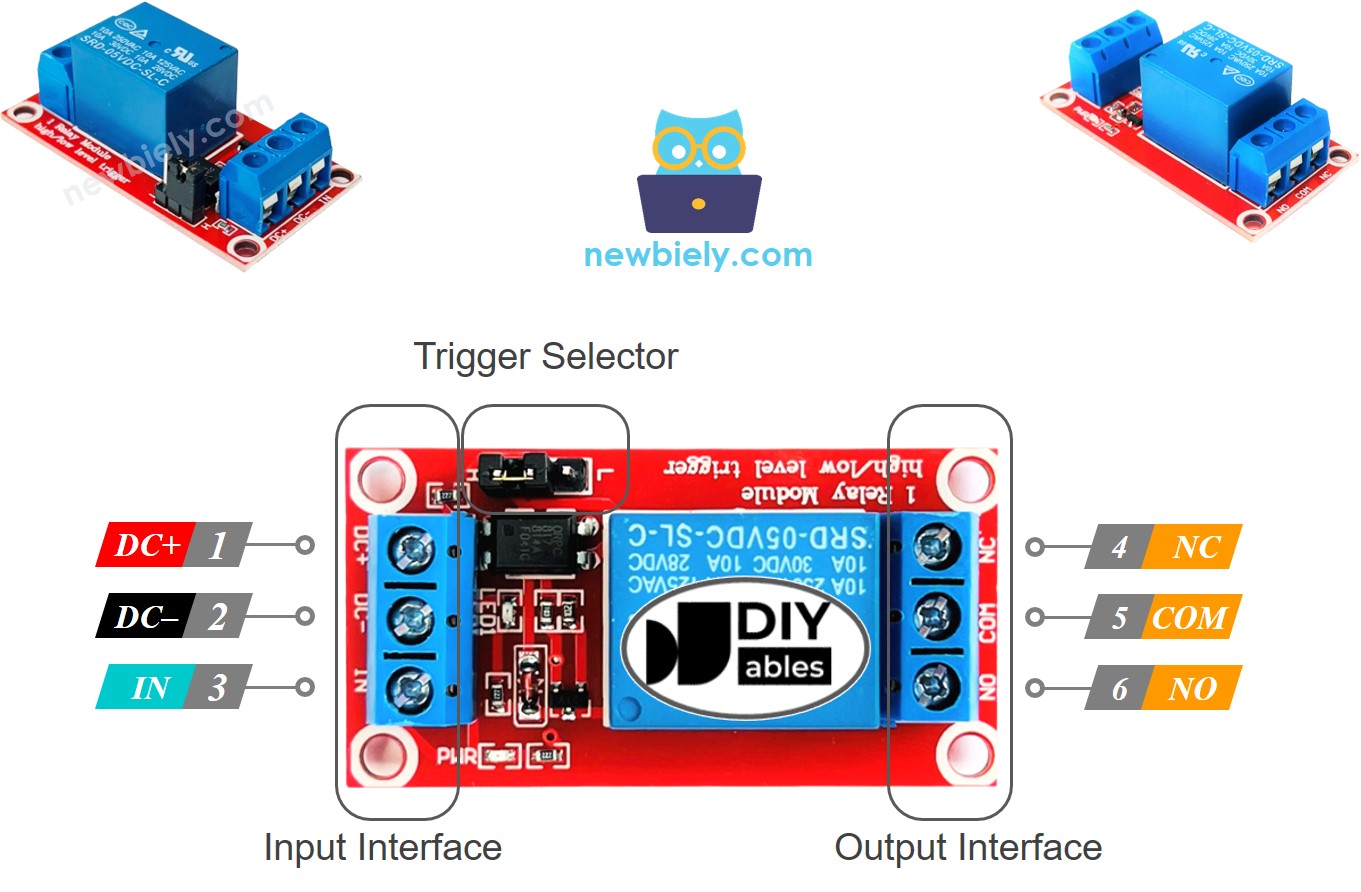
The module has a low-voltage side and a high-voltage side. This table shows every pin:
| Pin | Side | Job |
|---|---|---|
| DC- | Low voltage | Goes to GND (0V) |
| DC+ | Low voltage | Goes to the supply, usually 5V |
| IN | Low voltage | Takes the control signal from the ESP32 Uno |
| COM | High voltage | Common contact, used in both modes |
| NO | High voltage | Normally open contact |
| NC | High voltage | Normally closed contact |
You only use two of the three output pins at a time. Use COM and NO for normally open mode. Use COM and NC for normally closed mode.
Some modules let you pick a LOW level trigger or a HIGH level trigger with a jumper.
※ NOTE THAT:
Pin order differs between makers. Always read the printed labels on your module before you wire it.
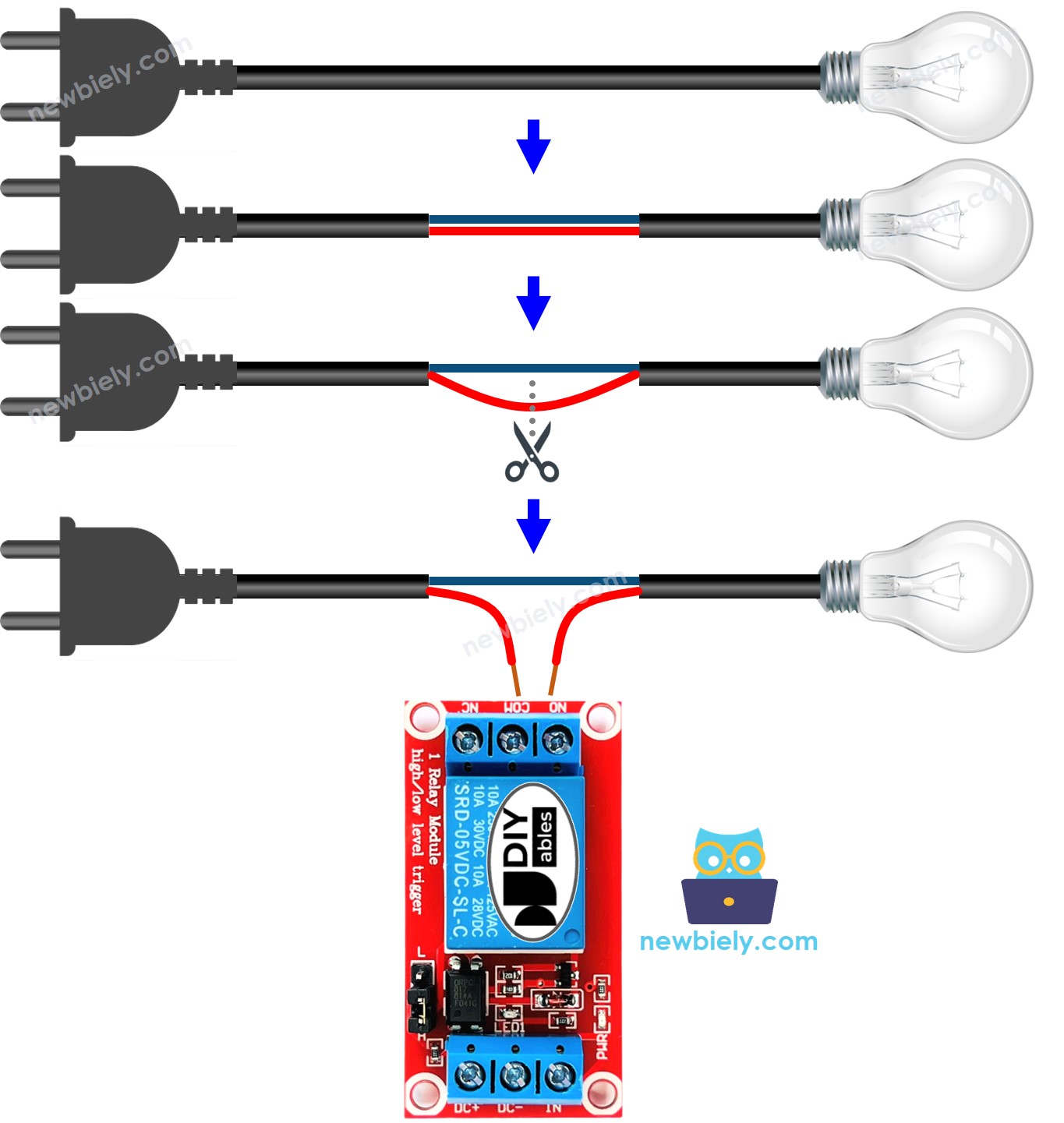
Wiring the Load Side of the Relay
How a Relay Behaves
After this part, you can predict whether the load is on or off for any setting.
Two settings decide what the relay does:
- The input mode is LOW level trigger or HIGH level trigger.
- The output mode is normally open or normally closed.
Here, "normally" means the state when the IN pin sits at LOW (0V). The two input modes act in opposite ways, and so do the two output modes. A module may support only one input mode, and it works in one mode at a time.
If you are new, start with HIGH level trigger and normally open. The LOW level trigger is just the mirror image of what follows.
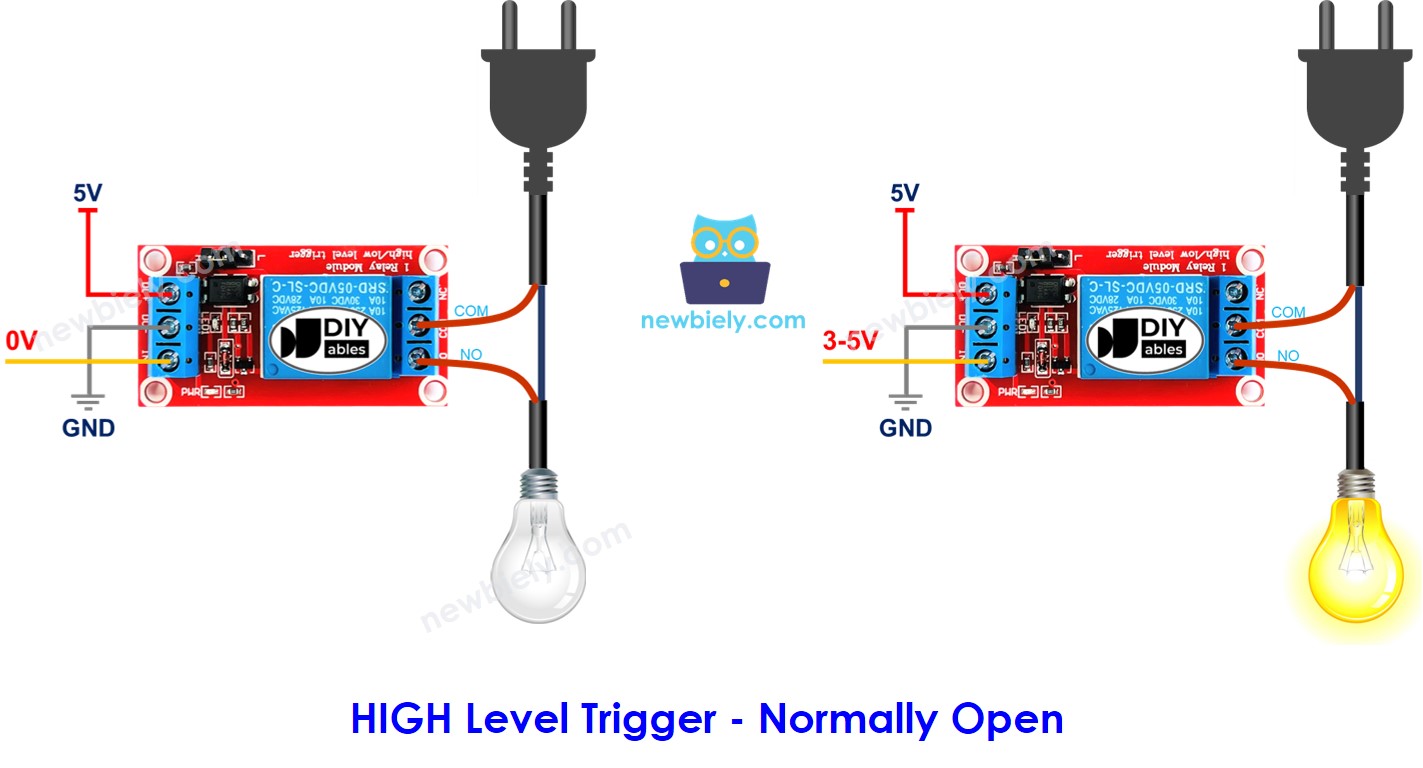
Case A: HIGH Level Trigger with Normally Open
Wire the load to COM and NO.
- IN at LOW (0V): contact open, load OFF.
- IN at HIGH (3.3V from the ESP32 Uno): contact closed, load ON.
Case B: HIGH Level Trigger with Normally Closed
Wire the load to COM and NC.
- IN at LOW (0V): contact closed, load ON.
- IN at HIGH (3.3V from the ESP32 Uno): contact open, load OFF.
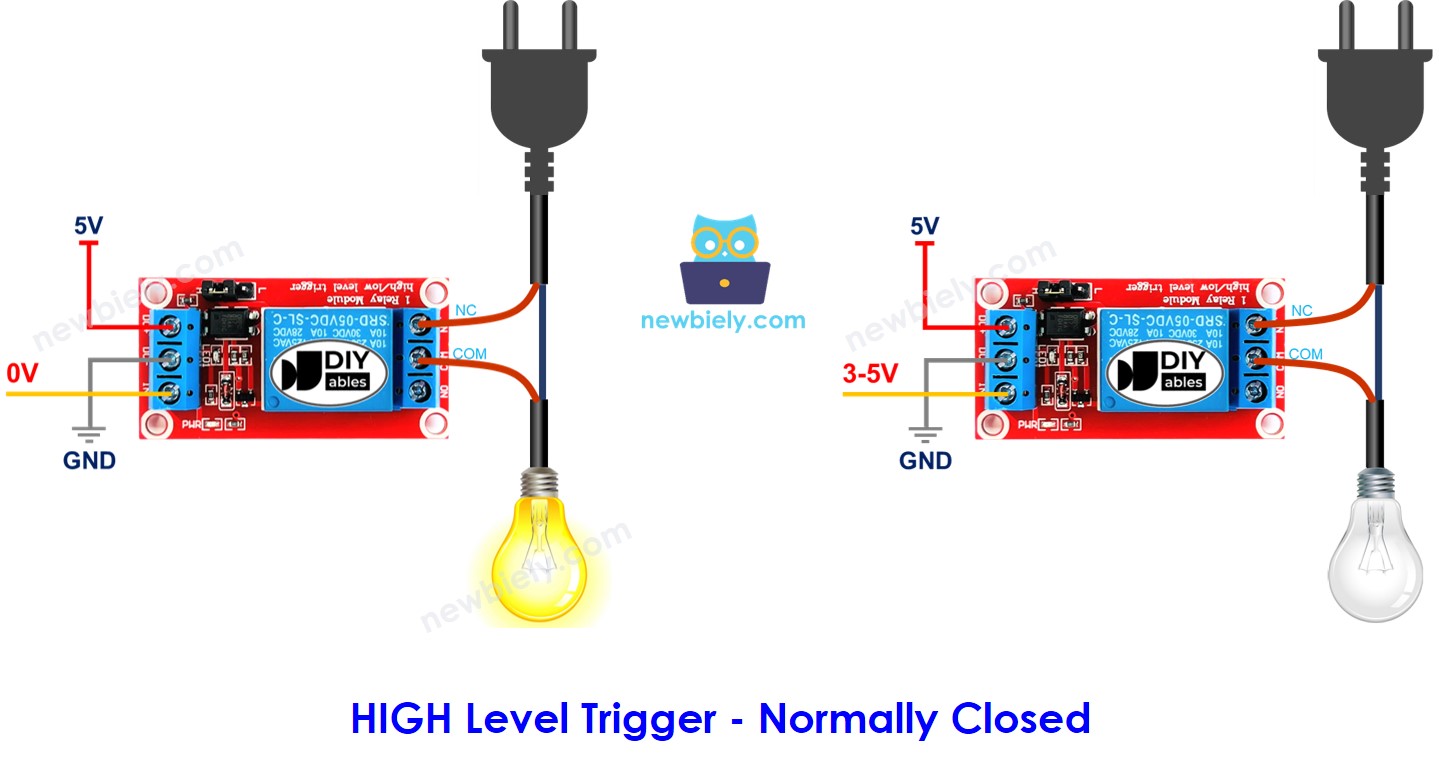
All Eight Cases
| Input Mode | Output Mode | IN Pin | Used Terminals | Contact | Load |
|---|---|---|---|---|---|
| HIGH Trigger | Normally Open | LOW | COM and NO | open | OFF |
| HIGH Trigger | Normally Open | HIGH | COM and NO | closed | ON |
| HIGH Trigger | Normally Closed | LOW | COM and NC | closed | ON |
| HIGH Trigger | Normally Closed | HIGH | COM and NC | open | OFF |
| LOW Trigger | Normally Open | LOW | COM and NO | closed | ON |
| LOW Trigger | Normally Open | HIGH | COM and NO | open | OFF |
| LOW Trigger | Normally Closed | LOW | COM and NC | open | OFF |
| LOW Trigger | Normally Closed | HIGH | COM and NC | closed | ON |
Eight rows look like a lot, but the first two rows cover this whole tutorial.
Good to know: the ESP32 Uno outputs 3.3V for HIGH. Most relay modules with a transistor or optocoupler input accept this as a valid HIGH.
ESP32 Uno Pinout
On the ESP32 Uno form board, each printed Uno label points to a GPIO number, and the GPIO number is what you type in code. Find D3 on the diagram below before you connect the relay.

How to Connect
When you finish this part, the relay is powered and the ESP32 Uno controls its IN pin.
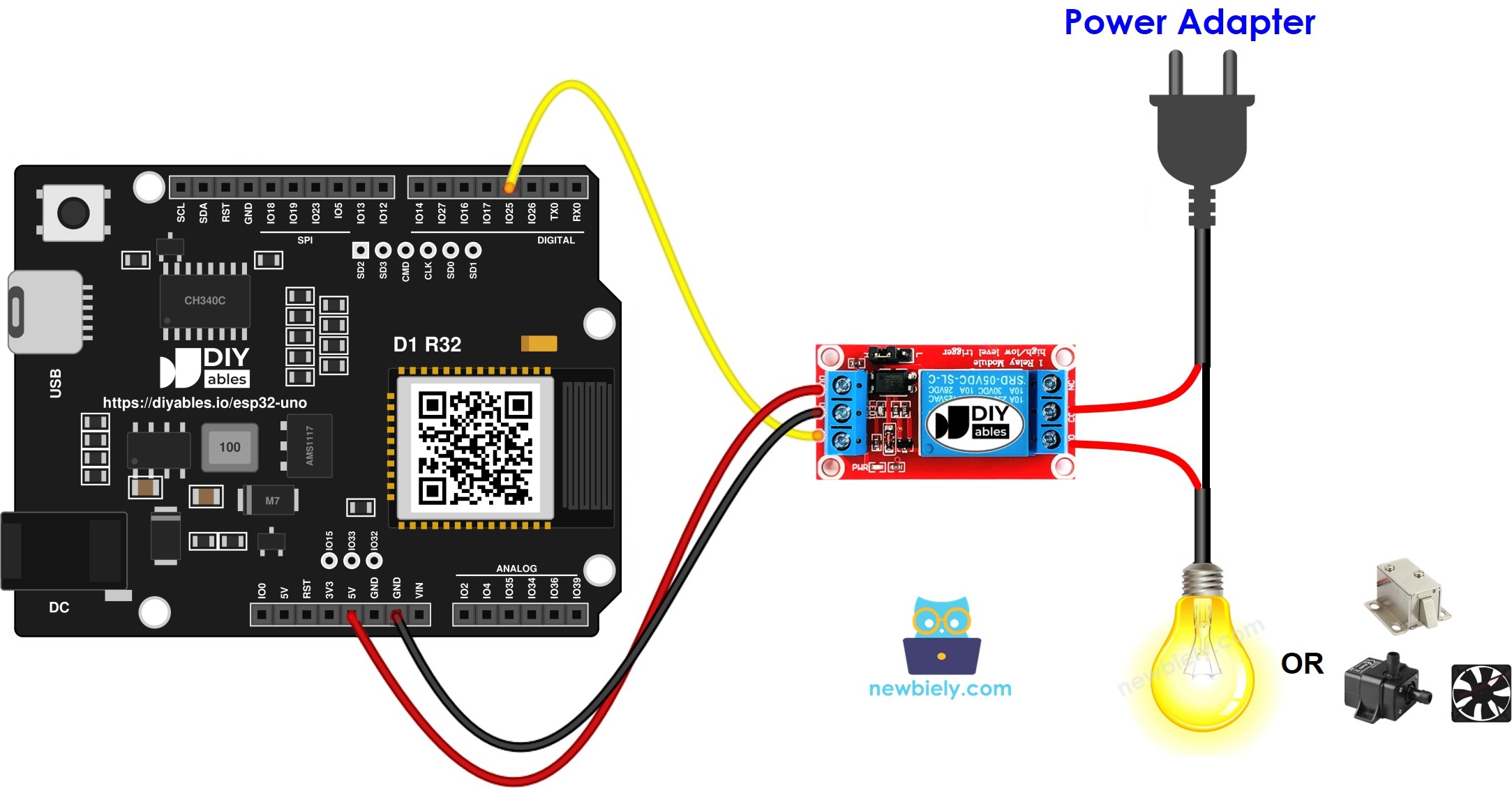
This image is created using Fritzing. Click to enlarge image
| Relay Pin | ESP32 Uno Pin |
|---|---|
| DC+ | 5V |
| DC- | GND |
| IN | D3 (GPIO25) |
Good to know: ESP32 Uno pins use 3.3V logic and are NOT 5V tolerant. Here the signal only goes out of the board, so this is safe.
Connect the 12V LED strip through the COM and NO terminals, with the 12V adapter and the DC power jack as its supply.
Programming the Relay
After this part, you know the two functions that drive a relay.
| Task | Function | Example |
|---|---|---|
| Make the pin an output | pinMode() | pinMode(25, OUTPUT); |
| Set the pin LOW (0V) | digitalWrite() | digitalWrite(25, LOW); |
| Set the pin HIGH (3.3V) | digitalWrite() | digitalWrite(25, HIGH); |
Read more in the pinMode() and digitalWrite() references.
ESP32 Uno Code
This sketch turns the relay on for half a second, then off for half a second, again and again.
Upload and Test
- First time with this board? Set it up with ESP32 Uno - Getting Started before you continue.
- Build the circuit by following the wiring table above.
- Plug in the USB Type-C cable between the ESP32 Uno and your computer.
- Select the board in Arduino IDE: pick ESP32 Dev Module and the COM port of the board (CH340).
- Paste the sketch into a new Arduino IDE window.
- Press Upload and wait for "Done uploading".
- Watch the load: the LED strip should blink, and you should hear the relay click each time.
- Pro tip: test with a small 5V LED and resistor on COM and NO first. You can see which state is closed with zero risk.
Video Tutorial
See the ESP32 Uno build in action in the video below.
How the Code Works
| Code Part | What It Does |
|---|---|
| #define RELAY_PIN 25 | Names D3 (GPIO25) as the relay pin |
| pinMode(RELAY_PIN, OUTPUT) | Lets the pin drive the IN input |
| digitalWrite(RELAY_PIN, HIGH) | Closes the relay in HIGH trigger mode |
| delay(500) | Waits half a second between changes |
| digitalWrite(RELAY_PIN, LOW) | Opens the relay again |
The result is a one-second cycle of 0.5 seconds ON and 0.5 seconds OFF.
ESP32 Uno vs UNO R4 for This Project
Moving the relay project from the UNO R4 to the ESP32 Uno changes the pin number and the signal level.
| Item | Arduino UNO R4 | ESP32 Uno |
|---|---|---|
| Logic voltage | 5V | 3.3V |
| IN pin | D3 (pin 3 in code) | D3 (GPIO25 in code) |
| Relay supply | 5V pin | 5V pin (same) |
| Wireless | WiFi on the R4 WiFi only | WiFi plus Bluetooth Classic and BLE |
| Arduino IDE board | Arduino UNO R4 WiFi or Minima | ESP32 Dev Module |
| USB chip | Native USB | CH340 driver needed |
The same wiring works as-is, because the relay stays on the D3 header. Check that your relay module accepts a 3.3V signal on IN.
Go Wireless: Switch the Relay from Your Phone
After this part, you know how to control the relay without touching the board.
The ESP32 Uno has WiFi and Bluetooth built in. You can add a button on a web page or in a phone app that sets the relay pin HIGH or LOW. Then you switch your lamp from the sofa. Keep the same pin, D3 (GPIO25), in your code.
Function References
Troubleshooting
| Problem | Possible Cause | Solution |
|---|---|---|
| No COM port appears | CH340 driver missing or charge-only cable | Install the CH340 driver and use a USB cable that carries data |
| Failed to connect or Waiting for download | Board not in upload mode | Hold the BOOT button while the upload starts |
| Relay does not click | DC+ or DC- not connected | Check 5V and GND wires on the module |
| Relay LED is on but load stays off | Load wired to wrong terminals | Use COM and NO for normally open mode |
| Relay works backwards | Module is LOW level trigger | Swap HIGH and LOW in the code or move the trigger jumper |
| Relay clicks weakly or resets the board | Supply sags when the coil pulls current | Power the module from a separate 5V adapter and join the GNDs |
| Relay never switches | IN pin wired to the wrong header | Move IN to D3 (GPIO25) or change RELAY_PIN |
| Module needs more than 3.3V to trigger | Optocoupler input needs a stronger signal | Use a relay module made for 3.3V logic |
FAQ
What does a relay do in an ESP32 Uno project?
It works as a remote switch. The ESP32 Uno sends a small signal, and the relay opens or closes a separate circuit that can carry much more power.
Can the ESP32 Uno drive a relay module directly?
Yes, if the module has a transistor or optocoupler input. The IN pin draws only a few milliamps. A bare relay coil must never connect to a pin directly.
Does the relay IN pin work with 3.3V signals?
Most modules switch fine with 3.3V HIGH from the ESP32 Uno. If yours clicks only sometimes, buy a module marked for 3.3V logic.
Should I power the relay from 5V or 3.3V?
Most modules need 5V on DC+, so use the 5V pin. Only the signal wire is 3.3V.
Which is better, normally open or normally closed?
Use normally open if the load should be off by default. Use normally closed if it should stay on when the board is off or reset.
Why does my relay work backwards?
Your module is probably a LOW level trigger type. LOW then turns it on. Either swap HIGH and LOW in the sketch or move the jumper if one exists.
Can I use another pin than D3 on the ESP32 Uno?
Yes. Change RELAY_PIN to another output-capable GPIO. Avoid A2 to A5 (GPIO35, 34, 36, 39) because they are input only, and avoid D0 and D1 because they carry USB serial.
Is it safe to use a relay with mains power?
It can be, but only with proper insulation and knowledge. Start with a DC load of 24V or less, and ask an expert before you touch mains wiring.
Can I control the relay with WiFi on the ESP32 Uno?
Yes. The ESP32 Uno has WiFi and Bluetooth, so you can switch the relay from a web page or phone app. See the Go Wireless part above.
Does the UNO R4 relay code run on the ESP32 Uno?
Almost. The logic is identical, but the pin number changes from 3 to 25 because D3 maps to GPIO25.
What if my project needs more pins than the Uno headers give?
The ESP32 Uno has extra holes near the power header: GPIO32 and GPIO33 (I/O, PWM, analog on ADC1, so they also work while WiFi is on) and GPIO15 (I/O, PWM, analog on ADC2). Solder pin headers to use them and write the GPIO number in code. For more relays, GPIO32 and GPIO33 are good first choices. Two warnings. First, GPIO15 and GPIO0 (the IO0 pin at the unused Uno NC position) are boot strapping pins, so a wrong connection can stop the board from booting or uploading code. Use GPIO32 and GPIO33 first. Second, never use the six holes under the digital header (SD0 to SD3, CMD, CLK = GPIO6 to GPIO11). They connect to the flash chip, and using them crashes the board.