
ESP32 UNO - Force Sensor
How hard is someone pressing? An ESP32 Uno force sensor circuit answers that with one analog pin and a few lines of Arduino code. Hook a force sensitive resistor (FSR) up to the ESP32 Uno form board, and every press turns into a number from 0 to 4095 plus a plain label such as "light touch" or "big squeeze" on your computer screen.
By the end, you can:
- Explain how a force sensing resistor changes with pressure
- Wire an FSR and a 10 kΩ pull-down resistor to an analog pin
- Turn each press into a number using analogRead()
- Sort raw readings into five pressure levels
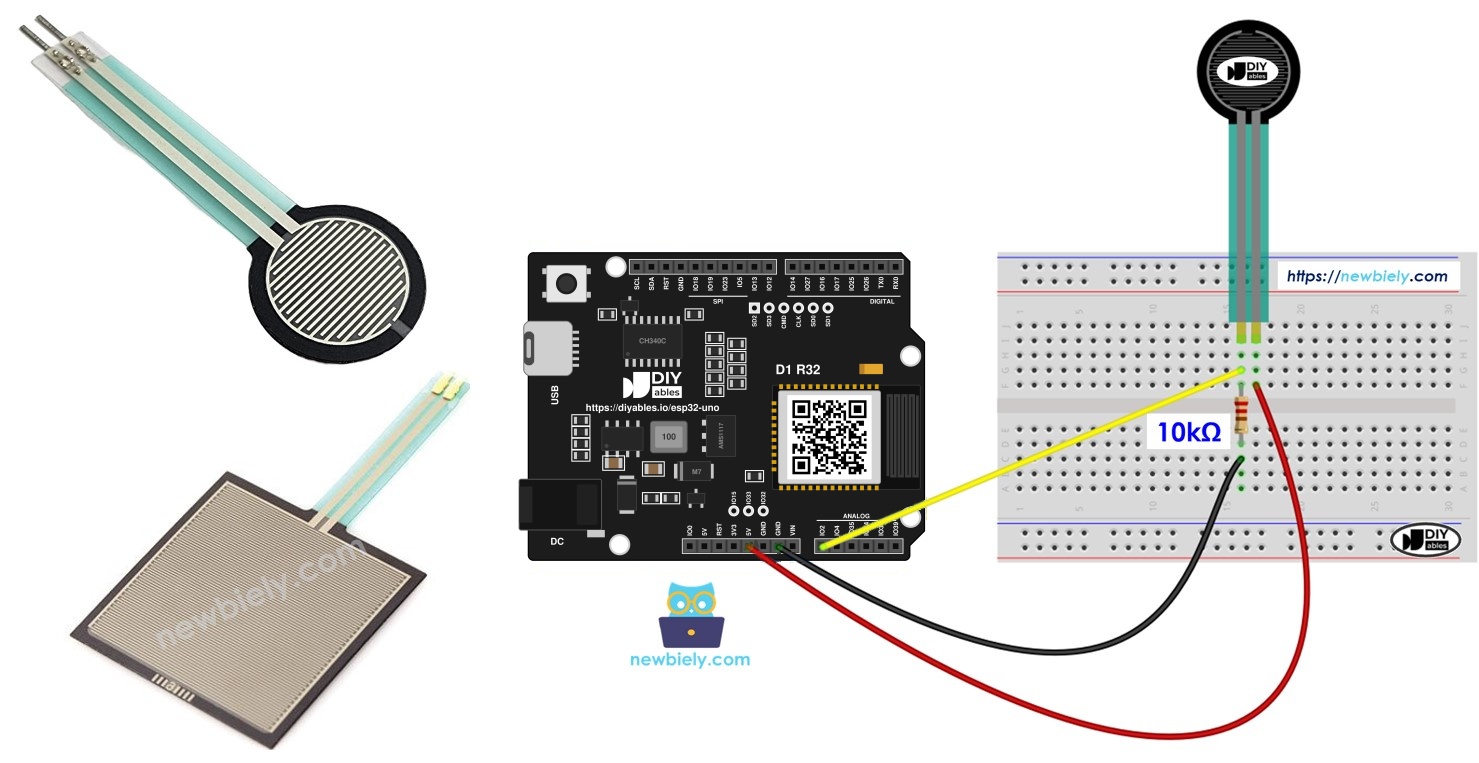
Components You Need
| 1 | × | ESP32 Uno-form Board | |
| 1 | × | USB Cable Type-A to Type-C (for USB-A PC) | |
| 1 | × | USB Cable Type-C to Type-C (for USB-C PC) | |
| 1 | × | Force Sensor | |
| 1 | × | 10 kΩ Resistor | |
| 1 | × | Breadboard | |
| 1 | × | Jumper Wires |
Or you can buy the following kits:
| 1 | × | DIYables Sensor Kit (18 sensors/displays) |
Additionally, some of these links are for products from our own brand, DIYables .
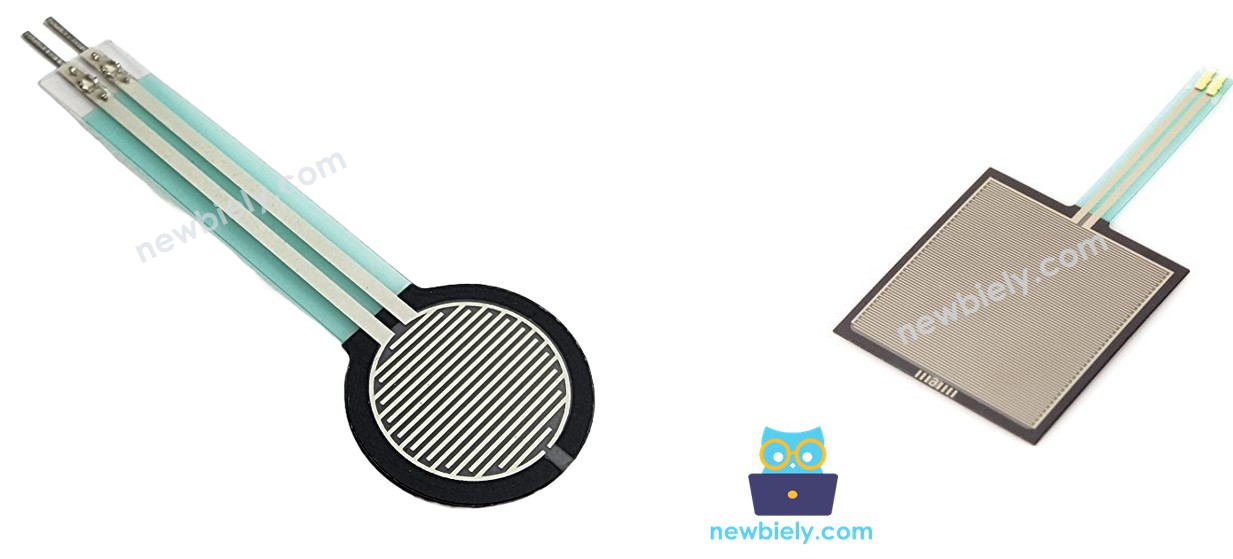
Force Sensor Basics
After this part, you know what an FSR reports and where it fits.
| Property | Detail |
|---|---|
| Other names | Force sensing resistor, force sensitive resistor, FSR |
| Output type | Resistance that drops as pressure rises |
| Resting resistance | Very high (almost an open circuit) |
| Strong at | Spotting a tap, a press or a squeeze |
| Weak at | Exact weight in grams or pounds |
| Price and effort | Low cost, no library needed |
| Found in | E-drum pads, phones, handheld game pads, small gadgets |
Good to know: treat an FSR as a "how hard" sensor, not a scale. Two sensors from the same bag can give quite different numbers for the same press.
Pinout
The part has just two legs. Like any plain resistor it has no polarity, so either leg can go to either side of the circuit.
How It Works
Pressure squeezes the conductive layers inside the round pad closer together, so current finds an easier path.
| Pressure on the pad | FSR resistance | Voltage at A0 |
|---|---|---|
| None | Very high | About 0V |
| Light | High | Low |
| Medium | Medium | Middle |
| Hard | Low | Close to 3.3V |
A fixed 10 kΩ resistor is placed in series with the FSR. The pair forms a voltage divider, and the joint between them feeds the analog pin. Less FSR resistance means a higher voltage at that joint.
ESP32 Uno Pinout
The labels printed on the Uno headers (A0, 3V3, GND) are not the numbers your sketch uses. Find each label's GPIO number in the diagram below before you plug in a jumper wire.

How to Connect
At the end of this step, the FSR and resistor form a divider between 3.3V and GND, with the middle point on A0.
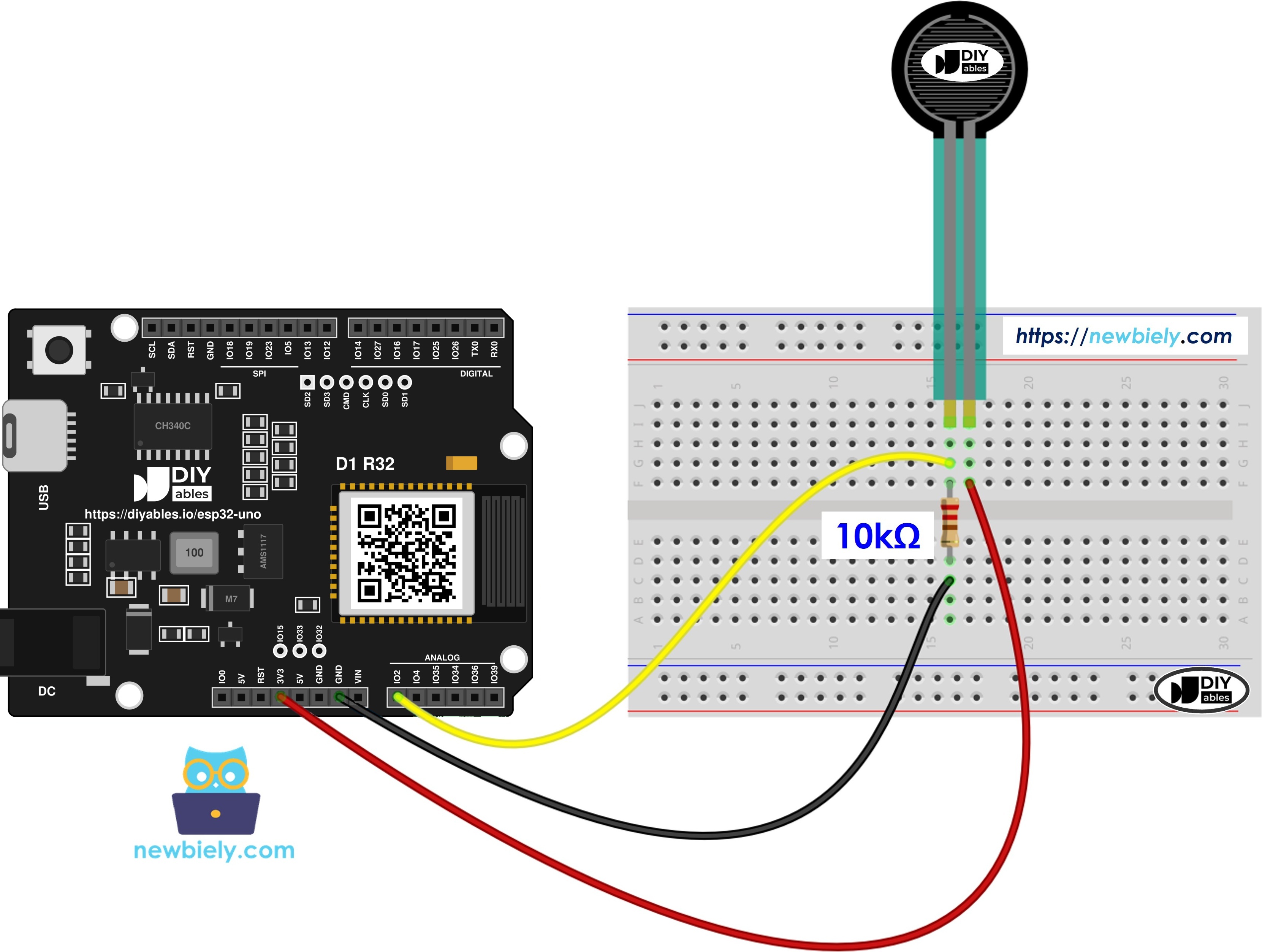
This image is created using Fritzing. Click to enlarge image
| Component Pin | ESP32 Uno Pin |
|---|---|
| Force sensor leg 1 | 3.3V |
| Force sensor leg 2 + one end of 10 kΩ resistor | A0 (GPIO2) |
| Other 10 kΩ resistor leg | GND |
Good to know: the ESP32 Uno runs on 3.3V logic, so the top of the divider must be the 3.3V pin.
WARNING
Do not feed the FSR from 5V. A firm press pushes A0 almost up to the supply voltage, and ESP32 Uno pins are not 5V tolerant. 5V on A0 can kill the pin.
WARNING
A0 is GPIO2, a boot strapping pin. The 10 kΩ resistor keeps it LOW at startup, which is safe. If the board refuses to boot or upload, check that nothing pulls A0 HIGH during reset (for example, someone pressing the sensor while you hit upload).
Reading Pressure in Code
This part shows how a voltage becomes a number your sketch can test.
| Item | ESP32 Uno value |
|---|---|
| Analog pins on the Uno header | A0 to A5 |
| ADC resolution | 12-bit |
| Value range | 0 to 4095 |
| Input voltage range (11 dB attenuation) | 0V to about 3.3V |
| Function used | analogRead() |
Because the divider joint goes to A0, a single call to analogRead() on that pin tells you the pressure. Bigger numbers mean a harder press.
Good to know: A0 (GPIO2) is an ADC2 pin. It reads fine in this sketch, but ADC2 stops working once WiFi is turned on.
ESP32 Uno Code
This sketch samples A0 (GPIO2) once a second, prints the raw number, and adds a pressure label.
| Code Part | What It Does |
|---|---|
| #define FORCE_SENSOR_PIN 2 | Points the sketch at A0, which is GPIO2 |
| analogSetAttenuation(ADC_11db) | Widens the ADC input range to about 3.3V |
| analogRead(FORCE_SENSOR_PIN) | Returns the divider voltage as 0 to 4095 |
| if / else if chain | Compares the value with 40, 800, 2000 and 3200 |
| delay(1000) | Waits one second between readings |
The result is one line per second, each showing the reading and a pressure label.
Good to know: analogSetAttenuation(ADC_11db) lets the ESP32 Uno analog pin cover the full span from 0V up to about 3.3V. Leave it out and the reading slams into 4095 after a gentle press, so the labels stop making sense.
The four limits are sized for the 12-bit range. Your FSR may behave a bit differently, so adjust them after a few test presses.
Upload and Test
- First time with this board? Set it up with ESP32 Uno - Getting Started before you continue.
- Build the circuit by following the wiring table above.
- Plug in the USB Type-C cable between the ESP32 Uno and your computer.
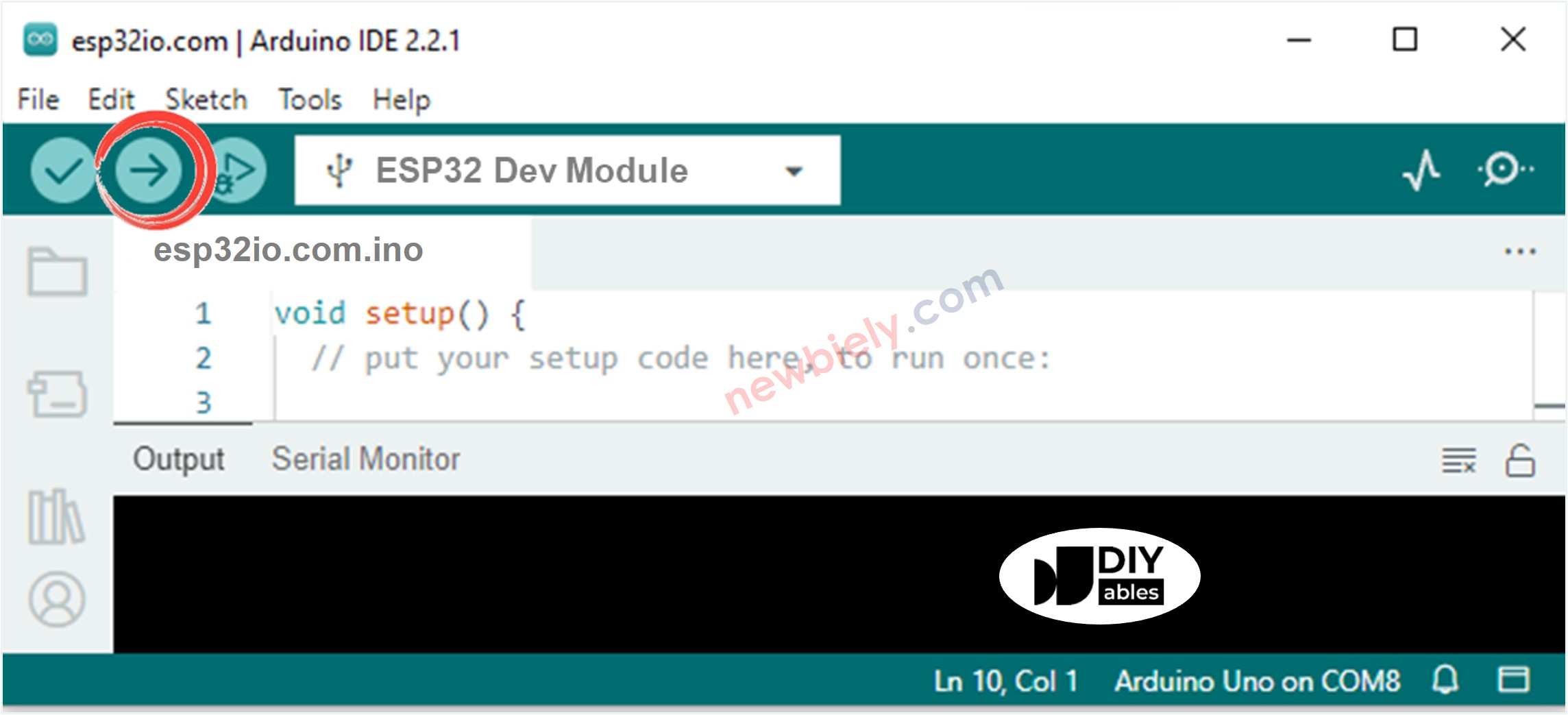
- Select the board in Arduino IDE: pick ESP32 Dev Module and the COM port of the board (CH340).
- Paste the sketch into a new Arduino IDE window.
- Press Upload (Upload) and wait for "Done uploading".
- Open Serial Monitor at 9600 baud.
- Push on the pad softly first, then harder.
- Watch the labels change in the Serial Monitor.
- Pro tip: tape the FSR flat to a stiff card before testing. A bent or wobbly pad gives lower, jumpier numbers than a flat one.
Video Tutorial
See the ESP32 Uno build in action in the video below.
The video project adds two outputs: a row of 8 LEDs on D2 to D9 that light up like a level meter, and a battery-style bar on an SSD1306 OLED wired to the SDA (GPIO21) and SCL (GPIO22) header pins. Here is the matching ESP32 Uno code:
| LED | Uno Pin | GPIO in code |
|---|---|---|
| LED 1 | D2 | 26 |
| LED 2 | D3 | 25 |
| LED 3 | D4 | 17 |
| LED 4 | D5 | 16 |
| LED 5 | D6 | 27 |
| LED 6 | D7 | 14 |
| LED 7 | D8 | 12 |
| LED 8 | D9 | 13 |
WARNING
LED 7 sits on D8 (GPIO12), a boot strapping pin that must be LOW when the board starts. An LED with its resistor to GND normally keeps it LOW, but if the board will not boot or upload, unplug the D8 LED, upload, and plug it back in.
Code Explanation
This part walks through the demo sketch so you can change it with confidence.
| Code Part | What It Does |
|---|---|
| ledPins[8] | Holds GPIO 26, 25, 17, 16, 27, 14, 12, 13 for D2 to D9 |
| smoothValue and alpha | Moving-average filter, 30% new sample and 70% old value |
| FORCE_MAX = 4000 | Top of the expected 12-bit range |
| map(...) + constrain(...) | Turns the smoothed value into a level from 0 to 8 |
| LED for loop | Turns on one LED per level |
| drawRect / fillRect | Draws the battery outline and a fill that grows with the level |
The result is a fast, smooth 8-step meter on both the LEDs and the OLED, refreshed about every 30 ms.
ESP32 Uno vs UNO R4 for This Project
This table lists what changes when this FSR project moves from the UNO R4 to the ESP32 Uno.
| Item | Arduino UNO R4 | ESP32 Uno |
|---|---|---|
| Logic voltage | 5V | 3.3V |
| Sensor supply | 5V | 3.3V pin |
| Sensor pin in code | A0 | 2 (A0 = GPIO2) |
| ADC range | 0 to 1023 | 0 to 4095 |
| Extra setup line | None | analogSetAttenuation(ADC_11db) |
| Pressure limits | 10, 200, 500, 800 | 40, 800, 2000, 3200 |
| Arduino IDE board | Arduino UNO R4 WiFi | ESP32 Dev Module |
The wiring stays on the same header positions. The only hardware change is taking the top of the divider from 3.3V instead of 5V, and the only code changes are the pin number, the attenuation line and the four limits.
Go Wireless: Pressure Gauge on Your Phone
With a few extra lines, the press strength shows up on your phone instead of the Serial Monitor.
The ESP32 Uno has WiFi and Bluetooth built in. Send the FSR value to a web gauge or a live plotter, and you can watch a grip, a step or a door push from across the room. For a WiFi project, move the FSR to an ADC1 pin first (A2 to A5, or GPIO32/33), because A0 cannot be read while WiFi is on. Over Bluetooth Classic, A0 keeps working.
Troubleshooting
| Problem | Possible Cause | Solution |
|---|---|---|
| No COM port appears in Arduino IDE | CH340 driver not installed or a charge-only cable | Install the CH340 driver and swap to a USB data cable |
| Upload stops at "Failed to connect" or "Waiting for download" | Board did not enter download mode | Hold the BOOT button while the upload starts, then release it |
| Board does not boot or upload with the circuit connected | A0 (GPIO2) or D8 (GPIO12) is a boot strapping pin pulled the wrong way | Unplug the sensor or the D8 LED while uploading, or check the 10 kΩ resistor goes to GND |
| Value stays at 0 when you press hard | FSR leg not on 3.3V or A0 jumper in the wrong breadboard row | Trace both legs and the A0 jumper row by row |
| Random numbers with nothing touching the pad | Pull-down resistor missing or loose | Seat the 10 kΩ resistor firmly between A0 and GND |
| Gentle tap already gives 4095 | analogSetAttenuation line removed | Put analogSetAttenuation(ADC_11db) back in setup() |
| Label is always "no pressure" | Limits copied from 10-bit code | Use the 12-bit limits 40, 800, 2000 and 3200 |
| Unreadable symbols in Serial Monitor | Baud rate mismatch | Pick 9600 for the main sketch and 115200 for the video demo |
| OLED stays dark in the demo | OLED wired to A4/A5 or wrong address | Move it to the SDA (GPIO21) and SCL (GPIO22) pins and check address 0x3C |
| Reading freezes after adding WiFi | A0 is on ADC2 | Move the FSR to A2 to A5 or GPIO32/33 |
FAQ
Is an FSR accurate enough to weigh things?
No. It changes a lot from part to part and drifts with time and temperature. It is great for "pressed or not" and "soft or hard". For real weight, pick a load cell with an HX711 board.
What does the 10 kΩ resistor do in this circuit?
It is the lower half of the voltage divider and it also pulls A0 to 0V when the pad is idle. Without it, A0 floats and shows random values. A bigger resistor makes light presses easier to see; a smaller one gives more room for hard presses.
Does it matter which leg of the FSR goes to 3.3V?
No. An FSR has no polarity, just like a normal resistor. Flip it either way and the readings stay the same.
How do I read two force sensors at once?
Give each FSR its own 10 kΩ resistor and its own analog pin, such as A0 and A2. Call analogRead() on each pin and print both values. Every sensor needs its own divider.
Why are my ESP32 Uno readings about four times bigger than on other Arduino boards?
Its converter has 12 bits, which means 4096 steps (0 to 4095), while a 10-bit board stops at 1023. Code written for a 10-bit board needs its limits multiplied by about 4. The sketch on this page already uses the bigger limits.
What is analogSetAttenuation(ADC_11db) for in this FSR sketch?
It sets the ESP32 Uno ADC to accept about 0V to 3.3V, so the whole FSR swing maps to 0 to 4095. With a narrower range, the value saturates after a light press. The UNO R4 does not use this line; only ESP32 Uno code needs it. Keep the A0 voltage at 3.3V or less.
Can I keep the FSR on A0 if I add WiFi to the project?
Not if you want readings. A0 (GPIO2) and A1 (GPIO4) are ADC2 pins, and ADC2 cannot be read while WiFi is running. Move the sensor to A2 to A5 (GPIO35, 34, 36, 39) or GPIO32/33 and change FORCE_SENSOR_PIN to match.
Do I need a library to use the force sensor with the ESP32 Uno?
No. analogRead() is part of the esp32 by Espressif Systems core. Only the video demo needs extra libraries: Adafruit SSD1306 and Adafruit GFX for the OLED.
Will UNO shields work on the ESP32 Uno with this sensor?
Most shields fit the headers. Check that the shield runs on 3.3V signals, does not need I2C on A4/A5, and does not drive A0 or D8 at boot.
My FSR project needs more inputs or outputs than the Uno headers offer. What can I use?
The ESP32 Uno has a few extra holes near the power header. GPIO32 and GPIO33 offer I/O, PWM and analog on ADC1, so they still read while WiFi is on. GPIO15 offers I/O, PWM and analog on ADC2. Add pin headers to those holes, then use the plain GPIO number in your sketch. For an extra FSR in a WiFi build, use GPIO32 or GPIO33. Two warnings: (1) GPIO15 and GPIO0 (the IO0 pin at the unused Uno NC spot) are boot strapping pins, and a wrong connection can stop the board from booting or uploading code, so use GPIO32/33 first; (2) never use the six holes under the digital header (SD0 to SD3, CMD, CLK = GPIO6 to GPIO11), because they connect to the flash chip and using them crashes the board.
Can the ESP32 Uno trigger something when the pressure passes a limit?
Yes. Add an if test on the reading and drive an LED, buzzer or relay on a free output pin such as D7 (GPIO14). Avoid A2 to A5 for this, because they are input only.