
ESP32 UNO - Button Module
A start/stop key for a timer, a "next song" key for a music box, a doorbell for your desk: each of these needs one clean press signal. The DIYables button module gives you that signal on three labeled pins, and the ESP32 Uno form board reads it on D7 with no breadboard and no extra resistor. This page walks through three sketches, from the simplest read to a library that filters the noise for you.
Here is the plan:
- See how the VCC, OUT and GND pins behave, and why VCC must come from 3.3V on this board
- Print the raw HIGH/LOW level of the OUT pin
- Catch each press and release with a short delay() filter
- Switch to the ezButton library, which filters bounce without stopping loop()
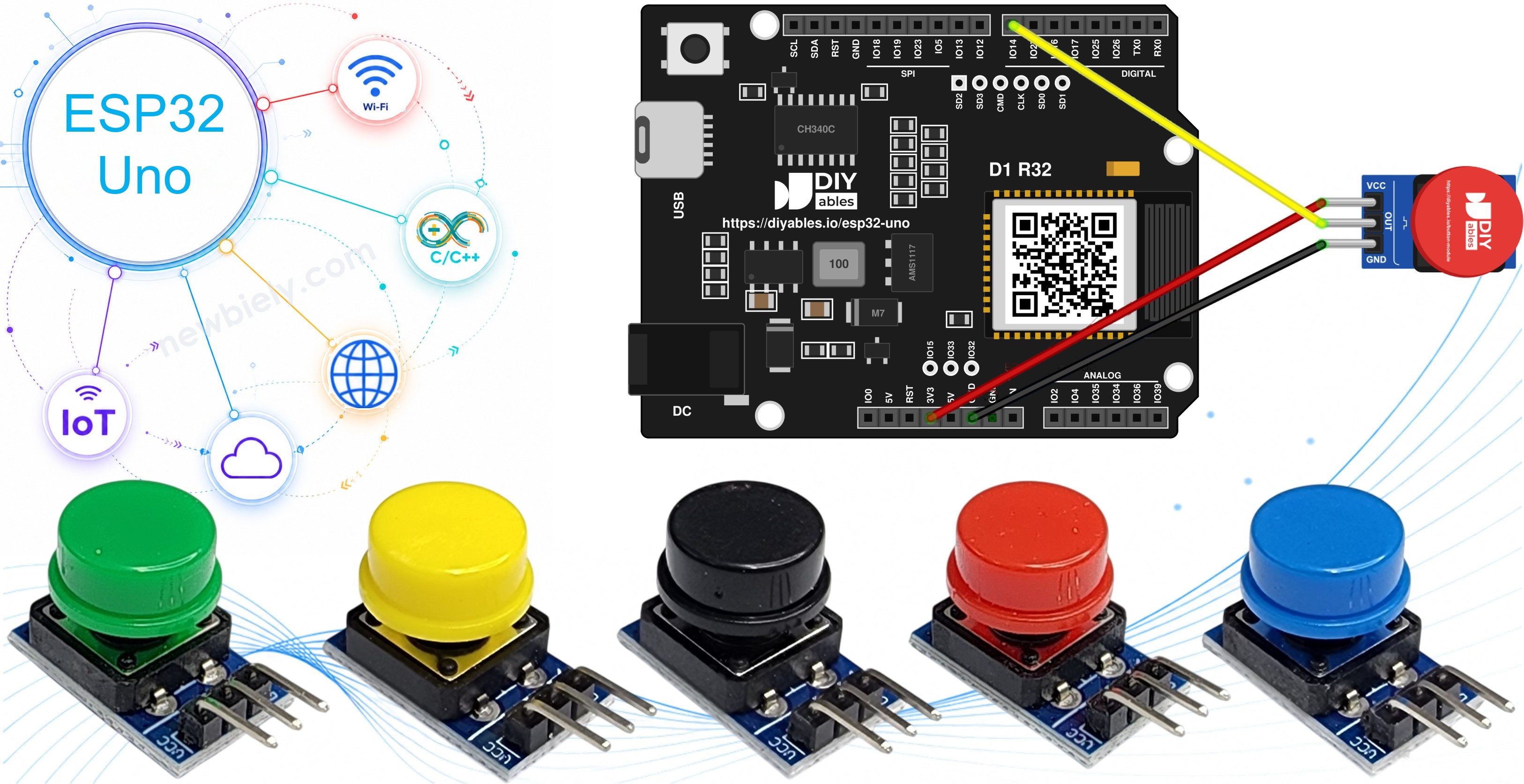
Components You Need
| 1 | × | ESP32 Uno-form Board | |
| 1 | × | USB Cable Type-A to Type-C (for USB-A PC) | |
| 1 | × | USB Cable Type-C to Type-C (for USB-C PC) | |
| 1 | × | Button Module | |
| 1 | × | Jumper Wires |
Or you can buy the following kits:
| 1 | × | DIYables Sensor Kit (18 sensors/displays) |
Additionally, some of these links are for products from our own brand, DIYables .
The Button Module at a Glance
Read this part once and the wiring and the code will make sense.
In short, the module is a push button that brings its own resistor. A momentary tactile switch with a colored cap sits on a small PCB, and a pull-down resistor on the same PCB keeps the OUT line at 0V while nobody touches it. Press the cap and OUT jumps to the VCC voltage. Let go and it drops back to 0V. The DIYables pack holds five modules, one each in red, yellow, green, blue and white, so you can give every function in a project its own color.
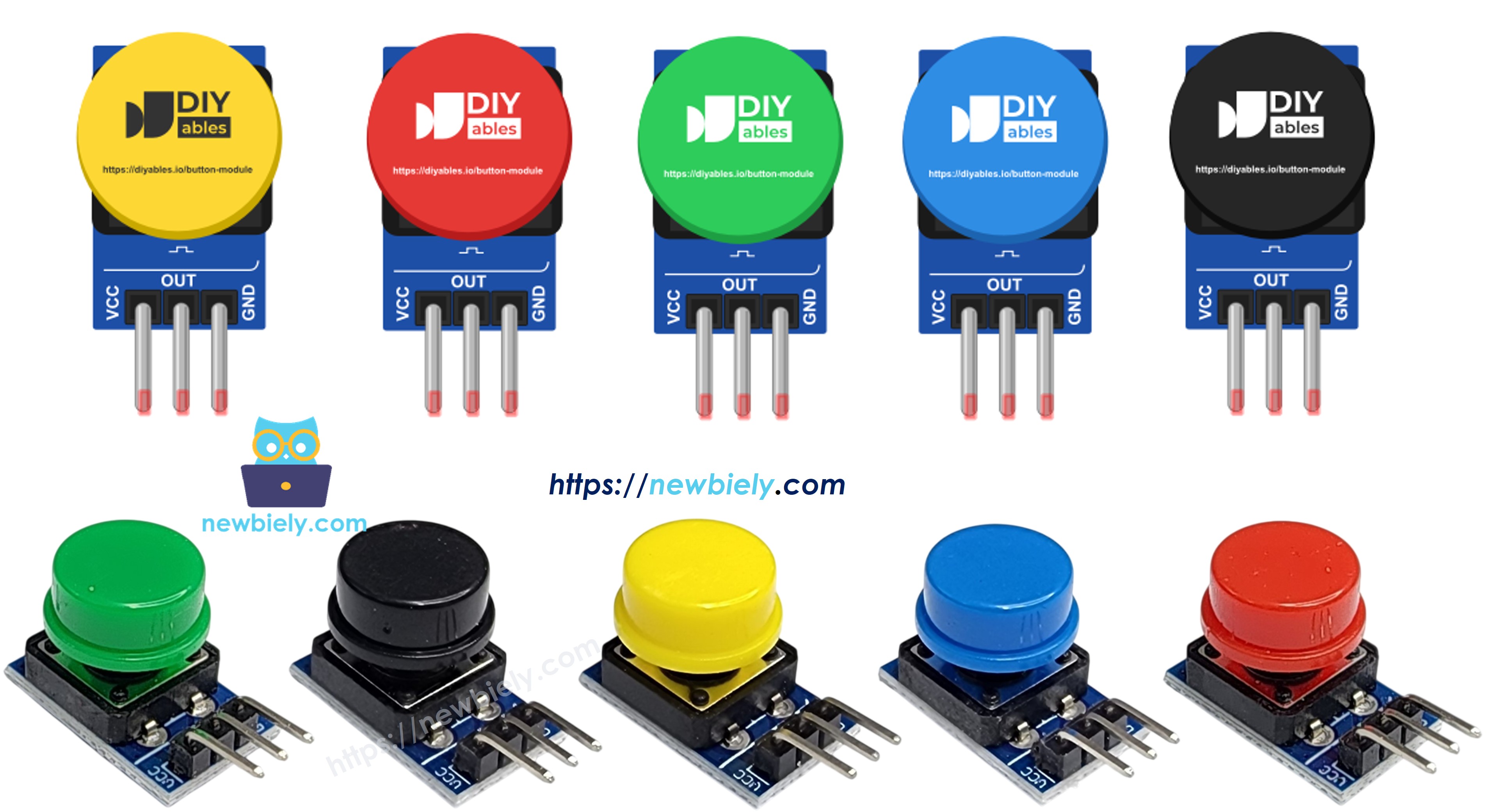
The 3-pin 2.54mm header is printed VCC, OUT, GND:
| Pin | Role | ESP32 Uno Connection |
|---|---|---|
| VCC | Supply for the module, 3.3V to 5V DC | 3.3V only |
| OUT | Button signal, LOW when up and HIGH when down | D7 (GPIO14) |
| GND | Common ground | GND |
One thing every button shares: the metal contacts do not close in one clean step. They rattle for a few milliseconds, so a single press can look like several quick presses to a fast chip. The second and third sketches below deal with that.
ESP32 Uno Pinout
The sketches on this page use the number 14, not 7. The diagram shows why: the hole printed D7 on the Uno-style header is GPIO14 on the ESP32 chip.

How to Connect
Three female-to-male jumper wires go from the module header straight into the board headers.
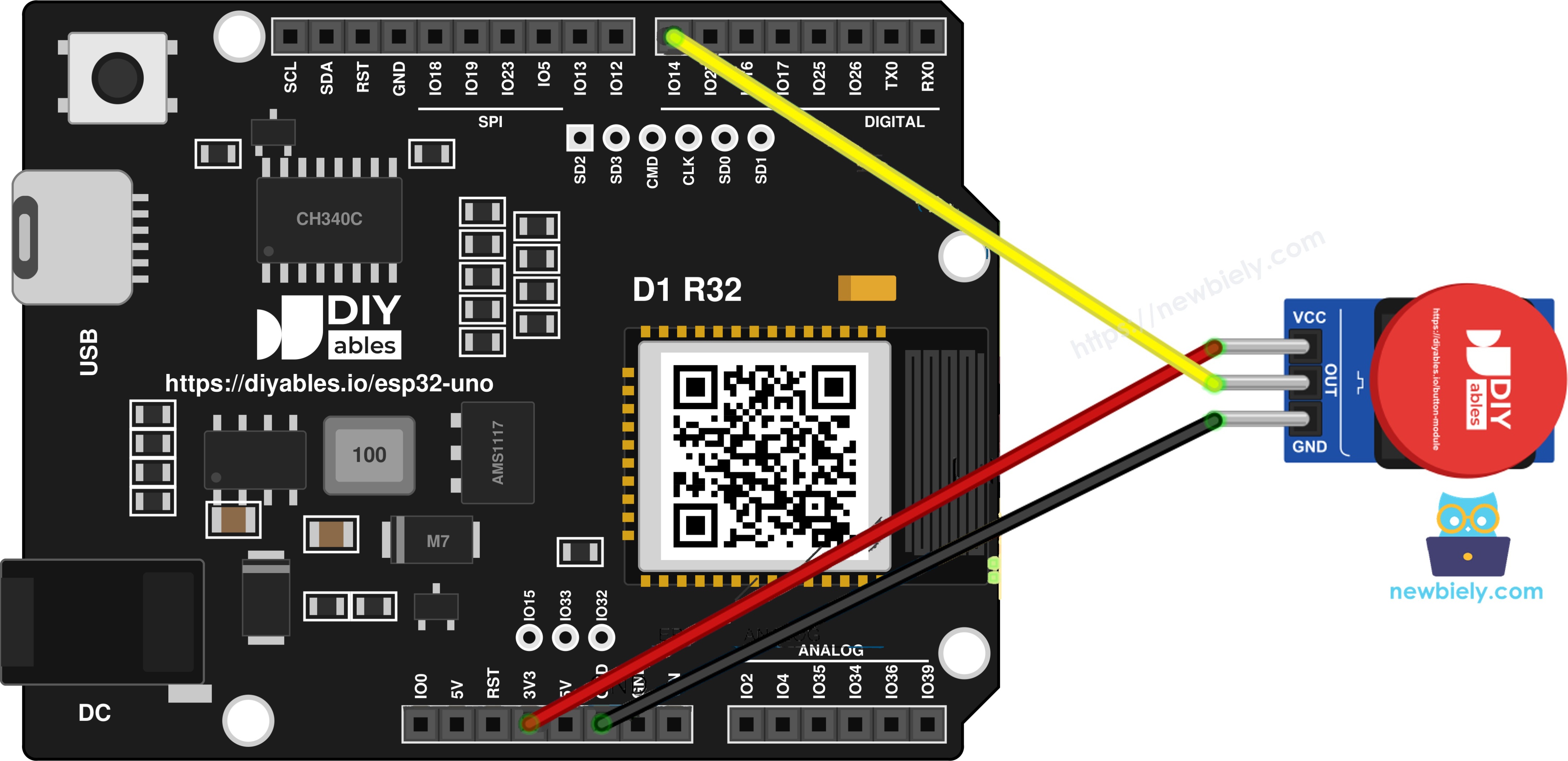
This image is created using Fritzing. Click to enlarge image
| Button Module Pin | ESP32 Uno Pin |
|---|---|
| VCC | 3.3V |
| OUT | D7 (GPIO14) |
| GND | GND |
WARNING
Do not plug VCC into the 5V header. When the cap is pressed, OUT passes the VCC voltage straight to the board pin. With 5V on VCC, GPIO14 would receive 5V, and ESP32 pins accept 3.3V at most. The 3.3V pin powers the module fully, so you lose nothing.
Good to know: GPIO14 has no boot role, so the module can stay connected while you upload. Since OUT already has a pull-down, the code sets the pin to plain INPUT.
ESP32 Uno Code - Print the Raw OUT Level
The first sketch has no filter at all. Every 300 ms it reads GPIO14 and prints 0 or 1 with a short label.
Upload and Test
- New to this board? Go through ESP32 Uno - Getting Started first to install the ESP32 core.
- Wire the module with VCC on 3.3V, OUT on D7 and GND on GND.
- Connect the ESP32 Uno to your computer with the USB Type-C cable.
- Choose the board: in Arduino IDE select ESP32 Dev Module and the CH340 COM port.
- Copy the sketch into an empty Arduino IDE window.
- Click Upload and wait until the IDE reports that it is done.
- Open the Serial Monitor and set it to 9600 baud.
- Hold the cap down for about one second, then release it. The log looks like this:
- Pro tip: the idle value is 0 because of the module's pull-down. On the plain push button page it is 1, since that circuit uses INPUT_PULLUP.
This sketch answers "is the button held right now?". It cannot tell you when a press starts, and that is the job of the next one.
ESP32 Uno Code - Press and Release Events with delay()
Here the sketch keeps the last level. When a new reading differs, it waits 50 ms for the contacts to settle, reads again, and only then prints an event.
Upload and Test
- Keep the same three wires.
- Replace the old sketch with this one and press Upload.
- Watch the Serial Monitor at 9600 baud.
- Tap the cap three times. Each tap gives exactly two lines:
- Pro tip: if a hard, fast tap is sometimes missed, lower SETTLE_TIME to 30. If you still see double events, raise it to 80.
The catch: delay(50) freezes the whole loop for those 50 ms. With one button that is fine, but a sketch that also drives a display or a web server will stutter on every press.
Video Tutorial
See the ESP32 Uno build in action in the video below.
Code Explanation
The three sketches share most of their lines. This table covers the parts that matter.
| Code Part | What It Does |
|---|---|
| #define BUTTON_MODULE_PIN 14 | Points the code at GPIO14, the D7 hole where OUT is wired |
| pinMode(BUTTON_MODULE_PIN, INPUT) | Plain input, because the module already pulls OUT down |
| digitalRead(BUTTON_MODULE_PIN) | Gives 1 while the cap is down, 0 while it is up |
| last_state | Stores the last confirmed level, so a change can be spotted |
| delay(SETTLE_TIME) | Waits 50 ms for the bounce to end, blocking the loop |
| ezButton button(14, EXTERNAL_PULLDOWN) | Creates the button object and sets HIGH = pressed |
| button.setDebounceTime(50) | Sets how long a level must stay stable before it counts |
| button.loop() | Samples the pin and runs the timer, called first in every pass |
| button.getState() | Returns the debounced level, 1 or 0 |
| button.isPressed() / isReleased() | Each returns true one time per clean press or release |
Do not use INPUT_PULLUP with this module. The chip's pull-up would fight the module's pull-down, and the released level would no longer be a clean 0.
Try These Next
- Light an LED from a button press: ESP32 Uno - Button - LED. Swap the bare button for the module and use EXTERNAL_PULLDOWN.
- Learn the millis() way to debounce by hand: ESP32 Uno - Button Debounce.
- Wire three modules from the pack (for example red, yellow and green) as a game controller with left, fire and right keys.
- Use one module as a mode switch: each press moves to the next mode, and the white module resets it.
Troubleshooting
| Problem | Possible Cause | Solution |
|---|---|---|
| No COM port in Arduino IDE | CH340 driver missing or a charge-only cable | Install the CH340 driver and use a data USB cable |
| Upload stops at "Waiting for download" | Board did not enter download mode | Hold the BOOT button as the upload starts, then release it |
| Output stays at 0 when pressed | VCC wire loose, or OUT on another hole | Check VCC on 3.3V and OUT on D7 |
| Output stays at 0 with good wiring | Code reads pin 7 | Use 14 in the code, since D7 is GPIO14 |
| Output stays at 1 all the time | OUT touches VCC, or VCC and OUT swapped | Follow the VCC, OUT, GND labels on the module |
| Idle value is not a clean 0 | INPUT_PULLUP in pinMode() | Use plain INPUT |
| Pressed and released are swapped with ezButton | Object made without EXTERNAL_PULLDOWN, or old library | Use ezButton(14, EXTERNAL_PULLDOWN) and update ezButton to 1.0.6 or newer |
| One tap prints two events | Bounce longer than 50 ms | Raise the debounce time to 80 ms |
| Serial Monitor shows odd symbols | Baud rate mismatch | Select 9600 baud |
FAQ
Why does the button module read 0 when nobody presses it?
The pull-down resistor on the PCB connects OUT to GND while the switch is open. Pressing the cap connects OUT to VCC, so the reading becomes 1.
Can I power the button module from 5V on the ESP32 Uno?
No. OUT carries the VCC voltage when pressed, so 5V on VCC would put 5V on GPIO14. ESP32 pins are not 5V tolerant. Use the 3.3V pin.
Do I need a resistor with the button module?
No. The pull-down resistor is already on the module. Connect VCC, OUT and GND directly.
Should I use INPUT or INPUT_PULLUP?
Use INPUT. INPUT_PULLUP adds a second resistor toward 3.3V, which works against the module's pull-down.
Which debounce method should I pick?
The delay() version is easy to read and fine for a one-button test. For real projects, pick ezButton: it never stops the loop, and it handles many buttons with one object each.
What does EXTERNAL_PULLDOWN do in ezButton?
It tells the library that the pin idles LOW and goes HIGH on a press. Without it, ezButton expects a pull-up circuit and reports presses and releases the wrong way round.
Can I use other pins for OUT?
Yes. D2 to D6, D9 and D11 to D13 are good choices. A2 to A5 (GPIO35, 34, 36, 39) also work, since the module brings its own resistor. Avoid D8 (GPIO12): the module drives it HIGH while pressed, and a press during reset can stop the board from booting.
How many button modules can one ESP32 Uno read?
One per free input pin. Each module draws almost no current from 3.3V, so five modules from one pack are no problem for the USB supply.
What if I run out of header pins?
The ESP32 Uno has extra holes near the power header. GPIO32 and GPIO33 are the best choice for more modules; solder pin headers on them and use the GPIO number in the code. Skip GPIO15 and GPIO0 (boot strapping pins), and never use the six holes under the digital header (GPIO6 to GPIO11), which belong to the flash chip.
Can the button module wake the ESP32 Uno from deep sleep?
Yes. GPIO14 is an RTC pin, so esp_sleep_enable_ext0_wakeup(GPIO_NUM_14, 1) wakes the board when OUT goes HIGH. The 1 matches the module's active HIGH output.