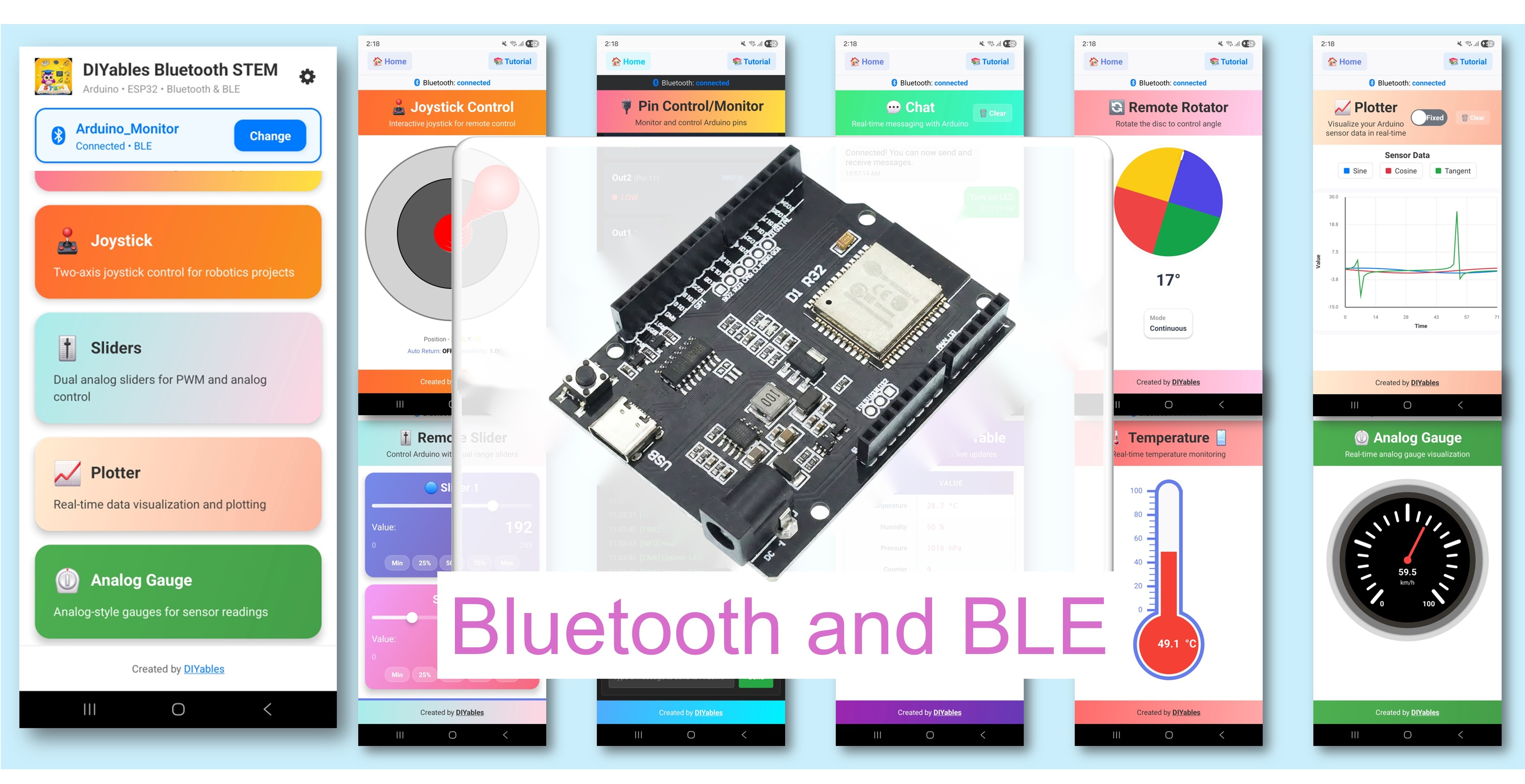
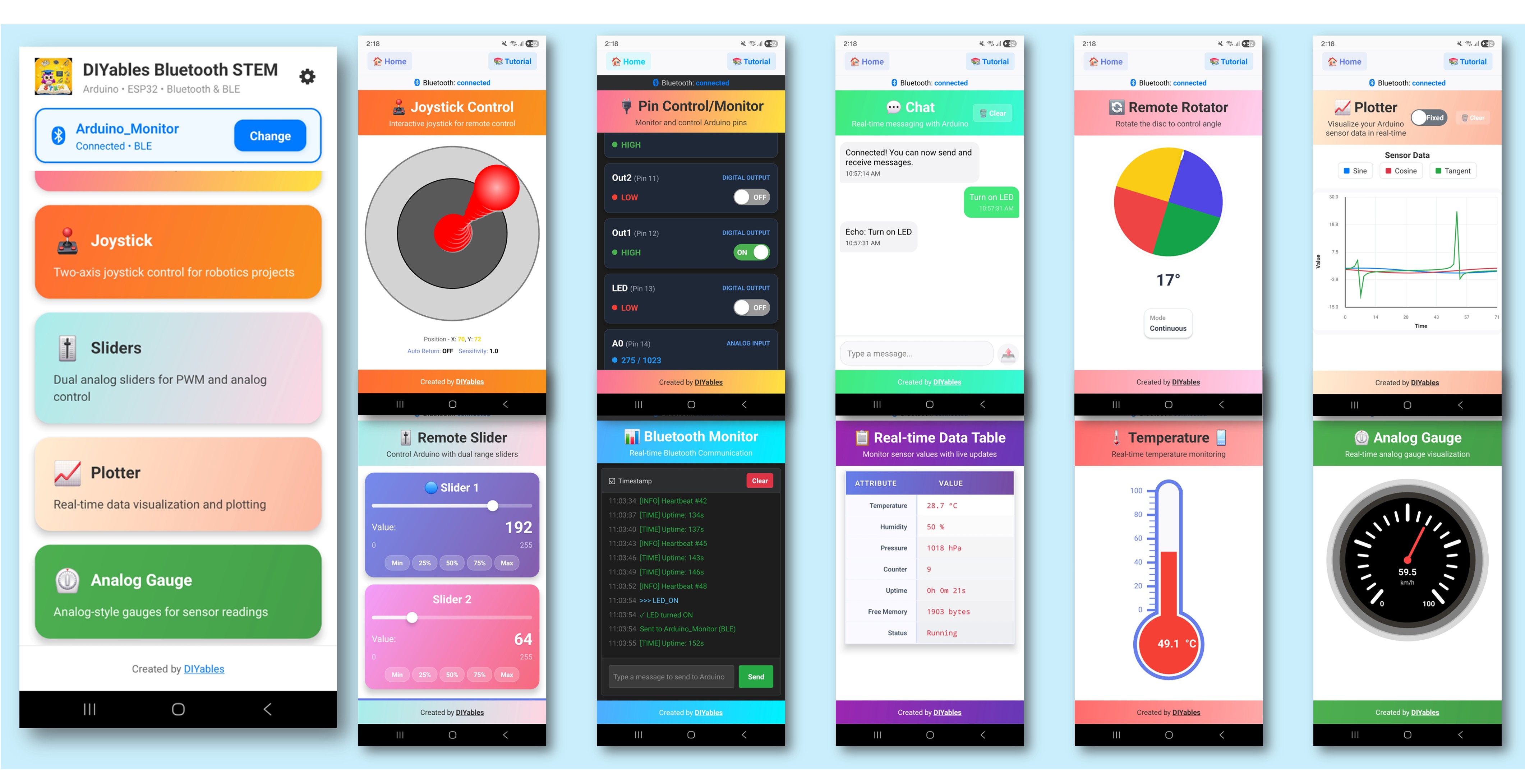
Want a full phone control panel for your ESP32 Uno Bluetooth multiple apps project, with no screen or buttons on the desk? Flash one sketch to the ESP32 Uno form board, and the DIYables Bluetooth STEM app gives you nine screens at once: Monitor, Chat, Slider, Joystick, Temperature, Plotter, Table, Analog Gauge and Rotator. It is an all-in-one Bluetooth dashboard that runs as a BLE multi-app on Android and iPhone, or over Classic Bluetooth on Android.
By the end, you can:
Install the DIYables Bluetooth library and flash the combined sketch
Pick a partition scheme that fits a large Bluetooth program
Link the phone over BLE or Classic Bluetooth and jump between screens
Make one screen drive another, like a slider that moves the gauge
Cut the example down to the few apps your build needs
※ NOTE THAT:
The ESP32 Uno chip carries both radios: Bluetooth Low Energy and Classic Bluetooth. That is why this page offers two sketches. BLE suits iPhones and needs no pairing. Classic suits Android-only builds that push a lot of data, such as a fast plotter.
What You Get in One Sketch
After this part, you know which screen does what and how often it refreshes.
App Screen
Direction
Refresh in the Example
Monitor
Board to phone and phone to board
Heartbeat line every 5 s, commands on demand
Chat
Both ways
When a message arrives
Slider
Phone to board
When you drag a slider (two sliders, 0 to 255)
Joystick
Phone to board
When you move the pad
Temperature
Board to phone
New fake reading every 2 s (-10 to 50 °C scale)
Plotter
Board to phone
Three lines (sine, cosine, noise) every 100 ms
Table
Board to phone
Ten rows, uptime row every 5 s
Analog Gauge
Board to phone
Slow sine value every 3 s (0 to 100 %)
Rotator
Phone to board
When you turn the knob (continuous mode)
Good to know: all nine screens share ONE radio link. The library sends each message to the right app, so your callbacks never get mixed up.
Disclosure: Some of the links provided in this section are Amazon affiliate links. We may receive a commission for any purchases made through these links at no additional cost to you. Additionally, some of these links are for products from our own brand, DIYables .
ESP32 Uno Pinout
The printed header names (D13, A0 and so on) are not the numbers you type in a sketch. Find the label on this map, read its GPIO number, and use that number in code.
How to Connect the Status LED
At the end of this part, you have a light that shows when the phone is linked. The radio is inside the chip, so the dashboard itself works with no wires at all.
The sketch switches a status LED ON when a phone connects and OFF when it leaves. You can also flip it with the LED_ON and LED_OFF commands in the Monitor screen. No LED is soldered to the Uno header pins of this board, so the code drives D13 (GPIO18). Add an external LED there if you want to see it.
LED Pin
ESP32 Uno Pin
Long leg (anode), via the 220 ohm resistor
D13 (GPIO18)
Cathode (short leg)
GND
Good to know: D13 (GPIO18) is a plain I/O pin with no boot role, so an LED here never blocks an upload. ESP32 Uno pins give 3.3V, which is enough for a normal LED with a 220 ohm resistor.
Upload and Test the ESP32 Uno Code
When this part is done, the board is on the air and waits for your phone. Both sketches below create the same nine screens; only the radio type is different.
Build the circuit by following the wiring table above. Skip it if you do not need the status LED.
Plug in the USB Type-C cable between the ESP32 Uno and your computer.
Select the board in Arduino IDE: pick ESP32 Dev Module and the COM port of the board (CH340).
Open Library Manager with the Libraries icon in the left bar.
Search"DIYables Bluetooth" and locate the library made by DIYables.
PressInstall next to it.
Search for DIYables Bluetooth created by DIYables and click the Install button.
Newbiely | Arduino IDE 2.3.8
──
☐
✕
File
Edit
Sketch
Tools
Help
ESP32 Dev Module
Library Manager
DIYables Bluetooth
Type:
All
Topic:
All
DIYables Bluetoothby DIYables
A comprehensive Bluetooth library that connects Arduino to the DIYables Bluetooth STEM mobile app (Android & iOS) via BLE and Classic Bluetooth. Features 11 built-in apps: Monitor, Chat, Digital Pin Control, Joystick, Sliders, Plotter, Analog Gauge, Rotator, Temperature, RTC, and Data Table. Clean architecture with platform abstraction. Works with Arduino Uno R4 WiFi, Arduino Nano 33 BLE, ESP32, and other BLE-capable boards. No mobile coding required.
More info
1.0.1
INSTALL
Newbiely.ino
···
1
voidsetup() {
Output
Serial Monitor
Ln 1, Col 1
ESP32 Dev Module on COM15
1
Accept the extras: the IDE lists more libraries it needs. Press Install All to add them too.
WARNING
Nine app libraries plus a Bluetooth stack make a big binary. Set this before the first upload: Tools > Partition Scheme and choose "Huge APP (3MB No OTA/1MB SPIFFS)". The default layout gives the program only about 1.2 MB, and the build stops with a "Sketch too big" error.
Step 2 — Option A: ESP32 Uno Classic Bluetooth Sketch (Android only)
Good to know: iPhones cannot talk Classic Bluetooth. If anyone will use iOS, jump to Option B.
Load the sketch: open File Examples DIYables Bluetooth Esp32Bluetooth_MultipleApps, or paste the code below into a new sketch.
/* * This ESP32 Uno code was developed by newbiely.com * * This ESP32 Uno code is made available for public use without any restriction * * For comprehensive instructions and wiring diagrams, please visit: * https://newbiely.com/tutorials/esp32-uno/esp32-uno-diyables-bluetooth-app-multiple-apps *//* * DIYables Bluetooth Library - ESP32 Uno Classic Bluetooth Multiple Apps Example * Pairs with the DIYables Bluetooth STEM app on Android * Note: iPhones cannot use Classic Bluetooth. Take the BLE sketch for iOS. * * One sketch, nine app screens on a single Classic Bluetooth link: * - Monitor: text log from the board, commands from the phone * - Chat: text messages in both directions * - Slider: two sliders, range 0-255 * - Joystick: X and Y position from a touch pad * - Temperature: thermometer screen * - Plotter: live graph with 3 lines * - Table: name/value rows that refresh live * - Analog Gauge: round dial with a needle * - Rotator: turning knob for an angle * - Pin Control: switch and read digital pins * * What the library does for you: * - Every app shares the one Bluetooth connection * - Each incoming message goes to the right app handler * - You only write short callbacks, no protocol parsing * - The link details stay inside the library * - Made for the DIYables Bluetooth mobile app * * Board: ESP32 Uno form board (Classic Bluetooth radio) * * Note: the sketch is big, so pick Tools > Partition Scheme > * "Huge APP (3MB No OTA/1MB SPIFFS)" in Arduino IDE * * How to use: * 1. Flash this sketch to the ESP32 Uno * 2. Open the Serial Monitor at 115200 baud * 3. Pair the phone, then start the DIYables Bluetooth App * 4. Pick "ESP32 Multi-App" in the device list * 5. Open each app screen and try it * * Tutorial: https://diyables.io/bluetooth-app * Author: DIYables */#include <DIYables_BluetoothServer.h>#include <DIYables_BluetoothMonitor.h>#include <DIYables_BluetoothChat.h>#include <DIYables_BluetoothSlider.h>#include <DIYables_BluetoothJoystick.h>#include <DIYables_BluetoothTemperature.h>#include <DIYables_BluetoothPlotter.h>#include <DIYables_BluetoothTable.h>#include <DIYables_BluetoothAnalogGauge.h>#include <DIYables_BluetoothRotator.h>#include <platforms/DIYables_Esp32Bluetooth.h>// radio object plus the server that hosts every appDIYables_Esp32Bluetooth bluetooth("ESP32 Multi-App");DIYables_BluetoothServer bluetoothServer(bluetooth);// the nine app objects and their settingsDIYables_BluetoothMonitor bluetoothMonitor;DIYables_BluetoothChat bluetoothChat;DIYables_BluetoothSlider bluetoothSlider(0, 255, 1);DIYables_BluetoothJoystick bluetoothJoystick(false, 5);DIYables_BluetoothTemperature bluetoothTemperature(-10.0, 50.0, "°C");DIYables_BluetoothPlotter bluetoothPlotter;DIYables_BluetoothTable bluetoothTable;DIYables_BluetoothAnalogGauge bluetoothGauge(0.0, 100.0, "%");DIYables_BluetoothRotator bluetoothRotator(ROTATOR_MODE_CONTINUOUS);// D13 (GPIO18) drives an external status LED (no built-in LED on the Uno headers)constint LED_PIN = 18; // D13 (GPIO18)// latest values shared between the appsint currentSlider1 = 128;int currentSlider2 = 64;int currentJoystickX = 0;int currentJoystickY = 0;float currentTemperature = 25.0;float currentGaugeValue = 50.0;float currentRotatorAngle = 0.0;int messageCount = 0;// millis() time stamps for each periodic sendunsignedlong lastMonitorUpdate = 0;unsignedlong lastTempUpdate = 0;unsignedlong lastPlotUpdate = 0;unsignedlong lastTableUpdate = 0;unsignedlong lastGaugeUpdate = 0;float plotPhase = 0;voidsetup() {Serial.begin(115200);delay(1000);Serial.println("DIYables Bluetooth - ESP32 Multiple Apps Example");// status LED on D13 (GPIO18) starts OFFpinMode(LED_PIN, OUTPUT);digitalWrite(LED_PIN, LOW);// start the radio and the app server bluetoothServer.begin();// add each app so the phone can see it bluetoothServer.addApp(&bluetoothMonitor); bluetoothServer.addApp(&bluetoothChat); bluetoothServer.addApp(&bluetoothSlider); bluetoothServer.addApp(&bluetoothJoystick); bluetoothServer.addApp(&bluetoothTemperature); bluetoothServer.addApp(&bluetoothPlotter); bluetoothServer.addApp(&bluetoothTable); bluetoothServer.addApp(&bluetoothGauge); bluetoothServer.addApp(&bluetoothRotator);Serial.print("Registered apps: ");Serial.println(bluetoothServer.getAppCount());// plot title, axes, range and line names bluetoothPlotter.setPlotTitle("Sensor Data"); bluetoothPlotter.setAxisLabels("Time", "Value"); bluetoothPlotter.setYAxisRange(-1.5, 1.5); bluetoothPlotter.setMaxSamples(100); bluetoothPlotter.setLegendLabels("Sine", "Cosine", "Random");// the row names shown in the Table app bluetoothTable.addRow("Status"); bluetoothTable.addRow("Uptime"); bluetoothTable.addRow("Slider 1"); bluetoothTable.addRow("Slider 2"); bluetoothTable.addRow("Joystick X"); bluetoothTable.addRow("Joystick Y"); bluetoothTable.addRow("Temperature"); bluetoothTable.addRow("Gauge Value"); bluetoothTable.addRow("Rotator Angle"); bluetoothTable.addRow("Free Heap");// hook up the handlers for every app setupCallbacks();Serial.println("Waiting for Bluetooth connection...");}void setupCallbacks() {// ---- phone links or drops ---- bluetoothServer.setOnConnected([]() {Serial.println("Bluetooth connected!");digitalWrite(LED_PIN, HIGH); bluetoothMonitor.send("=== ESP32 Multi-App Connected ==="); bluetoothMonitor.send("All apps are ready!"); bluetoothChat.send("Hello! ESP32 Multi-App is connected."); }); bluetoothServer.setOnDisconnected([]() {Serial.println("Bluetooth disconnected!");digitalWrite(LED_PIN, LOW); });// ---- text commands from the Monitor screen ---- bluetoothMonitor.onMonitorMessage([](const String& message) {Serial.println("Monitor cmd: " + message);if (message == "HELP") { bluetoothMonitor.send("Commands: STATUS, HELP, LED_ON, LED_OFF, HEAP"); } elseif (message == "STATUS") { bluetoothMonitor.send("Slider1=" + String(currentSlider1) + " Slider2=" + String(currentSlider2)); bluetoothMonitor.send("Joystick X=" + String(currentJoystickX) + " Y=" + String(currentJoystickY)); bluetoothMonitor.send("Temp=" + String(currentTemperature, 1) + "°C"); bluetoothMonitor.send("Gauge=" + String(currentGaugeValue, 1) + "%"); bluetoothMonitor.send("Rotator=" + String(currentRotatorAngle, 0) + "°"); } elseif (message == "LED_ON") {digitalWrite(LED_PIN, HIGH); bluetoothMonitor.send("LED turned ON"); } elseif (message == "LED_OFF") {digitalWrite(LED_PIN, LOW); bluetoothMonitor.send("LED turned OFF"); } elseif (message == "HEAP") { bluetoothMonitor.send("Free Heap: " + String(ESP.getFreeHeap()) + " bytes"); } else { bluetoothMonitor.send("Unknown: " + message + " (type HELP)"); } });// ---- Chat screen messages ---- bluetoothChat.onChatMessage([](const String& message) {Serial.println("Chat: " + message); bluetoothChat.send("Echo: " + message);if (message.equalsIgnoreCase("ping")) { bluetoothChat.send("pong!"); } elseif (message.equalsIgnoreCase("status")) { bluetoothChat.send("Uptime: " + String(millis() / 1000) + "s, Apps: " + String(bluetoothServer.getAppCount())); } elseif (message.equalsIgnoreCase("heap")) { bluetoothChat.send("Free heap: " + String(ESP.getFreeHeap()) + " bytes"); } });// ---- Slider moves ---- bluetoothSlider.onSliderValue([](int slider1, int slider2) { currentSlider1 = slider1; currentSlider2 = slider2;Serial.print("Slider 1: "); Serial.print(slider1);Serial.print(", Slider 2: "); Serial.println(slider2);// slider 1 also sets the needle of the gauge currentGaugeValue = map(slider1, 0, 255, 0, 100); bluetoothGauge.send(currentGaugeValue);// copy the new values into the Table rows bluetoothTable.sendValueUpdate("Slider 1", String(slider1)); bluetoothTable.sendValueUpdate("Slider 2", String(slider2)); bluetoothTable.sendValueUpdate("Gauge Value", String(currentGaugeValue, 1) + "%"); }); bluetoothSlider.onGetConfig([]() { bluetoothSlider.send(currentSlider1, currentSlider2); });// ---- Joystick moves ---- bluetoothJoystick.onJoystickValue([](int x, int y) { currentJoystickX = x; currentJoystickY = y;Serial.print("Joystick X: "); Serial.print(x);Serial.print(", Y: "); Serial.println(y);// copy the new values into the Table rows bluetoothTable.sendValueUpdate("Joystick X", String(x)); bluetoothTable.sendValueUpdate("Joystick Y", String(y)); }); bluetoothJoystick.onGetConfig([]() { bluetoothJoystick.send(currentJoystickX, currentJoystickY); });// ---- Temperature screen asks for a value ---- bluetoothTemperature.onTemperatureRequest([]() { bluetoothTemperature.send(currentTemperature); });// ---- Plotter screen opens ---- bluetoothPlotter.onDataRequest([]() {Serial.println("Plotter data requested"); });// ---- Table screen asks for its rows ---- bluetoothTable.onDataRequest([]() {Serial.println("Table data requested"); bluetoothTable.sendTableStructure(); updateAllTableValues(); });// ---- Gauge screen asks for a value ---- bluetoothGauge.onValueRequest([]() { bluetoothGauge.send(currentGaugeValue); });// ---- Rotator knob turns ---- bluetoothRotator.onRotatorAngle([](float angle) { currentRotatorAngle = angle;Serial.print("Rotator: "); Serial.print(angle); Serial.println("°"); bluetoothTable.sendValueUpdate("Rotator Angle", String(angle, 0) + "°"); });}void updateAllTableValues() { bluetoothTable.sendValueUpdate("Status", "Running");unsignedlong uptime = millis() / 1000;String uptimeStr;if (uptime >= 60) { uptimeStr = String(uptime / 60) + "m " + String(uptime % 60) + "s"; } else { uptimeStr = String(uptime) + "s"; } bluetoothTable.sendValueUpdate("Uptime", uptimeStr); bluetoothTable.sendValueUpdate("Slider 1", String(currentSlider1)); bluetoothTable.sendValueUpdate("Slider 2", String(currentSlider2)); bluetoothTable.sendValueUpdate("Joystick X", String(currentJoystickX)); bluetoothTable.sendValueUpdate("Joystick Y", String(currentJoystickY)); bluetoothTable.sendValueUpdate("Temperature", String(currentTemperature, 1) + " °C"); bluetoothTable.sendValueUpdate("Gauge Value", String(currentGaugeValue, 1) + "%"); bluetoothTable.sendValueUpdate("Rotator Angle", String(currentRotatorAngle, 0) + "°"); bluetoothTable.sendValueUpdate("Free Heap", String(ESP.getFreeHeap()) + " bytes");}voidloop() { bluetoothServer.loop();if (!bluetooth.isConnected()) {delay(10);return; }// ---- heartbeat line to the Monitor, 5 s period ----if (millis() - lastMonitorUpdate >= 5000) { lastMonitorUpdate = millis(); messageCount++; bluetoothMonitor.send("[INFO] Heartbeat #" + String(messageCount) + " - Uptime: " + String(millis() / 1000) + "s"); }// ---- new fake temperature, 2 s period ----if (millis() - lastTempUpdate >= 2000) { lastTempUpdate = millis();// random walk of +/-5 degrees around 25 °Cstaticfloat tempOffset = 0; tempOffset += random(-10, 11) / 10.0;if (tempOffset > 5.0) tempOffset = 5.0;if (tempOffset < -5.0) tempOffset = -5.0; currentTemperature = 25.0 + tempOffset; bluetoothTemperature.send(currentTemperature); bluetoothTable.sendValueUpdate("Temperature", String(currentTemperature, 1) + " °C"); }// ---- three plot points, 100 ms period ----if (millis() - lastPlotUpdate >= 100) { lastPlotUpdate = millis();float sine = sin(plotPhase);float cosine = cos(plotPhase);float noise = random(-50, 51) / 100.0; bluetoothPlotter.send(sine, cosine, noise); plotPhase += 0.1;if (plotPhase > 2 * PI) plotPhase = 0; }// ---- refresh uptime row, 5 s period ----if (millis() - lastTableUpdate >= 5000) { lastTableUpdate = millis();unsignedlong uptime = millis() / 1000;String uptimeStr;if (uptime >= 60) { uptimeStr = String(uptime / 60) + "m " + String(uptime % 60) + "s"; } else { uptimeStr = String(uptime) + "s"; } bluetoothTable.sendValueUpdate("Uptime", uptimeStr); bluetoothTable.sendValueUpdate("Free Heap", String(ESP.getFreeHeap()) + " bytes"); }// ---- slow sine value for the gauge, 3 s period ----if (millis() - lastGaugeUpdate >= 3000) { lastGaugeUpdate = millis();float sensorValue = 50.0 + 30.0 * sin(millis() / 10000.0); currentGaugeValue = sensorValue; bluetoothGauge.send(currentGaugeValue); bluetoothTable.sendValueUpdate("Gauge Value", String(currentGaugeValue, 1) + "%"); }delay(10);}
Check the partition: Tools > Partition Scheme must show "Huge APP (3MB No OTA/1MB SPIFFS)".
Flash it: press the right-arrow Upload button and wait for "Done uploading".
Open the Serial Monitor at 115200 baud. After a reset you get:
Newbiely | Arduino IDE 2.3.8
──
☐
✕
File
Edit
Sketch
Tools
Help
ESP32 Dev Module
Newbiely.ino
···
8Serial.println("Hello World!");
Output
Serial Monitor
Message (Enter to send message to 'ESP32 Dev Module' on 'COM15')
New Line
9600 baud
DIYables Bluetooth - ESP32 Multiple Apps Example
Registered apps: 9
Waiting for Bluetooth connection...
Ln 11, Col 1
ESP32 Dev Module on COM15
2
Step 2 — Option B: ESP32 Uno BLE Sketch (Android and iOS)
Load the sketch: open File Examples DIYables Bluetooth Esp32BLE_MultipleApps, or paste the code below.
/* * This ESP32 Uno code was developed by newbiely.com * * This ESP32 Uno code is made available for public use without any restriction * * For comprehensive instructions and wiring diagrams, please visit: * https://newbiely.com/tutorials/esp32-uno/esp32-uno-diyables-bluetooth-app-multiple-apps *//* * DIYables Bluetooth Library - ESP32 Uno BLE Multiple Apps Example * Pairs with the DIYables Bluetooth STEM app on Android and iOS * * One sketch, nine app screens on a single BLE link: * - Monitor, Chat, Slider, Joystick, Temperature, Plotter, * Table, Analog Gauge, Rotator * * Board: ESP32 Uno form board (BLE radio) * * Note: the sketch is big, so pick Tools > Partition Scheme > * "Huge APP (3MB No OTA/1MB SPIFFS)" in Arduino IDE * * Optional: external LED + 220 ohm resistor on D13 (GPIO18), * the board has no built-in LED on the Uno headers * * How to use: * 1. Flash this sketch to the ESP32 Uno * 2. Open the Serial Monitor at 115200 baud * 3. Start the DIYables Bluetooth App on the phone * 4. Pick "ESP32BLE Multi-App" in the scan list * 5. Open each app screen and try it * * Tutorial: https://diyables.io/bluetooth-app * Author: DIYables */#include <DIYables_BluetoothServer.h>#include <DIYables_BluetoothMonitor.h>#include <DIYables_BluetoothChat.h>#include <DIYables_BluetoothSlider.h>#include <DIYables_BluetoothJoystick.h>#include <DIYables_BluetoothTemperature.h>#include <DIYables_BluetoothPlotter.h>#include <DIYables_BluetoothTable.h>#include <DIYables_BluetoothAnalogGauge.h>#include <DIYables_BluetoothRotator.h>#include <platforms/DIYables_Esp32BLE.h>// name and UUIDs the phone app scans forconst char* DEVICE_NAME = "ESP32BLE Multi-App";const char* SERVICE_UUID = "19B10000-E8F2-537E-4F6C-D104768A1214";const char* TX_UUID = "19B10001-E8F2-537E-4F6C-D104768A1214";const char* RX_UUID = "19B10002-E8F2-537E-4F6C-D104768A1214";// radio object plus the server that hosts every appDIYables_Esp32BLE bluetooth(DEVICE_NAME, SERVICE_UUID, TX_UUID, RX_UUID);DIYables_BluetoothServer bluetoothServer(bluetooth);// the nine app objects and their settingsDIYables_BluetoothMonitor bluetoothMonitor;DIYables_BluetoothChat bluetoothChat;DIYables_BluetoothSlider bluetoothSlider(0, 255, 1);DIYables_BluetoothJoystick bluetoothJoystick(false, 5);DIYables_BluetoothTemperature bluetoothTemperature(-10.0, 50.0, "°C");DIYables_BluetoothPlotter bluetoothPlotter;DIYables_BluetoothTable bluetoothTable;DIYables_BluetoothAnalogGauge bluetoothGauge(0.0, 100.0, "%");DIYables_BluetoothRotator bluetoothRotator(ROTATOR_MODE_CONTINUOUS);// latest values shared between the appsint currentSlider1 = 128;int currentSlider2 = 64;int currentJoystickX = 0;int currentJoystickY = 0;float currentTemperature = 25.0;float currentGaugeValue = 50.0;float currentRotatorAngle = 0.0;int messageCount = 0;// millis() time stamps for each periodic sendunsignedlong lastMonitorUpdate = 0;unsignedlong lastTempUpdate = 0;unsignedlong lastPlotUpdate = 0;unsignedlong lastTableUpdate = 0;unsignedlong lastGaugeUpdate = 0;float plotPhase = 0;voidsetup() {Serial.begin(115200);delay(1000);Serial.println("DIYables Bluetooth - ESP32 BLE Multiple Apps Example");// status LED on D13 (GPIO18) starts OFFpinMode(18, OUTPUT);digitalWrite(18, LOW); bluetoothServer.begin(); bluetoothServer.addApp(&bluetoothMonitor); bluetoothServer.addApp(&bluetoothChat); bluetoothServer.addApp(&bluetoothSlider); bluetoothServer.addApp(&bluetoothJoystick); bluetoothServer.addApp(&bluetoothTemperature); bluetoothServer.addApp(&bluetoothPlotter); bluetoothServer.addApp(&bluetoothTable); bluetoothServer.addApp(&bluetoothGauge); bluetoothServer.addApp(&bluetoothRotator);Serial.print("Registered apps: ");Serial.println(bluetoothServer.getAppCount()); bluetoothPlotter.setPlotTitle("Sensor Data"); bluetoothPlotter.setAxisLabels("Time", "Value"); bluetoothPlotter.setYAxisRange(-1.5, 1.5); bluetoothPlotter.setMaxSamples(100); bluetoothPlotter.setLegendLabels("Sine", "Cosine", "Random"); bluetoothTable.addRow("Status"); bluetoothTable.addRow("Uptime"); bluetoothTable.addRow("Slider 1"); bluetoothTable.addRow("Slider 2"); bluetoothTable.addRow("Joystick X"); bluetoothTable.addRow("Joystick Y"); bluetoothTable.addRow("Temperature"); bluetoothTable.addRow("Gauge Value"); bluetoothTable.addRow("Rotator Angle"); bluetoothTable.addRow("Messages"); setupCallbacks();Serial.println("Waiting for Bluetooth connection...");}void setupCallbacks() { bluetoothServer.setOnConnected([]() {Serial.println("Bluetooth connected!");digitalWrite(18, HIGH); bluetoothMonitor.send("=== ESP32 BLE Multi-App Connected ==="); bluetoothMonitor.send("All apps are ready!"); bluetoothChat.send("Hello! ESP32 BLE Multi-App is connected."); }); bluetoothServer.setOnDisconnected([]() {Serial.println("Bluetooth disconnected!");digitalWrite(18, LOW); }); bluetoothMonitor.onMonitorMessage([](const String& message) {Serial.println("Monitor cmd: " + message);if (message == "HELP") { bluetoothMonitor.send("Commands: STATUS, HELP, LED_ON, LED_OFF, HEAP"); } elseif (message == "STATUS") { bluetoothMonitor.send("Slider1=" + String(currentSlider1) + " Slider2=" + String(currentSlider2)); bluetoothMonitor.send("Joystick X=" + String(currentJoystickX) + " Y=" + String(currentJoystickY)); bluetoothMonitor.send("Temp=" + String(currentTemperature, 1) + "°C"); bluetoothMonitor.send("Gauge=" + String(currentGaugeValue, 1) + "%"); bluetoothMonitor.send("Rotator=" + String(currentRotatorAngle, 0) + "°"); } elseif (message == "LED_ON") {digitalWrite(18, HIGH); bluetoothMonitor.send("LED turned ON"); } elseif (message == "LED_OFF") {digitalWrite(18, LOW); bluetoothMonitor.send("LED turned OFF"); } elseif (message == "HEAP") { bluetoothMonitor.send("Free heap: " + String(ESP.getFreeHeap()) + " bytes"); } else { bluetoothMonitor.send("Unknown: " + message + " (type HELP)"); } }); bluetoothChat.onChatMessage([](const String& message) {Serial.println("Chat: " + message); bluetoothChat.send("Echo: " + message);if (message.equalsIgnoreCase("ping")) { bluetoothChat.send("pong!"); } elseif (message.equalsIgnoreCase("status")) { bluetoothChat.send("Uptime: " + String(millis() / 1000) + "s, Apps: " + String(bluetoothServer.getAppCount())); } }); bluetoothSlider.onSliderValue([](int slider1, int slider2) { currentSlider1 = slider1; currentSlider2 = slider2;Serial.print("Slider 1: "); Serial.print(slider1);Serial.print(", Slider 2: "); Serial.println(slider2); currentGaugeValue = map(slider1, 0, 255, 0, 100); bluetoothGauge.send(currentGaugeValue); bluetoothTable.sendValueUpdate("Slider 1", String(slider1)); bluetoothTable.sendValueUpdate("Slider 2", String(slider2)); bluetoothTable.sendValueUpdate("Gauge Value", String(currentGaugeValue, 1) + "%"); }); bluetoothSlider.onGetConfig([]() { bluetoothSlider.send(currentSlider1, currentSlider2); }); bluetoothJoystick.onJoystickValue([](int x, int y) { currentJoystickX = x; currentJoystickY = y;Serial.print("Joystick X: "); Serial.print(x);Serial.print(", Y: "); Serial.println(y); bluetoothTable.sendValueUpdate("Joystick X", String(x)); bluetoothTable.sendValueUpdate("Joystick Y", String(y)); }); bluetoothJoystick.onGetConfig([]() { bluetoothJoystick.send(currentJoystickX, currentJoystickY); }); bluetoothTemperature.onTemperatureRequest([]() { bluetoothTemperature.send(currentTemperature); }); bluetoothPlotter.onDataRequest([]() {Serial.println("Plotter data requested"); }); bluetoothTable.onDataRequest([]() {Serial.println("Table data requested"); bluetoothTable.sendTableStructure(); updateAllTableValues(); }); bluetoothGauge.onValueRequest([]() { bluetoothGauge.send(currentGaugeValue); }); bluetoothRotator.onRotatorAngle([](float angle) { currentRotatorAngle = angle;Serial.print("Rotator: "); Serial.print(angle); Serial.println("°"); bluetoothTable.sendValueUpdate("Rotator Angle", String(angle, 0) + "°"); });}void updateAllTableValues() { bluetoothTable.sendValueUpdate("Status", "Running");unsignedlong uptime = millis() / 1000;String uptimeStr;if (uptime >= 60) { uptimeStr = String(uptime / 60) + "m " + String(uptime % 60) + "s"; } else { uptimeStr = String(uptime) + "s"; } bluetoothTable.sendValueUpdate("Uptime", uptimeStr); bluetoothTable.sendValueUpdate("Slider 1", String(currentSlider1)); bluetoothTable.sendValueUpdate("Slider 2", String(currentSlider2)); bluetoothTable.sendValueUpdate("Joystick X", String(currentJoystickX)); bluetoothTable.sendValueUpdate("Joystick Y", String(currentJoystickY)); bluetoothTable.sendValueUpdate("Temperature", String(currentTemperature, 1) + " °C"); bluetoothTable.sendValueUpdate("Gauge Value", String(currentGaugeValue, 1) + "%"); bluetoothTable.sendValueUpdate("Rotator Angle", String(currentRotatorAngle, 0) + "°"); bluetoothTable.sendValueUpdate("Messages", String(messageCount));}voidloop() { bluetoothServer.loop();if (!bluetooth.isConnected()) {delay(10);return; }if (millis() - lastMonitorUpdate >= 5000) { lastMonitorUpdate = millis(); messageCount++; bluetoothMonitor.send("[INFO] Heartbeat #" + String(messageCount) + " - Uptime: " + String(millis() / 1000) + "s"); }if (millis() - lastTempUpdate >= 2000) { lastTempUpdate = millis();staticfloat tempOffset = 0; tempOffset += random(-10, 11) / 10.0;if (tempOffset > 5.0) tempOffset = 5.0;if (tempOffset < -5.0) tempOffset = -5.0; currentTemperature = 25.0 + tempOffset; bluetoothTemperature.send(currentTemperature); bluetoothTable.sendValueUpdate("Temperature", String(currentTemperature, 1) + " °C"); }if (millis() - lastPlotUpdate >= 100) { lastPlotUpdate = millis();float sine = sin(plotPhase);float cosine = cos(plotPhase);float noise = random(-50, 51) / 100.0; bluetoothPlotter.send(sine, cosine, noise); plotPhase += 0.1;if (plotPhase > 2 * PI) plotPhase = 0; }if (millis() - lastTableUpdate >= 5000) { lastTableUpdate = millis();unsignedlong uptime = millis() / 1000;String uptimeStr;if (uptime >= 60) { uptimeStr = String(uptime / 60) + "m " + String(uptime % 60) + "s"; } else { uptimeStr = String(uptime) + "s"; } bluetoothTable.sendValueUpdate("Uptime", uptimeStr); bluetoothTable.sendValueUpdate("Messages", String(messageCount)); }if (millis() - lastGaugeUpdate >= 3000) { lastGaugeUpdate = millis();float sensorValue = 50.0 + 30.0 * sin(millis() / 10000.0); currentGaugeValue = sensorValue; bluetoothGauge.send(currentGaugeValue); bluetoothTable.sendValueUpdate("Gauge Value", String(currentGaugeValue, 1) + "%"); }delay(10);}
Same partition rule: confirm it still says "Huge APP (3MB No OTA/1MB SPIFFS)".
Flash it to the ESP32 Uno with the Upload arrow.
Watch the Serial Monitor at 115200 baud:
Newbiely | Arduino IDE 2.3.8
──
☐
✕
File
Edit
Sketch
Tools
Help
ESP32 Dev Module
Newbiely.ino
···
8Serial.println("Hello World!");
Output
Serial Monitor
Message (Enter to send message to 'ESP32 Dev Module' on 'COM15')
New Line
9600 baud
DIYables Bluetooth - ESP32 BLE Multiple Apps Example
Registered apps: 9
Waiting for Bluetooth connection...
Ln 11, Col 1
ESP32 Dev Module on COM15
2
Pro tip: the first build of this sketch can take a few minutes, because the IDE compiles nine app libraries and the BLE stack. Later builds are much faster, so do not stop the first one halfway.
Step 3 — Connect the Phone App
At the end of this step, all nine screens on your phone talk to the board.
Get the app: DIYables Bluetooth App for Android or iOS.
Classic sketch only — pair first: on the Android phone open Settings > Bluetooth, switch Bluetooth on, tap "ESP32 Multi-App", confirm (no PIN), and wait for "Paired". With the BLE sketch, skip this.
Launch the app and allow the requested access on first start:
Nearby Devices (Android 12 or newer) or Bluetooth (iOS) — used to find and link devices
Location (Android 11 or older) — old Android versions need it to scan for BLE
Check that phone Bluetooth is on.
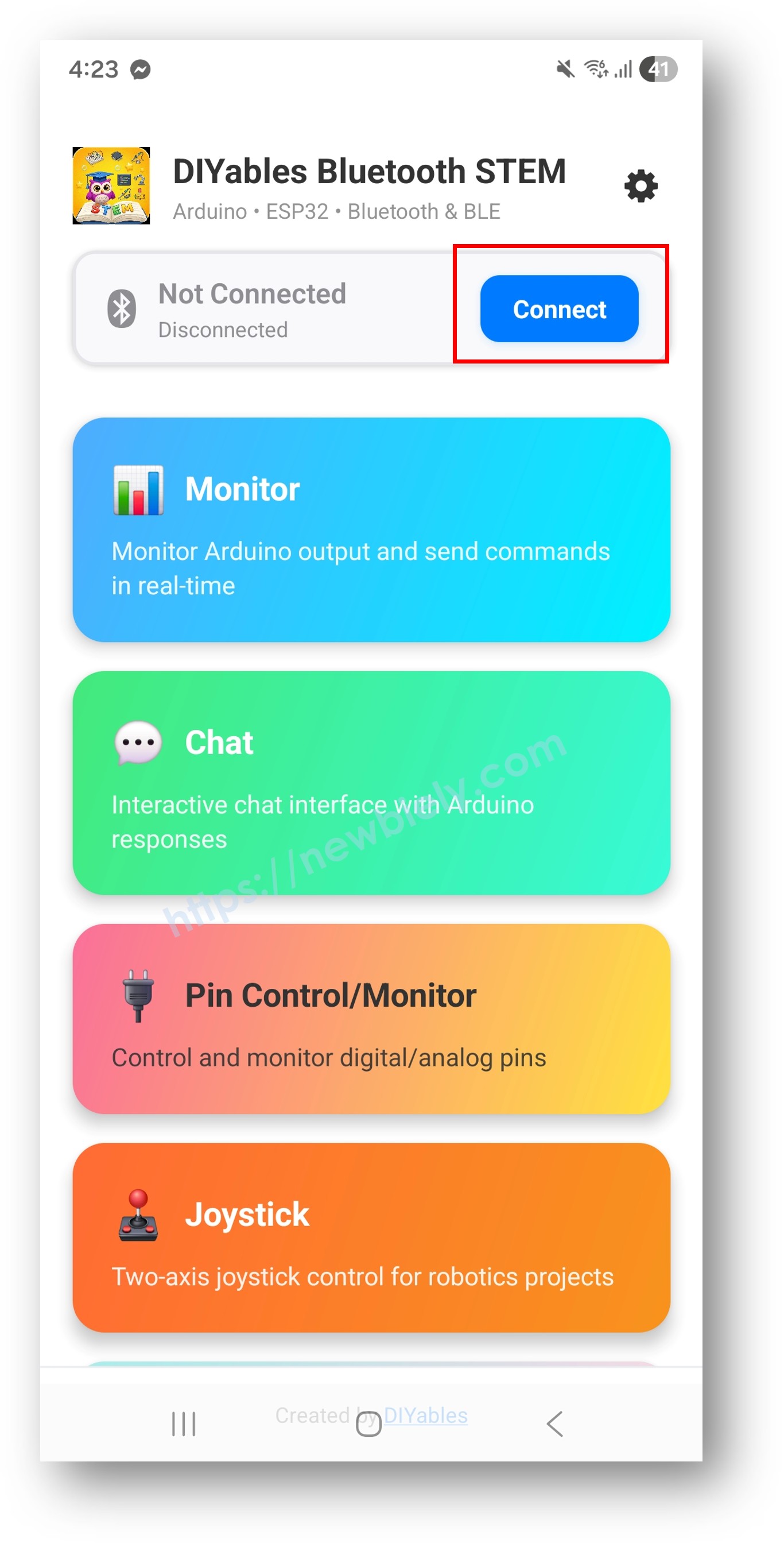
Scan: tap Connect on the home screen. The list shows both BLE and Classic devices.
Pick your board: "ESP32 Multi-App" for Classic, or "ESP32BLE Multi-App" for BLE. Once linked, the app jumps back to the home screen and the LED on D13 (GPIO18) lights up.
Look at the buttons: the nine screens set up in the sketch respond. Other buttons stay visible but do nothing with this sketch.
Try each screen: tap through Monitor, Chat, Slider, Joystick, Temperature, Plotter, Table, Analog Gauge and Rotator in any order. They all ride on the same link.
Pro tip: in the Monitor screen, type HEAP. The board answers with its free memory, which is a quick health check before you add your own code. The gear icon on the home screen hides unused buttons; the DIYables Bluetooth App User Manual explains every screen.
Back in the Serial Monitor, each action on the phone shows up as a line:
Newbiely | Arduino IDE 2.3.8
──
☐
✕
File
Edit
Sketch
Tools
Help
ESP32 Dev Module
Newbiely.ino
···
8Serial.println("Hello World!");
Output
Serial Monitor
Message (Enter to send message to 'ESP32 Dev Module' on 'COM15')
New Line
9600 baud
Bluetooth connected!
Monitor cmd: HELP
Chat: hi there
Slider 1: 173, Slider 2: 40
Joystick X: -22, Y: 81
Rotator: 245.50°
Table data requested
Ln 11, Col 1
ESP32 Dev Module on COM15
2
The Monitor screen knows five commands: HELP, STATUS (all current values), LED_ON, LED_OFF (the LED on D13) and HEAP (free memory).
How the Sketch Works
Here is what each block of the ESP32 Uno sketch does.
Code Part
What It Does
DIYables_Esp32BLE or DIYables_Esp32Bluetooth
Starts the radio with the name the phone sees
DIYables_BluetoothServer
Hosts all apps on the one link and routes each message
addApp() x 9
Registers each screen so the phone can show it
setupCallbacks()
Joins the screens, for example slider 1 sets the gauge and fills two table rows
loop() timers
Send the heartbeat, temperature, plot points, table and gauge values at their own pace
pinMode(18) and digitalWrite(18)
Drive the status LED on D13 (GPIO18)
The result is a dashboard where input screens (Slider, Joystick, Rotator) feed output screens (Gauge, Table) with no extra code from you. In loop(), nothing is sent while no phone is linked, so the board does not waste time.
ESP32 Uno vs UNO R4 for This Project
This table lists what changes when you move the multi-app dashboard from the UNO R4 WiFi to the ESP32 Uno.
Item
Arduino UNO R4 WiFi
ESP32 Uno
Logic voltage
5V
3.3V
Bluetooth radio
BLE only
BLE and Classic Bluetooth
Phone support
Android and iOS
BLE on Android and iOS, Classic on Android
Library platform file
DIYables_ArduinoBLE
DIYables_Esp32BLE or DIYables_Esp32Bluetooth
Status LED
LED_BUILTIN (on board)
External LED on D13 (GPIO18)
Extra IDE setting
None
Partition Scheme set to Huge APP
Arduino IDE board
Arduino UNO R4 WiFi
ESP32 Dev Module
The phone side is the same, and the app callbacks look almost the same. The main code change is the platform include and the LED pin. Start from the Esp32 examples on this page instead of editing the UNO R4 sketch.
Shape the Dashboard for Your Project
The example sends fake data. In a real build, you keep its layout and change what each screen sends or does. The blocks below are the parts you reuse.
Create and Register the Apps
Each screen is one object. You build it, then hand it to the server with addApp().
// headers for every screen you want#include <DIYables_BluetoothMonitor.h>#include <DIYables_BluetoothChat.h>#include <DIYables_BluetoothSlider.h>#include <DIYables_BluetoothJoystick.h>#include <DIYables_BluetoothTemperature.h>#include <DIYables_BluetoothPlotter.h>#include <DIYables_BluetoothTable.h>#include <DIYables_BluetoothAnalogGauge.h>#include <DIYables_BluetoothRotator.h>// one object per screen, with its scale or modeDIYables_BluetoothMonitor bluetoothMonitor;DIYables_BluetoothChat bluetoothChat;DIYables_BluetoothSlider bluetoothSlider(0, 100, 1);DIYables_BluetoothJoystick bluetoothJoystick;DIYables_BluetoothTemperature bluetoothTemperature(-10.0, 50.0, "°C");DIYables_BluetoothPlotter bluetoothPlotter;DIYables_BluetoothTable bluetoothTable;DIYables_BluetoothAnalogGauge bluetoothGauge(0.0, 100.0, "km/h");DIYables_BluetoothRotator bluetoothRotator(ROTATOR_MODE_LIMITED, 0, 180);// inside setup(): hand every screen to the serverbluetoothServer.addApp(&bluetoothMonitor);bluetoothServer.addApp(&bluetoothChat);bluetoothServer.addApp(&bluetoothSlider);bluetoothServer.addApp(&bluetoothJoystick);bluetoothServer.addApp(&bluetoothTemperature);bluetoothServer.addApp(&bluetoothPlotter);bluetoothServer.addApp(&bluetoothTable);bluetoothServer.addApp(&bluetoothGauge);bluetoothServer.addApp(&bluetoothRotator);
Give Each Screen a Handler
A handler runs only when its own screen sends something from the phone.
voidsetup() {// text typed in the Monitor screen bluetoothMonitor.onMonitorMessage([](const String& message) {Serial.println("Monitor received: " + message); });// chat line in, echo line out bluetoothChat.onChatMessage([](const String& message) {Serial.println("Chat: " + message); bluetoothChat.send("Echo: " + message); });// new slider positions bluetoothSlider.onSliderValue([](int slider1, int slider2) {Serial.println("Slider: " + String(slider1)); });// joystick pad position bluetoothJoystick.onJoystickValue([](int x, int y) {Serial.println("Joystick: X=" + String(x) + " Y=" + String(y)); });// knob angle in degrees bluetoothRotator.onRotatorAngle([](float angle) {Serial.println("Rotator: " + String(angle) + "°"); });}
One Timer per Output Screen
Use millis() timers, not long delay() calls, so bluetoothServer.loop() keeps running between sends.
Fewer screens mean a smaller binary, less memory and less radio traffic. This cut-down version shows three screens only.
// three screens: Monitor, Slider and Temperature#include <DIYables_BluetoothMonitor.h>#include <DIYables_BluetoothSlider.h>#include <DIYables_BluetoothTemperature.h>DIYables_BluetoothMonitor bluetoothMonitor;DIYables_BluetoothSlider bluetoothSlider(0, 100, 1);DIYables_BluetoothTemperature bluetoothTemperature(-10.0, 50.0, "°C");voidsetup() {// ... radio and server start here ... bluetoothServer.addApp(&bluetoothMonitor); bluetoothServer.addApp(&bluetoothSlider); bluetoothServer.addApp(&bluetoothTemperature);// the phone now lists just these three}
Fill the Screens When the Phone Links
Send first values in the connect handler, so no screen starts blank.
bluetoothServer.setOnConnected([]() {Serial.println("Bluetooth connected!");// push the latest numbers right away bluetoothTemperature.send(currentTemperature); bluetoothGauge.send(currentGaugeValue); bluetoothRotator.send(currentAngle);});bluetoothServer.setOnDisconnected([]() {Serial.println("Bluetooth disconnected!");});
Using Many Screens on the Phone
After this part, you can plan which screens send and which ones receive.
Topic
How It Works
Home screen
One button for each registered app
Switching
Tap a button to open it, use back or home to pick another one
Background
The ESP32 Uno keeps all apps running, whatever screen is open
Input screens
Slider, Joystick, Rotator and Chat send from the phone to the board
Output screens
Monitor, Temperature, Plotter, Table and Gauge send from the board to the phone
Two-way screens
Chat and Monitor both send and receive text
Ready-Made Dashboard Recipes
Each recipe mixes a few screens for one job. Functions like readTemperature(), setMotors() or setLights() are placeholders for your own sensor and driver code.
Recipe 1 — Weather Station
// big reading on the thermometer screenDIYables_BluetoothTemperature bluetoothTemperature(-10.0, 50.0, "°C");// every value as a rowDIYables_BluetoothTable bluetoothTable;// trend lines over timeDIYables_BluetoothPlotter bluetoothPlotter;// text log of each updateDIYables_BluetoothMonitor bluetoothMonitor;voidsetup() {// ... radio and server start here ... bluetoothTable.addRow("Temperature"); bluetoothTable.addRow("Humidity"); bluetoothTable.addRow("Pressure"); bluetoothTable.addRow("Wind Speed"); bluetoothTable.addRow("Rain"); bluetoothPlotter.setPlotTitle("Weather Trends"); bluetoothPlotter.setLegendLabels("Temp", "Humidity", "Pressure");}voidloop() { bluetoothServer.loop();staticunsignedlong lastUpdate = 0;if (millis() - lastUpdate >= 2000) { lastUpdate = millis();float temp = readTemperature();float hum = readHumidity();floatpress = readPressure();// thermometer bluetoothTemperature.send(temp);// table rows bluetoothTable.sendValueUpdate("Temperature", String(temp, 1) + " °C"); bluetoothTable.sendValueUpdate("Humidity", String(hum, 0) + "%"); bluetoothTable.sendValueUpdate("Pressure", String(press, 0) + " hPa");// graph, pressure scaled down to fit bluetoothPlotter.send(temp, hum, press / 10.0);// one log line bluetoothMonitor.send("Weather update: " + String(temp, 1) + "°C, " + String(hum, 0) + "%, " + String(press, 0) + "hPa"); }delay(10);}
Recipe 2 — Robot Remote
// drive directionDIYables_BluetoothJoystick bluetoothJoystick;// top speed limitDIYables_BluetoothSlider bluetoothSlider(0, 100, 5);// arm or turret angleDIYables_BluetoothRotator bluetoothRotator(ROTATOR_MODE_LIMITED, 0, 180);// status textDIYables_BluetoothMonitor bluetoothMonitor;// battery dialDIYables_BluetoothAnalogGauge bluetoothGauge(0.0, 100.0, "%");intmaxSpeed = 50;voidsetup() {// ... radio and server start here ... bluetoothSlider.onSliderValue([](int slider1, int slider2) {maxSpeed = slider1; bluetoothMonitor.send("Max speed set to: " + String(maxSpeed) + "%"); }); bluetoothJoystick.onJoystickValue([](int x, int y) {int leftMotor = constrain(y + x, -maxSpeed, maxSpeed);int rightMotor = constrain(y - x, -maxSpeed, maxSpeed); setMotors(leftMotor, rightMotor); bluetoothMonitor.send("Motors: L=" + String(leftMotor) + " R=" + String(rightMotor)); }); bluetoothRotator.onRotatorAngle([](float angle) { setArmAngle((int)angle); bluetoothMonitor.send("Arm angle: " + String((int)angle) + "°"); });}voidloop() { bluetoothServer.loop();// battery level, 10 s periodstaticunsignedlong lastBattery = 0;if (millis() - lastBattery >= 10000) { lastBattery = millis();float battery = readBatteryLevel(); bluetoothGauge.send(battery); }delay(10);}
Recipe 3 — Home Control Hub
// typed commandsDIYables_BluetoothChat bluetoothChat;// dimmer levelDIYables_BluetoothSlider bluetoothSlider(0, 100, 1);// state of each deviceDIYables_BluetoothTable bluetoothTable;// room temperature, 10 to 40 °C scaleDIYables_BluetoothTemperature bluetoothTemperature(10.0, 40.0, "°C");// activity logDIYables_BluetoothMonitor bluetoothMonitor;voidsetup() {// ... radio and server start here ... bluetoothTable.addRow("Living Room Light"); bluetoothTable.addRow("Bedroom Light"); bluetoothTable.addRow("AC Status"); bluetoothTable.addRow("Door Lock"); bluetoothTable.addRow("Security"); bluetoothChat.onChatMessage([](constString& msg) {String message = msg; message.toLowerCase();if (message == "lights on") { setLights(true); bluetoothChat.send("Lights turned ON"); bluetoothTable.sendValueUpdate("Living Room Light", "ON"); } elseif (message == "lights off") { setLights(false); bluetoothChat.send("Lights turned OFF"); bluetoothTable.sendValueUpdate("Living Room Light", "OFF"); } elseif (message == "status") { bluetoothChat.send("Temp: " + String(readTemperature(), 1) + "°C"); bluetoothChat.send("All systems normal"); } bluetoothMonitor.send("[CMD] " + message); }); bluetoothSlider.onSliderValue([](int slider1, int slider2) { setDimmer(slider1); bluetoothMonitor.send("[DIMMER] Set to " + String(slider1) + "%"); });}
Linking Screens and Saving Memory
When several screens show the same data, connect them and store the data in one place.
One Input, Many Outputs
In this snippet, each joystick push shifts a dot. The plotter draws its path, the table shows the numbers and the monitor logs it.
// point that the joystick moves aroundfloat posX = 0, posY = 0;bluetoothJoystick.onJoystickValue([](int x, int y) { posX += x * 0.1; posY += y * 0.1;// path on the graph bluetoothPlotter.send(posX, posY);// numbers in the table bluetoothTable.sendValueUpdate("Position X", String(posX, 1)); bluetoothTable.sendValueUpdate("Position Y", String(posY, 1));// log line bluetoothMonitor.send("Pos: (" + String(posX, 1) + ", " + String(posY, 1) + ")");});
Read Once, Send Everywhere
Read all sensors one time into a struct, then send the same values to each screen. You do fewer sensor reads and keep less data in RAM.
Use this table to pick the right sketch for your phone and your data rate.
Point
BLE sketch (Esp32BLE_MultipleApps)
Classic sketch (Esp32Bluetooth_MultipleApps)
iPhone
Yes
No
Android
Yes
Yes
Power draw
Low
Higher
Data rate
Lower
Higher
Pairing step
No, scan and connect
Yes, in phone settings
Name in the scan list
ESP32BLE Multi-App
ESP32 Multi-App
Best for
Battery builds and mixed phones
Fast plotters on Android
Good to know: with nine screens sending, radio bandwidth is the first limit you hit. Classic handles a 100 ms plotter plus other screens more easily. For battery power or iPhones, stay with BLE and spread the timers apart.
Memory Check Helper
Print the free memory now and then. If the number keeps going down, some part of your code leaks memory.
Install the CH340 driver and use a USB cable that carries data
Upload stops at Failed to connect or Waiting for download
Board did not enter download mode
Hold the BOOT button while the upload starts, then let go
Sketch too big error
Default partition gives only about 1.2 MB
Set Tools > Partition Scheme to Huge APP (3MB No OTA/1MB SPIFFS), or remove screens
ESP32 Multi-App missing in the app list
Classic sketch used but phone not paired
Pair the board in Android Bluetooth settings first, then scan in the app
ESP32BLE Multi-App missing in the scan
Bluetooth or Location off on the phone
Turn on Bluetooth, and on Android 11 or older also Location, then press RESET and scan again
A screen button does nothing
That app was never passed to addApp()
Add the object with bluetoothServer.addApp(&name) in setup()
Plotter lags or the link drops
Too many sends at the same moment
Make the timers longer and give them different periods
Board reboots after a while
Low free heap or weak USB power
Remove unused screens, check HEAP in the Monitor screen, and use a good USB port
Status LED stays dark
LED not on D13 or wired backwards
Long leg through 220 ohm to D13 (GPIO18), short leg to GND
Unreadable text in the Serial Monitor
Baud rate does not match
Set the Serial Monitor to 115200
FAQ
Which sketch should I flash, BLE or Classic?
Flash the BLE sketch if any iPhone will connect, or if you do not want a pairing step. Flash the Classic sketch if only Android phones are used and you need more data speed. Both sketches create the same nine screens on the ESP32 Uno.
Do I need any parts to try the ESP32 Uno multi-app dashboard?
No. The radio is inside the board, and all values in the example are made by the code. You only need the board and a USB Type-C cable. The LED on D13 is optional.
Why is the Huge APP partition needed for this example?
Nine app libraries and a Bluetooth stack produce a large program. The default partition gives about 1.2 MB for code, which is too little. Huge APP raises that to about 3 MB, but you lose over-the-air (OTA) updates.
Can I run all nine apps and still add my own sensors?
Yes, but watch memory and radio traffic. Type HEAP in the Monitor screen to see free memory. If the board resets or the plotter lags, drop screens you do not need and make the send periods longer.
Why does the code use GPIO18 for the LED?
The ESP32 Uno has no built-in LED on the Uno headers. The UNO R4 sketch uses LED_BUILTIN, so the ESP32 Uno version moves it to an external LED on D13, which is GPIO18. D13 is a safe pin with no boot role.
Can I reuse my UNO R4 multi-app code on the ESP32 Uno?
Only partly. The app objects and callbacks are almost the same, but the UNO R4 sketch uses DIYables_ArduinoBLE and LED_BUILTIN. On the ESP32 Uno you use DIYables_Esp32BLE or DIYables_Esp32Bluetooth and pin 18. Starting from the Esp32 example is faster.
Can a sensor on A0 or A1 send values to the gauge while Bluetooth runs?
Yes. The ADC2 limit on A0 (GPIO2) and A1 (GPIO4) applies to WiFi, not to Bluetooth. Add analogSetAttenuation(ADC_11db); in setup() and expect values from 0 to 4095. Keep the sensor signal at 3.3V or less.
Do UNO shields fit the ESP32 Uno for this dashboard?
Most 3.3V-safe shields fit, because the headers have the Uno shape. ESP32 Uno pins are not 5V tolerant, so a shield that sends 5V signals into the board needs a level shifter. Also keep in mind that A4 and A5 are not I2C on this board; use the SDA and SCL header pins.
Can I use WiFi and Bluetooth at the same time on the ESP32 Uno?
The chip can run both, but they share one antenna and the memory. With nine Bluetooth screens, adding WiFi often leaves too little heap. For a web dashboard, look at the ESP32 Uno - DIYables Web Apps guide and pick one radio per project.
What if my dashboard project needs more pins than the Uno headers give?
The ESP32 Uno has a few extra holes near the power header. GPIO32 and GPIO33 work as I/O, PWM and analog on ADC1, so they still read analog values while WiFi is on. GPIO15 works as I/O, PWM and analog on ADC2. Solder pin headers and write the GPIO number in code. For a dashboard, GPIO32/33 are a good fit for analog sensors that feed the Gauge or Plotter. Two warnings: GPIO15 and GPIO0 (the IO0 pin at the unused Uno NC position) are boot strapping pins, and a wrong connection can stop the board from booting or uploading, so use GPIO32/33 first. Never use the six holes under the digital header (SD0 to SD3, CMD, CLK = GPIO6 to GPIO11); they are wired to the flash chip, and using them crashes the board.
Please feel free to share the link of this tutorial. However, Please do not use our content on any other websites. We invested a lot of effort and time to create the content, please respect our work!