
ESP32 UNO - Temperature Sensor
How do you measure temperature with the ESP32 Uno? Connect a DS18B20 probe to the ESP32 Uno form board, and it sends exact readings over one data wire. This DS18B20 guide covers wiring, the DallasTemperature library and Arduino IDE code. The Serial Monitor shows Celsius and Fahrenheit.
By the end, you can:
- Wire a DS18B20 temperature sensor to the ESP32 Uno, with or without an adapter.
- Install the DallasTemperature and OneWire libraries.
- Read the 1-wire sensor value with requestTemperatures().
- Convert Celsius to Fahrenheit in code.
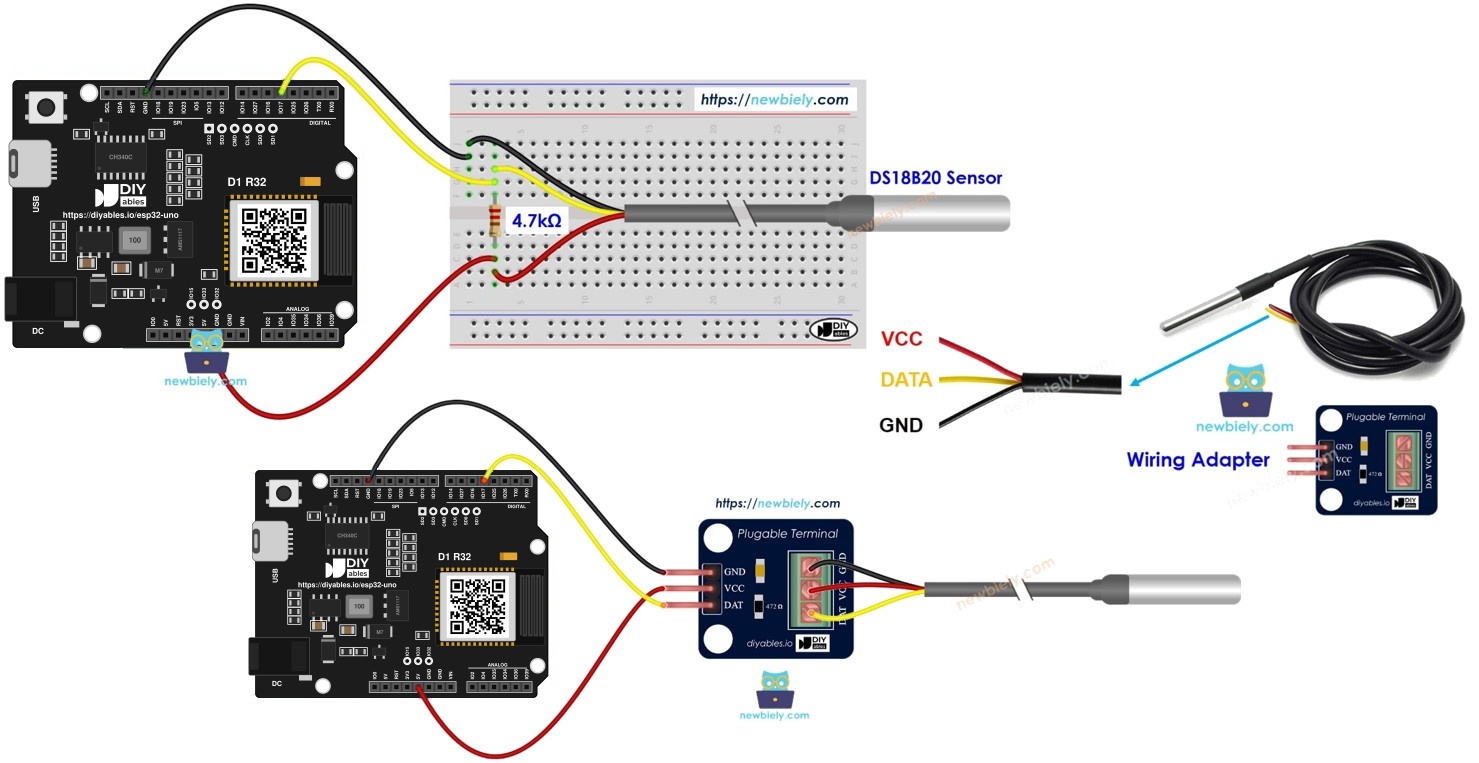
Components You Need
Or you can buy the following kits:
| 1 | × | DIYables Sensor Kit (18 sensors/displays) |
Additionally, some of these links are for products from our own brand, DIYables .
Buy Note: Many DS18B20 sensors available in the market are unreliable. We strongly recommend buying the sensor from the DIYables brand using the link provided above. We tested it, and it worked reliably.
Overview of the DS18B20 One Wire Temperature Sensor
By the end of this part, you know what each sensor pin does.
The DS18B20 is a digital sensor. It sends the temperature as data, so you do not need an analog pin or any ADC math.
Pinout
| Sensor Pin | Role | Connect To |
|---|---|---|
| GND | Ground | GND |
| VCC | Power | 3.3V (the sensor also accepts 5V, but use 3.3V here) |
| DATA | 1-Wire data bus | one digital pin of the ESP32 Uno |
The sensor comes as a small TO-92 part that looks like a transistor, or as a waterproof probe on a cable. This page uses the waterproof probe.
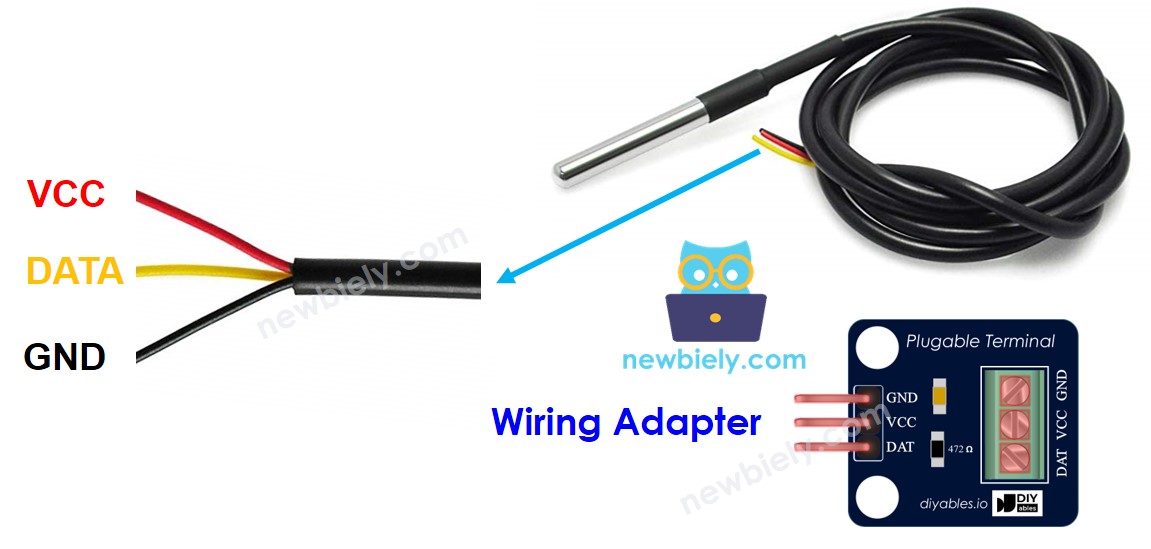
Good to know: the DATA line needs a pull-up resistor (about 4.7kΩ) to VCC. Some sellers add a small adapter board with the resistor and a screw terminal. It saves you one part and one mistake.
ESP32 Uno Pinout
Each Uno header label on the ESP32 Uno form board has a GPIO number behind it. Find D4 and the power pins in the picture before you place a wire.

How to Connect
By the end of this part, the DATA wire is on D4 (GPIO17) and the sensor has power.
- Breadboard wiring diagram
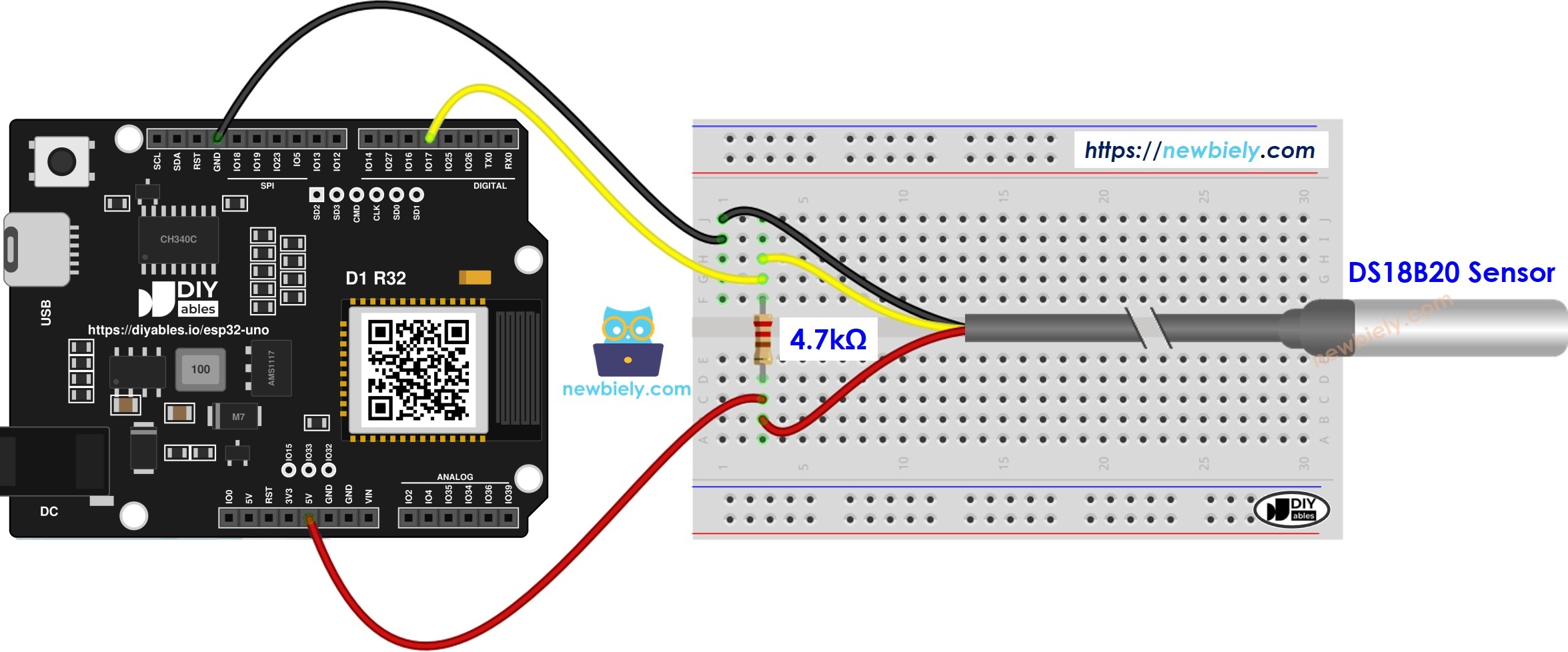
This image is created using Fritzing. Click to enlarge image
- Wiring diagram with the wiring adapter
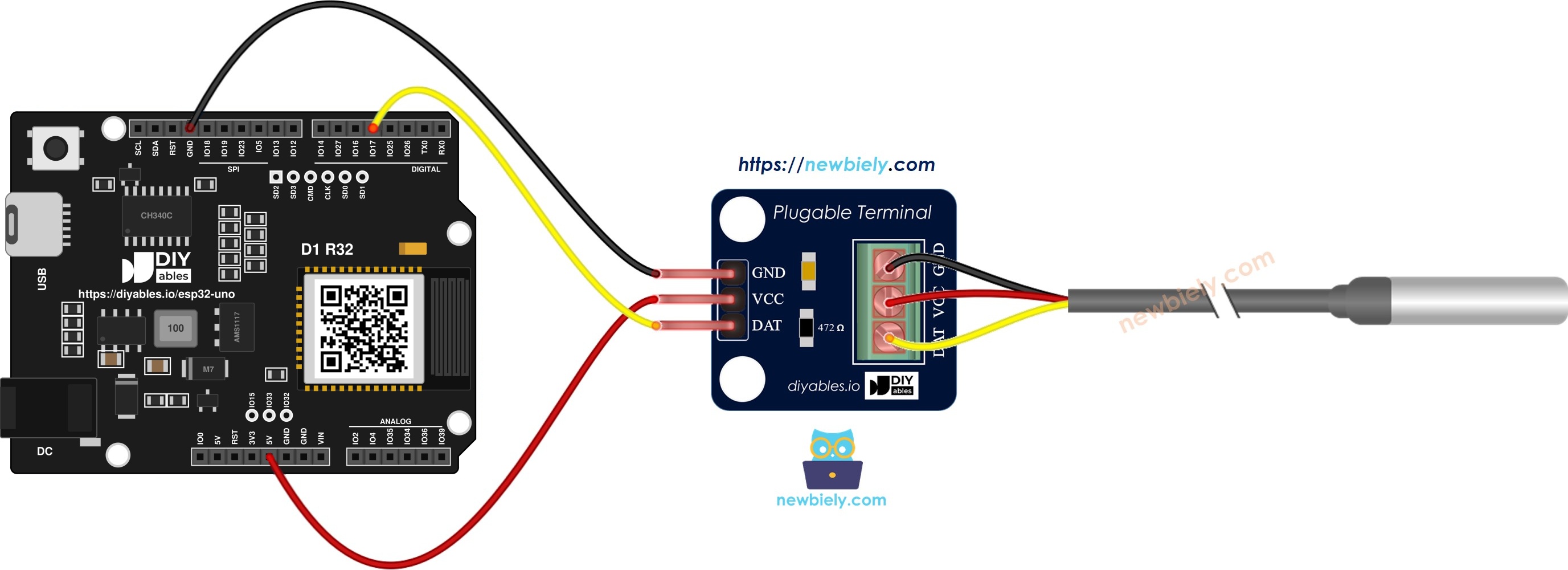
This image is created using Fritzing. Click to enlarge image
| Component Pin | ESP32 Uno Pin |
|---|---|
| VCC | 3.3V |
| GND | GND |
| DATA (DQ) | D4 (GPIO17) |
Good to know: without an adapter, put a 4.7kΩ resistor between DATA and VCC. With the DS18B20 sensor and wiring adapter, the resistor is already on the board.
DS18B20 Code Basics
By the end of this part, you know the five calls that read the sensor.
Step 1 — Include the libraries
Step 2 — Create the bus and sensor objects
Pass the GPIO number of the DATA pin.
Step 3 — Start the sensor
Step 4 — Request and read the temperature
Step 5 — Convert to Fahrenheit (optional)
ESP32 Uno Code
The sketch reads the DS18B20 twice per second and prints both units.
Upload and Test
- First time with this board? Set it up with ESP32 Uno - Getting Started before you continue.
- Build the circuit by following the wiring table above.
- Plug in the USB Type-C cable between the ESP32 Uno and your computer.
- Select the board in Arduino IDE: pick ESP32 Dev Module and the COM port of the board (CH340).
- Open the Library Manager with the Libraries icon on the left side of Arduino IDE.
- Install DallasTemperature: search for DallasTemperature and install the library by Miles Burton.
- Search for DallasTemperature created by Miles Burton
- Install the dependency: click Install All so the OneWire library is added too.
- Search for OneWire created by Jim Studt, Tom Pollard, Robin James, Glenn Trewitt, Jason Dangel, Guillermo Lovato, Paul Stoffregen, Scott Roberts, Bertrik Sikken, Mark Tillotson, Ken Butcher, Roger Clark, Love Nystrom and click the Install button.
- Copy the code into Arduino IDE.
- Upload the sketch with the Upload button.
- Test it: hold the probe in your hand, or put it into warm and cold water.
- Open the Serial Monitor and check the readings.
- Pro tip: wait about one second after power-up. The first reading can show -127°C while the sensor wakes up.
Video Tutorial
See the ESP32 Uno build in action in the video below.
Code Explanation
| Code Part | What It Does |
|---|---|
| SENSOR_PIN 17 | Sets D4 (GPIO17) as the 1-Wire data pin |
| OneWire / DallasTemperature | Create the bus and the sensor helper |
| DS18B20.begin() | Starts the sensor library once in setup() |
| requestTemperatures() | Tells the sensor to measure |
| getTempCByIndex(0) | Returns the Celsius value of the first sensor |
| temperature_C * 9 / 5 + 32 | Converts Celsius to Fahrenheit |
The loop prints both values and waits 500 ms.
ESP32 Uno vs UNO R4 for This Project
By the end of this part, you know what changes when you move this sensor from the UNO R4 to the ESP32 Uno.
| Item | Arduino UNO R4 | ESP32 Uno |
|---|---|---|
| Logic voltage | 5V | 3.3V |
| Data pin | D4 | D4 (GPIO17) |
| Sensor power | 5V or 3.3V | 3.3V |
| Libraries | OneWire, DallasTemperature | OneWire, DallasTemperature (same) |
| Arduino IDE board | Arduino UNO R4 WiFi | ESP32 Dev Module |
| USB driver | none needed | CH340 driver |
The wiring stays the same. Only the pin number in code changes: the sketch uses 17 instead of 4. Power the sensor from 3.3V so the data line stays at a safe level.
Go Wireless: Temperature on Your Phone
By the end of this part, you have an idea to show the temperature without a cable.
The ESP32 Uno has WiFi and Bluetooth. You can send the DS18B20 value to a web page or to a phone app, so you can watch the room temperature from the couch. Start with one of these pages:
Try These Next
- Print a warning when the temperature goes above a limit.
- Turn on a fan or relay when it is too hot.
- Show the value on an LCD or OLED screen.
- Connect two DS18B20 sensors on the same pin and read them with getTempCByIndex(1).
Language References
Troubleshooting
| Problem | Possible Cause | Solution | |
|---|---|---|---|
| No COM port appears | CH340 driver missing or charge-only cable | Install the CH340 driver and use a USB cable that carries data | |
| Upload fails with "Failed to connect" or "Waiting for download" | Board is not in download mode | Hold the BOOT button while the upload starts | |
| Reading is -127°C | DATA wire loose or no pull-up resistor | Check D4 (GPIO17) and add a 4.7kΩ resistor between DATA and 3.3V | |
| Reading is 85°C | Sensor power-on default value | Check the 3.3V wire and read again after one second | |
| Nothing prints | Wrong baud rate in Serial Monitor | Set the Serial Monitor to 9600 | |
| Compile error | OneWire.h not found | Library missing | Install DallasTemperature and click Install All for OneWire |
| Value jumps around | Long or loose wires | Shorten the wires and press the connectors in firmly | |
| Temperature is too high | Sensor sits near the board or the hand | Move the probe away from warm parts | |
| Wrong pin used | Code pin and wire do not match | Use GPIO17 in code for the D4 header pin |
FAQ
What is the DS18B20 sensor?
It is a digital 1-wire temperature sensor. It sends the temperature as data, so you do not need an analog pin.
What temperature range can the DS18B20 measure?
It measures from -55°C to +125°C. It is accurate to about ±0.5°C between -10°C and +85°C.
Do I need a pull-up resistor?
Yes, a 4.7kΩ resistor between DATA and VCC. A wiring adapter board already has one.
Should I power the DS18B20 from 3.3V or 5V on the ESP32 Uno?
Use 3.3V. The ESP32 Uno pins are not 5V tolerant, and the sensor works fine at 3.3V.
Which library reads the DS18B20?
Use DallasTemperature together with OneWire. Install DallasTemperature and click Install All.
Can I connect more than one DS18B20?
Yes. Put all DATA wires on the same pin and read each sensor with getTempCByIndex(0), getTempCByIndex(1) and so on.
Which pin does the code use on the ESP32 Uno?
The code uses GPIO17, which is the D4 header pin. In code you always write the GPIO number.
Do I need analogSetAttenuation for this sensor?
No. The DS18B20 is digital, so the ADC is not used.
Why does the code differ from the UNO R4 code?
Only the pin number changes, from 4 to 17. The libraries and calls are the same.
Can I show the temperature on a web page with the ESP32 Uno?
Yes. The ESP32 Uno has WiFi and Bluetooth. See the Go Wireless section for links.
What if my project needs more pins than the Uno headers give?
The ESP32 Uno has a few extra holes near the power header: GPIO32 and GPIO33 (I/O, PWM, analog on ADC1, so they also work while WiFi is on) and GPIO15 (I/O, PWM, analog on ADC2). Solder pin headers to use them and write the GPIO number in code. For a second 1-wire bus, GPIO32 or GPIO33 is a good choice. Warning 1: GPIO15 and GPIO0 (the IO0 pin at the unused Uno NC position) are boot strapping pins. A wrong connection can stop the board from booting or uploading code, so use GPIO32/33 first. Warning 2: never use the six holes under the digital header (SD0–SD3, CMD, CLK = GPIO6–GPIO11). They are wired to the flash chip, and using them crashes the board.