
ESP32 UNO - Motion Sensor - LED
Want a light that wakes up when somebody walks past? Hook an HC-SR501 PIR sensor and one LED to the ESP32 Uno, and the motion sensor LED glows the moment it spots movement. When nobody moves, the LED goes dark again. The whole build fits on one breadboard with the ESP32 Uno form board and a short Arduino IDE sketch.
What you will do:
- Wire an HC-SR501 and a single LED to the ESP32 Uno headers
- Tune the HC-SR501 delay knob, range knob and trigger jumper
- Catch the start and the end of movement with digitalRead()
- Make the motion sensor control the LED and print each event
| Room Event | Sensor OUTPUT | LED | Serial Monitor |
|---|---|---|---|
| Person walks in | LOW to HIGH | On | Motion detected! |
| Person stays still, delay ends | HIGH to LOW | Off | Motion stopped! |
| Nobody there | LOW | Off | (nothing) |
Components You Need
Or you can buy the following kits:
| 1 | × | DIYables Sensor Kit (18 sensors/displays) |
Additionally, some of these links are for products from our own brand, DIYables .
Buy Note: Use the LED Module for easier wiring. It includes an integrated resistor.
The PIR Sensor, the LED and Their Jobs
After this part, you know what each piece does and how the signal flows.
| Part | Job Here | Learn It Alone |
|---|---|---|
| HC-SR501 PIR sensor | Input, sets its OUTPUT pin HIGH while it sees a warm moving body | ESP32 Uno - Motion Sensor |
| LED + 220 ohm resistor | Output, glows while D3 is HIGH | ESP32 Uno - LED |
The PIR lens picks up the infrared heat from people and pets. A change in that heat pattern makes the module raise its OUTPUT pin. The pin falls back to LOW once the movement ends and the module's own timer runs out.
| Spec | HC-SR501 Value |
|---|---|
| Supply voltage | 5V (works from about 4.5V to 20V) |
| OUTPUT HIGH level | About 3.3V |
| Detection range | Up to about 7 m, set by a knob |
| Hold time | About 3 s up to about 5 min, set by a knob |
| Warm-up after power-on | About 30 to 60 s |
Good to know: the module needs 5V on VCC, but its signal pin only reaches about 3.3V. That fits the ESP32 Uno, whose pins are NOT 5V tolerant.
ESP32 Uno Pinout
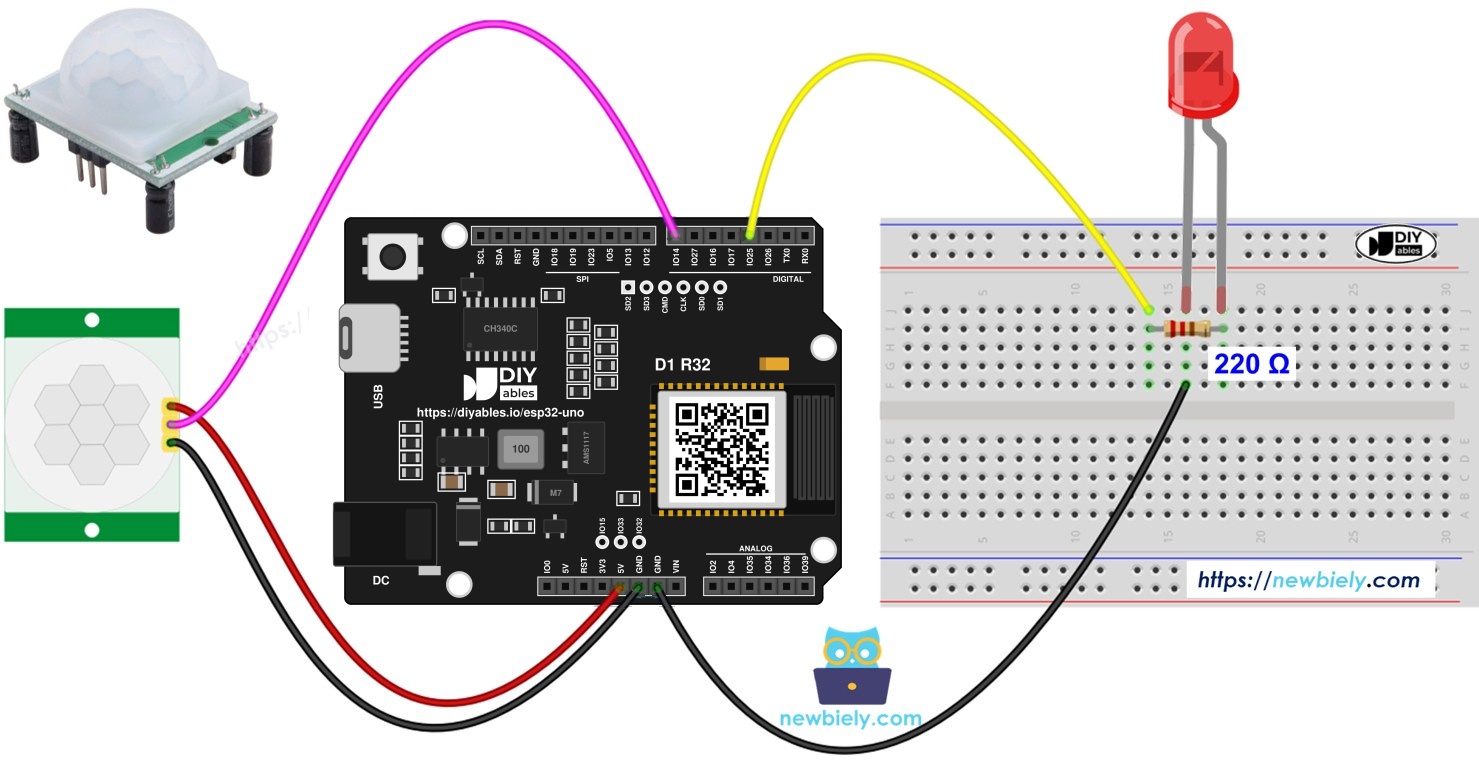
The holes on this board carry Uno names like D3 and D7, but the sketch needs the GPIO number behind each one. Look up both project pins in the picture first.

How to Connect It
When this part is done, the sensor signal lands on D7 and the LED hangs off D3.
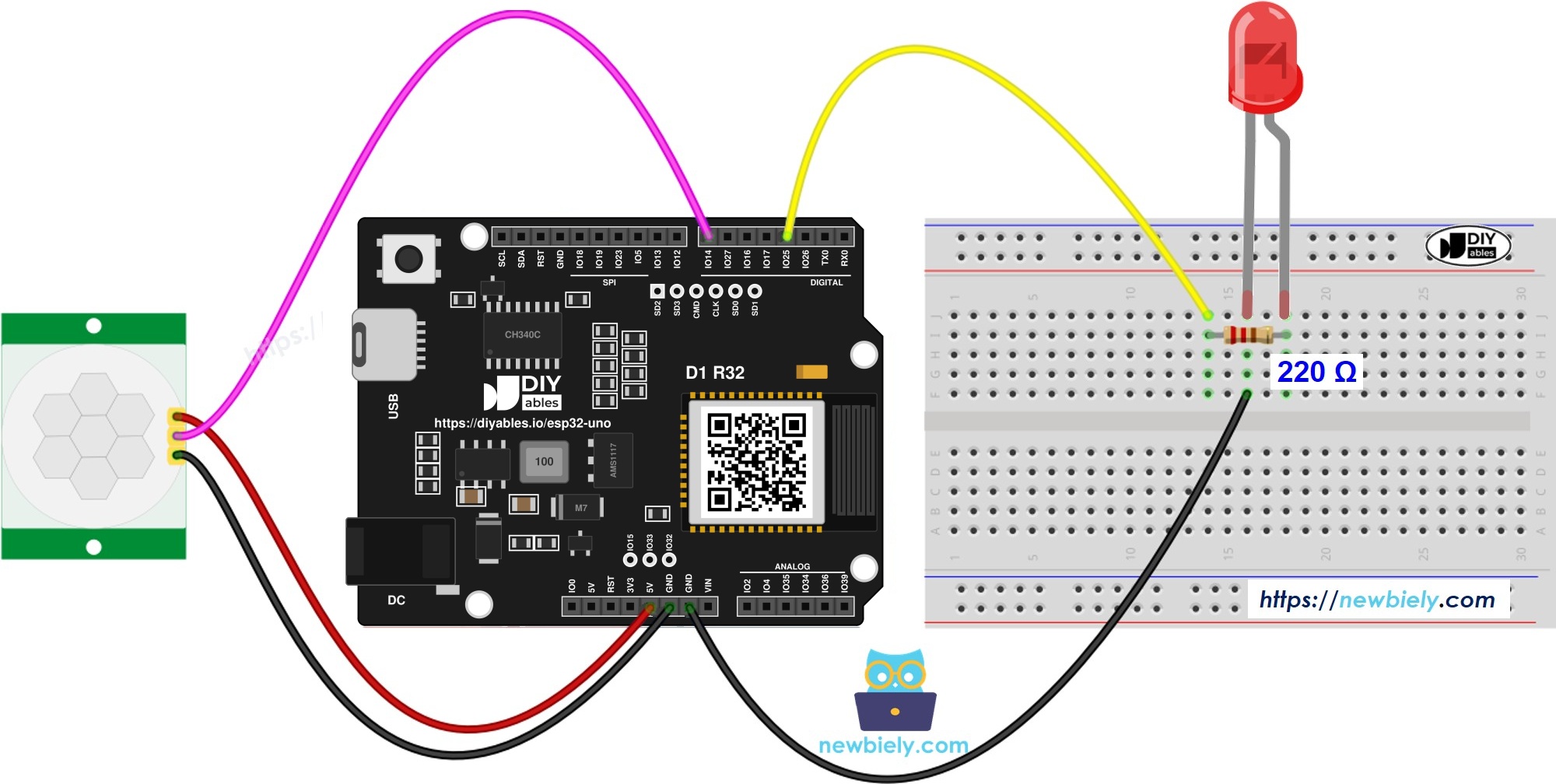
This image is created using Fritzing. Click to enlarge image
| Component Pin | ESP32 Uno Pin |
|---|---|
| Motion sensor VCC | 5V |
| Motion sensor OUTPUT | D7 (GPIO14) |
| Motion sensor GND | GND |
| LED anode (long leg) via 220 ohm resistor | D3 (GPIO25) |
| LED cathode (short leg) | GND |
※ NOTE THAT:
Only the sensor's VCC line uses 5V. The OUTPUT wire carries about 3.3V, so it can go straight to D7. If you swap in a different PIR board whose output swings to 5V, put a voltage divider (for example 10k ohm and 20k ohm) between it and D7.
Good to know: D3 (GPIO25) and D7 (GPIO14) are normal I/O pins on the ESP32 Uno, with no boot or input-only limits, so nothing special is needed here.
Sensor Setup Before Upload
By the end of this part, the sensor reacts fast and lets go soon after you stop moving.
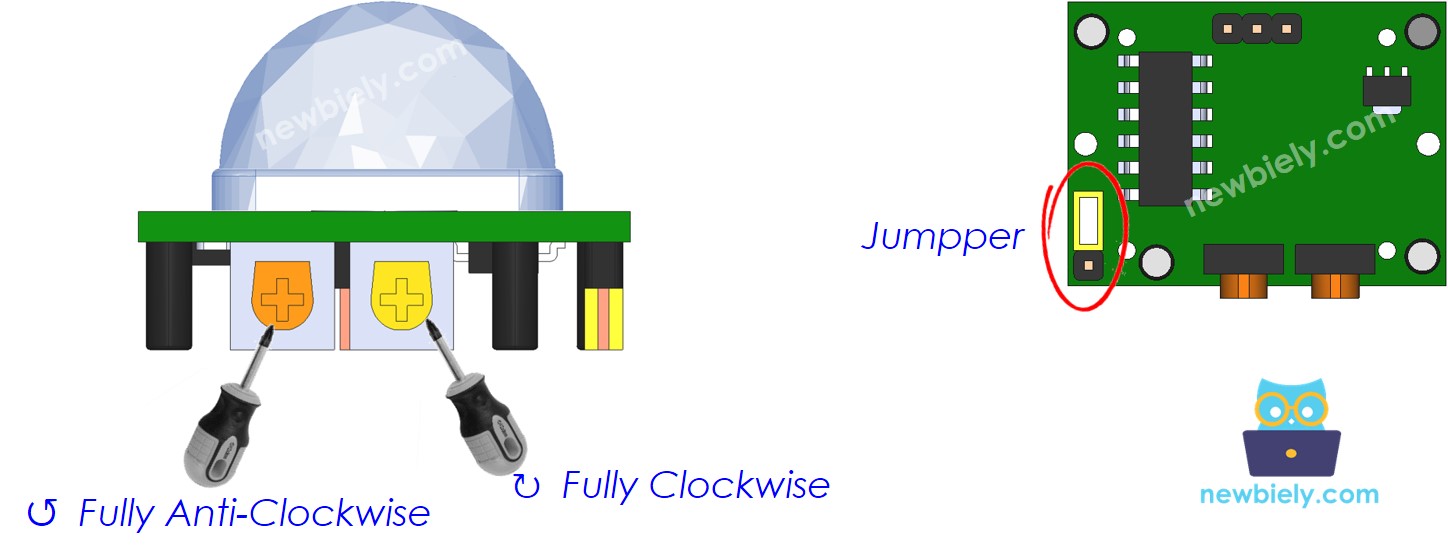
Flip the module over. You see two orange knobs and one three-pin jumper.
| Time Delay Adjuster | Rotate it all the way anti-clockwise (shortest hold, about 3 s). |
| Detection Range Adjuster | Rotate it all the way clockwise (longest reach). |
| Repeat Trigger Selector | Set the jumper as in the picture. |
ESP32 Uno Code
The sketch watches GPIO14 for a change of level and copies each change to the LED on GPIO25.
Upload and Test
- First time with this board? Set it up with ESP32 Uno - Getting Started before you continue.
- Build the circuit by following the wiring table above.
- Plug in the USB Type-C cable between the ESP32 Uno and your computer.
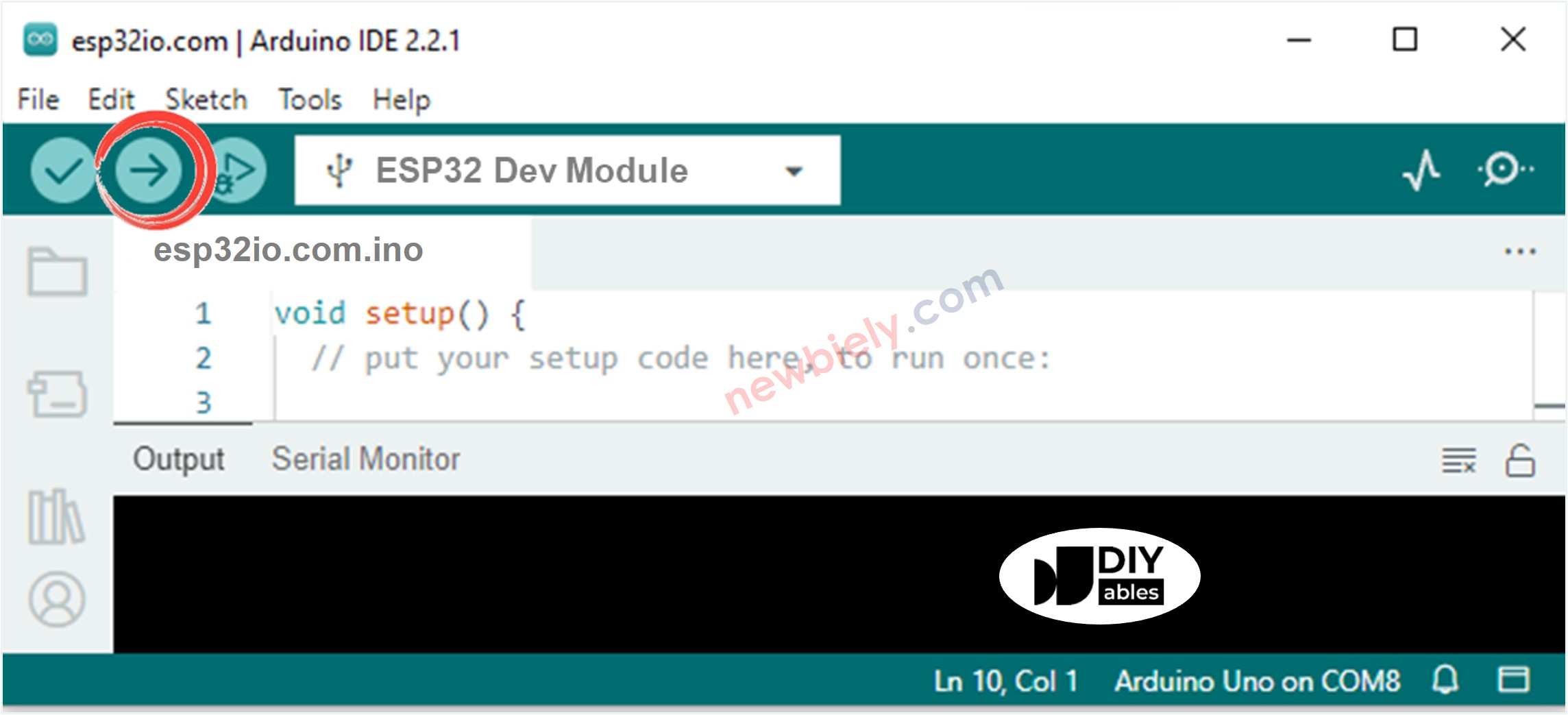
- Select the board in Arduino IDE: pick ESP32 Dev Module and the COM port of the board (CH340).
- Paste the sketch into a blank Arduino IDE window.
- Hit Upload (Upload) and wait until the IDE says "Done uploading".
- Launch the Serial Monitor and set it to 9600 baud.
- Step away for one minute, so the PIR finishes its warm-up.
- Walk past the sensor, then freeze.
- Check the LED: it lights as you move and goes out a few seconds after you freeze.
- Pro tip: point the sensor at a doorway, not at a window or a heater. Sunlight and warm air drafts look like movement to the PIR lens and give false triggers.
Video Tutorial
See the ESP32 Uno build in action in the video below.
Code Explanation
| Code Part | What It Does |
|---|---|
| MOTION_SENSOR_PIN 14 and LED_PIN 25 | Tie the names to D7 (GPIO14) and D3 (GPIO25) |
| motion_state and motion_state_prev | Hold the new and the old sensor level |
| prev LOW and now HIGH | Rising edge, so movement just began and the LED goes on |
| prev HIGH and now LOW | Falling edge, so movement ended and the LED goes off |
| Serial.println(...) | Prints one line per event, not one per loop |
Because the sketch acts only on a change of level, the Serial Monitor stays clean and the LED pin is written just twice per visit.
ESP32 Uno vs UNO R4 for This Project
Moving this PIR light from the UNO R4 to the ESP32 Uno changes the pin numbers and the logic level, nothing else.
| Item | Arduino UNO R4 | ESP32 Uno |
|---|---|---|
| Logic voltage | 5V | 3.3V |
| Sensor pin in code | 7 (D7) | 14 (D7) |
| LED pin in code | 3 (D3) | 25 (D3) |
| Sensor power | 5V pin | 5V pin |
| Libraries | None | None |
| Arduino IDE board | Arduino UNO R4 WiFi or Minima | ESP32 Dev Module |
All wires stay in the same header holes, so the breadboard moves over as it is. The LED looks a little dimmer at 3.3V, which is normal.
Go Wireless: See Movement on Your Phone
This idea lets you know about movement when you are in another room.
The ESP32 Uno has WiFi and Bluetooth (Classic and BLE) on board. Keep the PIR and the LED as they are, and send the same sensor level to a phone. A web page or app can show D7 as an ON or OFF light, and you can switch the LED from the screen as well. A log of "Motion detected!" lines on your phone works like a simple visitor counter.
Good to know: the sketch has no delay(), so a WiFi or Bluetooth library can share the same loop() without slowing the PIR check.
Try These Next
- Keep the LED on for 10 seconds after the last movement, using millis() instead of the sensor's own hold time.
- Swap the LED for an active buzzer to build a small room alarm.
- Count how many times motion starts and print the total.
Troubleshooting
| Problem | Possible Cause | Solution |
|---|---|---|
| No COM port shows up in Arduino IDE | CH340 driver missing or the cable only charges | Install the CH340 driver and use a USB cable that carries data |
| Upload stops at "Failed to connect" or "Waiting for download" | Board did not enter download mode | Hold the BOOT button as the upload begins, then let go |
| LED flashes on by itself right after power-up | PIR still in its warm-up time | Wait about one minute before you test |
| LED never turns on | LED turned around or sketch still uses pin 3 | Long leg to the resistor and D3, and use 25 in the code |
| Walking past does nothing | Sensor VCC on 3.3V or OUTPUT not on D7 | Feed VCC from 5V and check the D7 (GPIO14) wire |
| LED stays lit long after you stop | Time Delay knob turned up | Turn the Time Delay knob fully anti-clockwise |
| Sensor fires from across the room | Range knob at maximum | Turn the Detection Range knob back a little |
| Random triggers with nobody there | Heat source or moving air in view | Aim the lens away from heaters, lamps and open windows |
| Strange symbols in the Serial Monitor | Baud mismatch | Pick 9600 baud in the Serial Monitor |
FAQ
How does a PIR sensor know someone is there?
It does not see light or shapes. It senses the infrared heat that warm bodies give off. When that heat moves across the two halves of the sensor, the module raises its OUTPUT pin.
Can I power the HC-SR501 from the 3.3V pin?
Not as sold. The module has its own regulator and wants about 4.5V or more, so use the 5V pin of the ESP32 Uno. Its signal pin still gives about 3.3V, which is safe for D7.
Do I need a resistor on the sensor signal wire?
No. The OUTPUT pin of the HC-SR501 can go straight to D7. The only resistor in this build is the 220 ohm one in series with the LED.
Why does the sketch say 14 and 25 instead of 7 and 3?
ESP32 Uno code uses GPIO numbers. The D7 hole is GPIO14 and the D3 hole is GPIO25. Writing 7 or 3 would point to other chip pins.
Is an ESP32 Uno pin strong enough to light the LED?
Yes. A pin gives 3.3V and can supply a few milliamps, which is enough for a small LED through 220 ohm. For a bright lamp or an LED strip, use a relay or a MOSFET instead.
Can I move the sensor to A2, A3, A4 or A5?
Yes, for this sensor. A2 to A5 (GPIO35, 34, 36, 39) are input only on the ESP32 Uno, and the PIR is an input that drives its own HIGH and LOW. Just change MOTION_SENSOR_PIN to the new GPIO number. Never move the LED there, because those pins cannot output.
Does the PIR sensor still work while the ESP32 Uno uses WiFi?
Yes. The sensor gives a plain digital level, and digitalRead() works on D7 (GPIO14) with WiFi on or off. The ADC2 limit on A0 and A1 only affects analogRead(), which this project does not use.
What does the Repeat Trigger jumper change?
In repeat mode, the output stays HIGH as long as movement continues. In single mode, it goes LOW after the hold time even if you keep moving, then fires again. Repeat mode feels more natural for a light.
Can two PIR sensors share one LED?
Yes. Wire the second sensor OUTPUT to another free pin, such as D6 (GPIO27), read both, and turn the LED on if either one is HIGH. That covers a bigger area.
Can I see the motion events on a web page?
Yes. The ESP32 Uno has WiFi and Bluetooth, so the same reading can go to a browser or a phone app. See the Go Wireless part above for ready pages.
What if my project needs more pins than the Uno headers give?
The ESP32 Uno has a few extra holes near the power header: GPIO32 and GPIO33 (I/O, PWM, analog on ADC1, so they also work while WiFi is on) and GPIO15 (I/O, PWM, analog on ADC2). Solder pin headers there and write the GPIO number in code. For a second PIR sensor or more LEDs, GPIO32 and GPIO33 are the best picks. Two warnings: GPIO15 and GPIO0 (the IO0 pin at the unused Uno NC position) are boot strapping pins, and a wrong connection can stop the board from booting or uploading code, so use GPIO32/33 first. Never use the six holes under the digital header (SD0 to SD3, CMD, CLK = GPIO6 to GPIO11); they are wired to the flash chip and using them crashes the board.