
ESP32 UNO - Piezo Buzzer
Need your project to beep, warn or sing? Hook a piezo buzzer to the ESP32 Uno and a few lines of Arduino code turn it into a tiny speaker. It works with a bare active or passive buzzer and with a ready-made buzzer module. On the ESP32 Uno form board, the tone() function handles the sound wave for you, so you only pick the notes.
What you will do:
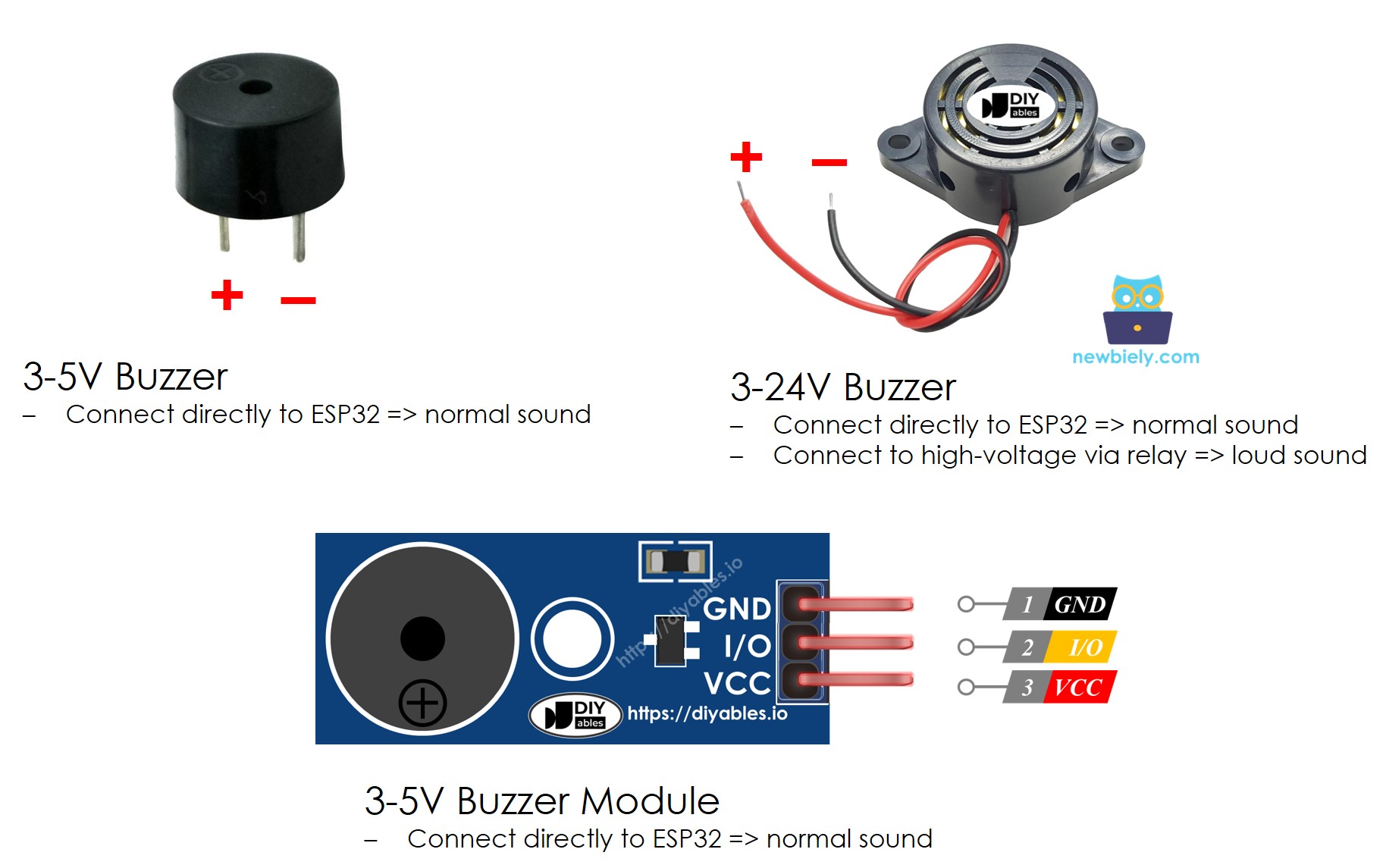
- Tell an active buzzer from a passive buzzer
- See how a piezo element turns a signal into sound
- Connect a buzzer or buzzer module to the ESP32 Uno
- Play a melody with tone() and noTone() in the Arduino IDE
- Swap the notes to play "Jingle Bells" or your own song
Components You Need
Or you can buy the following kits:
| 1 | × | DIYables Sensor Kit (18 sensors/displays) |
Additionally, some of these links are for products from our own brand, DIYables .
Buzzer Basics
After this part, you know which buzzer to buy for a beep and which one for music.
Buzzer makers group their parts by three features. Check all three before you order:
| Feature | Option 1 | Option 2 |
|---|---|---|
| How it is driven | Active (beeps on plain power) | Passive (needs a changing signal) |
| How it makes sound | Piezo crystal | Electromagnetic coil |
| Supply voltage | Low voltage (3V to 5V) | High voltage (12V) |
Active or Passive: Which One?
The choice sets what your code can do: a single beep, or a real tune.
| Point | Active Buzzer | Passive Buzzer |
|---|---|---|
| Inside | Has its own oscillator | No oscillator |
| Sound on plain DC power | Yes, one fixed beep | No sound at all |
| Needs a steady supply to keep beeping | Yes | No, it needs a square wave |
| Pitch control | Almost none | Full, the signal frequency sets the pitch |
| Setup effort | Very easy | A little more code |
| Typical use | Simple alarms and warnings | Music, chimes, sound effects |
Good to know: for melodies, pick the passive buzzer or the passive buzzer module.
Piezo Element vs Coil Buzzer
This table shows why most maker kits ship with piezo parts.
| Point | Piezo Buzzer | Regular (Coil) Buzzer |
|---|---|---|
| Sound source | A piezoelectric crystal that flexes | An electromagnetic coil |
| Sound | Sharp, clear, high pitch | Plain, buzzy tone |
| Tone range | Wide, many frequencies | Narrow |
| Power use | Low | Higher |
| Found in | Alarms, music toys, timers | Doorbells, basic alarms |
The 3V-24V active buzzer in the parts list covers two jobs:
- Wired straight to an ESP32 Uno pin, it gives a soft click or beep, handy for keypad feedback.
- Switched through a relay on a 12V supply, it becomes loud enough for a real alarm.
This page sticks to 3V to 5V buzzers, active and passive. For the loud 12V setup, go to ESP32 Uno - 12V Buzzer.
Buzzer Pins
Two legs, one job each. Match them before you plug in any wire.
| Pin | Connect To |
|---|---|
| Negative (-) | GND (0V) |
| Positive (+) | The ESP32 Uno control pin, directly or through a relay |
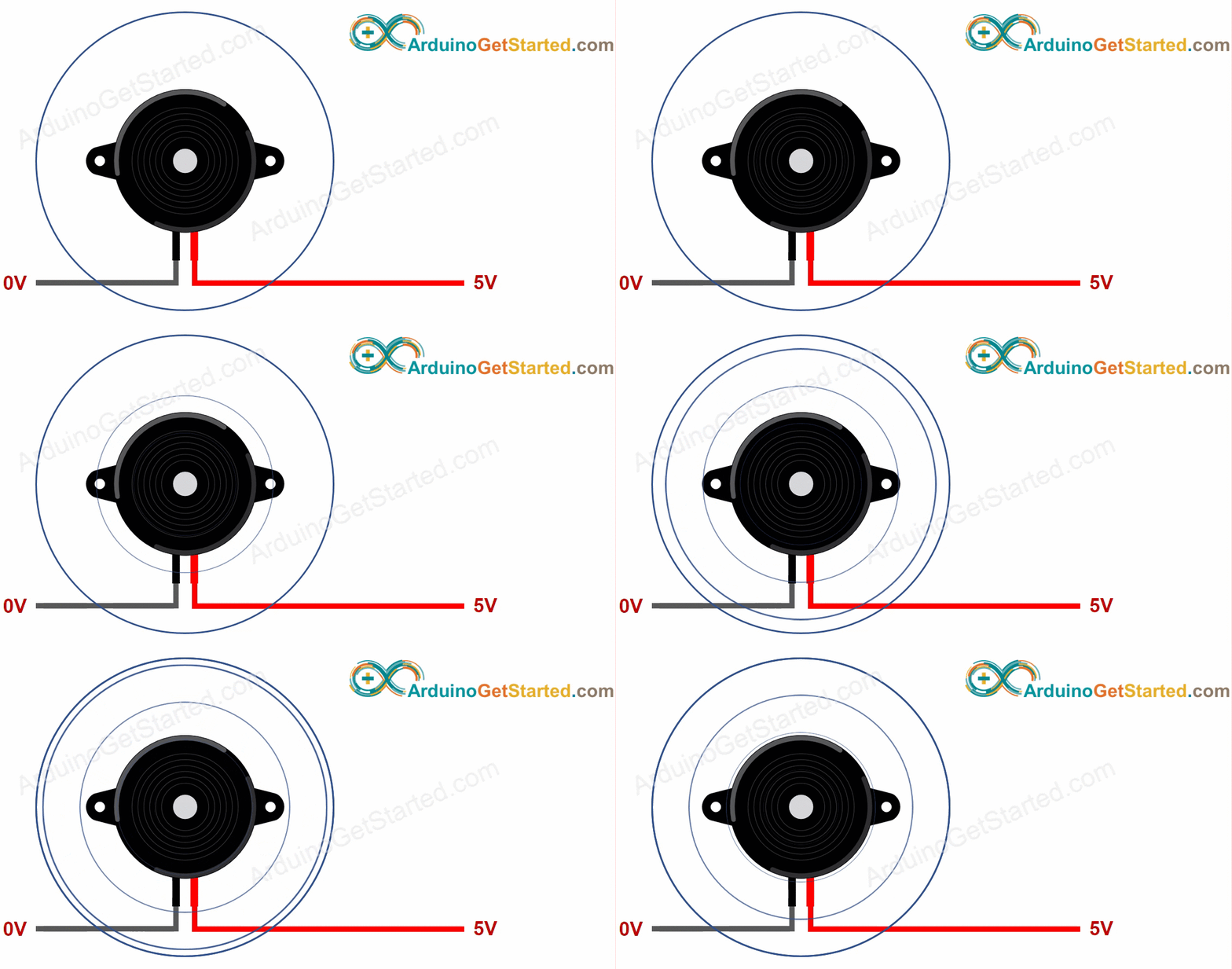
Inside an Active Buzzer
Here you see how the signal on the + leg becomes a sound.
Put VCC on the positive leg and the active buzzer sounds one steady note until you remove the power.
Feed the same leg a square wave instead, and the frequency of that wave decides the note you hear. Step the frequency up and down over time, and the notes form a tune.
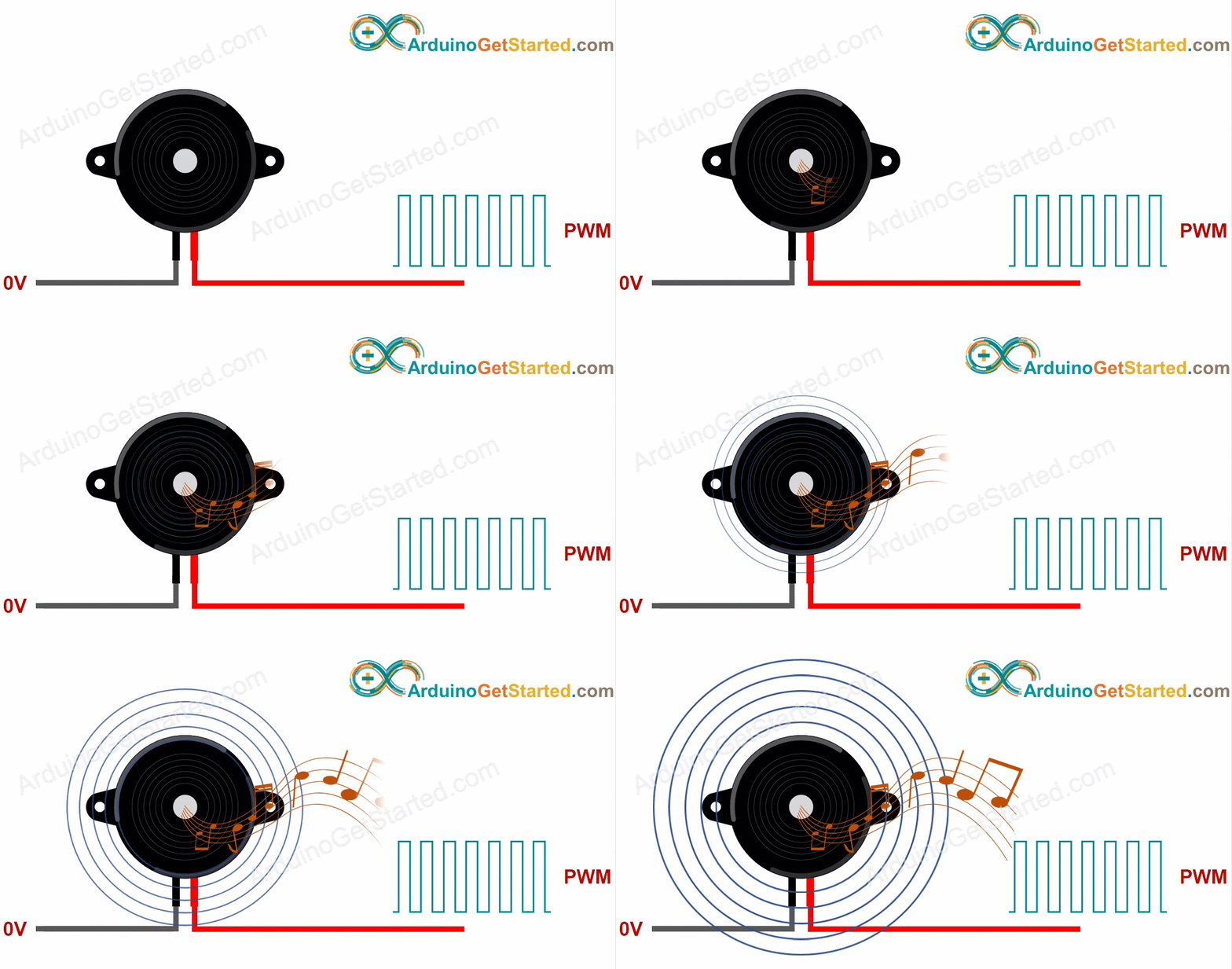
Inside a Passive Buzzer
A passive buzzer stays quiet on plain VCC, which is the key difference from the active type.
Drive its positive leg with a square wave at a 50% duty cycle and it sounds. Each frequency gives its own pitch, so a list of frequencies played one after another is a melody.
ESP32 Uno Pinout
Your wires go to Uno header labels such as D6, but your sketch needs the GPIO number behind each label. Find both on the diagram below.

How to Connect
By the end of this part, the buzzer signal sits on D6 (GPIO27) of the ESP32 Uno. Choose the bare buzzer or the module.
Option A — Bare piezo buzzer
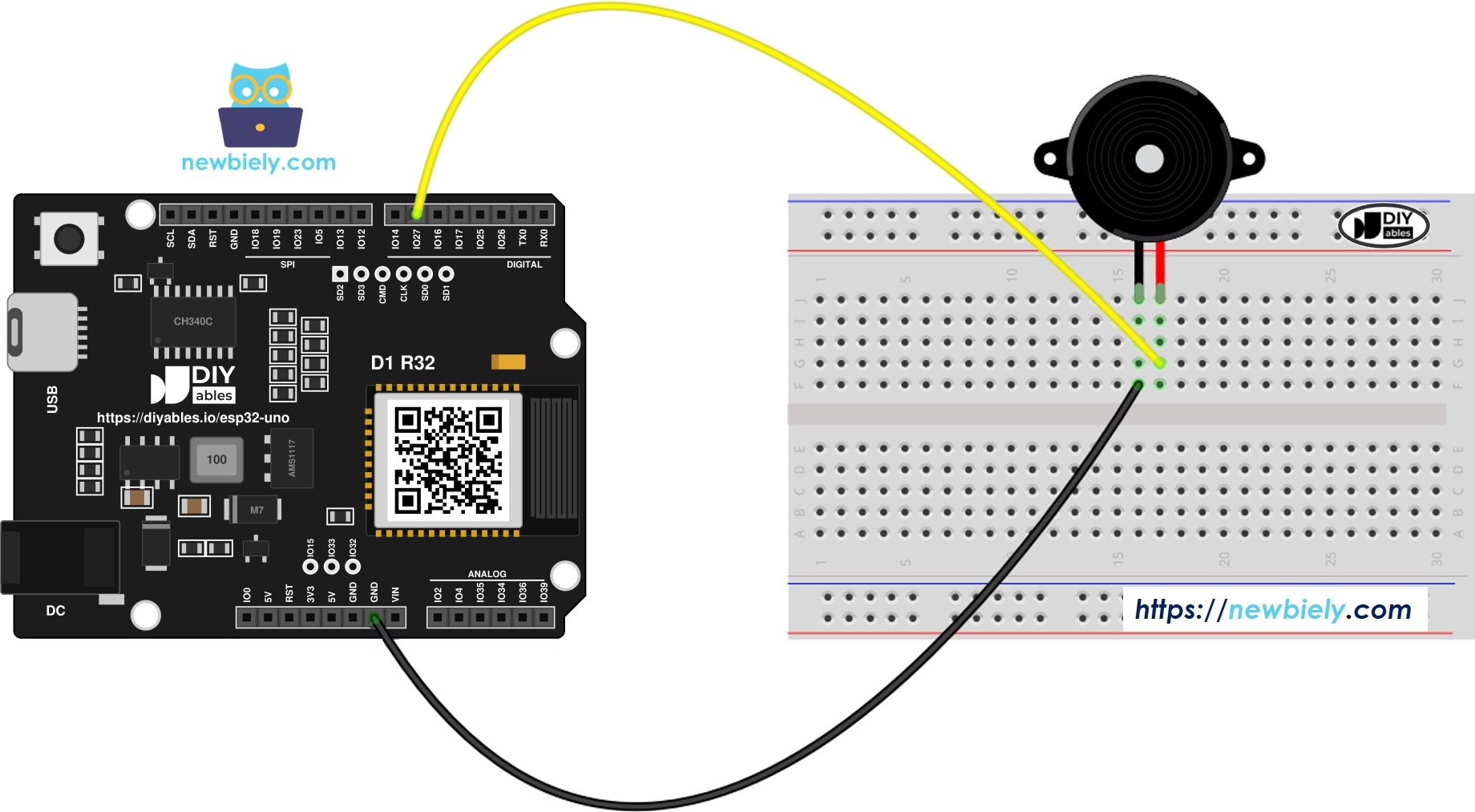
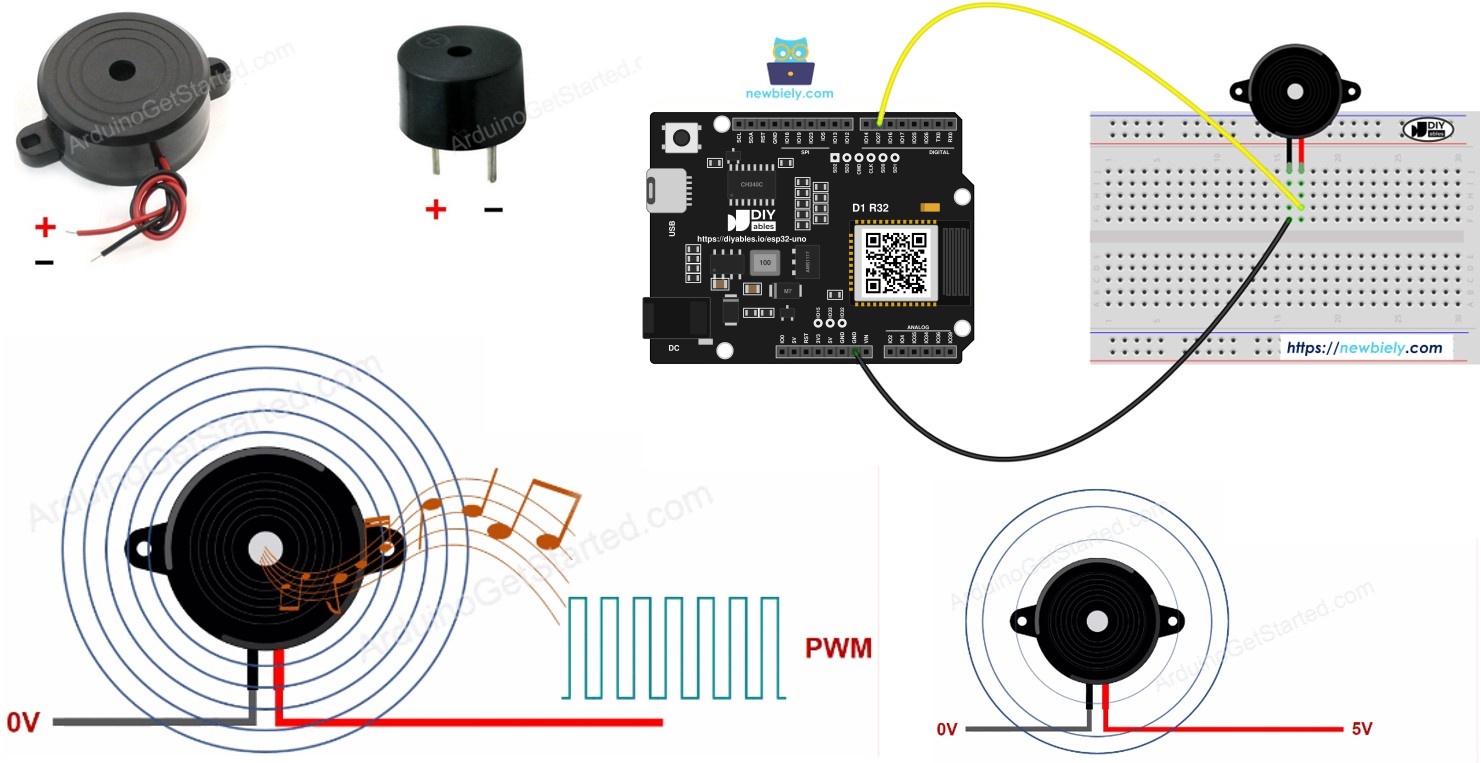
This image is created using Fritzing. Click to enlarge image
| Buzzer Pin | ESP32 Uno Pin |
|---|---|
| Positive (+) | D6 (GPIO27) |
| Negative (-) | GND |
Option B — Piezo buzzer module
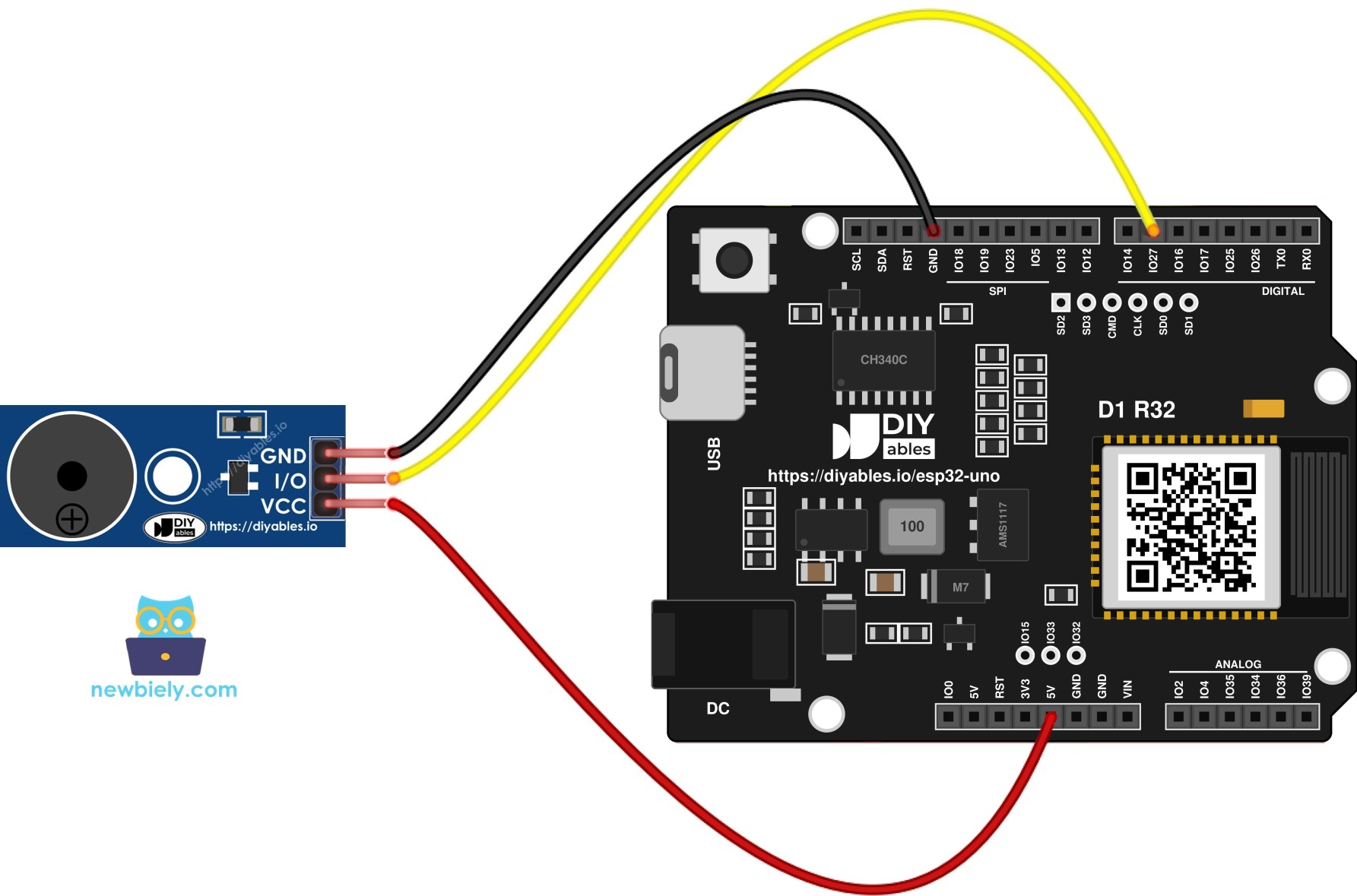
This image is created using Fritzing. Click to enlarge image
| Module Pin | ESP32 Uno Pin |
|---|---|
| VCC | 3.3V or 5V |
| I/O | D6 (GPIO27) |
| GND | GND |
Good to know: ESP32 Uno pins use 3.3V logic. D6 (GPIO27) is a plain I/O pin with PWM, with no boot role, so the buzzer can stay connected while you upload.
Making Sound in Code
You do not have to build the square wave yourself. Two built-in functions do it:
| Function | What It Does |
|---|---|
| tone() | Starts a square wave at the frequency you give, for an optional time in ms |
| noTone() | Stops the wave and silences the buzzer |
ESP32 Uno Code
This sketch plays an eight-note tune one time right after the ESP32 Uno starts.
Upload and Test
- First time with this board? Set it up with ESP32 Uno - Getting Started before you continue.
- Build the circuit by following the wiring table above.
- Plug in the USB Type-C cable between the ESP32 Uno and your computer.
- Select the board in Arduino IDE: pick ESP32 Dev Module and the COM port of the board (CH340).
- Paste the sketch from above into a new Arduino IDE window.
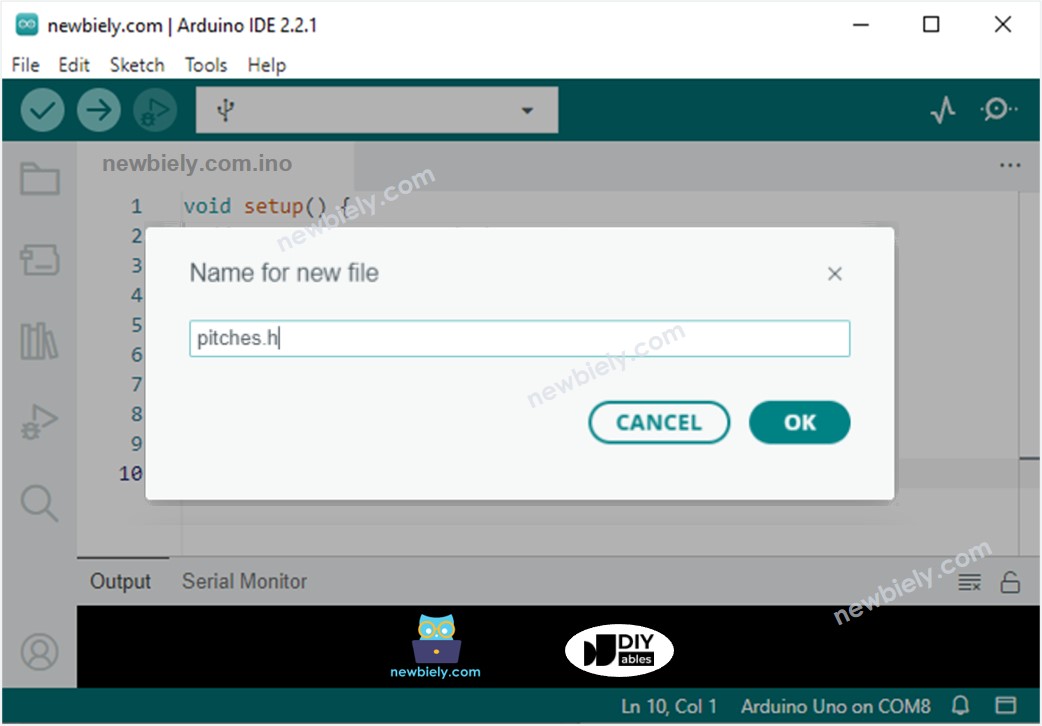
- Open a second tab for the note table: click the button under the Serial Monitor icon and choose New Tab, or press Ctrl+Shift+N.
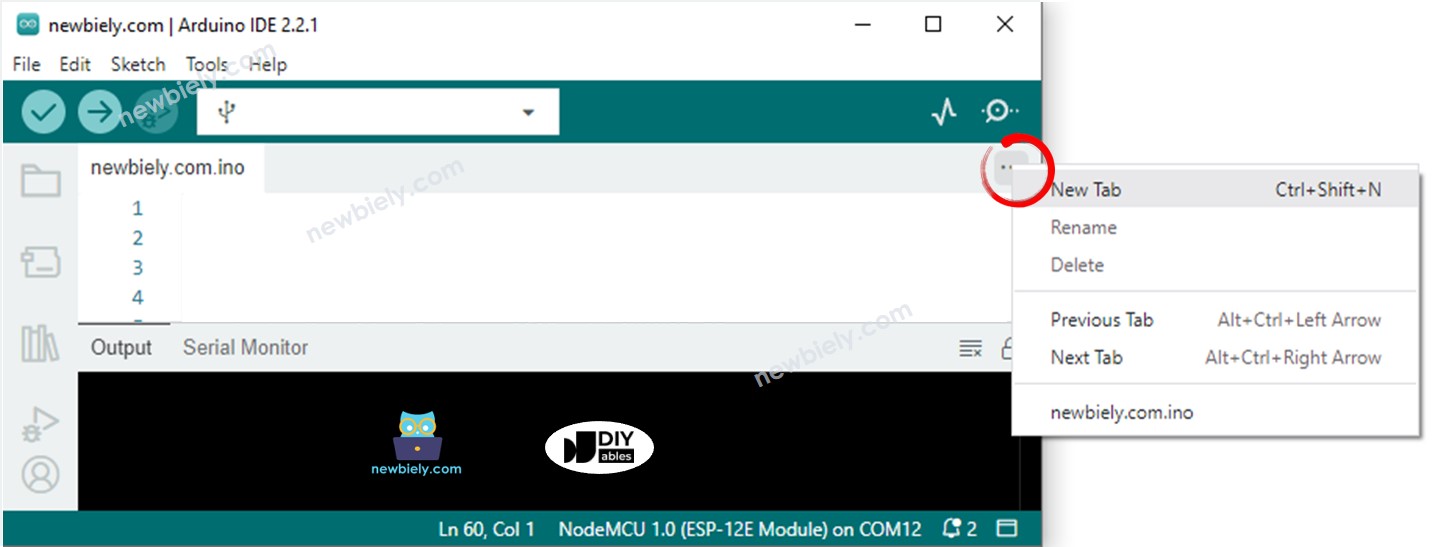
- Type the tab name pitches.h, then press OK.
- Fill the new tab with the note table below.
- Press Upload (Upload button) to send the sketch to the ESP32 Uno.
- Listen: the buzzer plays the short tune once.
- Pro tip: if you hear only one flat tone for every note, your part is an active buzzer. Swap in the passive module and press the EN (reset) button to replay.
Video Tutorial
See the ESP32 Uno build in action in the video below.
The video shows a memory game built on the same buzzer. Four LEDs flash in a random order, each with its own note, and you repeat the order on four buttons. Every correct round adds one step; a wrong press plays a low buzz and the game restarts. Each LED lights when its pin goes LOW, and each button uses the internal pull-up.
| Part | ESP32 Uno Pin |
|---|---|
| Buzzer | D10 (GPIO5) |
| LED 1 to LED 4 | D2 (GPIO26), D3 (GPIO25), D4 (GPIO17), D5 (GPIO16) |
| Button 1 to Button 4 | D6 (GPIO27), D7 (GPIO14), D8 (GPIO12), D9 (GPIO13) |
WARNING
This game uses two boot strapping pins: the buzzer on D10 (GPIO5) and button 3 on D8 (GPIO12). GPIO12 must be LOW when the board starts, and GPIO5 should not be pulled LOW at that moment. Do not press button 3 while you power up or reset, and if an upload fails, unplug the D10 and D8 wires, upload, then plug them back in.
Code Explanation
This part breaks the melody sketch into its working pieces.
| Code Part | What It Does |
|---|---|
| #define BUZZER_PIN 27 | Uses GPIO27, the D6 header pin, for the buzzer signal |
| melody[] | Lists the notes by name; 0 means a rest |
| noteDurations[] | Gives the note type for each entry (4 = quarter, 8 = eighth) |
| 1000 / noteDurations[thisNote] | Turns the note type into a time in ms |
| tone(BUZZER_PIN, note, time) | Plays one note for that time |
| noteDuration * 1.30 + noTone() | Adds a 30% gap, then stops the sound before the next note |
Everything runs in setup(), so the tune plays one time per power-on or reset.
Play a Different Song
Two arrays hold the whole song: int melody[] for the notes and int noteDurations[] for their lengths. Replace both and you have a new tune. The version below plays "Jingle Bells" and counts the notes with sizeof(), so the arrays can be any length.
ESP32 Uno vs UNO R4 for This Project
This table lists what changes when you move the buzzer project from the UNO R4 to the ESP32 Uno.
| Item | Arduino UNO R4 | ESP32 Uno |
|---|---|---|
| Logic voltage | 5V | 3.3V |
| Buzzer pin in code | 6 (D6) | 27 (GPIO27 on D6) |
| Demo game buzzer pin | 10 (D10) | 5 (GPIO5, a boot strapping pin) |
| tone() and noTone() | Built in | Built in (esp32 by Espressif Systems core) |
| Extra libraries | None | None |
| Arduino IDE board | Arduino UNO R4 WiFi or Minima | ESP32 Dev Module |
| WiFi and Bluetooth | WiFi only on the WiFi model | WiFi plus Bluetooth Classic and BLE |
The same wiring works as-is; only the pin numbers in the code change. A buzzer driven from a 3.3V pin is a little quieter than on a 5V board.
Go Wireless: Ring the Buzzer from Your Phone
With this idea, your phone becomes the remote for the buzzer.
The ESP32 Uno has WiFi and Bluetooth on board. Add a web page or a Bluetooth app button that sets D6 (GPIO27) HIGH, and an active buzzer works as a doorbell or a "come to dinner" call you trigger from anywhere in the house. With a passive buzzer, call tone() when the button is pressed instead.
Try These Next
- Write out the notes of a song you like and load them into the two arrays.
- Guard your desk: make the buzzer sound when someone walks up to it. Hint: start from ESP32 Uno - Motion Sensor.
- Change the tempo: divide 1500 instead of 1000 to slow the whole song down.
Troubleshooting
| Problem | Possible Cause | Solution |
|---|---|---|
| No COM port shows up in Arduino IDE | CH340 driver missing or charge-only cable | Install the CH340 driver and use a USB cable that carries data |
| Failed to connect or Waiting for download | The board did not enter upload mode | Hold the BOOT button while the upload starts, release it when writing begins |
| Total silence | Legs swapped or GND not connected | Put + on D6 (GPIO27) and - on GND, and give the module power on VCC |
| Every note has the same pitch | An active buzzer is fitted | Use the passive buzzer or passive buzzer module for melodies |
| Error NOTE_C4 was not declared | The pitches.h tab is missing or misspelled | Create a tab named exactly pitches.h and paste the note table into it |
| Sound is weak | A 3.3V pin drives the bare buzzer | Use a buzzer module on 5V, or switch the buzzer with a transistor |
| Demo game board will not boot or upload | D10 (GPIO5) and D8 (GPIO12) are boot strapping pins | Unplug those wires while uploading, and keep button 3 released at power-up |
| Tune ends after one play | The code sits in setup() | Press EN to replay, or move the for loop into loop() |
FAQ
Which buzzer type plays real music on the ESP32 Uno?
The passive buzzer. It has no oscillator inside, so the frequency from tone() sets the pitch of each note. An active buzzer gives one fixed beep no matter what you send.
Is it safe to drive a small buzzer straight from an ESP32 Uno pin?
Yes, for a small 3V to 5V piezo buzzer. A piezo element draws only a few milliamps, well within what a GPIO pin can give. For 12V buzzers or loud sirens, use a relay or a transistor.
Can a 5V buzzer module run on the ESP32 Uno?
Yes. Power the module from the 5V pin and connect its I/O pin to D6 (GPIO27). The signal only leaves the ESP32 Uno, so the 3.3V level is safe. Never feed a 5V signal into an ESP32 Uno pin, because the pins are not 5V tolerant.
Do I need a library for tone() on the ESP32 Uno?
No. The esp32 by Espressif Systems core includes tone() and noTone(). You only need the pitches.h tab for the note names.
Why is the pin number 27 and not 6?
Your code uses GPIO numbers. The D6 header position on the ESP32 Uno is wired to GPIO27, so the sketch says #define BUZZER_PIN 27. Writing 6 would point at a flash pin and crash the board.
Can I keep using the same wiring diagram from the UNO R4 version?
Yes. The buzzer stays on the D6 header position and GND. Only the pin number in the code changes from 6 to 27, and the IDE board changes to ESP32 Dev Module.
How do I make the buzzer louder?
Use a buzzer module powered from 5V, or drive the buzzer through an NPN transistor from a higher supply. Picking a note near the buzzer's resonant frequency (often 2 to 4 kHz) also makes it louder.
Can I play two buzzers at the same time?
tone() drives one note at a time per call, and the melody code waits with delay(). For two parts, use the LEDC PWM functions of the esp32 core on two pins, or put the second buzzer on a separate board.
What if my project needs more pins than the Uno headers give?
The ESP32 Uno has extra holes near the power header: GPIO32 and GPIO33 (I/O, PWM, analog on ADC1, so they also work with WiFi on) and GPIO15 (I/O, PWM, analog on ADC2). Solder pin headers and write the GPIO number in code. For a second buzzer or extra buttons, use GPIO32 or GPIO33 first. Two warnings: GPIO15 and GPIO0 (the IO0 pin at the unused Uno NC position) are boot strapping pins, and a wrong connection can stop the board from booting or uploading. Also never use the six holes under the digital header (SD0 to SD3, CMD, CLK, which are GPIO6 to GPIO11), because they are wired to the flash chip and using them crashes the board.
Can I trigger the buzzer from a phone with the ESP32 Uno?
Yes. The ESP32 Uno has WiFi and Bluetooth, so a web page or a Bluetooth app can switch the buzzer pin. See the Go Wireless section above for ready-made app guides.