
ESP32 UNO - LCD Keypad Shield
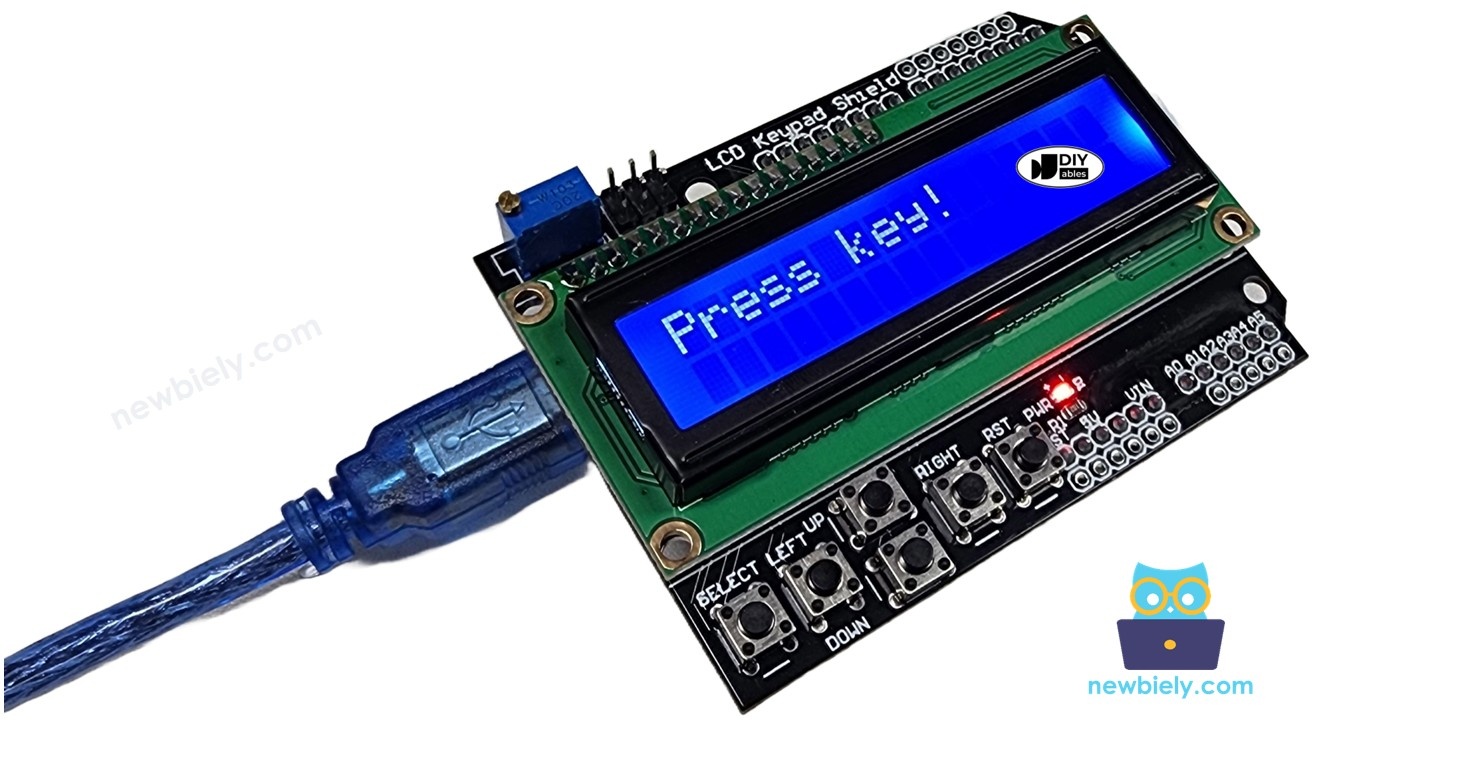
Need a screen and a few buttons on the ESP32 Uno with zero jumper wires? Plug an LCD keypad shield onto the ESP32 Uno form board, and you get a 16x2 character display plus five keys you can read from Arduino code. Press a key, and its name pops up on the LCD. One cheap resistor makes this keypad LCD shield safe for the 3.3V board, and a small upload trick keeps the A0 pin from blocking new sketches.
What you will do:
- Find out which Uno pins the LCD shield takes and what each GPIO number is
- Fit a 3.3 kΩ resistor so the 5V key ladder stays under 3.3V
- Print text on the 16x2 display with the LiquidCrystal library
- Read all five keys from a single analog input with analogRead()
- Run a menu demo that controls a servo, three LEDs and a DHT11 sensor
Components You Need
| 1 | × | ESP32 Uno-form Board | |
| 1 | × | USB Cable Type-A to Type-C (for USB-A PC) | |
| 1 | × | USB Cable Type-C to Type-C (for USB-C PC) | |
| 1 | × | LCD Keypad Shield | |
| 1 | × | 3.3 kΩ Resistor (voltage divider for the A0 key pin) |
Or you can buy the following kits:
| 1 | × | DIYables Sensor Kit (18 sensors/displays) |
Additionally, some of these links are for products from our own brand, DIYables .
Inside the LCD Keypad Shield
By the end of this part, you know every part on the shield and the job it does.
| Part | What It Is | Can Your Code Use It? |
|---|---|---|
| 16x2 LCD | HD44780 character display, 2 rows of 16 characters, 4-bit mode | Yes, with the LiquidCrystal library |
| Five keys | Up, Down, Left, Right and Select, all on one resistor ladder | Yes, through one analogRead() on A0 |
| Reset key | Wired to the board's RST (EN) pin | No, it restarts the board |
| Contrast trimmer | Small blue potentiometer | No, you turn it by hand |
Each of the five keys connects a different resistor value to the A0 line. So every key gives its own voltage, and the sketch tells the keys apart by the ADC number it reads.
Pinout
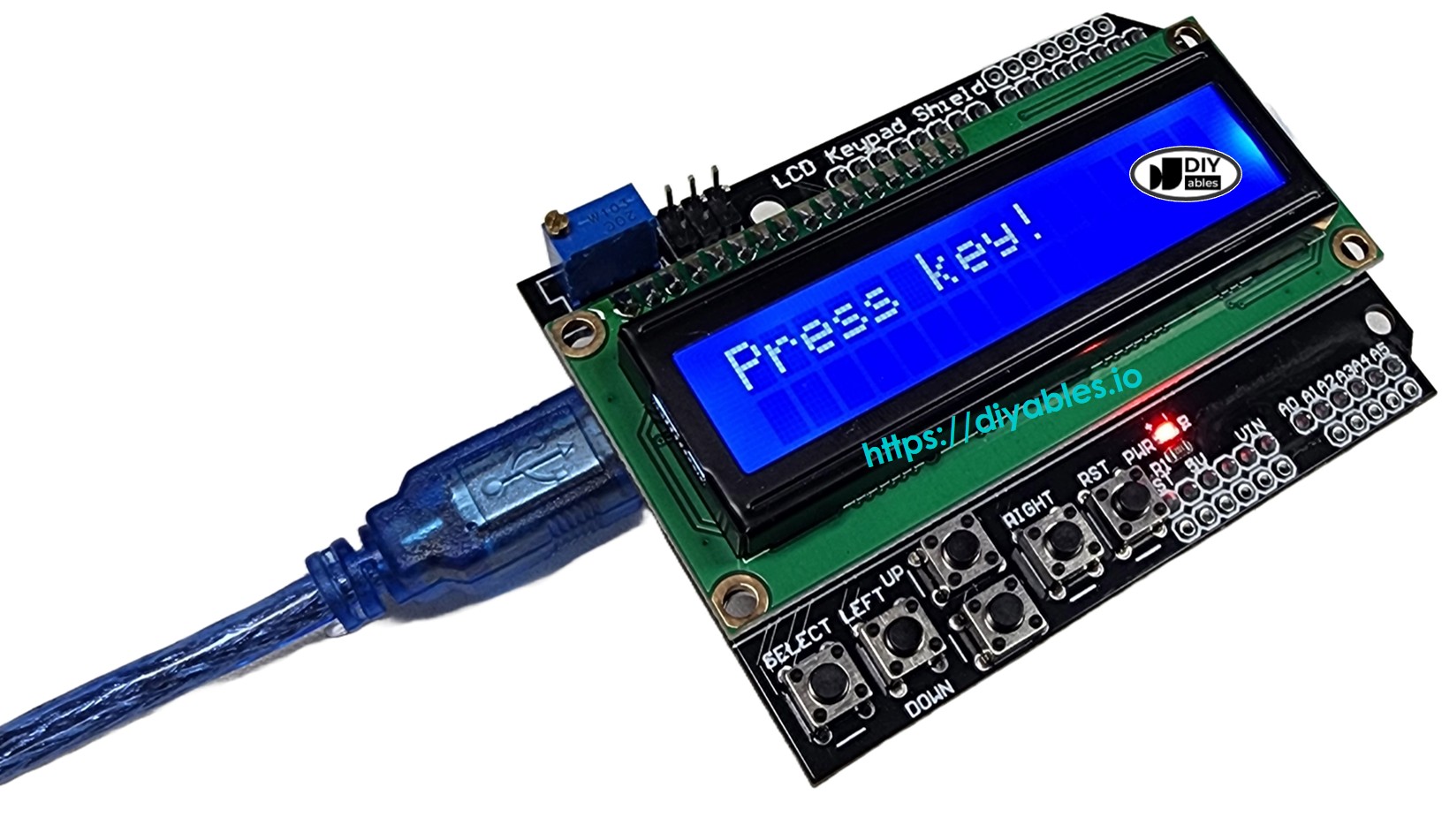
The shield sits on the normal Uno header spots, so each shield signal lands on a fixed ESP32 Uno GPIO:
| Shield Pin | Role | ESP32 Uno Pin |
|---|---|---|
| DB4 | LCD data bit 4 | D4 (GPIO17) |
| DB5 | LCD data bit 5 | D5 (GPIO16) |
| DB6 | LCD data bit 6 | D6 (GPIO27) |
| DB7 | LCD data bit 7 | D7 (GPIO14) |
| RS | Register select | D8 (GPIO12) |
| E | Enable | D9 (GPIO13) |
| Key ladder | Analog key input | A0 (GPIO2) |
Good to know: the LCD pins only take signals from the board, and a 3.3V HIGH is enough for the HD44780. The A0 key line is the opposite: the shield pushes a voltage up to 5V into the board, and that needs the fix in the next sections.
※ NOTE THAT:
Many LCD keypad shields switch the backlight with a transistor on D10 (GPIO5). The sketches here never touch D10. Do not make D10 an OUTPUT and set it HIGH, because on some shields this pulls too much current from the pin.
ESP32 Uno Pinout
Your sketch talks to GPIO numbers, not to the D4 or A0 labels on the headers. Find the shield pins (D4 to D9 and A0) on the picture below to see which GPIO each one is.

How to Connect
When this step is done, the shield is stacked and the A0 line can never go above 3.3V.
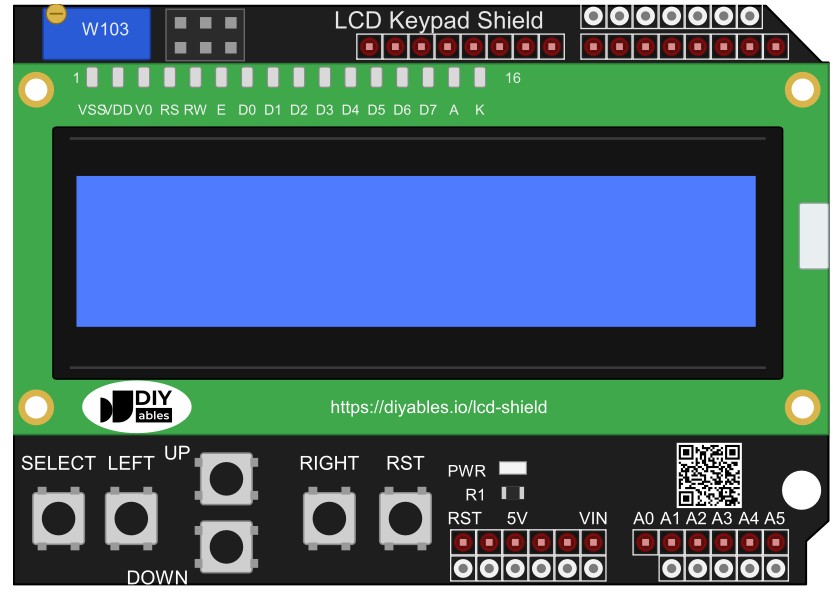
This image is created using Fritzing. Click to enlarge image
Step 1 — Add the resistor to the shield
Solder a 3.3 kΩ resistor from the A0 header pin to a GND header pin, on the underside of the shield. You can also push the resistor legs into the A0 and GND holes of the board before you stack the shield on top.
Step 2 — Stack the shield
Line up the shield pins with the ESP32 Uno headers and press it down evenly. No jumper wires are needed.
| Shield Pin | ESP32 Uno Pin |
|---|---|
| 5V | 5V |
| GND | GND |
| DB4 | D4 (GPIO17) |
| DB5 | D5 (GPIO16) |
| DB6 | D6 (GPIO27) |
| DB7 | D7 (GPIO14) |
| RS | D8 (GPIO12) |
| E | D9 (GPIO13) |
| Keys | A0 (GPIO2), plus 3.3 kΩ from A0 to GND |
WARNING
The key ladder on the shield has a 2 kΩ pull-up resistor to 5V. With no key pressed, A0 sees the full 5V, and the Select key gives about 3.6V. No ESP32 Uno pin is 5V tolerant. The 3.3 kΩ resistor from A0 to GND forms a voltage divider with the 2 kΩ pull-up, so the top value drops to about 3.1V and every key stays in the 0 to 3.3V window. Never power the shield without this resistor.
WARNING
A0 (GPIO2) is a boot strapping pin. The chip checks it when it enters upload mode, and it must be LOW or floating then. With the shield on, A0 sits near 3.1V, so an upload can stop with "Failed to connect" or "Wrong boot mode detected". Fix: hold the RIGHT key (it pulls A0 to 0V) while the IDE shows "Connecting...", or take the shield off for the upload. Normal start-up is not affected.
WARNING
The LCD RS line uses D8 (GPIO12), another boot strapping pin that must be LOW at power-up. The LCD RS input does not drive the line, so the board's internal pull-down keeps it LOW and the board starts normally. If the board ever fails to boot with the shield on, remove the shield, power up, and check your shield for extra parts on D8.
Good to know: A0 (GPIO2) is also an ADC2 pin. It reads fine in these sketches, but analogRead() on it stops working as soon as WiFi is on.
ESP32 Uno Code
This sketch shows "Hello!" for 3 seconds, then checks the keys 5 times per second and writes the name of the pressed key on the LCD.
| Code Part | What It Does |
|---|---|
| LiquidCrystal lcd(12, 13, 17, 16, 27, 14) | Tells the library the GPIOs of RS, E and DB4 to DB7 |
| analogSetAttenuation(ADC_11db) | Opens the ADC range to about 0 to 3.3V |
| analogRead(KEYPAD_PIN) | Reads the key ladder on A0 (GPIO2) as 0 to 4095 |
| if / else if chain | Compares the value with five limits and picks a key name |
| lcd.clear() and lcd.print() | Wipes the screen and writes the key name |
The result: each key press shows RIGHT, UP, DOWN, LEFT or SELECT, and "Press key!" stays on the screen while no key is down.
Good to know: without analogSetAttenuation(ADC_11db), the ESP32 Uno ADC only covers a small voltage range. The 11 dB setting lets A0 read from 0V up to about 3.3V. Leave it out, and the readings reach 4095 too early, so LEFT, SELECT and "no key" all look the same.
※ NOTE THAT:
Shield makers use slightly different ladder resistors, and the ESP32 Uno ADC is not perfectly linear. If a key shows the wrong name, delete the // before Serial.println(key);, upload, and write down the value of each key in the Serial Monitor. Then set each limit halfway between two neighboring key values.
Upload and Test
- First time with this board? Set it up with ESP32 Uno - Getting Started before you continue.
- Build the circuit by following the wiring table above: resistor first, then the shield.
- Plug in the USB Type-C cable between the ESP32 Uno and your computer.
- Select the board in Arduino IDE: pick ESP32 Dev Module and the COM port of the board (CH340).
- Check the library. LiquidCrystal ships with the Arduino IDE. If the compiler cannot find it, search LiquidCrystal in the Library Manager and install it.
- Paste the code above into a new sketch.
- Upload while holding RIGHT. Click Upload, and keep the RIGHT key pressed until the IDE prints "Writing at...".
- Press each key one after another.
- Read the LCD. You see the key name, or "Press key!" when your fingers are off the keys.
- Pro tip: turn the contrast trimmer until the empty boxes of row 2 just disappear. That is the sharpest setting at 5V, and it saves you from a "blank screen" scare later.
The Serial Monitor (9600 baud) shows one line after each reset:
With the debug line enabled, you see raw values like these (RIGHT, UP, DOWN, LEFT, SELECT, then no key):
Screen stays empty? Check in this order:
- Press the shield down until all header pins sit fully in the sockets.
- Turn the contrast trimmer slowly across its whole range.
- Confirm the upload finished and the board has power from the USB cable.
Video Tutorial
See the ESP32 Uno build in action in the video below.
The demo is a small control station driven by the keypad menus. It reads temperature and humidity from a DHT11, moves a servo, switches three LEDs, and has an auto mode that sets the LED color and the servo angle from the temperature. Wire the extra parts like this:
| Part | ESP32 Uno Pin |
|---|---|
| DHT11 DATA | D2 (GPIO26) |
| Servo signal | D3 (GPIO25) |
| Red LED (with resistor) | D11 (GPIO23) |
| Yellow LED (with resistor) | D12 (GPIO19) |
| Green LED (with resistor) | D13 (GPIO18) |
※ NOTE THAT:
Connect the DHT11 module VCC to 3.3V, which keeps its data signal at a safe level. The servo may use 5V, because its signal only leaves the board. Install two libraries from the Library Manager: ESP32Servo by Kevin Harrington (it replaces Servo.h on this board) and DHT sensor library by Adafruit.
ESP32 Uno vs UNO R4 for This Project
This table lists what changes when this shield moves from the UNO R4 to the ESP32 Uno.
| Item | Arduino UNO R4 | ESP32 Uno |
|---|---|---|
| Logic voltage | 5V | 3.3V |
| A0 key line | Direct, 5V is safe | Needs 3.3 kΩ from A0 to GND |
| LCD pins in code | 8, 9, 4, 5, 6, 7 | 12, 13, 17, 16, 27, 14 |
| ADC range and key limits | 0 to 1023, limits 50 to 800 | 0 to 4095, limits 400 to 3450 |
| Extra code line | None | analogSetAttenuation(ADC_11db) |
| Servo library in the demo | Servo.h | ESP32Servo.h |
| Arduino IDE board | Arduino UNO R4 WiFi or Minima | ESP32 Dev Module |
The shield plugs in at the same spots, and the LCD works as-is. Only the A0 key line needs the resistor, and uploads go smoothly when you hold RIGHT or lift the shield off.
Bonus: Tidier Code With a getKey() Function
After this part, the key reading lives in one function you can copy into bigger projects.
getKey() returns a key constant, and loop() picks the text with a switch. The limits match the first sketch.
| Code Part | What It Does |
|---|---|
| KEY_RIGHT to KEY_NONE | Give each key a readable name in code |
| getKey() | Reads A0 (GPIO2) once and returns the matching key |
| switch (key) | Prints the text for that key |
| default branch | Shows "Press key!" when no key is pressed |
With this layout, adding a new action for a key is one more case line.
Go Wireless: Type a Message on Your Phone, Read It on the LCD
By the end of this idea, the shield screen shows text you send from a phone.
The ESP32 Uno has Bluetooth (Classic and BLE) and WiFi built in. Use a phone chat app to send a short note, and print it on row 2 of the LCD, while the keys scroll or clear it. Pick Bluetooth for this shield: A0 (GPIO2) is an ADC2 pin, so the keys stop working as soon as WiFi starts.
- ESP32 Uno - Web Chat (LCD only, the keys do not work with WiFi on)
Extra Help
For more display tricks, such as moving the cursor, scrolling text or drawing custom characters, open the Arduino LiquidCrystal LCD tutorial. Every LiquidCrystal function there runs on the ESP32 Uno without changes.
Your keypad LCD shield is ready for menus, timers and small control panels. Enjoy the build!
Troubleshooting
| Problem | Possible Cause | Solution |
|---|---|---|
| No COM port shows up | CH340 driver missing or charge-only USB cable | Install the CH340 driver and use a USB data cable |
| Upload stops at Connecting or Wrong boot mode | A0 (GPIO2) strapping pin held HIGH by the key ladder | Hold the RIGHT key during the upload, or remove the shield |
| Failed to connect with the shield off | Board did not enter upload mode | Hold the BOOT button while the upload starts |
| Board does not boot with the shield on | A strapping pin (A0 GPIO2 or D8 GPIO12) pulled the wrong way | Unplug the shield, power up, upload, then stack it again |
| Backlight on but no characters | Contrast trimmer at one end, or shield not seated | Turn the trimmer and press the shield fully onto the headers |
| Random symbols on the LCD | Wrong GPIO list in the LiquidCrystal line | Use lcd(12, 13, 17, 16, 27, 14) as in the sketch |
| Every key shows Press key! | Key limits do not fit your shield | Print the raw A0 value and move the limits halfway between keys |
| SELECT and no key look the same | Divider resistor or 11 dB attenuation missing | Fit 3.3 kΩ from A0 to GND and keep analogSetAttenuation(ADC_11db) |
| Keys dead after adding WiFi | ADC2 is blocked while WiFi runs | Use Bluetooth instead, or reroute the key line to GPIO32 or GPIO33 |
| Demo servo shakes or board resets | Servo pulls too much current from USB | Power the servo from a separate 5V supply with a shared GND |
FAQ
Does an Arduino LCD keypad shield fit the ESP32 Uno?
Yes. The ESP32 Uno form board has the Uno header layout, so the shield drops into the same positions. The LCD runs fine with 3.3V signals. Only the A0 key line needs the 3.3 kΩ resistor to GND.
How does one analog pin read five keys?
Each key connects a different resistor to the A0 line, together with a 2 kΩ pull-up. Every key makes a different voltage. The sketch reads that voltage with analogRead() and compares it with fixed limits to know which key it is.
Is 3.3 kΩ the only resistor value that works?
It is the best common value. With 3.3 kΩ, the "no key" voltage is about 3.1V, just under 3.3V, and the keys stay well apart. A 3 kΩ resistor also works, but then all values drop a little, so check the limits with the Serial Monitor.
Why are the key limits so different from the UNO R4 sketch?
The UNO R4 ADC returns 0 to 1023 and reads A0 straight at 5V. The ESP32 Uno ADC returns 0 to 4095, and the divider resistor lowers every key voltage. So the limits become 400, 1250, 2000, 2750 and 3450 instead of 50, 200, 400, 600 and 800.
What is analogSetAttenuation(ADC_11db) doing in setup()?
The line widens the ESP32 Uno ADC window to roughly 0 to 3.3V, which spreads the whole key ladder across 0 to 4095. With a smaller range, the readings saturate early and several keys read the same. An UNO R4 sketch has no such line. Keep A0 at 3.3V or less.
Why do I have to hold RIGHT when I upload?
A0 is GPIO2, a boot strapping pin that must be LOW or floating when the chip enters upload mode. The shield keeps A0 near 3.1V. Pressing RIGHT shorts A0 to GND, so the upload can start. After "Writing at..." appears, let go.
Why are the LCD pins written as 12, 13, 17, 16, 27, 14?
The sketch uses GPIO numbers. Follow the header labels: RS lands on D8 (GPIO12), E on D9 (GPIO13), and DB4 to DB7 on D4 to D7 (GPIO17, GPIO16, GPIO27, GPIO14).
Can the sketch detect the Reset key?
No. The Reset key goes to the RST (EN) pin and restarts the board. Only Up, Down, Left, Right and Select are read on A0.
Can I use the keys and WiFi in the same sketch?
Not on A0. A0 (GPIO2) is an ADC2 pin, and ADC2 cannot be read while WiFi is on. Bluetooth does not block it. For WiFi, bend the shield's A0 pin out, wire it to GPIO32 or GPIO33 (ADC1), keep the 3.3 kΩ resistor on that line, and change KEYPAD_PIN in the code.
Do I need a CH340 driver for this board?
The ESP32 Uno uses a CH340 USB-to-serial chip. Windows 10 and 11 often install it alone. If no COM port appears in the Arduino IDE, install the CH340 driver and try again.
What if my build needs more pins than the Uno headers offer?
The shield covers most headers, but the ESP32 Uno has extra holes above the power header. GPIO32 and GPIO33 are I/O, PWM and analog on ADC1, so they also read while WiFi is on. GPIO15 is I/O, PWM and analog on ADC2. Add pin headers there with a soldering iron, then type the GPIO number in your sketch. For this shield, GPIO32 or GPIO33 is the best spot for an extra sensor or a WiFi-safe key line. Two warnings: GPIO15 and GPIO0 (the IO0 pin at the unused Uno NC position) are boot strapping pins, and a wrong connection can stop the board from booting or uploading code, so use GPIO32/33 first. Never use the six holes under the digital header (SD0 to SD3, CMD, CLK = GPIO6 to GPIO11), because they are wired to the flash chip and using them crashes the board.