
ESP32 UNO - LED Matrix

Need a bright scrolling sign? Hook a MAX7219 LED matrix to the ESP32 Uno and print words, digits and moving messages with only a handful of Arduino lines. You can use a single 8x8 dot matrix module or a 32x8 FC-16 strip on the ESP32 Uno form board, and the same sketch scales to 16x8 or 64x8 panels.

What you will do:

  1. Connect a single-block and a four-block FC-16 dot matrix to the board
  2. Install MD_Parola together with its MD_MAX72XX helper
  3. Print aligned words, inverted text and a number on the LED display
  4. Slide a long message from right to left
  5. Resize the code for any MAX7219 chain length
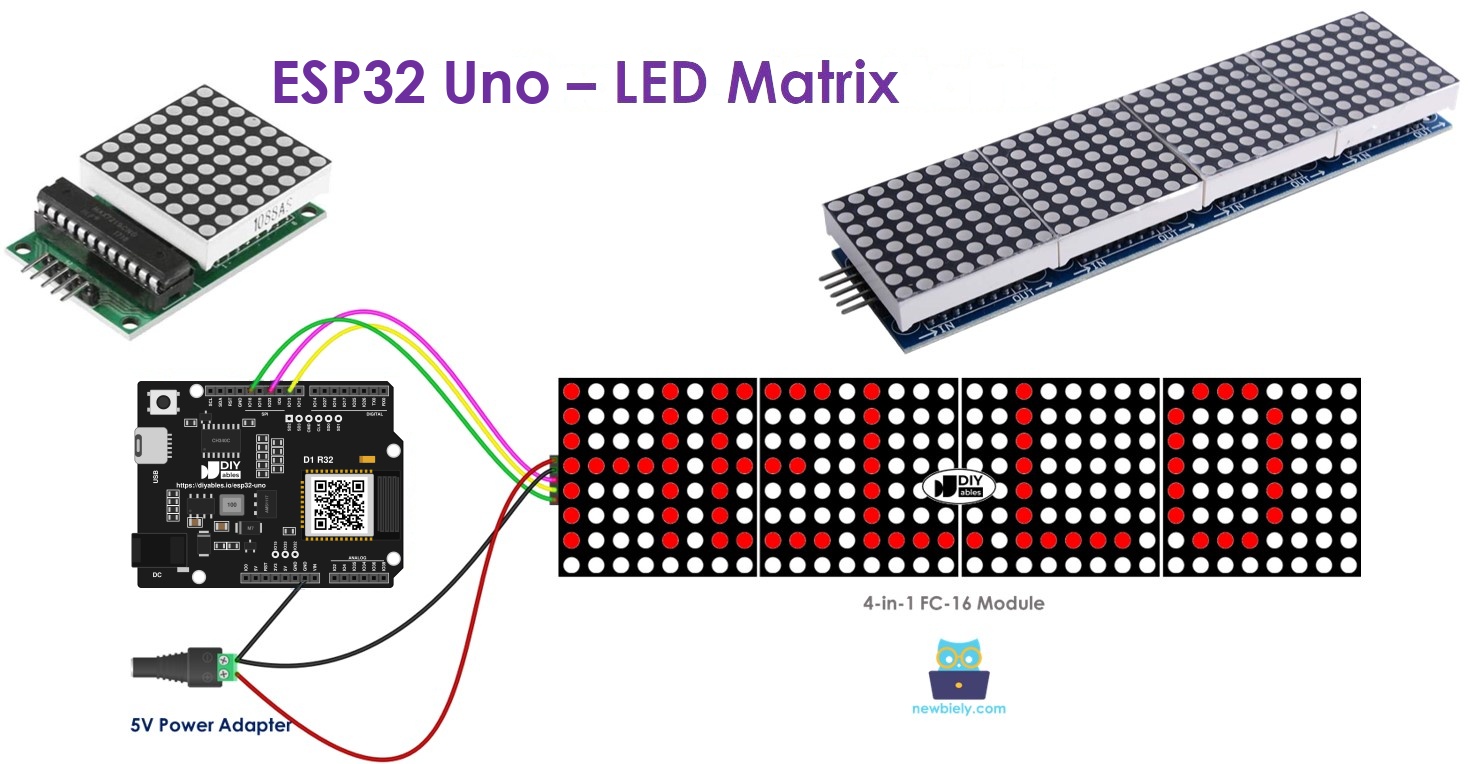
ESP32 Uno LED matrix

Good to know: the ESP32 Uno has no on-board LED grid, so this guide always uses an external MAX7219 module from the parts list.

Components You Need

1×ESP32 Uno-form Board
1×USB Cable Type-A to Type-C (for USB-A PC)
1×USB Cable Type-C to Type-C (for USB-C PC)
1×FC-16 LED Matrix 32x8
1×FC-16 LED Matrix 8x8
1×Jumper Wires
1×DC Power Jack
1×5V Power Adapter

Or you can buy the following kits:

1×DIYables Sensor Kit (18 sensors/displays)
Disclosure: Some of the links provided in this section are Amazon affiliate links. We may receive a commission for any purchases made through these links at no additional cost to you.
Additionally, some of these links are for products from our own brand, DIYables .

Overview of the MAX7219 Dot Matrix

At the end of this part, you know what a block is and how blocks form a bigger panel.
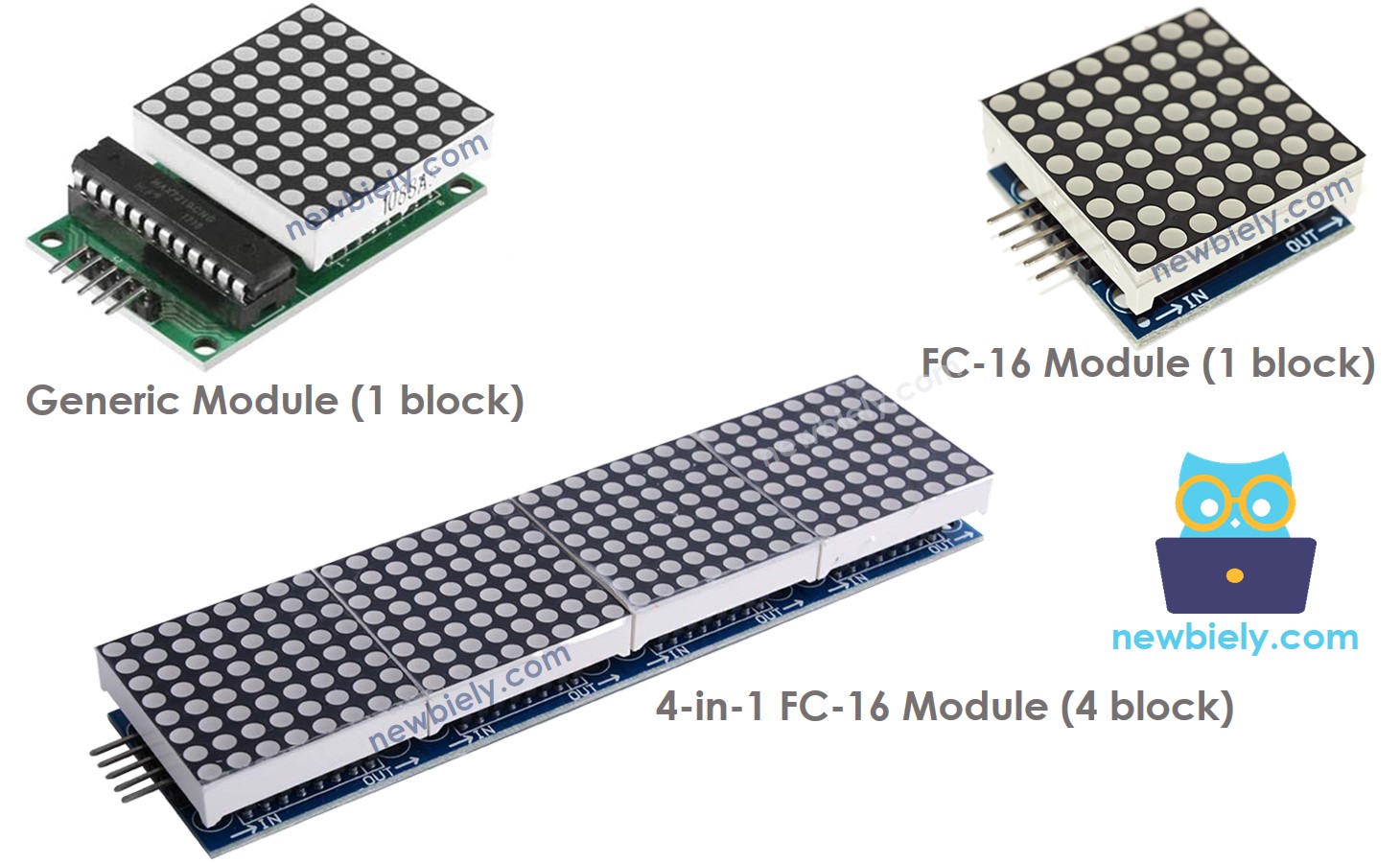
LED Matrix display

Makers mostly pick matrices with a MAX7219 driver chip, because they are low cost, chain together with five wires and have mature libraries.

Term Meaning
Block One square of 8 x 8 = 64 LEDs
Driver One MAX7219 chip per block, it scans the 64 LEDs for you
Module styles Generic or FC-16 (the sketch must name the right one)
Chain Several blocks linked in a row, data passes from one block to the next
Ready-made panels 4-block (32x8) or 8-block (64x8) boards already joined
DIY panels Single blocks you link by hand to reach any width

You always tell the sketch how many blocks sit in the chain, so the library knows the panel width.

Pinout

By the end of this part, you can tell the input header from the output header on each block.
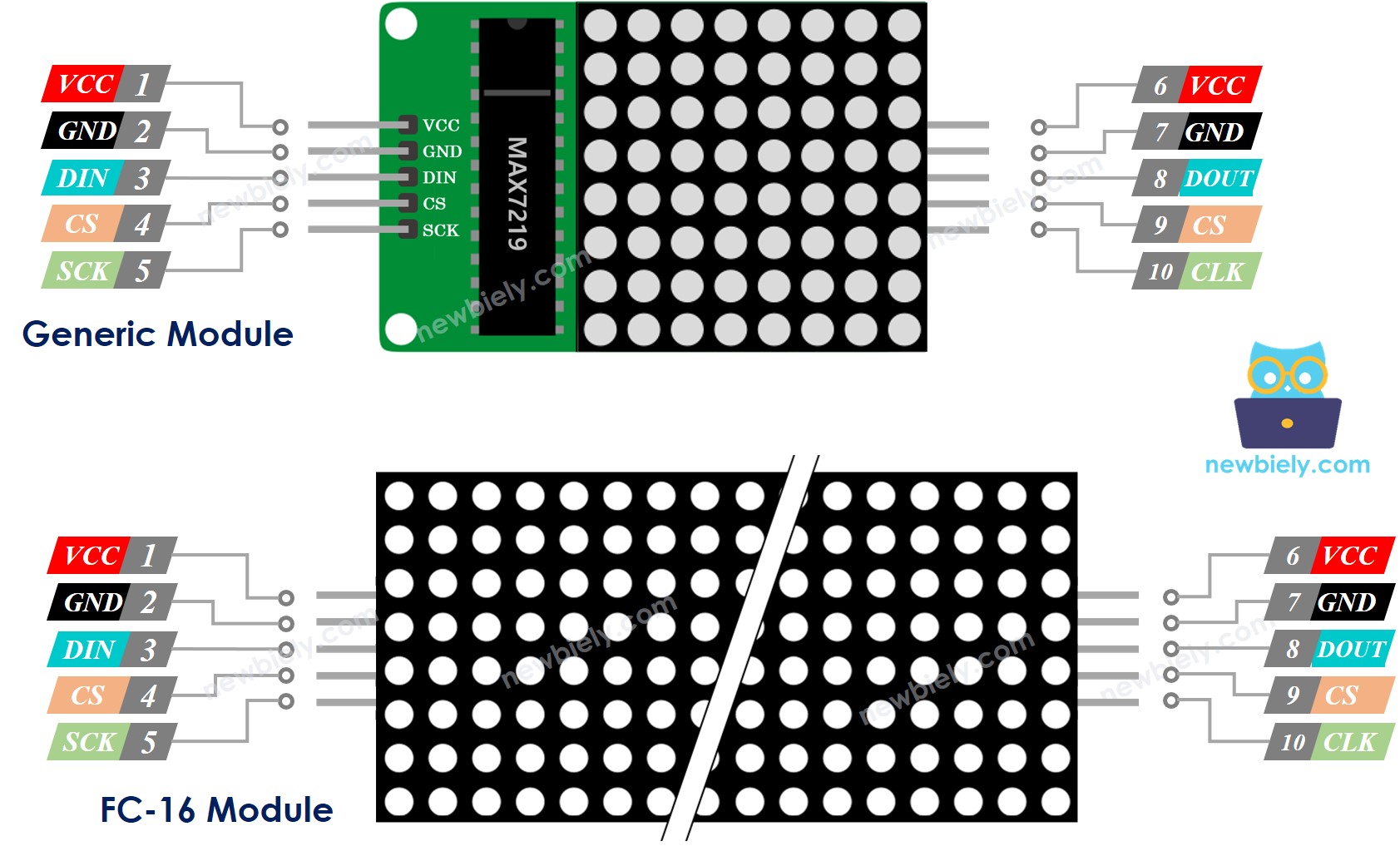
LED Matrix Pinout
Pin Header Role
VCC Input 5V supply
GND Input Ground
DIN Input Serial data in, goes to SPI MOSI on the board
CS Input Chip Select, goes to any free digital pin
CLK Input Serial clock, goes to SPI SCK on the board
VCC Output Feeds VCC of the next block
GND Output Feeds GND of the next block
DOUT Output Data out, goes to DIN of the next block
CS Output Feeds CS of the next block
CLK Output Feeds CLK of the next block

ESP32 Uno Pinout

Your sketch talks in GPIO numbers, while the board's silk print shows Uno labels such as D9 or D11. Look up each label in this picture first, so every jumper lands on the right GPIO.

ESP32 Uno pinout diagram

How to Connect

By the end of this part, the matrix gets data and power from the right places.

Only the input header of the first block ever touches the ESP32 Uno. The layout changes a little with the type of panel you own.

Option 1 — One 8x8 block

Wire the input header to the board. The output header stays empty.
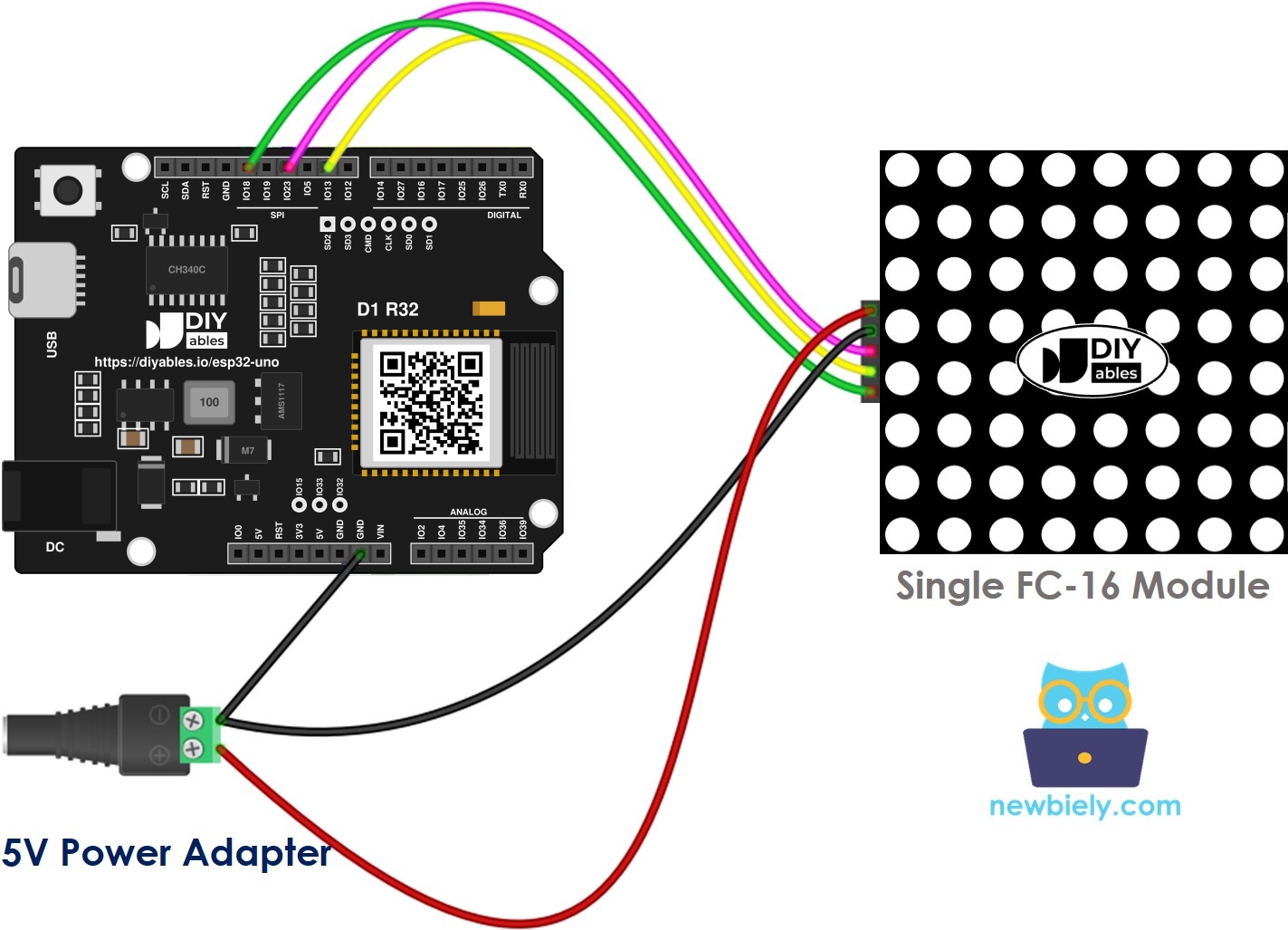
The wiring diagram between ESP32 Uno 8x8 LED matrix FC-16

This image is created using Fritzing. Click to enlarge image
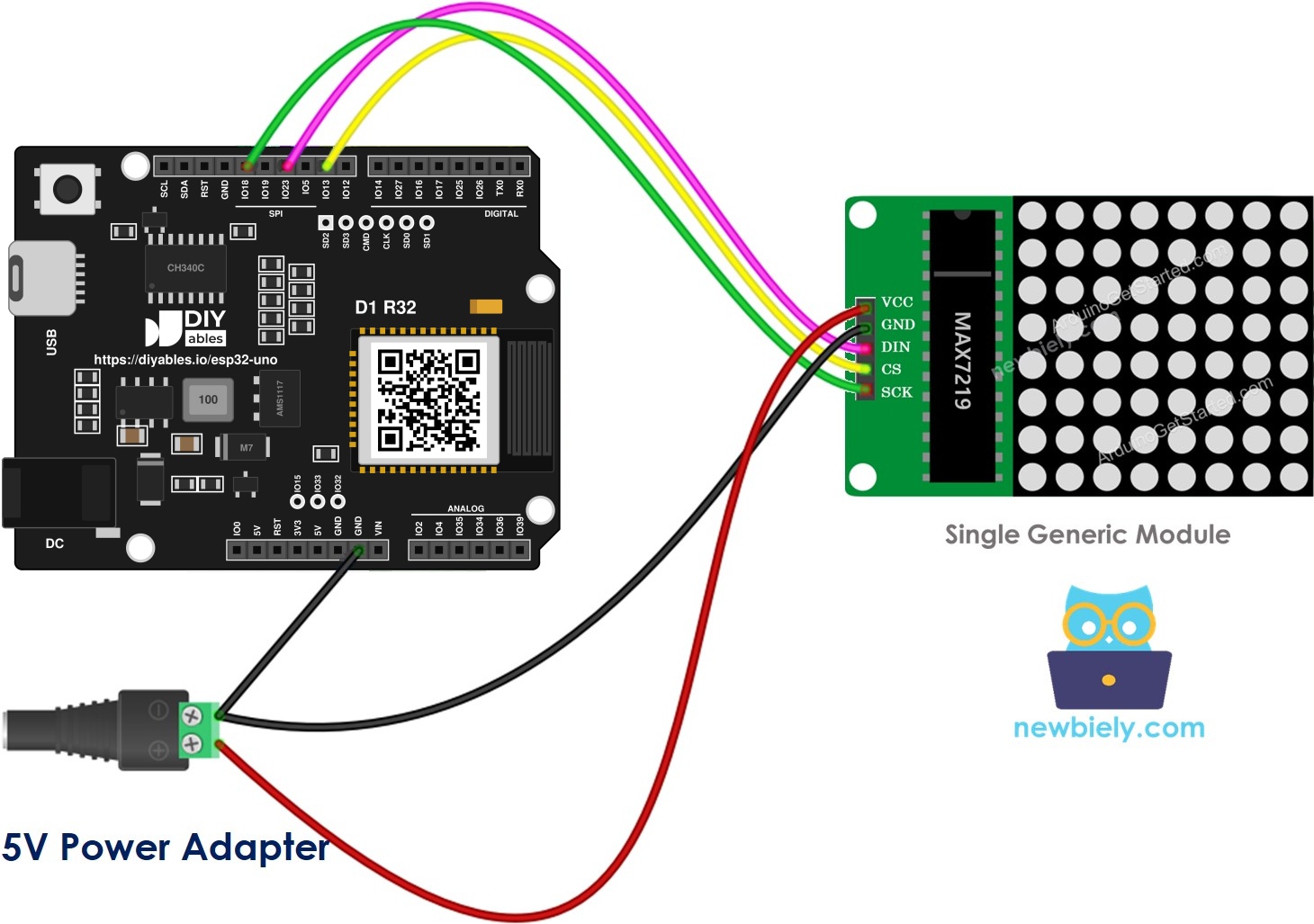
The wiring diagram between ESP32 Uno 8x8 LED matrix generic

This image is created using Fritzing. Click to enlarge image

Option 2 — A pre-joined 32x8 panel

The blocks are already linked on the PCB. Wire its input header to the board and leave its output header empty.
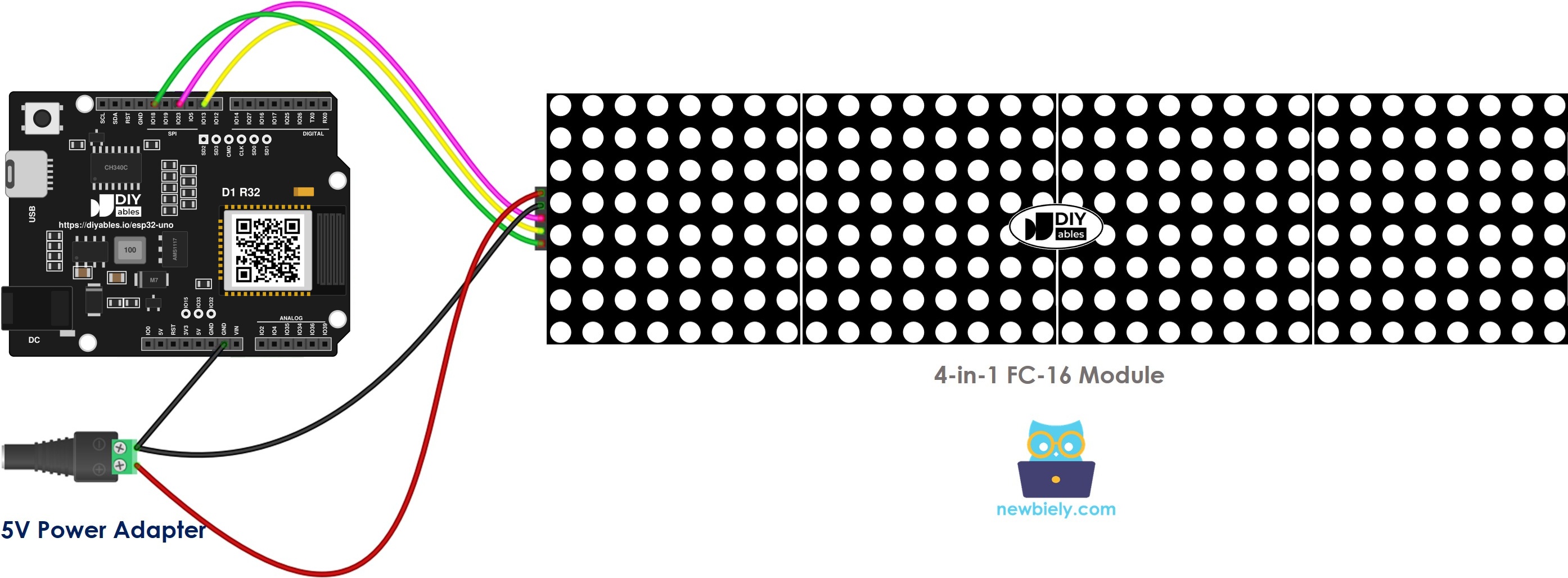
The wiring diagram between ESP32 Uno LED matrix display

This image is created using Fritzing. Click to enlarge image

Option 3 — Single blocks you link yourself

  1. Run the first block's input header to the board.
  2. Join each block's output header to the input header of the block after it.
  3. Keep the output header of the final block empty.
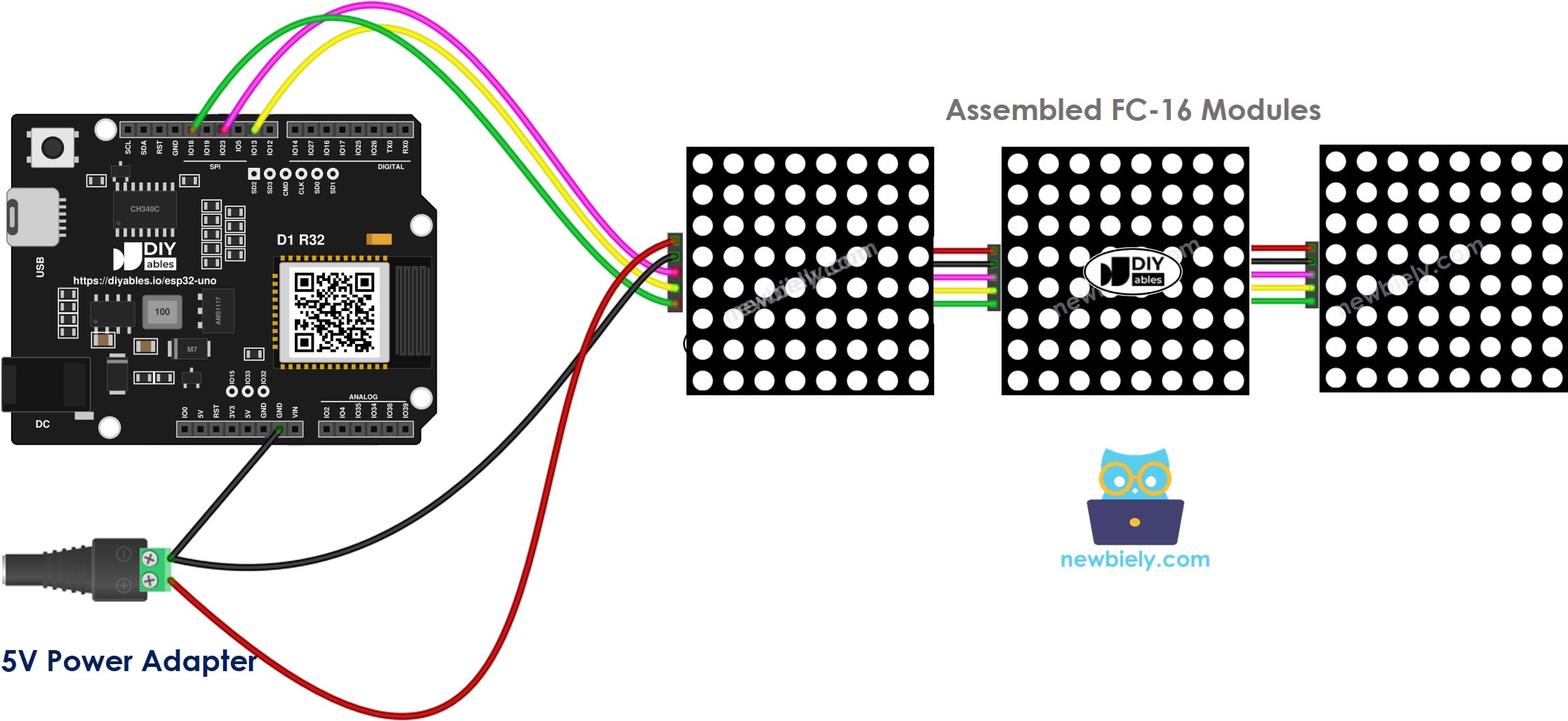
ESP32 Uno 32x8 LED matrix wiring FC-16 diagram

This image is created using Fritzing. Click to enlarge image
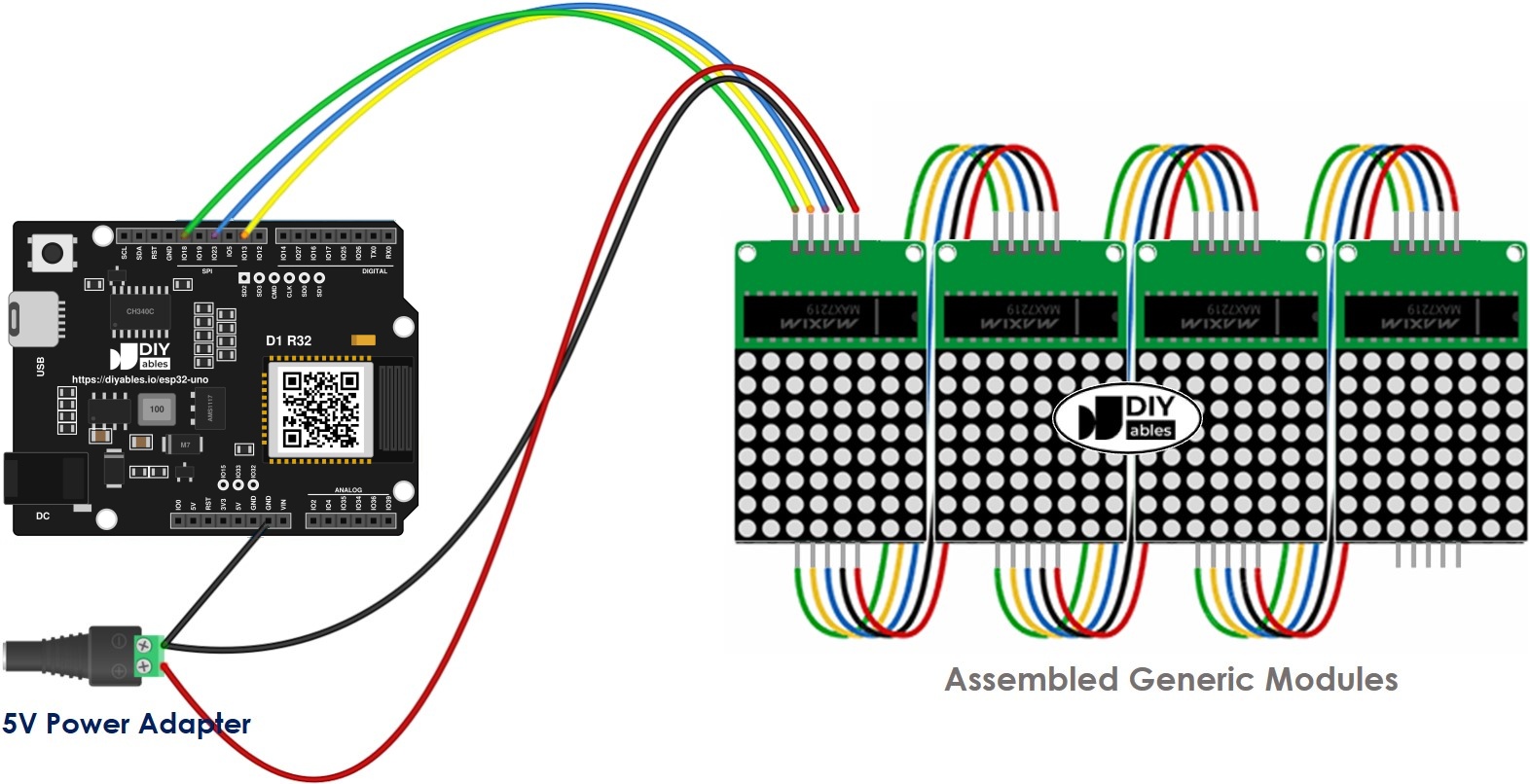
ESP32 Uno 32x8 LED matrix wiring generic diagram

This image is created using Fritzing. Click to enlarge image

LED Matrix Pin ESP32 Uno Pin
VCC 5V from the external adapter
GND GND (shared with the adapter)
DIN D11 (GPIO23, SPI MOSI)
CS D9 (GPIO13)
CLK D13 (GPIO18, SPI SCK)

Good to know: D11 and D13 are the default VSPI MOSI and SCK lines of the ESP32 Uno, so the library finds them with no extra setup. CS can move to any free output pin if you edit CS_PIN.

Power budget

A full-bright 32x8 panel can pull close to 1 A. Do not feed it from the board's 5V header. Use a 5V adapter for the panel; the same adapter can also run the ESP32 Uno. Tie every GND together.

WARNING

ESP32 Uno pins use 3.3V logic and are NOT 5V tolerant. In this circuit, data only flows from the board into the matrix, so no 5V signal reaches an ESP32 Uno pin. Most 5V MAX7219 boards read 3.3V high levels fine. If the panel shows stray dots or stays blank, put a 3.3V-to-5V level shifter on DIN, CS and CLK.

How the Sketch Is Built

By the end of this part, you know the six building blocks every MD_Parola sketch needs.

Step 1 — Include the libraries

#include <MD_Parola.h> #include <MD_MAX72xx.h>

Step 2 — Name the module style

Use FC16_HW for FC-16 boards or GENERIC_HW for generic ones.

#define HARDWARE_TYPE MD_MAX72XX::FC16_HW

Step 3 — Give the block count

A 4-in-1 panel holds 4 blocks.

#define MAX_DEVICES 4

Step 4 — Pick the CS pin

D9 on the header is GPIO13, and the code needs the GPIO number.

#define CS_PIN 13

Step 5 — Create the display object

MD_Parola ledMatrix = MD_Parola(HARDWARE_TYPE, CS_PIN, MAX_DEVICES);

Step 6 — Start it in setup()

void setup() { ledMatrix.begin(); // start the MAX7219 chain ledMatrix.setIntensity(0); // brightness, 0 (dim) to 15 (max) ledMatrix.displayClear(); // turn every LED off }

With these lines in place, you can print text, numbers and effects. The full sketches follow.

ESP32 Uno LED Matrix Code

This sketch targets a four-block 32x8 FC-16 panel and cycles through five screens, two seconds each. Set MAX_DEVICES to 1, 2 or 8 for an 8x8, 16x8 or 64x8 panel.

/* * This ESP32 Uno code was developed by newbiely.com * * This ESP32 Uno code is made available for public use without any restriction * * For comprehensive instructions and wiring diagrams, please visit: * https://newbiely.com/tutorials/esp32-uno/esp32-uno-led-matrix */ #include <MD_Parola.h> #include <MD_MAX72xx.h> #define HARDWARE_TYPE MD_MAX72XX::FC16_HW #define MAX_DEVICES 4 // number of 8x8 blocks in the chain #define CS_PIN 13 // D9 (GPIO13) on the ESP32 Uno goes to the matrix CS pin // Parola object that drives the whole display MD_Parola ledMatrix = MD_Parola(HARDWARE_TYPE, CS_PIN, MAX_DEVICES); void setup() { ledMatrix.begin(); // start the MAX7219 chain ledMatrix.setIntensity(15); // brightness level, 0 (dim) up to 15 (max) ledMatrix.displayClear(); // turn every LED off } void loop() { ledMatrix.setTextAlignment(PA_LEFT); ledMatrix.print("Left"); // text pushed to the left edge delay(2000); ledMatrix.setTextAlignment(PA_CENTER); ledMatrix.print("Center"); // text in the middle delay(2000); ledMatrix.setTextAlignment(PA_RIGHT); ledMatrix.print("Right"); // text pushed to the right edge delay(2000); ledMatrix.setTextAlignment(PA_CENTER); ledMatrix.setInvert(true); ledMatrix.print("Invert"); // lit background, dark letters delay(2000); ledMatrix.setInvert(false); ledMatrix.print(1234); // show a number value delay(2000); }

Upload and Test

  1. First time with this board? Set it up with ESP32 Uno - Getting Started before you continue.
  2. Build the circuit by following the wiring table above.
  3. Plug in the USB Type-C cable between the ESP32 Uno and your computer.
  4. Select the board in Arduino IDE: pick ESP32 Dev Module and the COM port of the board (CH340).
  5. Open Library Manager with the Libraries icon in the left bar.
  6. Add MD_Parola: type "MD_Parola" in the search box and press Install on that entry.
  • Search for MD_Parola created by majicDesigns and click the Install button.
∞
Newbiely | Arduino IDE 2.3.8
──
☐
✕
File
Edit
Sketch
Tools
Help
ESP32 Dev Module
Library Manager
Type:
All
Topic:
All
MD_Parola by majicDesigns
Implemented using the MD_MAX72xx library for hardware control. Provides functions to simplify the implementation of text special effects on the LED matrix. More info
3.7.2
INSTALL
Newbiely.ino
···
1 void setup() {
Output
Serial Monitor
Ln 1, Col 1
ESP32 Dev Module on COM15
1
  1. Accept the helper library: the IDE asks for MD_MAX72XX as well. Press Install All.
  • Search for MD_MAX72XX created by majicDesigns and click the Install button.
∞
Newbiely | Arduino IDE 2.3.8
──
☐
✕
File
Edit
Sketch
Tools
Help
ESP32 Dev Module
Library Manager
Type:
All
Topic:
All
MD_MAX72XX by majicDesigns
Allows the programmer to use the LED matrix as a pixel addressable display. More info
3.5.1
INSTALL
Newbiely.ino
···
1 void setup() {
Output
Serial Monitor
Ln 1, Col 1
ESP32 Dev Module on COM15
1
  1. Paste the sketch into a new Arduino IDE window.
  2. Press Upload and wait for "Done uploading".
  3. Check the panel: you get "Left", "Center", "Right", an inverted "Invert", then "1234", and the loop repeats.
  4. Pro tip: start testing at setIntensity(2) or so while the panel runs from USB power only. Raise it to 15 once the 5V adapter is connected.

Video Tutorial

See the ESP32 Uno build in action in the video below.

In the clip, the panel runs a small block-stacking game in portrait mode. Three push buttons shift the piece left, shift it right and turn it; keep the turn button pressed for a fast drop. A piezo buzzer beeps for moves, landed pieces, cleared rows and the end of a round. All buttons use the internal pull-up, so each one goes between its pin and GND.

Part ESP32 Uno Pin
Matrix CS D9 (GPIO13)
Matrix DIN D11 (GPIO23)
Matrix CLK D13 (GPIO18)
Left button D2 (GPIO26)
Right button D3 (GPIO25)
Rotate button D4 (GPIO17)
Buzzer D6 (GPIO27)
/* * This ESP32 Uno code was developed by newbiely.com * * This ESP32 Uno code is made available for public use without any restriction * * For comprehensive instructions and wiring diagrams, please visit: * https://newbiely.com/tutorials/esp32-uno/esp32-uno-led-matrix */ #include <MD_MAX72xx.h> #include <SPI.h> // ============================================================ // MAX7219 DISPLAY CHAIN // ============================================================ #define HARDWARE_TYPE MD_MAX72XX::FC16_HW #define MAX_DEVICES 4 #define CS_PIN 13 // D9 (GPIO13) to matrix CS MD_MAX72XX mx = MD_MAX72XX(HARDWARE_TYPE, CS_PIN, MAX_DEVICES); // ============================================================ // PUSH BUTTONS AND BUZZER // ============================================================ #define BTN_LEFT 26 // D2 (GPIO26) #define BTN_RIGHT 25 // D3 (GPIO25) #define BTN_ROTATE 17 // D4 (GPIO17) #define BUZZER_PIN 27 // D6 (GPIO27) // ============================================================ // PLAYFIELD SIZE // ============================================================ #define BOARD_W 8 #define BOARD_H 32 bool board[BOARD_H][BOARD_W]; // ============================================================ // SPEED SETTINGS // ============================================================ unsigned long lastFallTime = 0; const unsigned long NORMAL_FALL = 700; const unsigned long SOFT_DROP_FALL = 80; #define LONG_PRESS_TIME 400 // ============================================================ // POINTS AND PROGRESS // ============================================================ unsigned long score = 0; unsigned int lines = 0; unsigned int level = 1; unsigned long highScore = 0; // ============================================================ // RUN FLAGS // ============================================================ bool gameOver = false; bool gameStarted = false; // ============================================================ // THE SEVEN BLOCK SHAPES // ============================================================ struct Point { int x; int y; }; struct Tetromino { Point block[4]; uint8_t color; }; Tetromino pieces[7] = { // long bar { {{0,0}, {1,0}, {2,0}, {3,0}}, 0 }, // square { {{0,0}, {1,0}, {0,1}, {1,1}}, 1 }, // T shape { {{1,0}, {0,1}, {1,1}, {2,1}}, 2 }, // L shape { {{0,0}, {0,1}, {0,2}, {1,2}}, 3 }, // J shape { {{1,0}, {1,1}, {1,2}, {0,2}}, 4 }, // S shape { {{1,0}, {2,0}, {0,1}, {1,1}}, 5 }, // Z shape { {{0,0}, {1,0}, {1,1}, {2,1}}, 6 } }; // ============================================================ // ACTIVE SHAPE // ============================================================ int currentPiece; int currentX; int currentY; int rotationState = 0; // ============================================================ // LAST BUTTON READINGS // ============================================================ bool lastLeftState = HIGH; bool lastRightState = HIGH; bool lastRotateState = HIGH; unsigned long rotatePressTime = 0; bool softDrop = false; bool rotateHandled = false; // ============================================================ // GAME XY TO MATRIX ROW/COLUMN // ============================================================ void setPixel(int x, int y, bool state) { if (x < 0 || x >= BOARD_W || y < 0 || y >= BOARD_H) { return; } // flip the Y axis so pieces fall downward int physicalColumn = (BOARD_H - 1) - y; int physicalRow = x; mx.setPoint( physicalRow, physicalColumn, state ); } // ============================================================ // WIPE THE SCREEN // ============================================================ void clearDisplay() { mx.clear(); } // ============================================================ // REDRAW EVERYTHING // ============================================================ void drawBoard() { clearDisplay(); // paint the cells that are already settled for (int y = 0; y < BOARD_H; y++) { for (int x = 0; x < BOARD_W; x++) { if (board[y][x]) { setPixel( x, y, true ); } } } // paint the shape that is still moving drawCurrentPiece(); } // ============================================================ // TURN ONE CELL BY 90 DEGREE STEPS // ============================================================ Point getRotatedPoint( Point p, int rotation ) { Point r; switch (rotation % 4) { case 0: r.x = p.x; r.y = p.y; break; case 1: r.x = -p.y; r.y = p.x; break; case 2: r.x = -p.x; r.y = -p.y; break; case 3: r.x = p.y; r.y = -p.x; break; } return r; } // ============================================================ // HIT TEST // ============================================================ bool checkCollision( int pieceX, int pieceY, int rotation ) { for (int i = 0; i < 4; i++) { Point p = getRotatedPoint( pieces[currentPiece].block[i], rotation ); int x = pieceX + p.x; int y = pieceY + p.y; // outside the side edges if (x < 0 || x >= BOARD_W) { return true; } // below the floor if (y >= BOARD_H) { return true; } // cell already taken if (y >= 0 && board[y][x]) { return true; } } return false; } // ============================================================ // PAINT THE ACTIVE SHAPE // ============================================================ void drawCurrentPiece() { for (int i = 0; i < 4; i++) { Point p = getRotatedPoint( pieces[currentPiece].block[i], rotationState ); int x = currentX + p.x; int y = currentY + p.y; if (x >= 0 && x < BOARD_W && y >= 0 && y < BOARD_H) { setPixel( x, y, true ); } } } // ============================================================ // PICK A NEW SHAPE // ============================================================ void spawnPiece() { currentPiece = random(0, 7); rotationState = 0; currentX = 3; currentY = 0; // the long bar starts one cell further left if (currentPiece == 0) { currentX = 2; } // no room at the top means the round is over if (checkCollision( currentX, currentY, rotationState)) { gameOver = true; if (score > highScore) { highScore = score; } soundGameOver(); } } // ============================================================ // FREEZE THE SHAPE IN PLACE // ============================================================ void lockPiece() { for (int i = 0; i < 4; i++) { Point p = getRotatedPoint( pieces[currentPiece].block[i], rotationState ); int x = currentX + p.x; int y = currentY + p.y; if (x >= 0 && x < BOARD_W && y >= 0 && y < BOARD_H) { board[y][x] = true; } } soundLock(); // look for full rows clearLines(); // bring in the next shape spawnPiece(); lastFallTime = millis(); } // ============================================================ // REMOVE FULL ROWS // ============================================================ void clearLines() { int cleared = 0; for (int y = BOARD_H - 1; y >= 0; y--) { bool full = true; for (int x = 0; x < BOARD_W; x++) { if (!board[y][x]) { full = false; break; } } if (full) { cleared++; // shift every row above down by one for (int yy = y; yy > 0; yy--) { for (int x = 0; x < BOARD_W; x++) { board[yy][x] = board[yy - 1][x]; } } // empty the first row for (int x = 0; x < BOARD_W; x++) { board[0][x] = false; } // test this row index one more time y++; } } // add points for the rows removed if (cleared > 0) { lines += cleared; switch (cleared) { case 1: score += 100 * level; break; case 2: score += 300 * level; break; case 3: score += 500 * level; break; case 4: score += 800 * level; break; } // speed goes up after each 10 rows level = (lines / 10) + 1; soundLineClear(cleared); } } // ============================================================ // SHIFT LEFT // ============================================================ void moveLeft() { if (gameOver) { return; } if (!checkCollision( currentX - 1, currentY, rotationState)) { currentX--; drawBoard(); soundLeft(); } } // ============================================================ // SHIFT RIGHT // ============================================================ void moveRight() { if (gameOver) { return; } if (!checkCollision( currentX + 1, currentY, rotationState)) { currentX++; drawBoard(); soundRight(); } } // ============================================================ // TURN THE SHAPE // ============================================================ void rotatePiece() { if (gameOver) { return; } int newRotation = (rotationState + 1) % 4; // try the turn where the shape is if (!checkCollision( currentX, currentY, newRotation)) { rotationState = newRotation; drawBoard(); return; } // try again one cell to the left if (!checkCollision( currentX - 1, currentY, newRotation)) { currentX--; rotationState = newRotation; drawBoard(); return; } // try again one cell to the right if (!checkCollision( currentX + 1, currentY, newRotation)) { currentX++; rotationState = newRotation; drawBoard(); return; } } // ============================================================ // STEP DOWN ONE ROW // ============================================================ bool moveDown() { if (gameOver) { return false; } if (!checkCollision( currentX, currentY + 1, rotationState)) { currentY++; return true; } // blocked, so the shape stops here lockPiece(); return false; } // ============================================================ // FAST DROP // ============================================================ void handleSoftDrop() { if (gameOver) { return; } static unsigned long lastSoftDrop = 0; if (millis() - lastSoftDrop >= SOFT_DROP_FALL) { lastSoftDrop = millis(); if (moveDown()) { score += 1; } drawBoard(); } } // ============================================================ // TIMED DROP // ============================================================ void handleNormalFall() { if (gameOver) { return; } unsigned long fallSpeed; fallSpeed = NORMAL_FALL - ((level - 1) * 50); if (fallSpeed < 100) { fallSpeed = 100; } if (millis() - lastFallTime >= fallSpeed) { lastFallTime = millis(); moveDown(); drawBoard(); } } // ============================================================ // READ THE THREE BUTTONS // ============================================================ void handleButtons() { bool leftState = digitalRead(BTN_LEFT); bool rightState = digitalRead(BTN_RIGHT); bool rotateState = digitalRead(BTN_ROTATE); // ========================================================== // left button // ========================================================== if (leftState == LOW && lastLeftState == HIGH) { moveLeft(); } // ========================================================== // right button // ========================================================== if (rightState == LOW && lastRightState == HIGH) { moveRight(); } // ========================================================== // rotate button just went down // ========================================================== if (rotateState == LOW && lastRotateState == HIGH) { rotatePressTime = millis(); rotateHandled = false; } // ========================================================== // rotate button kept down // ========================================================== if (rotateState == LOW) { if (!rotateHandled && millis() - rotatePressTime >= LONG_PRESS_TIME) { rotateHandled = true; softDrop = true; } } // ========================================================== // rotate button let go // ========================================================== if (rotateState == HIGH && lastRotateState == LOW) { unsigned long pressDuration = millis() - rotatePressTime; // quick tap turns the shape if (pressDuration < LONG_PRESS_TIME && !rotateHandled) { rotatePiece(); soundRotate(); } // end the fast drop softDrop = false; } lastLeftState = leftState; lastRightState = rightState; lastRotateState = rotateState; } // ============================================================ // INTRO TUNE // ============================================================ // // Short retro tune played at power-on. // // Each note is short and ends before the next one, // so the buzzer never plays one long tone. // ============================================================ void playStartMusic() { clearDisplay(); // ---------------------------------------------------------- // fill the screen row by row // ---------------------------------------------------------- for (int y = 0; y < BOARD_H; y++) { for (int x = 0; x < BOARD_W; x++) { setPixel( x, y, true ); } // play a note at some rows if (y == 0) { tone(BUZZER_PIN, 523, 100); } if (y == 4) { tone(BUZZER_PIN, 659, 100); } if (y == 8) { tone(BUZZER_PIN, 784, 100); } if (y == 12) { tone(BUZZER_PIN, 1047, 150); } if (y == 18) { tone(BUZZER_PIN, 784, 100); } if (y == 22) { tone(BUZZER_PIN, 1047, 100); } if (y == 26) { tone(BUZZER_PIN, 1319, 180); } delay(18); } delay(100); clearDisplay(); // ---------------------------------------------------------- // short get-ready tune // ---------------------------------------------------------- tone(BUZZER_PIN, 784, 120); delay(150); tone(BUZZER_PIN, 988, 120); delay(150); tone(BUZZER_PIN, 1175, 120); delay(150); tone(BUZZER_PIN, 1568, 250); delay(300); clearDisplay(); noTone(BUZZER_PIN); } // ============================================================ // SOUND FOR LEFT MOVE // ============================================================ void soundLeft() { tone( BUZZER_PIN, 650, 70 ); } // ============================================================ // SOUND FOR RIGHT MOVE // ============================================================ void soundRight() { tone( BUZZER_PIN, 850, 70 ); } // ============================================================ // SOUND WHEN A SHAPE LANDS // ============================================================ void soundLock() { tone(BUZZER_PIN, 450, 120); delay(130); tone(BUZZER_PIN, 300, 100); } // ============================================================ // SOUND FOR A TURN // ============================================================ void soundRotate() { tone( BUZZER_PIN, 1200, 100 ); } // ============================================================ // SOUND FOR REMOVED ROWS // ============================================================ void soundLineClear(int count) { if (count == 1) { tone( BUZZER_PIN, 1000, 120 ); delay(150); tone( BUZZER_PIN, 1400, 160 ); } else if (count == 2) { tone( BUZZER_PIN, 1000, 100 ); delay(120); tone( BUZZER_PIN, 1300, 100 ); delay(120); tone( BUZZER_PIN, 1700, 180 ); } else { tone( BUZZER_PIN, 1200, 100 ); delay(120); tone( BUZZER_PIN, 1500, 100 ); delay(120); tone( BUZZER_PIN, 1800, 100 ); delay(120); tone( BUZZER_PIN, 2200, 250 ); } } // ============================================================ // END OF ROUND TUNE // ============================================================ void soundGameOver() { tone( BUZZER_PIN, 700, 180 ); delay(210); tone( BUZZER_PIN, 500, 180 ); delay(210); tone( BUZZER_PIN, 350, 220 ); delay(250); tone( BUZZER_PIN, 220, 450 ); delay(500); noTone(BUZZER_PIN); } // ============================================================ // END OF ROUND BLINK // ============================================================ void gameOverAnimation() { for (int i = 0; i < 4; i++) { drawBoard(); delay(250); clearDisplay(); delay(250); } } // ============================================================ // START A FRESH ROUND // ============================================================ void resetGame() { for (int y = 0; y < BOARD_H; y++) { for (int x = 0; x < BOARD_W; x++) { board[y][x] = false; } } score = 0; lines = 0; level = 1; gameOver = false; spawnPiece(); lastFallTime = millis(); drawBoard(); } // ============================================================ // SETUP // ============================================================ void setup() { Serial.begin(115200); // D2, D3, D4 (GPIO26, 25, 17) buttons, active LOW pinMode( BTN_LEFT, INPUT_PULLUP ); pinMode( BTN_RIGHT, INPUT_PULLUP ); pinMode( BTN_ROTATE, INPUT_PULLUP ); // D6 (GPIO27) buzzer output pinMode( BUZZER_PIN, OUTPUT ); // start the matrix driver mx.begin(); mx.control( MD_MAX72XX::INTENSITY, 5 ); mx.control( MD_MAX72XX::UPDATE, true ); mx.clear(); // floating A0 (GPIO2) gives noise for random() randomSeed( analogRead(2) ); // ========================================================== // play the intro // ========================================================== playStartMusic(); // ========================================================== // first round // ========================================================== resetGame(); gameStarted = true; } // ============================================================ // MAIN LOOP // ============================================================ void loop() { if (!gameStarted) { return; } // ========================================================== // round lost // ========================================================== if (gameOver) { gameOverAnimation(); delay(500); // begin again resetGame(); return; } // ========================================================== // buttons // ========================================================== handleButtons(); // ========================================================== // falling speed // ========================================================== if (softDrop) { handleSoftDrop(); } else { handleNormalFall(); } }

Good to know: the game seeds random() from analogRead on A0 (GPIO2). Leave A0 unconnected, so the pin floats and gives noise. GPIO2 is also a boot strapping pin, which is one more reason to keep it free here.

Code Explanation

At the end of this part, you can change what the first sketch prints.

Code Part What It Does
setTextAlignment(PA_LEFT / PA_CENTER / PA_RIGHT) Places the next text at the left edge, the middle or the right edge
print("Left") Draws a short word that fits on the panel
setInvert(true) Lights the background and turns the letters dark
print(1234) Shows a number without converting it to text first
delay(2000) Holds each screen for two seconds

Swap the words or the number, upload, and the panel shows your own five screens.

Scrolling Message Sketch for the ESP32 Uno Matrix

By the end of this part, a message longer than the panel slides smoothly across it.

A 32x8 panel fits about five characters. Scrolling moves longer text from right to left, so length no longer matters.

/* * This ESP32 Uno code was developed by newbiely.com * * This ESP32 Uno code is made available for public use without any restriction * * For comprehensive instructions and wiring diagrams, please visit: * https://newbiely.com/tutorials/esp32-uno/esp32-uno-led-matrix */ #include <MD_Parola.h> #include <MD_MAX72xx.h> #define HARDWARE_TYPE MD_MAX72XX::FC16_HW #define MAX_DEVICES 4 // number of 8x8 blocks in the chain #define CS_PIN 13 // D9 (GPIO13) on the ESP32 Uno goes to the matrix CS pin // Parola object that drives the whole display MD_Parola ledMatrix = MD_Parola(HARDWARE_TYPE, CS_PIN, MAX_DEVICES); void setup() { ledMatrix.begin(); // start the MAX7219 chain ledMatrix.setIntensity(15); // brightness level, 0 (dim) up to 15 (max) ledMatrix.displayClear(); // turn every LED off ledMatrix.displayScroll("Hello, DIYables", PA_CENTER, PA_SCROLL_LEFT, 100); } void loop() { if (ledMatrix.displayAnimate()) { ledMatrix.displayReset(); } }
Code Part What It Does
displayScroll(text, PA_CENTER, PA_SCROLL_LEFT, 100) Sets the message, the effect and a 100 ms frame time
displayAnimate() Moves the text one frame each time loop() runs, returns true at the end
displayReset() Starts the same scroll again from the right side

Lower the 100 to make the text run faster. More effects are in the MD_Parola Library Reference.

ESP32 Uno vs UNO R4 for This Project

This table lists what changes when you move this matrix project from the UNO R4 to the ESP32 Uno.

Item Arduino UNO R4 ESP32 Uno
Logic voltage 5V 3.3V
CS pin in code 9 13 (D9 header)
SPI data and clock D11 and D13 D11 (GPIO23) and D13 (GPIO18)
Demo buttons and buzzer 2, 3, 4 and 6 26, 25, 17 and 27
Random seed pin A0 2 (A0 header)
Arduino IDE board Arduino UNO R4 WiFi or Minima ESP32 Dev Module
WiFi and Bluetooth WiFi on the WiFi model only WiFi plus Bluetooth Classic and BLE

The wiring images keep the same header spots, so the jumpers go in the same holes. Only the pin numbers in code change, and the libraries stay the same.

Go Wireless: Send Messages to the Panel from Your Phone

By the end of this part, you have an idea for a phone-controlled message board.

The ESP32 Uno has built-in WiFi and Bluetooth. Type a line in a chat page on your phone, and the board pushes it straight to displayScroll(). This turns the panel into a shop sign, a desk notice or a scoreboard that you update without a cable.

Try These Next

  1. Chain a second 32x8 panel and set MAX_DEVICES to 8 for a 64x8 sign.
  2. Swap PA_SCROLL_LEFT for another MD_Parola effect, such as a wipe or a fade.
  3. Show a live counter: increase a variable each second and print it.
  4. Add one push button on D2 (GPIO26) that switches between two messages.

Troubleshooting

Problem Possible Cause Solution
No COM port appears in Arduino IDE CH340 driver missing or a charge-only USB cable Install the CH340 driver and use a data USB Type-C cable
Upload stops at Failed to connect or Waiting for download Board did not enter download mode Hold the BOOT button while the upload starts, then let go
All LEDs stay off No 5V on VCC, GNDs not joined, or DIN and CLK swapped Check the adapter, link all GNDs, and put DIN on D11 (GPIO23) and CLK on D13 (GPIO18)
Panel shows nothing but the code uploads CS_PIN does not match the wire Keep CS on D9 and CS_PIN at 13, or change both together
Letters appear backwards or upside down Module style in code is wrong Change FC16_HW to GENERIC_HW, or the other way, and upload again
Text is cut off or repeats per block Block count is wrong Make MAX_DEVICES equal to the real number of blocks
ESP32 Uno reboots when the panel gets bright Panel pulls too much current through the board Power the panel from the 5V adapter, or lower setIntensity()
Random dots and flicker 3.3V signals are too weak or wires are long Shorten the jumpers, or add a level shifter on DIN, CS and CLK
MD_Parola.h no such file Library not installed Install MD_Parola and press Install All for MD_MAX72XX

FAQ

Is the LED matrix on this page the same as a built-in board matrix?

No. This page uses a separate MAX7219 module that you wire to the headers. The ESP32 Uno has no LED grid on the board, so any 8x8 or 32x8 MAX7219 module from the parts list works.

Do I need a level shifter between the ESP32 Uno and a 5V MAX7219 module?

Usually not. The data only goes from the 3.3V board to the module, and most MAX7219 chips accept 3.3V as a logic high. Add a level shifter only when the panel acts strangely.

Can the board's 5V header run a 32x8 panel?

Only for a dim test. At high brightness, the panel needs up to 1 A. Use a separate 5V adapter and connect its GND to the ESP32 Uno GND.

Which GPIO numbers does the ESP32 Uno use for the matrix SPI lines?

DIN goes to D11, which is GPIO23 (MOSI), and CLK goes to D13, which is GPIO18 (SCK). These are the default VSPI pins, so the library uses them with no setup. Only CS is set in code, here GPIO13.

Can I drive two separate matrix panels from one ESP32 Uno?

Yes. Either chain them into one longer panel and raise MAX_DEVICES, or give the second panel its own CS pin and create a second MD_Parola object. Both panels share DIN and CLK.

How do I change the scroll speed?

Change the last number in displayScroll(). It is the time per frame in milliseconds, so 50 runs faster and 200 runs slower.

Why is the CS pin 13 in the code when the wire goes to D9?

The ESP32 Uno header labels follow the Uno layout, but the chip only knows GPIO numbers. D9 is wired to GPIO13, so the sketch must use 13. GPIO9 is one of the flash pins, so writing 9 can crash the board.

Can I keep my UNO R4 LED matrix sketch on the ESP32 Uno?

Mostly yes. MD_Parola and MD_MAX72XX work on the ESP32 Uno with no change. You only replace the pin numbers with the GPIO numbers from the pinout, for example CS 9 becomes 13.

Does my UNO shield fit the ESP32 Uno for this project?

The headers have the Uno shape, so most shields plug in. Check that the shield runs at 3.3V logic and does not need A4/A5 for I2C, because on this board I2C sits on the SDA (GPIO21) and SCL (GPIO22) header pins.

What if my project needs more pins than the Uno headers give?

The ESP32 Uno has a few extra holes near the power header: GPIO32 and GPIO33 (I/O, PWM, analog on ADC1, so they also work while WiFi is on) and GPIO15 (I/O, PWM, analog on ADC2). To reach them, solder on a short pin header, then put that GPIO number in your sketch. For this project, GPIO32 or GPIO33 is a good choice for a second panel's CS pin or an extra game button. Two warnings: GPIO15 and GPIO0 (the IO0 pin at the unused Uno NC spot) are boot strapping pins, and a wrong connection can stop the board from booting or uploading code, so use GPIO32/33 first. Never use the six holes under the digital header (SD0–SD3, CMD, CLK = GPIO6–GPIO11). They are wired to the flash chip, and using them crashes the board.

Can I update the scrolling message over WiFi?

Yes. The ESP32 Uno has WiFi and Bluetooth, so a web chat or Bluetooth chat app can send new text, and the sketch passes it to displayScroll(). See the Go Wireless section above for links.

Learn More

※ OUR MESSAGES

  • As freelancers, We are AVAILABLE for HIRE. See how to outsource your project to us
  • Please feel free to share the link of this tutorial. However, Please do not use our content on any other websites. We invested a lot of effort and time to create the content, please respect our work!