
ESP32 UNO - Control Fan
Got a 12V cooling fan and an ESP32 Uno? A relay lets the board start and stop the fan, and a MOSFET module lets it pick any speed between slow and full. The ESP32 Uno form board only sends a small 3.3V control signal. The fan keeps its own 12V (or 5V) supply, so the board stays safe while the fan moves real air.
By the end, you can:
- Tell the two wires of a DC cooling fan apart
- Wire a relay so the ESP32 Uno can switch a 12V fan on and off
- Upload an Arduino IDE sketch that runs the fan in 5-second cycles
- Swap in a MOSFET module to run the fan slow, medium or fast with PWM
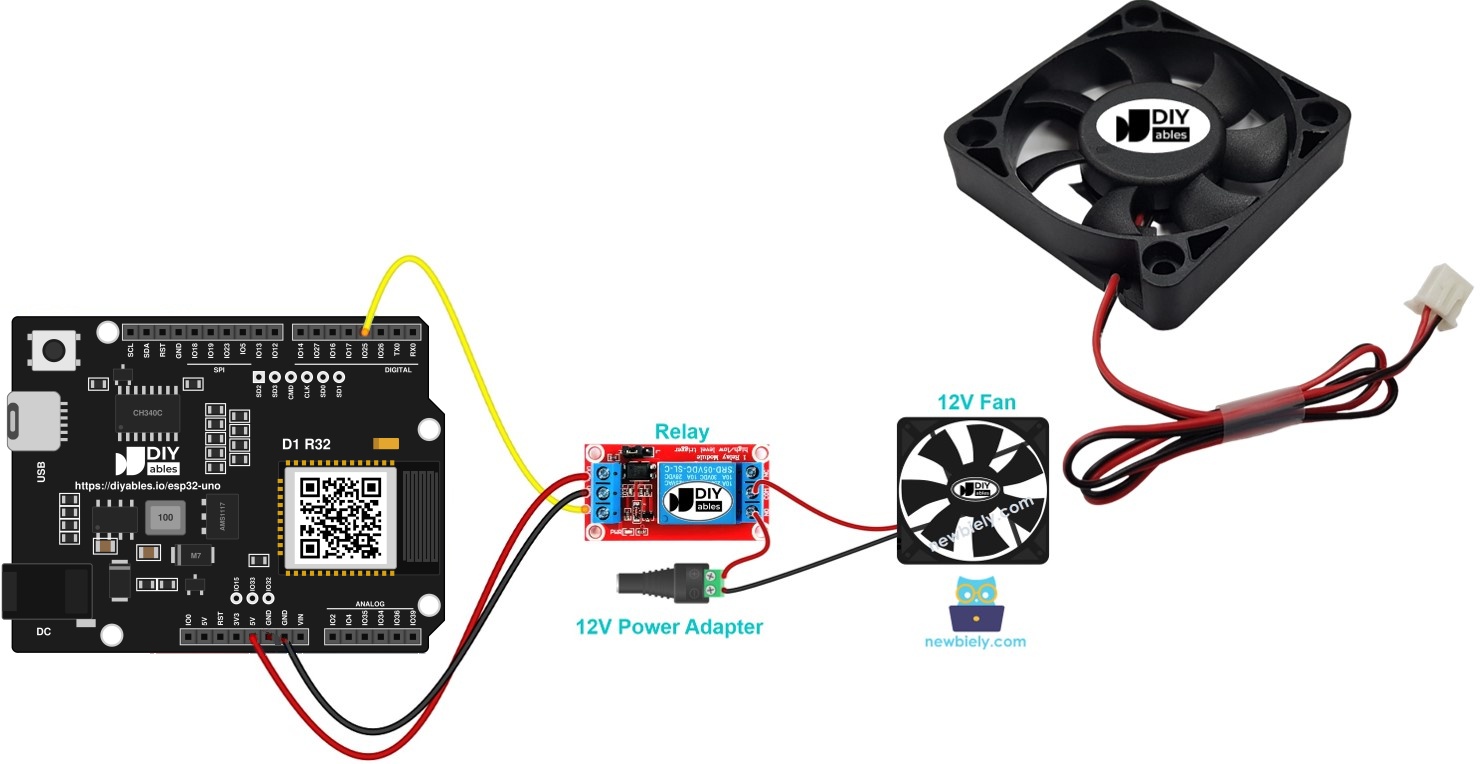
Components You Need
Or you can buy the following kits:
| 1 | × | DIYables Sensor Kit (18 sensors/displays) |
Additionally, some of these links are for products from our own brand, DIYables .
The DC Cooling Fan
After this part, you know where each fan wire goes and which driver to choose.
Pinout
| Fan Wire | Color | Goes To |
|---|---|---|
| Negative (-) | Black | Minus side of the DC power supply |
| Positive (+) | Red | Plus side of the DC power supply |
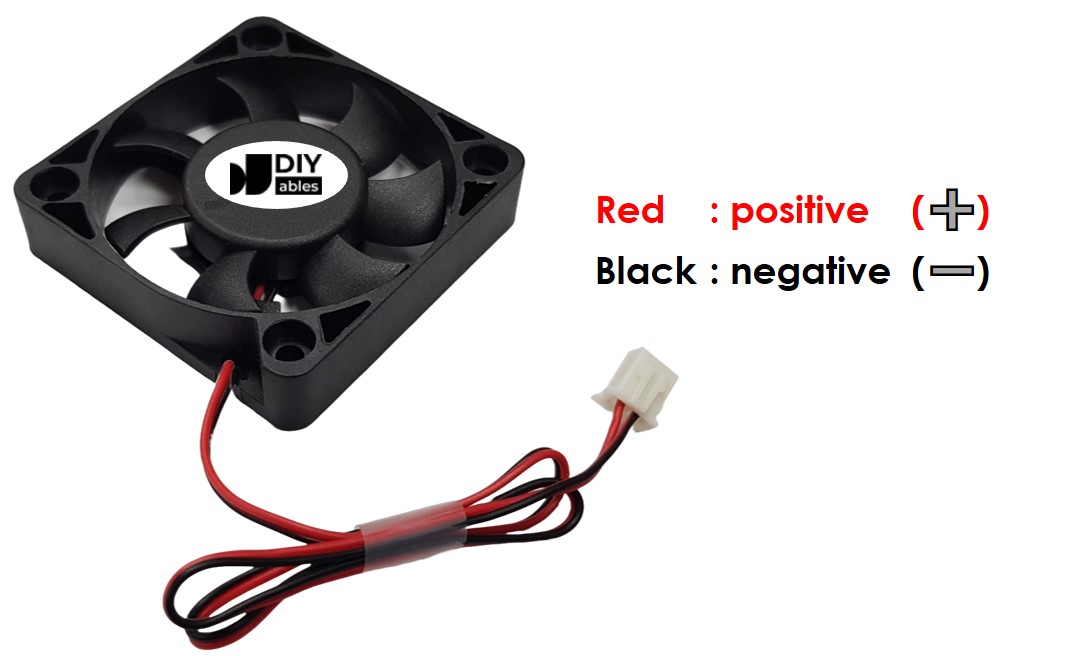
Good to know: the supply voltage must equal the rated voltage printed on the fan label. Here you work with a 12VDC fan, and a 5VDC fan is the second option.
Two Ways to Drive a Fan
| What the fan gets | Result |
|---|---|
| Its full rated DC voltage (12V or 5V) | It spins at top speed |
| A PWM signal at its rated voltage | Its speed follows the duty cycle |
| No voltage | It stops |
The first build on this page is plain on/off. A relay sits between the ESP32 Uno and the fan: the board drives the relay coil side, and the relay contacts connect or break the fan supply. For details on how relays work and how to code them, see the ESP32 Uno - Relay guide.
The second build swaps the relay for a MOSFET module, which adds speed control. Its pins, its parts and its basic sketch are covered in the ESP32 Uno - MOSFET Module guide.
Relay or MOSFET Module?
| Point | Relay | MOSFET Module |
|---|---|---|
| Fan control | on or off only | on, off and any speed through PWM |
| Sound | clicks at each change | silent |
| Switch speed | a few milliseconds | very quick |
| Wear | the contacts age with use | no moving parts |
| Load type | AC or DC | DC only |
| Fan supply needed | up to the relay rating | roughly 6V and above |
| Isolation from the board | coil and contacts are separate | PC817 optocoupler |
| Best use | AC fans and simple on/off | 12V DC fans that should change speed |
Pick the MOSFET module for a 12V DC fan when you want quiet, gentle cooling at low load and full air flow when things get hot. Pick the relay for an AC mains fan or a 5V fan.
ESP32 Uno Pinout
Your sketch talks to GPIO numbers, while the board edge shows Uno labels like D3 and D9. Use this diagram to see which GPIO sits behind each label before you plug in a jumper.

How to Connect the Relay and Fan
By the end of this part, the relay is ready to switch the fan supply.
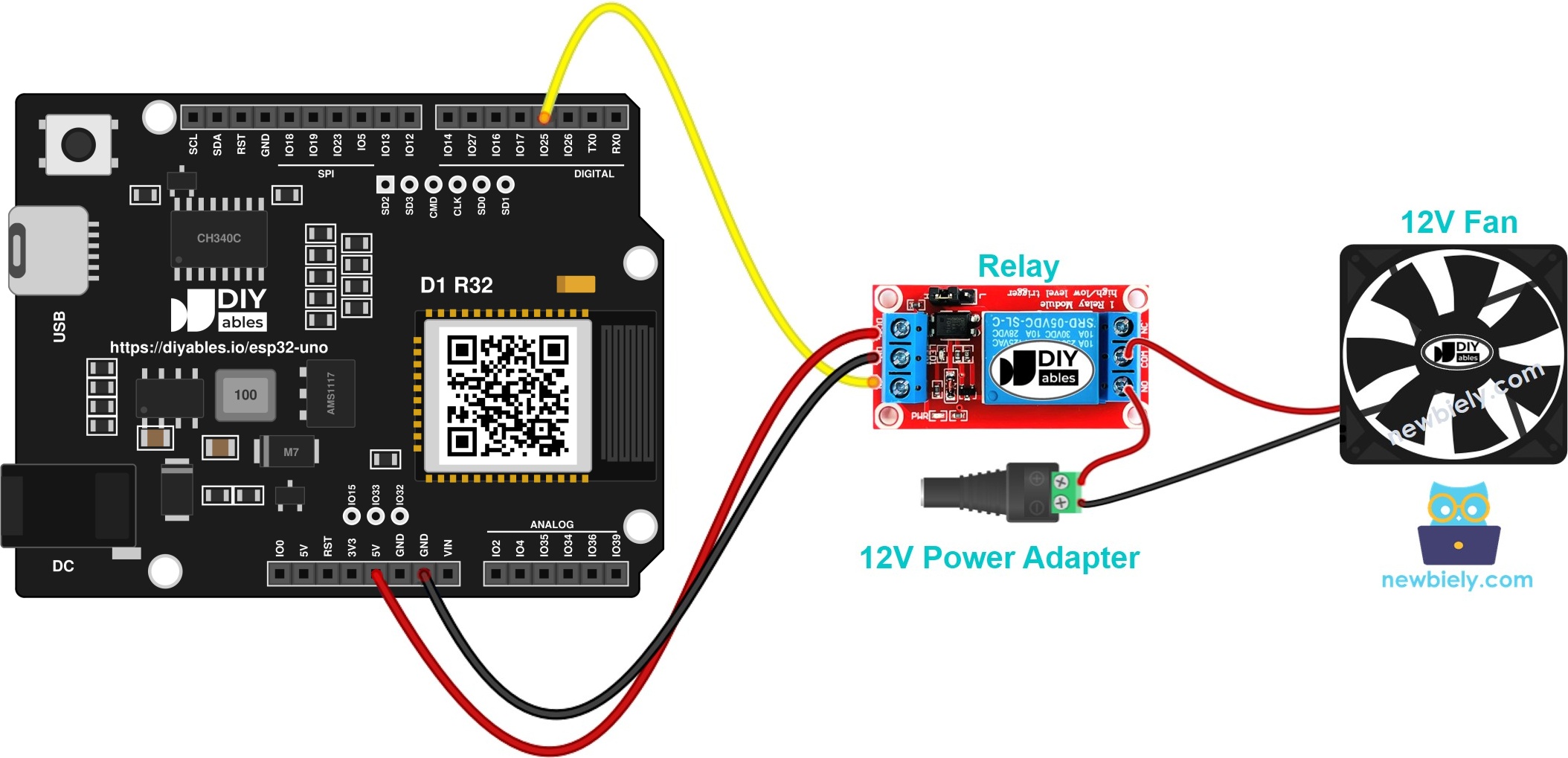
This image is created using Fritzing. Click to enlarge image
| Component Pin | ESP32 Uno Pin |
|---|---|
| Relay VCC | 5V |
| Relay GND | GND |
| Relay IN | D3 (GPIO25) |
High-power side:
| From | To |
|---|---|
| 12V adapter + (via DC power jack) | Relay COM |
| Relay NO | Fan red wire (+) |
| Fan black wire (-) | 12V adapter - (via DC power jack) |
Good to know: ESP32 Uno pins run at 3.3V logic and are NOT 5V tolerant. The relay VCC may sit on 5V, because the IN pin only receives the board's signal.
WARNING
Keep the 12V wires away from every ESP32 Uno header pin. The fan supply must touch only the relay terminals and the fan.
ESP32 Uno Code
This sketch closes the relay for five seconds, opens it for five seconds, and repeats forever.
Upload and Test
- First time with this board? Set it up with ESP32 Uno - Getting Started before you continue.
- Build the circuit by following the wiring table above. Keep the 12V adapter out of the jack at this point.
- Plug in the USB Type-C cable between the ESP32 Uno and your computer.
- Select the board in Arduino IDE: pick ESP32 Dev Module and the COM port of the board (CH340).
- Paste the code into a new Arduino IDE sketch.
- Click Upload (Upload) and wait for "Done uploading".
- Connect the 12V adapter to the DC power jack.
- Watch and listen: the relay clicks, the fan runs for 5 seconds, then rests for 5 seconds.
- Pro tip: change both delay(5000) values to delay(1000) while you test the wiring. Short cycles show a bad contact much faster. Put the 5-second values back when it works.
Fan Speed Control with a MOSFET Module
By the end of this part, the ESP32 Uno sets the fan speed in 10% steps instead of just on and off.
How to Connect the MOSFET Module
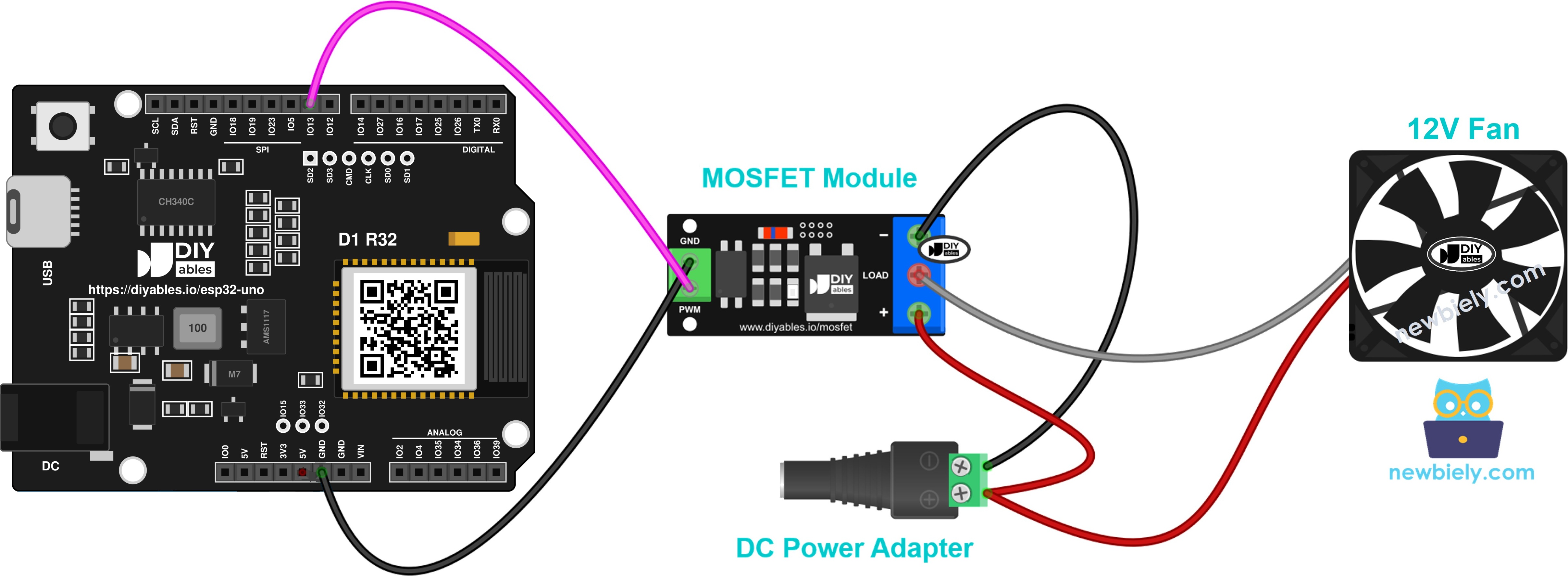
This image is created using Fritzing. Click to enlarge image
| From | To |
|---|---|
| ESP32 Uno D9 (GPIO13) | MOSFET module PWM |
| ESP32 Uno GND | MOSFET module GND |
| 12V adapter + | MOSFET module + |
| Fan red wire (+) | MOSFET module + (same screw as the adapter +) |
| Fan black wire (-) | MOSFET module LOAD |
| 12V adapter - | MOSFET module - |
The fan motor is a coil, so add a flyback diode (1N4007 or 1N5819) across its two wires. The striped end (cathode) goes on the fan + side, the plain end on the fan - side.
Good to know: D9 is GPIO13 on the ESP32 Uno, a normal PWM pin, not a boot strapping pin. You can leave the module connected while you upload.
ESP32 Uno Code
The sketch gives the fan full power for 2 seconds, cuts it for 2 seconds, then ramps from 10% to 100% and back down to 0%.
Upload and Test
- Prepare the board and IDE exactly as in the relay steps above.
- Wire the module and fan from the table, with the 12V adapter still unplugged.
- Upload the sketch from Arduino IDE.
- Connect the 12V adapter, then open the Serial Monitor and set it to 9600 baud.
- Listen to the air flow: it grows stronger and weaker with each ramp. Below about 20–30%, many fans just hum and do not turn, which is normal.
- Pro tip: note the lowest percent where your fan still starts from a stop. Use that number as the minimum speed in your own projects, so the fan never stalls.
※ NOTE THAT:
The MOSFET module switches DC only, and it needs a fan supply of roughly 6V or higher. A 5V fan does not suit it. Use the relay for 5V fans and AC fans.
Video Tutorial
See the ESP32 Uno build in action in the video below.
Code Explanation
| Code Part | What It Does |
|---|---|
| #define RELAY_PIN 25 | Names D3 (GPIO25) as the relay control pin |
| pinMode(RELAY_PIN, OUTPUT) | Lets the pin drive the relay IN input |
| digitalWrite(RELAY_PIN, HIGH / LOW) | Closes or opens the relay, so the fan runs or stops |
| const int MOSFET_PIN = 13 | Names D9 (GPIO13) as the PWM pin for the MOSFET module |
| map(percent, 0, 100, 0, 255) | Turns a percent into an 8-bit duty value |
| analogWrite(MOSFET_PIN, duty) | Outputs PWM, which sets the average power to the fan |
Together, the relay sketch gives you a timed on/off fan, and the MOSFET sketch gives you a fan whose speed follows a number from 0 to 100.
ESP32 Uno vs UNO R4 for This Project
Moving this fan project from the UNO R4 to the ESP32 Uno changes the pin numbers in code, not the wiring.
| Item | Arduino UNO R4 | ESP32 Uno |
|---|---|---|
| Logic voltage | 5V | 3.3V |
| Relay pin | D3 (pin 3 in code) | D3 (GPIO25 in code) |
| PWM pin for MOSFET | D9 (pin 9 in code) | D9 (GPIO13 in code) |
| PWM call | analogWrite() | analogWrite() (esp32 core) |
| WiFi and Bluetooth | WiFi on R4 WiFi only | WiFi and Bluetooth built in |
| Arduino IDE board | Arduino UNO R4 WiFi | ESP32 Dev Module |
The same wires work as-is. Just check that your relay module switches with a 3.3V signal on IN; most modules with a transistor or optocoupler input do.
Go Wireless: A Fan You Control from Your Phone
After this part, you have an idea for running the fan without touching the board.
The ESP32 Uno has WiFi and Bluetooth built in. Put a slider on a web page or in a phone app, and send its value to setLoad() to set the fan speed from the couch. For the relay version, an ON/OFF button in a phone app is enough.
- ESP32 Uno - Web Slider — set the fan speed from a browser
- ESP32 Uno - Web Digital Pins — switch the relay from a browser
- ESP32 Uno - Bluetooth Slider — set the speed over Bluetooth
- ESP32 Uno - Bluetooth Digital Pins — turn the fan on or off over Bluetooth
Try These Next
- Add a temperature sensor and start the fan only above 30°C.
- Map the temperature to a speed, for example 30% at 28°C and 100% at 35°C.
- Add a push button that cycles the fan through low, medium and high.
Troubleshooting
| Problem | Possible Cause | Solution |
|---|---|---|
| No COM port shows up in Arduino IDE | CH340 driver missing or a charge-only cable | Install the CH340 driver and use a data USB Type-C cable |
| Upload stops at "Failed to connect" or "Waiting for download" | The board did not enter download mode | Hold the BOOT button while the upload starts, then let go |
| Relay stays silent | Relay VCC or GND wire is loose | Feed relay VCC from 5V and check the shared GND |
| Relay clicks but fan stays still | Adapter unplugged or fan wired to NC | Plug in the 12V adapter and move the fan wire to NO |
| Fan is on when it should be off | Active-LOW relay module | Swap HIGH and LOW in the two digitalWrite() lines |
| Fan hums but does not turn at low percent | Duty cycle too low to start the motor | Start the fan at 100% for a moment, or keep the minimum above 30% |
| Fan never changes speed with the MOSFET module | PWM wire on the wrong pin or a 5V fan supply | Check the wire is on D9 (GPIO13) and use a 12V supply |
| Board resets when the fan starts | Fan and board share one weak supply, or no flyback diode | Give the fan its own adapter and add the diode across the fan |
FAQ
Why can't an ESP32 Uno pin run a 12V fan by itself?
A GPIO gives 3.3V and only a few milliamps. A 12V fan needs four times the voltage and often 100 mA or more. The relay or MOSFET module does the heavy switching, and the pin just sends the command.
Does a 5V cooling fan work with this ESP32 Uno setup?
Yes, with the relay. Keep the same wiring and code, and use a 5V supply on the relay contacts. The MOSFET module is a poor match for 5V fans because it wants about 6V or more.
Can I wire the relay module VCC to the 3V3 pin?
Most relay modules use a 5V coil, so use the 5V pin. If the coil does not pull in at all, the module needs 5V on VCC; a 3V relay module is the other option.
What PWM frequency does analogWrite() use on the ESP32 Uno?
The esp32 core uses about 1 kHz with 8-bit resolution by default, so 0–255 maps to 0–100%. If the fan whines, you can raise it with analogWriteFrequency() in newer cores, for example to 25 kHz, which is above human hearing.
Can I use a 3-wire or 4-wire PC fan?
Yes. Use only the red and black wires with this circuit. The yellow wire is a speed (tach) output; it can be 12V on some fans, so never connect it straight to an ESP32 Uno pin. A 4-wire fan also has its own PWM input, which needs a separate guide.
Is the D3 or D9 pin a risky pin on the ESP32 Uno?
No. D3 is GPIO25 and D9 is GPIO13, both normal output pins with PWM. They are not boot strapping, input-only or USB serial pins, so the board boots and uploads with the fan circuit connected.
Will an Uno relay shield work on the ESP32 Uno?
It fits the headers, but check two things. The shield's relay pins must map to GPIOs that can drive outputs (not A2–A5), and its input stage must react to a 3.3V signal.
Can I change the fan speed from a web page with the ESP32 Uno?
Yes. The ESP32 Uno has WiFi, so a web slider can send a percent to the setLoad() function. See the Go Wireless links above.
What if my project needs more pins than the Uno headers give?
The ESP32 Uno has a few extra holes near the power header: GPIO32 and GPIO33 (I/O, PWM, analog on ADC1, so they also work while WiFi is on) and GPIO15 (I/O, PWM, analog on ADC2). Add a strip of header pins there, then use the plain GPIO number in your sketch. For a second fan, use GPIO32 or GPIO33 as its PWM pin; for a temperature sensor in a WiFi fan project, the other one of the pair is a good fit. Two warnings: GPIO15 and GPIO0 (the IO0 pin at the unused Uno NC position) are boot strapping pins, and a wrong connection can stop the board from booting or uploading code, so use GPIO32/33 first. Also never use the six holes under the digital header (SD0–SD3, CMD, CLK = GPIO6–GPIO11). They are wired to the flash chip, and using them crashes the board.