
ESP32 UNO - Bluetooth and Bluetooth Low Energy
Overview
Want to control your ESP32 Uno Bluetooth project from a phone? The ESP32 Uno form board has a radio inside the chip that speaks both Classic Bluetooth and Bluetooth Low Energy (BLE), so no add-on module is needed. Pair it with the free DIYables Bluetooth App and you get sliders, charts, a joystick and a wireless serial monitor on Android or iPhone.
By the end, you can:
- Prepare Arduino IDE with the esp32 core and the DIYables Bluetooth library
- Choose between Classic Bluetooth and BLE for your phone
- Connect an Android phone or an iPhone to the board
- Open the matching example for slider, plotter, chat and other widgets
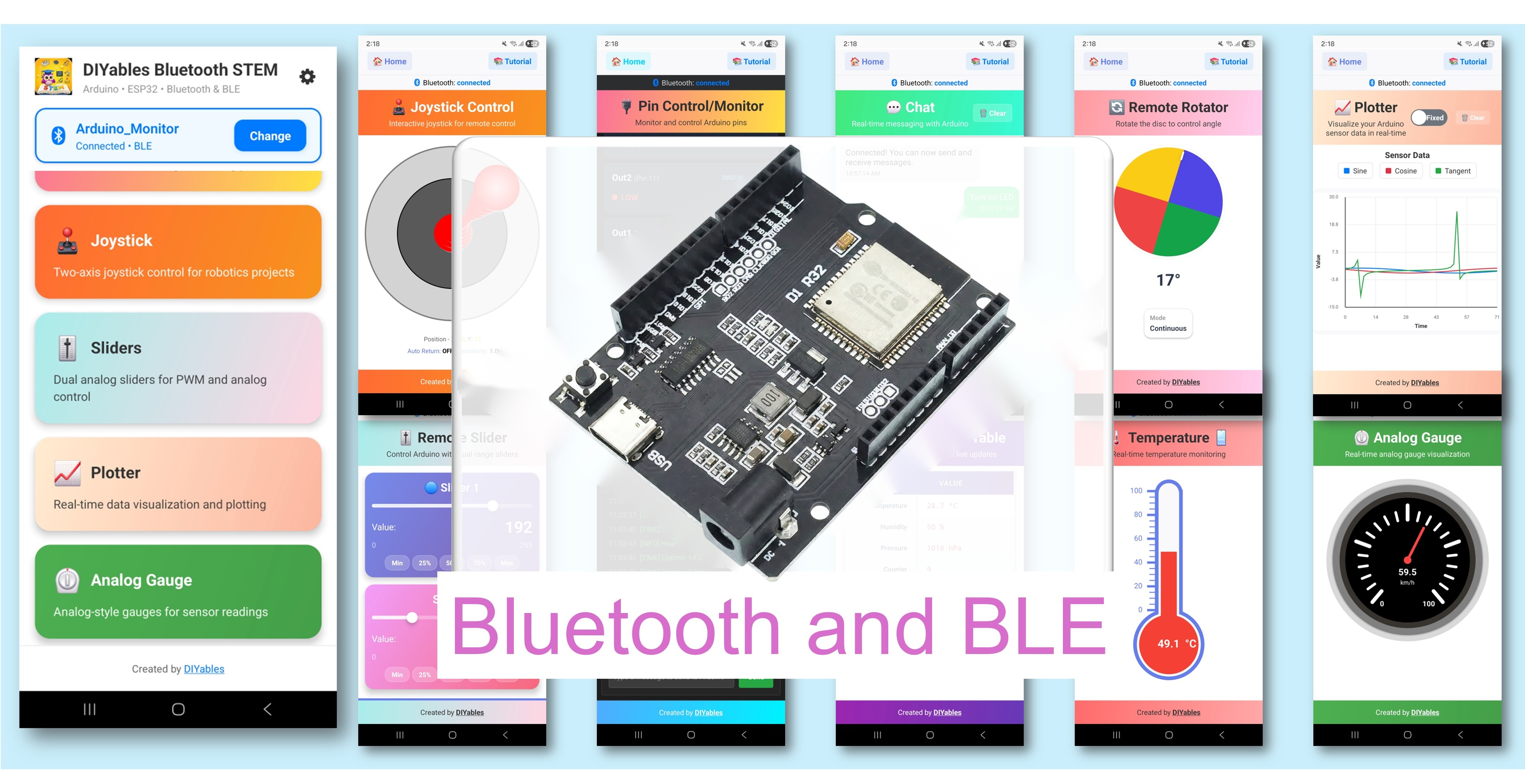
Two radio modes, one board
| Mode | Library Examples | Phones | Pairing |
|---|---|---|---|
| Classic Bluetooth | Esp32Bluetooth_ | Android only | Pair once in phone settings |
| BLE (Bluetooth Low Energy) | Esp32BLE_ | Android and iOS | No pairing, connect in the app |
Good to know: iPhones do not accept Classic Bluetooth links from hobby boards. If even one of your users has an iPhone, pick the BLE examples.
What You Get
This part lists what the board and the app give you before you install anything.
| Feature | What It Means for You |
|---|---|
| Both Bluetooth types | Classic Bluetooth for older Android setups, BLE for every modern phone |
| Range | Roughly 10 metres in open space, less through walls |
| Android + iOS | The same app runs on both systems |
| Easy connect | BLE needs no pairing; Classic Bluetooth pairs one time only |
| Ready widgets | Slider, joystick, monitor, plotter, gauge, temperature, chat, table, rotator and more |
| Power choice | BLE draws less current for battery builds; Classic Bluetooth moves data in a steady stream |
| One library | The DIYables Bluetooth library handles both modes for you |
Hardware Preparation
| 1 | × | ESP32 Uno-form Board | |
| 1 | × | USB Cable Type-A to Type-C (for USB-A PC) | |
| 1 | × | USB Cable Type-C to Type-C (for USB-C PC) |
Or you can buy the following kits:
| 1 | × | DIYables Sensor Kit (18 sensors/displays) |
Additionally, some of these links are for products from our own brand, DIYables .
ESP32 Uno Pinout
The radio sits inside the chip, so this setup page needs no wires at all. Keep the diagram below handy for the example projects, where every Uno header label turns into a GPIO number in code.

Software Setup
When this part is done, Arduino IDE can build Bluetooth sketches for the ESP32 Uno. You do it one time per computer.
Detailed Instructions
- First time with this board? Set it up with ESP32 Uno - Getting Started before you continue.
- Plug in the USB Type-C cable between the ESP32 Uno and your computer.
- Start Arduino IDE on your computer.
- Select the board in Arduino IDE: pick ESP32 Dev Module and the COM port of the board (CH340).
- Pro tip: If the port list stays empty, install the CH340 driver first, then unplug and plug the cable back in.
Install Board Core
Step 1 — Open the Boards Manager
Click Tools Board Boards Manager....
Step 2 — Find and install the core
Type "esp32" in the search field, then install esp32 by Espressif Systems. If an older copy is there, press Update instead.
Good to know: the BluetoothSerial and BLE code used by the library ship with this core. No separate Bluetooth firmware update exists for the ESP32 Uno.
Install DIYables Bluetooth Library
Step 1 — Search the library
Press the Libraries icon in the left panel of Arduino IDE, then type "DIYables Bluetooth". Look for the entry by DIYables.
Step 2 — Install it
Press Install.
- Search for DIYables Bluetooth created by DIYables and click the Install button.
Step 3 — Accept the extra libraries
A window asks about the libraries it depends on. Choose Install All so the sketches compile on the first try.
Mobile App
At the end of this part, your phone sees the ESP32 Uno and is ready to talk to it.
- Give the permissions it asks for on the first launch:
- Nearby Devices (Android 12 and later) / Bluetooth (iOS) — lets the app scan for and link to the board.
- Location (Android 11 and earlier only) — older Android needs it before any Bluetooth scan.
- Switch on Bluetooth in the phone settings.
- Classic Bluetooth only (Android): pair the board first in the phone Bluetooth settings. Tap the name set in the sketch and confirm. No PIN is asked. Skip this step for BLE.
- Tap Connect on the app home screen to start the scan.
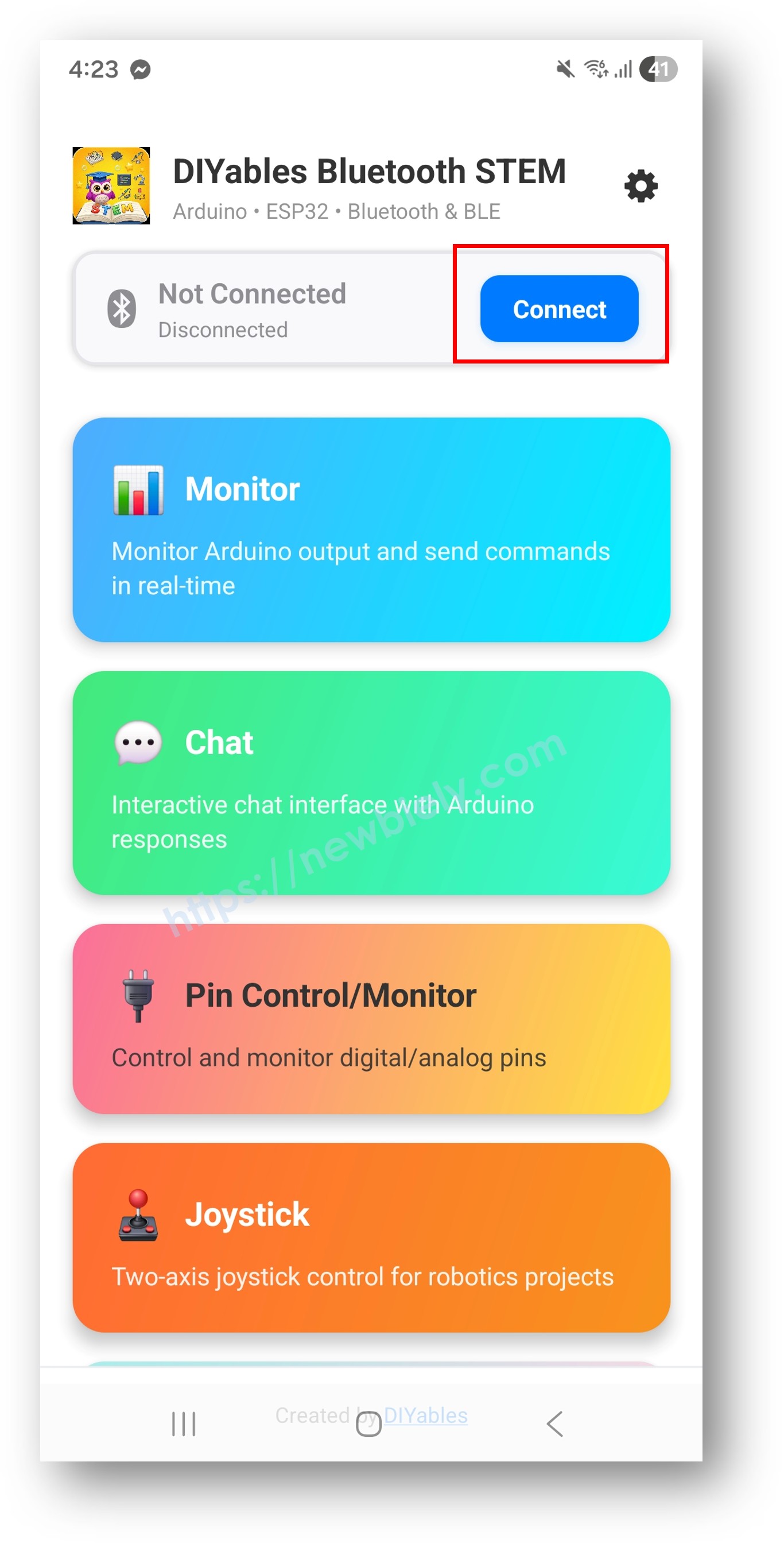
- Tap your board in the result list. The name comes from your sketch, for example ESP32BLE_Slider for BLE or ESP32_Slider for Classic Bluetooth.
Good to know: you can rename the board in the sketch. Give each board a unique name when you have more than one ESP32 Uno nearby.
Examples
Pick a widget below. Each guide has its own code, wiring and test steps, in both a Classic Bluetooth (Android) and a BLE (Android and iOS) version.
- ESP32 Uno - Bluetooth Slider - Set one or two values by dragging
- ESP32 Uno - Bluetooth Monitor - A serial monitor without the USB cable
- ESP32 Uno - Bluetooth Plotter - Watch sensor numbers as moving lines
- ESP32 Uno - Bluetooth Analog Gauge - A needle dial for any value
- ESP32 Uno - Bluetooth Temperature - Readouts for temperature and humidity
- ESP32 Uno - Bluetooth Joystick - X and Y input from a touch stick
- ESP32 Uno - Bluetooth Rotator - Turn a virtual knob to set an angle
- ESP32 Uno - Bluetooth Chat - Type messages to and from the board
- ESP32 Uno - Bluetooth Table - Show many readings in rows
- ESP32 Uno - Bluetooth Multiple Apps - Run several widgets from one sketch
Notes
Follow these rules when you open the library examples.
| Example Prefix | Use on ESP32 Uno? | Reason |
|---|---|---|
| Esp32BLE_ | Yes | BLE, works with Android and iPhone, no pairing |
| Esp32Bluetooth_ | Yes, Android only | Classic Bluetooth via BluetoothSerial, pair once in phone settings |
| ArduinoBLE_ | No | Written for other boards and the ArduinoBLE stack |
- Open them from File Examples DIYables Bluetooth.
- The board stays visible in the app only while the sketch runs, so keep it powered from USB or an external supply.
ESP32 Uno vs UNO R4 for This Project
This table shows what changes when you move Bluetooth projects from the UNO R4 WiFi to the ESP32 Uno.
| Item | Arduino UNO R4 | ESP32 Uno |
|---|---|---|
| Logic voltage | 5V | 3.3V |
| Bluetooth types | BLE only | Classic Bluetooth and BLE |
| Library examples | ArduinoBLE_ | Esp32BLE_ or Esp32Bluetooth_ |
| Radio firmware | Separate module firmware to update | Built into the chip, no update |
| Board core | Arduino UNO R4 Boards | esp32 by Espressif Systems |
| Arduino IDE board | Arduino UNO R4 WiFi | ESP32 Dev Module |
The app and its widgets stay the same on both boards. Only the example family changes, and pins in the example projects move to the ESP32 Uno GPIO numbers.
Troubleshooting
| Problem | Possible Cause | Solution |
|---|---|---|
| No COM port in Arduino IDE | CH340 driver missing or a charge-only cable | Install the CH340 driver and use a USB data cable |
| Upload stops at "Failed to connect" or "Waiting for download" | Board did not enter upload mode | Hold the BOOT button while the upload starts, then release it |
| Board missing from the app scan list | A Classic Bluetooth sketch is running but the phone scans for BLE, or the sketch did not start | Upload an Esp32BLE_ example, press RESET and scan again |
| Board missing on an iPhone | Esp32Bluetooth_ (Classic) sketch uploaded | iOS needs BLE, so upload the Esp32BLE_ version |
| Classic Bluetooth board will not open in the app | Not paired yet | Pair it in the Android Bluetooth settings first, then tap it in the app |
| Compile error for BluetoothSerial.h or BLEDevice.h | Wrong board selected or core not installed | Select ESP32 Dev Module and install esp32 by Espressif Systems |
| Compile error for a missing DIYables header | Library or its extras missing | Reinstall DIYables Bluetooth and choose Install All |
| Link works but the widget shows nothing | Library out of date or the widget does not match the sketch | Update the library and open the same widget the example uses |
| Link drops after a few seconds | Weak USB power or phone too far away | Use a short good cable on a powered port and stay within a few metres |
FAQ
Which Bluetooth type should I pick on the ESP32 Uno, Classic or BLE?
Pick BLE for most projects. It works with Android and iPhone, needs no pairing and uses less power. Pick Classic Bluetooth only when all your users have Android and you want the simple BluetoothSerial style stream.
Does the DIYables Bluetooth App work with my iPhone and the ESP32 Uno?
Yes, over BLE. Upload an Esp32BLE_ example, open the app from the App Store, tap Connect and choose the board name. Classic Bluetooth examples will not show up on iOS.
Do I need an HC-05 or HC-06 module with the ESP32 Uno?
No. The ESP32 Uno has Bluetooth inside the chip. An HC-05 or HC-06 only adds wires and uses up two pins.
Why does my Android phone ask for Location permission?
Android 11 and older link Bluetooth scanning to the Location permission. The app does not track you. On Android 12 and newer, it asks for Nearby Devices instead.
How far away can my phone be from the ESP32 Uno?
About 10 metres with a clear line of sight. Walls, metal cases and your body make it shorter. Keep the board antenna area free of metal for the best range.
Can the ESP32 Uno run WiFi and Bluetooth in the same sketch?
Yes, but both share one 2.4GHz radio. Data can slow down and the sketch needs more memory, especially with Classic Bluetooth. Get Bluetooth working alone first, then add WiFi.
Is the ESP32 Uno code the same as the UNO R4 Bluetooth code?
No. The UNO R4 WiFi uses the ArduinoBLE_ examples. The ESP32 Uno uses the Esp32BLE_ or Esp32Bluetooth_ examples. The widget callbacks look alike, but you must open the right example family for the board.
Do I need to install the CH340 driver for the ESP32 Uno?
Many computers have it already. If no COM port appears when you plug in the board, install the CH340 driver. This is only for the USB upload; Bluetooth does not use it.
Should I write D7 or 14 when an example project uses a pin?
Write the GPIO number, such as 14 for D7. The ESP32 Uno code does not know the Uno labels. Check the pinout image above to match them.
What if my project needs more pins than the Uno headers give?
The ESP32 Uno has a few extra holes near the power header. GPIO32 and GPIO33 work as I/O, PWM and analog on ADC1, so they still read analog values while WiFi is on. GPIO15 works as I/O, PWM and analog on ADC2. To use them, add pin headers with a soldering iron and put the plain GPIO number in your sketch. For a Bluetooth project with extra sensors, use GPIO32 or GPIO33 first. Two warnings: GPIO15 and GPIO0 (the IO0 pin at the unused Uno NC position) are boot strapping pins, and a wrong connection can stop the board from booting or uploading code. Also, never use the six holes under the digital header (SD0–SD3, CMD, CLK = GPIO6–GPIO11), because they connect to the flash chip and the board will crash.
Can I connect two ESP32 Uno boards to one phone?
The app links to one board at a time. Give each board its own name in the sketch, so you can switch between them in the scan list without mixing them up.