
ESP32 UNO - Joystick
Want to steer a robot, a game or a camera with your thumb? Hook an ESP32 Uno joystick module to three pins and your sketch gets the stick position as two numbers plus a click. The ESP32 Uno form board reads each axis of the thumb joystick from 0 to 4095, so even small moves show up. With a few lines of Arduino code, you turn the 2-axis joystick into LEFT, RIGHT, UP and DOWN commands.
What you will do:
- Learn what the five joystick pins carry
- Connect an analog joystick to the A1, A0 and D2 headers
- Read the X and Y positions with analogRead()
- Detect the thumb-stick click with the ezButton library
- Turn stick moves into direction commands in Arduino IDE
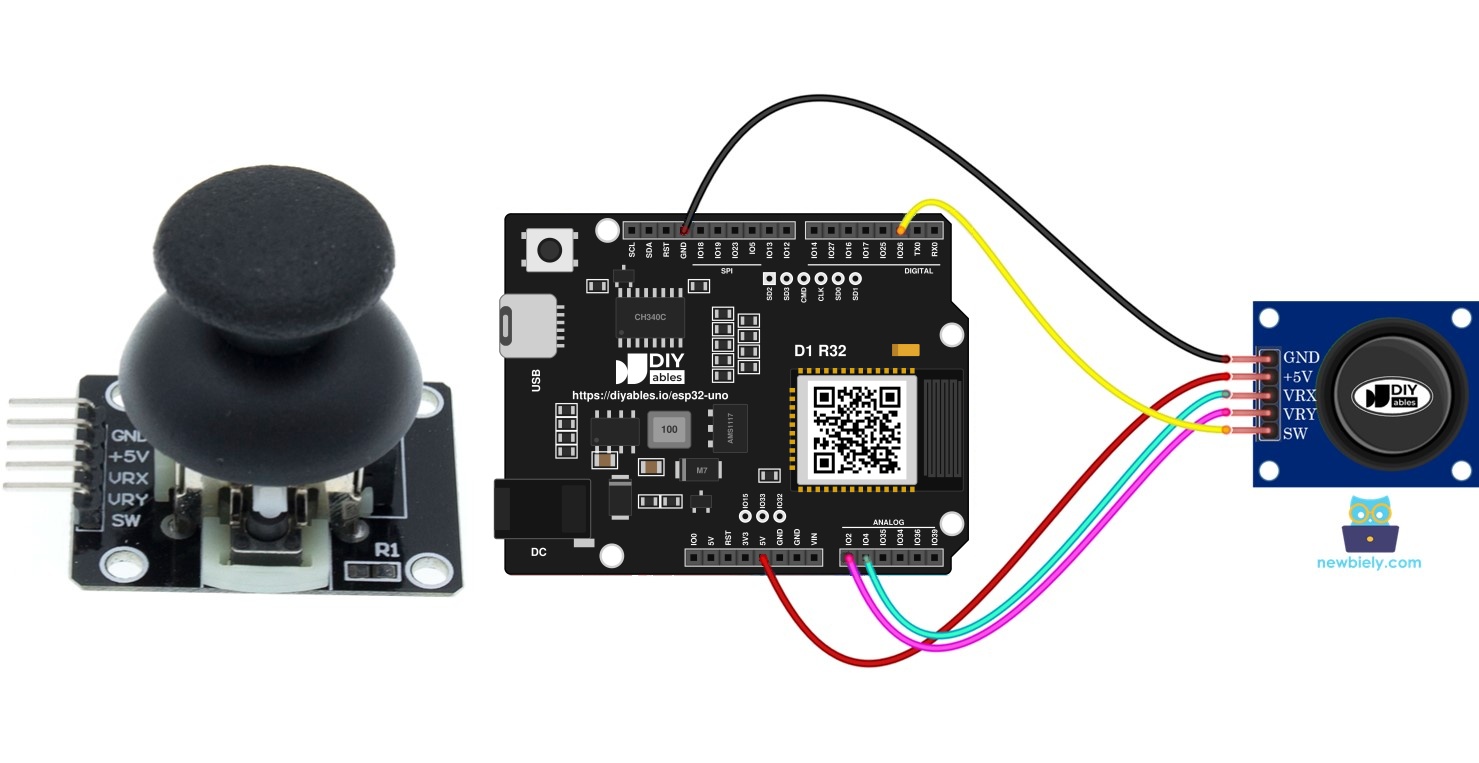
Components You Need
| 1 | × | ESP32 Uno-form Board | |
| 1 | × | USB Cable Type-A to Type-C (for USB-A PC) | |
| 1 | × | USB Cable Type-C to Type-C (for USB-C PC) | |
| 1 | × | Joystick | |
| 1 | × | Jumper Wires |
Or you can buy the following kits:
| 1 | × | DIYables Sensor Kit (18 sensors/displays) |
Additionally, some of these links are for products from our own brand, DIYables .
The Thumb Joystick at a Glance
By the end of this part, you know what the module sends to the board.
Joysticks sit on game pads, RC toy remotes and the control levers of heavy machines such as diggers. The small module used here packs two potentiometers, mounted at 90 degrees to each other, and one push switch under the stick.
| Output | Signal Type | Value on ESP32 Uno |
|---|---|---|
| Horizontal position (X) | Analog | 0 to 4095 |
| Vertical position (Y) | Analog | 0 to 4095 |
| Stick click (SW) | Digital | HIGH (free) or LOW (pressed) |
Put X and Y together and you get a 2-D point. A spring pulls the stick back to the middle, so at rest both numbers sit near the center of the range. The first sketch below shows you which side is left, right, up and down on your module. A project may use all three outputs or only one or two of them.
Pinout
Match these five pins before you plug in any jumper wire.
| Pin | Role | Connect To |
|---|---|---|
| GND | Ground (0V) | GND |
| VCC | Power for the two potentiometers | 3.3V on the ESP32 Uno |
| VRX | Analog voltage for the X axis | An analog input |
| VRY | Analog voltage for the Y axis | An analog input |
| SW | Push switch, normally open | A digital input with pull-up |
With a pull-up resistor on SW, the pin stays HIGH until you press the stick, then drops to LOW.
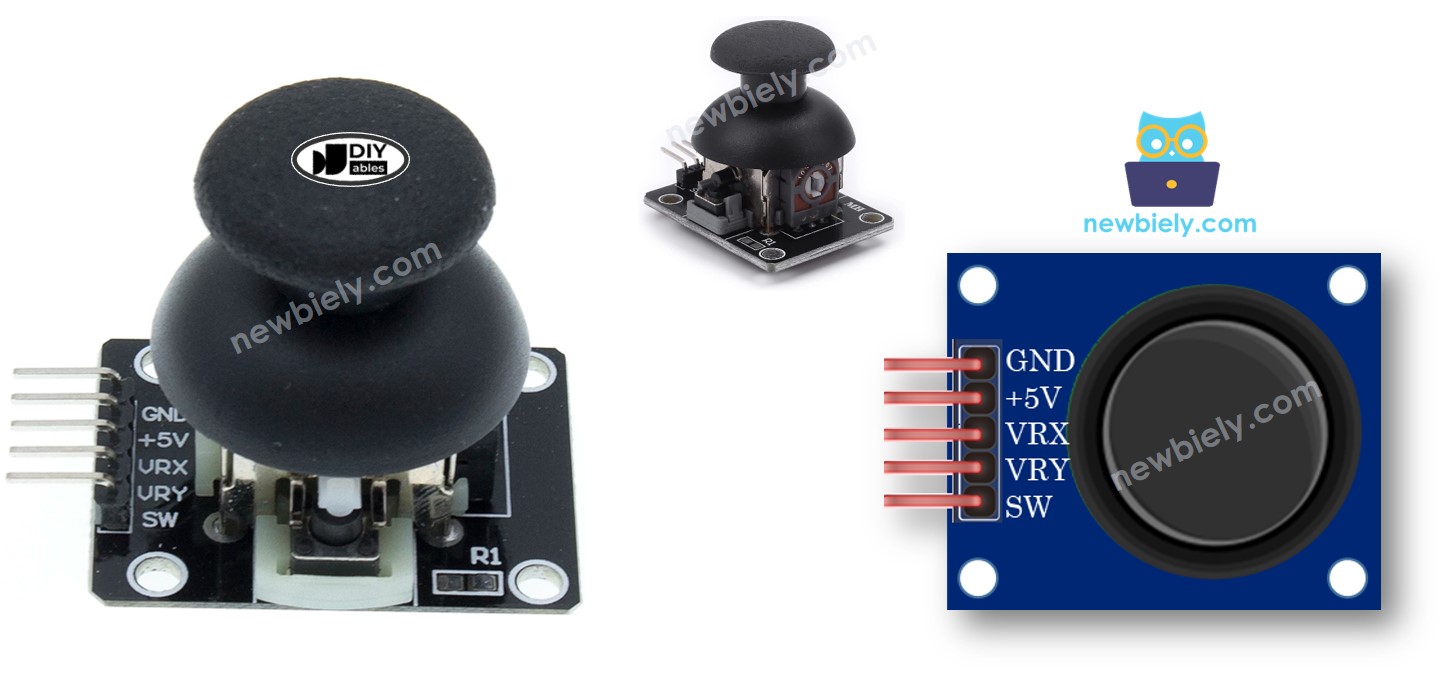
Good to know: feed the module from 3.3V. The axis pins output a voltage between 0V and VCC, and ESP32 Uno pins are NOT 5V tolerant.
How It Works
Here you see how a stick position becomes a number in your code.
| Stick Action | Pin That Changes | Voltage | Reading |
|---|---|---|---|
| Full left | VRX | 0V | about 0 |
| Full right | VRX | 3.3V | about 4095 |
| Full up | VRY | 0V | about 0 |
| Full down | VRY | 3.3V | about 4095 |
| Released (center) | VRX and VRY | about 1.65V | roughly 1800 to 2100 |
| Pressed down | SW | 3.3V to 0V | HIGH to LOW |
Each axis is a voltage divider. Moving the stick slides the wiper, and the ESP32 Uno ADC converts that voltage to a 12-bit number. A diagonal push changes VRX and VRY at the same time, each one by how far the stick traveled on its own axis. Pressing the stick closes the internal switch, so SW is pulled to ground and reads LOW.
Good to know: the ESP32 Uno ADC is 12-bit, so the scale ends at 4095, not 1023.
ESP32 Uno Pinout
Your sketch never uses the printed label (A1, A0, D2); it uses the GPIO number behind it. Find those three headers in the diagram below first.

How to Connect the Joystick
By the end of this part, the joystick is wired and powered.
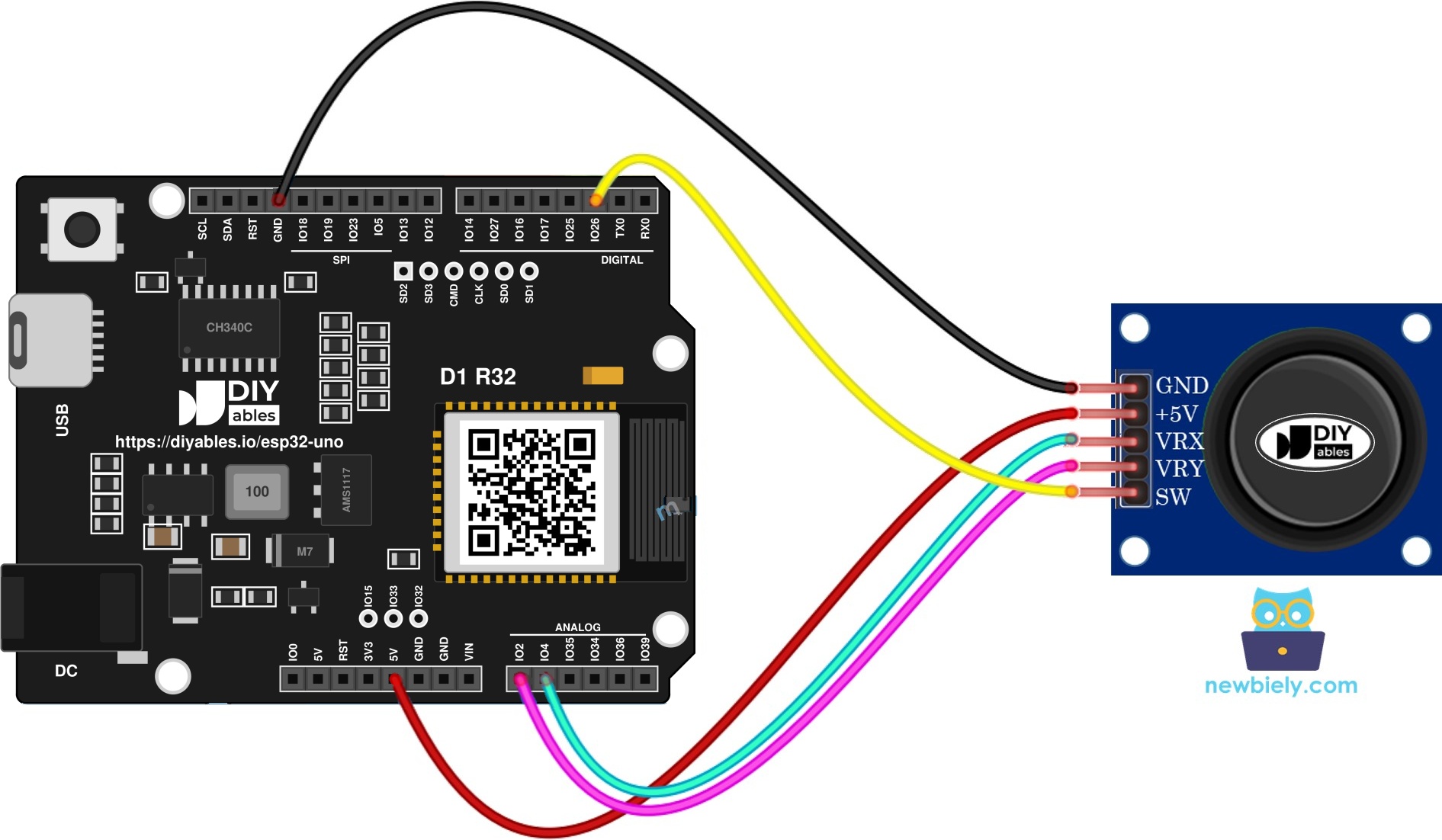
This image is created using Fritzing. Click to enlarge image
| Joystick Pin | ESP32 Uno Pin |
|---|---|
| GND | GND |
| VCC | 3.3V |
| VRX | A1 (GPIO4) |
| VRY | A0 (GPIO2) |
| SW | D2 (GPIO26) |
WARNING
A0 (GPIO2) is a boot strapping pin. GPIO2 must be LOW or floating when the board enters upload mode. At rest, the VRY pin sits at about 1.65V, which can block an upload ("Failed to connect" or "Waiting for download"). If that happens, unplug the VRY wire during the upload and plug it back after.
WARNING
A1 (GPIO4) and A0 (GPIO2) are ADC2 pins. analogRead() on ADC2 does not work while WiFi is on. This page uses no WiFi, so the wiring is fine here. For a WiFi version, read the axes on A2 to A5 (GPIO35, 34, 36, 39) instead.
Good to know: never connect the joystick VCC to 5V. At 5V the axis pins can push 5V into the ESP32 Uno analog inputs and damage them.
Reading a Joystick in Code
By the end of this part, you know the two tools each sketch below uses.
Step 1 — The two axes
Read each axis with analogRead(). Pass the GPIO number of the header, not its label.
Step 2 — The stick click
The SW pin is just a push button. The ezButton library switches on the internal pull-up of D2 (GPIO26) and filters contact bounce. More button details are in ESP32 Uno - Button.
Raw readings are rarely the final goal. The examples below turn them into values your project can act on.
ESP32 Uno Code
Pick the sketch that matches your goal. Start with the first one, since it shows how your module is turned.
| Example | What You Get |
|---|---|
| Read analog values | X and Y numbers every 200 ms |
| Read analog values and the button | X, Y, button level and press/release messages |
| Direction commands | COMMAND LEFT, RIGHT, UP and DOWN text |
| Two servo motors | Angles for a pan-tilt mount (separate tutorial) |
Sketch 1 — Print the X and Y Numbers
This sketch samples both axes five times per second and prints them.
Good to know: the analogSetAttenuation(ADC_11db) line in setup() lets the ESP32 Uno analog pins measure the full swing, from 0V up to about 3.3V. Without a wide range, the readings hit 4095 when the stick is only half way, and the joystick values look wrong.
Upload and Test
- First time with this board? Set it up with ESP32 Uno - Getting Started before you continue.
- Build the circuit by following the wiring table above.
- Plug in the USB Type-C cable between the ESP32 Uno and your computer.
- Select the board in Arduino IDE: pick ESP32 Dev Module and the COM port of the board (CH340).
- Paste the sketch into a new Arduino IDE window.
- Send the sketch to the board with the Upload arrow. If it stops at "Connecting...", pull the VRY wire for a moment.
- Push the stick to its edge and sweep it around in a full circle, either way.
- Open the Serial Monitor at 9600 baud and watch the numbers.
- Pro tip: put a small piece of tape on the module and mark the side where X shows 0 as "L" and the side where Y shows 0 as "U". The opposite edges are right and down.
Sketch 2 — X, Y and the Stick Click
This sketch adds the stick click. It prints X, Y and the button level each loop, plus one line on every press and release.
Upload and Test
- Open Library Manager from the left sidebar (the Libraries icon).
- Search for “ezButton”; the right one is made by ArduinoGetStarted.com.
- Hit Install and wait for it to finish.
- Search for ezButton created by ArduinoGetStarted.com and click the Install button.
- Paste the sketch into Arduino IDE.
- Upload it to the ESP32 Uno.
- Tilt the stick in each direction.
- Click the stick straight down, then let go.
- Read the Serial Monitor.
- Pro tip: this sketch prints with no delay, so the monitor scrolls fast. Turn off autoscroll in the Serial Monitor to read one line at a time.
Sketch 3 — Turn Stick Moves into Direction Commands
This sketch checks each axis against a low and a high limit. The limits 1600 and 3200 match the 12-bit scale, so the rest zone near the middle sends nothing.
Upload and Test
- Paste the sketch into Arduino IDE.
- Upload it to the ESP32 Uno.
- Push the stick to each side and to a corner.
- Read the Serial Monitor.
- Pro tip: the loop has no delay, so one push prints many lines. Add delay(100); at the end of loop() while you test.
※ NOTE THAT:
One reading can give zero, one or two commands. A corner push, for example, prints both COMMAND LEFT and COMMAND UP.
Sketch 4 — Aim Two Servos with the Stick
Map each axis to an angle and you can aim a pan-tilt bracket with two servos. That build has its own page: ESP32 Uno - Joystick controls Servo Motor.
Video Tutorial
See the ESP32 Uno build in action in the video below.
Code Explanation
This part maps each key line to its job.
| Code Part | What It Does |
|---|---|
| #define VRX_PIN 4 / #define VRY_PIN 2 | Names GPIO4 (A1) and GPIO2 (A0), the two axis inputs |
| analogSetAttenuation(ADC_11db) | Opens the ADC range to about 0 to 3.3V |
| analogRead(VRX_PIN) | Returns the X position as 0 to 4095 |
| button.loop() and button.isPressed() | Debounces SW on GPIO26 and flags a fresh click |
| COMMAND_LEFT and the other flags | One bit per direction, so two can be active at once |
| command & COMMAND_UP | Tests if the UP bit is set before printing |
The result is a clean set of direction flags that you can hook to motors, a cursor or a game.
ESP32 Uno vs UNO R4 for This Project
This shows what changes when you move this joystick project from the UNO R4 to the ESP32 Uno.
| Item | Arduino UNO R4 | ESP32 Uno |
|---|---|---|
| Logic voltage | 5V | 3.3V |
| Joystick VCC | 5V | 3.3V |
| VRX / VRY pins in code | A1 / A0 | 4 / 2 (A1 = GPIO4, A0 = GPIO2) |
| SW pin in code | 2 | 26 (D2 = GPIO26) |
| ADC range | 0 to 1023 | 0 to 4095 |
| Command thresholds | 400 and 800 | 1600 and 3200 |
| Extra setup line | none | analogSetAttenuation(ADC_11db) |
The header positions are the same, so the same wiring works as long as you move the joystick VCC wire to 3.3V. Watch the A0 boot pin during uploads.
Go Wireless: Joystick Position on Your Phone
By the end of this part, you have an idea for a wireless joystick build.
The ESP32 Uno has WiFi and Bluetooth (Classic and BLE) on board. Stream the X and Y numbers to a phone and watch them move on a live plot, or send direction commands to a robot across the room. If you use WiFi, move VRX and VRY to A2 and A3 (GPIO35 and GPIO34) first, because A0 and A1 are ADC2 pins and stop reading while WiFi runs. You can also skip the hardware stick and use an on-screen joystick in the phone app.
Try These Next
- Add a dead zone around the center so tiny hand shakes give no command.
- Use the stick click to switch between "slow" and "fast" mode.
- Drive two servos with the axes, as in the servo page linked above.
Function References
Troubleshooting
| Problem | Possible Cause | Solution |
|---|---|---|
| No COM port in Arduino IDE | CH340 driver missing or a charge-only USB cable | Install the CH340 driver and use a USB data cable |
| Upload stops at "Failed to connect" or "Waiting for download" | VRY holds A0 (GPIO2) above 0V, and GPIO2 is a boot strapping pin | Unplug the VRY wire while uploading, or hold the BOOT button as the upload starts |
| Board does not boot or upload with the joystick connected | Boot strapping pin A0 (GPIO2) pulled the wrong way | Unplug the joystick during upload, or use another analog pin and change VRY_PIN |
| X and Y both read 0 all the time | No power on the module or a loose GND | Check that VCC goes to 3.3V and GND goes to GND |
| Readings reach 4095 at half travel | ADC range is too small | Keep analogSetAttenuation(ADC_11db) in setup() |
| Analog values freeze after adding WiFi code | A0 and A1 are ADC2 pins, blocked while WiFi runs | Move VRX and VRY to A2 to A5 and update the pin numbers |
| Button level never changes | SW wired to a different header than the code expects | Wire SW to D2 and keep SW_PIN at 26 |
| ezButton.h no such file | Library not installed | Install ezButton from Library Manager |
| Commands fire with the stick at rest | Center value drifts outside the 1600 to 3200 band | Widen the band, for example 1400 and 3400 |
FAQ
How does a 2-axis thumb joystick sense position?
It holds two potentiometers, one per axis. The stick turns both wipers, so each one outputs a voltage between 0V and VCC. The ESP32 Uno converts each voltage to a number from 0 to 4095.
Is 3.3V enough to run the joystick module?
Yes. The module is only two potentiometers and a switch, so it works at any voltage. At 3.3V, the full stick travel still gives the full 0 to 4095 scale, and the ESP32 Uno inputs stay safe.
Do I need a resistor on the SW pin?
No. The ezButton library turns on the internal pull-up of D2 (GPIO26). The pin reads 1 when the stick is free and 0 when you click it.
Why are my joystick numbers four times bigger than in older Uno sketches?
The ESP32 Uno ADC is 12-bit (0 to 4095), while the UNO R4 uses 10-bit (0 to 1023) by default. Multiply old thresholds by 4. That is why this page uses 1600 and 3200 instead of 400 and 800.
What is the analogSetAttenuation(ADC_11db) line in the joystick code for?
This line widens what the ESP32 Uno analog pins can measure to roughly 0 to 3.3V, so stick edge to stick edge spans the whole 0 to 4095 scale. Leave it out and the numbers top out long before the edge. Sketches for the UNO R4 never have this line, because only the ESP32 Uno family needs it. Never let VRX or VRY go above 3.3V.
Can I read the joystick while the ESP32 Uno is on WiFi?
Not on A0 and A1. They are ADC2 pins (GPIO2 and GPIO4), and ADC2 cannot be read while WiFi is on. Move VRX and VRY to A2 to A5 (GPIO35, 34, 36, 39) or to GPIO32/33, and change the pin numbers in the code.
Can the SW pin go on A2 to A5?
Only with an extra part. A2 to A5 (GPIO35, 34, 36, 39) are input only and have no internal pull-up. Add a 10kΩ resistor from SW to 3.3V, or keep SW on a normal digital header like D2.
How do I connect two joysticks to one ESP32 Uno?
Give the second stick two more analog pins (for example A2 and A3) and one more digital pin for its click. Copy the reading lines with new pin names, and make a second ezButton object.
What if my joystick project needs more pins than the Uno headers give?
The ESP32 Uno has a few extra holes near the power header. GPIO32 and GPIO33 offer I/O, PWM and analog on ADC1, so they also read while WiFi is on. GPIO15 offers I/O, PWM and analog on ADC2. Add a short pin header to the holes you need, then use the plain GPIO number in your sketch. For a second joystick or a WiFi build, put the axes on GPIO32 and GPIO33. Two warnings: (1) GPIO15 and GPIO0 (the IO0 pin at the unused Uno NC position) are boot strapping pins, and a wrong connection can stop the board from booting or uploading code, so use GPIO32/33 first; (2) never use the six holes under the digital header (SD0 to SD3, CMD, CLK = GPIO6 to GPIO11), because they connect to the flash chip and using them crashes the board.
Do UNO joystick shields fit the ESP32 Uno?
Most of them fit, because the header layout is the same. Check that the shield powers its sticks from 3.3V, or that its analog outputs never go above 3.3V. Then map each shield pin to its GPIO with the pinout diagram.
Can I control a servo or a robot car with this joystick?
Yes. Use map() to turn 0 to 4095 into 0 to 180 degrees for a servo, or use the direction commands to drive motors. The ESP32 Uno servo page uses the ESP32Servo library.