
ESP32 UNO - DIYables Bluetooth App Chat

Overview

Text your project from your phone: an ESP32 Uno Bluetooth chat turns the DIYables Bluetooth App into a pocket terminal for your board. The ESP32 Uno form board carries both a BLE radio and a Classic Bluetooth radio, so the same chat screen works as a wireless serial monitor on iPhone and Android. Words you type become commands, and the board writes its answers back into the chat list.

By the end, you can:

  1. Install the DIYables Bluetooth library and flash a chat sketch
  2. Pick BLE or Classic Bluetooth for your phone
  3. Reply to text commands such as ping, status and LED ON
  4. Forward Serial Monitor lines to the phone for cable-free debugging
  5. Switch an LED, relays, a servo or a motor by typing words
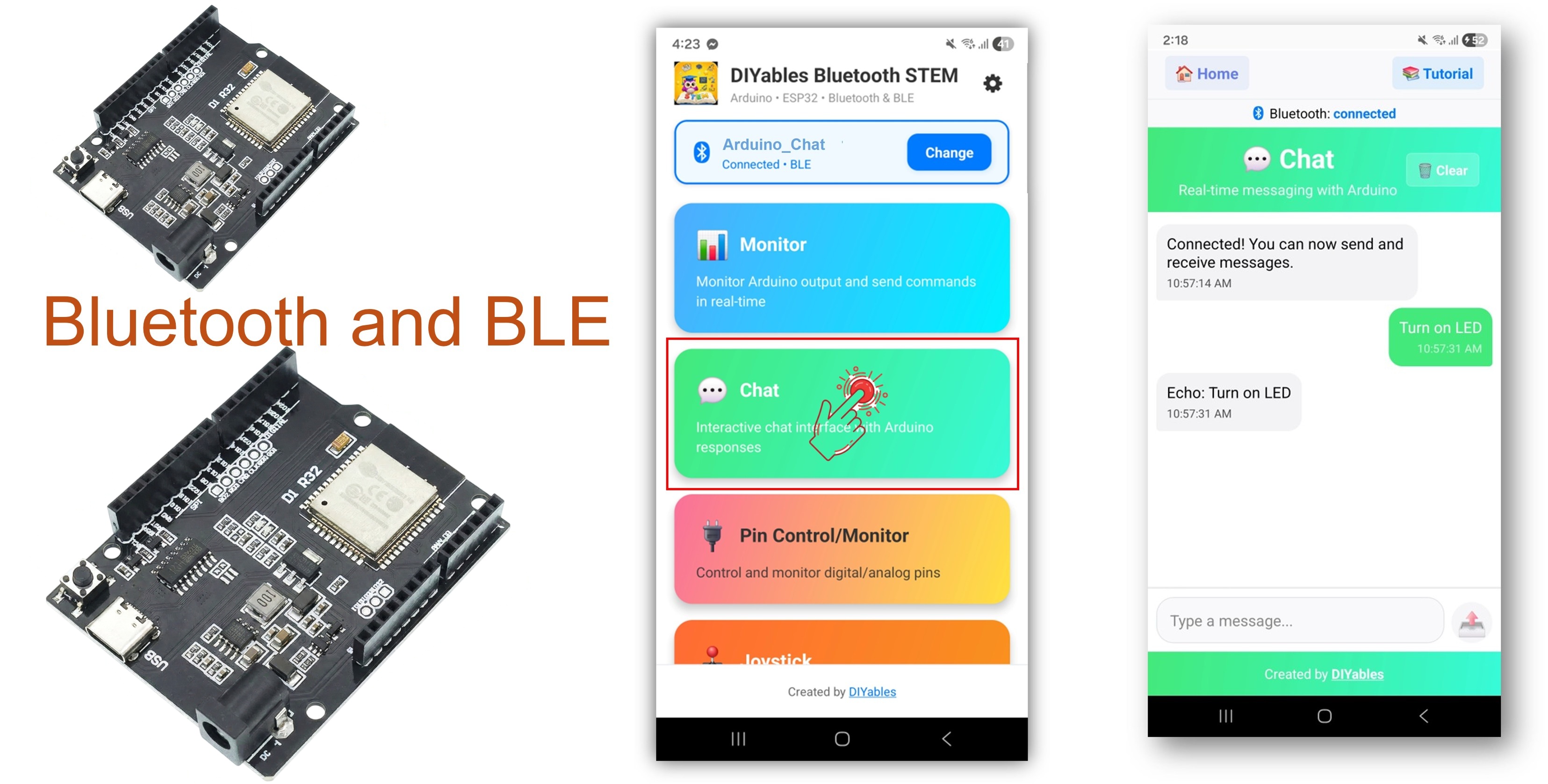
ESP32 Uno Bluetooth chat

Two radios, two sketches

Sketch Radio Phones Pairing
Esp32BLE_Chat BLE (Bluetooth Low Energy) Android and iOS None, connect inside the app
Esp32Bluetooth_Chat Classic Bluetooth Android only One time, in the phone settings

Good to know: an iPhone never shows Classic Bluetooth hobby boards. If anyone on your team uses iOS, start with the BLE sketch.

Features

This list shows what the chat sketches do before you change a single line.

Feature What You Get
Text in both directions Phone to board and board to phone, with no visible delay
Echo reply Each message comes back as "Echo ..." so you know the link is alive
Ready commands ping, status, time and heap already have answers
Timed status line A new status message lands every 10 s while a phone is linked
Serial Monitor bridge A line typed in Arduino IDE shows up in the app chat
Radio choice BLE for iOS and low power, Classic Bluetooth for Android-only builds

Hardware Preparation

1×ESP32 Uno-form Board
1×USB Cable Type-A to Type-C (for USB-A PC)
1×USB Cable Type-C to Type-C (for USB-C PC)
1×LED Kit
1×LED (red)
1×LED Module
1×Alternatively, Button and LED Kit
1×220Ω Resistor
1×Breadboard
1×Jumper Wires

Or you can buy the following kits:

1×DIYables Sensor Kit (18 sensors/displays)
Disclosure: Some of the links provided in this section are Amazon affiliate links. We may receive a commission for any purchases made through these links at no additional cost to you.
Additionally, some of these links are for products from our own brand, DIYables .

Buy Note: Use the LED Module for easier wiring. It includes an integrated resistor.

The two chat sketches need only the board and the cable. The LED, resistor, breadboard and wires are for the video demo, where chat words switch an LED.

ESP32 Uno Pinout

The chat itself uses no pins, since the radio lives inside the chip. Once you hook up LEDs, relays or a servo for the command examples, use this diagram to turn each Uno header label into the GPIO number your code needs.

ESP32 Uno pinout diagram

ESP32 Uno Code

By the end of this part, the DIYables Bluetooth library sits in Arduino IDE and a chat sketch runs on the board.

Detailed Instructions

  1. First time with this board? Set it up with ESP32 Uno - Getting Started before you continue.
  2. Plug in the USB Type-C cable between the ESP32 Uno and your computer.
  3. Select the board in Arduino IDE: pick ESP32 Dev Module and the COM port of the board (CH340).
  4. Open the Library Manager with the Libraries icon in the left bar.
  5. Type "DIYables Bluetooth" in the search box; the entry by DIYables is the one you want.
  6. Press Install on that entry.
  • Search for DIYables Bluetooth created by DIYables and click the Install button.
∞
Newbiely | Arduino IDE 2.3.8
──
☐
✕
File
Edit
Sketch
Tools
Help
ESP32 Dev Module
Library Manager
Type:
All
Topic:
All
DIYables Bluetooth by DIYables
A comprehensive Bluetooth library that connects Arduino to the DIYables Bluetooth STEM mobile app (Android & iOS) via BLE and Classic Bluetooth. Features 11 built-in apps: Monitor, Chat, Digital Pin Control, Joystick, Sliders, Plotter, Analog Gauge, Rotator, Temperature, RTC, and Data Table. Clean architecture with platform abstraction. Works with Arduino Uno R4 WiFi, Arduino Nano 33 BLE, ESP32, and other BLE-capable boards. No mobile coding required. More info
1.0.1
INSTALL
Newbiely.ino
···
1 void setup() {
Output
Serial Monitor
Ln 1, Col 1
ESP32 Dev Module on COM15
1
  1. Accept the extras. A popup lists the helper libraries; press Install All there.
  2. Make room for the code. Bluetooth sketches are large, so set Tools > Partition Scheme to Huge APP (3MB No OTA/1MB SPIFFS) first.

Now pick one radio mode below. Upload only one of the two sketches.

Classic Bluetooth Sketch (Android phones only)

WARNING

Classic Bluetooth does not reach iPhones. For iOS, jump to the BLE sketch.

This sketch shows up on the phone as ESP32_Chat. It echoes each message, answers four commands, and sends a status line every 10 s.

  1. Get the code from File Examples DIYables Bluetooth Esp32Bluetooth_Chat, or paste the code below into a new sketch.
/* * This ESP32 Uno code was developed by newbiely.com * * This ESP32 Uno code is made available for public use without any restriction * * For comprehensive instructions and wiring diagrams, please visit: * https://newbiely.com/tutorials/esp32-uno/esp32-uno-diyables-bluetooth-app-chat */ /* * DIYables Bluetooth Library - ESP32 Uno Classic Bluetooth Chat sketch * Talks to the DIYables Bluetooth STEM app on Android phones * Note: iPhones cannot use Classic Bluetooth. Pick the BLE sketch for iOS. * * What this sketch shows: * - text goes both ways over a Classic Bluetooth (SPP) link * - the board gets messages typed in the phone app * - the board sends its own messages back to the app * * Board: ESP32 Uno form board (Arduino IDE board "ESP32 Dev Module") * * Tip: pick Tools > Partition Scheme > "Huge APP (3MB No OTA/1MB SPIFFS)" * because the Bluetooth code is too big for the default partition * * How to try it: * 1. Upload this sketch to the ESP32 Uno * 2. Open the Serial Monitor at 115200 baud to follow the link and the text * 3. Pair the phone, then connect with the DIYables Bluetooth App * * Tutorial: https://diyables.io/bluetooth-app * Author: DIYables */ #include <DIYables_BluetoothServer.h> #include <DIYables_BluetoothChat.h> #include <platforms/DIYables_Esp32Bluetooth.h> // Classic Bluetooth link with the name shown on the phone, plus the server DIYables_Esp32Bluetooth bluetooth("ESP32_Chat"); DIYables_BluetoothServer bluetoothServer(bluetooth); // the Chat screen of the app DIYables_BluetoothChat bluetoothChat; // timer values for the automatic status line unsigned long lastMessageTime = 0; const unsigned long MESSAGE_INTERVAL = 10000; // one status line every 10 s int messageCount = 0; void setup() { Serial.begin(115200); delay(1000); Serial.println("DIYables Bluetooth - ESP32 Chat Example"); // start the Bluetooth server on the ESP32 Uno bluetoothServer.begin(); // register the Chat screen with the server bluetoothServer.addApp(&bluetoothChat); // runs when a phone links up or drops the link bluetoothServer.setOnConnected([]() { Serial.println("Bluetooth connected!"); bluetoothChat.send("Hello! ESP32 is ready to chat."); }); bluetoothServer.setOnDisconnected([]() { Serial.println("Bluetooth disconnected!"); messageCount = 0; }); // runs each time a text arrives from the app bluetoothChat.onChatMessage([](const String& message) { Serial.print("Received: "); Serial.println(message); // send the same text back with a prefix String response = "Echo: "; response += message; bluetoothChat.send(response); // put your own command words here if (message.equalsIgnoreCase("ping")) { bluetoothChat.send("pong!"); } else if (message.equalsIgnoreCase("status")) { bluetoothChat.send("ESP32 is running normally"); } else if (message.equalsIgnoreCase("time")) { String timeMsg = "Uptime: "; timeMsg += String(millis() / 1000); timeMsg += " seconds"; bluetoothChat.send(timeMsg); } else if (message.equalsIgnoreCase("heap")) { String heapMsg = "Free heap: "; heapMsg += String(ESP.getFreeHeap()); heapMsg += " bytes"; bluetoothChat.send(heapMsg); } }); Serial.println("Waiting for Bluetooth connection..."); Serial.println("Type 'ping', 'status', 'time', or 'heap' in the app to test commands"); } void loop() { // keep the Bluetooth server working bluetoothServer.loop(); // push a status line now and then, only with a phone linked if (bluetooth.isConnected() && millis() - lastMessageTime >= MESSAGE_INTERVAL) { lastMessageTime = millis(); messageCount++; String statusMsg = "Status update #"; statusMsg += String(messageCount); statusMsg += " - All systems operational"; bluetoothChat.send(statusMsg); Serial.print("Sent: "); Serial.println(statusMsg); } // extra: pass a line typed in the Serial Monitor on to the app if (Serial.available()) { String serialMsg = Serial.readStringUntil('\n'); serialMsg.trim(); if (serialMsg.length() > 0 && bluetooth.isConnected()) { bluetoothChat.send(serialMsg); Serial.print("Sent from Serial: "); Serial.println(serialMsg); } } delay(10); }
  1. Press Upload and wait for "Done uploading".
  2. Open the Serial Monitor at 115200 baud.
  3. Read the start lines:
∞
Newbiely | Arduino IDE 2.3.8
──
☐
✕
File
Edit
Sketch
Tools
Help
ESP32 Dev Module
Newbiely.ino
···
8 Serial.println("Hello World!");
Output
Serial Monitor
Message (Enter to send message to 'ESP32 Dev Module' on 'COM15')
New Line
9600 baud
DIYables Bluetooth - ESP32 Chat Example Waiting for Bluetooth connection... Type 'ping', 'status', 'time', or 'heap' in the app to test commands
Ln 11, Col 1
ESP32 Dev Module on COM15
2

BLE Sketch (Android and iOS)

Over BLE, the board calls itself ESP32BLE_Chat. It does the same work as the Classic one, over Bluetooth Low Energy.

  1. Get the code from File Examples DIYables Bluetooth Esp32BLE_Chat, or paste the code below into a new sketch.
/* * This ESP32 Uno code was developed by newbiely.com * * This ESP32 Uno code is made available for public use without any restriction * * For comprehensive instructions and wiring diagrams, please visit: * https://newbiely.com/tutorials/esp32-uno/esp32-uno-diyables-bluetooth-app-chat */ /* * DIYables Bluetooth Library - ESP32 Uno BLE Chat sketch * Talks to the DIYables Bluetooth STEM app on Android phones and iPhones * * What this sketch shows: * - text goes both ways over a BLE link * - the board gets messages typed in the phone app * - the board sends its own messages back to the app * * Board: ESP32 Uno form board (Arduino IDE board "ESP32 Dev Module") * * Tip: pick Tools > Partition Scheme > "Huge APP (3MB No OTA/1MB SPIFFS)" * because the Bluetooth code is too big for the default partition * * How to try it: * 1. Upload this sketch to the ESP32 Uno * 2. Open the Serial Monitor at 115200 baud to follow the link and the text * 3. Connect with the DIYables Bluetooth App and open the Chat screen * * Tutorial: https://diyables.io/bluetooth-app * Author: DIYables */ #include <DIYables_BluetoothServer.h> #include <DIYables_BluetoothChat.h> #include <platforms/DIYables_Esp32BLE.h> // BLE name and UUIDs that the app looks for const char* DEVICE_NAME = "ESP32BLE_Chat"; const char* SERVICE_UUID = "19B10000-E8F2-537E-4F6C-D104768A1214"; const char* TX_UUID = "19B10001-E8F2-537E-4F6C-D104768A1214"; const char* RX_UUID = "19B10002-E8F2-537E-4F6C-D104768A1214"; // BLE link object and the server that runs on top of it DIYables_Esp32BLE bluetooth(DEVICE_NAME, SERVICE_UUID, TX_UUID, RX_UUID); DIYables_BluetoothServer bluetoothServer(bluetooth); // the Chat screen of the app DIYables_BluetoothChat bluetoothChat; // timer values for the automatic status line unsigned long lastMessageTime = 0; const unsigned long MESSAGE_INTERVAL = 10000; // one status line every 10 s int messageCount = 0; void setup() { Serial.begin(115200); delay(1000); Serial.println("DIYables Bluetooth - ESP32 BLE Chat Example"); // start the BLE server on the ESP32 Uno bluetoothServer.begin(); // register the Chat screen with the server bluetoothServer.addApp(&bluetoothChat); // runs when a phone links up or drops the link bluetoothServer.setOnConnected([]() { Serial.println("Bluetooth connected!"); bluetoothChat.send("Hello! ESP32 BLE is ready to chat."); }); bluetoothServer.setOnDisconnected([]() { Serial.println("Bluetooth disconnected!"); messageCount = 0; }); // runs each time a text arrives from the app bluetoothChat.onChatMessage([](const String& message) { Serial.print("Received: "); Serial.println(message); // send the same text back with a prefix String response = "Echo: "; response += message; bluetoothChat.send(response); // answer a few known words if (message.equalsIgnoreCase("ping")) { bluetoothChat.send("pong!"); } else if (message.equalsIgnoreCase("status")) { bluetoothChat.send("ESP32 BLE is running normally"); } else if (message.equalsIgnoreCase("time")) { String timeMsg = "Uptime: "; timeMsg += String(millis() / 1000); timeMsg += " seconds"; bluetoothChat.send(timeMsg); } else if (message.equalsIgnoreCase("heap")) { String heapMsg = "Free heap: "; heapMsg += String(ESP.getFreeHeap()); heapMsg += " bytes"; bluetoothChat.send(heapMsg); } }); Serial.println("Waiting for Bluetooth connection..."); Serial.println("Type 'ping', 'status', 'time', or 'heap' in the app to test commands"); } void loop() { bluetoothServer.loop(); if (bluetooth.isConnected() && millis() - lastMessageTime >= MESSAGE_INTERVAL) { lastMessageTime = millis(); messageCount++; String statusMsg = "Status update #"; statusMsg += String(messageCount); statusMsg += " - All systems operational"; bluetoothChat.send(statusMsg); Serial.print("Sent: "); Serial.println(statusMsg); } if (Serial.available()) { String serialMsg = Serial.readStringUntil('\n'); serialMsg.trim(); if (serialMsg.length() > 0 && bluetooth.isConnected()) { bluetoothChat.send(serialMsg); Serial.print("Sent from Serial: "); Serial.println(serialMsg); } } delay(10); }
  1. Press Upload and let it finish.
  2. Open the Serial Monitor at 115200 baud.
  3. Read the start lines:
∞
Newbiely | Arduino IDE 2.3.8
──
☐
✕
File
Edit
Sketch
Tools
Help
ESP32 Dev Module
Newbiely.ino
···
8 Serial.println("Hello World!");
Output
Serial Monitor
Message (Enter to send message to 'ESP32 Dev Module' on 'COM15')
New Line
9600 baud
DIYables Bluetooth - ESP32 BLE Chat Example Waiting for Bluetooth connection... Type 'ping', 'status', 'time', or 'heap' in the app to test commands
Ln 11, Col 1
ESP32 Dev Module on COM15
2
  1. Pro tip: the start lines print only once, right after boot. If you opened the Serial Monitor too late, press the RST button and they appear again.

Mobile App

By the end of this part, your phone is linked and the Chat screen is open.

Step 1 — Install the app

Get the DIYables Bluetooth App: Android | iOS

Step 2 — Pair (Classic Bluetooth only)

Skip this step for the BLE sketch. For the Classic sketch, pair the board on your Android phone before you open the app:

  1. Open Settings > Bluetooth and switch Bluetooth on.
  2. When the list fills, choose "ESP32_Chat".
  3. Accept the request. No PIN is asked.
  4. Check that the phone now lists it as "Paired".

Step 3 — Allow permissions

Open the app. On the first start it asks for:

  • Nearby Devices (Android 12 and newer) or Bluetooth (iOS), so it can scan and connect
  • Location (Android 11 and older only), because older Android needs it for BLE scans

Step 4 — Connect

Turn on Bluetooth on the phone. Then press Connect; one scan finds BLE and Classic boards together.
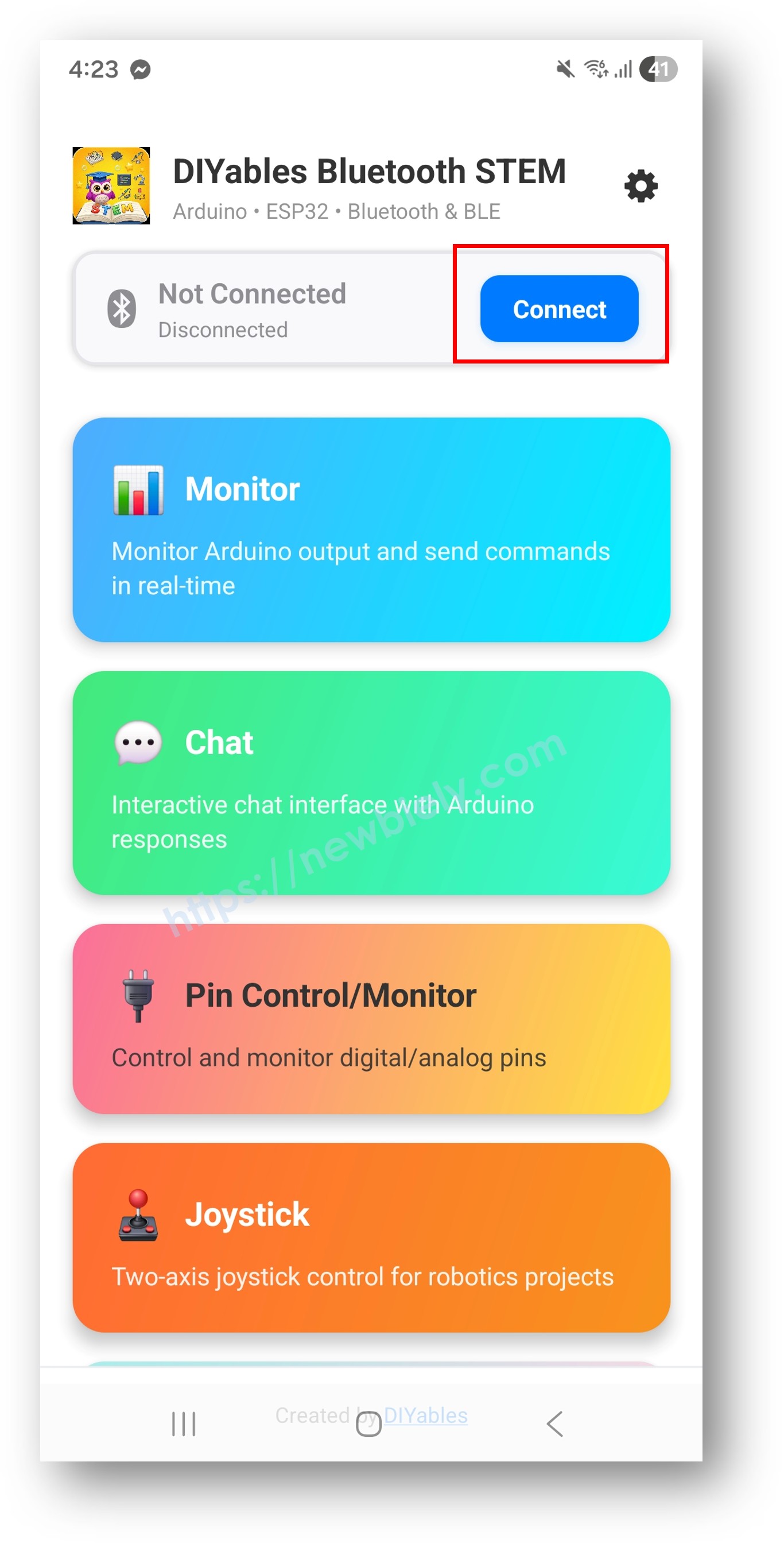
DIYables Bluetooth App - Home Screen with Scan Button

Tap the name that matches your sketch:

Sketch Name in the Scan List
Classic Bluetooth ESP32_Chat
BLE ESP32BLE_Chat

Step 5 — Open Chat

After the link is up, the app returns to the home screen. Pick the Chat tile from the menu.
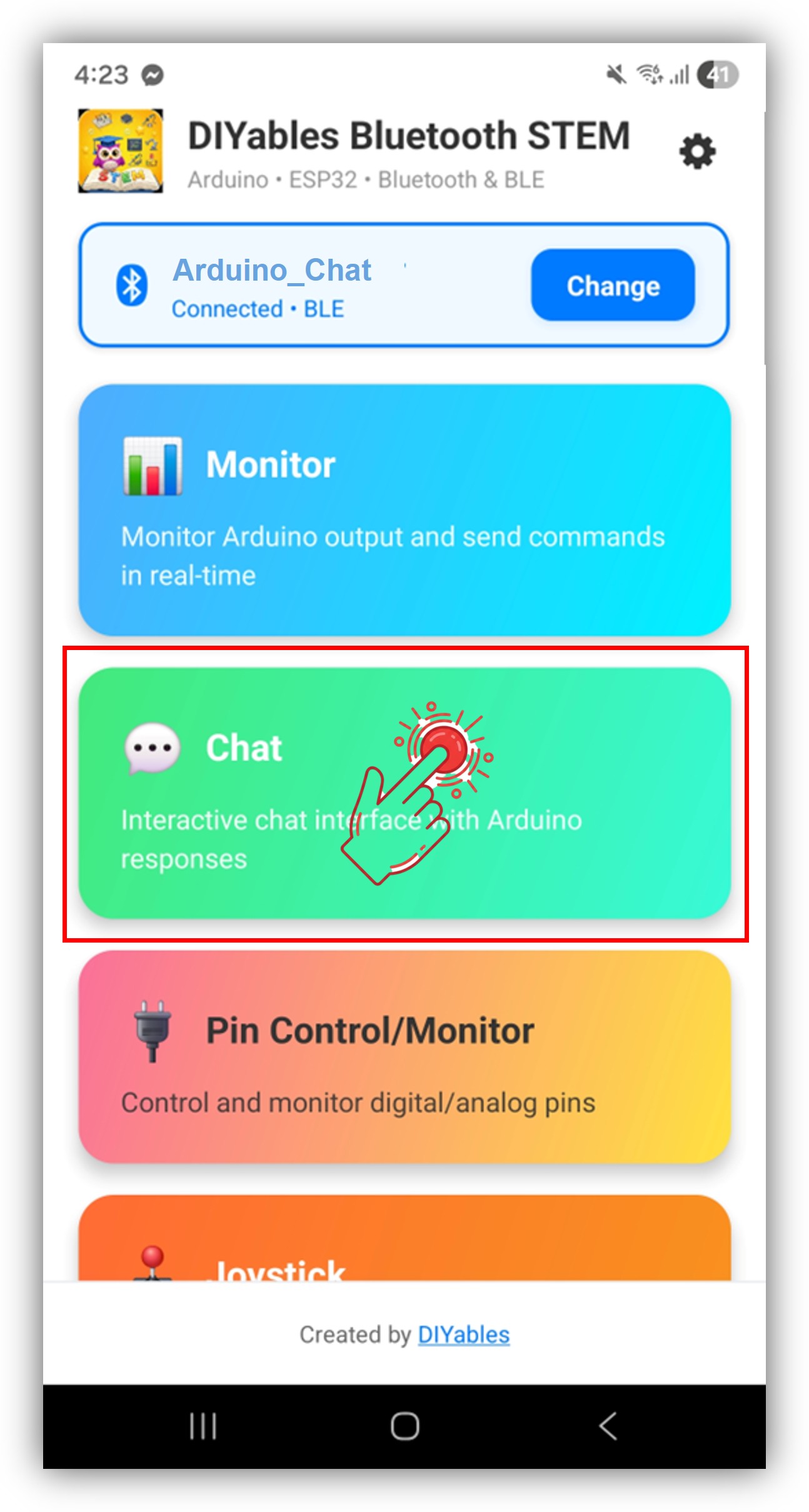
DIYables Bluetooth App - Home Screen with Chat App

※ NOTE THAT:

The settings icon on the home screen hides or shows app tiles. The DIYables Bluetooth App User Manual explains every screen.

Step 6 — Send text

Type a word in the box and tap Send.
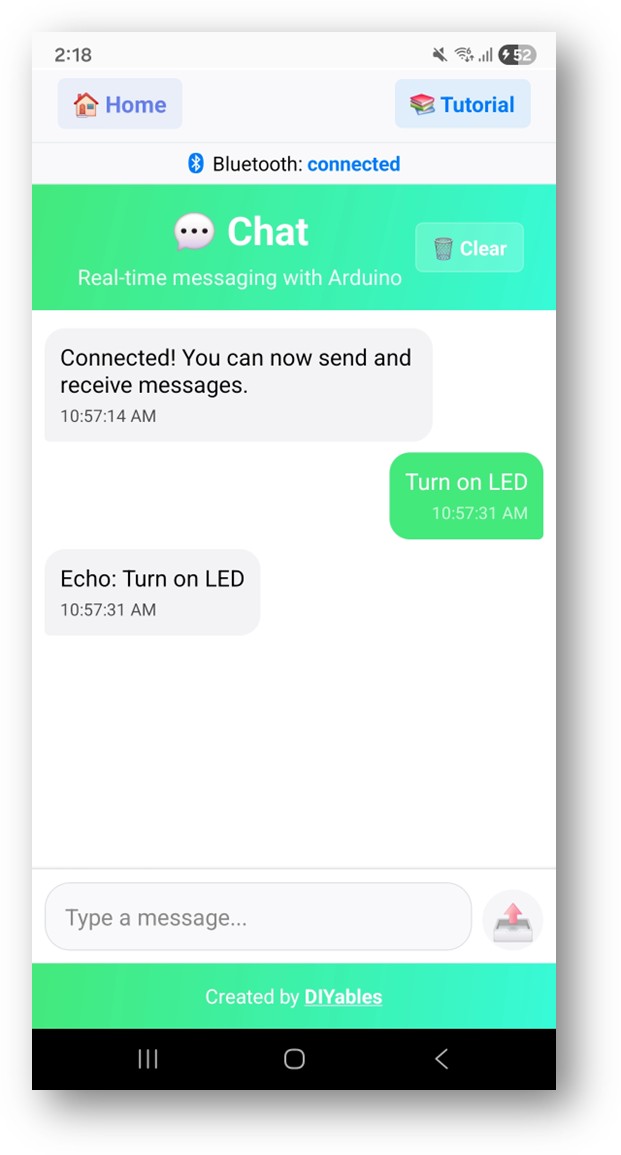
DIYables Bluetooth App - Chat Screen

Switch back to the Serial Monitor. A short session looks like this:

∞
Newbiely | Arduino IDE 2.3.8
──
☐
✕
File
Edit
Sketch
Tools
Help
ESP32 Dev Module
Newbiely.ino
···
8 Serial.println("Hello World!");
Output
Serial Monitor
Message (Enter to send message to 'ESP32 Dev Module' on 'COM15')
New Line
9600 baud
Bluetooth connected! Received: hi board Received: heap Sent: Status update #1 - All systems operational Received: time Sent: Status update #2 - All systems operational
Ln 11, Col 1
ESP32 Dev Module on COM15
2

Now send each ready word in turn: ping, status, time, heap. Then type a line in the Serial Monitor, press Enter, and watch it land in the phone chat.

Video Tutorial

See the ESP32 Uno build in action in the video below.

The demo sketch switches an LED from the chat, blinks it, and reports its state. The Uno headers of this board have no built-in LED, so the demo uses an external LED on D13 (GPIO18).

LED Pin ESP32 Uno Pin
Anode (long leg) through a 220 ohm resistor D13 (GPIO18)
Cathode (short leg) GND

Send HELP in the app to list the demo words: LED ON, LED OFF, STATUS, UPTIME and BLINK.

/* * This ESP32 Uno code was developed by newbiely.com * * This ESP32 Uno code is made available for public use without any restriction * * For comprehensive instructions and wiring diagrams, please visit: * https://newbiely.com/tutorials/esp32-uno/esp32-uno-diyables-bluetooth-app-chat */ /* * DIYables Bluetooth Library - ESP32 Uno BLE Chat demo (LED control) * Talks to the DIYables Bluetooth STEM app on Android phones and iPhones * * What this demo shows: * - text commands from the phone switch an LED on D13 (GPIO18) * - the board answers each command in the chat * - lines typed in the Serial Monitor are passed on to the app * * Board: ESP32 Uno form board (Arduino IDE board "ESP32 Dev Module") * * Tip: pick Tools > Partition Scheme > "Huge APP (3MB No OTA/1MB SPIFFS)" * because the Bluetooth code is too big for the default partition * * How to try it: * 1. Wire an LED + 220 ohm resistor from D13 (GPIO18) to GND * 2. Upload this sketch and open the Serial Monitor at 115200 baud * 3. Connect with the DIYables Bluetooth App and type HELP in the Chat screen * * Tutorial: https://diyables.io/bluetooth-app * Author: DIYables */ #include <DIYables_BluetoothServer.h> #include <DIYables_BluetoothChat.h> #include <platforms/DIYables_Esp32BLE.h> // BLE name and UUIDs that the app looks for const char* DEVICE_NAME = "ESP32BLE_Chat"; const char* SERVICE_UUID = "19B10000-E8F2-537E-4F6C-D104768A1214"; const char* TX_UUID = "19B10001-E8F2-537E-4F6C-D104768A1214"; const char* RX_UUID = "19B10002-E8F2-537E-4F6C-D104768A1214"; // BLE link object and the server that runs on top of it DIYables_Esp32BLE bluetooth(DEVICE_NAME, SERVICE_UUID, TX_UUID, RX_UUID); DIYables_BluetoothServer bluetoothServer(bluetooth); // the Chat screen of the app DIYables_BluetoothChat bluetoothChat; // D13 (GPIO18) drives the external LED (no built-in LED on the Uno headers) #define LED_PIN 18 // timer values (kept from the base example) unsigned long lastMessageTime = 0; const unsigned long MESSAGE_INTERVAL = 10000; // 10 s between status lines int messageCount = 0; void setup() { Serial.begin(115200); delay(1000); pinMode(LED_PIN, OUTPUT); digitalWrite(LED_PIN, LOW); Serial.println("DIYables Bluetooth - ESP32 BLE Chat Example"); // start the BLE server on the ESP32 Uno bluetoothServer.begin(); // register the Chat screen with the server bluetoothServer.addApp(&bluetoothChat); // runs when a phone links up or drops the link bluetoothServer.setOnConnected([]() { Serial.println("Bluetooth connected!"); bluetoothChat.send("Hello! ESP32 BLE is ready to chat."); }); bluetoothServer.setOnDisconnected([]() { Serial.println("Bluetooth disconnected!"); messageCount = 0; }); // runs each time a text arrives; turn it into an upper-case command bluetoothChat.onChatMessage([](const String& message) { String cmd = message; cmd.toUpperCase(); cmd.trim(); Serial.print("Received from App: "); Serial.println(cmd); if (cmd == "LED ON") { digitalWrite(LED_PIN, HIGH); bluetoothChat.send("LED is now: ON"); } else if (cmd == "LED OFF") { digitalWrite(LED_PIN, LOW); bluetoothChat.send("LED is now: OFF"); } else if (cmd == "STATUS") { int state = digitalRead(LED_PIN); String statusMsg = "--- ESP32 STATUS ---\n"; statusMsg += "LED: " + String(state == HIGH ? "ON" : "OFF") + "\n"; statusMsg += "Uptime: " + String(millis() / 1000) + "s\n"; statusMsg += "Chip: ESP32 Dual-Core"; bluetoothChat.send(statusMsg); } else if (cmd == "UPTIME") { bluetoothChat.send("System Uptime: " + String(millis() / 1000) + " seconds"); } else if (cmd == "BLINK") { bluetoothChat.send("Blinking LED..."); for(int i=0; i<3; i++) { digitalWrite(LED_PIN, HIGH); delay(200); digitalWrite(LED_PIN, LOW); delay(200); } bluetoothChat.send("Blink Done!"); } else if (cmd == "HELP") { String help = "--- COMMAND LIST ---\n" "- LED ON / OFF\n" "- STATUS\n" "- UPTIME\n" "- BLINK\n"; bluetoothChat.send(help); } else { bluetoothChat.send("Unknown command. Type 'HELP'."); } }); // Serial.println("Waiting for Bluetooth connection..."); // Serial.println("Type 'ping', 'status', 'time', or 'heap' in the app to test commands"); } void loop() { bluetoothServer.loop(); if (Serial.available()) { String serialMsg = Serial.readStringUntil('\n'); serialMsg.trim(); if (serialMsg.length() > 0 && bluetooth.isConnected()) { bluetoothChat.send(serialMsg); Serial.print("Sent from Serial: "); Serial.println(serialMsg); } } delay(10); }

Shape the Chat Code for Your Build

By the end of this part, you know the four building blocks behind every chat project.

Code Part What It Does
bluetoothChat.onChatMessage() Runs your code each time a text arrives from the app
bluetoothChat.send() Pushes a text line to the phone at any moment
setOnConnected() / setOnDisconnected() Runs your code when the phone links or drops
Serial.available() block in loop() Moves Serial Monitor lines to the chat

Receive Messages from App

Compare the incoming text with your own words and act on it. This snippet drives an LED on D13 (GPIO18):

bluetoothChat.onChatMessage([](const String& message) { Serial.print("Received: "); Serial.println(message); // match the text against the command words if (message == "LED_ON") { digitalWrite(18, HIGH); // D13 (GPIO18) LED on bluetoothChat.send("LED turned ON"); } else if (message == "LED_OFF") { digitalWrite(18, LOW); // D13 (GPIO18) LED off bluetoothChat.send("LED turned OFF"); } else { bluetoothChat.send("Unknown command: " + message); } });

Each extra else if adds one more word. Try FAN_ON / FAN_OFF for a fan relay, or READ to answer with a sensor value. Put pinMode(18, OUTPUT); in setup() first.

Send Messages to App

The board does not have to wait for a question. Use send() for alerts, values and progress notes.

// a plain text line bluetoothChat.send("Hello from ESP32 Uno!"); // a number turned into text float temperature = 25.3; bluetoothChat.send("Temperature: " + String(temperature) + "°C"); // a short state report bluetoothChat.send("System ready");

Handle Connection Events

Send a hello as soon as a phone links, so the person sees the board is awake.

// phone just linked to the ESP32 Uno bluetoothServer.setOnConnected([]() { Serial.println("Bluetooth connected!"); bluetoothChat.send("Welcome! ESP32 is ready to chat."); }); // phone left the ESP32 Uno bluetoothServer.setOnDisconnected([]() { Serial.println("Bluetooth disconnected!"); }); // ask for the link state from any place in the sketch if (bluetoothServer.isConnected()) { bluetoothChat.send("Still connected!"); }

Serial-to-Bluetooth Bridge

This loop() takes one line from the Serial Monitor and passes it to the phone.

void loop() { bluetoothServer.loop(); // copy a typed Serial Monitor line into the chat if (Serial.available()) { String serialMsg = Serial.readStringUntil('\n'); serialMsg.trim(); if (serialMsg.length() > 0 && bluetooth.isConnected()) { bluetoothChat.send(serialMsg); Serial.print("Sent from Serial: "); Serial.println(serialMsg); } } delay(10); }

The result: you get a two-way text link with only these four parts, and the rest of your sketch stays free for your own job.

Using the Chat Screen

This part maps the chat screen and the words the example already knows.

App Interface Controls

Screen Part Job
Message list Scrolls through every line you sent and got
Text box Holds the text you are typing, at the bottom
Send button Ships the text to the board
Auto-scroll Keeps the newest line in view

Built-in Commands

Case does not matter for these words.

Command Answer from the Board
ping pong!
status A short "running normally" line
time Seconds since the last reset
heap Bytes of RAM still free

ESP32 Uno vs UNO R4 for This Project

Moving this chat from the UNO R4 WiFi to the ESP32 Uno changes the platform file and adds a second radio choice.

Item Arduino UNO R4 WiFi ESP32 Uno
Logic voltage 5V 3.3V
Bluetooth types BLE only BLE and Classic Bluetooth
Platform header DIYables_ArduinoBLE.h DIYables_Esp32BLE.h or DIYables_Esp32Bluetooth.h
Serial baud rate 9600 115200
Demo LED LED_BUILTIN External LED on D13 (GPIO18)
Arduino IDE board Arduino UNO R4 WiFi ESP32 Dev Module plus Huge APP partition

The chat callbacks are the same on both boards, so your command logic copies over as-is. Only the include line, the class name and the pin numbers change. Feed any 5V module output through a level shifter, because ESP32 Uno pins are not 5V tolerant.

Programming Examples

Each block below drops into the chat sketch. The Uno header label sits in the comment, and the GPIO number goes in the code.

Basic Echo Chat

The smallest chat: every message comes straight back. Use it to prove both directions work.

void setup() { // register the echo handler bluetoothChat.onChatMessage([](const String& message) { Serial.print("Received: "); Serial.println(message); // return the text with a prefix bluetoothChat.send("Echo: " + message); }); }

Command-Based LED Control

Here a plain LED sits on D13, and the three legs of an RGB LED use D9, D6 and D5. Send HELP for the word list.

const int LED_PIN = 18; // D13 (GPIO18), single LED const int RED_PIN = 13; // D9 (GPIO13), red leg const int GREEN_PIN = 27; // D6 (GPIO27), green leg const int BLUE_PIN = 16; // D5 (GPIO16), blue leg void setup() { pinMode(LED_PIN, OUTPUT); pinMode(RED_PIN, OUTPUT); pinMode(GREEN_PIN, OUTPUT); pinMode(BLUE_PIN, OUTPUT); bluetoothChat.onChatMessage([](const String& message) { String cmd = message; cmd.toUpperCase(); if (cmd == "LED ON") { digitalWrite(LED_PIN, HIGH); bluetoothChat.send("LED is now ON"); } else if (cmd == "LED OFF") { digitalWrite(LED_PIN, LOW); bluetoothChat.send("LED is now OFF"); } else if (cmd == "RED") { digitalWrite(RED_PIN, HIGH); digitalWrite(GREEN_PIN, LOW); digitalWrite(BLUE_PIN, LOW); bluetoothChat.send("Red LED activated"); } else if (cmd == "GREEN") { digitalWrite(RED_PIN, LOW); digitalWrite(GREEN_PIN, HIGH); digitalWrite(BLUE_PIN, LOW); bluetoothChat.send("Green LED activated"); } else if (cmd == "BLUE") { digitalWrite(RED_PIN, LOW); digitalWrite(GREEN_PIN, LOW); digitalWrite(BLUE_PIN, HIGH); bluetoothChat.send("Blue LED activated"); } else if (cmd == "OFF") { digitalWrite(RED_PIN, LOW); digitalWrite(GREEN_PIN, LOW); digitalWrite(BLUE_PIN, LOW); bluetoothChat.send("All LEDs off"); } else if (cmd == "HELP") { bluetoothChat.send("Commands: LED ON, LED OFF, RED, GREEN, BLUE, OFF, HELP"); } else { bluetoothChat.send("Unknown command. Type HELP for list."); } }); }

Sensor Query System

The phone asks, the board answers. A DHT22 data line on D2 (GPIO26) gives temperature and humidity on request.

#include <DHT.h> DHT dht(26, DHT22); // DHT22 DATA on D2 (GPIO26) void setup() { dht.begin(); bluetoothChat.onChatMessage([](const String& message) { String cmd = message; cmd.toUpperCase(); if (cmd == "TEMP") { float temp = dht.readTemperature(); if (!isnan(temp)) { bluetoothChat.send("Temperature: " + String(temp, 1) + " °C"); } else { bluetoothChat.send("Error reading temperature sensor"); } } else if (cmd == "HUMIDITY") { float hum = dht.readHumidity(); if (!isnan(hum)) { bluetoothChat.send("Humidity: " + String(hum, 1) + " %"); } else { bluetoothChat.send("Error reading humidity sensor"); } } else if (cmd == "ALL") { float temp = dht.readTemperature(); float hum = dht.readHumidity(); bluetoothChat.send("Temp: " + String(temp, 1) + "°C | Humidity: " + String(hum, 1) + "%"); } else if (cmd == "HELP") { bluetoothChat.send("Commands: TEMP, HUMIDITY, ALL, HELP"); } }); }

Good to know: run the DHT22 from the 3V3 pin. Then its data line never goes above 3.3V.

Relay Control with Confirmation

Relay 1 on D7 (GPIO14) and relay 2 on D4 (GPIO17). Each command gets a reply, so you know it arrived.

const int RELAY_1 = 14; // D7 (GPIO14) to relay 1 IN const int RELAY_2 = 17; // D4 (GPIO17) to relay 2 IN bool relay1State = false; bool relay2State = false; void setup() { pinMode(RELAY_1, OUTPUT); pinMode(RELAY_2, OUTPUT); digitalWrite(RELAY_1, LOW); digitalWrite(RELAY_2, LOW); bluetoothChat.onChatMessage([](const String& message) { String cmd = message; cmd.toUpperCase(); if (cmd == "R1 ON") { digitalWrite(RELAY_1, HIGH); relay1State = true; bluetoothChat.send("Relay 1: ON"); } else if (cmd == "R1 OFF") { digitalWrite(RELAY_1, LOW); relay1State = false; bluetoothChat.send("Relay 1: OFF"); } else if (cmd == "R2 ON") { digitalWrite(RELAY_2, HIGH); relay2State = true; bluetoothChat.send("Relay 2: ON"); } else if (cmd == "R2 OFF") { digitalWrite(RELAY_2, LOW); relay2State = false; bluetoothChat.send("Relay 2: OFF"); } else if (cmd == "STATUS") { bluetoothChat.send("Relay 1: " + String(relay1State ? "ON" : "OFF")); bluetoothChat.send("Relay 2: " + String(relay2State ? "ON" : "OFF")); } else if (cmd == "HELP") { bluetoothChat.send("Commands: R1 ON, R1 OFF, R2 ON, R2 OFF, STATUS, HELP"); } }); }

※ NOTE THAT:

Pick a relay module whose IN pin switches with a 3.3V signal. Many 5V relay boards do, but check the module page first.

Advanced Programming Techniques

These blocks add timed reports, a log, commands with values, and a debug helper.

Periodic Status Updates

A status line goes out every 10 s, only while a phone is linked. It adds uptime and free heap.

unsigned long lastMessageTime = 0; const unsigned long MESSAGE_INTERVAL = 10000; // gap between reports, 10 s void loop() { bluetoothServer.loop(); // report only when a phone listens if (bluetooth.isConnected() && millis() - lastMessageTime >= MESSAGE_INTERVAL) { lastMessageTime = millis(); messageCount++; String statusMsg = "Status update #" + String(messageCount); statusMsg += " - Uptime: " + String(millis() / 1000) + "s"; statusMsg += " - Heap: " + String(ESP.getFreeHeap()) + " bytes"; bluetoothChat.send(statusMsg); } delay(10); }

Message Logging

Each incoming line and each reply gets a seconds stamp in the Serial Monitor. A helper builds the answer.

// stamp every message with the seconds since boot bluetoothChat.onChatMessage([](const String& message) { unsigned long timestamp = millis() / 1000; Serial.print("["); Serial.print(timestamp); Serial.print("s] Received: "); Serial.println(message); // build the answer and send it String response = processCommand(message); bluetoothChat.send(response); Serial.print("["); Serial.print(millis() / 1000); Serial.print("s] Sent: "); Serial.println(response); }); String processCommand(const String& cmd) { if (cmd.equalsIgnoreCase("ping")) return "pong!"; if (cmd.equalsIgnoreCase("status")) return "All systems operational"; if (cmd.equalsIgnoreCase("time")) return "Uptime: " + String(millis() / 1000) + "s"; return "Echo: " + cmd; }

Command Parser with Arguments

This parser splits "WORD VALUE" text, like "PWM 90". PWM comes out on D3 (GPIO25). For the PIN word, type the GPIO number: "PIN 18 HIGH" lights D13 (GPIO18).

bluetoothChat.onChatMessage([](const String& message) { // split the text at the first space into word + value int spaceIndex = message.indexOf(' '); String command, argument; if (spaceIndex > 0) { command = message.substring(0, spaceIndex); argument = message.substring(spaceIndex + 1); } else { command = message; argument = ""; } command.toUpperCase(); if (command == "PWM") { int value = argument.toInt(); value = constrain(value, 0, 255); analogWrite(25, value); // D3 (GPIO25) PWM output bluetoothChat.send("PWM set to " + String(value)); } else if (command == "DELAY") { int ms = argument.toInt(); bluetoothChat.send("Waiting " + String(ms) + "ms..."); delay(ms); bluetoothChat.send("Done!"); } else if (command == "PIN") { // text form "PIN 18 HIGH" / "PIN 18 LOW", GPIO18 = D13 int secondSpace = argument.indexOf(' '); if (secondSpace > 0) { int pin = argument.substring(0, secondSpace).toInt(); String state = argument.substring(secondSpace + 1); state.toUpperCase(); digitalWrite(pin, state == "HIGH" ? HIGH : LOW); bluetoothChat.send("Pin " + String(pin) + " set " + state); } } });

WARNING

Keep the PIN word away from GPIO6 to GPIO11 (flash chip), GPIO1 and GPIO3 (USB serial), and the input-only pins GPIO34, 35, 36 and 39. Writing to the flash pins crashes the ESP32 Uno.

Debug Helper

Call this at the top of your chat handler when replies look wrong. It prints the text, its length and the free heap.

void debugChatMessage(const String& message) { Serial.println("=== Chat Debug ==="); Serial.println("Message: " + message); Serial.println("Length: " + String(message.length())); Serial.println("Free Heap: " + String(ESP.getFreeHeap())); Serial.println("=================="); }

Hardware Integration Examples

Plain words can move parts too. One block turns a servo, the other drives a DC motor.

Servo Control via Chat

Send a number from 0 to 180, or "SERVO 45", and the horn turns there. "SWEEP" runs it end to end and back. The signal wire goes to D9 (GPIO13). You need the ESP32Servo library (Kevin Harrington) from the Library Manager.

#include <ESP32Servo.h> Servo myServo; const int SERVO_PIN = 13; // D9 (GPIO13) servo signal void setup() { myServo.attach(SERVO_PIN); bluetoothChat.onChatMessage([](const String& message) { // take "90" or "SERVO 90" style text String cmd = message; cmd.toUpperCase(); int angle = -1; if (cmd.startsWith("SERVO ")) { angle = cmd.substring(6).toInt(); } else { angle = cmd.toInt(); if (angle == 0 && cmd != "0") angle = -1; // text was not a number } if (angle >= 0 && angle <= 180) { myServo.write(angle); bluetoothChat.send("Servo moved to " + String(angle) + "°"); } else if (cmd == "SWEEP") { bluetoothChat.send("Sweeping servo..."); for (int a = 0; a <= 180; a += 5) { myServo.write(a); delay(30); } for (int a = 180; a >= 0; a -= 5) { myServo.write(a); delay(30); } bluetoothChat.send("Sweep complete"); } }); }

Motor Control via Chat

The driver gets speed from D3 (GPIO25) and direction from D4 (GPIO17) and D5 (GPIO16). Words it knows: FORWARD, REVERSE, STOP, and "SPEED 120" style values.

const int MOTOR_PWM = 25; // D3 (GPIO25) speed const int MOTOR_DIR1 = 17; // D4 (GPIO17) direction A const int MOTOR_DIR2 = 16; // D5 (GPIO16) direction B void setup() { pinMode(MOTOR_PWM, OUTPUT); pinMode(MOTOR_DIR1, OUTPUT); pinMode(MOTOR_DIR2, OUTPUT); bluetoothChat.onChatMessage([](const String& message) { String cmd = message; cmd.toUpperCase(); if (cmd == "FORWARD") { digitalWrite(MOTOR_DIR1, HIGH); digitalWrite(MOTOR_DIR2, LOW); analogWrite(MOTOR_PWM, 200); bluetoothChat.send("Motor running forward"); } else if (cmd == "REVERSE") { digitalWrite(MOTOR_DIR1, LOW); digitalWrite(MOTOR_DIR2, HIGH); analogWrite(MOTOR_PWM, 200); bluetoothChat.send("Motor running reverse"); } else if (cmd == "STOP") { analogWrite(MOTOR_PWM, 0); bluetoothChat.send("Motor stopped"); } else if (cmd.startsWith("SPEED ")) { int speed = cmd.substring(6).toInt(); speed = constrain(speed, 0, 255); analogWrite(MOTOR_PWM, speed); bluetoothChat.send("Motor speed: " + String(speed)); } }); }

BLE or Classic Bluetooth on the ESP32 Uno?

The ESP32 Uno runs both radio types, so pick by phone and by power budget.

Point BLE sketch Classic sketch
iPhone Works Not possible
Android Works Works
Current draw Lower Higher
Typical indoor range About 10 to 30 m About 10 m
Throughput Plenty for text Higher, steady stream
Pairing None, the app connects Once, in phone settings
Best pick for Battery builds and mixed phones Android-only builds with lots of text

Pair Chat with Other App Screens

The library can show several app screens from one sketch. Chat works well as the "control word" screen next to them.

Combine with Bluetooth Monitor

Chat starts and stops the stream; the Monitor screen shows the live value from a sensor on A0 (GPIO2).

// in setup(): widen the ADC range to about 0 to 3.3V // analogSetAttenuation(ADC_11db); bluetoothChat.onChatMessage([](const String& message) { if (message.equalsIgnoreCase("start")) { monitoring = true; bluetoothChat.send("Monitoring started"); } else if (message.equalsIgnoreCase("stop")) { monitoring = false; bluetoothChat.send("Monitoring stopped"); } }); // in loop(): stream the A0 (GPIO2) reading, 0 to 4095 if (monitoring) { bluetoothMonitor.send("Sensor: " + String(analogRead(2))); }

Good to know: the ESP32 Uno ADC reads 0 to 4095 (12-bit). The analogSetAttenuation(ADC_11db) line lets A0 read the whole 0 to 3.3V span; without it the value hits 4095 far too early.

WARNING

A0 (GPIO2) is a boot strapping pin. A sensor that pulls it HIGH during reset can stop the upload. Unplug the sensor while you upload if that happens.

Combine with Bluetooth Slider

Chat loads a preset, and the sliders handle fine tuning.

bluetoothChat.onChatMessage([](const String& message) { if (message.equalsIgnoreCase("preset1")) { currentSlider1 = 25; currentSlider2 = 75; bluetoothSlider.send(currentSlider1, currentSlider2); bluetoothChat.send("Applied Preset 1: 25%, 75%"); } else if (message.equalsIgnoreCase("preset2")) { currentSlider1 = 50; currentSlider2 = 50; bluetoothSlider.send(currentSlider1, currentSlider2); bluetoothChat.send("Applied Preset 2: 50%, 50%"); } });

Project Ideas

Pick one of these and build it on top of the chat sketch.

Area Ideas
Remote control Text-driven robot, room-by-room light switch, garage door words, servo pointer
Monitoring Ask for plant soil data, daily health report, alarm text on a sensor limit
Fun and games Quiz bot, dice roller, guess-the-number game
Learning String parsing drills, your own command protocol, a tiny chatbot

Next Steps

Once the chat runs, try another screen of the app on your ESP32 Uno:

  1. ESP32 Uno - Bluetooth Monitor - stream text lines to the phone
  2. ESP32 Uno - Bluetooth Slider - set numbers with sliders
  3. ESP32 Uno - Bluetooth Digital Pins - flip outputs with buttons
  4. ESP32 Uno - Bluetooth Multiple Apps - run chat beside other screens
  5. ESP32 Uno - Bluetooth and BLE - the overview of every example

Support

Stuck? Check the DIYables Bluetooth library API reference, the DIYables Bluetooth App tutorials, or post your question in the Arduino forum.

Troubleshooting

Problem Possible Cause Solution
No COM port in Arduino IDE CH340 driver missing or a charge-only cable Install the CH340 driver and use a data USB cable
Upload stops at "Failed to connect" or "Waiting for download" Board did not enter download mode Hold the BOOT button while the upload starts, release it when "Writing" shows
Compile ends with a "text section exceeds" size error Stock 1.2MB app area cannot hold the Bluetooth stack Switch the partition to Huge APP and compile again
Board name missing from the scan list Sketch not running, phone Bluetooth off, or Location off on old Android Press RST, turn on Bluetooth (plus Location on Android 11 or older), scan again
ESP32_Chat never appears on an iPhone Classic Bluetooth sketch on iOS Upload the Esp32BLE_Chat sketch instead
App says connected but no reply comes back Chat screen not open or onChatMessage() not set Open the Chat tile in the app and check the callback in setup()
Garbled text in Serial Monitor Baud rate mismatch Set the Serial Monitor to 115200
Serial Monitor text never reaches the phone Line ending set to No line ending Choose Newline in the Serial Monitor and connect the app first
Demo LED stays dark LED reversed or wired to the wrong pin Long leg through 220 ohm to D13 (GPIO18), short leg to GND
Board resets when a relay or motor switches Supply dips under load Power relays and motors from their own supply and join the grounds

FAQ

Which chat sketch should I use on the ESP32 Uno, BLE or Classic?

Use Esp32BLE_Chat if any phone in your project is an iPhone, or if you run on a battery. Use Esp32Bluetooth_Chat only for Android phones when you want a paired, steady link. Both sketches give the same chat screen and the same commands.

Why does my iPhone not see ESP32_Chat?

iOS does not let apps talk to Classic Bluetooth serial devices like this one. The BLE sketch shows up as ESP32BLE_Chat and works on iPhones. Upload that sketch and scan again in the app.

How do I rename the board in the scan list?

For BLE, change the DEVICE_NAME text at the top of the sketch. For Classic Bluetooth, change the text inside DIYables_Esp32Bluetooth bluetooth("ESP32_Chat"). Upload again. Give each board its own name if two of them sit near each other.

Can two phones chat with one ESP32 Uno at the same time?

No. The chat sketch serves one phone at a time. When the first phone drops the link, the board waits for the next one, and the setOnDisconnected() callback runs.

How long can one chat message be?

Short commands and status lines work best. BLE sends data in small packets, so keep each message to one short line. Send long reports as several send() calls.

Does Bluetooth need any wiring on the ESP32 Uno?

No. The antenna and radio sit on the ESP32 Uno module itself. You add wires only for the LEDs, relays, sensors or motors that your commands control.

Can I use 5V modules with chat commands?

Yes, for modules that take a 3.3V control signal, like many relay boards. ESP32 Uno pins are 3.3V logic and are not 5V tolerant. If a module sends 5V back into a pin, put a level shifter or a voltage divider in between.

Is the ESP32 Uno chat code different from the UNO R4 WiFi chat code?

The callbacks and the send() calls are the same. The UNO R4 WiFi sketch includes DIYables_ArduinoBLE.h, while the ESP32 Uno uses DIYables_Esp32BLE.h or DIYables_Esp32Bluetooth.h. The ESP32 Uno sketches also run at 115200 baud and add the heap command.

Why does the monitor example want analogSetAttenuation(ADC_11db)?

It opens the ESP32 Uno ADC range to about 0 to 3.3V, so a full sensor swing maps to 0 to 4095. With a narrower range the value tops out at 4095 too soon. The UNO R4 does not need this line; only the ESP32 Uno does. Keep the sensor signal at 3.3V or less.

What if my chat build needs more pins than the Uno headers give?

The ESP32 Uno has a few extra holes near the power header: GPIO32 and GPIO33 (input, output, PWM, and analog on ADC1, so they also work while WiFi is on) and GPIO15 (input, output, PWM, analog on ADC2). Solder pin headers and write the GPIO number in code. For extra chat-controlled LEDs or relays, start with GPIO32 and GPIO33. Two warnings: GPIO15 and GPIO0 (the IO0 pin at the unused Uno NC spot) are boot strapping pins, and a wrong connection can stop the board from booting or uploading, so use GPIO32/33 first. Never use the six holes under the digital header (SD0 to SD3, CMD, CLK = GPIO6 to GPIO11), because they connect to the flash chip and using them crashes the board.

Can the ESP32 Uno chat over WiFi instead of Bluetooth?

Yes. The DIYables Web Apps library has a chat page that runs in any browser on the same network. See ESP32 Uno - Web Chat for that version.

※ OUR MESSAGES

  • As freelancers, We are AVAILABLE for HIRE. See how to outsource your project to us
  • Please feel free to share the link of this tutorial. However, Please do not use our content on any other websites. We invested a lot of effort and time to create the content, please respect our work!