
ESP32 UNO - RFID
Want to read the ID of a card or key fob with the ESP32 Uno? Connect an RC522 RFID reader to the ESP32 Uno form board, tap a tag, and its UID prints on your screen. The RC522 (RFID/NFC module) talks over SPI and needs only a few wires.
By the end, you can:
- Wire an RC522 reader to the ESP32 Uno
- Install the MFRC522 library in Arduino IDE
- Read the UID of a tag with a short sketch
- Understand how a reader and a passive tag talk to each other
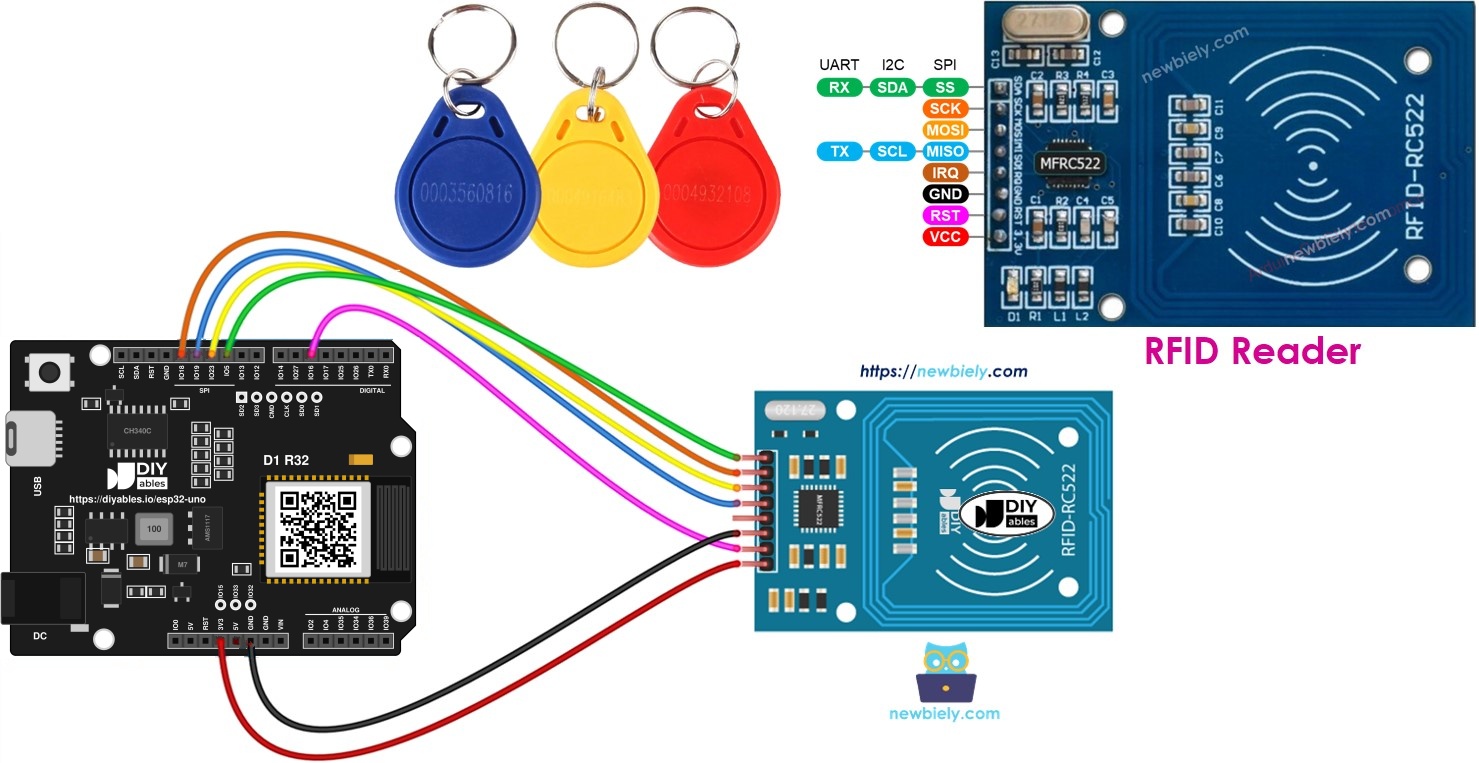
Components You Need
| 1 | × | ESP32 Uno-form Board | |
| 1 | × | USB Cable Type-A to Type-C (for USB-A PC) | |
| 1 | × | USB Cable Type-C to Type-C (for USB-C PC) | |
| 1 | × | RFID/NFC RC522 Kit (reader + tags) | |
| 1 | × | Jumper Wires |
Or you can buy the following kits:
| 1 | × | DIYables Sensor Kit (18 sensors/displays) |
Additionally, some of these links are for products from our own brand, DIYables .
Overview of the RC522 RFID Module
By the end of this part, you know what the RC522 can do and what each pin is for.
An RFID/NFC system always has two parts: a reader and a tag. Hobby projects mostly use the RC522 or the PN532 reader. This page uses the RC522.
| RC522 Job | Supported |
|---|---|
| Read the UID of a tag | Yes |
| Change the UID | Only on tags that allow it |
| Write data to a tag | Yes |
| Read data from a tag | Yes |
This page covers the first job, reading the UID, because most projects start there.
RC522 Pinout
This board has 8 pins. Some pins change their role with the interface (SPI, I2C or UART). You can use only one interface at a time. The MFRC522 library works in SPI mode, so this page uses SPI.
| RC522 Pin | What It Does |
|---|---|
| GND | Ground (0V) |
| VCC | Power input, 3.3V only |
| RST | Reset and power-down. LOW means hard power-down, a rising edge resets the module |
| IRQ | Interrupt output that signals a tag nearby. Not used here |
| MISO/SCL/TX | MISO in SPI, SCL in I2C, TX in UART |
| MOSI | MOSI in SPI |
| SCK | SCK in SPI |
| SS/SDA/RX | SS in SPI, SDA in I2C, RX in UART |
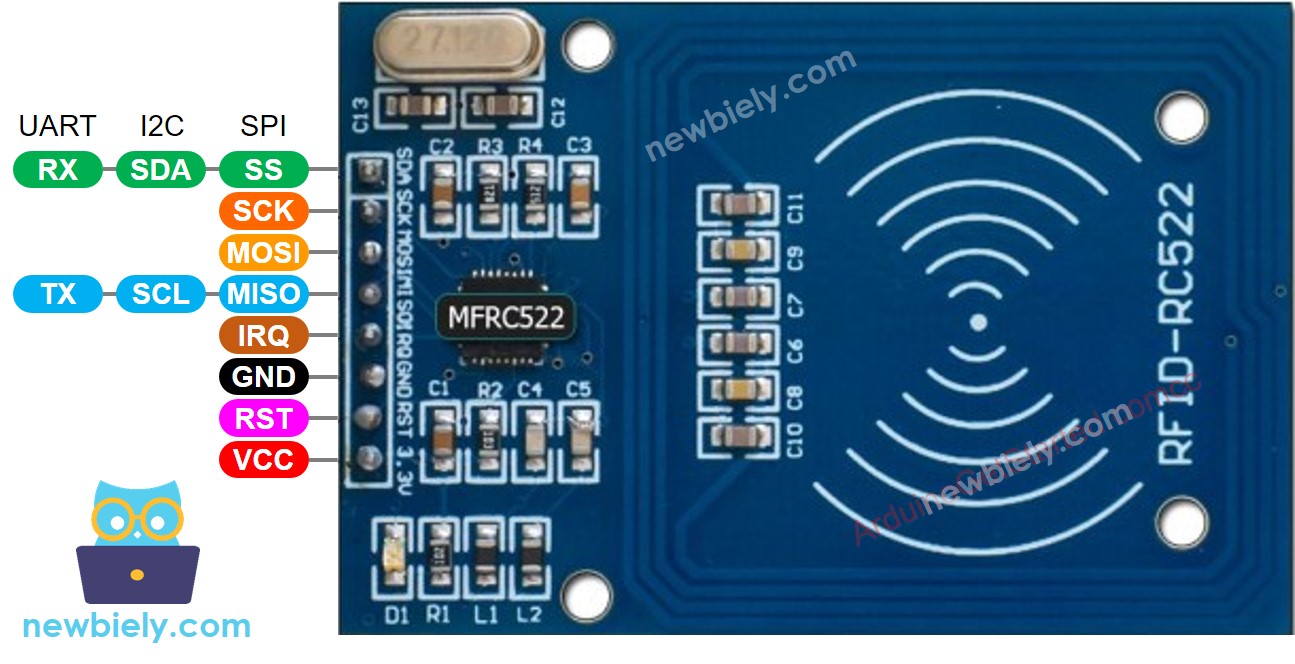
※ NOTE THAT:
- Pin order can differ between makers, so trust the labels on your own module. The image shows the DIYables module.
- Do not power VCC from 5V, or the module may burn out.
How RFID/NFC Works
By the end of this part, you understand how a tag answers without a battery.
The reader has a radio module and an antenna. They create a high frequency electromagnetic field. The tag is passive. It holds a small chip with the UID and other data, plus an antenna.
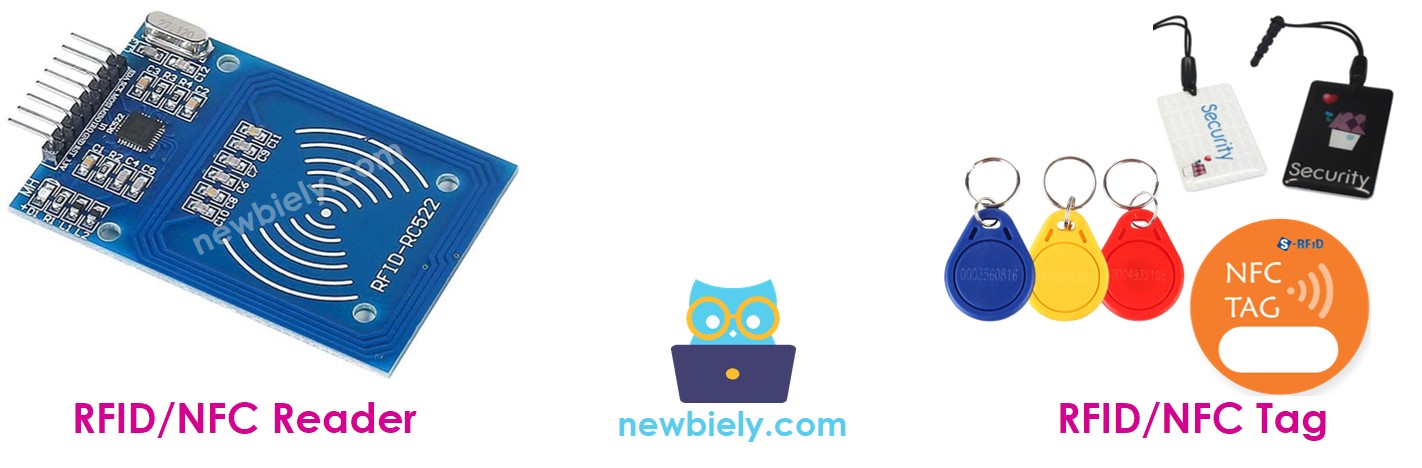
The tag only needs to be near the reader. No line of sight is needed. One read cycle looks like this:
- The field of the reader induces current in the tag antenna and wakes the chip.
- The chip sends its data back as a new radio signal.
- The reader catches the signal and decodes it.
- The ESP32 Uno collects the decoded bytes over SPI and prints them.
Good to know: The RC522 works at 13.56 MHz. Old 125 kHz key fobs will not be detected.
ESP32 Uno Pinout
Match each Uno header label to its GPIO number in this diagram before you plug in any wire. The sketch uses the GPIO numbers.

How to Connect the RC522 to the ESP32 Uno
By the end of this part, the reader is wired and ready for the sketch.
The RC522 runs on 3.3V, the same level as the ESP32 Uno pins. You can wire all signal pins straight to the board. No resistors or voltage divider are needed.
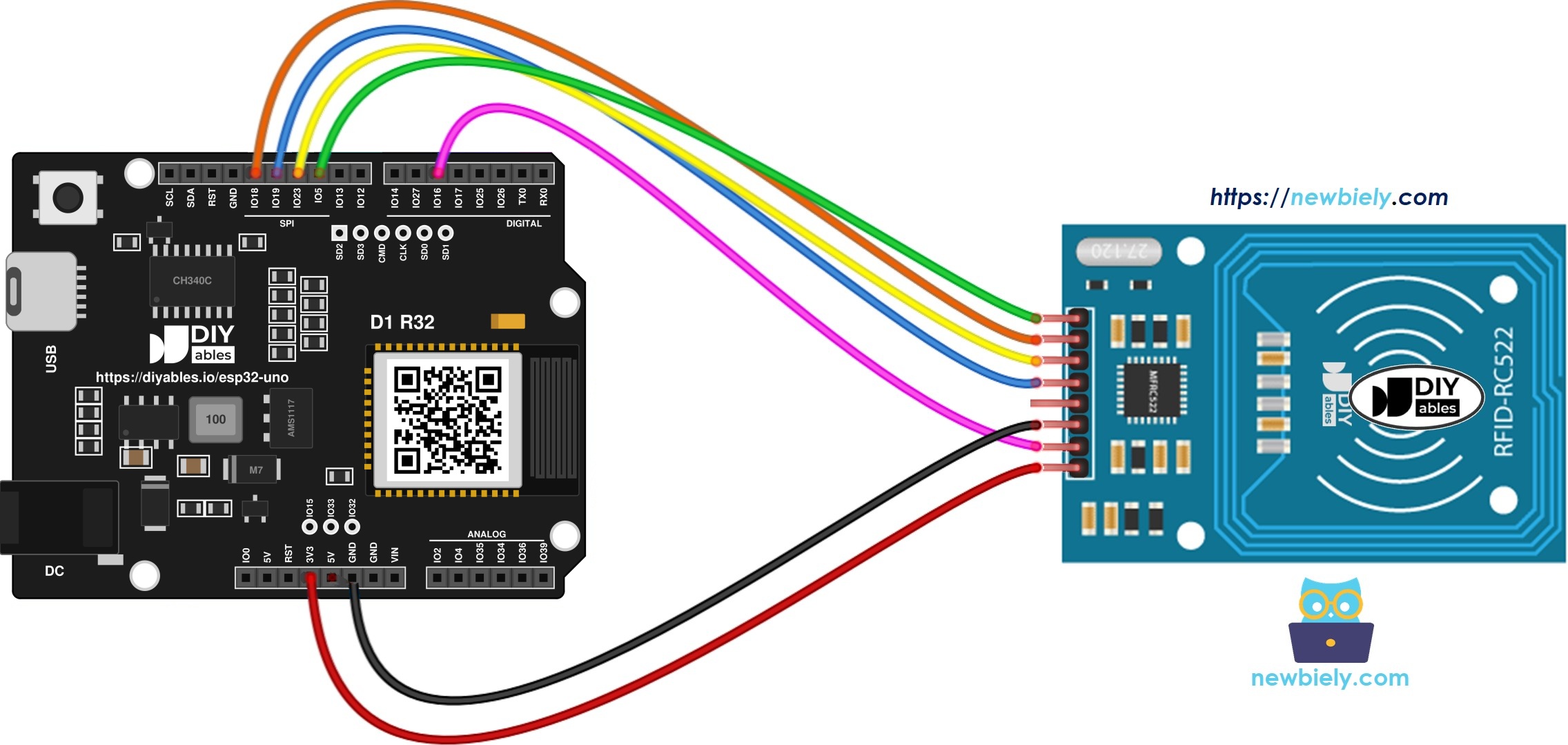
This image is created using Fritzing. Click to enlarge image
※ NOTE THAT:
The wiring diagram may not show the correct wiring for the ESP32 Uno. The RC522 runs on 3.3V, so you do not need a voltage divider. If the picture shows resistors or a divider, you can ignore them. We will update the diagram soon. Until then, follow the wiring table and the text on this page, not the picture.
Wiring table of the RC522 and the ESP32 Uno
| RC522 Pin | ESP32 Uno Pin |
|---|---|
| SS | D10 (GPIO5) |
| SCK | D13 (GPIO18) |
| MOSI | D11 (GPIO23) |
| MISO | D12 (GPIO19) |
| IRQ | not connected |
| GND | GND |
| RST | D5 (GPIO16) |
| VCC | 3.3V |
WARNING
D10 (GPIO5) is a boot strapping pin. The RC522 SS wire normally causes no trouble, but if the board does not boot or upload with the module connected, unplug the SS wire, upload, and plug it back in.
Good to know: D10 to D13 are the default SPI pins of the ESP32 Uno (SS 5, MOSI 23, MISO 19, SCK 18). That is why SPI.begin() needs no pin numbers.
ESP32 Uno RFID/NFC Code
The sketch starts SPI and the reader, waits for a tag, then prints its UID in hex.
| Code Part | What It Does |
|---|---|
| SS_PIN, RST_PIN | GPIO numbers for SS (5) and RST (16) |
| MFRC522 rfid(...) | Creates the reader object with those two pins |
| SPI.begin() and PCD_Init() | Start the SPI bus and the RC522 chip |
| PICC_IsNewCardPresent() | True when a new tag enters the field |
| PICC_ReadCardSerial() | Reads the UID into rfid.uid |
| PICC_HaltA() and PCD_StopCrypto1() | Put the tag to sleep so the next tap is read again |
Each tap prints one line of hex bytes. If you move a wire, change the number in the code to the GPIO from the pinout, not the D label.
Upload and Test
Work through these steps:
- First time with this board? Set it up with ESP32 Uno - Getting Started before you continue.
- Build the circuit by following the wiring table above.
- Plug in the USB Type-C cable between the ESP32 Uno and your computer.
- Select the board in Arduino IDE: pick ESP32 Dev Module and the COM port of the board (CH340).
- Open the Library Manager with the Libraries icon on the left side.
- Search for “MFRC522” and pick the library by GithubCommunity.
- Click Install.
- Search for MFRC522 created by GithubCommunity and click the Install button.
- Copy the code above into Arduino IDE.
- Click Upload.
- Open the Serial Monitor at 9600 baud.
- Hold a card or key fob flat, close to the RC522.
- Read the UID of each tag in the Serial Monitor.
- Pro tip: stick a label on each tag with its UID. Later you can build an allow list for a door lock without scanning again.
A MIFARE Classic 1K card has a 4-byte UID. A MIFARE Ultralight tag has 7 bytes. So the lines above have different lengths.
Video Tutorial
See the ESP32 Uno build in action in the video below.
ESP32 Uno vs UNO R4 for This Project
By the end of this part, you know what changes when you move the RC522 project from the UNO R4 to the ESP32 Uno.
| Item | Arduino UNO R4 | ESP32 Uno |
|---|---|---|
| Logic voltage | 5V | 3.3V |
| SS pin | D10 | D10 (GPIO5) |
| RST pin | D5 | D5 (GPIO16) |
| Pin numbers in code | 10 and 5 | 5 and 16 |
| Voltage divider for the RC522 | Recommended | Not needed |
| Arduino IDE board | Arduino UNO R4 WiFi | ESP32 Dev Module |
The wiring stays on the same header positions. Only the numbers in the code change. The ESP32 Uno removes the need for the 1k and 2k divider that a 5V board needs.
Go Wireless: Send Tag UIDs to Your Phone
By the end of this part, you have an idea to see scanned tags without a cable.
The ESP32 Uno has WiFi and Bluetooth. Instead of the Serial Monitor, you can send each UID to a web page or a phone app. This is handy for a simple attendance log that you check from the sofa.
Troubleshooting
| Problem | Possible Cause | Solution |
|---|---|---|
| No COM port in Arduino IDE | CH340 driver missing or charge-only cable | Install the CH340 driver and use a USB cable that carries data |
| Upload fails with Failed to connect or Waiting for download | Board is not in download mode | Hold the BOOT button while the upload starts |
| Board does not boot or upload with the reader connected | D10 (GPIO5) is a boot strapping pin and is pulled the wrong way | Unplug the SS wire while uploading, then reconnect it |
| Nothing prints when a tag is tapped | Loose jumper or wrong SS and RST pins | Check SS on D10 (GPIO5), RST on D5 (GPIO16) and the three SPI wires |
| Module is hot or dead | VCC was connected to 5V | Use the 3.3V pin and replace the module if it stays dead |
| Compile error MFRC522.h not found | Library is not installed | Install MFRC522 by GithubCommunity in the Library Manager |
| Some tags are never read | Tag is 125 kHz or held too far away | Use 13.56 MHz MIFARE tags and keep them within about 3 cm |
| Garbage text in the Serial Monitor | Baud rate does not match | Set the Serial Monitor to 9600 baud |
| Same UID prints only once | The code halts the tag after a read | Take the tag away and tap again |
FAQ
What does the RC522 reader do?
The RC522 is a 13.56 MHz RFID/NFC reader chip on a small board. It powers a passive tag through its antenna field and reads the UID and data stored on it.
Does the RC522 need 5V or 3.3V?
It needs 3.3V on the VCC pin. The ESP32 Uno signal pins are also 3.3V, so you can wire SS, SCK, MOSI, MISO and RST directly without a divider.
Which library reads the RC522 on the ESP32 Uno?
Use the MFRC522 library by GithubCommunity from the Library Manager. The same library runs on the UNO R4. Only the pin numbers in the code change to GPIO numbers.
Why is the MFRC522 library SPI only?
The library supports the SPI interface of the chip. The I2C and UART modes of the RC522 are not handled by it, so wire the module for SPI.
Can I use two RC522 readers on one ESP32 Uno?
Yes. Wire SCK, MOSI and MISO to both readers. Give each reader its own SS pin and create one MFRC522 object per reader. RST can be shared or separate.
Why does the sketch use GPIO5 and not D10 in the code?
The ESP32 core expects GPIO numbers. D10 on the header is GPIO5. Write 5 in the code and use the D10 label only when you wire.
Is D10 (GPIO5) safe for the SS wire?
Mostly yes. GPIO5 is a boot strapping pin, but the RC522 rarely changes the boot mode. If the board will not boot or upload with the module connected, unplug the SS wire during upload.
Can I use the UNO shields or old UNO R4 wiring diagram?
The header positions are the same, so the wiring diagram carries over. Just use 3.3V for VCC and write GPIO numbers in code.
Can I show the UID on a web page with the ESP32 Uno?
Yes. The ESP32 Uno has WiFi and Bluetooth. Send the UID text to a web page or a phone app instead of the Serial Monitor. See the Go Wireless section above.
What if my project needs more pins than the Uno headers give?
The ESP32 Uno has a few extra holes near the power header: GPIO32 and GPIO33 (I/O, PWM, analog on ADC1, so they also work while WiFi is on) and GPIO15 (I/O, PWM, analog on ADC2). Solder headers on them first, then use the GPIO number in code. For a relay or buzzer in an RFID door lock, GPIO32 and GPIO33 are a good choice. Two warnings: (1) GPIO15 and GPIO0 (the IO0 pin at the unused Uno NC position) are boot strapping pins, so a wrong connection can stop the board from booting or uploading code. Use GPIO32/33 first. (2) Never use the six holes under the digital header (SD0 to SD3, CMD, CLK = GPIO6 to GPIO11). They are wired to the flash chip and using them crashes the board.