
ESP32 UNO - Switch
How do you know if a toggle switch is ON or OFF with the ESP32 Uno? Wire the ON/OFF switch to the ESP32 Uno form board with just two wires, and a few lines of Arduino code print the switch state on your screen. You also get a message at the exact moment the switch flips.
By the end, you can:
- Wire an ON/OFF switch to the ESP32 Uno with two wires.
- Read the switch state with the ezButton library.
- Detect the OFF to ON and ON to OFF events.
- Clean up contact bounce with debounce time.
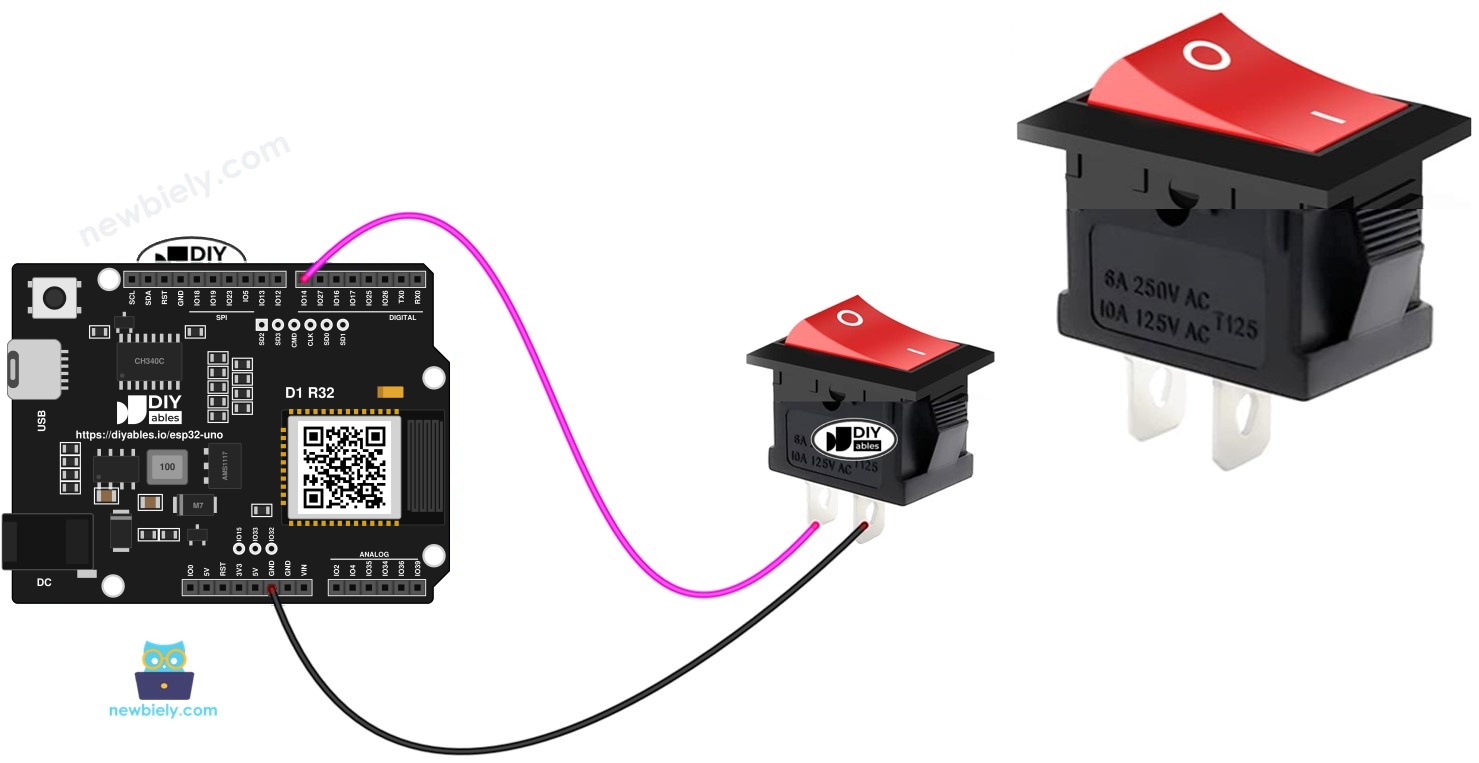
Hardware Preparation
Or you can buy the following kits:
| 1 | × | DIYables Sensor Kit (18 sensors/displays) |
Additionally, some of these links are for products from our own brand, DIYables .
Overview of the ON/OFF Switch
By the end of this part, you know how a toggle switch differs from a push button.
A toggle switch stays where you leave it. Flip it once and it stays ON; flip it again and it returns to OFF. That makes it a good fit for a power switch or a mode selector.
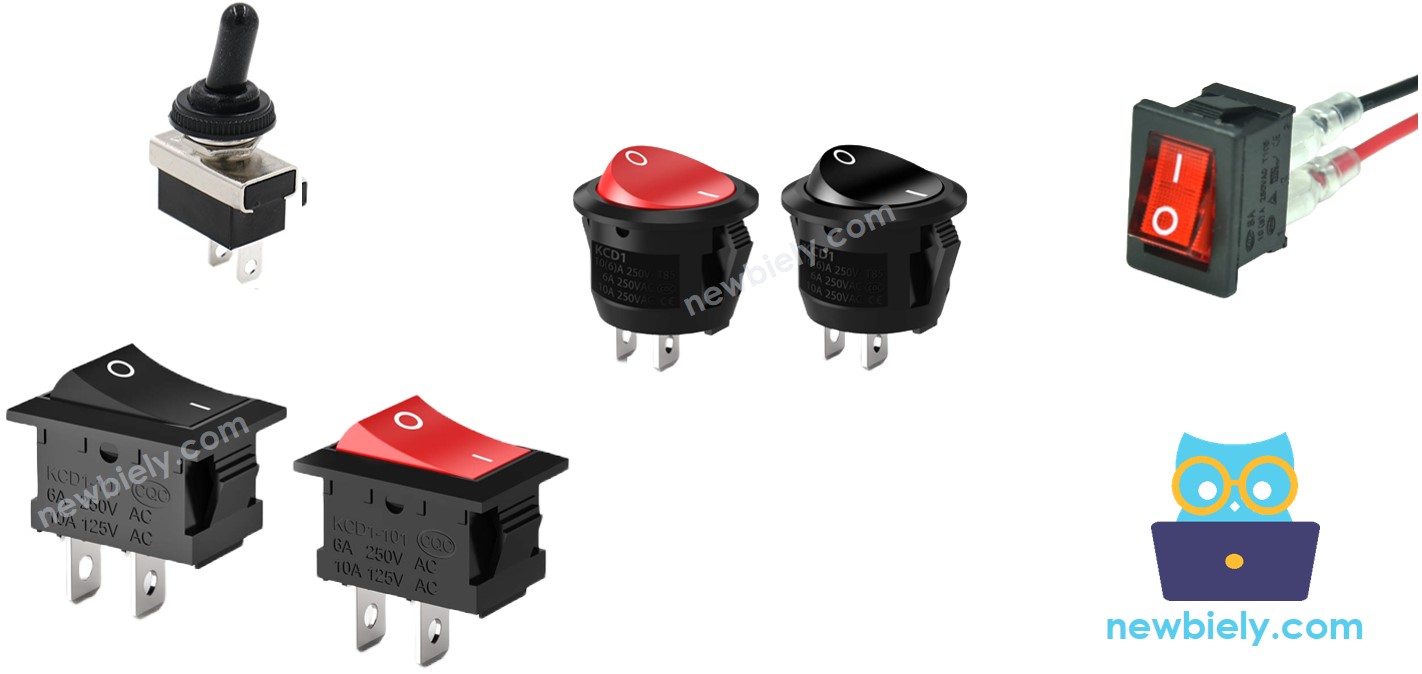
Pinout
By the end of this part, you know which switch type this guide uses.
| Switch Type | Pins | Used Here |
|---|---|---|
| Two-pin switch | 2 (both the same) | Yes |
| Three-pin switch | 3 | No |
The two pins of the simple switch are equal. You can connect them in either direction.
How It Works
By the end of this part, you know how to read the switch state from an input pin.
You can wire the switch in two ways. Each way gives a different reading on the ESP32 Uno input pin.
| Way | Pin 1 | Pin 2 | Input Pin Reading on ESP32 Uno |
|---|---|---|---|
| A | GND | GPIO14 (pull-up on) | HIGH means OFF, LOW means ON |
| B | 3.3V | GPIO14 (pull-down) | HIGH means ON, LOW means OFF |
Pick one way. This guide uses the first one, with the internal pull-up resistor.
Good to know: ESP32 Uno pins use 3.3V logic and are not 5V tolerant. If you choose the second way, feed the switch from 3.3V and never from 5V.
ESP32 Uno Pinout
Every Uno header pin on the ESP32 Uno form board has a GPIO number, and your sketch uses that number. Match the label to the GPIO in the diagram before you place a wire.

Wiring Diagram
By the end of this part, the switch is connected with two wires.
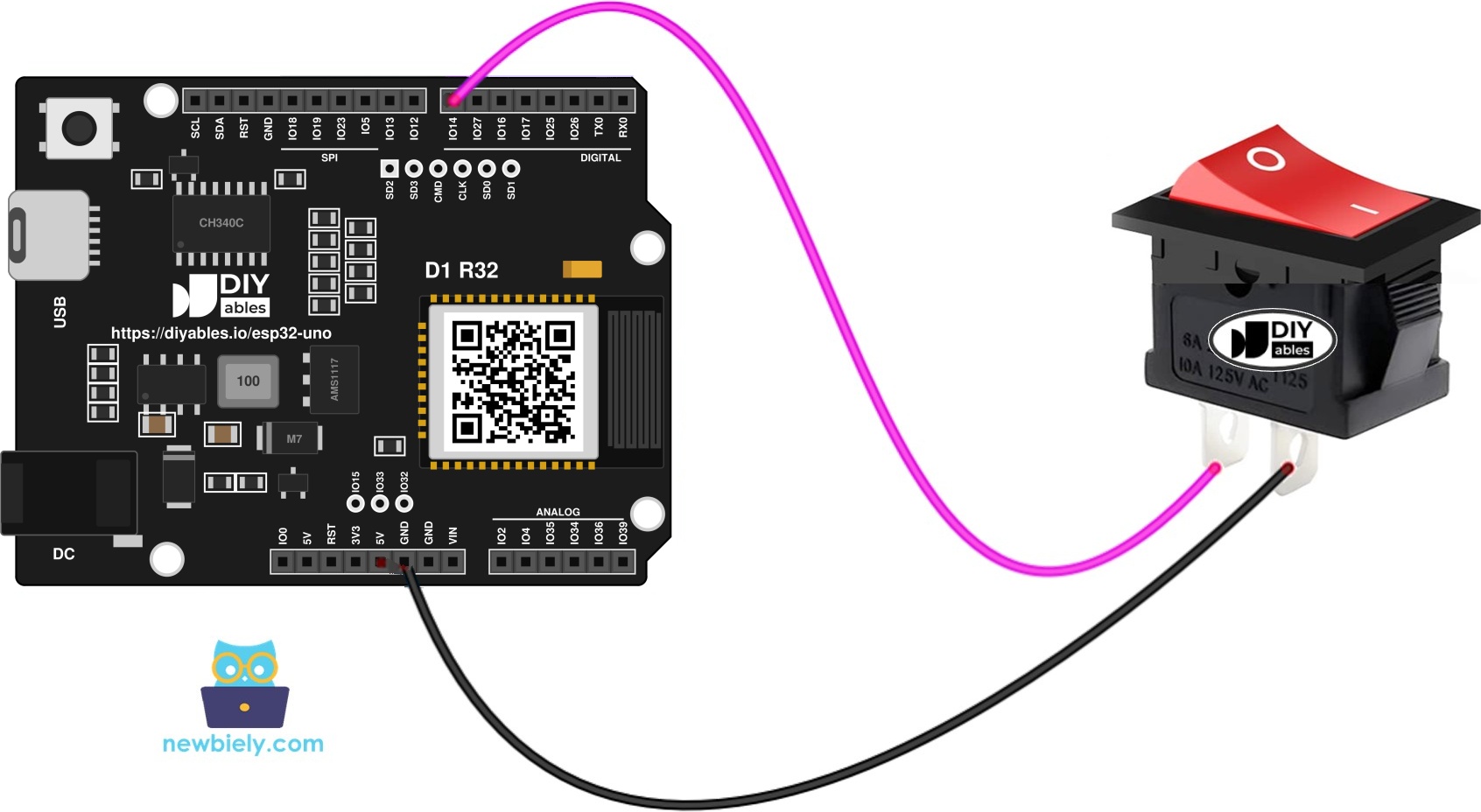
This image is created using Fritzing. Click to enlarge image
| Switch Terminal | Connect To |
|---|---|
| Pin 1 | D7 (GPIO14) |
| Pin 2 | GND |
Good to know: D7 is GPIO14. It is a normal I/O pin with no boot or input-only limits, so it is a safe choice for a switch.
A soldered joint holds better than a loose wire: use a Soldering Iron on the switch pins, then protect each joint with Heat Shrink Tube.
Sketch for the ESP32 Uno ON/OFF Switch
By the end of this part, the sketch is ready to upload.
A switch bounces like a button. For a few milliseconds after a flip, the contacts open and close fast, and the board may count many changes. Background: Why do buttons and ON/OFF switches need debouncing?. The ezButton library removes this problem for you, and it also switches on the internal pull-up resistor.
※ NOTE THAT:
Most switch projects need one of two behaviors:
- Level: do action A while the switch is ON, and action B while it is OFF.
- Event: do an action only once, when the switch changes from ON to OFF or from OFF to ON.
The sketch below shows both behaviors.
| Code Part | What It Does |
|---|---|
| ezButton toggleSwitch(14) | Uses GPIO14 (D7) as the switch input with pull-up |
| setDebounceTime(50) | Ignores bounce shorter than 50 ms |
| toggleSwitch.loop() | Updates the switch state on every pass |
| isPressed() / isReleased() | Fire once when the switch goes OFF to ON or ON to OFF |
| getState() | Returns HIGH for OFF and LOW for ON |
The Serial Monitor shows the state all the time, plus one extra line at each flip.
Detailed Instructions
- First time with this board? Set it up with ESP32 Uno - Getting Started before you continue.
- Build the circuit by following the wiring table above.
- Plug in the USB Type-C cable between the ESP32 Uno and your computer.
- Select the board in Arduino IDE: pick ESP32 Dev Module and the COM port of the board (CH340).
- Install the ezButton library. Follow the guide here.
- Copy the code into Arduino IDE.
- Click Upload to send the code to the board.
- Open the Serial Monitor at 9600 baud.
- Flip the switch to ON and read the output.
- Flip it back to OFF and read the output again.
- Pro tip: Add a short delay(200); at the end of loop() if the text scrolls too fast to read.
Video Tutorial
See the ESP32 Uno build in action in the video below.
ESP32 Uno vs UNO R4 for This Project
By the end of this part, you know what changes when you move the switch project from the UNO R4 to the ESP32 Uno.
| Item | Arduino UNO R4 | ESP32 Uno |
|---|---|---|
| Logic voltage | 5V | 3.3V |
| Switch pin in code | 7 | 14 (D7 is GPIO14) |
| Library | ezButton | ezButton (no change) |
| Arduino IDE board | Arduino UNO R4 WiFi | ESP32 Dev Module |
| USB chip | none to install | CH340 driver |
| Wireless | WiFi on the WiFi model | WiFi and Bluetooth built in |
The wiring stays the same: one wire to D7 and one to GND. Only the pin number in the code changes.
Go Wireless: Switch State on Your Phone
By the end of this part, you have an idea to see the switch state without the Serial Monitor.
The ESP32 Uno has WiFi and Bluetooth. Send the switch state to a web page or a phone app, and you can watch it from the other side of the room. Print "ON" or "OFF" with the same state check that the sketch already uses.
Troubleshooting
| Problem | Possible Cause | Solution |
|---|---|---|
| No COM port appears | CH340 driver missing or charge-only cable | Install the CH340 driver and use a USB cable that carries data |
| Upload fails with "Failed to connect" or "Waiting for download" | Board is not in download mode | Hold the BOOT button when the upload starts |
| State never changes | Loose wire or wrong pin | Check pin 1 on D7 (GPIO14) and pin 2 on GND |
| ON and OFF look swapped | Pull-up logic gives LOW when ON | This is normal, or swap the text in the code |
| Several lines printed per flip | Contacts bounce | Keep the 50 ms debounce time, or try 100 ms |
| Compile error about ezButton.h | Library not installed | Install ezButton from the Library Manager |
| Garbled text in Serial Monitor | Wrong baud rate | Set the Serial Monitor to 9600 |
| Reading is random with a floating wire | Pull-up not active because the pin number is wrong | Make sure the code uses 14, not 7 |
FAQ
What is the difference between an ON/OFF switch and a push button?
A push button is ON only while you hold it. An ON/OFF switch keeps its position after you let go. The wiring and code are almost the same.
Is a pull-up resistor needed outside the board?
No. No. The library enables the pull-up that is inside GPIO14, so two wires are enough.
Is it safe to power the switch from 5V?
No. ESP32 Uno pins run at 3.3V and are not 5V tolerant. For the pull-down method, use the 3.3V pin.
Why does the code use 14 and not 7?
The sketch uses GPIO numbers. The D7 label on the Uno header is GPIO14 on this board, so the code has ezButton toggleSwitch(14);.
Can I use more than one switch?
Yes. Create one ezButton object for each switch, for example on D6 (GPIO27) and D7 (GPIO14), and call loop() on each one.
Is the code different from the UNO R4 version?
Only the pin number changes, from 7 to 14. The ezButton library works on both boards, and the logic is the same.
Can I use an input-only pin like A2 for the switch?
Yes, A2 (GPIO35) can read a switch, but it has no internal pull-up. You would need an external 10kΩ pull-up resistor to 3.3V, so D7 is easier.
What if my project needs more pins than the Uno headers give?
The ESP32 Uno has a few extra holes near the power header: GPIO32 and GPIO33 (I/O, PWM, analog on ADC1, so they work while WiFi is on) and GPIO15 (I/O, PWM, analog on ADC2). Add pin headers by soldering, then use the GPIO number in your sketch. For more switches, GPIO32 and GPIO33 are the best first choice. Two warnings: (1) GPIO15 and GPIO0 (the IO0 pin at the unused Uno NC position) are boot strapping pins, and a wrong connection can stop the board from booting or uploading code, so use GPIO32/33 first; (2) never use the six holes under the digital header (SD0–SD3, CMD, CLK = GPIO6–GPIO11), because they are wired to the flash chip and using them crashes the board.
Can I see the switch state on my phone with the ESP32 Uno?
Yes. The ESP32 Uno has WiFi and Bluetooth, so you can send the state to a web page or a phone app. See the Go Wireless section above.
Why does the Serial Monitor print so fast?
The sketch prints on every pass of loop() with no delay. That is okay while you test. In a real project, act on isPressed() and isReleased() only.