
ESP32 UNO - WebSocket
Want your browser to talk to the ESP32 Uno without ever pressing reload? A WebSocket server on the ESP32 Uno form board keeps one live link open, so messages fly both ways in real time. Here you build a small chat page: type text in the browser, and the board answers at once.
By the end, you can:
- Explain what a WebSocket is and why it beats page reloads
- Run a web server and a WebSocket server on the board with Arduino code
- Load the chat page from a separate index.h file
- Send a message from your phone or PC and read the reply
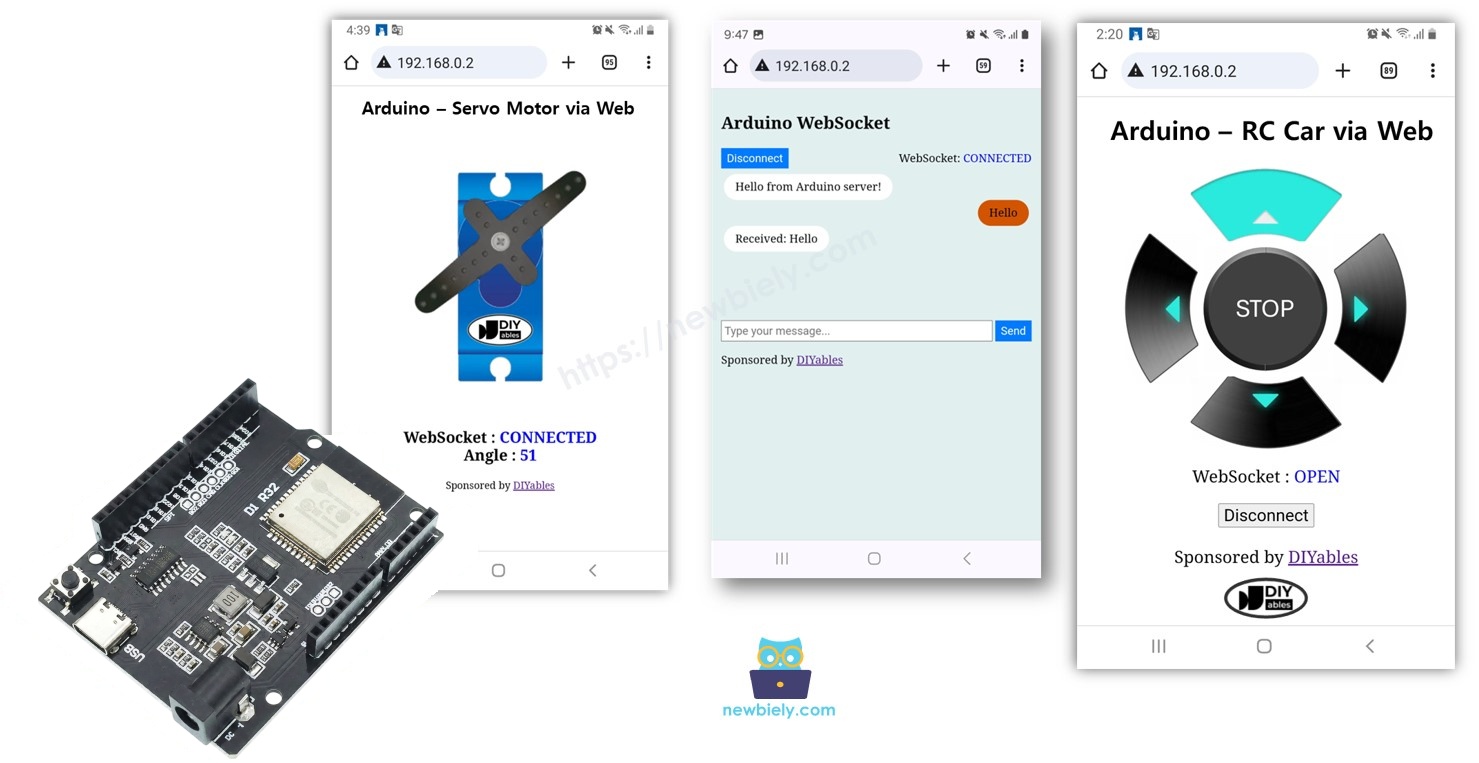
Components You Need
| 1 | × | ESP32 Uno-form Board | |
| 1 | × | USB Cable Type-A to Type-C (for USB-A PC) | |
| 1 | × | USB Cable Type-C to Type-C (for USB-C PC) |
Or you can buy the following kits:
| 1 | × | DIYables Sensor Kit (18 sensors/displays) |
Additionally, some of these links are for products from our own brand, DIYables .
Good to know: This project uses only the built-in WiFi of the ESP32 Uno. You do not connect any wire or module.
What Is a WebSocket on the ESP32 Uno?
Goal: understand the one idea behind this whole tutorial.
A WebSocket is a permanent, two-way channel between a web browser and a server. Normal web pages work like postcards: you ask, the server answers, and the link closes. A WebSocket works like a phone call: both sides stay on the line and can speak at any time.
| Way to talk | Normal web page | WebSocket |
|---|---|---|
| Connection | Closed after each answer | Stays open |
| Who can start a message | Only the browser | Browser or board |
| Need to reload | Yes | No |
Online games, live chat and stock price boards all use this trick.
Why Use WebSocket to Control the ESP32 Uno?
Goal: see why a live link makes control feel instant.
Picture a toy car that you drive from your phone. With plain web pages, each turn or speed change means a page reload. That is slow and clumsy. With a WebSocket, your phone and the ESP32 Uno keep a direct line, so the car reacts the moment you press a button.
In short, a WebSocket lets you:
- Send data from the browser to the ESP32 Uno with no reload
- Push data from the ESP32 Uno to the browser with no reload
What You Gain
| Benefit | What It Means for You |
|---|---|
| Real-time control | Commands reach the board almost at once |
| Persistent link | No refresh needed while the page is open |
| Low overhead | Only tiny messages travel, not a full page |
ESP32 Uno Pinout
Every Uno header pin on the ESP32 Uno form board has a GPIO number, and code uses that number. This project needs no wires, but keep the diagram handy for when you add LEDs, relays or sensors to control over WebSocket.

Build the Web Chat
Goal: run a chat server on the board and open its page in your browser.
The page (HTML, CSS and JavaScript) lives in its own file, index.h. So the Arduino IDE sketch has two files:
| File | Role |
|---|---|
| newbiely.com.ino | Main code, starts the web server and the WebSocket server |
| index.h | The chat page that the board sends to the browser |
Upload and Test
- First time with this board? Set it up with ESP32 Uno - Getting Started before you continue.
- Plug in the USB Type-C cable between the ESP32 Uno and your computer.
- Open Arduino IDE on your computer.
- Select the board: pick ESP32 Dev Module and the COM port of the board (CH340).
- Open the Library Manager with the icon on the left side of Arduino IDE.
- Install the web server library: search for DIYables ESP32 WebServer and click Install on the library from DIYables.
- Search for DIYables ESP32 WebServer created by DIYables.io and click the Install button.
- Create a sketch: make a new sketch and save it as, for example, newbiely.com.ino
- Paste the main code below into it.
- Enter your WiFi details: replace YOUR_WIFI_SSID and YOUR_WIFI_PASSWORD in the code with your own network name and password.
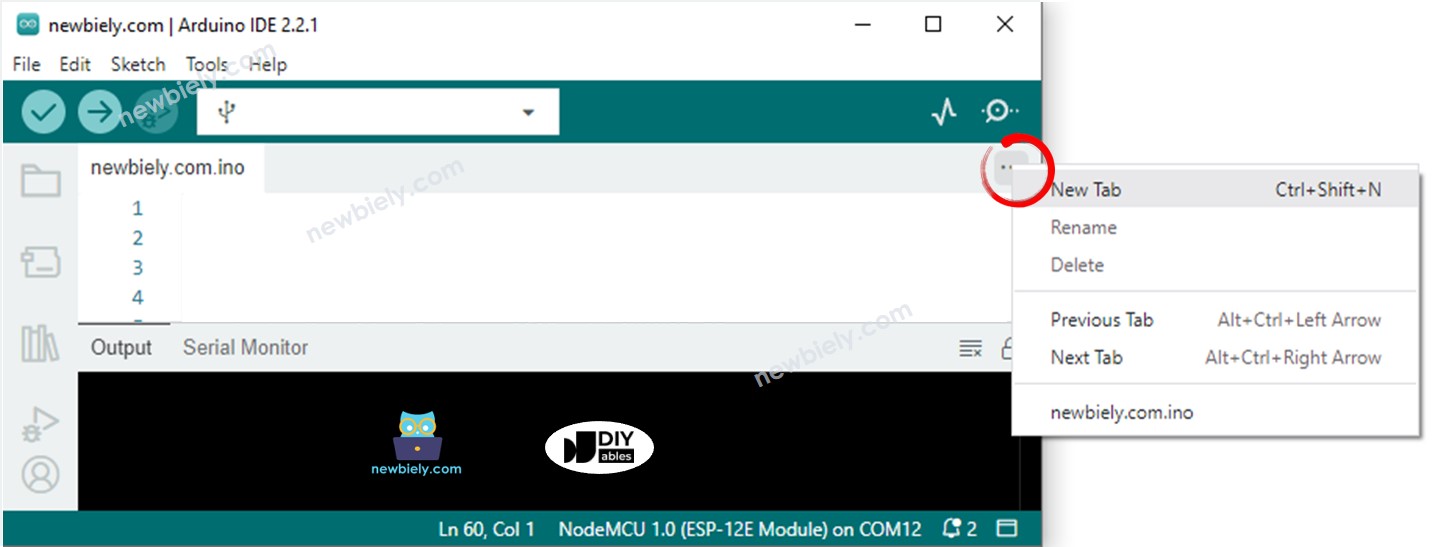
- Add the index.h tab: click the button under the Serial Monitor icon and choose New Tab, or press Ctrl+Shift+N.
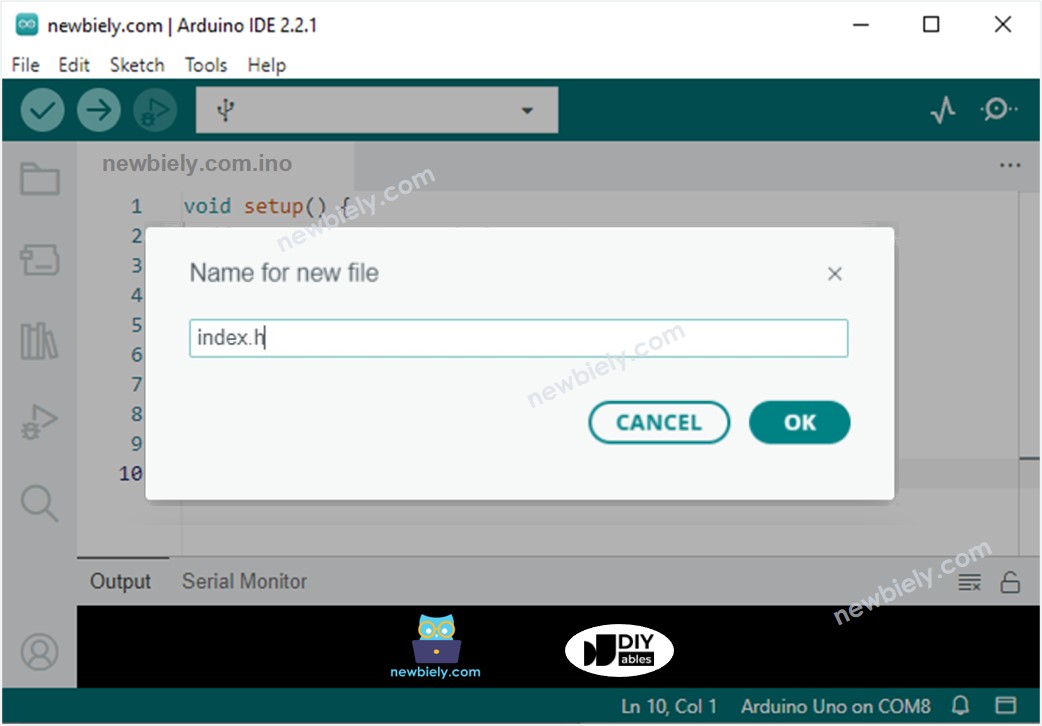
- Name it index.h and click OK.
- Paste the page code into index.h.
- Upload: you now have newbiely.com.ino and index.h. Click the Upload button. If the upload says "Waiting for download", hold the BOOT button on the board until it starts.
- Open the Serial Monitor and read the IP address of the board.
- Open the page: type that IP address in the address bar of a browser on your phone or PC (both must use the same WiFi).
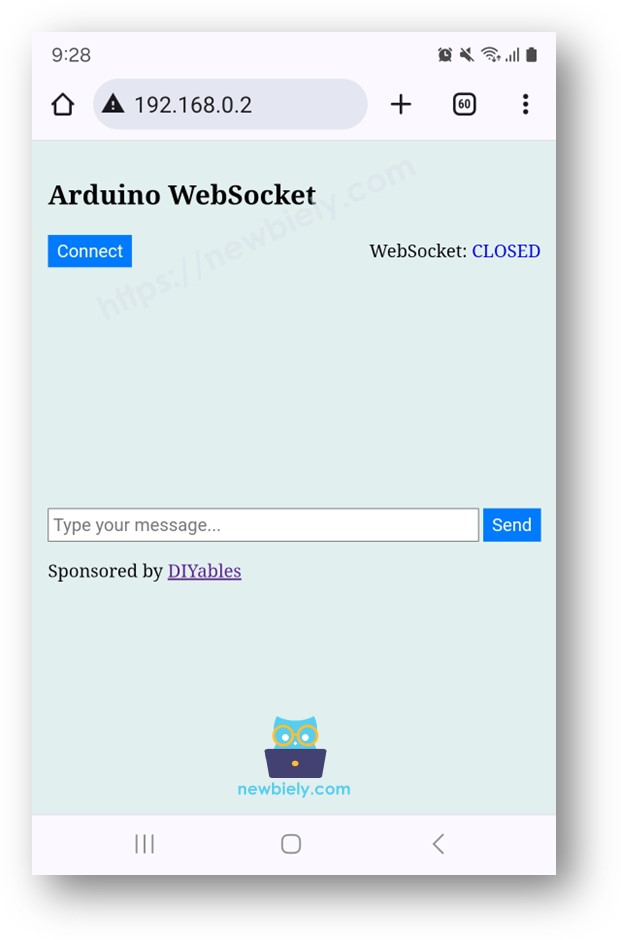
- Click Connect, type a short message and press Send. The board replies right away.
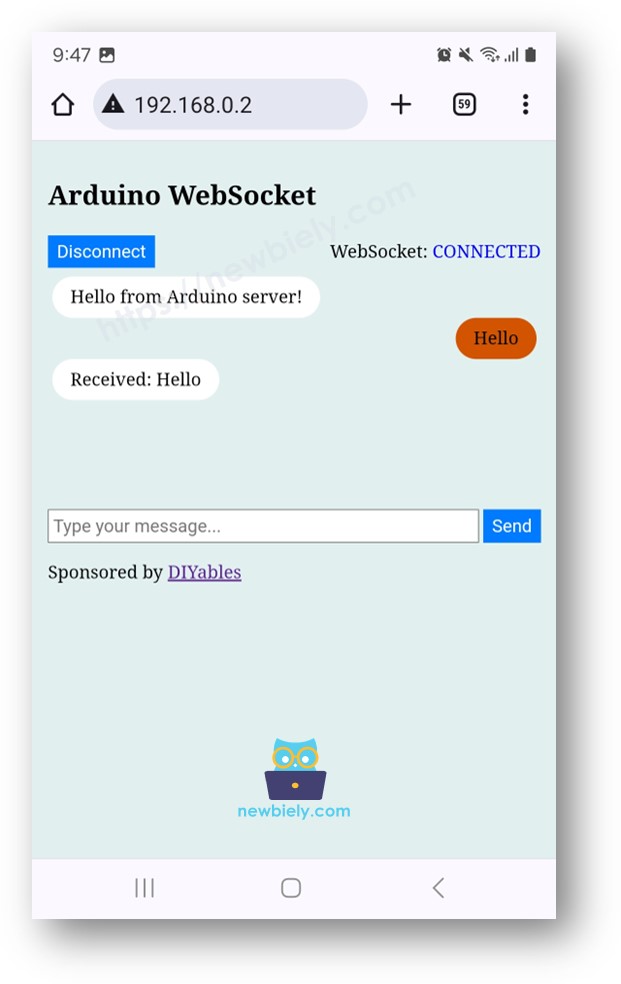
- Pro tip: open the page on two devices at once. Because the code uses a broadcast, both chat windows show every reply.
※ NOTE THAT:
- If you change only the HTML in index.h, Arduino IDE may skip it and upload the old page.
- To force an update, change newbiely.com.ino a little, for example add an empty line or a comment.
How the System Works
Goal: follow one message from the browser to the board and back.
| Step | What Happens |
|---|---|
| 1 | You type the board IP address in the browser |
| 2 | The web server on the ESP32 Uno sends the page (HTML, CSS, JavaScript) |
| 3 | The browser shows the page |
| 4 | You click Connect, and the page script opens a WebSocket to port 81 |
| 5 | You click Send, and the script pushes your text through the open link |
| 6 | The board gets the text and broadcasts a reply that the page prints |
The web page itself uses port 80, and the WebSocket uses port 81.
See the ESP32 Uno build in action in the video below.
Code Explanation
Goal: know what each part of the sketch does. The comments in the code explain every line too.
| Code Part | What It Does | |
|---|---|---|
| handleHome() | Sends the chat page from index.h to the browser | |
| onWebSocketOpen() | Runs when a browser connects and prints a note | |
| onWebSocketMessage() | Prints the received text and broadcasts "Received | ..." to all clients |
| onWebSocketClose() | Runs when the browser disconnects | |
| server.enableWebSocket(81) | Starts the WebSocket server on port 81 | |
| server.handleClient() and server.handleWebSocket() | Called in loop() to serve pages and messages |
The result: every text you send comes back as a reply on the chat page.
ESP32 Uno vs UNO R4 for This Project
Goal: see what changes when you move this chat from the UNO R4 WiFi to the ESP32 Uno.
| Item | Arduino UNO R4 | ESP32 Uno |
|---|---|---|
| Logic voltage | 5V | 3.3V |
| Wiring | None | None |
| WiFi | Built-in module | Built-in WiFi |
| Web server library | Web Server for Arduino Uno R4 WiFi | DIYables ESP32 WebServer |
| Main header file | UnoR4WiFi_WebServer.h | DIYables_ESP32_WebServer.h |
| Reply method | Sends to the one client | Broadcasts to all clients |
| Arduino IDE board | Arduino UNO R4 WiFi | ESP32 Dev Module |
No wires are involved, so nothing needs rewiring. Just install the other library and pick the right board. The ESP32 Uno also needs no firmware update of the WiFi module.
Try These Next
- Replace the echo reply with a command parser, for example "on" and "off" to switch an LED on D13 (GPIO18).
- Send a sensor value to the page every second.
- Study more WebSocket projects: ESP32 Uno - controls Robot Car via Web
Troubleshooting
| Problem | Possible Cause | Solution |
|---|---|---|
| No COM port shows up | CH340 driver missing or charge-only cable | Install the CH340 driver and use a USB cable that carries data |
| Upload fails with "Failed to connect" or "Waiting for download" | Board is not in download mode | Hold the BOOT button while the upload starts |
| Board does not join WiFi | Wrong SSID or password in the code | Replace YOUR_WIFI_SSID and YOUR_WIFI_PASSWORD with the real values |
| No IP address in the Serial Monitor | Wrong baud rate | Set the Serial Monitor to 9600 |
| Page does not open | Phone or PC is on another network | Use the same WiFi as the board |
| Connect button stays on CONNECTING | Port 81 blocked or board reset | Reload the page and check the board is still running |
| HTML changes do not show | Only index.h was changed | Edit newbiely.com.ino a little and upload again |
| Compile error about DIYables_ESP32_WebServer.h | Library not installed | Install DIYables ESP32 WebServer in Library Manager |
| Board resets often | Weak USB power | Use a good cable or another USB port |
FAQ
What is a WebSocket used for on the ESP32 Uno?
It gives a browser a live two-way link to the board. You can control outputs or watch sensor data in real time without reloading the page.
Which port does the WebSocket server use?
This sketch uses port 81 for the WebSocket and port 80 for the web page. You can pick another number in enableWebSocket().
Do I need any extra hardware for this tutorial?
No. The ESP32 Uno form board has WiFi built in. You only need a USB Type-C cable and a WiFi network.
Why is the page stored in a separate index.h file?
It keeps the long HTML out of the main sketch, so the code stays easy to read and edit.
Will two phones or PCs work with the chat together?
Yes. The reply is broadcast, so every connected browser sees it.
Can I use a phone to open the page?
Yes. Any device on the same WiFi can open the IP address of the board in its browser.
Does the ESP32 Uno need a WiFi firmware update like the UNO R4 WiFi?
No. The firmware update step is only for the UNO R4 WiFi module. Check your credentials and board selection instead.
Can I use 5V modules with this project later?
Be careful. ESP32 Uno pins use 3.3V logic and are not 5V tolerant, so use a level shifter for 5V signals.
How do I control an LED from the chat page?
Read the received text in onWebSocketMessage() and call digitalWrite() on a pin such as D13 (GPIO18) when you get a word like "on" or "off".
Where do I find extra GPIO pins if the Uno headers run out?
The ESP32 Uno has extra holes near the power header: GPIO32 and GPIO33 (I/O, PWM, analog on ADC1, so they work while WiFi is on) and GPIO15 (I/O, PWM, analog on ADC2). Solder pin headers to use them and write the GPIO number in code. For a WiFi project with an analog sensor, GPIO32 or GPIO33 are the best picks. Warning 1: GPIO15 and GPIO0 (the IO0 pin at the unused Uno NC position) are boot strapping pins, and a wrong connection can stop the board from booting or uploading code, so use GPIO32 and GPIO33 first. Warning 2: never use the six holes under the digital header (SD0-SD3, CMD, CLK = GPIO6-GPIO11). They are wired to the flash chip and using them crashes the board.