
ESP32 UNO - DIYables Bluetooth App Analog Gauge
Overview
Need a real needle meter for your ESP32 Uno Bluetooth project, without buying a screen? Your phone becomes the dial. The ESP32 Uno form board sends a number, and the DIYables Bluetooth STEM app moves a needle across a scale you define, such as 0 to 100 km/h, 0 to 16 V or 900 to 1100 hPa. It works as a BLE gauge on Android and iPhone, or over Classic Bluetooth on Android.
By the end, you can:
- Add the DIYables Bluetooth library to Arduino IDE
- Flash a BLE or a Classic Bluetooth gauge sketch to the ESP32 Uno
- Link the phone app and see a speedometer-style needle react live
- Set your own scale, unit and refresh rate
- Feed the dial from a voltage divider, a BMP280, an ACS712 or a wheel encoder
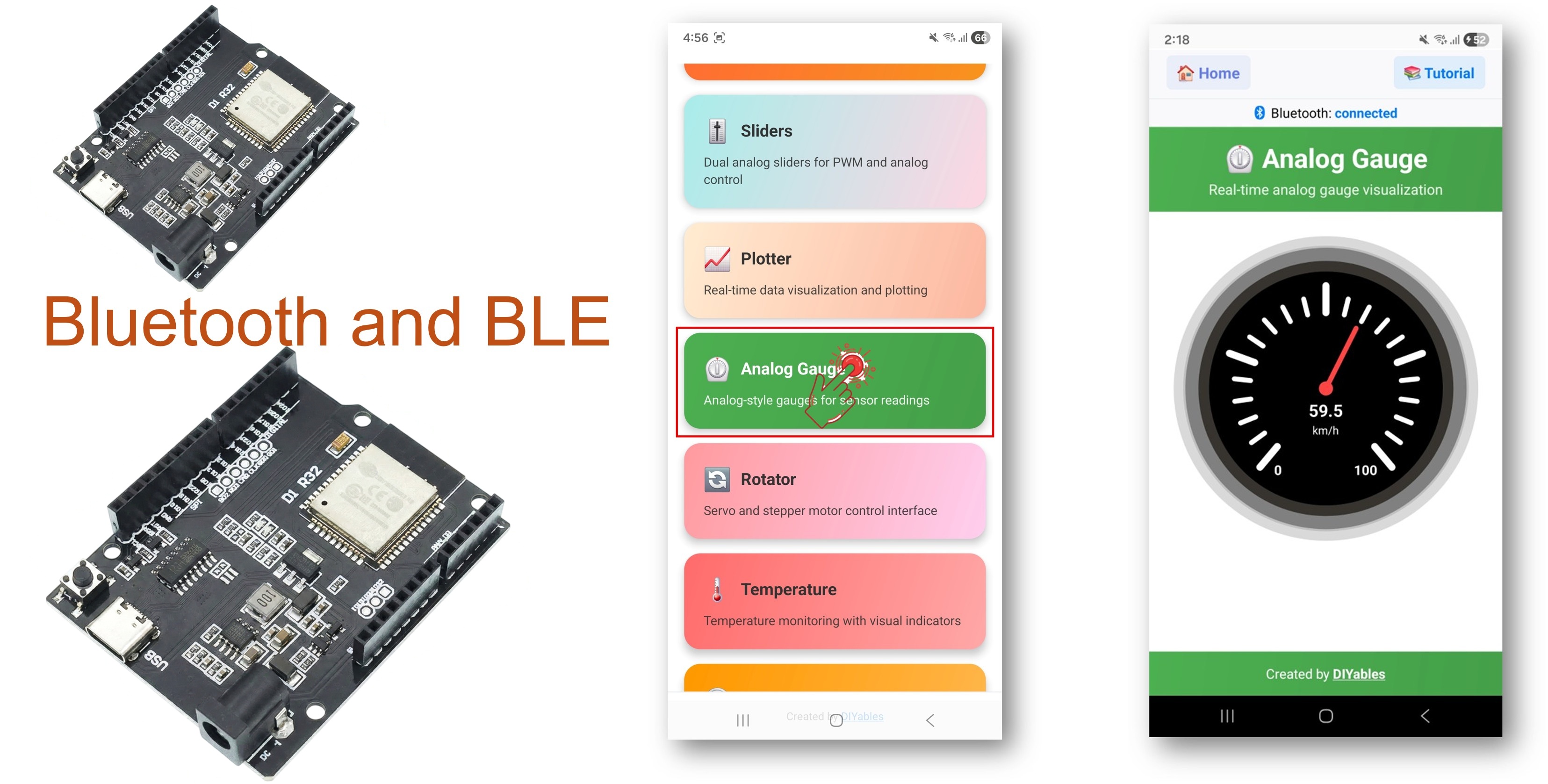
※ NOTE THAT:
The ESP32 Uno chip has two radios in one: BLE and Classic Bluetooth. Pick BLE when an iPhone must connect or when no pairing step is wanted. Pick Classic when only Android phones are used and you want the older, faster link.
What the Gauge App Gives You
Read this table to know what is ready-made and what you still code.
| Feature | Details |
|---|---|
| Dial view | A needle sweeps a marked scale, and the exact number sits under it |
| Scale | Minimum and maximum come from your sketch and can change at run time |
| Unit label | Any short text, for example km/h, PSI, V, % or RPM |
| Refresh | The example pushes one value every 200 ms, so motion looks smooth |
| On-demand value | The app can ask the board for the latest number at any time |
| Two radio modes | BLE for Android and iOS, Classic Bluetooth for Android only |
| Power | BLE draws less current than Classic Bluetooth |
Components You Need
| 1 | × | ESP32 Uno-form Board | |
| 1 | × | USB Cable Type-A to Type-C (for USB-A PC) | |
| 1 | × | USB Cable Type-C to Type-C (for USB-C PC) | |
| 1 | × | Breadboard | |
| 1 | × | Jumper Wires |
Or you can buy the following kits:
| 1 | × | DIYables Sensor Kit (18 sensors/displays) |
Additionally, some of these links are for products from our own brand, DIYables .
ESP32 Uno Pinout
The Uno-style labels you see on the headers are not the numbers your sketch uses. Find each label on this map and read its GPIO number before you add a sensor.

Good to know: the main sketch needs no wiring at all. The optional sensor input is A0 (GPIO2), so ANALOG_PIN in the code is set to 2.
| Optional Sensor Pin | ESP32 Uno Pin |
|---|---|
| VCC | 3.3V |
| GND | GND |
| Signal | A0 (GPIO2) |
WARNING
A0 (GPIO2) is a boot strapping pin. If a module holds it HIGH while the board starts or while you upload, the upload can fail. If that happens, unplug the sensor signal during upload. Keep the signal at 3.3V or less, because ESP32 Uno pins are not 5V tolerant.
Upload and Test the ESP32 Uno Code
At the end of this part, the board talks to the phone and the needle moves. The test sketch makes its own values from a sine wave, so no sensor is needed yet.
Step 1 — Prepare Arduino IDE
- First time with this board? Set it up with ESP32 Uno - Getting Started before you continue.
- Build the circuit by following the wiring table above. For the first test, leave every pin free.
- Plug in the USB Type-C cable between the ESP32 Uno and your computer.
- Select the board in Arduino IDE: pick ESP32 Dev Module and the COM port of the board (CH340).
- Make room for Bluetooth: open Tools > Partition Scheme and choose Huge APP (3MB No OTA/1MB SPIFFS). The default layout leaves about 1.2 MB for the app, and the Bluetooth stack needs more.
- Open Library Manager: click the Libraries icon in the left bar.
- Search "DIYables Bluetooth" and locate the library made by DIYables.
- Click Install.
- Search for DIYables Bluetooth created by DIYables and click the Install button.
- Accept the extras: a box lists other needed libraries. Click Install All.
Then flash ONE of the two sketches below. Both draw the same dial; only the radio is different.
Step 2 — Option A: ESP32 Uno Classic Bluetooth Sketch (Android only)
Good to know: iPhones cannot use Classic Bluetooth. For iOS, skip to Option B.
- Load the sketch: in Arduino IDE open File Examples DIYables Bluetooth Esp32Bluetooth_AnalogGauge, or paste the code below into a new sketch.
- Upload: press the Upload button.
- Open the Serial Monitor at 115200 baud. After a reset you get:
Step 2 — Option B: ESP32 Uno BLE Sketch (Android and iOS)
- Load the sketch: open File Examples DIYables Bluetooth Esp32BLE_AnalogGauge, or paste the code below.
- Upload it with the Upload button.
- Watch the Serial Monitor at 115200 baud:
- Pro tip: if you swap from the Classic sketch to the BLE sketch, remove the old "ESP32_Gauge" pairing in your phone settings. A stale pairing can make the scan list confusing.
Good to know: both sketches call analogSetAttenuation(ADC_11db) in setup(). With 11 dB attenuation, an ESP32 Uno analog pin reads the full span from 0V up to about 3.3V. Without a wide range, readings hit 4095 too early and the gauge shows a wrong, maxed-out value once you switch to a real sensor.
Step 3 — Connect the Phone App
When this step is done, the dial on your phone follows the board.
- Classic sketch only — pair first: open Settings > Bluetooth on the Android phone, switch Bluetooth on, tap "ESP32_Gauge", confirm (no PIN), and wait for "Paired". With the BLE sketch, skip this.
- Launch the app and allow the requested access on first start:
- Nearby Devices (Android 12 or newer) or Bluetooth (iOS) — used to find and link devices
- Location (Android 11 or older) — old Android versions need it to scan for BLE
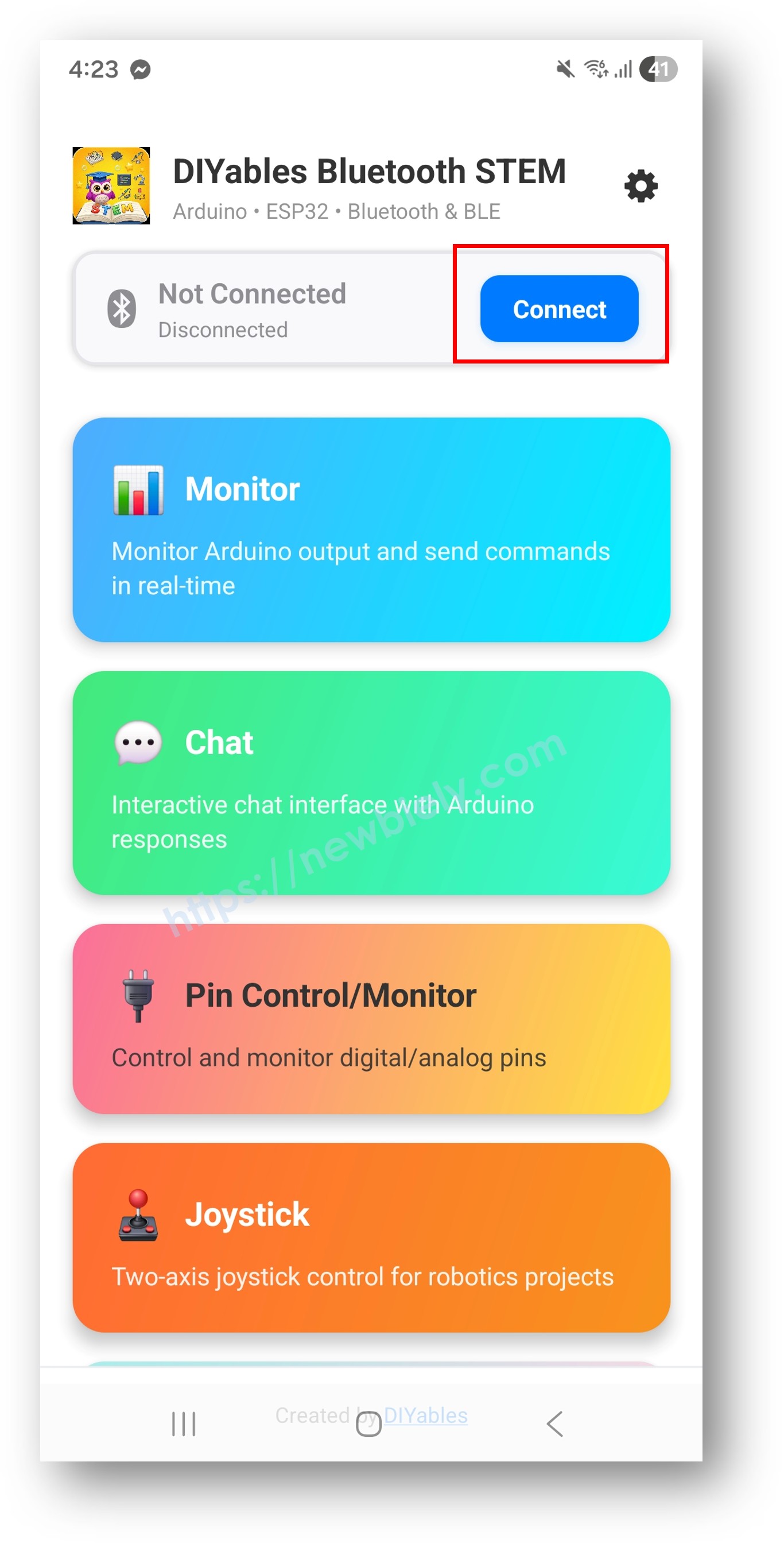
- Pick your board: "ESP32_Gauge" for Classic, or "ESP32BLE_Gauge" for BLE. The app returns to the home screen once linked.
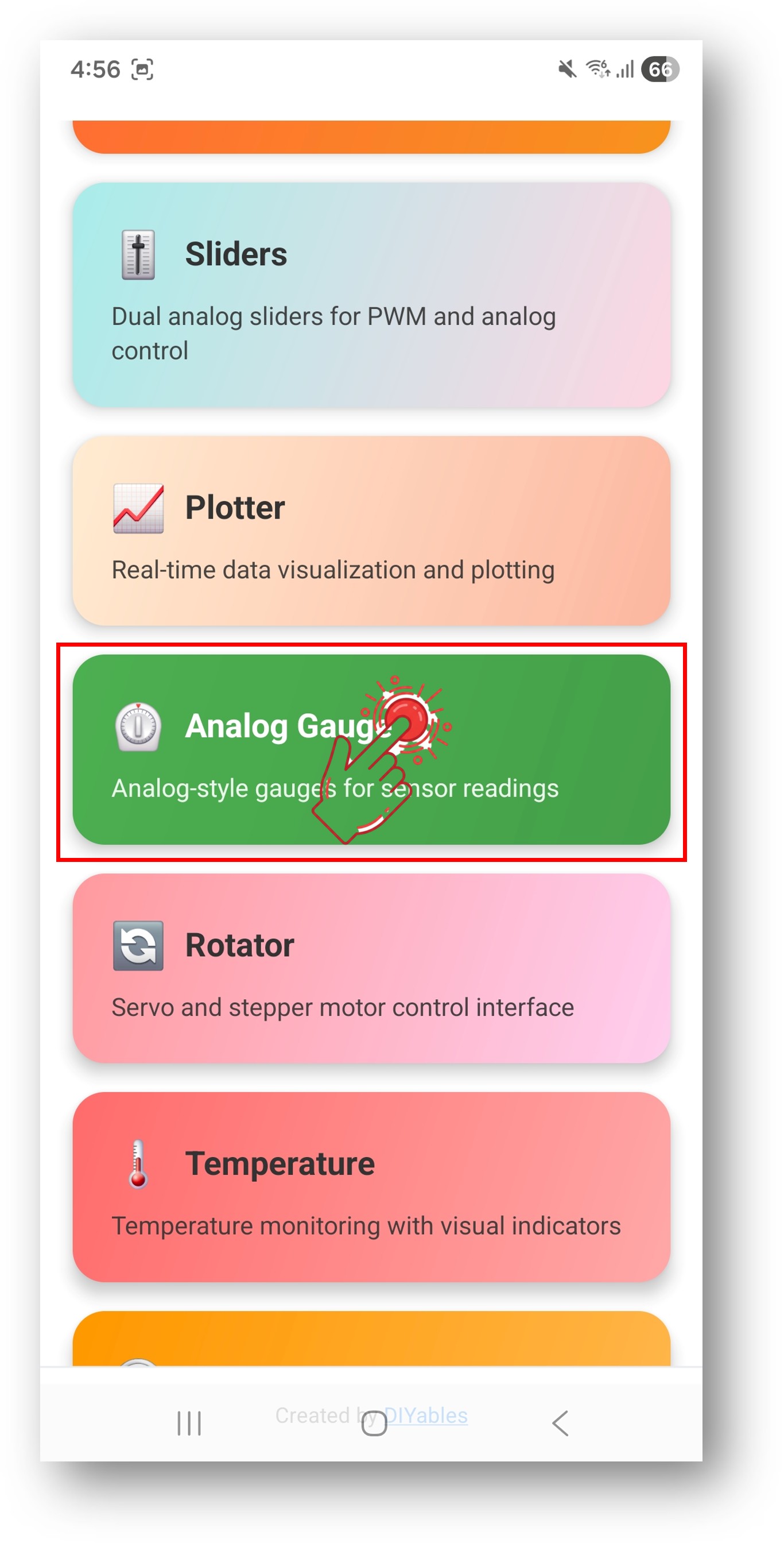
- Open the dial: choose Analog Gauge in the app menu.
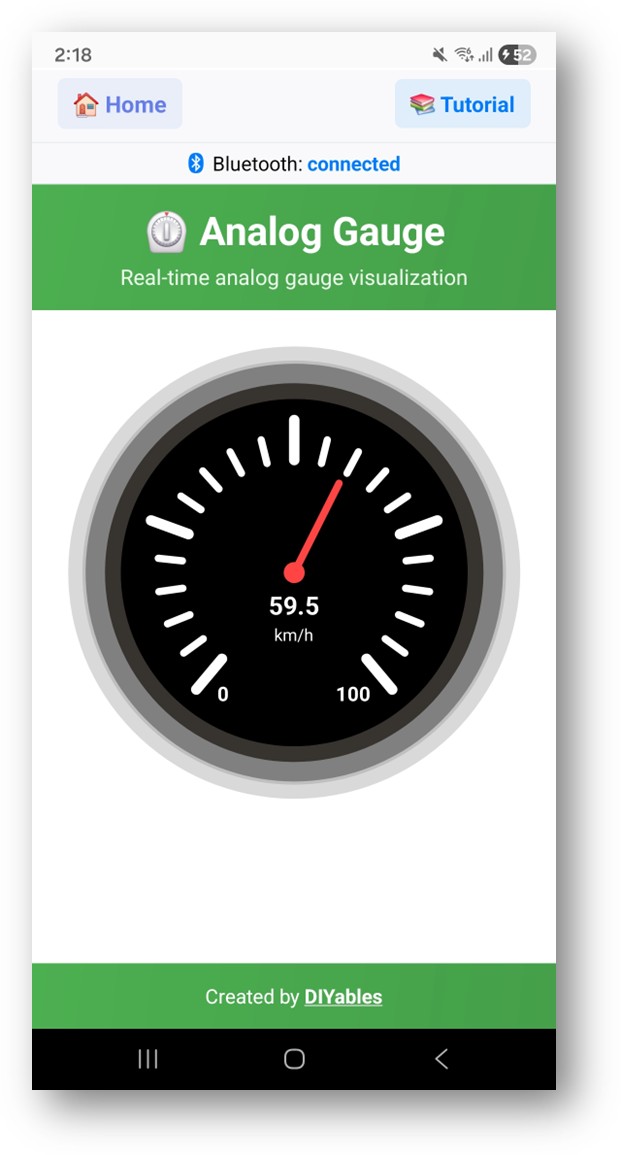
- See it move: the needle swings slowly between 0 and 100 km/h.
- Pro tip: the gear icon on the home screen hides apps you do not use. The DIYables Bluetooth App User Manual explains every screen.
Back in the Serial Monitor, the link and each sent value now show up:
How the Sketch Works
Here is what each part of the ESP32 Uno sketch does.
| Code Part | What It Does |
|---|---|
| DIYables_Esp32BLE or DIYables_Esp32Bluetooth | Starts the radio with the name the phone sees |
| DIYables_BluetoothAnalogGauge(0.0, 100.0, "km/h") | Creates the dial with its scale and unit text |
| readSensorValue() | Returns the number to show, a sine wave now or analogRead() on GPIO2 later |
| setOnConnected() | Sends a first value as soon as a phone links |
| onValueRequest() | Answers when the app asks for the latest number |
| loop() with UPDATE_INTERVAL | Sends a new value every 200 ms while a phone is linked |
The result is a dial that never starts empty and refreshes five times per second.
ESP32 Uno vs UNO R4 for This Project
Moving this gauge from the UNO R4 WiFi to the ESP32 Uno changes the radio library and a few small settings.
| Item | Arduino UNO R4 WiFi | ESP32 Uno |
|---|---|---|
| Logic voltage | 5V | 3.3V |
| Bluetooth | BLE only | BLE and Classic Bluetooth |
| Library platform file | DIYables_ArduinoBLE.h | DIYables_Esp32BLE.h or DIYables_Esp32Bluetooth.h |
| Optional sensor pin | A0 | A0 (GPIO2) |
| ADC range | 0 to 1023 (10-bit) | 0 to 4095 (12-bit) plus analogSetAttenuation(ADC_11db) |
| Arduino IDE board | Arduino UNO R4 WiFi | ESP32 Dev Module with Huge APP partition |
No wiring is needed for the test, so nothing has to move. If you add a sensor, keep its output at 3.3V or less, and change any 1023 and 5.0 in old R4 math to 4095 and 3.3.
Shape the Gauge for Your Project
At the end of this part, the dial shows your own numbers and units.
Set the Scale and the Unit
The constructor fixes the starting scale. The setters change it later, for example when a user picks MPH.
Push a Value
send() with a number moves the needle. send() with text shows a short status, useful while a sensor warms up.
Answer the App When It Asks
When the gauge screen opens, the app may ask for a value. This callback replies right away.
React to Connect and Disconnect
Use these hooks to log the link state and fill the dial on connect.
Reading the Dial Screen
Know the screen parts, and you can choose a scale that is easy to read.
| Screen Part | Meaning |
|---|---|
| Needle | Points at the latest value on the scale |
| Scale marks | Run from your minimum to your maximum |
| Number | The exact value as text |
| Unit | The label you passed in the code |
Typical constructor settings:
| Meter Type | Constructor |
|---|---|
| Road speed | DIYables_BluetoothAnalogGauge(0.0, 200.0, "km/h") |
| Tyre pressure | DIYables_BluetoothAnalogGauge(0.0, 100.0, "PSI") |
| Pin voltage | DIYables_BluetoothAnalogGauge(0.0, 3.3, "V") |
| Fill level | DIYables_BluetoothAnalogGauge(0.0, 100.0, "%") |
| Motor speed | DIYables_BluetoothAnalogGauge(0.0, 8000.0, "RPM") |
Real Sensor Examples
Each snippet shows only the lines that differ from the main sketch. Keep the Bluetooth setup and analogSetAttenuation(ADC_11db) from the full example.
Example 1 — Voltmeter up to 16V
A 5:1 resistor divider scales up to 16V down to about 3.2V, a safe level for the ESP32 Uno input on A0 (GPIO2).
| Divider Pin | ESP32 Uno Pin |
|---|---|
| Middle point (output) | A0 (GPIO2) |
| Bottom resistor end | GND |
Example 2 — Air Pressure with a BMP280
The BMP280 uses I2C. On the ESP32 Uno, A4 and A5 are not I2C, so use the SDA (GPIO21) and SCL (GPIO22) header pins. Wire.begin() picks them by default.
| BMP280 Pin | ESP32 Uno Pin |
|---|---|
| VCC | 3.3V |
| GND | GND |
| SDA | SDA (GPIO21) |
| SCL | SCL (GPIO22) |
Example 3 — Ammeter with an ACS712
The ACS712-05B outputs 2.5V at zero current and changes by 185 mV per amp. Its output goes to A0 (GPIO2).
WARNING
The ACS712 runs on 5V, and its output can climb above 3.3V at high current. That can damage the ESP32 Uno pin. Put a voltage divider between the sensor output and A0 (GPIO2), then scale ZERO_CURRENT_VOLTAGE and SENSITIVITY by the same ratio.
Example 4 — Wheel Speed from an Encoder
A slotted disc gives 20 pulses per turn. An interrupt on D2 (GPIO26) counts them, and every 500 ms the sketch turns the count into km/h.
| Encoder Pin | ESP32 Uno Pin |
|---|---|
| VCC | 3.3V |
| GND | GND |
| OUT | D2 (GPIO26) |
Cleaner Needle Motion
Raw readings jump. These three helpers make the dial calmer and more useful.
Low-Pass Smoothing
Each update moves the shown value only a part of the way to the new reading. A smaller SMOOTHING number gives a slower, steadier needle.
Hold the Highest Value
The top reading stays on the dial for 3 seconds, so a short spike is easy to spot.
Grow the Scale by Itself
For a sensor with an unknown range, widen the scale by 10 whenever a value lands outside it.
Sensors That Fit a Dial
Any part that outputs a number can drive the needle. Keep every input at 3.3V or below.
| Sensor Group | Examples | ESP32 Uno Connection |
|---|---|---|
| Analog output | Potentiometer, force sensor, flex sensor | Analog pin such as A0 (GPIO2), 12-bit 0 to 4095 |
| I2C | BMP280 pressure, INA219 current and power | SDA (GPIO21) and SCL (GPIO22) |
| SPI | Fast sensors | D10 to D13, same as the default SPI pins |
| Pulse or frequency | Encoders, flow meters, RPM pickups | A digital pin with an interrupt, such as D2 (GPIO26) |
| Load cell | HX711 amplifier for scales | Two digital pins |
Choosing BLE or Classic on the ESP32 Uno
The ESP32 Uno can run either sketch. Use this table to choose.
| Point | BLE sketch (Esp32BLE_AnalogGauge) | Classic sketch (Esp32Bluetooth_AnalogGauge) |
|---|---|---|
| iPhone | Works | Does not work |
| Android | Works | Works |
| Current draw | Lower | Higher |
| Typical range | About 30 to 100 m | About 10 to 100 m |
| Data speed | Lower | Higher |
| Pairing in phone settings | Not needed | Needed once |
| Name in scan list | ESP32BLE_Gauge | ESP32_Gauge |
For a single gauge value, BLE is fast enough and works with every phone, so it is the safer default.
Debug Helper
When the dial looks wrong, print the value, the scale and the percent. Then compare the Serial Monitor with the app.
Build Ideas
| Area | Gauge Projects |
|---|---|
| Vehicles and motion | Bike or RC car speedometer, motor tachometer, G-force meter, tilt meter |
| Power | Battery voltmeter, ammeter, wattmeter, charge level dial |
| Weather | Barometer, wind speed meter, UV index meter, noise level meter |
| Tutorial | Weighing scale, water flow meter, tank level dial, torque meter |
Mix the Gauge with Other Bluetooth Apps
One Bluetooth server on the ESP32 Uno can host several app screens at once.
Gauge Plus Temperature Screen
Put pressure on the dial and temperature on its own screen.
Gauge Plus Table
The dial gives a quick look, and the table lists the details.
Try These Next
With the dial working, build on it with these ESP32 Uno Bluetooth pages:
- ESP32 Uno - Bluetooth Temperature — a thermometer-style screen
- ESP32 Uno - Bluetooth Plotter — draw the value as a line over time
- ESP32 Uno - Bluetooth Table — list many readings in rows
- ESP32 Uno - Multiple Bluetooth Apps — run the gauge next to other screens
Where to Get Help
- The API reference shipped with the DIYables Bluetooth library
- More app guides on diyables.io/bluetooth-app
- The Arduino community forums
Troubleshooting
| Problem | Possible Cause | Solution |
|---|---|---|
| No COM port appears in Arduino IDE | CH340 driver missing or a charge-only cable | Install the CH340 driver and use a USB Type-C cable that carries data |
| Upload stops at "Failed to connect" or "Waiting for download" | The board did not enter download mode | Hold the BOOT button while the upload starts, then let go |
| Board does not boot or upload with the sensor connected | A0 (GPIO2) is a boot strapping pin pulled the wrong way | Unplug the module while uploading, or use another pin |
| Compiler says the sketch is too big | Default partition has no room for Bluetooth | Choose Tools > Partition Scheme > Huge APP (3MB No OTA/1MB SPIFFS) |
| Board name is missing in the app scan | Sketch not running, phone Bluetooth off, or Classic not paired | Check the Serial Monitor shows "Waiting for Bluetooth connection...", turn on Bluetooth, pair ESP32_Gauge first for Classic, and turn on Location on Android 11 or older |
| ESP32_Gauge is not visible on an iPhone | iOS has no Classic Bluetooth | Upload the BLE sketch and connect to ESP32BLE_Gauge |
| Needle sits at the top of the scale | Input above 3.3V or wrong scale | Add a divider so the pin stays under 3.3V, keep analogSetAttenuation(ADC_11db), and check setRange() |
| Needle shakes all the time | Noisy or floating analog input | Connect sensor GND, average a few readings, and use the smoothing helper |
| Link drops after a few seconds | Weak USB power or phone too far | Use a good cable or power supply and keep the phone within a few meters |
| Serial Monitor shows strange characters | Wrong baud rate | Set the Serial Monitor to 115200 baud |
FAQ
Which Bluetooth mode should I pick for the ESP32 Uno gauge?
Pick BLE if any user has an iPhone or you do not want a pairing step. Pick Classic Bluetooth if all phones are Android and you prefer the older protocol. Both sketches show the same dial and print the same kind of output.
Can I test the phone gauge without any sensor?
Yes. The example makes a sine wave from 0 to 100 inside readSensorValue(), so the needle moves with no wiring. Later, remove the sine wave lines, uncomment the analogRead() lines, and wire your sensor to A0 (GPIO2).
How fast can the needle update?
The example sends a value every 200 ms, which is five updates per second. You can lower UPDATE_INTERVAL to about 50 ms for a faster needle. Going faster gives little benefit and uses more power.
What is the analogSetAttenuation(ADC_11db) line in setup() for?
This line widens the ESP32 Uno ADC window to roughly 0 to 3.3V, so a sensor swing over that span fills the 0 to 4095 scale. Leave it out and the reading tops out at 4095 well before 3.3V, and the dial gets stuck high. UNO R4 sketches never had it; only the ESP32 Uno needs it. Never feed the pin more than 3.3V.
My old sketch maps analogRead() from 0 to 1023. What do I change on the ESP32 Uno?
The ESP32 Uno ADC is 12-bit, so the top value is 4095, not 1023. Change map(raw, 0, 1023, ...) to map(raw, 0, 4095, ...). Also replace any 5.0 reference voltage with 3.3.
Can a 5V sensor feed the ESP32 Uno gauge?
The sensor itself can run on 5V, but its signal must not reach the pin above 3.3V. ESP32 Uno pins are not 5V tolerant. Use a resistor divider or a level shifter and update the math in the sketch.
Does Bluetooth stop analogRead() on A0 like WiFi does?
The ADC2 limit is tied to WiFi. A0 (GPIO2) and A1 (GPIO4) are ADC2 pins and fail to read while WiFi is on. In a Bluetooth-only sketch like this one they still read, but if you later add WiFi, move the sensor to A2 to A5 (GPIO35, 34, 36, 39) or GPIO32/33 and change the pin number.
Do I need a driver for the ESP32 Uno board?
The board uses a CH340 USB-to-serial chip. Windows and macOS sometimes need the CH340 driver before the COM port appears. Install it once, then reconnect the cable.
Can I show two gauges at the same time?
One gauge object draws one dial. To show more values, add other DIYables Bluetooth apps to the same server, such as a table or a temperature screen. The Multiple Bluetooth Apps page shows how.
What if my gauge project needs more pins than the Uno headers give?
The ESP32 Uno has a few extra holes near the power header: GPIO32 and GPIO33 (I/O, PWM, analog on ADC1, so they still read while WiFi is on) and GPIO15 (I/O, PWM, analog on ADC2). To use one, solder a pin header into the hole and put its GPIO number in the sketch. For a second analog sensor next to the gauge, GPIO32 or GPIO33 is the best pick. Two warnings apply. First, GPIO15 and GPIO0 (the IO0 pin at the unused Uno NC position) are boot strapping pins, and a wrong connection can stop the board from booting or uploading code, so use GPIO32/33 first. Second, never use the six holes under the digital header (SD0 to SD3, CMD, CLK = GPIO6 to GPIO11), because they go to the flash chip and using them crashes the board.
Can I show the same value on a web page too?
Yes. The ESP32 Uno also has WiFi. The ESP32 Uno - Web Analog Gauge page draws a dial in a browser instead of the Bluetooth app.