
ESP32 UNO - DIYables Bluetooth App Slider
Overview
Turn your phone into a two-fader control desk for the ESP32 Uno Bluetooth slider project. Drag a fader in the DIYables Bluetooth STEM app, and the ESP32 Uno form board gets a number from 0 to 100 at once. Feed that number to a PWM pin to fade an LED, spin a fan faster or swing a servo arm. The link runs as a BLE slider on Android and iPhone, or as a Classic Bluetooth slider on Android.
By the end, you can:
- Install the DIYables Bluetooth library in Arduino IDE
- Flash a BLE or a Classic Bluetooth slider sketch to the ESP32 Uno
- Link the phone app and read both fader values in the Serial Monitor
- Change the fader range and step size from code
- Turn the values into LED brightness, servo angle and motor speed
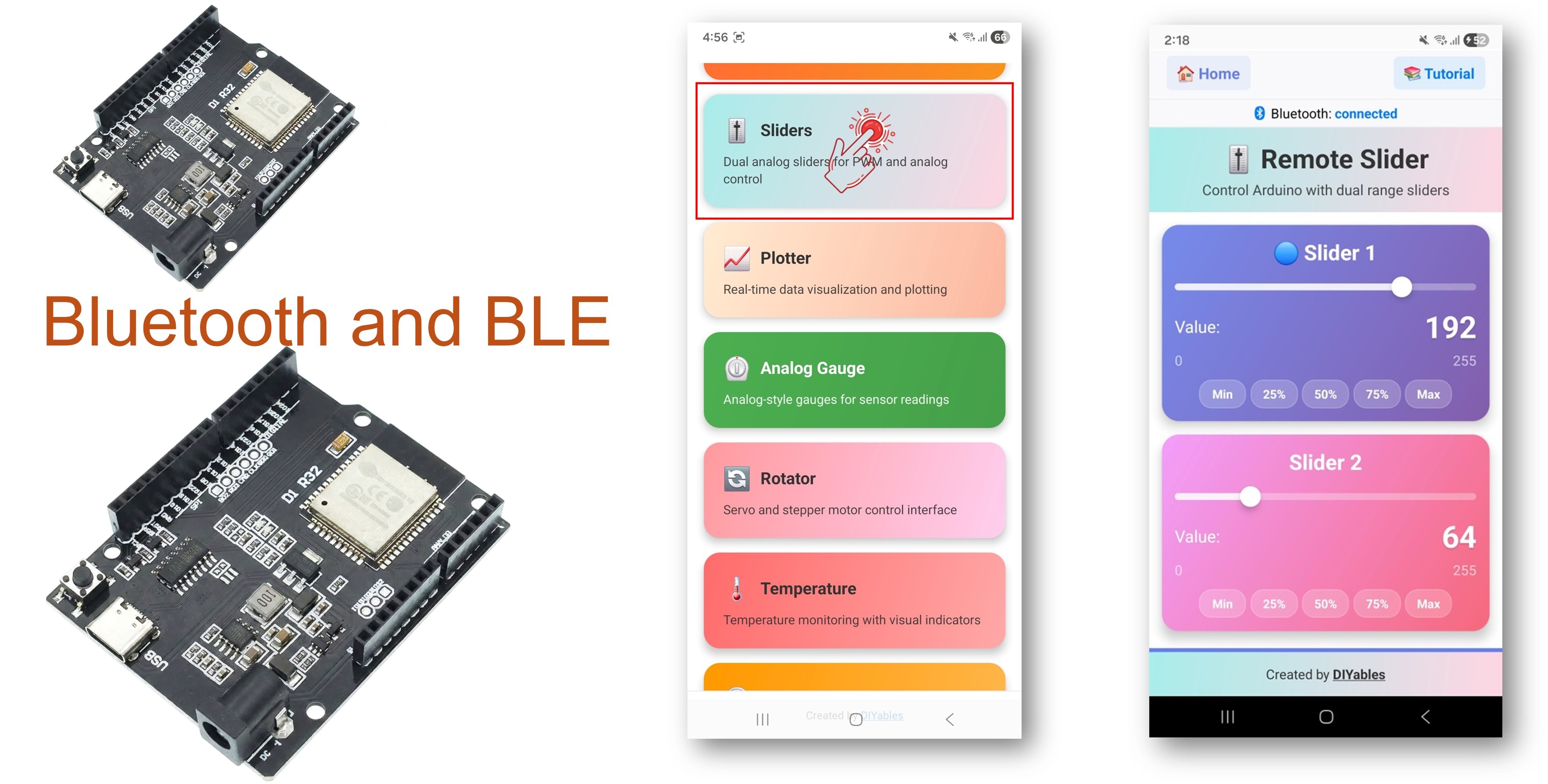
※ NOTE THAT:
The ESP32 Uno carries two Bluetooth radios in one chip: BLE and Classic Bluetooth. Choose BLE when an iPhone has to connect or when you want to skip pairing. Choose Classic when every phone is Android and you like the older serial-style link.
What the Slider App Gives You
This table lists what the app does for you and what is left for your sketch.
| Feature | Details |
|---|---|
| Faders | Two separate faders, each one drives its own output |
| Default scale | 0 to 100 with a step of 1 |
| Custom scale | New minimum, maximum and step from code, also while the sketch runs |
| Speed | A fresh value arrives as soon as your finger moves |
| PWM fit | One map() call turns 0 to 100 into the 0 to 255 duty of analogWrite() |
| Number display | The app prints the current value next to each fader |
| Radio modes | BLE for Android and iOS, Classic Bluetooth for Android only |
| Power | BLE draws less current than Classic Bluetooth |
Components You Need
Or you can buy the following kits:
| 1 | × | DIYables Sensor Kit (18 sensors/displays) |
Additionally, some of these links are for products from our own brand, DIYables .
Buy Note: For controlling multiple servo motors, use the PCA9685 16 Channel PWM Servo Driver Module to save MCU pins and simplify wiring.
ESP32 Uno Pinout
The printed Uno labels (D9, D10…) are not what your code uses. Look up each label on this map and copy its GPIO number into the sketch.

How to Connect the Optional LEDs
When this part is done, two LEDs show the PWM output of the two faders. The board alone is enough for the first test, so you can skip the LEDs.
| LED Pin | ESP32 Uno Pin |
|---|---|
| LED 1 long leg (+), through a 220 ohm resistor | D9 (GPIO13) |
| LED 2 long leg (+), through a 220 ohm resistor | D10 (GPIO5) |
| Short leg (-) of both LEDs | GND |
Good to know: ESP32 Uno pins give 3.3V, not 5V, so an LED looks a little less bright than on a 5V board.
WARNING
The chip uses D10 (GPIO5) as a boot strapping pin and checks its level at power-on. A plain LED with a 220 ohm resistor does not cause trouble, but if the board refuses to start or to take an upload, pull the wire off D10, upload, and plug it back in.
Upload and Test the ESP32 Uno Code
At the end of this part, the faders on your phone drive the board.
Step 1 — Prepare Arduino IDE
- First time with this board? Set it up with ESP32 Uno - Getting Started before you continue.
- Build the circuit by following the wiring table above. For a quick test, leave every pin free.
- Plug in the USB Type-C cable between the ESP32 Uno and your computer.
- Select the board in Arduino IDE: pick ESP32 Dev Module and the COM port of the board (CH340).
- Give the sketch more flash: open Tools > Partition Scheme and choose Huge APP (3MB No OTA/1MB SPIFFS). The Bluetooth stack does not fit in the standard 1.2 MB app area.
- Open Library Manager: click the Libraries icon in the left bar.
- Type "DIYables Bluetooth" in the search box and find the entry by DIYables.
- Press Install.
- Search for DIYables Bluetooth created by DIYables and click the Install button.
- Take the helpers too: a pop-up lists extra libraries. Press Install All.
Next, flash ONE of the two sketches. They give the same faders; only the radio differs.
Step 2 — Option A: ESP32 Uno Classic Bluetooth Sketch (Android only)
Good to know: Classic Bluetooth is not available on iPhones. iOS users go straight to Option B.
- Open the sketch: in Arduino IDE choose File Examples DIYables Bluetooth Esp32Bluetooth_Slider, or paste the code below into an empty sketch.
- Upload: hit the Upload button.
- Open the Serial Monitor at 115200 baud. After a reset it prints:
Step 2 — Option B: ESP32 Uno BLE Sketch (Android and iOS)
- Open the sketch: choose File Examples DIYables Bluetooth Esp32BLE_Slider, or paste the code below.
- Upload it with the Upload button.
- Check the Serial Monitor at 115200 baud:
- Pro tip: the example in the library menu uses other pin numbers. After you open it, set PWM_PIN_1 to 13 and PWM_PIN_2 to 5, so the code matches D9 and D10 on the header.
Step 3 — Connect the Phone App
When this step is done, each fader move shows up on the board.
- Classic sketch only — pair first: on the Android phone open Settings > Bluetooth, switch Bluetooth on, tap "ESP32_Slider", accept (no PIN) and wait until it reads "Paired". The BLE sketch skips this.
- Start the app and allow the access it asks for the first time:
- Nearby Devices (Android 12 or newer) or Bluetooth (iOS) — lets the app find and link boards
- Location (Android 11 or older) — old Android versions need it for a BLE scan
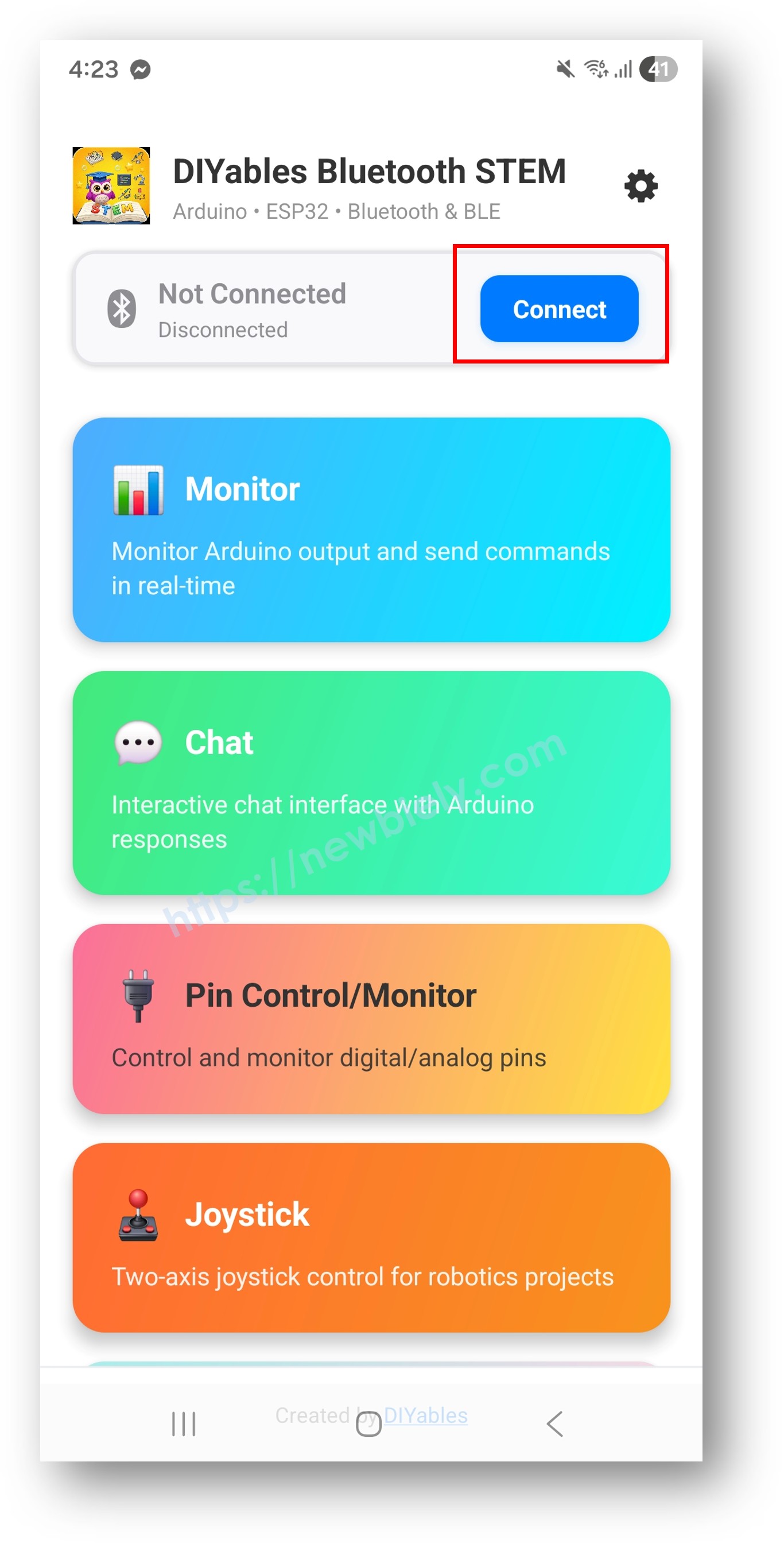
- Pick your board: "ESP32_Slider" for Classic, or "ESP32BLE_Slider" for BLE. The app jumps back to the home screen once linked.
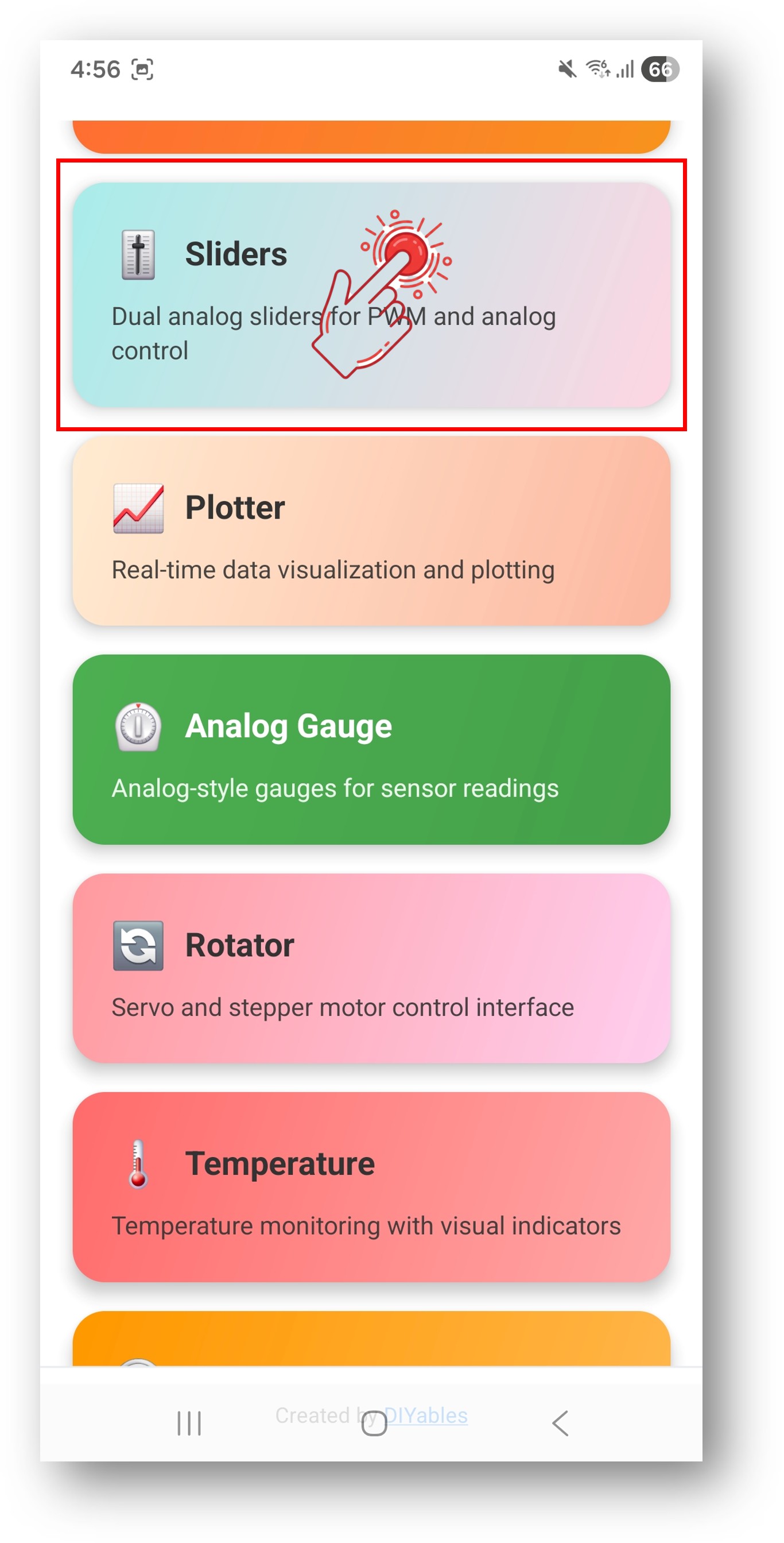
- Open the faders: tap Slider in the app menu.
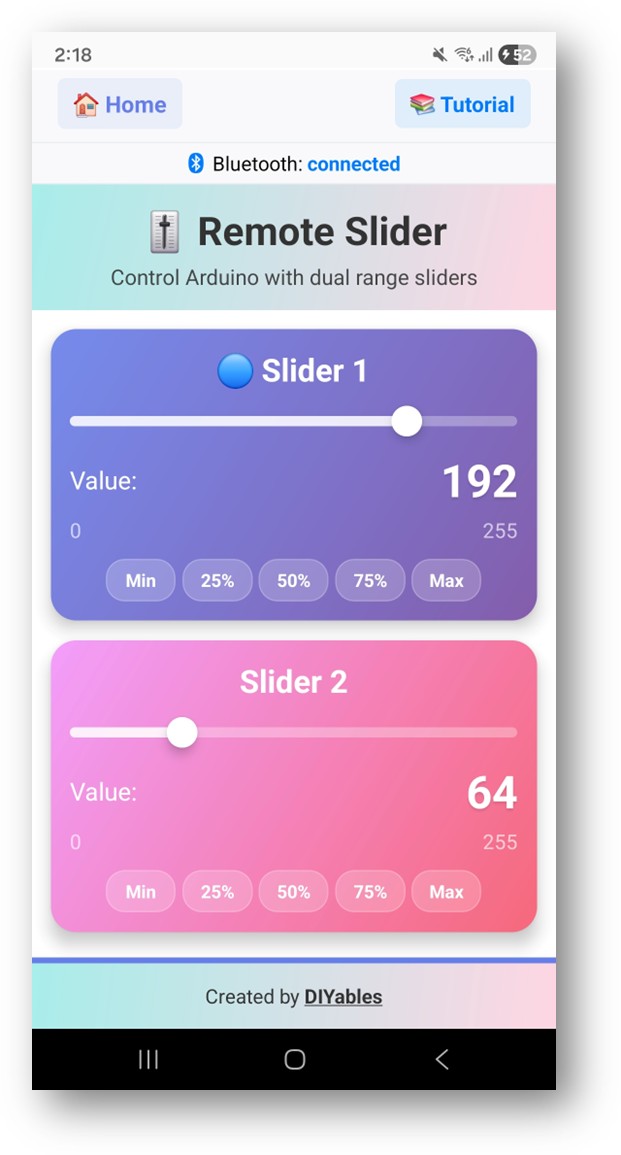
- Drag them: each fader runs from 0 to 100.
- Pro tip: tap the gear icon on the home screen to hide apps you never use. The DIYables Bluetooth App User Manual walks through every screen.
Now return to the Serial Monitor window. The link message and every fader pair appear:
With the LEDs wired, LED 1 follows fader 1 and LED 2 follows fader 2.
Video Tutorial
See the ESP32 Uno build in action in the video below.
In the demo, each fader turns one servo. Servo 1 listens on D3 (GPIO25), servo 2 on D5 (GPIO16), and the 5V header pin feeds them both. Install the "ESP32Servo" library by Kevin Harrington before you upload it.
| Servo Wire | ESP32 Uno Pin |
|---|---|
| Red (power) of both servos | 5V |
| Brown (ground) of both servos | GND |
| Orange (signal) of servo 1 | D3 (GPIO25) |
| Orange (signal) of servo 2 | D5 (GPIO16) |
When you drag the faders in the demo, the Serial Monitor shows the servo angles:
How the Sketch Works
Read this table to know which line does which job.
| Code Part | What It Does |
|---|---|
| DIYables_Esp32BLE or DIYables_Esp32Bluetooth | Picks the radio and sets the name the phone sees |
| DIYables_BluetoothSlider bluetoothSlider(0, 100, 1) | Builds the fader app with its low end, high end and step |
| onSliderValue() | Runs on every fader move, saves both numbers and drives the outputs |
| map(slider, 0, 100, 0, 255) | Stretches the fader value to the 8-bit PWM duty |
| onGetConfig() and setOnConnected() | Send the saved numbers back, so the faders keep their place |
| bluetoothServer.loop() | Handles the radio traffic, so it must run in every loop() |
The result: the faders and the two PWM pins always show the same values, even after the phone reconnects.
Good to know: the BLE sketch uses analogWrite(), while the Classic sketch uses the LEDC functions ledcSetup(), ledcAttachPin() and ledcWrite(). Both make a 5 kHz-class PWM with 8-bit duty on the ESP32 Uno.
ESP32 Uno vs UNO R4 for This Project
Moving the slider project from the UNO R4 WiFi to the ESP32 Uno changes the radio code and the pin numbers, not the idea.
| Item | Arduino UNO R4 WiFi | ESP32 Uno |
|---|---|---|
| Logic voltage | 5V | 3.3V |
| Bluetooth | BLE only | BLE and Classic Bluetooth |
| Library platform file | DIYables_ArduinoBLE.h | DIYables_Esp32BLE.h or DIYables_Esp32Bluetooth.h |
| PWM pins in code | 9 and 10 | 13 for D9 and 5 for D10 |
| Demo servo library | Servo.h on pins 3 and 5 | ESP32Servo.h on GPIO25 and GPIO16 |
| Arduino IDE board | Arduino UNO R4 WiFi | ESP32 Dev Module with Huge APP partition |
The LEDs and servos sit on the same header holes, so the wiring stays as it is. Only the 3.3V output and the strapping role of D10 are new things to keep in mind.
Shape the Faders for Your Project
By the end of this part, you know the five library calls that customize the faders.
Pick Start Positions
The two global variables hold the fader positions. Give them a value, and the app opens at that spot after a connect.
Change Range and Step
Set the range in the constructor, change it later at run time, or read it back.
Reply When the App Asks
Each time the fader screen opens, the app asks the ESP32 Uno for the current numbers. Answer inside onGetConfig(), or the faders start at 0.
Move the Faders from the Board
The board can push new fader positions to the phone, for example after a button press or a timer.
Catch Connect and Disconnect
Use these two callbacks to react when the phone joins or leaves. Stopping motors on a drop is a safe habit.
Reading the Fader Screen
Use this table to know what each part of the app screen means.
| Screen Part | Meaning |
|---|---|
| Fader 1 | Sends the first number, slider1 in the callback |
| Fader 2 | Sends the second number, slider2 in the callback |
| Number next to a fader | The value the board gets right now |
| Default scale | 0 to 100, unless your code sets another range |
Good to know: to drive a PWM pin, stretch the number with map(value, 0, 100, 0, 255).
Example Projects with the Faders
Each example below is a part of a sketch. Drop it into the full BLE or Classic sketch above.
Example 1 — Simplest Handler
This callback only saves and prints the two numbers. Add your own output code at the end.
Example 2 — Two Dimmable LEDs (BLE)
Fader 1 sets LED 1 on D9 (GPIO13), fader 2 sets LED 2 on D10 (GPIO5). Use the LED wiring table from the top of the page.
Example 3 — Two Dimmable LEDs with LEDC (Classic Bluetooth)
The same job with the LEDC channel functions, as in the Classic sketch. Each pin gets its own channel.
Example 4 — Two Servo Arms
Each fader swings one servo from 0° to 180°. The plain Servo library does not run on the ESP32 Uno, so install "ESP32Servo" by Kevin Harrington.
| Servo Wire | ESP32 Uno Pin |
|---|---|
| Red (power) of both servos | 5V |
| Brown (ground) of both servos | GND |
| Orange (signal) of servo 1 | D9 (GPIO13) |
| Orange (signal) of servo 2 | D10 (GPIO5) |
Example 5 — One Motor with Speed and Direction
Fader 1 is the speed, fader 2 picks the way: 50 or more is forward, under 50 is reverse. The speed input of the motor driver goes to D9 (GPIO13), the direction input to D8 (GPIO12).
WARNING
D8 (GPIO12) is a boot strapping pin and must be LOW when the board starts. If the driver input pulls it HIGH, the flash runs at the wrong voltage and the ESP32 Uno will not boot. Unplug the D8 wire if the board hangs at power-on or during upload.
Example 6 — Two DC Motors on a Driver
Each fader sets the speed of one motor. Both motors are set to run forward at start.
| Driver Input | ESP32 Uno Pin |
|---|---|
| Motor 1 speed (PWM) | D9 (GPIO13) |
| Motor 1 direction A | D2 (GPIO26) |
| Motor 1 direction B | D4 (GPIO17) |
| Motor 2 speed (PWM) | D10 (GPIO5) |
| Motor 2 direction A | D7 (GPIO14) |
| Motor 2 direction B | D6 (GPIO27) |
Example 7 — RGB LED Mixer
Two faders, three colors: fader 1 is red, fader 2 is blue, and green is the average of the two. Wire red to D3 (GPIO25), green to D5 (GPIO16) and blue to D6 (GPIO27), each through a 220 ohm resistor.
Smarter Fader Handling
By the end of this part, your outputs react in a softer or more structured way.
Soft Ramps
A jump from 0 to 100 can jerk a motor. This class walks the output to the new target by 2 points every 10 ms.
Three Levels from One Fader
Split fader 1 into off, low and high, and switch three digital outputs on D2 (GPIO26), D4 (GPIO17) and D7 (GPIO14). Fader 2 keeps PWM on D10 (GPIO5).
Saved Presets
One call jumps to a stored pair of values. The outputs change, and the faders on the phone move with them.
Bigger Loads on the Faders
The same callback can run an LED strip or fans. Never power these loads straight from a GPIO pin.
Addressable LED Strip
Fader 1 is the brightness and fader 2 is the hue of a WS2812B strip. Add FastLED or Adafruit NeoPixel, and connect the data line to D7 (GPIO14). Many strips accept the 3.3V data signal; if yours flickers, add a level shifter.
Two Fans
Small fans stall at a low duty. This code keeps a fan off near the bottom and starts it at a safe speed. Switch each fan with a MOSFET or transistor module on D9 (GPIO13) and D10 (GPIO5).
Choosing BLE or Classic on the ESP32 Uno
Both radios are on the board. Use this table to pick one for your fader project.
| Point | BLE (Esp32BLE_Slider) | Classic (Esp32Bluetooth_Slider) |
|---|---|---|
| iPhone | Works | Does not work |
| Android | Works | Works |
| Current draw | Lower | Higher |
| Typical reach | About 30 to 100 m in open air | About 10 to 100 m in open air |
| Throughput | Lower | Higher |
| Pairing step | None, connect in the app | Pair in phone settings first |
| Name in the scan list | ESP32BLE_Slider | ESP32_Slider |
Debug Helper
Call this function inside onSliderValue() while you test. It prints both faders and their PWM duty in one block.
Build Ideas
Pick a row and adapt one of the examples above.
| Area | Project Ideas |
|---|---|
| Light | Desk lamp dimmer, RGB mood light, LED strip with brightness and hue, mini stage dimmer |
| Motion | Robot car speed, pan-tilt camera head with two servos, small water pump flow, conveyor model |
| Sound | Buzzer pitch, amplifier volume, simple two-band tone control |
| Home | Heater or cooler level, blind position, garden watering rate |
Mix the Faders with Other Bluetooth Apps
One ESP32 Uno can run several DIYables Bluetooth apps at the same time.
Faders Plus Joystick
Fader 1 caps the speed, and the joystick gives the direction. The joystick values are scaled by the cap before they reach the motors.
Faders Plus Digital Pins
The digital pins app works as an on/off switch, and the fader sets the level. A PWM output only runs while its switch pin reads HIGH. In this snippet, D2 (GPIO26) and D4 (GPIO17) act as the switches, while D9 (GPIO13) and D10 (GPIO5) carry the PWM.
Try These Next
Once the faders work, add another control style to your ESP32 Uno:
- ESP32 Uno - Bluetooth Joystick for two-axis steering
- ESP32 Uno - Bluetooth Rotator for a turning knob
- ESP32 Uno - Bluetooth Digital Pins for plain on/off switches
- ESP32 Uno - Bluetooth Monitor to read fader values as text on the phone
- ESP32 Uno - Multiple Bluetooth Apps to put faders and other screens in one sketch
Where to Get Help
Stuck? Try these, in this order:
- The API reference that comes with the DIYables Bluetooth library
- The DIYables tutorials page
- The Arduino community forums
Troubleshooting
| Problem | Possible Cause | Solution |
|---|---|---|
| No COM port shows in Arduino IDE | CH340 driver missing or a charge-only cable | Install the CH340 driver and swap to a USB cable that carries data |
| Upload stops at Failed to connect or Waiting for download | Board did not enter download mode | Hold the BOOT button while the upload starts, then let go |
| Error says the sketch is too big | Default partition leaves too little flash for Bluetooth | Choose Huge APP (3MB No OTA/1MB SPIFFS) under Tools > Partition Scheme |
| Compile error ledcSetup was not declared | esp32 core 3.x removed the old LEDC functions used by the Classic sketch | Use analogWrite() as in the BLE sketch, or switch to ledcAttach(pin, freq, bits) and ledcWrite(pin, duty) |
| Board name is missing from the app scan | Sketch not running, phone Bluetooth off, or Classic board not paired | Look for Waiting for Bluetooth connection in the Serial Monitor, turn Bluetooth on (and Location on old Android), pair ESP32_Slider for Classic |
| Faders snap back to 0 after a reconnect | Values are not sent back to the app | Keep them in global variables and send them in onGetConfig() and setOnConnected() |
| LED brightness never changes | Wrong pin number, LED turned around or no resistor | Use 13 for D9 and 5 for D10 in code, check the long leg, add a 220 ohm resistor |
| Board will not start or take an upload with parts wired | D10 (GPIO5) or D8 (GPIO12) is a boot strapping pin held the wrong way | Pull the wire off that pin while uploading, or use another pin |
| Board resets as soon as the servos move | Servo current spikes on the 5V pin | Feed the servos from a separate 5V supply and join its GND to the board GND |
| Link drops every few minutes | Phone too far away or a weak USB port | Move the phone closer and try a powered USB hub or another port |
FAQ
Do I pick BLE or Classic Bluetooth for the ESP32 Uno slider?
Pick BLE if any iPhone will connect or you want to skip pairing. Pick Classic if all phones run Android. Both sketches give the same two faders and the same 0 to 100 values.
What number range does each fader send?
By default each fader sends whole numbers from 0 to 100 in steps of 1. You can set another range and step in the DIYables_BluetoothSlider(min, max, step) constructor or with setRange() and setStep().
Why do I map the value to 0-255?
analogWrite() and ledcWrite() with 8-bit resolution take a duty from 0 to 255. map(value, 0, 100, 0, 255) turns the fader percent into that duty, so 100 means fully on.
Which pins can make PWM on the ESP32 Uno?
Almost every output pin on the headers, D2 to D13 and A0 to A1, can make PWM. A2 to A5 (GPIO35, 34, 36, 39) are input only, so they cannot drive an LED, servo or motor.
Why do my LEDs look dimmer than on a 5V board?
A high ESP32 Uno pin sits at only 3.3V. With a 220 ohm resistor the LED gets less current than on a 5V board. A smaller resistor (not under about 100 ohm) or a transistor makes it brighter.
Can the ESP32 Uno 5V pin power two servos?
Two small SG90 servos with no load usually run fine from 5V while the board is on USB. Larger servos or servos under load need an external 5V supply. Always connect that supply's GND to the board GND.
Is it a problem that D10 is a boot strapping pin?
D10 is GPIO5, which the chip reads at power-on. An LED with a resistor or a servo signal does not hold it in a wrong state, so the project works. If the board ever hangs at start, unplug D10 during reset or upload.
What do I change when I move UNO R4 slider code to the ESP32 Uno?
Swap DIYables_ArduinoBLE.h for DIYables_Esp32BLE.h (or DIYables_Esp32Bluetooth.h), write GPIO numbers instead of Uno pin numbers (9 becomes 13, 10 becomes 5), and use ESP32Servo.h instead of Servo.h. Also set the Serial Monitor to 115200 baud and choose the Huge APP partition.
Does the ESP32 Uno need a USB driver?
The board talks through a CH340 USB-to-serial chip. Windows 10 and 11 often install the driver by themselves; if no COM port appears, install the CH340 driver by hand.
Can I control the same LEDs from a web page instead of Bluetooth?
Yes. The ESP32 Uno also has WiFi. The ESP32 Uno - Web Slider tutorial gives you two sliders in a browser on the same network.
What if my project needs more pins than the Uno headers give?
The ESP32 Uno has a few extra holes near the power header: GPIO32 and GPIO33 (I/O, PWM, analog on ADC1, so they also work while WiFi is on) and GPIO15 (I/O, PWM, analog on ADC2). Solder pin headers and write the GPIO number in code. For a third LED or servo in this project, GPIO32 or GPIO33 is the best pick. Two warnings: GPIO15 and GPIO0 (the IO0 pin at the unused Uno NC position) are boot strapping pins, and a wrong connection can stop the board from booting or uploading, so use GPIO32/33 first. Also never use the six holes under the digital header (SD0 to SD3, CMD, CLK = GPIO6 to GPIO11); they are wired to the flash chip, and using them crashes the board.