
ESP32 UNO - DIYables Bluetooth App Monitor

Overview

Cut the USB cable and still read your log: an ESP32 Uno Bluetooth monitor sends every status line to the DIYables Bluetooth App on your phone. The ESP32 Uno form board has a BLE radio and a Classic Bluetooth radio, so this wireless serial monitor runs on iPhone and Android alike. You type short command words in the app, and the board answers right in the same scrolling list.

By the end, you can:

  1. Add the DIYables Bluetooth library and flash a monitor sketch
  2. Choose BLE or Classic Bluetooth to match your phone
  3. Watch heartbeat, uptime and free memory lines arrive every 3 seconds
  4. Switch an LED with the LED_ON and LED_OFF commands from the phone
  5. Stream sensor values and button events for remote debugging
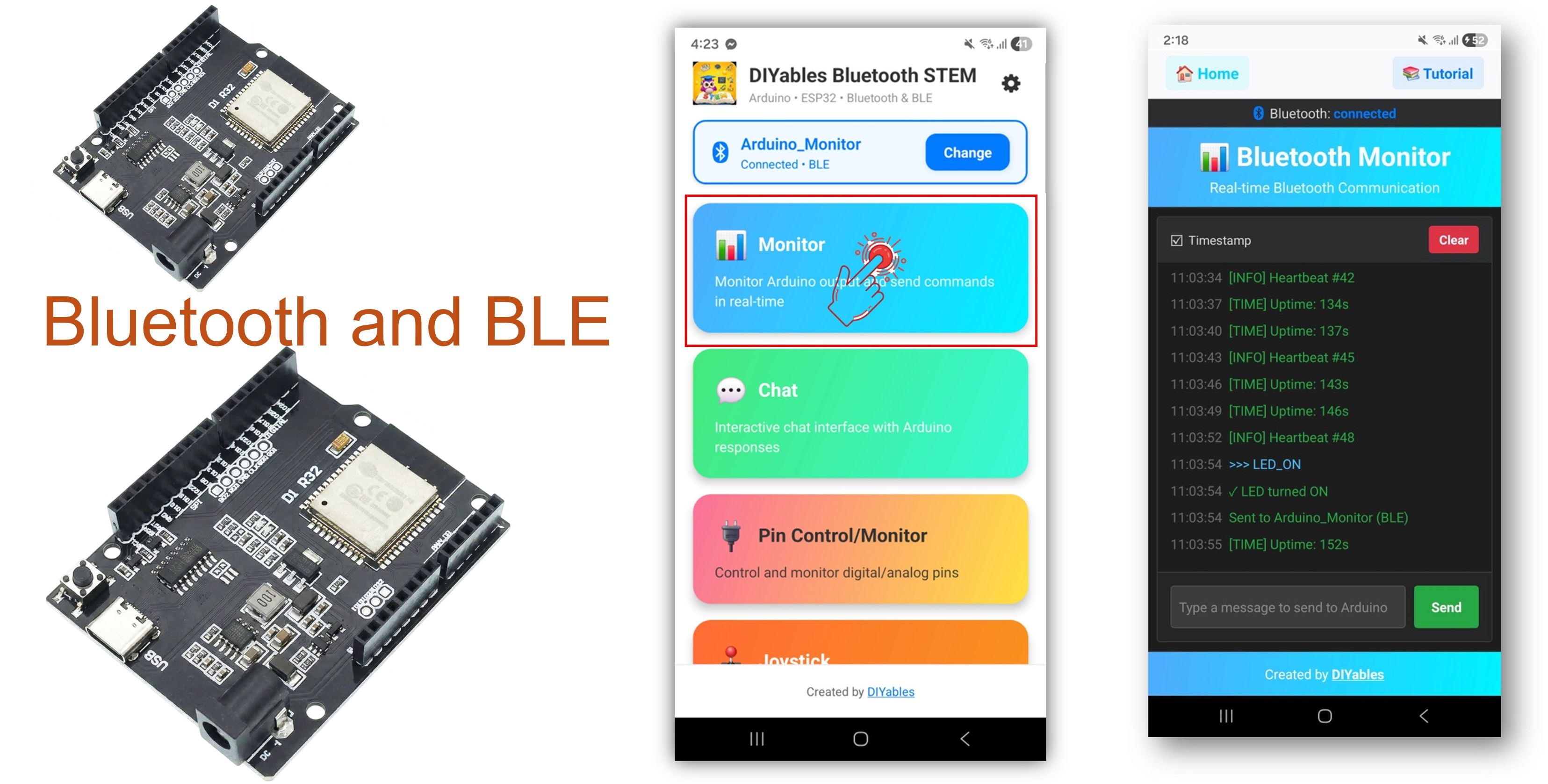
ESP32 Uno Bluetooth monitor

Pick your radio

Sketch Radio Phones Pairing
Esp32BLE_Monitor BLE (Bluetooth Low Energy) Android and iOS None, scan inside the app
Esp32Bluetooth_Monitor Classic Bluetooth Android only One time, in the phone settings

Good to know: iPhones do not list Classic Bluetooth hobby boards at all. If one of your users has iOS, use the BLE sketch.

Features

Here is what the monitor sketches already do before you edit them.

Feature What You Get
Live log on the phone Text lines show up in the app as soon as the board sends them
Command input Words you type in the app reach a handler in your sketch
Board facts Uptime, free heap, CPU speed and chip model on request
LED test LED_ON and LED_OFF give a fast "is it alive" check
Timed lines A heartbeat, uptime or heap line every 3 s while a phone is linked
Two radio modes BLE for iOS and low power, Classic Bluetooth for Android-only builds

Hardware Preparation

1×ESP32 Uno-form Board
1×USB Cable Type-A to Type-C (for USB-A PC)
1×USB Cable Type-C to Type-C (for USB-C PC)
1×LED Kit
1×LED (red)
1×LED Module
1×Alternatively, Button and LED Kit
1×220Ω Resistor
1×Breadboard
1×Jumper Wires

Or you can buy the following kits:

1×DIYables Sensor Kit (18 sensors/displays)
Disclosure: Some of the links provided in this section are Amazon affiliate links. We may receive a commission for any purchases made through these links at no additional cost to you.
Additionally, some of these links are for products from our own brand, DIYables .

Buy Note: Use the LED Module for easier wiring. It includes an integrated resistor.

The log itself needs only the board and the cable. The LED and resistor let the LED_ON and LED_OFF commands show a visible result.

ESP32 Uno Pinout

The Bluetooth radio sits inside the chip, so the log uses no header pin. The LED and the sensor examples do, and this diagram turns each Uno label into the GPIO number you write in code.

ESP32 Uno pinout diagram

How to Connect the Test LED

By the end of this part, the LED for the command test is on the board.

The Uno headers of this board have no built-in LED, so the sketches drive an external LED on D13 (GPIO18).

LED Pin ESP32 Uno Pin
Anode (long leg) through a 220 ohm resistor D13 (GPIO18)
Cathode (short leg) GND

Good to know: ESP32 Uno pins give 3.3V, so a 220 ohm resistor keeps the LED current low and safe.

ESP32 Uno Code

By the end of this part, the library is in Arduino IDE and one monitor sketch runs on the board.

Upload and Test

  1. First time with this board? Set it up with ESP32 Uno - Getting Started before you continue.
  2. Build the circuit by following the LED table above.
  3. Plug in the USB Type-C cable between the ESP32 Uno and your computer.
  4. Select the board in Arduino IDE: pick ESP32 Dev Module and the COM port of the board (CH340).
  5. Open the Library Manager from the Libraries icon in the left bar.
  6. Search for "DIYables Bluetooth" and find the entry made by DIYables.
  7. Press Install.
  • Search for DIYables Bluetooth created by DIYables and click the Install button.
∞
Newbiely | Arduino IDE 2.3.8
──
☐
✕
File
Edit
Sketch
Tools
Help
ESP32 Dev Module
Library Manager
Type:
All
Topic:
All
DIYables Bluetooth by DIYables
A comprehensive Bluetooth library that connects Arduino to the DIYables Bluetooth STEM mobile app (Android & iOS) via BLE and Classic Bluetooth. Features 11 built-in apps: Monitor, Chat, Digital Pin Control, Joystick, Sliders, Plotter, Analog Gauge, Rotator, Temperature, RTC, and Data Table. Clean architecture with platform abstraction. Works with Arduino Uno R4 WiFi, Arduino Nano 33 BLE, ESP32, and other BLE-capable boards. No mobile coding required. More info
1.0.1
INSTALL
Newbiely.ino
···
1 void setup() {
Output
Serial Monitor
Ln 1, Col 1
ESP32 Dev Module on COM15
1
  1. Take the helpers too. A popup lists other libraries it depends on. Press Install All.
  2. Give the code more flash. Set Tools > Partition Scheme to Huge APP (3MB No OTA/1MB SPIFFS). A Bluetooth sketch does not fit the default space.

Choose one radio below and upload only that sketch.

Classic Bluetooth Monitor (Android phones only)

WARNING

iPhones cannot reach a Classic Bluetooth board. For iOS, go to the BLE sketch.

On the phone, this sketch appears as ESP32_Monitor. It knows HELP, LED_ON, LED_OFF, STATUS, HEAP and CLEAR, and sends a timed line every 3 s.

  1. Get the code from File Examples DIYables Bluetooth Esp32Bluetooth_Monitor, or paste the code below into a new sketch. The library example uses pin 2 for the LED; change it to 18 (D13).
/* * This ESP32 Uno code was developed by newbiely.com * * This ESP32 Uno code is made available for public use without any restriction * * For comprehensive instructions and wiring diagrams, please visit: * https://newbiely.com/tutorials/esp32-uno/esp32-uno-diyables-bluetooth-app-monitor */ /* * DIYables Bluetooth Library - ESP32 Uno Classic Bluetooth Monitor sketch * Talks to the DIYables Bluetooth STEM app on Android phones * Heads-up: iPhones cannot use Classic Bluetooth. Pick the BLE sketch for iOS. * * What this sketch shows: * - status lines stream from the board to the phone as they happen * - uptime, memory and other board facts appear in the app * - words typed in the app arrive as commands and get an answer * - a handy wireless replacement for the USB Serial Monitor * * Board: ESP32 Uno form board (Arduino IDE board "ESP32 Dev Module") * * Tip: pick Tools > Partition Scheme > "Huge APP (3MB No OTA/1MB SPIFFS)" * because the Bluetooth code is too big for the default partition * * How to try it: * 1. Upload this sketch to the ESP32 Uno * 2. Open the Serial Monitor at 115200 baud to follow the link state * 3. Connect with the DIYables Bluetooth App and open the Monitor screen * * Tutorial: https://diyables.io/bluetooth-app * Author: DIYables */ #include <DIYables_BluetoothServer.h> #include <DIYables_BluetoothMonitor.h> #include <platforms/DIYables_Esp32Bluetooth.h> // Classic Bluetooth link (name seen on the phone) and the server on top of it DIYables_Esp32Bluetooth bluetooth("ESP32_Monitor"); DIYables_BluetoothServer bluetoothServer(bluetooth); // the Monitor screen of the app DIYables_BluetoothMonitor bluetoothMonitor; // timer and counter values for the demo lines unsigned long lastUpdate = 0; const unsigned long UPDATE_INTERVAL = 3000; // one line every 3 s int messageCount = 0; bool ledState = false; // D13 (GPIO18) drives an external LED; the Uno headers have no built-in LED const int LED_PIN = 18; void setup() { Serial.begin(115200); delay(1000); Serial.println("DIYables Bluetooth - ESP32 Monitor Example"); // make the LED pin an output and start with the LED dark pinMode(LED_PIN, OUTPUT); digitalWrite(LED_PIN, LOW); // start the Classic Bluetooth server on the ESP32 Uno bluetoothServer.begin(); // register the Monitor screen with the server bluetoothServer.addApp(&bluetoothMonitor); // runs when a phone links up or drops the link bluetoothServer.setOnConnected([]() { Serial.println("Bluetooth connected!"); bluetoothMonitor.send("=== ESP32 Monitor Connected ==="); bluetoothMonitor.send("System Ready"); bluetoothMonitor.send("Type HELP for available commands"); bluetoothMonitor.send(""); }); bluetoothServer.setOnDisconnected([]() { Serial.println("Bluetooth disconnected!"); }); // runs each time a command arrives from the app bluetoothMonitor.onMonitorMessage([](const String& message) { Serial.print("Received command: "); Serial.println(message); handleCommand(message); }); Serial.println("Waiting for Bluetooth connection..."); } void handleCommand(const String& cmd) { if (cmd == "HELP") { bluetoothMonitor.send("Available Commands:"); bluetoothMonitor.send(" LED_ON - Turn LED on"); bluetoothMonitor.send(" LED_OFF - Turn LED off"); bluetoothMonitor.send(" STATUS - Show system status"); bluetoothMonitor.send(" HEAP - Show memory info"); bluetoothMonitor.send(" CLEAR - Clear monitor (if supported)"); bluetoothMonitor.send(" HELP - Show this help"); } else if (cmd == "LED_ON") { digitalWrite(LED_PIN, HIGH); ledState = true; bluetoothMonitor.send("✓ LED turned ON"); } else if (cmd == "LED_OFF") { digitalWrite(LED_PIN, LOW); ledState = false; bluetoothMonitor.send("✓ LED turned OFF"); } else if (cmd == "STATUS") { showStatus(); } else if (cmd == "HEAP") { bluetoothMonitor.send("=== Memory Info ==="); bluetoothMonitor.send("Free Heap: " + String(ESP.getFreeHeap()) + " bytes"); bluetoothMonitor.send("Min Free Heap: " + String(ESP.getMinFreeHeap()) + " bytes"); bluetoothMonitor.send("Heap Size: " + String(ESP.getHeapSize()) + " bytes"); bluetoothMonitor.send("==================="); } else if (cmd == "CLEAR") { bluetoothMonitor.send(""); } else { bluetoothMonitor.send("✗ Unknown command: " + cmd); bluetoothMonitor.send("Type HELP for available commands"); } } void showStatus() { bluetoothMonitor.send("=== System Status ==="); // is the D13 LED on or off bluetoothMonitor.send("LED State: " + String(ledState ? "ON" : "OFF")); // time since the last reset, split into h, m and s unsigned long uptime = millis() / 1000; bluetoothMonitor.send("Uptime: " + String(uptime / 3600) + "h " + String((uptime % 3600) / 60) + "m " + String(uptime % 60) + "s"); // chip facts that only the ESP32 Uno core can report bluetoothMonitor.send("Free Heap: " + String(ESP.getFreeHeap()) + " bytes"); bluetoothMonitor.send("CPU Freq: " + String(ESP.getCpuFreqMHz()) + " MHz"); bluetoothMonitor.send("Chip Model: " + String(ESP.getChipModel())); // how many timed lines went out so far bluetoothMonitor.send("Messages Sent: " + String(messageCount)); bluetoothMonitor.send("===================="); } void sendPeriodicUpdate() { messageCount++; // rotate between three kinds of lines if (messageCount % 3 == 0) { bluetoothMonitor.send("[INFO] Heartbeat #" + String(messageCount)); } else if (messageCount % 5 == 0) { bluetoothMonitor.send("[HEAP] Free: " + String(ESP.getFreeHeap()) + " bytes"); } else { bluetoothMonitor.send("[TIME] Uptime: " + String(millis() / 1000) + "s"); } Serial.print("Sent update #"); Serial.println(messageCount); } void loop() { // keep the Bluetooth link serviced bluetoothServer.loop(); // push a timed line, but only while a phone is linked if (bluetooth.isConnected() && millis() - lastUpdate >= UPDATE_INTERVAL) { lastUpdate = millis(); sendPeriodicUpdate(); } delay(10); }
  1. Press Upload and wait for "Done uploading".
  2. Open the Serial Monitor at 115200 baud.
  3. Read the start lines:
∞
Newbiely | Arduino IDE 2.3.8
──
☐
✕
File
Edit
Sketch
Tools
Help
ESP32 Dev Module
Newbiely.ino
···
8 Serial.println("Hello World!");
Output
Serial Monitor
Message (Enter to send message to 'ESP32 Dev Module' on 'COM15')
New Line
9600 baud
DIYables Bluetooth - ESP32 Monitor Example Waiting for Bluetooth connection...
Ln 11, Col 1
ESP32 Dev Module on COM15
2

BLE Monitor (Android and iOS)

Over BLE, the board shows up as ESP32BLE_Monitor. It has the same log and commands, minus CLEAR, and uses less power.

  1. Get the code from File Examples DIYables Bluetooth Esp32BLE_Monitor, or paste the code below. Again, move the LED pin from 2 to 18 if you start from the library example.
/* * This ESP32 Uno code was developed by newbiely.com * * This ESP32 Uno code is made available for public use without any restriction * * For comprehensive instructions and wiring diagrams, please visit: * https://newbiely.com/tutorials/esp32-uno/esp32-uno-diyables-bluetooth-app-monitor */ /* * DIYables Bluetooth Library - ESP32 Uno BLE Monitor sketch * Talks to the DIYables Bluetooth STEM app on Android phones and iPhones * * What this sketch shows: * - status lines stream from the board to the phone as they happen * - uptime, memory and other board facts appear in the app * - words typed in the app arrive as commands and get an answer * - a handy wireless replacement for the USB Serial Monitor * * Board: ESP32 Uno form board (Arduino IDE board "ESP32 Dev Module") * * Tip: pick Tools > Partition Scheme > "Huge APP (3MB No OTA/1MB SPIFFS)" * because the Bluetooth code is too big for the default partition * * How to try it: * 1. Upload this sketch to the ESP32 Uno * 2. Open the Serial Monitor at 115200 baud to follow the link state * 3. Connect with the DIYables Bluetooth App and open the Monitor screen * * Tutorial: https://diyables.io/bluetooth-app * Author: DIYables */ #include <DIYables_BluetoothServer.h> #include <DIYables_BluetoothMonitor.h> #include <platforms/DIYables_Esp32BLE.h> // BLE name and UUIDs that the app looks for const char* DEVICE_NAME = "ESP32BLE_Monitor"; const char* SERVICE_UUID = "19B10000-E8F2-537E-4F6C-D104768A1214"; const char* TX_UUID = "19B10001-E8F2-537E-4F6C-D104768A1214"; const char* RX_UUID = "19B10002-E8F2-537E-4F6C-D104768A1214"; // BLE link object and the server that runs on top of it DIYables_Esp32BLE bluetooth(DEVICE_NAME, SERVICE_UUID, TX_UUID, RX_UUID); DIYables_BluetoothServer bluetoothServer(bluetooth); // the Monitor screen of the app DIYables_BluetoothMonitor bluetoothMonitor; // timer and counter values for the demo lines unsigned long lastUpdate = 0; const unsigned long UPDATE_INTERVAL = 3000; int messageCount = 0; bool ledState = false; void setup() { Serial.begin(115200); delay(1000); Serial.println("DIYables Bluetooth - ESP32 BLE Monitor Example"); // D13 (GPIO18) drives an external LED; start with it dark pinMode(18, OUTPUT); digitalWrite(18, LOW); // start the BLE server on the ESP32 Uno bluetoothServer.begin(); // register the Monitor screen with the server bluetoothServer.addApp(&bluetoothMonitor); // runs when a phone links up or drops the link bluetoothServer.setOnConnected([]() { Serial.println("Bluetooth connected!"); bluetoothMonitor.send("=== ESP32 BLE Monitor Connected ==="); bluetoothMonitor.send("System Ready"); bluetoothMonitor.send("Type HELP for available commands"); bluetoothMonitor.send(""); }); bluetoothServer.setOnDisconnected([]() { Serial.println("Bluetooth disconnected!"); }); // runs each time a command arrives from the app bluetoothMonitor.onMonitorMessage([](const String& message) { Serial.print("Received command: "); Serial.println(message); handleCommand(message); }); Serial.println("Waiting for Bluetooth connection..."); } void handleCommand(const String& cmd) { if (cmd == "HELP") { bluetoothMonitor.send("Available Commands:"); bluetoothMonitor.send(" LED_ON - Turn LED on"); bluetoothMonitor.send(" LED_OFF - Turn LED off"); bluetoothMonitor.send(" STATUS - Show system status"); bluetoothMonitor.send(" HEAP - Show free heap memory"); bluetoothMonitor.send(" HELP - Show this help"); } else if (cmd == "LED_ON") { digitalWrite(18, HIGH); ledState = true; bluetoothMonitor.send("LED turned ON"); } else if (cmd == "LED_OFF") { digitalWrite(18, LOW); ledState = false; bluetoothMonitor.send("LED turned OFF"); } else if (cmd == "STATUS") { showStatus(); } else if (cmd == "HEAP") { bluetoothMonitor.send("Free heap: " + String(ESP.getFreeHeap()) + " bytes"); } else { bluetoothMonitor.send("Unknown command: " + cmd); bluetoothMonitor.send("Type HELP for available commands"); } } void showStatus() { bluetoothMonitor.send("=== System Status ==="); bluetoothMonitor.send("LED State: " + String(ledState ? "ON" : "OFF")); unsigned long uptime = millis() / 1000; bluetoothMonitor.send("Uptime: " + String(uptime / 3600) + "h " + String((uptime % 3600) / 60) + "m " + String(uptime % 60) + "s"); bluetoothMonitor.send("Free Heap: " + String(ESP.getFreeHeap()) + " bytes"); bluetoothMonitor.send("Messages Sent: " + String(messageCount)); bluetoothMonitor.send("===================="); } void sendPeriodicUpdate() { messageCount++; if (messageCount % 3 == 0) { bluetoothMonitor.send("[INFO] Heartbeat #" + String(messageCount)); } else if (messageCount % 5 == 0) { bluetoothMonitor.send("[HEAP] Free: " + String(ESP.getFreeHeap()) + " bytes"); } else { bluetoothMonitor.send("[TIME] Uptime: " + String(millis() / 1000) + "s"); } Serial.print("Sent update #"); Serial.println(messageCount); } void loop() { bluetoothServer.loop(); if (bluetooth.isConnected() && millis() - lastUpdate >= UPDATE_INTERVAL) { lastUpdate = millis(); sendPeriodicUpdate(); } delay(10); }
  1. Press Upload and let it finish.
  2. Open the Serial Monitor at 115200 baud.
  3. Read the start lines:
∞
Newbiely | Arduino IDE 2.3.8
──
☐
✕
File
Edit
Sketch
Tools
Help
ESP32 Dev Module
Newbiely.ino
···
8 Serial.println("Hello World!");
Output
Serial Monitor
Message (Enter to send message to 'ESP32 Dev Module' on 'COM15')
New Line
9600 baud
DIYables Bluetooth - ESP32 BLE Monitor Example Waiting for Bluetooth connection...
Ln 11, Col 1
ESP32 Dev Module on COM15
2
  1. Pro tip: give the board a name of your own, such as GardenLog, by changing DEVICE_NAME (BLE) or the text in DIYables_Esp32Bluetooth bluetooth("...") (Classic). With several boards in one room, you then tap the right one at once.

Mobile App

By the end of this part, your phone is linked and the Monitor screen shows the live log.

Step 1 — Install the app

Get the DIYables Bluetooth App: Android | iOS

Step 2 — Pair (Classic Bluetooth only)

With the BLE sketch, skip this step. With the Classic sketch, pair the board on your Android phone first:

  1. Open Settings > Bluetooth and switch Bluetooth on.
  2. Wait for the device list, then choose "ESP32_Monitor".
  3. Accept the request. There is no PIN.
  4. Check that the name now says "Paired".

Step 3 — Allow permissions

Start the app. The first time, it asks for:

  • Nearby Devices (Android 12 and newer) or Bluetooth (iOS), to scan and connect
  • Location (Android 11 and older only), because those versions need it for BLE scans

Step 4 — Connect

Switch on Bluetooth on the phone, then press Connect. A single scan finds BLE and Classic boards.
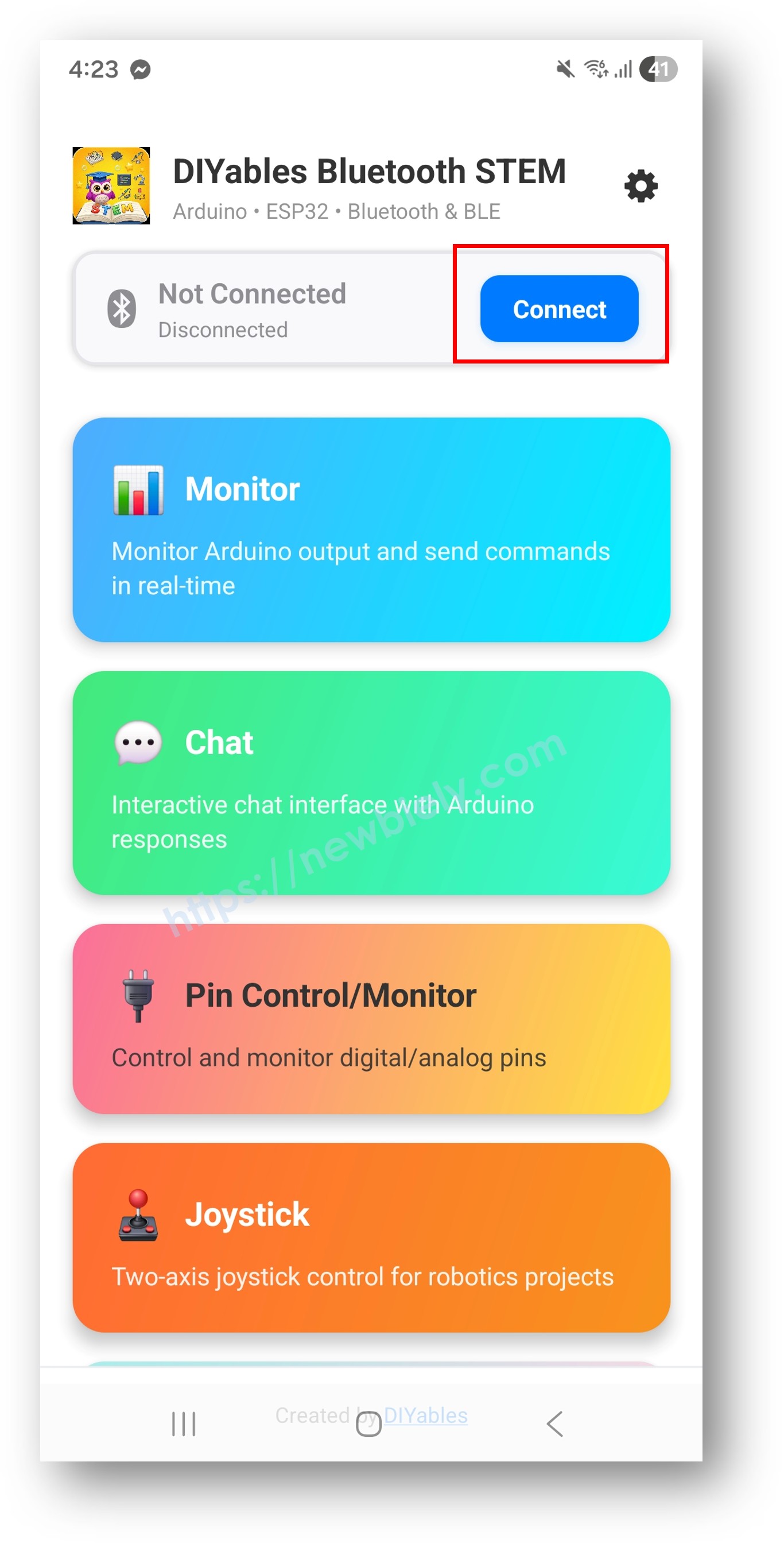
DIYables Bluetooth App - Home Screen with Scan Button

Tap the name that fits your sketch:

Sketch Name in the Scan List
Classic Bluetooth ESP32_Monitor
BLE ESP32BLE_Monitor

Step 5 — Open Monitor

Once linked, the app returns to its home screen. Tap the Monitor tile.
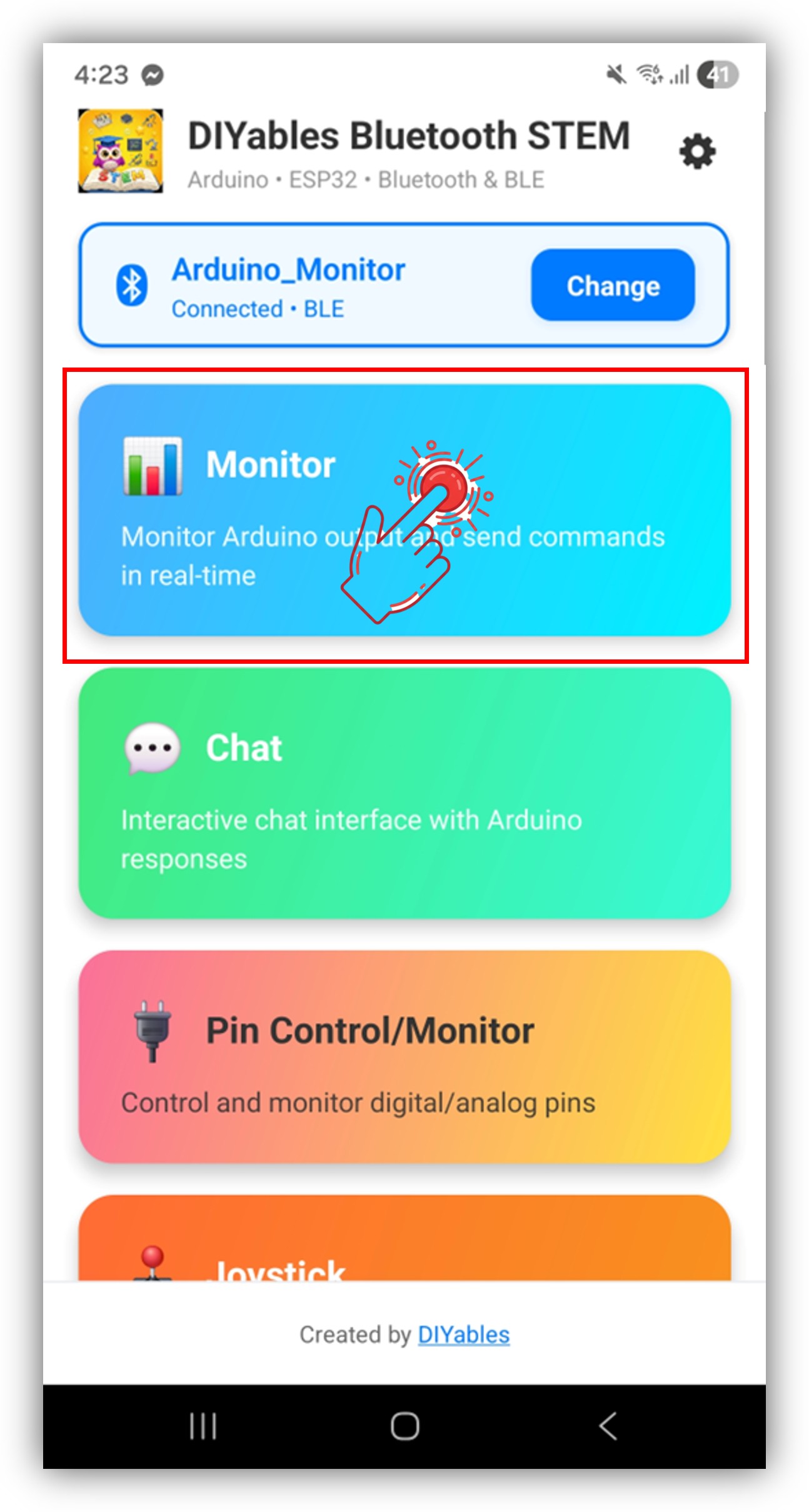
DIYables Bluetooth App - Home Screen with Monitor App

※ NOTE THAT:

The settings icon on the home screen hides or shows tiles. The DIYables Bluetooth App User Manual covers every screen.

Step 6 — Send a command

Log lines start to scroll. Type LED_ON in the input box and tap Send. The LED on D13 lights, and a confirmation line appears.
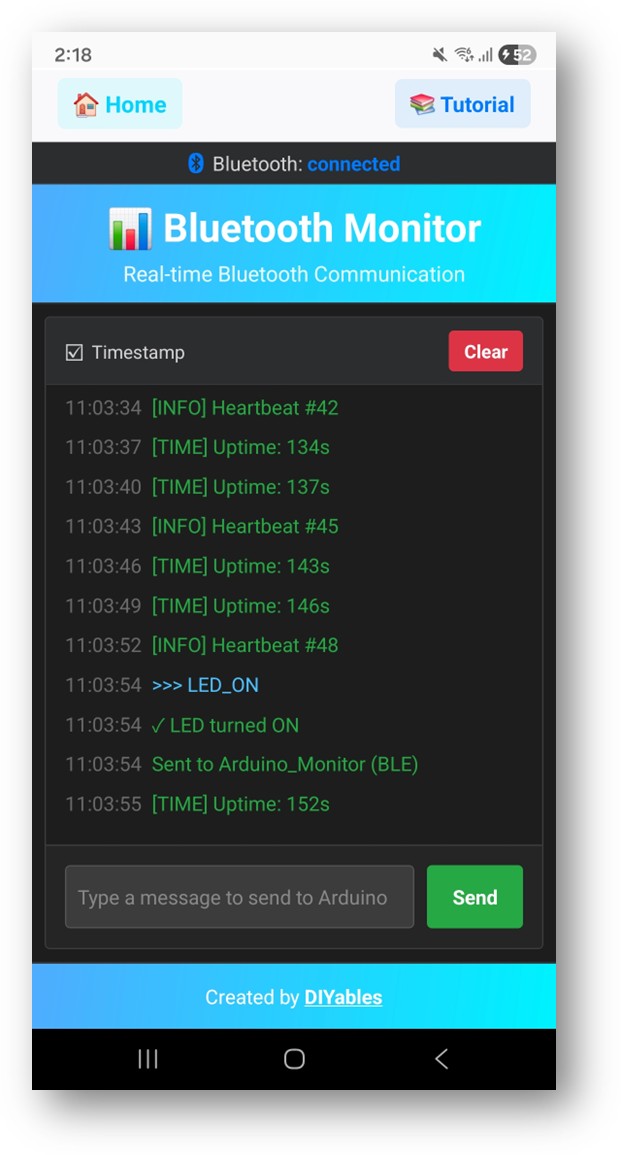
DIYables Bluetooth App - Monitor Screen

Back in Arduino IDE, the Serial Monitor shows a short session like this:

∞
Newbiely | Arduino IDE 2.3.8
──
☐
✕
File
Edit
Sketch
Tools
Help
ESP32 Dev Module
Newbiely.ino
···
8 Serial.println("Hello World!");
Output
Serial Monitor
Message (Enter to send message to 'ESP32 Dev Module' on 'COM15')
New Line
9600 baud
Bluetooth connected! Sent update #1 Received command: LED_ON Sent update #2 Sent update #3 Received command: HEAP Sent update #4
Ln 11, Col 1
ESP32 Dev Module on COM15
2

Now try the rest: HELP, STATUS, LED_OFF and HEAP. STATUS answers with the LED state, uptime such as Uptime: 0h 2m 41s, free heap and the number of timed lines sent.

Video Tutorial

See the ESP32 Uno build in action in the video below.

The demo uses the Classic Bluetooth sketch with the LED on D13 (GPIO18).

/* * This ESP32 Uno code was developed by newbiely.com * * This ESP32 Uno code is made available for public use without any restriction * * For comprehensive instructions and wiring diagrams, please visit: * https://newbiely.com/tutorials/esp32-uno/esp32-uno-diyables-bluetooth-app-monitor */ /* * DIYables Bluetooth Library - ESP32 Uno Classic Bluetooth Monitor sketch * Talks to the DIYables Bluetooth STEM app on Android phones * Heads-up: iPhones cannot use Classic Bluetooth. Pick the BLE sketch for iOS. * * What this sketch shows: * - status lines stream from the board to the phone as they happen * - uptime, memory and other board facts appear in the app * - words typed in the app arrive as commands and get an answer * - a handy wireless replacement for the USB Serial Monitor * * Board: ESP32 Uno form board (Arduino IDE board "ESP32 Dev Module") * * Tip: pick Tools > Partition Scheme > "Huge APP (3MB No OTA/1MB SPIFFS)" * because the Bluetooth code is too big for the default partition * * How to try it: * 1. Upload this sketch to the ESP32 Uno * 2. Open the Serial Monitor at 115200 baud to follow the link state * 3. Connect with the DIYables Bluetooth App and open the Monitor screen * * Tutorial: https://diyables.io/bluetooth-app * Author: DIYables */ #include <DIYables_BluetoothServer.h> #include <DIYables_BluetoothMonitor.h> #include <platforms/DIYables_Esp32Bluetooth.h> // Classic Bluetooth link (name seen on the phone) and the server on top of it DIYables_Esp32Bluetooth bluetooth("ESP32_Monitor"); DIYables_BluetoothServer bluetoothServer(bluetooth); // the Monitor screen of the app DIYables_BluetoothMonitor bluetoothMonitor; // timer and counter values for the demo lines unsigned long lastUpdate = 0; const unsigned long UPDATE_INTERVAL = 3000; // one line every 3 s int messageCount = 0; bool ledState = false; // D13 (GPIO18) drives an external LED; the Uno headers have no built-in LED const int LED_PIN = 18; void setup() { Serial.begin(115200); delay(1000); Serial.println("DIYables Bluetooth - ESP32 Monitor Example"); // make the LED pin an output and start with the LED dark pinMode(LED_PIN, OUTPUT); digitalWrite(LED_PIN, LOW); // start the Classic Bluetooth server on the ESP32 Uno bluetoothServer.begin(); // register the Monitor screen with the server bluetoothServer.addApp(&bluetoothMonitor); // runs when a phone links up or drops the link bluetoothServer.setOnConnected([]() { Serial.println("Bluetooth connected!"); bluetoothMonitor.send("=== ESP32 Monitor Connected ==="); bluetoothMonitor.send("System Ready"); bluetoothMonitor.send("Type HELP for available commands"); bluetoothMonitor.send(""); }); bluetoothServer.setOnDisconnected([]() { Serial.println("Bluetooth disconnected!"); }); // runs each time a command arrives from the app bluetoothMonitor.onMonitorMessage([](const String& message) { Serial.print("Received command: "); Serial.println(message); handleCommand(message); }); Serial.println("Waiting for Bluetooth connection..."); } void handleCommand(const String& cmd) { if (cmd == "HELP") { bluetoothMonitor.send("Available Commands:"); bluetoothMonitor.send(" LED_ON - Turn LED on"); bluetoothMonitor.send(" LED_OFF - Turn LED off"); bluetoothMonitor.send(" STATUS - Show system status"); bluetoothMonitor.send(" HEAP - Show memory info"); bluetoothMonitor.send(" CLEAR - Clear monitor (if supported)"); bluetoothMonitor.send(" HELP - Show this help"); } else if (cmd == "LED_ON") { digitalWrite(LED_PIN, HIGH); ledState = true; bluetoothMonitor.send("✓ LED turned ON"); } else if (cmd == "LED_OFF") { digitalWrite(LED_PIN, LOW); ledState = false; bluetoothMonitor.send("✓ LED turned OFF"); } else if (cmd == "STATUS") { showStatus(); } else if (cmd == "HEAP") { bluetoothMonitor.send("=== Memory Info ==="); bluetoothMonitor.send("Free Heap: " + String(ESP.getFreeHeap()) + " bytes"); bluetoothMonitor.send("Min Free Heap: " + String(ESP.getMinFreeHeap()) + " bytes"); bluetoothMonitor.send("Heap Size: " + String(ESP.getHeapSize()) + " bytes"); bluetoothMonitor.send("==================="); } else if (cmd == "CLEAR") { bluetoothMonitor.send(""); } else { bluetoothMonitor.send("✗ Unknown command: " + cmd); bluetoothMonitor.send("Type HELP for available commands"); } } void showStatus() { bluetoothMonitor.send("=== System Status ==="); // is the D13 LED on or off bluetoothMonitor.send("LED State: " + String(ledState ? "ON" : "OFF")); // time since the last reset, split into h, m and s unsigned long uptime = millis() / 1000; bluetoothMonitor.send("Uptime: " + String(uptime / 3600) + "h " + String((uptime % 3600) / 60) + "m " + String(uptime % 60) + "s"); // chip facts that only the ESP32 Uno core can report bluetoothMonitor.send("Free Heap: " + String(ESP.getFreeHeap()) + " bytes"); bluetoothMonitor.send("CPU Freq: " + String(ESP.getCpuFreqMHz()) + " MHz"); bluetoothMonitor.send("Chip Model: " + String(ESP.getChipModel())); // how many timed lines went out so far bluetoothMonitor.send("Messages Sent: " + String(messageCount)); bluetoothMonitor.send("===================="); } void sendPeriodicUpdate() { messageCount++; // rotate between three kinds of lines if (messageCount % 3 == 0) { bluetoothMonitor.send("[INFO] Heartbeat #" + String(messageCount)); } else if (messageCount % 5 == 0) { bluetoothMonitor.send("[HEAP] Free: " + String(ESP.getFreeHeap()) + " bytes"); } else { bluetoothMonitor.send("[TIME] Uptime: " + String(millis() / 1000) + "s"); } Serial.print("Sent update #"); Serial.println(messageCount); } void loop() { // keep the Bluetooth link serviced bluetoothServer.loop(); // push a timed line, but only while a phone is linked if (bluetooth.isConnected() && millis() - lastUpdate >= UPDATE_INTERVAL) { lastUpdate = millis(); sendPeriodicUpdate(); } delay(10); }

Shape the Monitor Code for Your Build

By the end of this part, you know the three building blocks behind every monitor project.

Code Part What It Does
bluetoothMonitor.send() Adds one text line to the phone log
bluetoothMonitor.onMonitorMessage() Runs your handler for each word typed in the app
setOnConnected() / setOnDisconnected() Runs your code when the phone links or leaves
bluetooth.isConnected() check in loop() Sends timed lines only while someone is listening

Send Log Lines

Call send() from any place in the sketch. Tags such as [INFO] or [WARN] make the log easy to scan.

// a short fixed line bluetoothMonitor.send("Pump cycle started"); bluetoothMonitor.send("Water level: 61%"); // tags plus a number bluetoothMonitor.send("[INFO] Cycle #" + String(count)); bluetoothMonitor.send("[WARN] Tank warm: " + String(temp) + "°C"); bluetoothMonitor.send("[ERROR] Float switch stuck"); // facts about the ESP32 Uno itself bluetoothMonitor.send("Free Heap: " + String(ESP.getFreeHeap()) + " bytes"); bluetoothMonitor.send("Uptime: " + String(millis() / 1000) + " seconds");

Answer Commands from the App

The handler gets the typed word as a String. Compare it and act. The LED is the one on D13 (GPIO18).

const int LED_PIN = 18; // D13 (GPIO18) test LED bluetoothMonitor.onMonitorMessage([](const String& message) { Serial.print("Received command: "); Serial.println(message); if (message == "HELP") { bluetoothMonitor.send("Commands: LED_ON, LED_OFF, STATUS, HEAP, HELP"); } else if (message == "LED_ON") { digitalWrite(LED_PIN, HIGH); bluetoothMonitor.send("LED turned ON"); } else if (message == "LED_OFF") { digitalWrite(LED_PIN, LOW); bluetoothMonitor.send("LED turned OFF"); } else if (message == "STATUS") { bluetoothMonitor.send("Uptime: " + String(millis() / 1000) + "s"); bluetoothMonitor.send("LED: " + String(digitalRead(LED_PIN) ? "ON" : "OFF")); } else if (message == "HEAP") { bluetoothMonitor.send("Free Heap: " + String(ESP.getFreeHeap()) + " bytes"); } else { bluetoothMonitor.send("Unknown command: " + message); } });

Each new word is one more else if. For example, PUMP_ON / PUMP_OFF can drive a relay, and READ can reply with a fresh sensor value.

React to Link Events

A welcome block tells the user which words work. Put it in the connect callback.

// a phone just linked to the ESP32 Uno bluetoothServer.setOnConnected([]() { Serial.println("Bluetooth connected!"); bluetoothMonitor.send("=== ESP32 Uno Monitor Connected ==="); bluetoothMonitor.send("System Ready"); bluetoothMonitor.send("Type HELP for available commands"); }); // the phone went away bluetoothServer.setOnDisconnected([]() { Serial.println("Bluetooth disconnected!"); }); // check the link from any place in the sketch if (bluetoothServer.isConnected()) { bluetoothMonitor.send("Status update"); }

The result: with these parts you get a two-way debug channel, and the rest of the sketch stays free for your own job.

ESP32 Uno vs UNO R4 for This Project

Moving this monitor from the UNO R4 WiFi to the ESP32 Uno changes the platform file, the LED and the serial speed.

Item Arduino UNO R4 WiFi ESP32 Uno
Logic voltage 5V 3.3V
Bluetooth types BLE only BLE and Classic Bluetooth
Example sketch ArduinoBLE_Monitor Esp32BLE_Monitor or Esp32Bluetooth_Monitor
Platform header DIYables_ArduinoBLE.h DIYables_Esp32BLE.h or DIYables_Esp32Bluetooth.h
Test LED LED_BUILTIN External LED on D13 (GPIO18)
Serial baud rate 9600 115200
Arduino IDE board Arduino UNO R4 WiFi ESP32 Dev Module plus Huge APP partition

Your send() lines and command handler copy over as they are. Only the include, the class name and the pin numbers change. The ESP32 Uno also adds the HEAP command, because its core can report free memory with ESP.getFreeHeap().

Using the Monitor Screen

This part maps the screen and the command words of the example.

App Interface Controls

Screen Part Job
Log list Shows every line from the board and scrolls down by itself
Input box Holds the command you type, at the bottom
Send button Ships the command to the board

Built-in Commands

Command Answer from the Board
HELP The list of known words
LED_ON Lights the LED on D13
LED_OFF Switches the D13 LED dark again
STATUS LED state, uptime, free heap and lines sent (Classic adds CPU speed and chip model)
HEAP Free memory (Classic adds the minimum free heap and total heap size)
CLEAR Sends an empty line (Classic sketch only)

Programming Examples

Each block drops into a monitor sketch. Keep the Bluetooth setup from the full code. The Uno label sits in the comment, and the GPIO number goes in the code.

Rotating Status Lines

One line every 3 s that cycles through heartbeat, free heap and uptime.

unsigned long lastUpdate = 0; const unsigned long UPDATE_INTERVAL = 3000; int messageCount = 0; void loop() { bluetoothServer.loop(); if (bluetooth.isConnected() && millis() - lastUpdate >= UPDATE_INTERVAL) { lastUpdate = millis(); messageCount++; // pick a line type from the counter if (messageCount % 3 == 0) { bluetoothMonitor.send("[INFO] Heartbeat #" + String(messageCount)); } else if (messageCount % 5 == 0) { bluetoothMonitor.send("[HEAP] Free: " + String(ESP.getFreeHeap()) + " bytes"); } else { bluetoothMonitor.send("[TIME] Uptime: " + String(millis() / 1000) + "s"); } } delay(10); }

Analog Sensor Log

A light sensor sits on A0 (GPIO2) and a voltage source on A1 (GPIO4). Both values go to the phone every 3 s. Readings run from 0 to 4095 on this 12-bit ADC, so the voltage formula divides by 4095 and scales to 3.3V.

void setup() { Serial.begin(115200); // set the ADC attenuation to 11 dB (up to ~3.3V input) analogSetAttenuation(ADC_11db); // ... Bluetooth setup from the full sketch ... } void loop() { bluetoothServer.loop(); static unsigned long lastUpdate = 0; if (bluetooth.isConnected() && millis() - lastUpdate >= 3000) { lastUpdate = millis(); int light = analogRead(2); // A0 (GPIO2) light sensor float voltage = analogRead(4) * 3.3 / 4095.0; // A1 (GPIO4) voltage input bluetoothMonitor.send("[SENSOR] Light: " + String(map(light, 0, 4095, 0, 100)) + "%"); bluetoothMonitor.send("[SENSOR] Voltage: " + String(voltage, 2) + "V"); bluetoothMonitor.send("[INFO] Uptime: " + String(millis() / 1000) + "s"); } delay(10); }

Good to know: analogSetAttenuation(ADC_11db) opens the ESP32 Uno analog input to the full 0V to about 3.3V span. With a narrow range, readings reach 4095 too early and the sensor numbers look wrong. A typical log line reads [SENSOR] Light: 38% and [SENSOR] Voltage: 1.27V.

WARNING

A0 (GPIO2) is a boot strapping pin. If the sensor pulls it HIGH during an upload, the upload can fail. Unplug the sensor while you upload, or move it to A2 or A3 (GPIO35 or GPIO34) and change the pin in code. Keep every analog input at 3.3V or less.

Button Event Log

Instead of a timer, send a line only when something happens. Here a push button wired to D7 (GPIO14) logs every press and every release.

const int BUTTON_PIN = 14; // D7 (GPIO14), button to GND int lastButtonState = HIGH; void setup() { pinMode(BUTTON_PIN, INPUT_PULLUP); // ... Bluetooth setup from the full sketch ... } void loop() { bluetoothServer.loop(); int buttonState = digitalRead(BUTTON_PIN); if (buttonState != lastButtonState) { lastButtonState = buttonState; if (buttonState == LOW) { bluetoothMonitor.send("[EVENT] Button pressed!"); } else { bluetoothMonitor.send("[EVENT] Button released"); } } delay(10); }

DHT22 Data Logger

A DHT22 data line on D2 (GPIO26) is read every 5 s. Type READ to get a value right away.

#include <DHT.h> DHT dht(26, DHT22); // D2 (GPIO26) DHT22 data line unsigned long lastSensorRead = 0; const unsigned long SENSOR_INTERVAL = 5000; void setup() { dht.begin(); bluetoothMonitor.onMonitorMessage([](const String& message) { if (message == "READ") { readAndSendSensorData(); } else if (message == "INTERVAL") { bluetoothMonitor.send("Sensor interval: " + String(SENSOR_INTERVAL / 1000) + "s"); } }); } void readAndSendSensorData() { float temp = dht.readTemperature(); float hum = dht.readHumidity(); if (!isnan(temp) && !isnan(hum)) { bluetoothMonitor.send("Temp: " + String(temp, 1) + "°C | Humidity: " + String(hum, 1) + "%"); } else { bluetoothMonitor.send("[ERROR] Failed to read sensor"); } } void loop() { bluetoothServer.loop(); if (bluetooth.isConnected() && millis() - lastSensorRead >= SENSOR_INTERVAL) { lastSensorRead = millis(); readAndSendSensorData(); } delay(10); }

Good to know: power the DHT22 from the 3V3 pin, so its data line never goes above 3.3V.

Dashboard Block

This function prints a framed block of values. The light value comes from A3 (GPIO34), an input-only ADC1 pin. So setup() needs the analogSetAttenuation(ADC_11db) line too. The temperature, humidity and battery helpers are your own functions.

void sendDashboard() { bluetoothMonitor.send("========== DASHBOARD =========="); bluetoothMonitor.send("Temp: " + String(readTemperature(), 1) + "°C"); bluetoothMonitor.send("Humidity: " + String(readHumidity(), 0) + "%"); bluetoothMonitor.send("Light: " + String(analogRead(34))); // A3 (GPIO34), 0-4095 bluetoothMonitor.send("Battery: " + String(readBatteryVoltage(), 2) + "V"); bluetoothMonitor.send("Heap: " + String(ESP.getFreeHeap()) + " bytes"); unsigned long uptime = millis() / 1000; bluetoothMonitor.send("Uptime: " + String(uptime / 3600) + "h " + String((uptime % 3600) / 60) + "m " + String(uptime % 60) + "s"); bluetoothMonitor.send("==============================="); }

Header Pin Watcher

Six Uno pins are watched: D2, D3, D4, D5, D6 and D7. Each change is logged, and PINS lists all states. These pins avoid the boot strapping and input-only pins of the board.

// D2, D3, D4, D5, D6, D7 on the ESP32 Uno const int MONITOR_PINS[] = {26, 25, 17, 16, 27, 14}; const int NUM_PINS = 6; int lastPinStates[6] = {0}; void setup() { for (int i = 0; i < NUM_PINS; i++) { pinMode(MONITOR_PINS[i], INPUT_PULLUP); lastPinStates[i] = digitalRead(MONITOR_PINS[i]); } bluetoothMonitor.onMonitorMessage([](const String& message) { if (message == "PINS") { for (int i = 0; i < NUM_PINS; i++) { int state = digitalRead(MONITOR_PINS[i]); bluetoothMonitor.send("Pin " + String(MONITOR_PINS[i]) + ": " + String(state ? "HIGH" : "LOW")); } } }); } void loop() { bluetoothServer.loop(); // log every pin that changed since the last pass for (int i = 0; i < NUM_PINS; i++) { int state = digitalRead(MONITOR_PINS[i]); if (state != lastPinStates[i]) { lastPinStates[i] = state; if (bluetooth.isConnected()) { bluetoothMonitor.send("[PIN] GPIO " + String(MONITOR_PINS[i]) + " changed to " + String(state ? "HIGH" : "LOW")); } } } delay(10); }

Advanced Techniques

Two patterns for bigger sketches: tagged log levels and settings you change from the phone.

Log Levels

A helper puts a level tag in front of each line, so errors stand out.

enum LogLevel { LOG_INFO, LOG_WARN, LOG_ERROR, LOG_DEBUG }; void sendLog(LogLevel level, const String& message) { String prefix; switch (level) { case LOG_INFO: prefix = "[INFO] "; break; case LOG_WARN: prefix = "[WARN] "; break; case LOG_ERROR: prefix = "[ERROR] "; break; case LOG_DEBUG: prefix = "[DEBUG] "; break; } bluetoothMonitor.send(prefix + message); } // how to call it sendLog(LOG_INFO, "System started"); sendLog(LOG_WARN, "Battery low: " + String(voltage, 2) + "V"); sendLog(LOG_ERROR, "Sensor read failed"); sendLog(LOG_DEBUG, "Loop time: " + String(loopTime) + "ms");

Settings over Bluetooth

Change the interval or a verbose flag from the phone, with no new upload. For example, SET INTERVAL 7 sets 7 s.

int sensorInterval = 3000; bool verboseMode = false; bluetoothMonitor.onMonitorMessage([](const String& message) { String cmd = message; cmd.toUpperCase(); if (cmd.startsWith("SET INTERVAL ")) { sensorInterval = cmd.substring(13).toInt() * 1000; bluetoothMonitor.send("Interval set to " + String(sensorInterval / 1000) + "s"); } else if (cmd == "VERBOSE ON") { verboseMode = true; bluetoothMonitor.send("Verbose mode enabled"); } else if (cmd == "VERBOSE OFF") { verboseMode = false; bluetoothMonitor.send("Verbose mode disabled"); } else if (cmd == "CONFIG") { bluetoothMonitor.send("Interval: " + String(sensorInterval / 1000) + "s"); bluetoothMonitor.send("Verbose: " + String(verboseMode ? "ON" : "OFF")); } });

Slow Loop Watchdog

This timer measures each pass of loop() and warns on the phone when one takes more than 100 ms.

unsigned long lastLoopTime = 0; unsigned long maxLoopTime = 0; int warningCount = 0; void loop() { unsigned long loopStart = millis(); bluetoothServer.loop(); // your own project code goes here performTasks(); unsigned long loopTime = millis() - loopStart; if (loopTime > maxLoopTime) { maxLoopTime = loopTime; } if (loopTime > 100) { // flag any pass slower than 100 ms warningCount++; if (bluetooth.isConnected()) { bluetoothMonitor.send("[WARN] Slow loop: " + String(loopTime) + "ms"); } } delay(10); }

BLE or Classic Bluetooth on the ESP32 Uno

Both sketches give the same log. Pick by phone type and power budget.

Point BLE (Esp32BLE_Monitor) Classic (Esp32Bluetooth_Monitor)
iPhone Works Does not work
Android Works Works
Power draw Lower Higher
Pairing None, connect in the app Once, in phone settings
Speed Enough for text lines Higher throughput
Good choice for Battery builds and mixed phones Android-only builds with lots of data

Mix the Monitor with Other Apps

One Bluetooth server can host several app screens. Here the Monitor works next to another one.

With Bluetooth Chat

The Monitor streams values by itself, and Chat answers questions.

// the Monitor gets a value line on a timer void loop() { if (bluetooth.isConnected() && millis() - lastUpdate >= 3000) { bluetoothMonitor.send("[SENSOR] " + String(readSensor())); } } // the Chat screen answers on request bluetoothChat.onChatMessage([](const String& message) { if (message == "read") { bluetoothChat.send("Value: " + String(readSensor())); } });

With Bluetooth Slider

Log each slider move and the matching PWM value, so you can check your math.

bluetoothSlider.onSliderValue([](int slider1, int slider2) { bluetoothMonitor.send("Slider1=" + String(slider1) + "% Slider2=" + String(slider2) + "%"); bluetoothMonitor.send("PWM1=" + String(map(slider1, 0, 100, 0, 255)) + " PWM2=" + String(map(slider2, 0, 100, 0, 255))); });

Build Ideas

Area Ideas
Debugging Cable-free log for a robot, live variable check, loop timing
Monitoring Greenhouse readings, door and window states, battery level
Logging Event list with uptime stamps, error alerts, sensor history
Learning How BLE and Classic Bluetooth differ, command parsers, your own debug tool

Try These Next

  1. ESP32 Uno - Bluetooth Chat for question and answer messages
  2. ESP32 Uno - Bluetooth Table for values in fixed rows
  3. ESP32 Uno - Multiple Bluetooth Apps to join the Monitor with other screens
  4. ESP32 Uno - Web Monitor for the same log in a browser over WiFi

More help: the API Reference of the DIYables Bluetooth library, the DIYables Bluetooth App page, and the Arduino community forums.

Debug Tips

Print the link state to the USB Serial Monitor. Then you see at once if the fault is on the board side or the phone side.

void debugMonitorStatus() { Serial.println("=== Monitor Debug ==="); Serial.println("Connected: " + String(bluetooth.isConnected())); Serial.println("Messages sent: " + String(messageCount)); Serial.println("Free Heap: " + String(ESP.getFreeHeap())); Serial.println("====================="); }

Troubleshooting

Problem Possible Cause Solution
No COM port shows up in Arduino IDE CH340 driver missing or a charge-only USB cable Install the CH340 driver and use a USB cable that carries data
Upload stops at Failed to connect or Waiting for download The chip did not enter upload mode Hold the BOOT button while the upload starts, then let go
Error says the sketch is too big The default partition is too small for Bluetooth Set Tools > Partition Scheme to Huge APP (3MB No OTA/1MB SPIFFS)
The phone scan never lists the board Sketch not running, phone Bluetooth off, or permissions denied Check that the Serial Monitor shows Waiting for Bluetooth connection, switch Bluetooth on, allow Nearby Devices (Location on Android 11 and older)
ESP32_Monitor missing on an iPhone Classic Bluetooth does not work with iOS Upload the Esp32BLE_Monitor sketch instead
Classic sketch connects but drops at once The board was never paired Pair ESP32_Monitor in Android Bluetooth settings first
The log stays empty Monitor tile not open, or bluetoothServer.loop() missing Open the Monitor tile and keep bluetoothServer.loop() at the top of loop()
LED_ON gets a reply but the LED stays dark LED on the wrong pin, LED turned around, or code still uses pin 2 Wire the long leg through the resistor to D13 (GPIO18) and use pin 18 in code
Upload fails with the A0 light sensor connected GPIO2 is a boot strapping pin pulled the wrong way Unplug the sensor while uploading, or use A2 or A3 instead
Lines come late or cut off Too many long lines for the link Keep each line under 200 characters and send less often
Odd symbols in the Serial Monitor Baud rate does not match Set the Serial Monitor to 115200 baud

FAQ

Is the Bluetooth monitor a full replacement for the USB Serial Monitor?

For reading your own log lines and sending short commands, yes. It shows only what you pass to bluetoothMonitor.send(), not Serial.print() output. Many makers send the same line to both, so the log works with or without the cable.

Should I pick BLE or Classic Bluetooth on the ESP32 Uno?

Pick BLE if any user has an iPhone, or if the board runs on a battery. Pick Classic Bluetooth only for Android-only builds that push a lot of text. The command handler is the same in both sketches.

Do I need extra parts to run the monitor?

No. The radio is inside the chip, so the board and a USB cable are enough. The LED on D13 with a 220 ohm resistor is only there to see the LED_ON and LED_OFF commands work.

Why is the LED on D13 and not on a built-in LED?

The Uno headers of the ESP32 Uno have no LED that the code can switch, and the library example uses GPIO2 (A0), which is a boot strapping pin. D13 (GPIO18) is a plain I/O pin, so the code writes 18.

How long can one log line be?

Keep each line under about 200 characters. Long lines or many lines in a short time can arrive late or cut off, mostly over BLE. Split a big report into several short lines.

Can several phones read the same log at once?

No, one phone links to the board at a time. When it disconnects, another phone can connect. For many viewers, use the WiFi Web Monitor page, which works in any browser on the network.

Why does my sketch need the Huge APP partition?

The Bluetooth stack takes a lot of flash. The default scheme leaves about 1.2MB for code, and the build fails. Huge APP (3MB No OTA/1MB SPIFFS) gives about 3MB, but you lose over-the-air updates.

Why does the code call analogSetAttenuation(ADC_11db)?

The sensor log reads A0 and A1 with analogRead(). With it, the ESP32 Uno ADC accepts about 0 to 3.3V, and that whole span turns into readings from 0 to 4095. Leave it out and the reading tops out at 4095 long before the signal reaches 3.3V. The UNO R4 does not need this line; only the ESP32 Uno does. Never feed the analog pin more than 3.3V.

Can I read A0 and A1 while Bluetooth is running?

Yes. A0 (GPIO2) and A1 (GPIO4) are ADC2 pins, and ADC2 only stops working while WiFi is on. Bluetooth alone does not block it. If you later add WiFi to the same sketch, move the sensors to A2 to A5 (GPIO35, 34, 36, 39) or GPIO32/33.

Can my sketch from the UNO R4 WiFi run as it is?

Not quite. Change the include to DIYables_Esp32BLE.h and the class to DIYables_Esp32BLE, set the baud rate to 115200, replace LED_BUILTIN with 18, and pick ESP32 Dev Module with the Huge APP partition. Your send() lines and command logic stay the same.

What if my project needs more pins than the Uno headers give?

The ESP32 Uno has a few extra holes near the power header: GPIO32 and GPIO33 (I/O, PWM, analog on ADC1, so they also work while WiFi is on) and GPIO15 (I/O, PWM, analog on ADC2). Add a strip of pin headers with solder, then put the plain GPIO number in your sketch. For an extra analog sensor in your log, GPIO32 or GPIO33 is the best pick. Two warnings: GPIO15 and GPIO0 (the IO0 pin at the unused Uno NC position) are boot strapping pins, and a wrong connection can stop the board from booting or uploading code, so use GPIO32/33 first. Never use the six holes under the digital header (SD0 to SD3, CMD, CLK = GPIO6 to GPIO11), because they are wired to the flash chip and using them crashes the board.

※ OUR MESSAGES

  • As freelancers, We are AVAILABLE for HIRE. See how to outsource your project to us
  • Please feel free to share the link of this tutorial. However, Please do not use our content on any other websites. We invested a lot of effort and time to create the content, please respect our work!