
ESP32 UNO - DIYables Bluetooth App Plotter
Overview
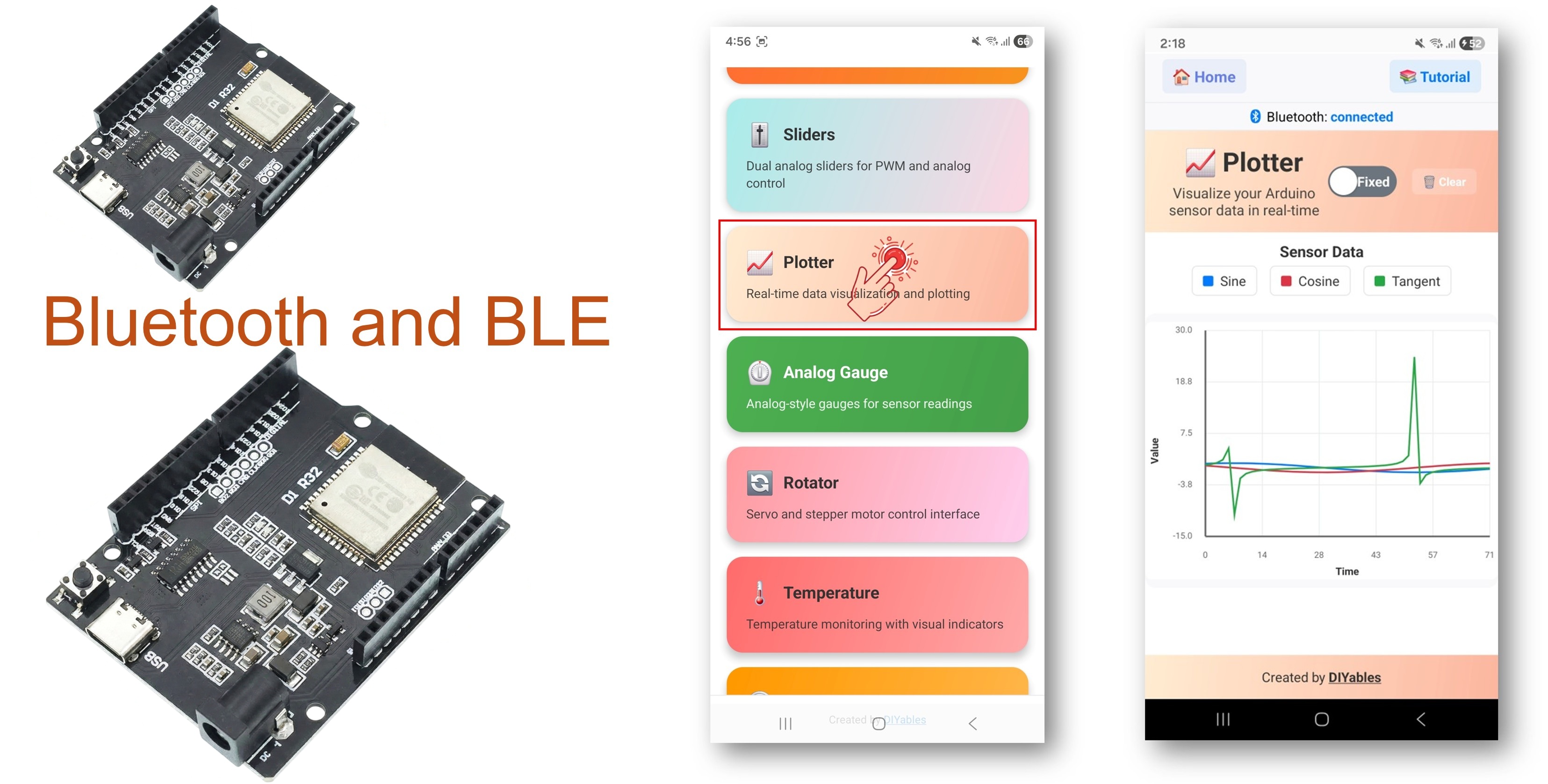
Want to watch a sensor change over time without a PC? With an ESP32 Uno Bluetooth plotter, your phone draws the numbers as moving lines. The ESP32 Uno form board pushes samples, and the DIYables Bluetooth STEM app turns them into a scrolling chart with a legend and labeled axes. Run it as a BLE plotter for Android and iPhone, or as a Classic Bluetooth plotter for Android.
By the end, you can:
- Add the DIYables Bluetooth library to Arduino IDE
- Flash a BLE or a Classic Bluetooth plot sketch to the ESP32 Uno
- Link the phone app and see three test waves scroll in real time
- Change the title, axis names, Y range and legend of the sensor graph
- Feed the chart from analog pins, an MPU6050 or a smoothing filter
※ NOTE THAT:
The ESP32 Uno radio speaks both BLE and Classic Bluetooth. Choose BLE when an iPhone must connect, or when you want to skip pairing. Choose Classic when every phone is Android and you like the older link with more bandwidth.
What the Plotter App Gives You
This table lists what the app already does, so you only code the data part.
| Feature | Details |
|---|---|
| Series per graph | Up to 10 lines on one chart, each with its own color |
| Scrolling view | New points enter on the right, old points leave on the left |
| Axes | Title, X label, Y label and a fixed Y range set from your sketch |
| Auto-scale | One call lets the app fit the Y axis to the data |
| Legend | A name for every line, such as Temp or X |
| Visible samples | You pick how many points stay on screen |
| Radio modes | BLE for Android and iOS, Classic Bluetooth for Android only |
Components You Need
| 1 | × | ESP32 Uno-form Board | |
| 1 | × | USB Cable Type-A to Type-C (for USB-A PC) | |
| 1 | × | USB Cable Type-C to Type-C (for USB-C PC) | |
| 1 | × | Breadboard | |
| 1 | × | Jumper Wires |
Or you can buy the following kits:
| 1 | × | DIYables Sensor Kit (18 sensors/displays) |
Additionally, some of these links are for products from our own brand, DIYables .
ESP32 Uno Pinout
The printed Uno names on the headers (A0, D7, SDA…) are not what goes into your sketch. Look up each label on this map and copy its GPIO number into the code.

Good to know: the main sketch makes its own test waves, so you wire nothing for the first run. Wires come in only for the sensor examples further down.
Upload and Test the ESP32 Uno Code
At the end of this part, the board streams data and your phone shows a moving chart.
Step 1 — Prepare Arduino IDE
- First time with this board? Set it up with ESP32 Uno - Getting Started before you continue.
- Build the circuit by following the wiring tables in the examples. For this first test, leave all pins free.
- Plug in the USB Type-C cable between the ESP32 Uno and your computer.
- Select the board in Arduino IDE: pick ESP32 Dev Module and the COM port of the board (CH340).
- Give Bluetooth more flash: open Tools > Partition Scheme and select Huge APP (3MB No OTA/1MB SPIFFS). The normal layout has room for about 1.2 MB of code, and the Bluetooth stack needs more.
- Open Library Manager: click the Libraries icon in the left bar.
- Search "DIYables Bluetooth" and pick the library published by DIYables.
- Click Install.
- Search for DIYables Bluetooth created by DIYables and click the Install button.
- Approve the helpers: a pop-up lists extra libraries it depends on. Click Install All.
Next, flash ONE of the two sketches. They draw the same chart; only the radio type is different.
Step 2 — Option A: ESP32 Uno Classic Bluetooth Sketch (Android only)
Good to know: iOS has no Classic Bluetooth support. iPhone users go straight to Option B.
- Load the sketch: in Arduino IDE open File Examples DIYables Bluetooth Esp32Bluetooth_Plotter, or paste the code below into an empty sketch.
- Upload: hit the Upload button.
- Open the Serial Monitor at 115200 baud. Right after a reset it prints:
Step 2 — Option B: ESP32 Uno BLE Sketch (Android and iOS)
- Load the sketch: open File Examples DIYables Bluetooth Esp32BLE_Plotter, or paste the code below.
- Upload it with the Upload button.
- Check the Serial Monitor at 115200 baud:
- Pro tip: close the Arduino IDE Serial Plotter window before you open the Serial Monitor. Both want the same COM port, and only one can hold it.
Step 3 — Connect the Phone App
When this step is done, three colored waves move across your phone.
- Classic sketch only — pair first: go to Settings > Bluetooth on the Android phone, switch Bluetooth on, tap "ESP32_Plotter", accept the request (no PIN), and wait until it says "Paired". With the BLE sketch, skip this step.
- Start the app and grant access on the first launch:
- Nearby Devices (Android 12 or newer) or Bluetooth (iOS) — needed to find and link the board
- Location (Android 11 or older) — old Android versions ask for it before a BLE scan
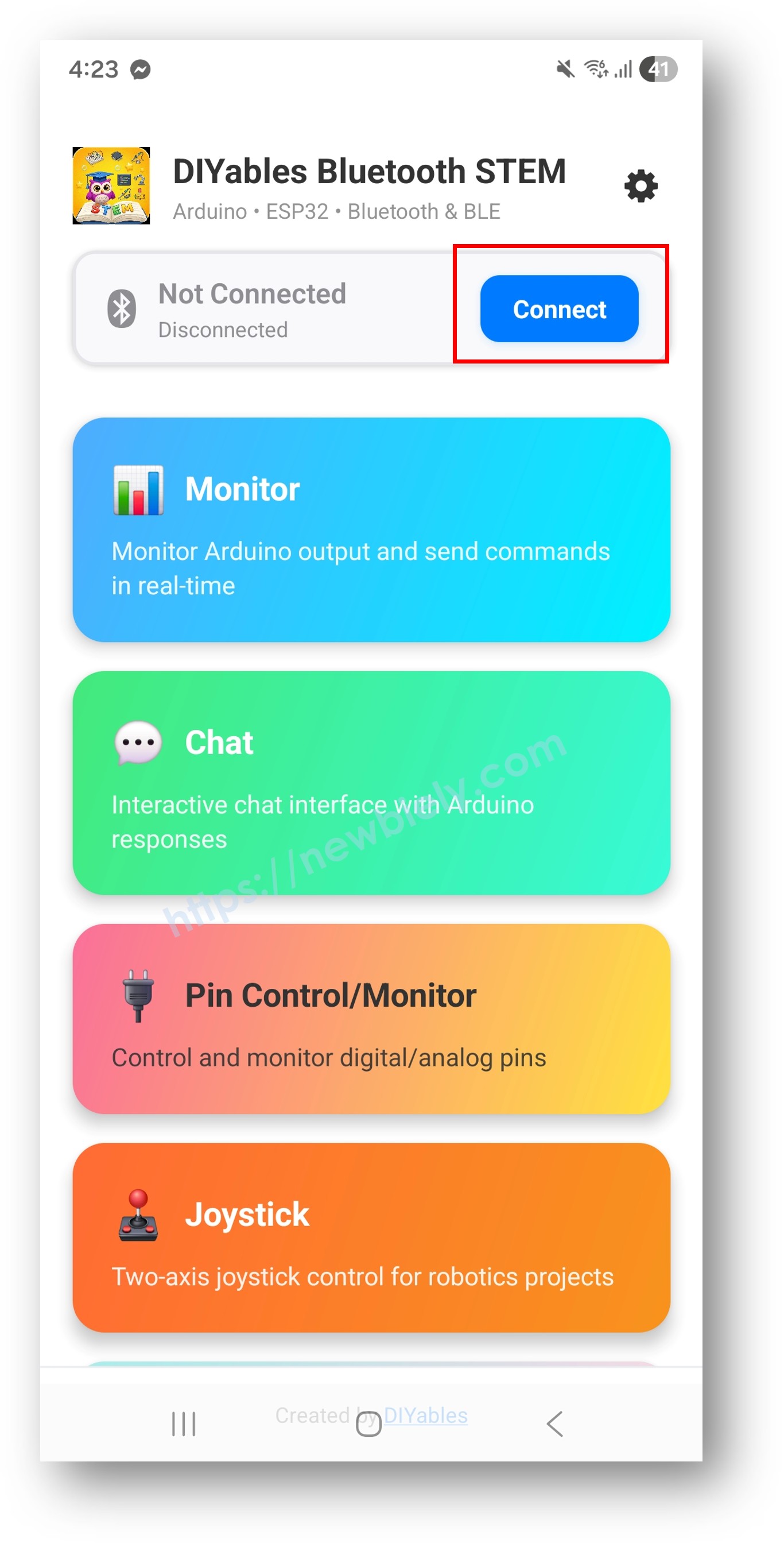
- Pick your board: "ESP32_Plotter" for Classic, or "ESP32BLE_Plotter" for BLE. Once linked, the app jumps back home.
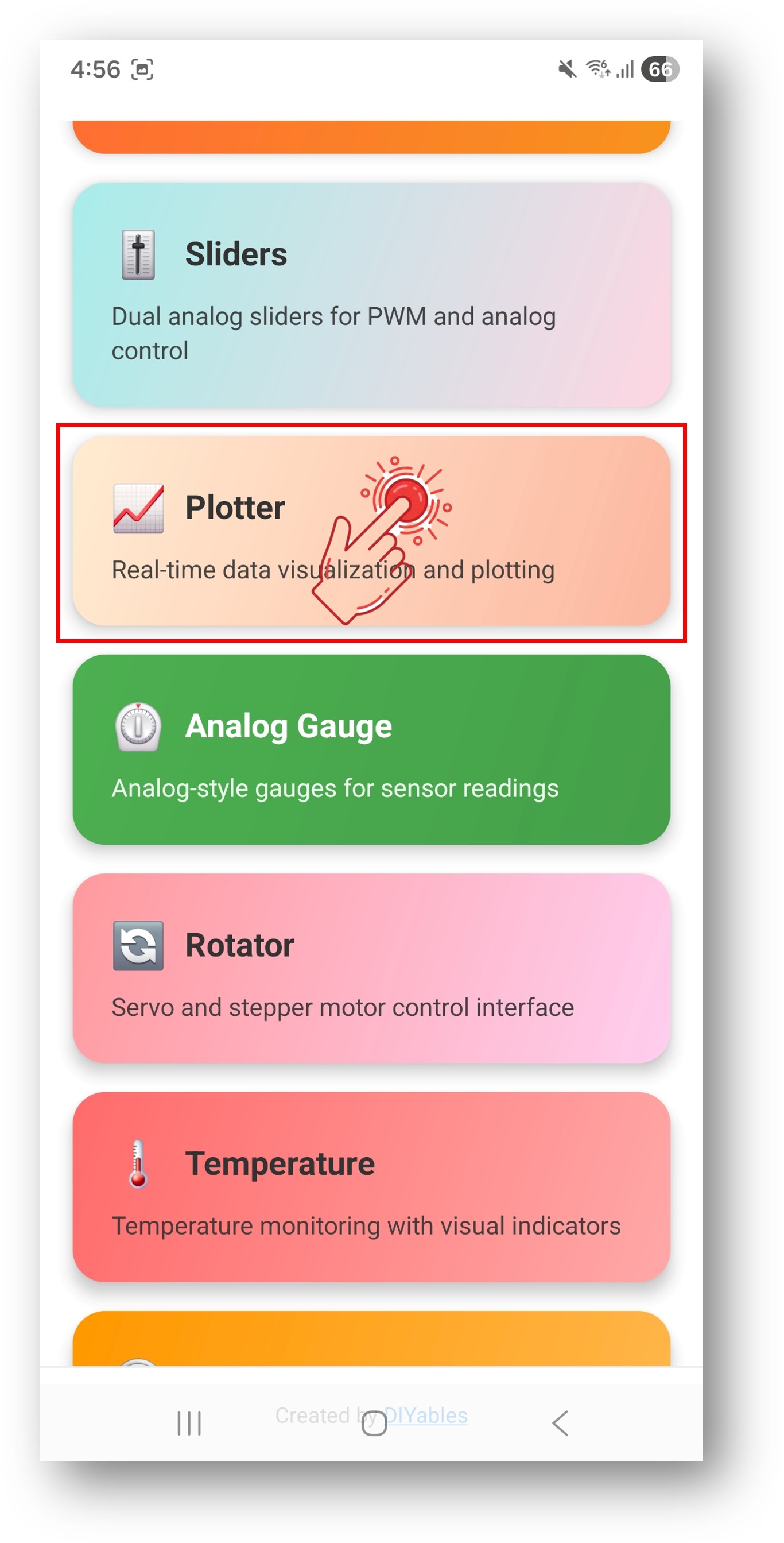
- Open the chart: choose Plotter in the app menu.
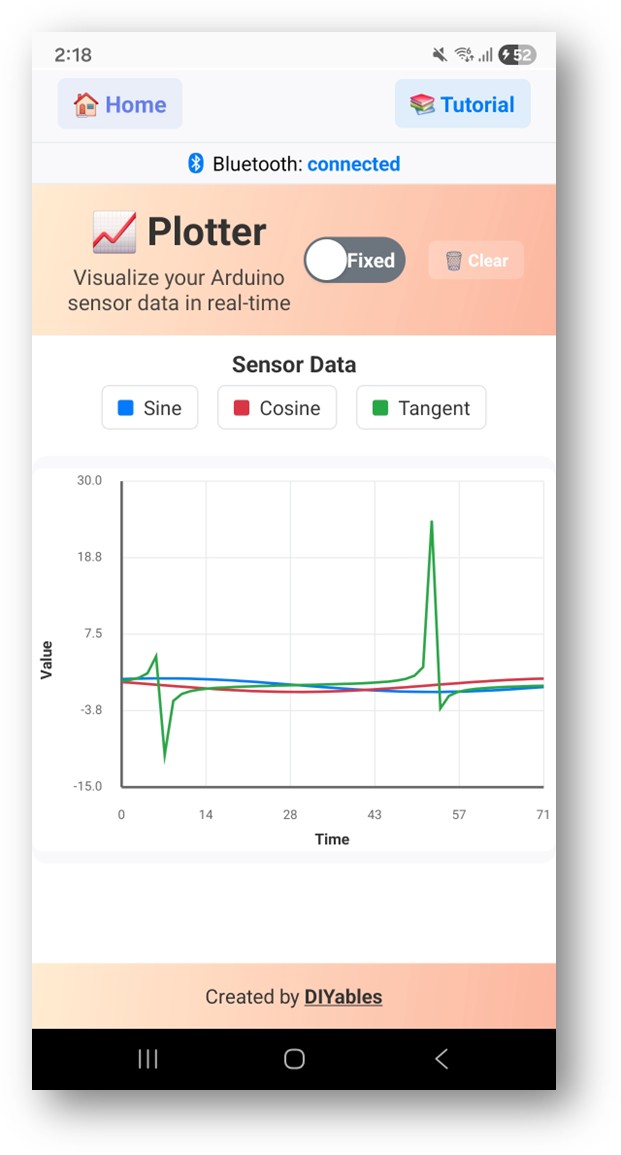
- Watch it run: the sine, cosine and tangent lines slide from right to left.
- Pro tip: the gear icon on the home screen hides app tiles you never use. Every screen is covered in the DIYables Bluetooth App User Manual.
The Serial Monitor now logs the link and the exact numbers the chart draws, one line per sample:
How the Sketch Works
Here is what each part of the ESP32 Uno plot sketch does.
| Code Part | What It Does |
|---|---|
| DIYables_Esp32BLE or DIYables_Esp32Bluetooth | Starts the radio under the name the phone lists |
| bluetoothServer.addApp(&bluetoothPlotter) | Puts the Plotter screen on the Bluetooth server |
| setPlotTitle / setAxisLabels / setYAxisRange | Sets the chart text and a Y scale from -15 to 30 |
| setMaxSamples(100) and setLegendLabels() | Keeps 100 points visible and names the three lines |
| loop() with PLOT_INTERVAL | Every 100 ms makes sine, cosine and 0.3 x tangent, then calls send() |
| Serial.print lines | Copy the same three values to the Serial Monitor |
The result is a chart that gets ten new points per second. The tangent is scaled by 0.3, so most of its tall spikes stay inside the Y range.
ESP32 Uno vs UNO R4 for This Project
Porting this plotter from the UNO R4 WiFi to the ESP32 Uno mostly swaps the radio library and the board settings.
| Item | Arduino UNO R4 WiFi | ESP32 Uno |
|---|---|---|
| Logic voltage | 5V | 3.3V |
| Bluetooth | BLE only | BLE and Classic Bluetooth |
| Library platform file | DIYables_ArduinoBLE.h | DIYables_Esp32BLE.h or DIYables_Esp32Bluetooth.h |
| Example sketch | ArduinoBLE_Plotter | Esp32BLE_Plotter or Esp32Bluetooth_Plotter |
| Analog plot pins | A0, A1, A2 | A0 (GPIO2), A1 (GPIO4), A2 (GPIO35) |
| ADC range | 0 to 1023 (10-bit) | 0 to 4095 (12-bit) plus analogSetAttenuation(ADC_11db) |
| Arduino IDE board | Arduino UNO R4 WiFi | ESP32 Dev Module with Huge APP partition |
The test sketch has no wiring, so nothing moves. For analog sensors, keep the same header positions, but keep each signal at 3.3V or less, and change 1023 to 4095 and 5.0 to 3.3 in old R4 math.
Shape the Chart for Your Project
At the end of this part, the chart shows your own data with your own labels.
Set Title, Axes and Legend
Call these in setup(). They decide how the chart looks before the first point arrives.
Push Samples
send() has several forms. The number of values you pass is the number of lines you get.
React When the App Asks
The app may ask for data when the Plotter screen opens. This callback runs at that moment.
Log Connect and Disconnect
These hooks fire when the phone joins or leaves. Use them for a status LED or to pause sampling.
Reading the Plot Screen
Know how the screen and the data format work, and you can pick a good send rate.
| Item | Meaning |
|---|---|
| Line chart | Each series is one colored line that scrolls on its own |
| Legend | Matches each color to the name from setLegendLabels() |
| Auto-scroll | The newest sample is always at the right edge |
| Data format | Each sample travels as float values split by commas |
| Send rate | 10 to 100 ms between samples gives a smooth line |
Real Data Examples
Each snippet shows only the parts that change. Keep the Bluetooth setup lines from the full sketch above.
Example 1 — One Temperature Line
This draws a single line ten times per second. Swap readTemperatureSensor() for the read call of your sensor.
Example 2 — MPU6050 Tilt and Shake
The MPU6050 uses I2C. On the ESP32 Uno, A4 and A5 are not I2C, so connect the module to the SDA (GPIO21) and SCL (GPIO22) header pins. Wire.begin() picks them by default.
| MPU6050 Pin | ESP32 Uno Pin |
|---|---|
| VCC | 3.3V |
| GND | GND |
| SDA | SDA (GPIO21) |
| SCL | SCL (GPIO22) |
Example 3 — Three Analog Inputs
Three sensors on A0, A1 and A2 share one chart. Each channel returns a 12-bit number, which is why the chart scale runs 0 to 4095.
| Sensor Output | ESP32 Uno Pin |
|---|---|
| Sensor 1 signal | A0 (GPIO2) |
| Sensor 2 signal | A1 (GPIO4) |
| Sensor 3 signal | A2 (GPIO35) |
| Sensor VCC | 3.3V |
| Sensor GND | GND |
WARNING
A0 (GPIO2) is a boot strapping pin. A sensor that pulls it HIGH during reset or upload can stop the board from flashing. If that happens, unplug the A0 signal while you upload. Also, ESP32 Uno pins are not 5V tolerant, so power the sensors from 3.3V or add a divider.
Good to know: A2 (GPIO35) is an input-only pin. That is fine here, because the sketch only reads it.
Good to know: analogSetAttenuation(ADC_11db) lets each ESP32 Uno analog pin read the full span, from 0V up to about 3.3V. Without a wide range, readings reach 4095 too early and the lines sit flat at the top of the chart.
Example 4 — Test Signal Generator
No sensor is needed. The sketch makes a sine, a square and a triangle wave, so you can compare shapes on the phone.
Cleaner Lines and Switchable Views
Raw sensor data is often jumpy. These two helpers smooth it and let one chart show different data.
Moving Average Filter
The class keeps the last 10 samples and returns their mean. The sketch plots the raw voltage on A0 (GPIO2) next to the smoothed one. The math uses 3.3 and 4095 for the 12-bit ESP32 Uno ADC.
Change the View at Run Time
Call one of these, for example from a button handler, to switch the chart between two modes.
Choosing BLE or Classic on the ESP32 Uno
The ESP32 Uno runs either sketch. Use this table to decide.
| Point | BLE sketch (Esp32BLE_Plotter) | Classic sketch (Esp32Bluetooth_Plotter) |
|---|---|---|
| iPhone | Works | Does not work |
| Android | Works | Works |
| Current draw | Lower | Higher |
| Typical range | About 30 to 100 m | About 10 to 100 m |
| Data speed | Lower | Higher |
| Pairing in phone settings | Not needed | Needed once |
| Name in scan list | ESP32BLE_Plotter | ESP32_Plotter |
For three lines at 10 samples per second, BLE has enough speed. If you plot many lines very fast on Android, Classic gives more headroom.
Debug Helper
When a line looks odd, print what you send and the free memory, then compare the Serial Monitor with the chart.
Build Ideas
| Area | Plot Projects |
|---|---|
| Room and weather | Temperature and humidity trend, daylight curve, air pressure log |
| Motion | Accelerometer shake test, tilt angle over time, step counter signal |
| Signals | Sound level view, vibration check, pulse sensor waveform, magnetic field strength |
| Classroom | Sine and cosine compare, RC charge curve, PID step response, physics lab log |
| Tutorial | Motor vibration, process value trend, power draw log, quality check chart |
Mix the Plotter with Other Bluetooth Apps
One Bluetooth server on the ESP32 Uno can host several app screens at the same time.
Plotter Plus Slider
Two sliders change the frequency and the amplitude of the plotted wave.
Plotter Plus Table
The chart shows the trend, and the table lists the exact numbers.
Try These Next
With the chart working, build on it with these ESP32 Uno Bluetooth pages:
- ESP32 Uno - Bluetooth Temperature — a thermometer-style screen
- ESP32 Uno - Bluetooth Analog Gauge — one value on a needle dial
- ESP32 Uno - Bluetooth Table — many readings in rows
- ESP32 Uno - Multiple Bluetooth Apps — run the plotter next to other screens
Where to Get Help
- The API reference that comes with the DIYables Bluetooth library
- More app guides on diyables.io/bluetooth-app
- The Arduino community forums
Troubleshooting
| Problem | Possible Cause | Solution |
|---|---|---|
| No COM port appears in Arduino IDE | CH340 driver missing or a charge-only cable | Install the CH340 driver and use a USB Type-C cable that carries data |
| Upload stops at "Failed to connect" or "Waiting for download" | The board did not enter download mode | Hold the BOOT button while the upload starts, then let go |
| Board does not boot or upload with a sensor on A0 | A0 (GPIO2) is a boot strapping pin pulled the wrong way | Unplug the module while uploading, or use another pin |
| Compiler says the sketch is too big | Default partition has no room for Bluetooth | Choose Tools > Partition Scheme > Huge APP (3MB No OTA/1MB SPIFFS) |
| Board name is missing in the app scan | Sketch not running, phone Bluetooth off, or Classic not paired | Check that the Serial Monitor shows "Waiting for Bluetooth connection...", pair ESP32_Plotter first for Classic, and turn on Location on Android 11 or older |
| ESP32_Plotter never shows on an iPhone | iOS has no Classic Bluetooth | Upload the BLE sketch and connect to ESP32BLE_Plotter |
| Chart is connected but the lines do not move | The Plotter screen is not open or send() is not reached | Open Plotter in the app menu and make sure bluetoothServer.loop() and send() run in loop() |
| Lines look steppy or jerky | Samples sent too slowly or too many series over BLE | Send every 50 to 100 ms and drop series you do not need |
| Analog lines are stuck at 4095 | Signal above 3.3V or attenuation missing | Keep analogSetAttenuation(ADC_11db) and add a divider so the pin stays under 3.3V |
| Accelerometer chart shows flat zero lines | I2C wires sit on A4 and A5, which are plain analog inputs here | Rewire the module to the header pins marked SDA (GPIO21) and SCL (GPIO22) |
FAQ
BLE or Classic Bluetooth — which should my ESP32 Uno plotter use?
Use BLE if any phone is an iPhone or you do not want a pairing step. Use Classic if every phone is Android and you plan to stream many lines at a high rate. Both sketches draw the same chart.
Can I try the phone graph before I connect any sensor?
Yes. The example makes sine, cosine and tangent values in code, so the chart moves with no wiring at all. Later, replace those three lines with your sensor reads.
How many lines can one chart show?
The app draws up to 10 series. Pass that many values to send(), or use the array form send(values, count). Give each line a name with setLegendLabels().
Why do my analog lines go up to 4095 and not 1023?
The ESP32 Uno ADC is 12-bit, so analogRead() returns 0 to 4095. For raw counts, give setYAxisRange() the limits 0 and 4095. To plot volts, use value * 3.3 / 4095.0.
What job does analogSetAttenuation(ADC_11db) do in the analog plot code?
It opens the ESP32 Uno ADC window to about 0 to 3.3V, so the whole sensor swing fills 0 to 4095. Without it, the value tops out early and the line flattens at the top. UNO R4 sketches never had this line; it is only for the ESP32 Uno. Never let the sensor signal climb past 3.3V.
Do A0 and A1 still read while Bluetooth is running?
Yes. The ADC2 limit on A0 (GPIO2) and A1 (GPIO4) comes from WiFi, not Bluetooth. If you later add WiFi to the same sketch, move those sensors to A2 to A5 (GPIO35, 34, 36, 39) or GPIO32/33 and change the pin numbers.
Can I plug a 5V sensor into the ESP32 Uno for plotting?
The sensor can run on 5V, but its output must reach the pin at 3.3V or less. A 5V level can harm an ESP32 Uno input. Use a resistor divider or a level shifter, and scale the math to match.
Is moving an older ArduinoBLE plotter sketch to the ESP32 Uno a big job?
Only a little. Swap DIYables_ArduinoBLE.h for DIYables_Esp32BLE.h, use the DIYables_Esp32BLE object with the same UUIDs, and pick ESP32 Dev Module with the Huge APP partition. The plotter calls stay the same.
Can I use the Arduino IDE Serial Plotter at the same time?
The sketch prints the same three numbers split by spaces, so the IDE Serial Plotter can draw them over USB. Only one window can hold the COM port, though, so close the Serial Monitor first.
What if my plot needs more pins than the Uno headers give?
The ESP32 Uno has a few extra holes near the power header: GPIO32 and GPIO33 (I/O, PWM, analog on ADC1, so they still read while WiFi is on) and GPIO15 (I/O, PWM, analog on ADC2). Solder a pin header into the hole and write its GPIO number in the sketch. For a fourth or fifth analog line on the chart, GPIO32 and GPIO33 are the best picks. Two warnings apply. First, GPIO15 and GPIO0 (the IO0 pin at the unused Uno NC position) are boot strapping pins, and a wrong connection can stop the board from booting or uploading code, so use GPIO32/33 first. Second, never use the six holes under the digital header (SD0 to SD3, CMD, CLK = GPIO6 to GPIO11), because they connect to the flash chip and using them crashes the board.
Can I see the same graph in a web browser instead?
Yes. The ESP32 Uno also has WiFi. The ESP32 Uno - Web Plotter page draws live lines on any phone or PC browser.