
ESP32 UNO - Measure Voltage
How much charge is left in that 9V or 12V battery? Hook an ESP32 Uno voltage sensor to it and get the answer as a number in the Serial Monitor. The small volt sensor module scales a high DC level down to a safe one, and the ESP32 Uno form board reads it on an analog pin. A few lines of Arduino code turn the raw count back into real volts.
By the end, you can:
- Explain how the 30 kΩ / 7.5 kΩ divider inside the module works
- Connect the voltage sensor module to the A0 header pin
- Convert a 0–4095 analogRead() count into the real input voltage
- Get closer-to-multimeter results with analogReadMilliVolts()
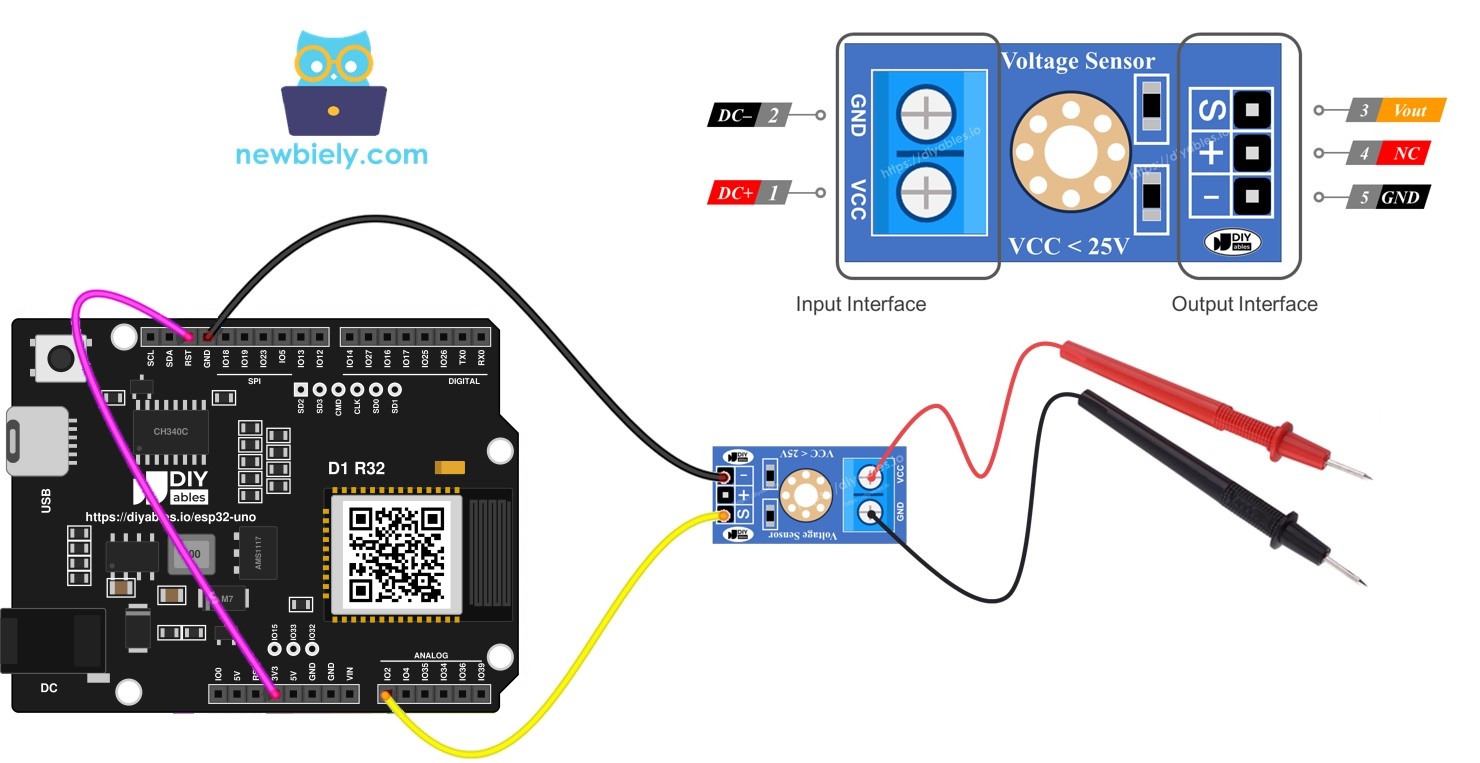
Components You Need
| 1 | × | ESP32 Uno-form Board | |
| 1 | × | USB Cable Type-A to Type-C (for USB-A PC) | |
| 1 | × | USB Cable Type-C to Type-C (for USB-C PC) | |
| 1 | × | Voltage Sensor | |
| 1 | × | Jumper Wires |
Or you can buy the following kits:
| 1 | × | DIYables Sensor Kit (18 sensors/displays) |
Additionally, some of these links are for products from our own brand, DIYables .
Inside the Voltage Sensor Module
After this part, you know the safe input limit for this board and why it is lower than the label says.
The module is nothing more than two precision resistors in series. The input voltage drops across both of them, and the S pin picks up the voltage across the lower one only.
| Item | Value |
|---|---|
| Upper resistor (R1) | 30 kΩ |
| Lower resistor (R2) | 7.5 kΩ |
| Divider ratio (R1 + R2) / R2 | 5 |
| Label rating | 0–25V DC (meant for 5V ADC boards) |
| Safe range on the ESP32 Uno | 0–16.5V DC (3.3V × 5) |
| Example | 12V in gives 2.4V on the S pin |
Good to know: the ESP32 Uno ADC tops out at about 3.3V, so the module can only scale 16.5V or less into a readable level.
WARNING
The ESP32 Uno is a 3.3V board, and its pins cannot take 5V. Never feed more than 16.5V into the module input side, even though the PCB says 25V. Above that, the S pin goes over 3.3V and can kill A0 (GPIO2) or the whole board.
Pin Roles
Here you match each module pin to its job.
| Module Pin | Side | Where It Goes |
|---|---|---|
| VCC | Input (measured side) | The more positive point of the circuit under test |
| GND | Input (measured side) | The more negative point of the circuit under test |
| S (Vout) | Output (board side) | An analog pin on the ESP32 Uno |
| + (NC) | Output (board side) | Nothing, it is unused |
| * | Output (board side) | GND of the ESP32 Uno |
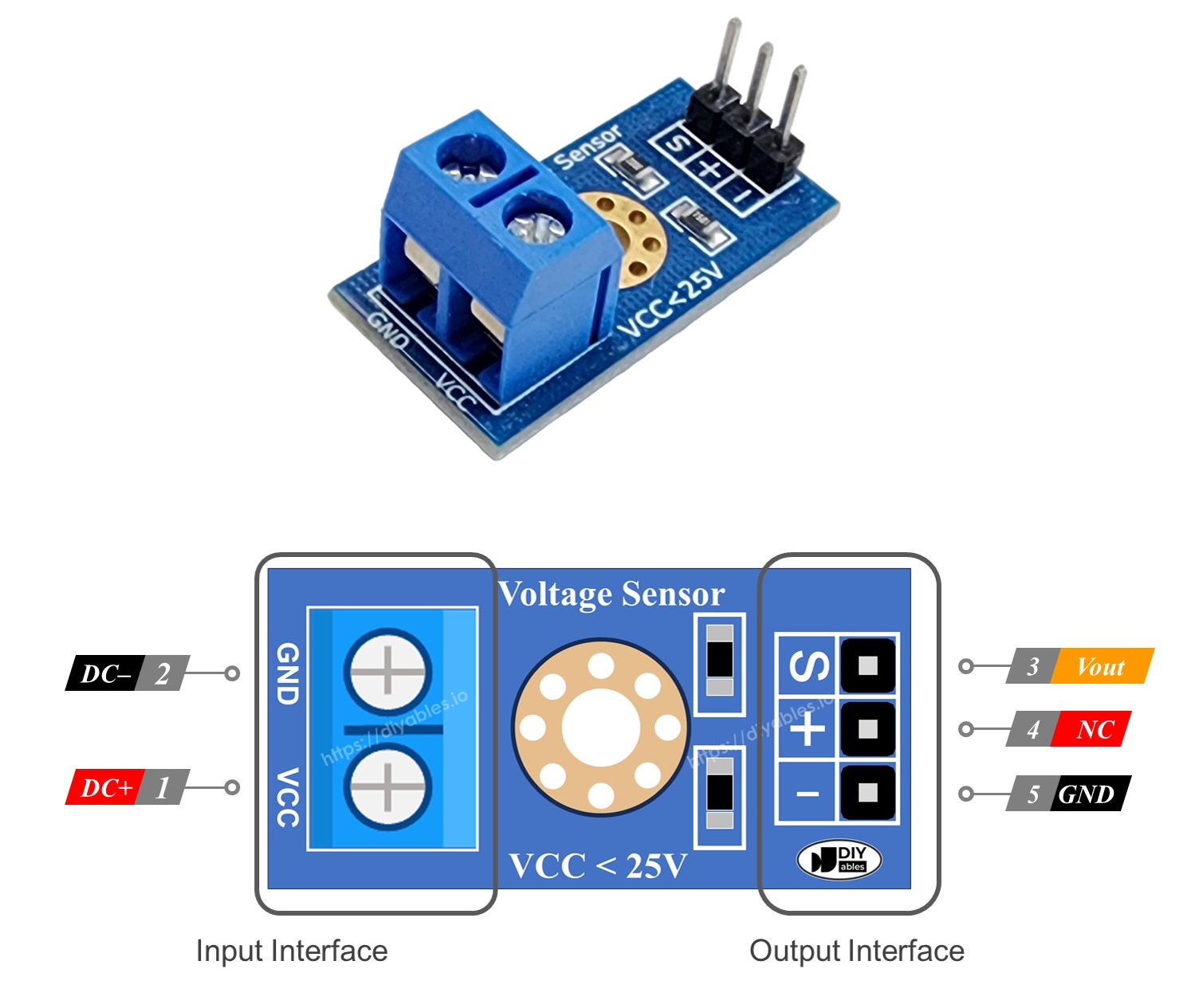
ESP32 Uno Pinout
On the ESP32 Uno form board, the A0 header you plug into is really GPIO2, and that GPIO number is what goes into the sketch. Find both on the map below first.

How to Connect
When you finish this part, the module talks to the board with just two jumper wires.
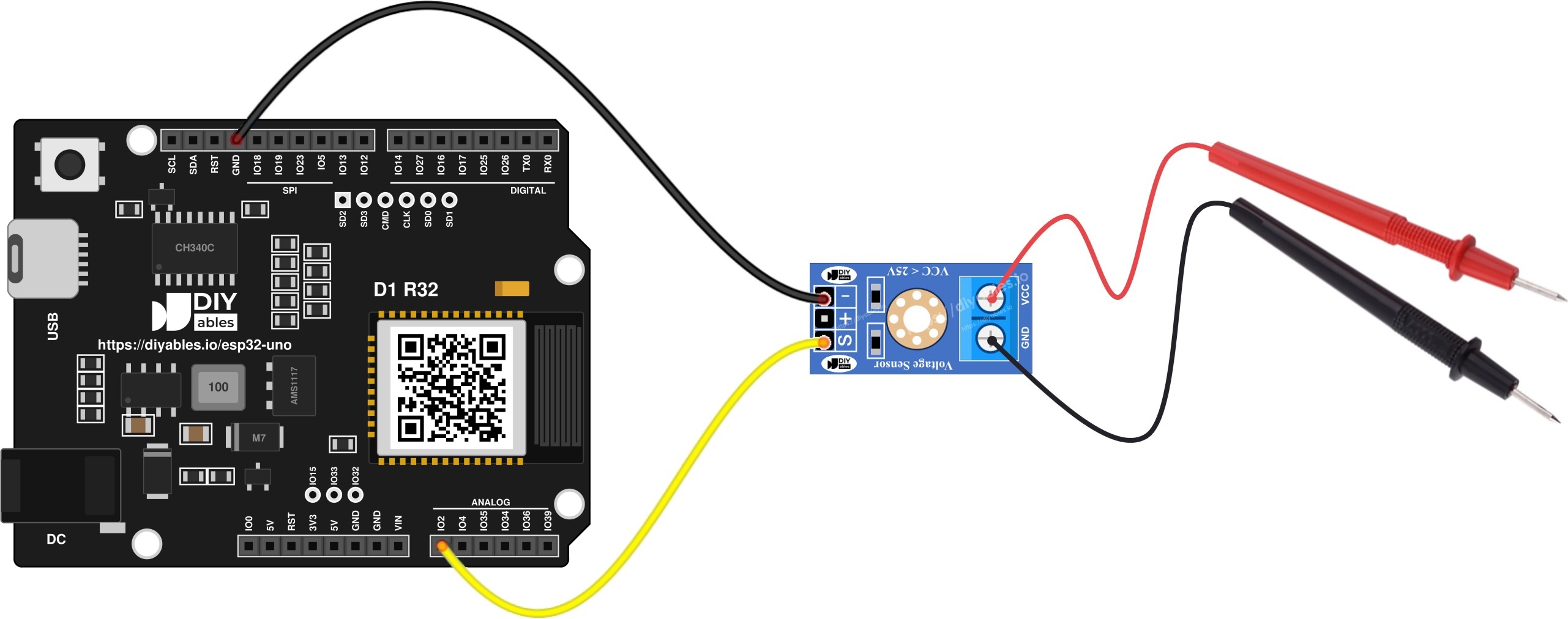
This image is created using Fritzing. Click to enlarge image
| Voltage Sensor Pin | ESP32 Uno Pin |
|---|---|
| S (Vout) | A0 (GPIO2) |
| + (NC) | leave open |
| * | GND |
| VCC (screw terminal) | positive side of the source you test |
| GND (screw terminal) | negative side of the source you test |
Good to know: A0 (GPIO2) is an ADC2 pin. It reads fine in this sketch, but it stops working with analogRead() once WiFi is turned on.
WARNING
A0 (GPIO2) is also a boot strapping pin. The module's 7.5 kΩ lower resistor pulls it toward GND, which is the safe state, so normal boots and uploads work. If an upload ever fails, unplug the S wire, upload, then plug it back. Also keep in mind that the source you test shares its ground with the board through the module, so test only DC sources up to 16.5V and never mains.
ESP32 Uno Code
This sketch samples A0 twice per second and prints the real input voltage.
Good to know: the call analogSetAttenuation(ADC_11db); in setup() lets the ESP32 Uno analog pin read the full span, from 0V up to about 3.3V. Without a wide range, the count hits 4095 far too early and the printed voltage looks wrong.
Upload and Test
- First time with this board? Set it up with ESP32 Uno - Getting Started before you continue.
- Build the circuit by following the wiring table above.
- Plug in the USB Type-C cable between the ESP32 Uno and your computer.
- Select the board in Arduino IDE: pick ESP32 Dev Module and the COM port of the board (CH340).
- Paste the sketch into a new Arduino IDE window.
- Press Upload (Upload) and wait for "Done uploading".
- Open the Serial Monitor at 9600 baud.
- Try two known sources: put the module's VCC terminal on the 3.3V pin of the board, then move it to a fresh 9V battery (battery minus to the module GND terminal).
- Read the values in the Serial Monitor.
- Pro tip: label each reading with the source you tested in a notebook. After three or four known sources, you can see if your board reads a bit high or low, and fix it with one multiplier in the code.
Your number may sit a few percent away from a multimeter. The module is not the problem. The ESP32 Uno ADC is not fully linear, every chip differs a little, and pin levels near 0V or above about 3.1V (about 15.5V at the input) are the least accurate.
| Fix | How |
|---|---|
| Correction factor | Compare with a multimeter and multiply the result by the ratio, if the error stays at the same percent |
| Factory calibration | Use the analogReadMilliVolts() sketch further down this page |
| Averaging | Take 10–20 samples in a row and print their mean to calm the noise |
| External ADC | For lab-grade results, use an ADS1115 module on the SDA (GPIO21) / SCL (GPIO22) pins |
Video Tutorial
See the ESP32 Uno build in action in the video below.
How the Code Works
Here you see what each part of the first sketch does.
| Code Part | What It Does |
|---|---|
| #define ANALOG_IN_PIN 2 | Points the sketch at A0 (GPIO2) |
| REF_VOLTAGE 3.3 and ADC_RESOLUTION 4096.0 | Match the 12-bit, 3.3V ADC of the ESP32 Uno |
| analogSetAttenuation(ADC_11db) | Opens the ADC input range to about 3.3V |
| analogRead(ANALOG_IN_PIN) | Returns a count from 0 to 4095 |
| voltage_adc × (R1 + R2) / R2 | Multiplies the pin voltage by 5 to get the source voltage |
| Serial.println(voltage_in, 2) | Prints the result with two decimals |
The result is the voltage at the module's VCC terminal, refreshed every 500 ms.
Better Accuracy Without an AREF Pin
By the end of this part, you read volts through the chip's own calibration data instead of a plain count.
Some Uno-style boards get steadier results when you wire AREF to an external 3.3V reference. The ESP32 Uno has no AREF pin; that header spot is RST (EN). So do NOT add an AREF wire here. Keep exactly the same two-wire setup as above.
The esp32 by Espressif Systems core offers analogReadMilliVolts(). It reads the pin and applies the eFuse calibration stored in the chip at the factory, then returns millivolts. The sketch below uses it and keeps the same ×5 math. The input limit stays at 16.5V.
Flash this second sketch with the same steps. In the middle of the range, the printed values usually land much closer to your multimeter.
ESP32 Uno vs UNO R4 for This Project
Here you see what changes when this voltage meter moves from the UNO R4 to the ESP32 Uno.
| Item | Arduino UNO R4 | ESP32 Uno |
|---|---|---|
| Logic voltage | 5V | 3.3V |
| Sensor pin | A0 | A0 (GPIO2) written as 2 in code |
| ADC range | 10-bit, 0 to 1023 | 12-bit, 0 to 4095 |
| Safe input with this module | 25V DC | 16.5V DC |
| Extra setup line | none | analogSetAttenuation(ADC_11db) |
| Accuracy upgrade | AREF wired to 3.3V | analogReadMilliVolts(), no AREF pin |
| Arduino IDE board | Arduino UNO R4 WiFi or Minima | ESP32 Dev Module |
The two signal wires stay in the same places. The big change is the lower input limit, so recheck every source before you connect it.
Go Wireless: A Phone Battery Monitor
After this part, you have an idea for watching a battery from across the room.
Put the ESP32 Uno next to a solar battery or an RC pack, and push the voltage to your phone. A gauge shows the level at a glance, and a plotter shows how fast the battery drains. Bluetooth is the easy start here, because A0 (GPIO2) is an ADC2 pin and cannot be read while WiFi runs. For a WiFi web page, move the S wire to A2 (GPIO35) or GPIO32 and change ANALOG_IN_PIN to match.
Function References
Troubleshooting
| Problem | Possible Cause | Solution |
|---|---|---|
| No COM port in Arduino IDE | CH340 driver missing or a charge-only USB cable | Install the CH340 driver and swap to a USB data cable |
| Upload stops at "Failed to connect" or "Waiting for download" | Board did not enter flash mode | Hold the BOOT button while the upload starts |
| Board will not boot or upload with the module attached | A0 (GPIO2) is a boot strapping pin and is pulled the wrong way | Unplug the S wire while uploading, then reconnect it |
| Serial Monitor shows strange symbols | Baud rate mismatch | Choose 9600 baud in the Serial Monitor |
| Reading stays at 0.00 | S wire loose, or no source on the screw terminals | Recheck S to A0 (GPIO2), minus to GND, and the source on VCC and GND |
| Reading sticks near 16.5 | Source is above 16.5V and the ADC is full | Disconnect at once, the pin may be harmed, and use a bigger divider |
| Small voltages read far too high | Attenuation line missing | Keep analogSetAttenuation(ADC_11db) in setup() |
| Reading drops to 0 or freezes after adding WiFi code | ADC2 on A0 is blocked while WiFi runs | Move the S wire to A2 (GPIO35) or GPIO32 and update the pin number |
| Numbers jump by 0.1V or more | ADC noise or a loose jumper | Seat the wires firmly and average several samples |
FAQ
Why can the ESP32 Uno only read 16.5V when the module says 25V?
The module divides by 5. A 5V ADC can take 25V / 5 = 5V, but the ESP32 Uno ADC stops at about 3.3V, so the limit is 3.3V × 5 = 16.5V. For good accuracy, stay under about 15V.
How do I check a 24V supply with this setup?
This module alone cannot do it safely, because 24V / 5 = 4.8V is far above 3.3V. Build or buy a divider with a larger ratio, such as 100 kΩ over 10 kΩ (divide by 11). Then put the new values in R1 and R2 in the code.
Does the voltage sensor need power from the board?
No. It is a passive resistor divider, so the + pin stays unconnected. Only S and - go to the board.
Which ADC pin should I pick on the ESP32 Uno for this sensor?
A0 (GPIO2) works for the sketch on this page. If you plan to add WiFi later, pick an ADC1 pin instead, such as A2 (GPIO35), A3 (GPIO34) or GPIO32. Input-only pins like A2–A5 are fine here, because the sketch only reads.
What does analogSetAttenuation(ADC_11db) do in this voltage sketch?
It sets the ESP32 Uno ADC input range to about 0–3.3V, so the full S pin swing maps to 0–4095. With a smaller range, the reading saturates early and the voltage shows too high. You will not find this line in UNO R4 code; only the ESP32 Uno needs it. Keep the S pin at 3.3V or less.
Is analogReadMilliVolts() better than analogRead() for volts?
Usually yes. It uses the calibration data burned into each chip, so you skip the 3.3 / 4096 math and get fewer percent of error. analogRead() still works and is fine for rough checks.
Can I watch two batteries at once?
Yes. Use a second module with its S pin on another analog pin, and copy the read and print lines with a new pin number. Join all grounds together, and keep each source under 16.5V.
Will voltage code written for a 5V Arduino run on the ESP32 Uno?
It compiles, but the result is wrong. UNO R4 code uses 5.0 and 1024.0, which fit a 10-bit, 5V ADC. The ESP32 Uno needs 3.3 and 4096.0, plus the attenuation line, and GPIO 2 instead of the A0 name.
Can I see the voltage on my phone with the ESP32 Uno?
Yes. The board has WiFi and Bluetooth built in. Bluetooth works with A0 as wired here; for WiFi, move the sensor to an ADC1 pin first. See the Go Wireless section above for app guides.
What if my voltage meter needs more pins than the Uno headers give?
The ESP32 Uno has a few extra holes near the power header: GPIO32 and GPIO33 (I/O, PWM, analog on ADC1, so they still read while WiFi is on) and GPIO15 (I/O, PWM, analog on ADC2). Solder pin headers to them and write the GPIO number in code. For a WiFi battery monitor, GPIO32 or GPIO33 is the best spot for the S wire. Two warnings: GPIO15 and GPIO0 (the IO0 pin at the unused Uno NC spot) are boot strapping pins, and a wrong connection can stop the board from booting or uploading, so use GPIO32/33 first. And never touch the six holes under the digital header (SD0–SD3, CMD, CLK = GPIO6–GPIO11); they go to the flash chip, and using them crashes the board.
Can I measure AC with this module?
No. It is for DC only, and its ground ties straight to the board ground. For AC, use an isolated AC voltage sensor and never connect anything here to mains.