
ESP32 UNO - Light Sensor Control Servo Motor
Want a servo arm that reacts to daylight on its own? Build an ESP32 Uno light sensor servo motor circuit: when the room is bright, the arm swings to 90 degrees, and when it gets dark, the arm drops back to 0. The light sensor controls servo motor action with a simple threshold, written in Arduino IDE for the ESP32 Uno form board. You can use a bare photoresistor (LDR) or a ready-made LDR module.
By the end, you can:
- Connect a photoresistor and a 10 kΩ resistor as a voltage divider
- Hook up a digital LDR light sensor module instead of the bare LDR
- Compare an analogRead() value with a threshold to pick a servo angle
- Set the servo angle from code using ESP32Servo
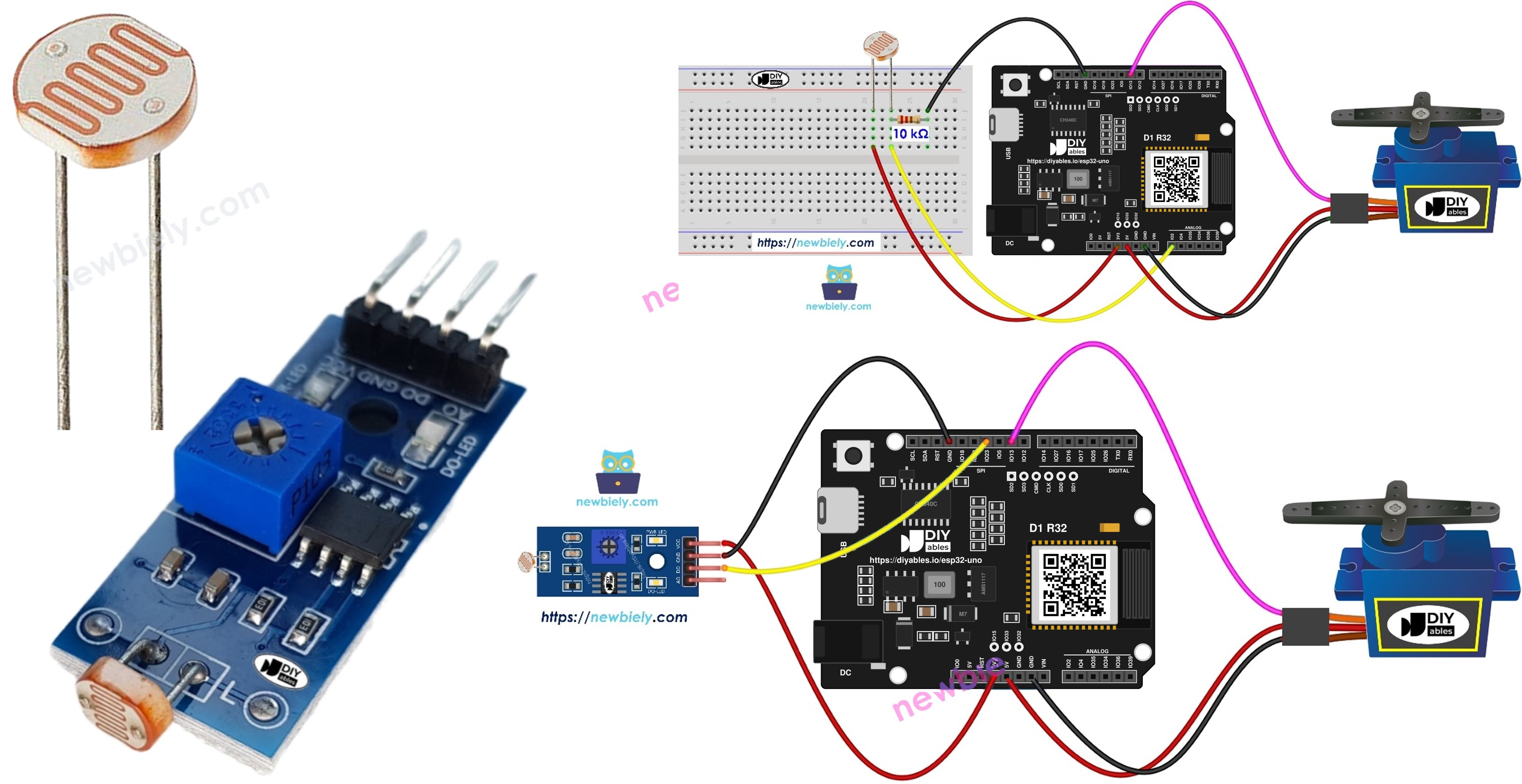
Components You Need
| 1 | × | ESP32 Uno-form Board | |
| 1 | × | USB Cable Type-A to Type-C (for USB-A PC) | |
| 1 | × | USB Cable Type-C to Type-C (for USB-C PC) | |
| 1 | × | Light Sensor | |
| 1 | × | 10 kΩ Resistor | |
| 1 | × | Servo Motor | |
| 1 | × | Jumper Wires |
Or you can buy the following kits:
| 1 | × | DIYables Sensor Kit (18 sensors/displays) |
Additionally, some of these links are for products from our own brand, DIYables .
Buy Note: For controlling multiple servo motors, use the PCA9685 16 Channel PWM Servo Driver Module to save MCU pins and simplify wiring.
Two sensor options fit this build. A plain LDR light sensor is the cheapest choice, but you must add the resistor yourself. An LDR light sensor module costs a little more, carries its own resistor and comparator, and needs only three wires.
The Two Parts: Light Sensor and Servo
After this part, you know what each part does in the circuit.
| Part | Role | Signal to or from the board |
|---|---|---|
| LDR with 10 kΩ resistor | Measures light as a voltage | Analog value from 0 to 4095 on A0 |
| LDR light sensor module | Decides "light" or "dark" for you | Digital HIGH (dark) or LOW (light) on D11 |
| Servo motor | Moves the arm | PWM pulse from D9 sets the angle from 0 to 180 degrees |
Each part also has its own page with pinout and basics:
ESP32 Uno Pinout
The board prints Uno labels like A0, D9 and D11, but your sketch needs the GPIO number behind each label. Find those three pins on the diagram before you start wiring.

How to Connect
When this part is done, the sensor and the servo sit on the right headers and the board is ready for code. Pick the option that matches your sensor. The servo wiring is the same in both.
Option 1 — Bare LDR (analog)
The LDR and the 10 kΩ resistor form a voltage divider. The joint between them goes to A0, so more light gives a higher voltage on A0.
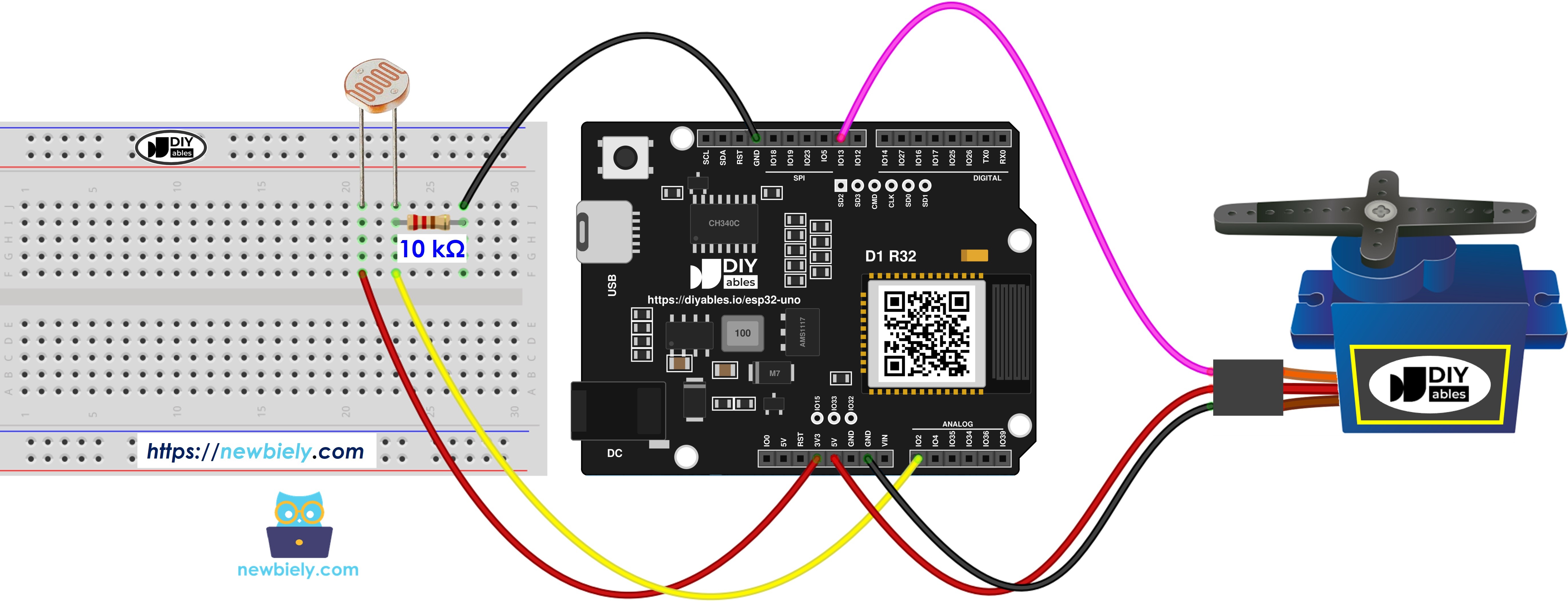
This image is created using Fritzing. Click to enlarge image
| Component Pin | ESP32 Uno Pin |
|---|---|
| LDR leg 1 | 3.3V |
| LDR leg 2 | A0 (GPIO2) |
| 10 kΩ resistor, first leg | A0 (GPIO2) |
| 10 kΩ resistor, second leg | GND |
| Servo red wire (power) | 5V |
| Servo brown or black wire (ground) | GND |
| Servo orange or yellow wire (signal) | D9 (GPIO13) |
WARNING
A0 is GPIO2 on the ESP32 Uno, which is a boot strapping pin. The chip checks it at power-on to choose the boot mode. In bright light the divider pulls A0 up, and in rare cases this can stop an upload. If the upload fails, cover the LDR or unplug the A0 wire, upload, then reconnect it. GPIO2 is also an ADC2 pin, so analogRead() on it stops working if you later turn on WiFi.
Option 2 — LDR module (digital)
The module compares the light level with the setting of its small blue knob. Its DO pin then outputs HIGH or LOW.
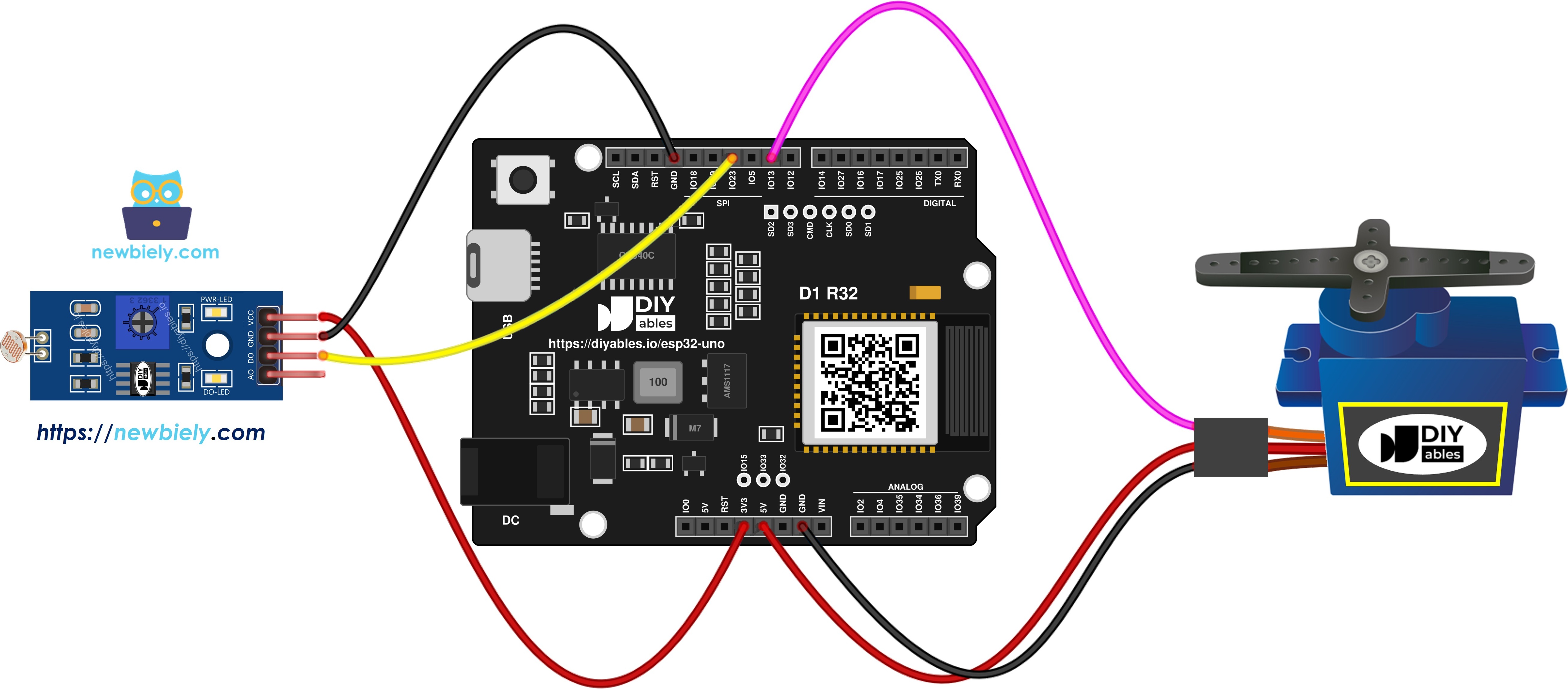
This image is created using Fritzing. Click to enlarge image
| Component Pin | ESP32 Uno Pin |
|---|---|
| LDR module VCC | 3.3V |
| LDR module GND | GND |
| LDR module DO | D11 (GPIO23) |
| Servo red wire (power) | 5V |
| Servo brown or black wire (ground) | GND |
| Servo orange or yellow wire (signal) | D9 (GPIO13) |
Good to know: ESP32 Uno pins work at 3.3V and are not 5V tolerant. Feed the LDR or the module from 3.3V, so A0 and D11 never see more than 3.3V.
※ NOTE THAT:
The servo takes 5V on its red wire, yet its signal wire only listens. A 3.3V pulse from D9 (GPIO13) is enough for common servos like the SG90, so no level shifter is needed.
ESP32 Uno Code - Analog Threshold
Each wiring option has its own sketch. Both park the servo at 0 degrees at start-up.
Sketch A — Bare LDR on A0
This sketch reads the light on A0 (GPIO2) in a loop and sets the servo on D9 (GPIO13) to 90 degrees above the threshold, or 0 degrees below it.
Good to know: the sketch calls analogSetAttenuation(ADC_11db) in setup(). The 11 dB attenuation lets the ESP32 Uno analog pin read the full span, from 0V up to about 3.3V. Without a wide range, the reading hits 4095 too early, and the servo stays at 90 degrees even in a dim room.
The ESP32 Uno ADC is 12-bit, so readings run from 0 to 4095. That is why ANALOG_THRESHOLD is 2000, about half the scale, instead of 500.
Sketch B — LDR module on D11
This sketch checks the module output on D11 (GPIO23). HIGH means dark, so the servo goes to 90 degrees; LOW means light, so it goes back to 0. Each pass also prints the light state.
Good to know: both sketches include ESP32Servo.h. The AVR Servo.h library does not compile for the ESP32 Uno, but attach() and write() work the same way.
Upload and Test
- First time with this board? Set it up with ESP32 Uno - Getting Started before you continue.
- Build the circuit by following the wiring table above.
- Plug in the USB Type-C cable between the ESP32 Uno and your computer.
- Select the board in Arduino IDE: pick ESP32 Dev Module and the COM port of the board (CH340).
- Add the servo library. In Library Manager, type ESP32Servo and install the version by Kevin Harrington.
- Paste Sketch A or Sketch B, the one that fits your wiring, into a new Arduino IDE window.
- Send it to the board with the Upload button.
- Play with the light. Hold your palm over the sensor for two seconds, then point a phone flashlight at it.
- Watch the arm move between 0 and 90 degrees. For Sketch B, open the Serial Monitor at 9600 baud to follow the light state.
- Pro tip: test at the place where the project will live. A desk lamp next to the sensor can flip the result, so adjust the threshold or the module knob in the real spot, not at your bench.
Video Tutorial
See the ESP32 Uno build in action in the video below.
Code Explanation
The table lists the key lines of both sketches.
| Code Part | What It Does |
|---|---|
| #include | Loads the servo library that supports the ESP32 Uno |
| #define SERVO_PIN 13 | Names GPIO13, the pin behind the D9 header |
| #define LIGHT_SENSOR_PIN 2 or 23 | GPIO2 (A0) for the bare LDR, GPIO23 (D11) for the module |
| analogSetAttenuation(ADC_11db) | Opens the ADC range to about 0 to 3.3V (Sketch A) |
| analogRead() > ANALOG_THRESHOLD | Decides bright or dark from a 0 to 4095 value (Sketch A) |
| digitalRead() == HIGH | Reads the module verdict, HIGH means dark (Sketch B) |
| servo.write(90) or servo.write(0) | Moves the arm to one of the two positions |
The result: the servo always rests at 0 or 90 degrees, and the light level picks which one. Note the two sketches react in opposite ways: Sketch A turns to 90 degrees in bright light, Sketch B turns to 90 degrees in the dark.
ESP32 Uno vs UNO R4 for This Project
This table shows what changes when you move this build from the UNO R4 to the ESP32 Uno.
| Item | Arduino UNO R4 | ESP32 Uno |
|---|---|---|
| Logic voltage | 5V | 3.3V |
| Sensor pins | A0 and D11 | A0 (GPIO2) and D11 (GPIO23) |
| Servo pin | D9 | D9 (GPIO13) |
| ADC range and threshold | 0 to 1023, threshold 500 | 0 to 4095, threshold 2000 |
| Servo library | Servo.h | ESP32Servo.h |
| Extra setup line | None | analogSetAttenuation(ADC_11db) |
| Arduino IDE board | Arduino UNO R4 WiFi or Minima | ESP32 Dev Module |
The wiring positions stay the same, so you can reuse the same breadboard layout. The one change is power: run the LDR or the module from 3.3V instead of 5V.
Go Wireless: Open the Servo From Your Phone
After this part, you have an idea to extend the build with WiFi or Bluetooth.
The ESP32 Uno has WiFi and Bluetooth built in. You can keep the light rule and add a manual override: move the servo from a slider on your phone when you want the blind or flap open, no matter the light. You can also show the light reading on your phone to choose a good threshold. For a WiFi version, use the LDR module on D11, or move the bare LDR to A2–A5, because A0 is an ADC2 pin and cannot be read while WiFi is on.
Language References
These reference pages cover the functions in this project. The Servo functions behave the same with ESP32Servo.
Troubleshooting
| Problem | Possible Cause | Solution |
|---|---|---|
| Arduino IDE shows no COM port | CH340 driver missing or a charge-only cable | Install the CH340 driver and use a USB cable that carries data |
| Upload stops at "Failed to connect" or "Waiting for download" | Board did not enter download mode | Hold the BOOT button when the upload starts and let go when the percent count begins |
| Board will not boot or upload with the LDR connected | A0 (GPIO2) is a boot strapping pin pulled the wrong way | Unplug the A0 wire or cover the LDR during upload, then reconnect it |
| Compile stops with "Servo.h - No such file" | That library only targets AVR and R4 chips | Get ESP32Servo from Library Manager and change the include line |
| Arm is stuck at 90 degrees with Sketch A | Sensor powered from 5V or attenuation line removed | Power the divider from 3.3V and keep analogSetAttenuation(ADC_11db) |
| Arm is stuck at 0 degrees with Sketch A | Resistor and LDR swapped or threshold too high | Check the divider order and lower ANALOG_THRESHOLD |
| Arm shakes or the board restarts when it moves | Servo pulls too much current from USB | Use a separate 5V supply for the servo and join its GND with the board GND |
| Module output never changes | Knob turned to one end | Turn the knob slowly until the DO LED on the module toggles with your hand |
FAQ
How does a photoresistor work in this circuit?
An LDR is a resistor whose value falls as light rises. Paired with the 10 kΩ resistor, it turns the light level into a voltage on A0. More light means a higher voltage and a bigger analogRead() value.
What is the difference between the bare LDR and the LDR module here?
The bare LDR gives an analog value, so the code picks the switching point. The module has a comparator and outputs only HIGH or LOW; you set the switching point with its knob. The module needs fewer parts, the bare LDR gives finer control.
How do I find a good threshold value?
Add Serial.begin(9600); to setup() and Serial.println(analogValue); to loop(). Note the number in your normal light and with the sensor covered, then set ANALOG_THRESHOLD halfway between them.
How can I make the servo turn to 90 degrees in the dark instead?
In Sketch A, swap the two servo.write() values, or change > to < in the if line. You can also pick any other angles from 0 to 180.
Why does the code say 13 when the servo wire goes to D9?
Your code uses ESP32 Uno GPIO numbers, not the printed Uno labels. D9 is wired to GPIO13, A0 to GPIO2 and D11 to GPIO23, so those numbers appear in the #define lines.
What is the analogSetAttenuation(ADC_11db) line for in the LDR sketch?
It sets the ESP32 Uno ADC input range to about 0 to 3.3V, so the whole LDR signal maps to 0 to 4095. With a smaller range, readings saturate early and the light rule breaks. The same sketch on the UNO R4 has no such line, because only the ESP32 Uno ADC needs it. Make sure the divider never puts more than 3.3V on A0.
Can I copy the UNO R4 sketch to the ESP32 Uno without changes?
No. Change Servo.h to ESP32Servo.h, use the GPIO numbers (13, 2 and 23), add the attenuation line, and raise the threshold from 500 to about 2000 for the 12-bit ADC.
Can I read the LDR on A0 while WiFi is on?
No. A0 (GPIO2) and A1 (GPIO4) are ADC2 pins, and ADC2 cannot be read while WiFi runs. For a WiFi version, move the LDR to A2–A5 (GPIO35, 34, 36, 39) or to GPIO32/33, and change LIGHT_SENSOR_PIN in the code.
Can the ESP32 Uno drive two servos from one light sensor?
Yes. Create a second Servo object, attach it to another PWM pin such as D7 (GPIO14), and call write() on both. Power both servos from an external 5V supply.
The Uno headers are full. Where can I wire one more sensor or servo?
The ESP32 Uno has a few extra holes near the power header: GPIO32 and GPIO33 (I/O, PWM, analog on ADC1, so they also work while WiFi is on) and GPIO15 (I/O, PWM, analog on ADC2). Add a short header strip there, then type the bare GPIO number in your sketch. For this build, a second LDR fits GPIO32 or GPIO33 best. Two warnings: GPIO15 and GPIO0 (the IO0 pin at the unused Uno NC position) are boot strapping pins, and a wrong connection can stop the board from booting or uploading, so use GPIO32/33 first. Never use the six holes under the digital header (SD0–SD3, CMD, CLK = GPIO6–GPIO11); they go to the flash chip and using them crashes the board.