
ESP32 UNO - Door Sensor
Need to know when someone opens a door? Mount an ESP32 Uno door sensor on the frame and get a clear "open" or "closed" message in Arduino IDE. The sensor is a magnetic reed switch, sold as an entry sensor, contact sensor or window sensor. It plugs into the ESP32 Uno form board with just two wires and needs no extra library.
By the end, you can:
- Explain how the magnet moves the contacts inside a reed switch
- Wire a magnetic contact sensor to a digital pin and GND
- Read the switch with digitalRead() and the internal pull-up
- Catch door opening and closing events by comparing two readings
- Turn the reading into a blinking LED and buzzer alarm
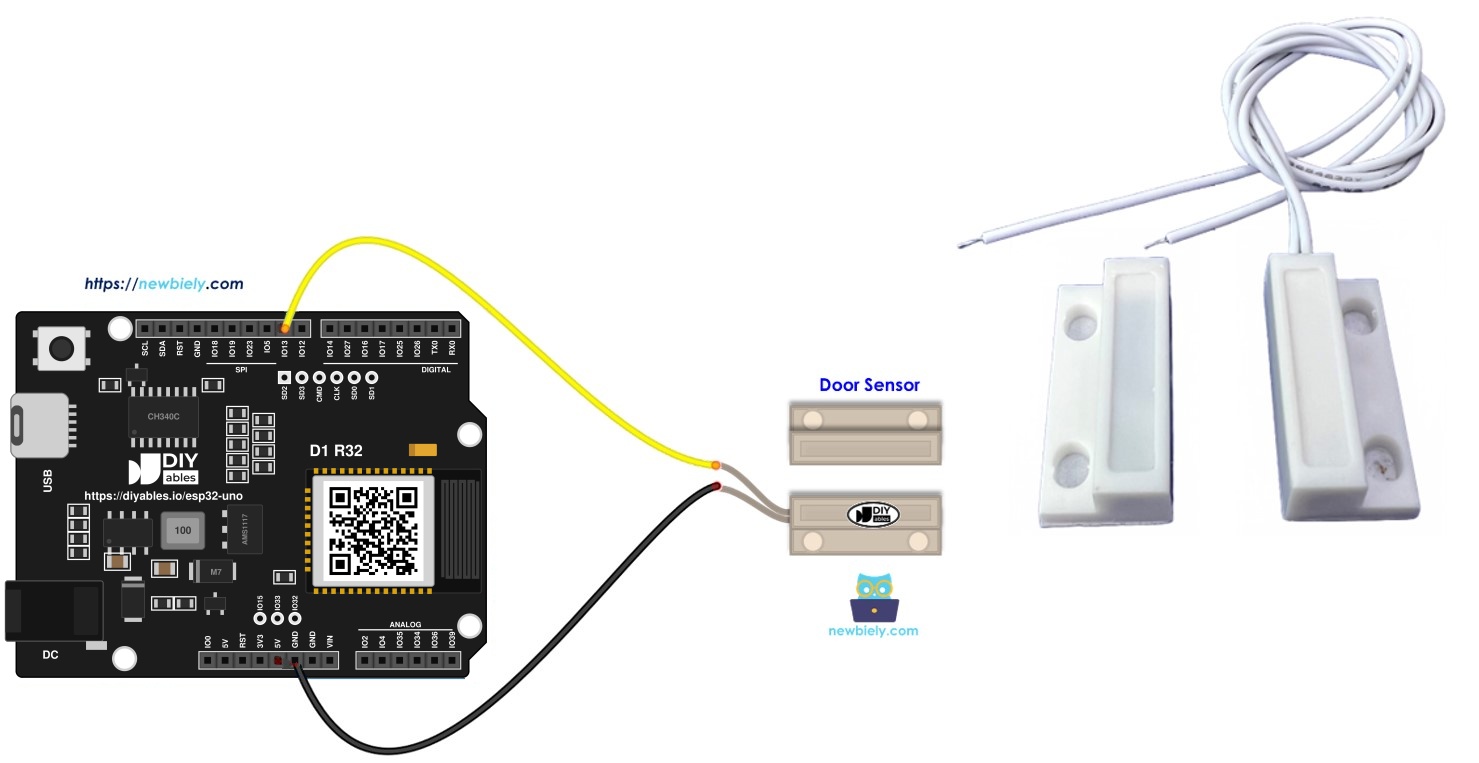
Components You Need
| 1 | × | ESP32 Uno-form Board | |
| 1 | × | USB Cable Type-A to Type-C (for USB-A PC) | |
| 1 | × | USB Cable Type-C to Type-C (for USB-C PC) | |
| 1 | × | Door Sensor |
Or you can buy the following kits:
| 1 | × | DIYables Sensor Kit (18 sensors/displays) |
Additionally, some of these links are for products from our own brand, DIYables .
Inside the Door Sensor
After this part, you know which piece goes where and what signal reaches the board.
Pinout
| Piece | Wires | Job |
|---|---|---|
| Reed switch | 2 | Opens or closes a tiny circuit |
| Magnet | 0 | Pulls the reed contacts together when it is close |
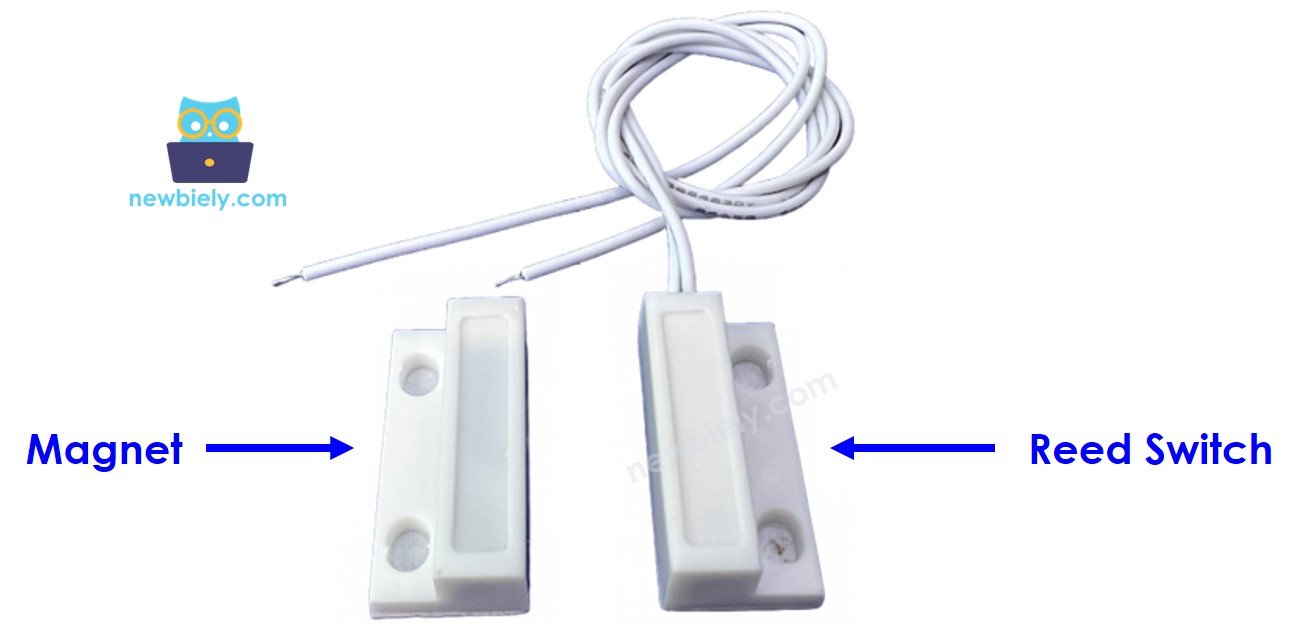
The reed switch has no polarity. Swap its two wires freely, the same way you would with a plain push button.
How It Works
Fix the magnet on the moving part (door leaf or window sash). Fix the reed switch on the still part (the frame). A shut door puts both pieces side by side.
| Door Position | Magnet | Reed Contacts | Pin Level (with pull-up) |
|---|---|---|---|
| Shut | Next to the switch | Touching (circuit closed) | LOW |
| Open | Far from the switch | Apart (circuit open) | HIGH |
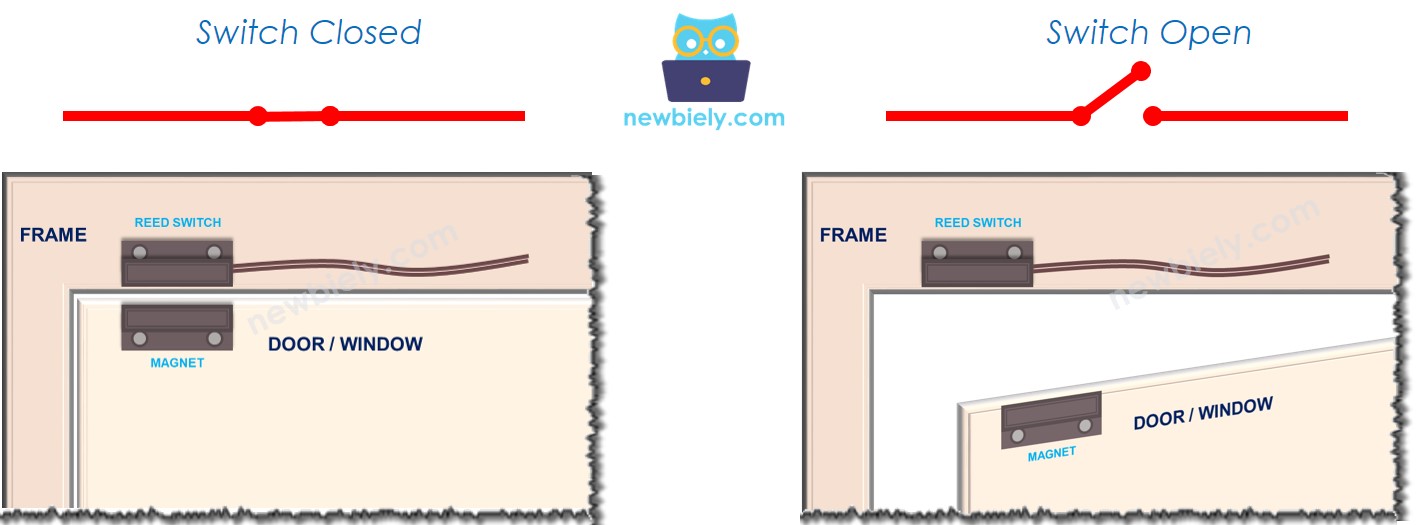
※ NOTE THAT:
A reed switch makes or breaks a path. It does not push out a voltage of its own. Leave the input pin without a pull-up or pull-down and the pin "floats", so the readings jump around at random. Turn on the internal pull-up resistor of the ESP32 Uno with INPUT_PULLUP and the problem is gone.
Put one switch wire on GND and the other on an ESP32 Uno input pin with the pull-up on. Then use the level in two ways:
| What You Want | What To Check | Meaning |
|---|---|---|
| Current state | Pin is LOW | Door shut |
| Current state | Pin is HIGH | Door open |
| Moment of change | LOW then HIGH | Door just opened |
| Moment of change | HIGH then LOW | Door just closed |
ESP32 Uno Pinout
Your code never says "D9". It uses the GPIO number behind that Uno header label. Match the two with the diagram below before you plug in the reed switch.

How to Connect
At the end of this part, the reed switch sits between D9 and GND.
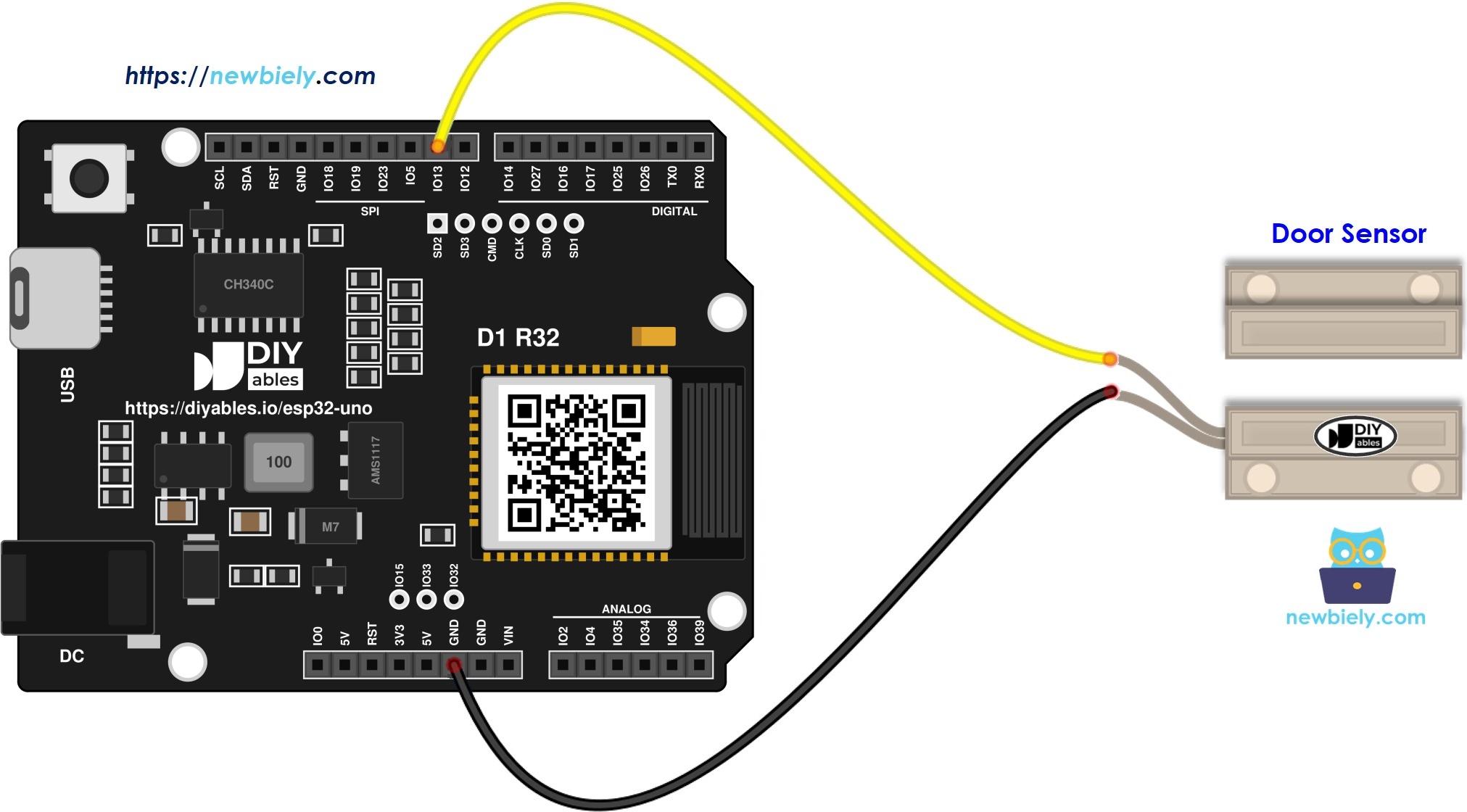
This image is created using Fritzing. Click to enlarge image
| Door Sensor Pin | ESP32 Uno Pin |
|---|---|
| Reed switch wire 1 | D9 (GPIO13) |
| Reed switch wire 2 | GND |
Good to know: ESP32 Uno pins work at 3.3V. A reed switch only joins the pin to GND, so no voltage ever goes into the pin and no level shifter is needed.
Programming the Reed Switch
Two built-in calls are enough. No library install.
| Call | What It Does |
|---|---|
| pinMode(13, INPUT_PULLUP) | Makes D9 (GPIO13) an input and turns on its internal pull-up |
| digitalRead(13) | Returns LOW (door shut) or HIGH (door open) |
Set the pin mode once in setup() with pinMode():
Then read it in loop() with digitalRead():
ESP32 Uno Code - Read the Open or Closed State
The sketch below checks the reed switch over and over and prints the door status on each pass of loop().
Upload and Test
- First time with this board? Set it up with ESP32 Uno - Getting Started before you continue.
- Build the circuit by following the wiring table above.
- Plug in the USB Type-C cable between the ESP32 Uno and your computer.
- Select the board in Arduino IDE: pick ESP32 Dev Module and the COM port of the board (CH340).
- Paste the sketch into a new Arduino IDE window.
- Press Upload (Upload) and wait for "Done uploading".
- Open the Serial Monitor and set it to 9600 baud.
- Slide the magnet up to the reed switch, hold it there for a second, then pull it away.
- Pro tip: Test the gap before you screw the parts to the door. Most reed sensors switch at about 10 to 20 mm, and a metal door frame can shorten that range.
ESP32 Uno Code - Catch Door Opening and Closing Events
Use this sketch when you want one message per movement, not a stream of states. It stores the previous reading and prints only when the level flips.
- Paste the sketch into Arduino IDE.
- Press Upload to send it to the ESP32 Uno.
- Move the magnet away from the reed switch, then back.
- Read the Serial Monitor: one line appears for each move.
- Pro tip: A loose door can rattle and give two or three quick events. Add a short delay(50) in loop() or use a debounce library if you see doubles.
Video Tutorial
See the ESP32 Uno build in action in the video below.
The demo sketch below turns the sensor into a small alarm. In this version, D2 (GPIO26) takes the sensor input, D5 (GPIO16) drives a red LED and D6 (GPIO27) drives a buzzer. An open door makes both of them pulse on and off at a 200 ms rate.
How the Code Works
After this part, you can change the sketches without guessing.
| Code Part | What It Does |
|---|---|
| #define DOOR_SENSOR_PIN 13 | Names D9 (GPIO13) as the sensor input |
| pinMode(..., INPUT_PULLUP) | Holds the pin HIGH until the switch pulls it to GND |
| digitalRead(DOOR_SENSOR_PIN) | Gets the current level, HIGH for open and LOW for shut |
| prev_door_state = door_state | Saves the last level so the next pass can compare |
| LOW then HIGH, HIGH then LOW checks | Print one event line when the door moves |
| TODO lines | Spots where you add your own action, such as a lamp or a message |
The first sketch reports the state all the time, while the second one only speaks up when the state changes.
ESP32 Uno vs UNO R4 for This Project
This shows what changes when you move the door sensor project from the UNO R4 to the ESP32 Uno.
| Item | Arduino UNO R4 | ESP32 Uno |
|---|---|---|
| Logic voltage | 5V | 3.3V |
| Sensor pin in code | 9 | 13 (D9 header, GPIO13) |
| Demo pins in code | 2, 5, 6 | 26, 16, 27 |
| Libraries | None | None |
| WiFi and Bluetooth | WiFi only on the R4 WiFi | WiFi plus Bluetooth Classic and BLE |
| Arduino IDE board | Arduino UNO R4 WiFi | ESP32 Dev Module |
The wiring is the same: the reed switch stays on D9 and GND. Only the pin numbers in the code change, because the ESP32 Uno code uses GPIO numbers.
Go Wireless: Door Status on Your Phone
At the end of this part, you have an idea for a door monitor with no USB cable to a PC.
The ESP32 Uno has WiFi and Bluetooth built in. Instead of reading the Serial Monitor, you can show "open" or "closed" on your phone and get an alert while you are in another room. A digital pin view is a good fit, because the sensor gives a simple ON/OFF level. A monitor view works well for a text log of each opening.
Troubleshooting
| Problem | Possible Cause | Solution |
|---|---|---|
| No COM port shows up in Arduino IDE | CH340 driver missing or a charge-only USB cable | Install the CH340 driver and switch to a USB cable that carries data |
| Upload stops at Waiting for download or Failed to connect | Board did not enter download mode | Hold the BOOT button while the upload starts, then let go |
| Status stays on open | A wire is off D9 or off GND, or the code uses the wrong pin | Check both wires and make sure DOOR_SENSOR_PIN is 13 |
| Status stays on closed | Switch wires touch each other or the magnet is stuck to the switch | Separate the wires and move the magnet far away to test |
| Status flips at random with no movement | Pull-up not enabled or a loose jumper | Keep INPUT_PULLUP in pinMode and reseat the jumper wires |
| Two or three event lines for one door move | Contact bounce from a shaking door | Add a short delay or a debounce library |
| Sensor works on the desk but not on the door | Gap too wide or a steel frame weakens the field | Mount the parts closer and line up their marks |
| Unreadable symbols on the Serial Monitor | Baud rate mismatch | Choose 9600 baud in the Serial Monitor |
FAQ
How does a magnetic door sensor detect an open door?
The reed switch has two thin metal blades in a glass tube. The magnet field pulls them together, so a shut door closes the circuit. When the door opens, the magnet moves away and the blades spring apart.
Is a door sensor the same thing as a reed switch?
Mostly yes. A door sensor is a reed switch in a plastic case, sold together with a matching magnet. The case has screw holes or tape so you can fix it to a frame.
Should the reed switch get 3.3V or 5V on the ESP32 Uno?
Neither. The switch needs no supply at all: one lead goes to GND, the second lead goes to the signal pin. The internal pull-up gives the 3.3V level, so the pin never sees 5V.
Do I have to add an external resistor?
Not on D9. INPUT_PULLUP turns on the built-in pull-up of GPIO13. You only need an external 10kΩ pull-up to 3.3V if you move the sensor to A2 to A5, because those ESP32 Uno pins have no internal pull-up.
Can I wire the sensor to A2 or A3 instead of D9?
Yes, but A2 to A5 (GPIO35, 34, 36, 39) are input-only pins without a pull-up. Add a 10kΩ resistor from the pin to 3.3V, change DOOR_SENSOR_PIN to the new GPIO and use INPUT instead of INPUT_PULLUP.
Why does my code use 13 and not 9 for the sensor?
The ESP32 Uno code uses GPIO numbers, not Uno header labels. The D9 header is wired to GPIO13, so the sketch writes 13. The UNO R4 sketch uses 9 because there the label and the number match.
How do I read several doors and windows at once?
Give each reed switch its own digital pin and its own name, for example FRONT_DOOR_PIN and BACK_DOOR_PIN. Read them one after the other in loop(). Good free pins are D2 to D7 (GPIO26, 25, 17, 16, 27, 14).
Can I use D8 or D10 for a door sensor?
It is better not to. D8 (GPIO12), D10 (GPIO5) and A0 (GPIO2) are boot strapping pins on the ESP32 Uno, read by the chip at power-on. Plain pins such as D2 to D7 or D9 have no boot role, so you never have to think about the door position when the board starts.
What if my project needs more pins than the Uno headers give?
The ESP32 Uno has a few extra holes near the power header: GPIO32 and GPIO33 (I/O, PWM, analog on ADC1, so they also work while WiFi is on) and GPIO15 (I/O, PWM, analog on ADC2). Solder pin headers to them and use the GPIO number in code. For extra door or window sensors, pick GPIO32 and GPIO33 first. Keep two warnings in mind. First, GPIO15 and GPIO0 (the IO0 pin at the unused Uno NC position) are boot strapping pins, so a bad hookup there may block booting or code upload. Also never use the six holes under the digital header (SD0 to SD3, CMD, CLK, which are GPIO6 to GPIO11). They go to the flash chip, and using them crashes the board.
Will my UNO shields fit on the ESP32 Uno for this alarm?
The board has the Uno shape, so most shields fit. Check that the shield works at 3.3V logic, because ESP32 Uno pins are not 5V tolerant.
Can the ESP32 Uno send me a message when the door opens?
Yes. The board has WiFi, so it can post to a web page, a phone app or a chat service. Put that code in the TODO line of the event sketch, so it runs only once per opening.