
ESP32 UNO - DIYables Bluetooth App Digital Pins
Overview
Need a pocket switch panel for your project? With ESP32 Uno Bluetooth digital pins, the free DIYables Bluetooth STEM app shows your board's GPIOs as buttons and live readouts on the phone. The ESP32 Uno form board has a BLE radio and a Classic Bluetooth radio, so remote GPIO control works from iPhone and Android. Tap a name to set an output HIGH or LOW; button states and analog numbers update by themselves.
By the end, you can:
- Flash a pin control sketch from the DIYables Bluetooth library
- Choose BLE or Classic Bluetooth for your phone
- Toggle an LED, a relay or a buzzer from a phone screen
- Read buttons and potentiometers as a wireless pin monitor
- Map Uno header numbers to ESP32 Uno GPIOs inside the app
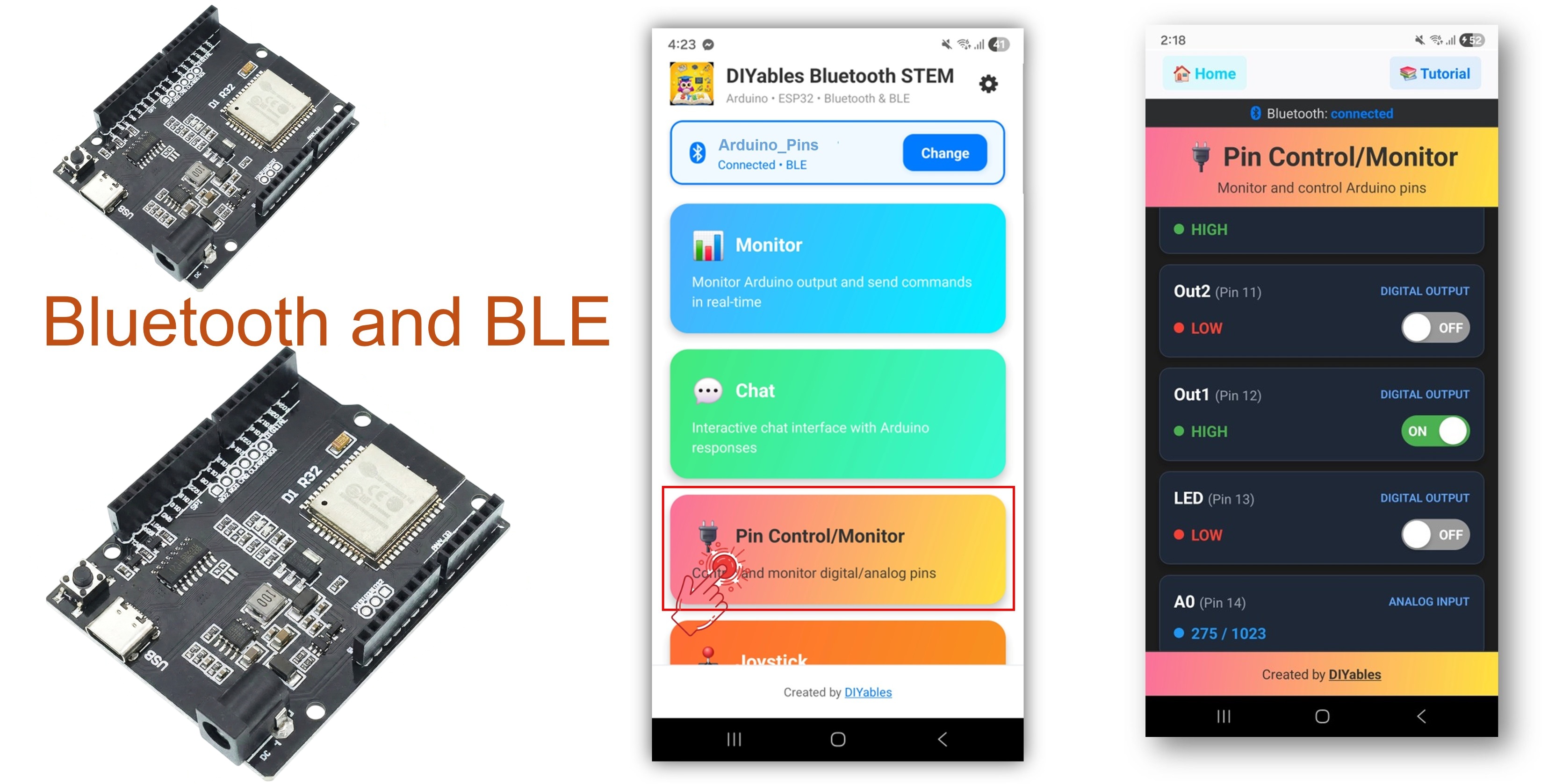
Pick your radio
| Sketch | Radio | Phones | Pairing |
|---|---|---|---|
| Esp32BLE_PinControl | BLE (Bluetooth Low Energy) | Android and iOS | None, connect inside the app |
| Esp32Bluetooth_PinControl | Classic Bluetooth | Android only | Once, in the phone settings |
Good to know: iPhones never list Classic Bluetooth hobby boards. Take the BLE sketch when an iPhone is in the room.
Features
This table sums up what the two pin control sketches can do out of the box.
| Feature | What You Get |
|---|---|
| Remote outputs | Each output pin becomes an ON/OFF tile in the app |
| Input readout | Buttons show HIGH or LOW, A0 and A1 show a number from 0 to 4095 |
| Pin labels | Short names like "LED", "Out1" or "Btn2" instead of raw numbers |
| Push updates | The board sends a new value the moment an input moves |
| Pin limit | Up to 16 pin IDs (0 to 15) on one screen, inputs and outputs mixed |
| Radio choice | BLE for iOS and low power, Classic Bluetooth for Android-only builds |
Hardware Preparation
| 1 | × | ESP32 Uno-form Board | |
| 1 | × | USB Cable Type-A to Type-C (for USB-A PC) | |
| 1 | × | USB Cable Type-C to Type-C (for USB-C PC) | |
| 1 | × | Breadboard | |
| 1 | × | Jumper Wires |
Or you can buy the following kits:
| 1 | × | DIYables Sensor Kit (18 sensors/displays) |
Additionally, some of these links are for products from our own brand, DIYables .
The sketch starts with the board alone. Add LEDs, buttons or a potentiometer on the breadboard when you want to see real parts react.
ESP32 Uno Pinout
Every header label on the ESP32 Uno form board hides a GPIO number, and the sketch drives that number. Find D13, D7 or A0 on the diagram below before you plug in any part.

Pins the Sketch Uses
By the end of this part, you know which header pin each tile in the app controls.
The Digital Pins app only accepts pin IDs from 0 to 15. Many ESP32 Uno GPIOs are above 15 (D13 is GPIO18, D11 is GPIO23), so the sketch sends the Uno header number to the app and turns it into the real GPIO with a small toGpio() function. A0 gets ID 14 and A1 gets ID 15, the same numbers an Uno board uses.
| App Label | App Pin ID | Mode | ESP32 Uno Pin |
|---|---|---|---|
| LED | 13 | Output | D13 (GPIO18) |
| Out1 | 12 | Output | D12 (GPIO19) |
| Out2 | 11 | Output | D11 (GPIO23) |
| Btn1 | 7 | Input with pull-up | D7 (GPIO14) |
| Btn2 | 6 | Input with pull-up | D6 (GPIO27) |
| A0 | 14 | Analog input | A0 (GPIO2) |
| A1 | 15 | Analog input | A1 (GPIO4) |
Suggested parts for a quick test: an LED with a 220 ohm resistor from D13 to GND, a push button from D7 to GND, and a potentiometer with its ends on 3.3V and GND and its middle leg on A0.
WARNING
The chip checks A0 (GPIO2) at startup to pick its boot mode. A potentiometer wiper that sits near 3.3V at power-up can stop the board from entering upload mode. If an upload fails, turn the knob toward GND or unplug the middle leg, upload, then plug it back.
Good to know: ESP32 Uno pins use 3.3V logic and are not 5V tolerant. Feed buttons and potentiometers from the 3.3V pin, never from 5V.
Good to know: the ESP32 Uno has no built-in LED on the Uno headers. The "LED" tile only shows a result when you fit an external LED on D13.
ESP32 Uno Code
By the end of this part, the DIYables Bluetooth library is installed and one pin control sketch runs on the board.
Detailed Instructions
- First time with this board? Set it up with ESP32 Uno - Getting Started before you continue.
- Build the circuit (optional) by following the pin table above.
- Plug in the USB Type-C cable between the ESP32 Uno and your computer.
- Select the board in Arduino IDE: pick ESP32 Dev Module and the COM port of the board (CH340).
- Make room for Bluetooth. Set Tools > Partition Scheme to Huge APP (3MB No OTA/1MB SPIFFS). Bluetooth code does not fit in the standard app space.
- Open the Library Manager from the Libraries icon on the left side.
- Search for "DIYables Bluetooth" and find the entry made by DIYables.
- Press Install.
- Search for DIYables Bluetooth created by DIYables and click the Install button.
- Add the helpers. A popup lists extra libraries; press Install All.
Now choose one radio below and upload only that sketch.
Classic Bluetooth Sketch (Android phones only)
WARNING
Classic Bluetooth never reaches iPhones. iOS users should skip to the BLE sketch.
On the phone, this sketch shows up as ESP32_Pins. It enables seven pin IDs and checks the inputs every 100 ms.
- Get the code from File Examples DIYables Bluetooth Esp32Bluetooth_PinControl, or paste the ESP32 Uno version below. The library example uses generic ESP32 GPIOs, so the code below is the one that matches the Uno headers.
- Press Upload and wait for "Done uploading".
- Open the Serial Monitor at 115200 baud.
- Check the start lines:
BLE Sketch (Android and iOS)
Over BLE, the board calls itself ESP32BLE_Pins. The pin logic is the same; only the radio changes, and the analog change step is 40 instead of 50.
- Get the code from File Examples DIYables Bluetooth Esp32BLE_PinControl, or paste the ESP32 Uno version below.
- Press Upload and let it finish.
- Open the Serial Monitor at 115200 baud.
- Check the start lines:
- Pro tip: with nothing on A0 and A1, the analog pins float and the app shows random jumping numbers. Tie each unused analog pin to GND with a jumper, or fit the potentiometer, to get a calm display.
Good to know: both sketches call analogSetAttenuation(ADC_11db) at the top of setup(). The 11 dB setting lets the ESP32 Uno analog pins read the whole span from 0V to about 3.3V. Without a wide range, A0 and A1 hit 4095 too early and the numbers in the app look wrong.
Mobile App
By the end of this part, your phone is linked and the Digital Pins screen is open.
Step 1 — Install the app
Download the DIYables Bluetooth App: Android | iOS
Step 2 — Pair (Classic Bluetooth only)
BLE users skip this step. For the Classic sketch, pair the board on the Android phone first:
- Go to Settings > Bluetooth and switch Bluetooth on.
- Wait for the list, then pick "ESP32_Pins".
- Accept the request. No PIN code is needed.
- Confirm that the phone marks it as "Paired".
Step 3 — Allow permissions
Start the app. On first launch it asks for:
- Nearby Devices (Android 12 and newer) or Bluetooth (iOS), to scan and connect
- Location (Android 11 and older only), because older Android needs it for BLE scans
Step 4 — Connect
Make sure the phone's Bluetooth is on, then press Connect. One scan lists BLE and Classic boards together.
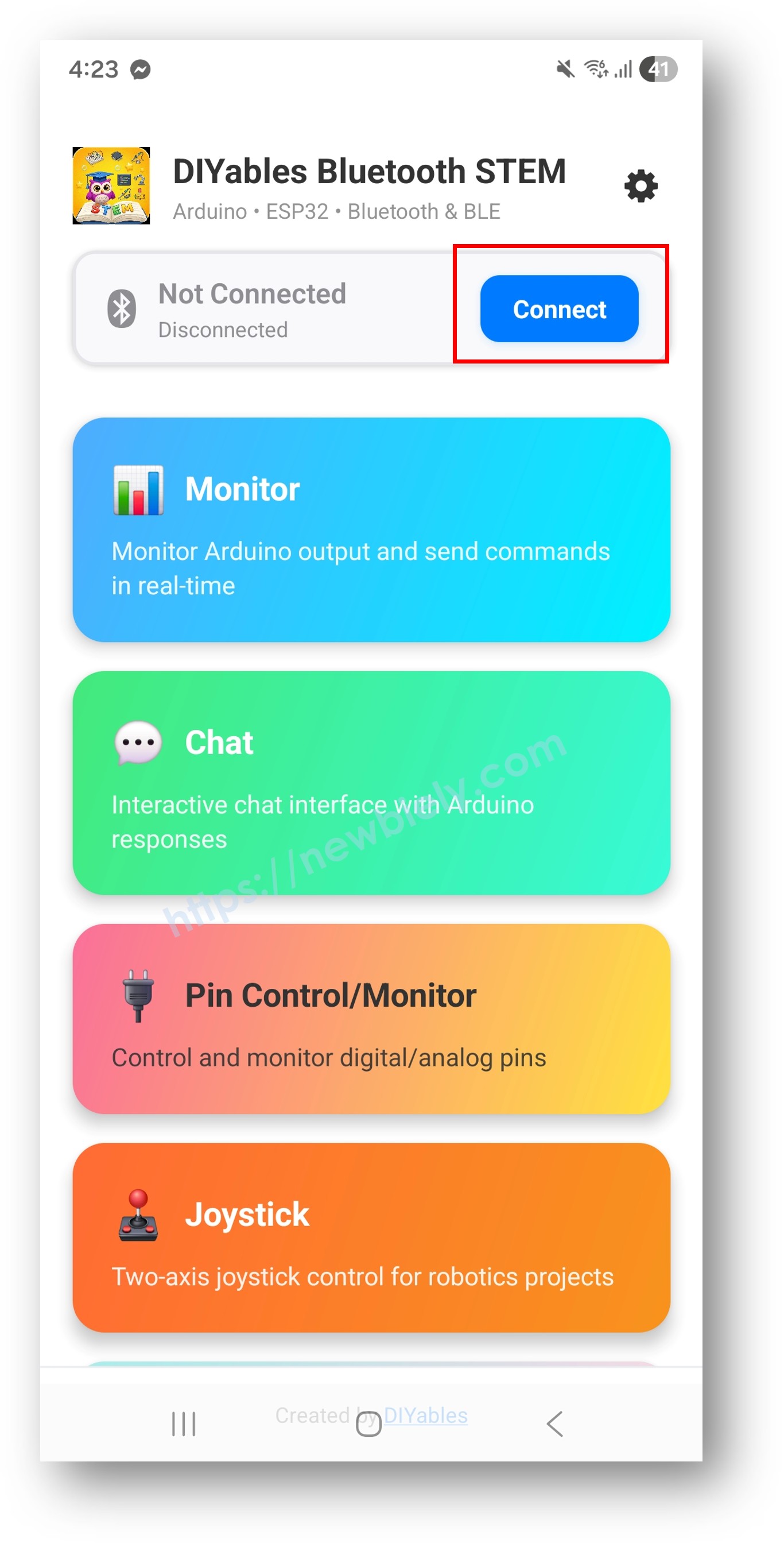
Tap the name that fits your sketch:
| Sketch | Name in the Scan List |
|---|---|
| Classic Bluetooth | ESP32_Pins |
| BLE | ESP32BLE_Pins |
Step 5 — Open Digital Pins
When the link is up, the app jumps back home. Choose the Digital Pins tile.
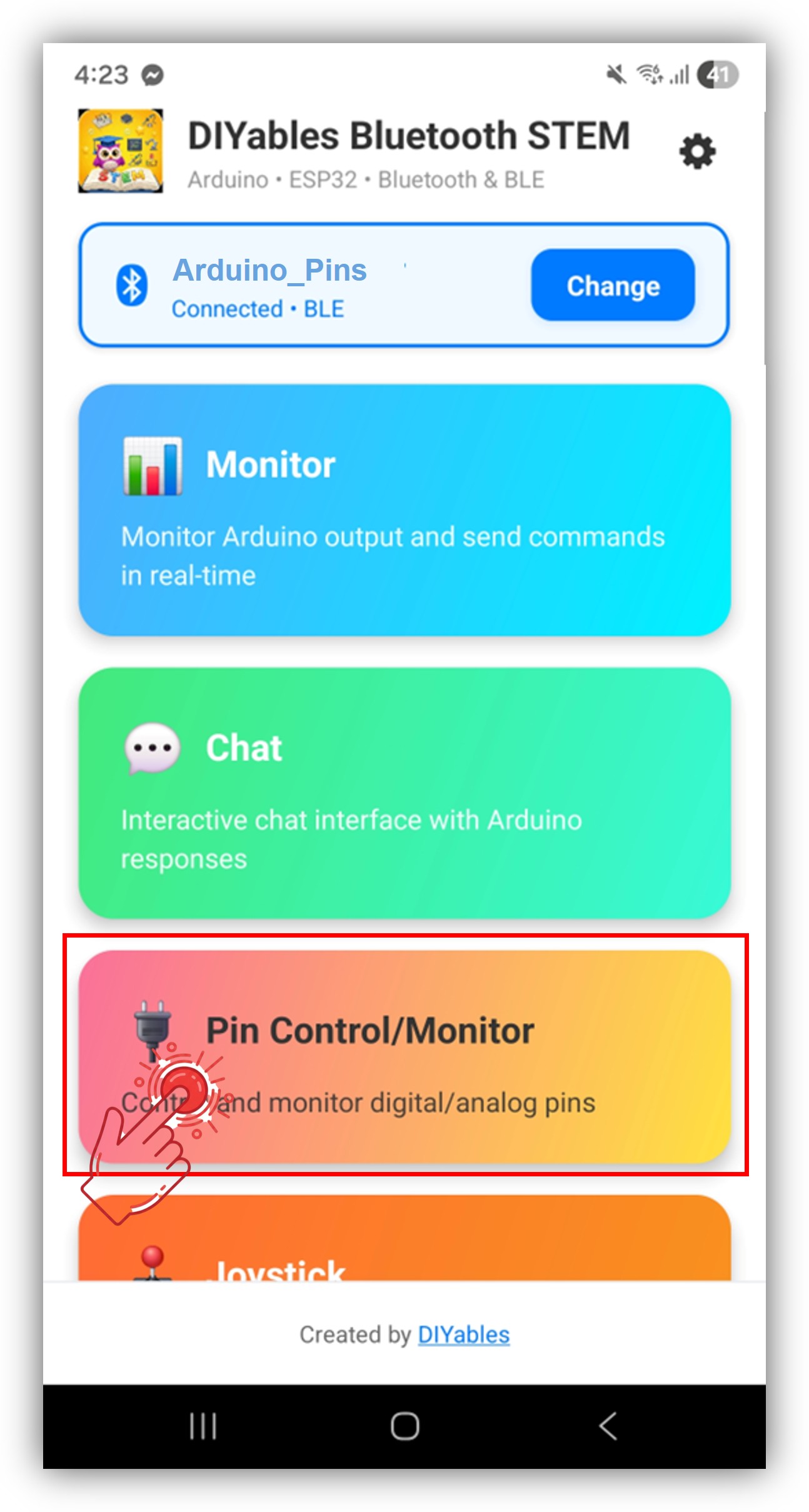
※ NOTE THAT:
The gear icon on the home screen hides or shows tiles. Every screen is covered in the DIYables Bluetooth App User Manual.
Step 6 — Flip and watch
Tap LED, Out1 or Out2 to switch them. Press the button on D7 or turn the knob on A0 and watch the tiles change.
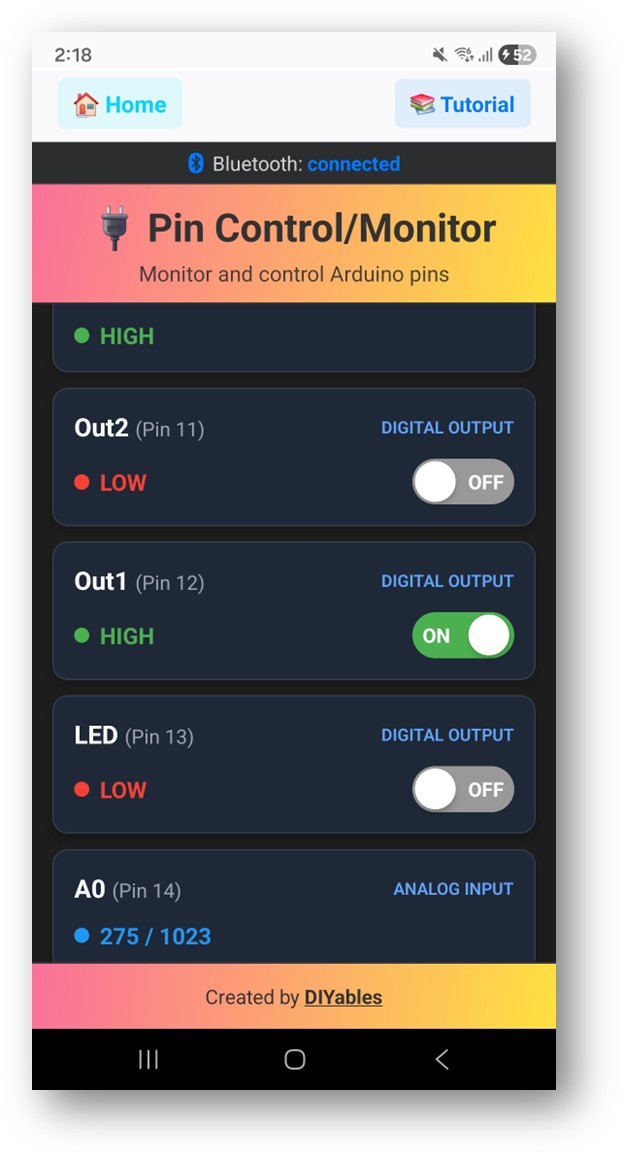
Keep an eye on the Serial Monitor too. A short session prints lines like these:
The numbers in these lines are app pin IDs, not GPIOs: 13 is D13 (GPIO18), 7 is D7 (GPIO14) and 14 is A0 (GPIO2).
Video Tutorial
See the ESP32 Uno build in action in the video below.
The demo switches three LEDs and a buzzer from the phone. It uses the Uno header numbers 8 to 11 as app IDs, and toGpio() turns them into the ESP32 Uno GPIOs.
| Part | ESP32 Uno Pin |
|---|---|
| Green LED (through a 220 ohm resistor) | D9 (GPIO13) |
| Yellow LED (through a 220 ohm resistor) | D10 (GPIO5) |
| Red LED (through a 220 ohm resistor) | D11 (GPIO23) |
| Passive buzzer (+) | D8 (GPIO12) |
| LED cathodes and buzzer (-) | GND |
WARNING
D8 (GPIO12) and D10 (GPIO5) are boot strapping pins. GPIO12 must be LOW when the board starts, or the flash runs at the wrong voltage and the board will not boot. A buzzer or an LED with a resistor to GND normally keeps these pins safe. If the board stops booting or uploading, unplug the wires from D8 and D10, upload, then plug them back.
Make the Pin Code Your Own
By the end of this part, you can add, read and guard your own pins in the app.
| Code Part | What It Does |
|---|---|
| bluetoothPins.enablePin() | Adds one pin ID to the app with a mode and a label |
| bluetoothPins.onPinWrite() | Runs when you tap an output tile |
| bluetoothPins.onPinRead() | Returns a value when the app asks for one |
| bluetoothPins.onPinModeChange() | Switches a pin between input and output |
| bluetoothPins.updatePinState() | Pushes a fresh value to the app without being asked |
| toGpio() | Turns an app pin ID into the real ESP32 Uno GPIO |
Together they form a loop: the app talks in pin IDs, your callbacks talk in GPIOs, and toGpio() sits in between.
A Full Header Lookup Table
The main sketch uses a switch for seven pins. If you plan to use more header pins, this lookup table covers every Uno pin that fits the 0 to 15 ID range. The snippets below use it.
Good to know: A2 to A5 (GPIO35, GPIO34, GPIO36, GPIO39) would need IDs 16 to 19, which the app refuses. To show one of them, give it a free ID such as 0 or 1 and map that ID to the GPIO yourself.
Choose Your Pins
React to a Tap
Answer a Read Request
Follow a Mode Change
Push New Values
Send a digital state only when it flips. Send an analog value only after a clear move, so the radio is not flooded.
Switch Everything Off on Disconnect
Reading the Digital Pins Screen
This short table explains what you see on the phone.
| Screen Item | Meaning |
|---|---|
| Pin row | One enabled pin ID with its label and its current state |
| Output tile | Tap to swap between HIGH and LOW |
| Input value | HIGH or LOW for buttons, updated by the board |
| Analog number | Raw ESP32 Uno ADC reading from 0 to 4095 |
| BT_PIN_OUTPUT (0) | The app may switch this pin |
| BT_PIN_INPUT (1) | The app only displays this pin |
ESP32 Uno vs UNO R4 for This Project
Moving this project from the UNO R4 WiFi to the ESP32 Uno changes the radio options, the library platform and the pin numbers in code.
| Item | Arduino UNO R4 WiFi | ESP32 Uno |
|---|---|---|
| Logic voltage | 5V | 3.3V |
| Bluetooth radio | BLE only | BLE and Classic Bluetooth |
| Library platform file | DIYables_ArduinoBLE.h | DIYables_Esp32BLE.h or DIYables_Esp32Bluetooth.h |
| Pin numbers in code | Header numbers 13, 12, 11, 7, 6, A0, A1 | GPIO18, 19, 23, 14, 27, 2, 4 via toGpio() |
| Analog range | 0 to 1023 (10-bit) | 0 to 4095 (12-bit) |
| Extra setup line | None | analogSetAttenuation(ADC_11db) |
| Arduino IDE board | Arduino UNO R4 WiFi | ESP32 Dev Module with Huge APP partition |
The parts stay on the same header pins, so a breadboard built for the UNO R4 fits as-is. Only power buttons and potentiometers from 3.3V, not 5V.
Programming Examples
By the end of this part, you have three ready patterns to paste into your own sketch. Each one uses the toGpio() lookup table from above, and the setup lines go after bluetoothServer.addApp(&bluetoothPins);.
Relay with a Button Monitor
A relay on D12 is switched from the phone, and a button on D7 is shown in the app.
Six-LED Panel
Six LEDs on D8 to D13 become six tiles.
WARNING
D8 (GPIO12) and D10 (GPIO5) are boot strapping pins. An LED with a resistor to GND is fine, but never pull D8 HIGH at power-up, or the board will not start.
Outputs, Buttons and Sensors on One Screen
Safer Remote Control
A wrong tap can start a pump or a heater. These two patterns stop that.
Interlock Switch
The relay on D12 only turns on while a safety switch on D7 is closed. Otherwise the command is refused and the tile goes back to OFF.
Auto-Off Timer
Each output turns itself off five minutes after you switch it on. The array has one slot for each app ID from 0 to 15.
BLE or Classic Bluetooth on the ESP32 Uno?
The ESP32 Uno runs both sketches, so choose by phone and power budget.
| Point | BLE (Esp32BLE_PinControl) | Classic (Esp32Bluetooth_PinControl) |
|---|---|---|
| iPhone | Works | Not listed |
| Android | Works | Works |
| Power draw | Lower | Higher |
| Pairing | None | Once in phone settings |
| Speed | Lower, still plenty for pin states | Higher |
| Best choice when | Mixed phones or battery power | Android only and long sessions |
Check Which Pins Are Live
When a tile is missing, print what the library really accepted. Call this at the end of setup() and look at the Serial Monitor.
A count below your plan nearly always means a GPIO number above 15 was passed to enablePin() instead of the header ID.
Project Ideas
| Area | Ideas |
|---|---|
| Home | Lamp switch, fan relay, garage door button, garden valve |
| Security | Door contact readout, PIR motion tile, buzzer alarm |
| Tutorial | Machine start/stop, pump control, status lights |
| Classroom | Logic level trainer, button and LED lab, GPIO explorer |
Pair Digital Pins with Other App Screens
One sketch can run several DIYables Bluetooth screens at once.
With the Slider Screen
The tile switches the output, and a slider sets the brightness with PWM.
With the Monitor Screen
Each tap is written as a text log line.
Next Steps
Once the pin tiles work, try these screens:
- ESP32 Uno - Bluetooth Slider - set PWM levels by dragging
- ESP32 Uno - Bluetooth Monitor - log pin events as text
- ESP32 Uno - Bluetooth Table - list many values in rows
- ESP32 Uno - Bluetooth Multiple Apps - run pins next to other screens
Support
Stuck? Read the library API reference, open the DIYables Bluetooth App page, or post in the Arduino forum.
Troubleshooting
| Problem | Possible Cause | Solution |
|---|---|---|
| No COM port appears | CH340 driver missing or a charge-only cable | Install the CH340 driver and swap to a data USB cable |
| Upload stops at "Waiting for download" | Board did not enter upload mode | Hold the BOOT button while the upload starts, then release it |
| Upload fails only with parts plugged in | A0 (GPIO2), D8 (GPIO12) or D10 (GPIO5) pulled the wrong way at boot | Unplug the part on that pin while uploading, or use another pin |
| Sketch too big for the board | Default partition is too small for Bluetooth | Pick Huge APP (3MB No OTA/1MB SPIFFS) under Tools > Partition Scheme |
| Board name missing in the scan | Sketch not running, Classic sketch on an iPhone, or no permission | Check the start lines in the Serial Monitor, use the BLE sketch on iOS, grant Nearby Devices |
| A tile is missing in the app | GPIO number above 15 given to enablePin() | Pass the Uno header ID and convert it with toGpio() |
| Tile toggles but the LED stays dark | No external LED on D13, LED reversed or no resistor | Fit an LED with a 220 ohm resistor and check the long leg faces the pin |
| A0 or A1 numbers jump all over | Analog pin left floating | Connect a sensor or tie the pin to GND |
| Analog value stuck near 4095 | Signal above 3.3V or attenuation line removed | Power the sensor from 3.3V and keep analogSetAttenuation(ADC_11db) |
| Link drops every few minutes | Phone too far away or weak USB supply | Move closer and use a short, good USB cable |
FAQ
Does the Digital Pins app need any extra Bluetooth module on the ESP32 Uno?
No. The Bluetooth radio is inside the ESP32 Uno chip. You only add the parts you want to switch or read, such as LEDs, relays or buttons.
Why do my tiles show 13 and 14 when the GPIOs are 18 and 2?
The app accepts pin IDs from 0 to 15 only, so the sketch shows Uno header numbers. ID 13 is D13 (GPIO18) and ID 14 is A0 (GPIO2). The toGpio() function does the translation in every callback.
Which ESP32 Uno pins can I put in the app directly?
Any Uno header from D2 to D13 plus A0 and A1, through the lookup table on this page. D0 and D1 are the USB serial pins, so leave them free. A2 to A5 need a spare ID and your own mapping, and they can only be inputs.
Can I control a 5V relay module from the app?
Yes, if the relay module accepts a 3.3V signal on IN, which most opto-isolated modules do. Power the module from 5V and drive IN from a pin such as D12 (GPIO19). Never send a 5V signal back into an ESP32 Uno pin.
What is analogSetAttenuation(ADC_11db) doing in the pin control sketch?
With this line, a full knob turn from GND to 3.3V spreads over the whole 0 to 4095 scale of the ESP32 Uno ADC. With a smaller range, readings top out early. The UNO R4 does not need this line; only the ESP32 Uno code has it. Anything you connect to A0 or A1 must stay at or below 3.3V.
Can I add WiFi to this sketch and still read A0 and A1?
Not reliably. A0 (GPIO2) and A1 (GPIO4) sit on ADC2, and ADC2 cannot be read while WiFi is on. Bluetooth alone is fine. If you add WiFi, move the sensors to A2 to A5 (GPIO35, 34, 36, 39) or GPIO32/33 and change the pin numbers in code.
How many phones can use the pin panel at the same time?
One. The board serves a single Bluetooth link at a time. When that phone disconnects, another phone can connect.
Is the ESP32 Uno code very different from the UNO R4 WiFi version?
The app logic is the same. The ESP32 Uno version uses an ESP32 platform file (BLE or Classic), GPIO numbers through toGpio(), a 12-bit analog range and the attenuation line. The parts sit on the same header pins.
My pin panel needs more pins than the Uno headers offer. What can I use?
The ESP32 Uno has a few extra holes near the power header: GPIO32 and GPIO33 (I/O, PWM, analog on ADC1, so they also work while WiFi is on) and GPIO15 (I/O, PWM, analog on ADC2). Fit pin headers into those holes, then use the plain GPIO number in your sketch. For this app, each extra pin needs a spare app ID (for example 0 or 1) mapped to its GPIO in toGpio(). GPIO32/33 are the best pick for extra analog sensors. Two warnings: GPIO15 and GPIO0 (the IO0 pin at the unused Uno NC position) are boot strapping pins, and a wrong connection can stop the board from booting or uploading, so use GPIO32/33 first. Never use the six holes under the digital header (SD0 to SD3, CMD, CLK = GPIO6 to GPIO11); they are wired to the flash chip and using them crashes the board.
Can I control these pins from a web page instead of the phone app?
Yes. The ESP32 Uno also has WiFi, and the ESP32 Uno - Web Digital Pins tutorial shows the same idea in a browser.