
ESP32 UNO - Light Sensor
Is the room dark, dim or bright? An ESP32 Uno light sensor answers that with one photoresistor, one resistor and a short Arduino sketch. Put the photocell on the ESP32 Uno form board, and the analog pin turns the light around it into a number from 0 to 4095, plus a plain word on the Serial Monitor.
By the end, you can:
- Explain how a light-dependent resistor changes with light
- Build a photoresistor voltage divider on a breadboard
- Read the LDR value with analogRead() in Arduino IDE
- Sort each reading into one of five brightness bands
- Tune the bands to the light in your own room
Components You Need
| 1 | × | ESP32 Uno-form Board | |
| 1 | × | USB Cable Type-A to Type-C (for USB-A PC) | |
| 1 | × | USB Cable Type-C to Type-C (for USB-C PC) | |
| 1 | × | Light Sensor | |
| 1 | × | 10 kΩ Resistor | |
| 1 | × | Breadboard | |
| 1 | × | Jumper Wires |
Or you can buy the following kits:
| 1 | × | DIYables Sensor Kit (18 sensors/displays) |
Additionally, some of these links are for products from our own brand, DIYables .
A loose LDR light sensor is one of the cheapest parts in any kit, yet it needs an extra resistor on the breadboard. Prefer a three-wire setup? Grab an LDR light sensor module, which has the resistor built in.
What Is a Light Sensor (LDR)?
After this part, you know what the part senses and what it cannot do.
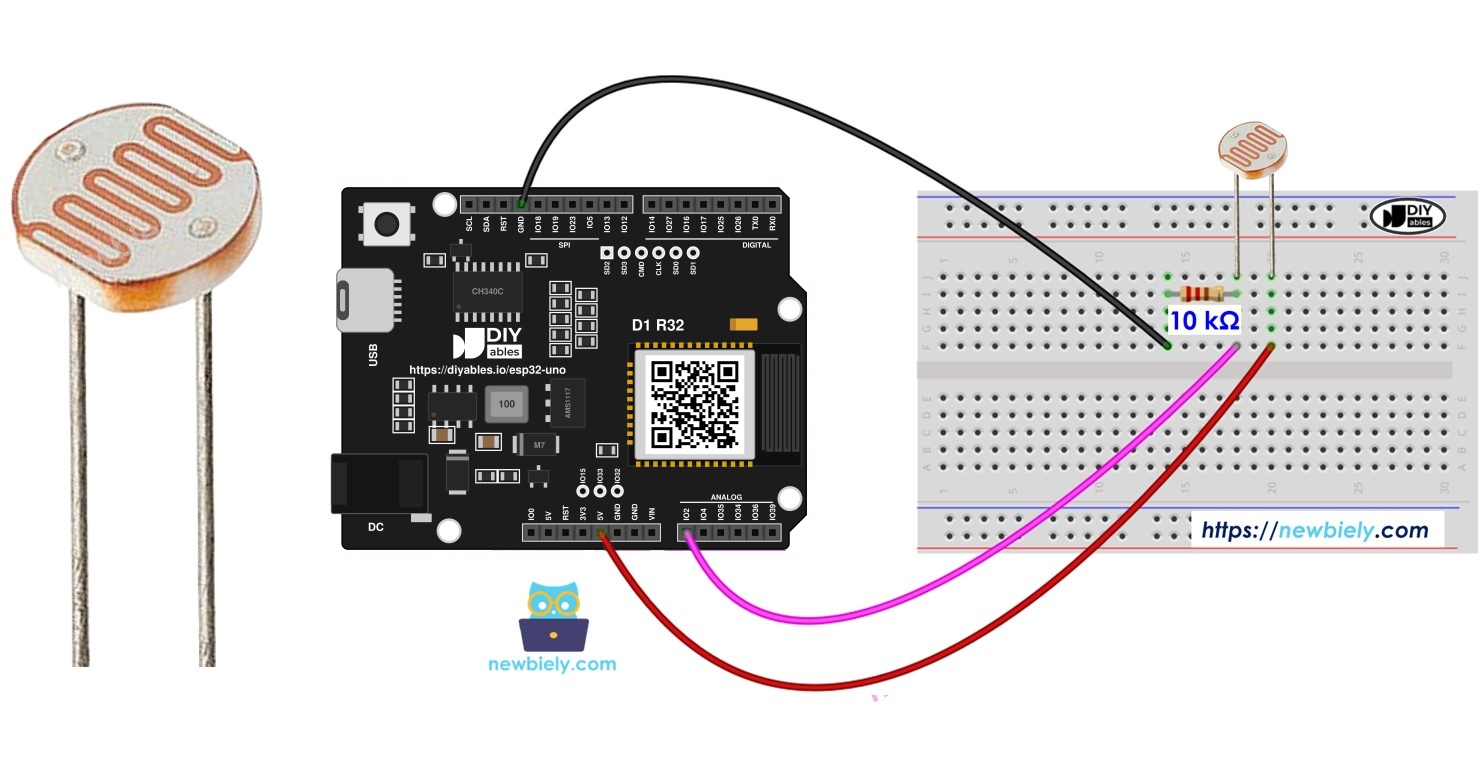
The part on your bench is a photoresistor. Shops sell it as an LDR (light-dependent resistor) or a photocell. It reacts to the brightness of the light that falls on its top surface.
| Property | Value |
|---|---|
| Type | Light-dependent resistor (photoresistor) |
| Pins | 2, no polarity |
| Resistance in bright light | Low (a few hundred ohms to a few kΩ) |
| Resistance in the dark | High (hundreds of kΩ or more) |
| Output | Relative brightness, not lux |
Pinout
Both legs do the same job, so either one can face the board.
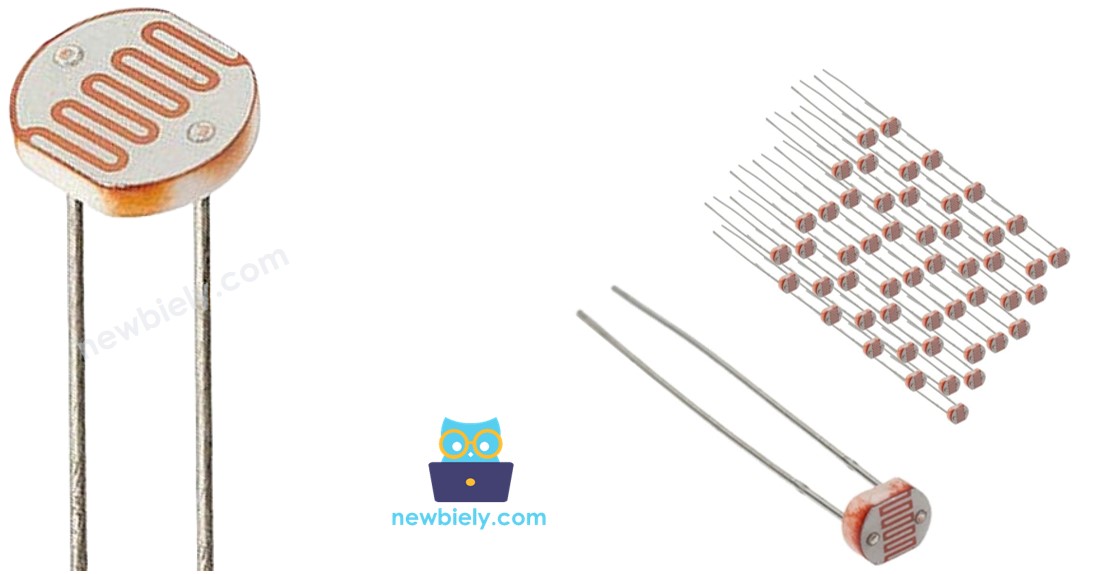
Good to know: since a photoresistor is a plain resistor, you can never plug it in "backwards".
How It Works
Here you see how a change in light turns into a voltage the board can measure.
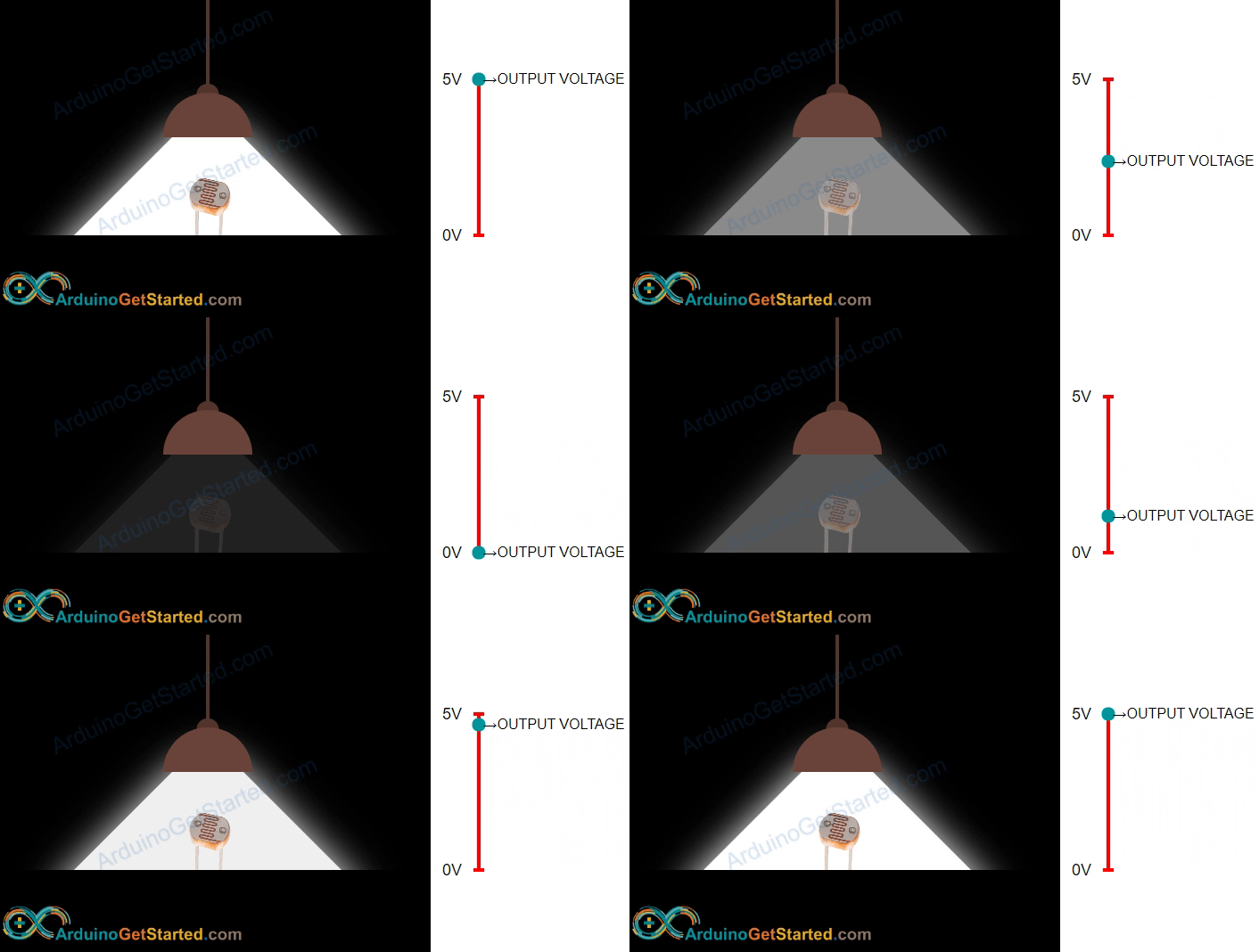
The resistance of the LDR falls when light grows and climbs when light fades. A board cannot read resistance directly, so you pair the LDR with a fixed 10 kΩ resistor. The two parts share the 3.3V supply, and the voltage at the point between them moves up and down with the light.
| Light Level | LDR Resistance | Voltage at the Middle Point | Reading |
|---|---|---|---|
| Dark room | Very high | Near 0V | Near 0 |
| Desk lamp | Medium | Around 1.5V | Around 1800 |
| Flashlight on top | Very low | Near 3.3V | Near 4095 |
WARNING
A photoresistor gives a trend, not a precise lux figure. Two LDRs from the same bag can read quite differently. Use it for jobs like "turn on a lamp at dusk", not for lab measurements.
Reading Light on the ESP32 Uno
This part shows how the analog header turns that voltage into a number.
| Item | ESP32 Uno Value |
|---|---|
| Analog header used | A0 (GPIO2) |
| ADC resolution | 12-bit |
| Value range | 0 to 4095 |
| Input voltage range | 0V to about 3.3V (with 11 dB attenuation) |
| Logic level | 3.3V, pins are NOT 5V tolerant |
Run the analogRead() function on GPIO2 and you get the voltage of the divider as a number. More light gives a bigger number.
Good to know: A0 is also an ADC2 pin. It reads fine in this sketch, but it stops working for analogRead() once WiFi is turned on.
ESP32 Uno Pinout
The headers carry Uno names like A0 and D7, but the sketch needs GPIO numbers. Find the GPIO behind each header pin in this diagram first.

How to Connect
At the end of this step, the voltage divider feeds the A0 header and the circuit is ready for code.
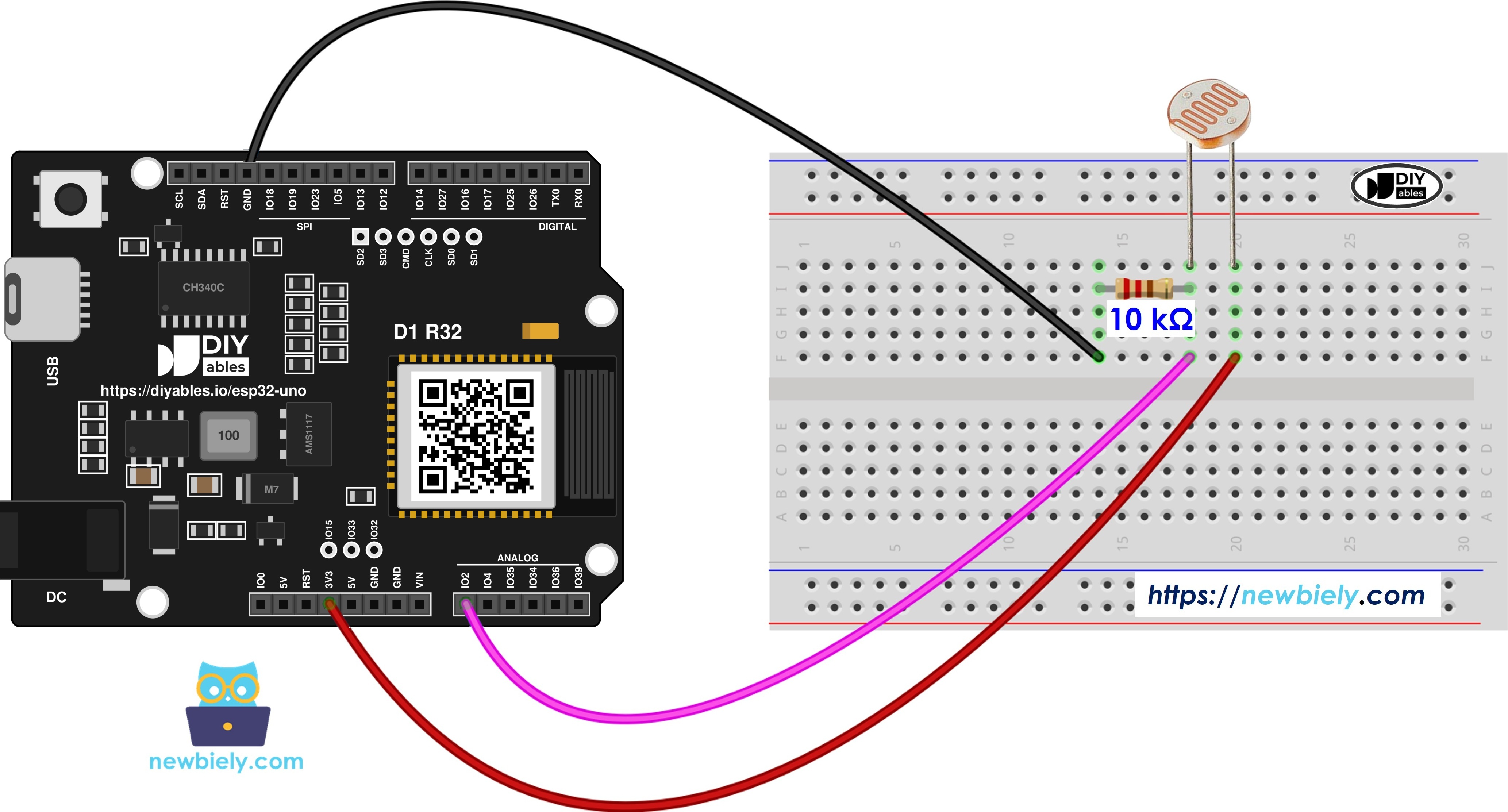
This image is created using Fritzing. Click to enlarge image
| Component Pin | ESP32 Uno Pin |
|---|---|
| Light sensor leg 1 | 3.3V |
| Light sensor leg 2 | A0 (GPIO2) |
| 10 kΩ resistor, first leg | A0 (GPIO2) |
| 10 kΩ resistor, second leg | GND |
WARNING
A0 is GPIO2, a boot strapping pin. The chip checks it during reset, and it must not be HIGH when you upload code. Under strong light, the LDR pulls GPIO2 close to 3.3V. If an upload fails with "Failed to connect", cover the sensor with your finger (or pull out the A0 wire) during the upload, then let go.
WARNING
Feed the LDR from the 3.3V pin only. In bright light the A0 voltage nearly equals the supply, and 5V on an ESP32 Uno pin can damage it.
Good to know: the order matters: LDR toward 3.3V, resistor toward GND. Swap them and the numbers fall as the light grows.
ESP32 Uno Code
The sketch samples the divider on GPIO2 every half second and prints the number together with a brightness word.
Good to know: analogSetAttenuation(ADC_11db) in setup() widens the ESP32 Uno ADC input to about 0V–3.3V. With a smaller range, a normal lamp already pushes the reading to 4095, so "Bright" and "Very bright" look the same.
Upload and Test
When you finish these steps, the Serial Monitor shows live light readings.
- First time with this board? Set it up with ESP32 Uno - Getting Started before you continue.
- Build the circuit by following the wiring table above.
- Plug in the USB Type-C cable between the ESP32 Uno and your computer.
- Select the board in Arduino IDE: pick ESP32 Dev Module and the COM port of the board (CH340).
- Paste the sketch into a new Arduino IDE window.
- Send the code with the Upload arrow. Shade the LDR if the upload does not start.
- Open the Serial Monitor at 9600 baud.
- Change the light: cup your hand over the sensor, then point a phone flashlight at it.
- Watch the numbers move between the bands.
- Pro tip: a drinking straw or a short piece of black tube over the LDR blocks side light, so the sensor only reacts to the light it points at.
Video Tutorial
See the ESP32 Uno build in action in the video below.
How the Code Works
This table lists every part of the sketch and its job.
| Code Part | What It Does |
|---|---|
| Serial.begin(9600) | Opens the USB serial link for the readings |
| analogSetAttenuation(ADC_11db) | Lets the analog pin read up to about 3.3V |
| analogRead(2) | Reads the divider voltage on A0 (GPIO2) as 0 to 4095 |
| if / else if chain | Picks Dark, Dim, Light, Bright or Very bright |
| delay(500) | Waits half a second between readings |
The result is two lines of output per second, each with a raw number and a word you can read at a glance.
Brightness bands
Each limit fits the 12-bit range. Older 10-bit boards used one quarter of these numbers.
| Reading | Label |
|---|---|
| 0 to 39 | Dark |
| 40 to 799 | Dim |
| 800 to 1999 | Light |
| 2000 to 3199 | Bright |
| 3200 to 4095 | Very bright |
ESP32 Uno vs UNO R4 for This Project
This shows what changes when you move the light sensor build from the UNO R4 to the ESP32 Uno.
| Item | Arduino UNO R4 | ESP32 Uno |
|---|---|---|
| Logic voltage | 5V | 3.3V |
| Divider supply | 5V | 3.3V |
| Sensor pin in code | A0 | 2 (A0 header, GPIO2) |
| ADC range | 0 to 1023 | 0 to 4095 |
| Extra setup line | None | analogSetAttenuation(ADC_11db) |
| Brightness limits | 10, 200, 500, 800 | 40, 800, 2000, 3200 |
| Arduino IDE board | Arduino UNO R4 WiFi | ESP32 Dev Module |
The same breadboard layout works, as long as the LDR goes to 3.3V instead of 5V. Watch the upload: GPIO2 is a boot strapping pin, so shade the sensor if the board refuses new code.
Go Wireless: Check the Room Light from Your Phone
After this part, you have an idea for seeing the light level without a USB cable.
The ESP32 Uno has WiFi and Bluetooth (Classic and BLE) on board. Send the reading to a phone and you can check from the sofa if the hallway light is still on, or plot daylight over a whole afternoon. Before you use WiFi, move the divider middle wire from A0 to A2 (GPIO35) and read pin 35 in code, because A0 is an ADC2 pin and stops reading while WiFi is on.
Try These Next
- Light an LED when the reading falls into the Dark band
- Print the reading as a percent, from 0% (dark) to 100% (flashlight)
- Average 10 samples before you pick a label, so a passing shadow does not flip it
- Remember the lowest and highest values seen since power-on and print them
Language References
Read more about each function in the sketch here.
Troubleshooting
| Problem | Possible Cause | Solution |
|---|---|---|
| No COM port appears in Arduino IDE | CH340 driver missing or a charge-only cable | Install the CH340 driver and use a USB cable that carries data |
| Upload stops at "Failed to connect" or "Waiting for download" | Board did not enter download mode | Hold the BOOT button while the upload starts |
| Upload fails only when the room is bright | Strong light pulls GPIO2 (A0) HIGH at reset and GPIO2 is a boot strapping pin | Cover the LDR or unplug the A0 wire while uploading |
| Serial Monitor shows strange symbols | Baud rate mismatch | Pick 9600 baud in the Serial Monitor |
| Reading stays at 0 in any light | The LDR has no 3.3V or the middle wire is not on A0 | Check the 3.3V wire and the jumper to the A0 header |
| Reading stays at 4095 in any light | The 10 kΩ resistor is not tied to GND | Seat the resistor leg in the GND rail |
| Reading falls as the light gets stronger | LDR and resistor are in swapped places | Put the LDR on the 3.3V side and the resistor on the GND side |
| Room light already shows Very bright | The attenuation line was removed | Keep analogSetAttenuation(ADC_11db) inside setup() |
| Numbers jitter by 50 or more | Mains lamp flicker or a loose breadboard leg | Average a few readings and press the parts in firmly |
FAQ
How bright does it have to be for the ESP32 Uno to read 4095?
It depends on your LDR and resistor, but a phone flashlight held close usually gets near the top. Normal room light tends to land between 1000 and 2500 with a 10 kΩ resistor. Print a few values in your room to learn your own range.
Does it matter which leg of the photocell goes to 3.3V?
No. The photocell has no polarity, so both legs are the same. What matters is the order of the parts: LDR on the 3.3V side gives a reading that rises with light.
Why use a 10 kΩ resistor with the LDR?
The board measures voltage, not resistance, so the fixed resistor turns the LDR change into a voltage change. 10 kΩ sits in the middle of a typical LDR range, which gives a good spread from dark to bright. A bigger value makes dark scenes easier to tell apart.
Can the 5V pin power the photoresistor?
Not in this circuit. In bright light the A0 voltage nearly equals the supply, and the ESP32 Uno pins accept 3.3V at most. Always use the 3.3V pin for the divider.
What is analogSetAttenuation(ADC_11db) for in this sketch?
It sets the ESP32 Uno ADC input range to about 0V–3.3V, so the whole divider voltage maps to 0–4095. With a smaller range, readings saturate early and every bright level shows the same number. A UNO R4 sketch never has this line, since only the ESP32 Uno family uses it. Keep the voltage on the pin at 3.3V or less.
Why are the limits in the code four times bigger than on the UNO R4?
The ESP32 Uno ADC is 12-bit and returns 0 to 4095, while the UNO R4 default is 10-bit with 0 to 1023. Multiplying each old limit by four keeps the same light bands.
Will this sketch still work if I add WiFi?
Not on A0. A0 (GPIO2) and A1 (GPIO4) are ADC2 pins, and ADC2 cannot be read while WiFi is on. Move the middle wire to A2–A5 (GPIO35, 34, 36, 39) or to GPIO32/33, and change the pin number in analogRead().
Is A0 a safe pin for the light sensor on this board?
It works, but A0 is GPIO2, a boot strapping pin. If bright light keeps GPIO2 HIGH during reset, the upload can fail. Shade the sensor while uploading, or use A2 (GPIO35) if you rebuild the circuit.
Can I read more than one photoresistor at the same time?
Yes. Build one divider per LDR and give each middle point its own analog pin, such as A2 and A3 (GPIO35 and GPIO34). Call analogRead() once per pin in the loop.
What if my project needs more pins than the Uno headers give?
The ESP32 Uno has a few extra holes near the power header: GPIO32 and GPIO33 (I/O, PWM, analog on ADC1, so they still read while WiFi is on) and GPIO15 (I/O, PWM, analog on ADC2). Add pin headers by soldering, then type the GPIO number in your sketch. For extra LDRs in a WiFi project, pick GPIO32 or GPIO33. Two warnings: GPIO15 and GPIO0 (the IO0 pin at the unused Uno NC position) are boot strapping pins, and a wrong connection can stop the board from booting or uploading, so use GPIO32/33 first. Never use the six holes under the digital header (SD0–SD3, CMD, CLK = GPIO6–GPIO11); they go to the flash chip and using them crashes the board.
Can I get real lux values instead of rough bands?
An LDR is not linear and varies from part to part, so lux figures from it are only guesses. For real lux, use a digital I2C light sensor such as the BH1750 on the SDA (GPIO21) and SCL (GPIO22) header pins.