
ESP32 UNO - DIYables Bluetooth App Temperature

Overview

Want to check a room, a fridge or a fish tank from your phone? An ESP32 Uno Bluetooth temperature gauge does it with no display module. The ESP32 Uno form board pushes each reading, and the DIYables Bluetooth STEM app draws it on a thermometer scale in °C, °F or K. You can run it as a BLE thermometer for Android and iPhone, or over Classic Bluetooth for Android.

By the end, you can:

  1. Add the DIYables Bluetooth library to Arduino IDE
  2. Flash a BLE or a Classic Bluetooth temperature sketch to the board
  3. Link the phone app and watch the thermometer gauge change live
  4. Pick your own scale, unit and refresh time
  5. Feed the gauge from a DHT22, a DS18B20 probe or an NTC thermistor
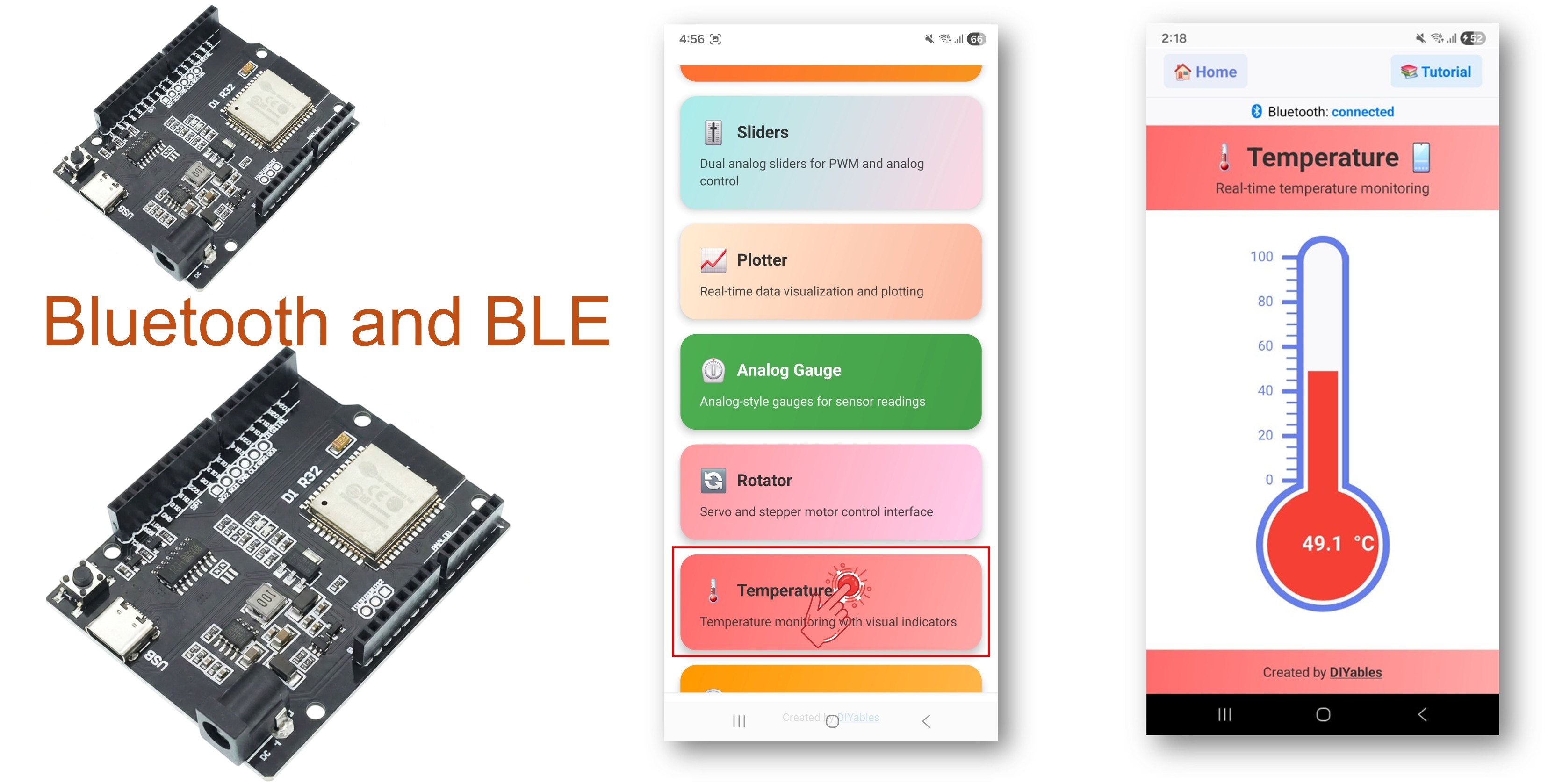
ESP32 Uno Bluetooth temperature

※ NOTE THAT:

The ESP32 Uno radio speaks two kinds of Bluetooth: BLE and Classic. Choose BLE if an iPhone will connect or if you want to skip the pairing step. Choose Classic if only Android phones will connect.

What the Thermometer App Gives You

This table shows what the app already does, so you know which parts you still write.

Feature Details
Gauge view A thermometer bar fills up to the reading, with the exact number beside it
Scale The lowest and highest values come from your sketch and can change later
Unit label Any short text, such as °C, °F or K
Refresh The example sends one reading every 2 seconds while a phone is linked
On-demand reading The app can ask the board for the newest value at any moment
Two radio modes BLE for Android and iOS, Classic Bluetooth for Android only
Power BLE uses less current than Classic Bluetooth

Components You Need

1×ESP32 Uno-form Board
1×USB Cable Type-A to Type-C (for USB-A PC)
1×USB Cable Type-C to Type-C (for USB-C PC)
1×Optionally, DS18B20 Temperature Sensor
1×Optionally, DHT11 Temperature Humidity Sensor Module
1×Alternatively, DHT11 Sensor
1×Optionally, DHT22 Temperature Humidity Sensor Module
1×Alternatively, DHT22 Sensor
1×Breadboard
1×Jumper Wires

Or you can buy the following kits:

1×DIYables Sensor Kit (18 sensors/displays)
Disclosure: Some of the links provided in this section are Amazon affiliate links. We may receive a commission for any purchases made through these links at no additional cost to you.
Additionally, some of these links are for products from our own brand, DIYables .

Buy Note: Many DS18B20 sensors available in the market are unreliable. We strongly recommend buying the sensor from the DIYables brand using the link provided above. We tested it, and it worked reliably.

ESP32 Uno Pinout

Your sketch never uses the printed Uno labels. It uses the GPIO number behind each label, so look up the pin on this map before you plug in a sensor.

ESP32 Uno pinout diagram

Good to know: the main sketch runs with nothing connected. The sensor examples further down use D2 (GPIO26) for a DHT or DS18B20 data line and A3 (GPIO34) for a thermistor.

Optional Sensor Sensor Pin ESP32 Uno Pin
DHT22 / DHT11 DATA D2 (GPIO26)
DS18B20 DATA D2 (GPIO26)
NTC thermistor divider Middle point A3 (GPIO34)
Any sensor VCC 3.3V
Any sensor GND GND

WARNING

ESP32 Uno pins work at 3.3V and are not 5V tolerant. Power the DHT or DS18B20 from 3.3V, so its pulled-up data line never goes above 3.3V. A3 (GPIO34) is an input-only pin with no internal pull-up, which is fine for a thermistor divider.

Upload and Test the ESP32 Uno Code

At the end of this part, your phone shows a moving temperature. The test sketch makes up its own values, so you can check the app before you wire a sensor.

Step 1 — Prepare Arduino IDE

  1. First time with this board? Set it up with ESP32 Uno - Getting Started before you continue.
  2. Build the circuit by following the wiring table above. For the first run, you can leave all pins free.
  3. Plug in the USB Type-C cable between the ESP32 Uno and your computer.
  4. Select the board in Arduino IDE: pick ESP32 Dev Module and the COM port of the board (CH340).
  5. Give the code more flash: open Tools > Partition Scheme and choose Huge APP (3MB No OTA/1MB SPIFFS). The normal layout has about 1.2 MB for your program, which is too small for the Bluetooth stack.
  6. Open Library Manager with the Libraries icon on the left side.
  7. Type "DIYables Bluetooth" in the search box and find the library from DIYables.
  8. Click Install on the DIYables Bluetooth card.
  • Search for DIYables Bluetooth created by DIYables and click the Install button.
∞
Newbiely | Arduino IDE 2.3.8
──
☐
✕
File
Edit
Sketch
Tools
Help
ESP32 Dev Module
Library Manager
Type:
All
Topic:
All
DIYables Bluetooth by DIYables
A comprehensive Bluetooth library that connects Arduino to the DIYables Bluetooth STEM mobile app (Android & iOS) via BLE and Classic Bluetooth. Features 11 built-in apps: Monitor, Chat, Digital Pin Control, Joystick, Sliders, Plotter, Analog Gauge, Rotator, Temperature, RTC, and Data Table. Clean architecture with platform abstraction. Works with Arduino Uno R4 WiFi, Arduino Nano 33 BLE, ESP32, and other BLE-capable boards. No mobile coding required. More info
1.0.1
INSTALL
Newbiely.ino
···
1 void setup() {
Output
Serial Monitor
Ln 1, Col 1
ESP32 Dev Module on COM15
1
  1. Add the helper libraries: when the IDE lists them, press Install All.

Now upload ONE of the two sketches. Both show the same thermometer; they differ only in the radio type.

Step 2 — Option A: ESP32 Uno Classic Bluetooth Sketch (Android only)

Good to know: Classic Bluetooth does not exist on iPhones. iOS users go to Option B.

  1. Load the sketch: in Arduino IDE choose File Examples DIYables Bluetooth Esp32Bluetooth_Temperature, or paste the code below into an empty sketch.
/* * This ESP32 Uno code was developed by newbiely.com * * This ESP32 Uno code is made available for public use without any restriction * * For comprehensive instructions and wiring diagrams, please visit: * https://newbiely.com/tutorials/esp32-uno/esp32-uno-diyables-bluetooth-app-temperature */ /* * DIYables Bluetooth Library - ESP32 Uno Classic Bluetooth Temperature Example * Pairs with the DIYables Bluetooth STEM app on Android * Note: iPhones cannot use Classic Bluetooth. Pick a BLE example for iOS. * * What this sketch shows (Bluetooth Temperature): * - A temperature value is drawn as a thermometer gauge in the phone app * - You choose the lowest value, the highest value and the unit text * - New readings reach the phone while the link is up * * Board: ESP32 Uno form board (Classic Bluetooth radio) * * Note: in Arduino IDE pick Tools > Partition Scheme > * "Huge APP (3MB No OTA/1MB SPIFFS)", the Bluetooth stack is big * * Optional: a real sensor (DHT22, DS18B20 or an NTC thermistor) * * How to use: * 1. Upload this sketch to the ESP32 Uno * 2. Open the Serial Monitor at 115200 baud to follow the link status * 3. Connect with the DIYables Bluetooth App and open the thermometer * * Tutorial: https://diyables.io/bluetooth-app * Author: DIYables */ #include <DIYables_BluetoothServer.h> #include <DIYables_BluetoothTemperature.h> #include <platforms/DIYables_Esp32Bluetooth.h> // Classic Bluetooth link with the name shown on the phone, plus the app server DIYables_Esp32Bluetooth bluetooth("ESP32_Temp"); DIYables_BluetoothServer bluetoothServer(bluetooth); // thermometer app: scale from -10 to 50, unit "°C" DIYables_BluetoothTemperature bluetoothTemperature(-10.0, 50.0, "°C"); // latest reading and send timing float currentTemperature = 25.0; unsigned long lastTempUpdate = 0; const unsigned long TEMP_UPDATE_INTERVAL = 2000; // one new reading every 2 s // test value that wanders around 25 degrees float readTemperature() { // TODO: swap this for your real sensor code, for example: // - DHT22 on D2 (GPIO26): dht.readTemperature() // - DS18B20 on D2 (GPIO26): sensors.getTempCByIndex(0) // - NTC thermistor on A3 (GPIO34): analogToTemperature(analogRead(34)) // - rough chip temperature: temperatureRead() // small random steps up and down static float offset = 0; offset += random(-10, 11) / 10.0; // move by up to 1 degree if (offset > 5.0) offset = 5.0; if (offset < -5.0) offset = -5.0; return 25.0 + offset; // stays between 20 and 30 degrees } void setup() { Serial.begin(115200); delay(1000); Serial.println("DIYables Bluetooth - ESP32 Temperature Example"); // TODO: start your sensor here, for example: // dht.begin(); // sensors.begin(); // start the Classic Bluetooth server on the ESP32 Uno radio bluetoothServer.begin(); // register the thermometer app with the server bluetoothServer.addApp(&bluetoothTemperature); // runs when a phone links or drops the link bluetoothServer.setOnConnected([]() { Serial.println("Bluetooth connected!"); // give the gauge a value right away float temp = readTemperature(); bluetoothTemperature.send(temp); Serial.print("Initial temperature sent: "); Serial.print(temp); Serial.println("°C"); }); bluetoothServer.setOnDisconnected([]() { Serial.println("Bluetooth disconnected!"); }); // optional: answer when the app asks for a reading bluetoothTemperature.onTemperatureRequest([]() { float temp = readTemperature(); bluetoothTemperature.send(temp); Serial.print("Temperature requested - Sent: "); Serial.print(temp); Serial.println("°C"); }); // the scale and unit can also change while the sketch runs: // bluetoothTemperature.setRange(-40.0, 125.0); // wide scale for tough sensors // bluetoothTemperature.setUnit("°F"); // show Fahrenheit Serial.println("Waiting for Bluetooth connection..."); } void loop() { // keep the Bluetooth link serviced bluetoothServer.loop(); // push a reading on a timer, only while a phone is linked if (bluetooth.isConnected() && millis() - lastTempUpdate >= TEMP_UPDATE_INTERVAL) { lastTempUpdate = millis(); // get a fresh value currentTemperature = readTemperature(); // update the gauge on the phone bluetoothTemperature.send(currentTemperature); // show the same value on the PC Serial.print("Temperature: "); Serial.print(currentTemperature); Serial.println("°C"); } delay(10); }
  1. Upload: hit the Upload button.
  2. Open the Serial Monitor at 115200 baud. After the board restarts you get:
∞
Newbiely | Arduino IDE 2.3.8
──
☐
✕
File
Edit
Sketch
Tools
Help
ESP32 Dev Module
Newbiely.ino
···
8 Serial.println("Hello World!");
Output
Serial Monitor
Message (Enter to send message to 'ESP32 Dev Module' on 'COM15')
New Line
9600 baud
DIYables Bluetooth - ESP32 Temperature Example Waiting for Bluetooth connection...
Ln 11, Col 1
ESP32 Dev Module on COM15
2

Step 2 — Option B: ESP32 Uno BLE Sketch (Android and iOS)

  1. Load the sketch: choose File Examples DIYables Bluetooth Esp32BLE_Temperature, or paste the code below.
/* * This ESP32 Uno code was developed by newbiely.com * * This ESP32 Uno code is made available for public use without any restriction * * For comprehensive instructions and wiring diagrams, please visit: * https://newbiely.com/tutorials/esp32-uno/esp32-uno-diyables-bluetooth-app-temperature */ /* * DIYables Bluetooth Library - ESP32 Uno BLE Temperature Example * Pairs with the DIYables Bluetooth STEM app on Android and iOS * * What this sketch shows (Bluetooth Temperature): * - A temperature value is drawn as a thermometer gauge in the phone app * - You choose the lowest value, the highest value and the unit text * - New readings reach the phone while the link is up * * Board: ESP32 Uno form board (BLE radio) * * Note: in Arduino IDE pick Tools > Partition Scheme > * "Huge APP (3MB No OTA/1MB SPIFFS)", the BLE stack is big * * Optional: a real sensor (DHT22, DS18B20 or an NTC thermistor) * * How to use: * 1. Upload this sketch to the ESP32 Uno * 2. Open the Serial Monitor at 115200 baud to follow the link status * 3. Connect with the DIYables Bluetooth App and open the thermometer * * Tutorial: https://diyables.io/bluetooth-app * Author: DIYables */ #include <DIYables_BluetoothServer.h> #include <DIYables_BluetoothTemperature.h> #include <platforms/DIYables_Esp32BLE.h> // BLE name and UUIDs the app looks for const char* DEVICE_NAME = "ESP32BLE_Temp"; const char* SERVICE_UUID = "19B10000-E8F2-537E-4F6C-D104768A1214"; const char* TX_UUID = "19B10001-E8F2-537E-4F6C-D104768A1214"; const char* RX_UUID = "19B10002-E8F2-537E-4F6C-D104768A1214"; // BLE link object and the server that runs the apps DIYables_Esp32BLE bluetooth(DEVICE_NAME, SERVICE_UUID, TX_UUID, RX_UUID); DIYables_BluetoothServer bluetoothServer(bluetooth); // thermometer app: scale from -10 to 50, unit "°C" DIYables_BluetoothTemperature bluetoothTemperature(-10.0, 50.0, "°C"); // latest reading and send timing float currentTemperature = 25.0; unsigned long lastTempUpdate = 0; const unsigned long TEMP_UPDATE_INTERVAL = 2000; // test value that wanders around 25 degrees float readTemperature() { // TODO: swap this for your real sensor code static float offset = 0; offset += random(-10, 11) / 10.0; if (offset > 5.0) offset = 5.0; if (offset < -5.0) offset = -5.0; return 25.0 + offset; } void setup() { Serial.begin(115200); delay(1000); Serial.println("DIYables Bluetooth - ESP32 BLE Temperature Example"); // start the BLE server on the ESP32 Uno radio bluetoothServer.begin(); // register the thermometer app with the server bluetoothServer.addApp(&bluetoothTemperature); // runs when a phone links or drops the link bluetoothServer.setOnConnected([]() { Serial.println("Bluetooth connected!"); float temp = readTemperature(); bluetoothTemperature.send(temp); Serial.print("Initial temperature sent: "); Serial.print(temp); Serial.println("°C"); }); bluetoothServer.setOnDisconnected([]() { Serial.println("Bluetooth disconnected!"); }); bluetoothTemperature.onTemperatureRequest([]() { float temp = readTemperature(); bluetoothTemperature.send(temp); Serial.print("Temperature requested - Sent: "); Serial.print(temp); Serial.println("°C"); }); Serial.println("Waiting for Bluetooth connection..."); } void loop() { bluetoothServer.loop(); if (bluetooth.isConnected() && millis() - lastTempUpdate >= TEMP_UPDATE_INTERVAL) { lastTempUpdate = millis(); currentTemperature = readTemperature(); bluetoothTemperature.send(currentTemperature); Serial.print("Temperature: "); Serial.print(currentTemperature); Serial.println("°C"); } delay(10); }
  1. Upload it with the Upload button.
  2. Read the Serial Monitor at 115200 baud:
∞
Newbiely | Arduino IDE 2.3.8
──
☐
✕
File
Edit
Sketch
Tools
Help
ESP32 Dev Module
Newbiely.ino
···
8 Serial.println("Hello World!");
Output
Serial Monitor
Message (Enter to send message to 'ESP32 Dev Module' on 'COM15')
New Line
9600 baud
DIYables Bluetooth - ESP32 BLE Temperature Example Waiting for Bluetooth connection...
Ln 11, Col 1
ESP32 Dev Module on COM15
2
  1. Pro tip: if you run two boards at once, give each sketch its own DEVICE_NAME (for example "Kitchen_Temp" and "Garage_Temp"), so you always tap the right one.

Step 3 — Connect the Phone App

When this step is done, the thermometer on your phone follows the board.

  1. Get the app: DIYables Bluetooth App for Android or iOS.
  2. Classic sketch only — pair first: on the Android phone open Settings > Bluetooth, switch Bluetooth on, tap "ESP32_Temp", accept the request (no PIN), and wait for "Paired". The BLE sketch needs no pairing.
  3. Start the app and allow the access it asks for on first launch:
    • Nearby Devices (Android 12 or newer) or Bluetooth (iOS) — to find and link devices
    • Location (Android 11 or older) — old Android versions need it for a BLE scan
  • Check that phone Bluetooth is switched on.
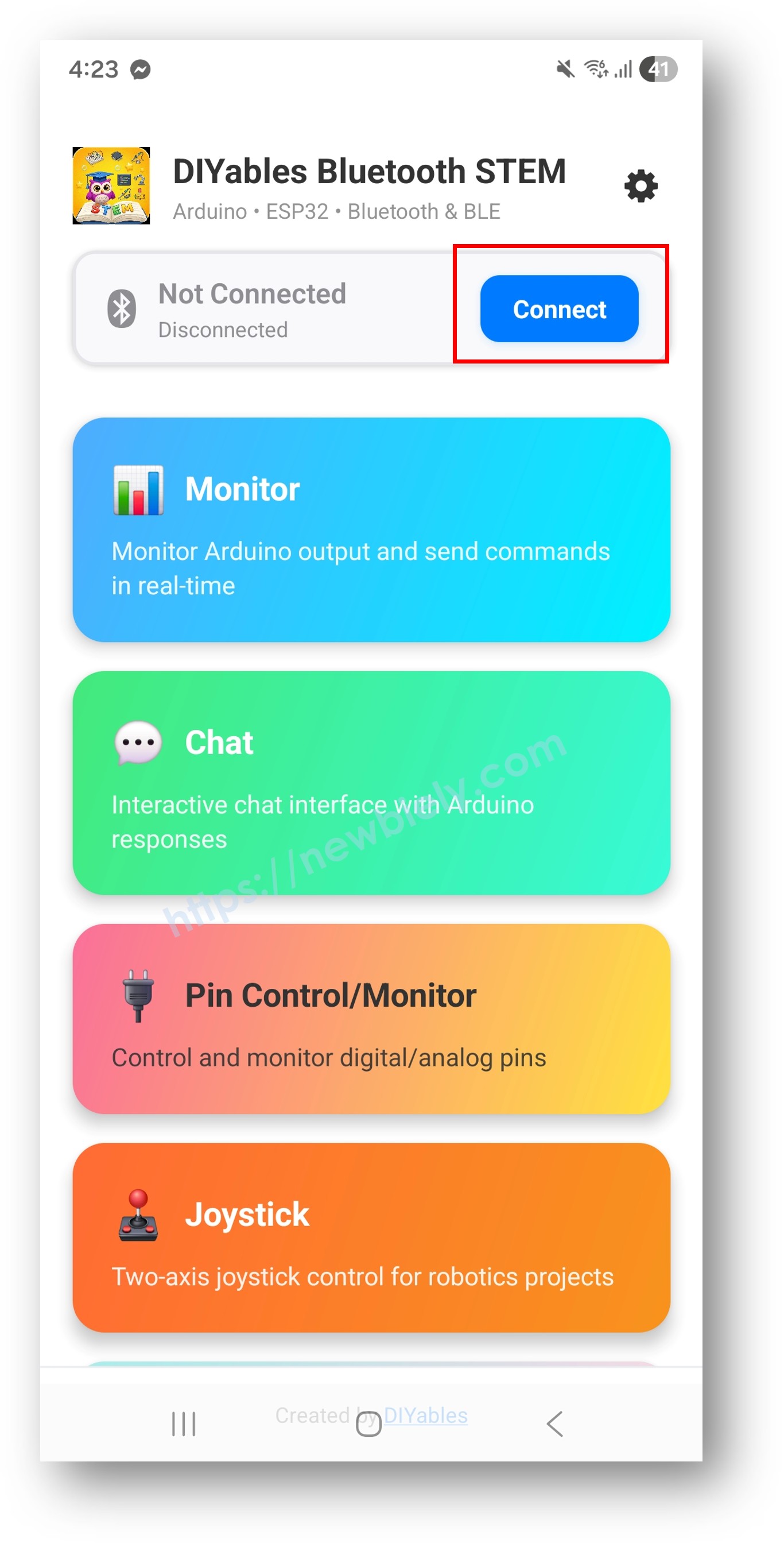
  • Scan: tap Connect on the home screen. BLE and Classic devices both appear.
  • DIYables Bluetooth App - Home Screen with Scan Button
    1. Tap your board: "ESP32_Temp" for Classic, or "ESP32BLE_Temp" for BLE. Once linked, the app jumps back to the home screen.
    2. Open the thermometer: pick Temperature in the app menu.
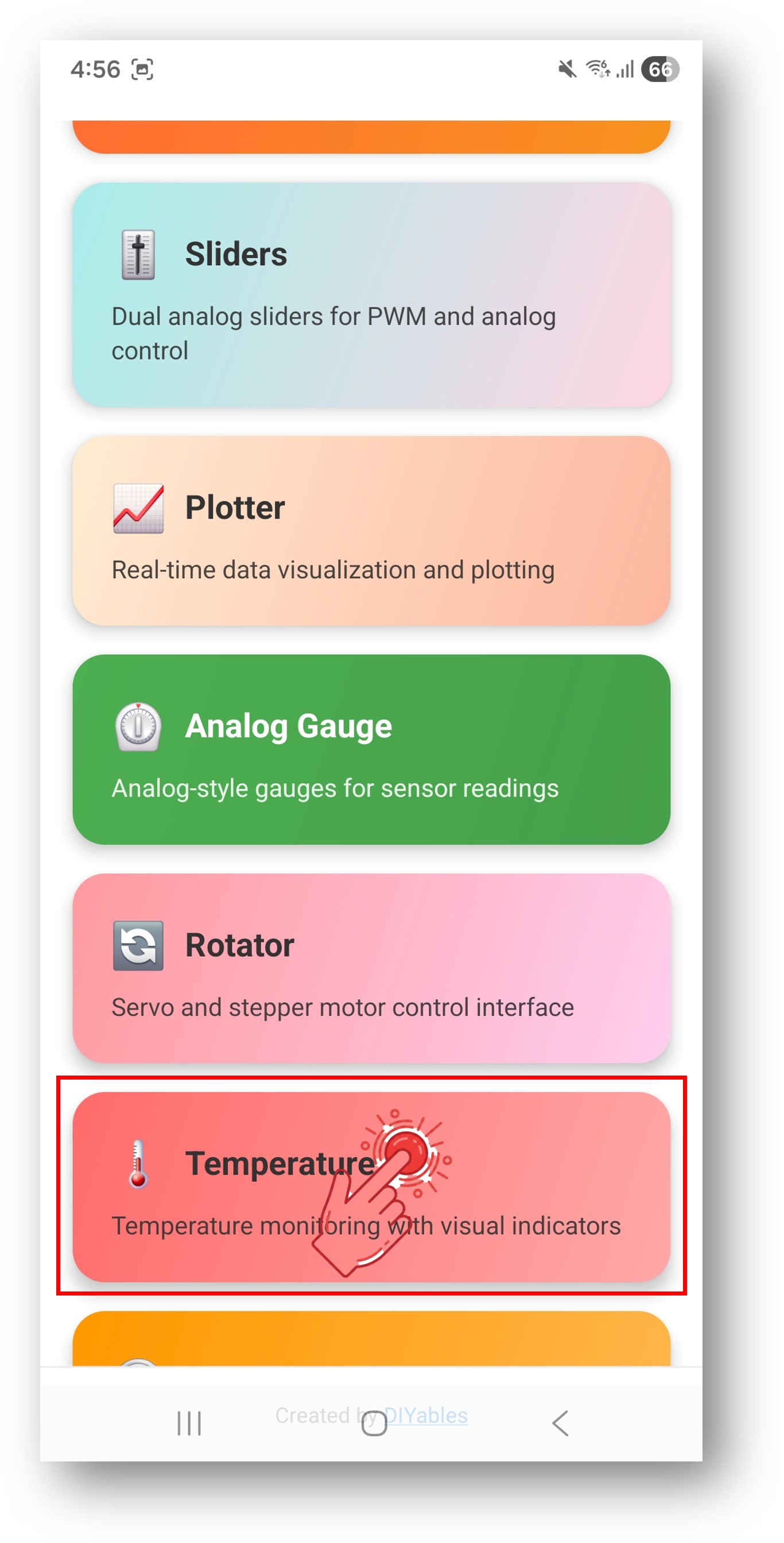
    DIYables Bluetooth App - Home Screen with Temperature App
    1. Watch the reading: the bar and the number change every 2 seconds.
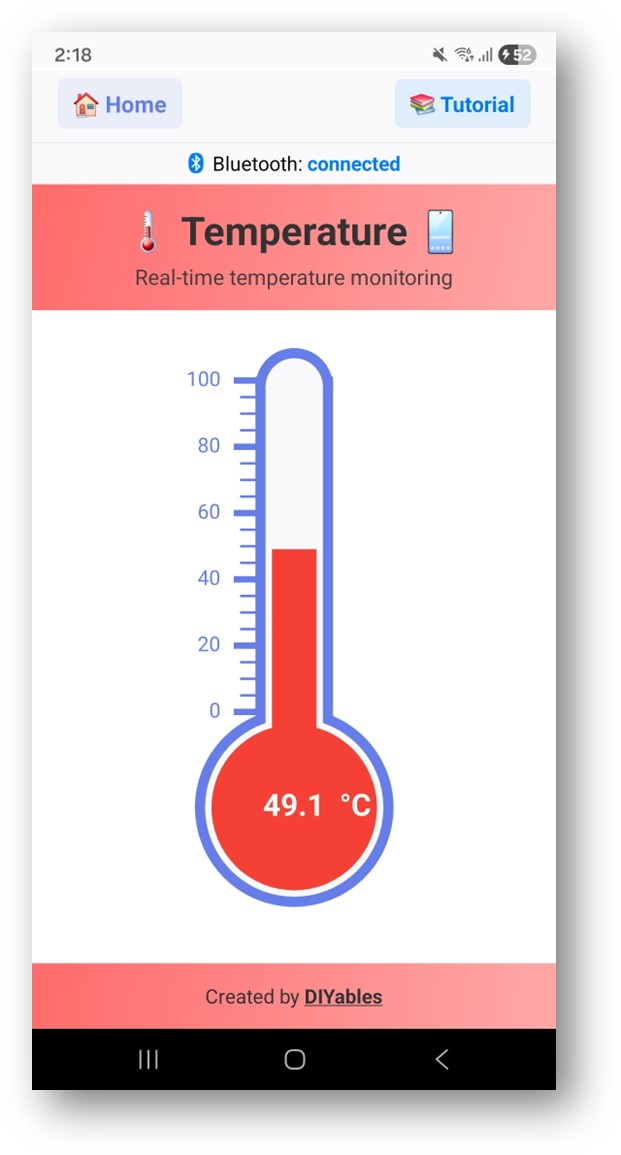
    DIYables Bluetooth App - Temperature Gauge Screen
    1. Pro tip: the gear icon on the home screen hides apps you do not need. Every screen is explained in the DIYables Bluetooth App User Manual.

    In the Serial Monitor, the link and each value now appear:

    ∞
    Newbiely | Arduino IDE 2.3.8
    ──
    ☐
    ✕
    File
    Edit
    Sketch
    Tools
    Help
    ESP32 Dev Module
    Newbiely.ino
    ···
    8 Serial.println("Hello World!");
    Output
    Serial Monitor
    Message (Enter to send message to 'ESP32 Dev Module' on 'COM15')
    New Line
    9600 baud
    Bluetooth connected! Initial temperature sent: 23.70°C Temperature: 23.20°C Temperature: 22.60°C Temperature: 23.40°C Temperature: 24.10°C
    Ln 11, Col 1
    ESP32 Dev Module on COM15
    2

    How the Sketch Works

    Here is what each part of the ESP32 Uno sketch does.

    Code Part What It Does
    DIYables_Esp32BLE or DIYables_Esp32Bluetooth Creates the radio link with the name the phone sees
    DIYables_BluetoothTemperature(-10.0, 50.0, "°C") Makes the thermometer app with its scale and unit
    readTemperature() Returns a test value between 20 and 30 degrees, and is the one spot for your sensor code
    setOnConnected() Sends a first reading as soon as a phone links, so the gauge is never empty
    onTemperatureRequest() Answers when the app asks for the newest value
    loop() timer Sends a fresh reading every 2000 ms, only while bluetooth.isConnected() is true

    The result: the board keeps the phone up to date, and you only touch readTemperature() when you add real hardware.

    ESP32 Uno vs UNO R4 for This Project

    Moving this thermometer from the UNO R4 WiFi to the ESP32 Uno mostly changes the radio code and the pin numbers.

    Item Arduino UNO R4 WiFi ESP32 Uno
    Logic voltage 5V 3.3V
    Bluetooth type BLE only BLE and Classic Bluetooth
    Example sketch ArduinoBLE_Temperature Esp32BLE_Temperature or Esp32Bluetooth_Temperature
    Sensor data pin (DHT or DS18B20) D2 D2 (GPIO26), written as 26 in code
    ADC range for a thermistor 0 to 1023 (10-bit) 0 to 4095 (12-bit), plus analogSetAttenuation(ADC_11db)
    Arduino IDE board Arduino UNO R4 WiFi ESP32 Dev Module with the Huge APP partition

    The sensor stays on the same D2 header hole, so your wiring does not move. Power the sensor from 3.3V instead of 5V to protect the ESP32 Uno input.

    Shape the Thermometer for Your Project

    With a few lines you can make the gauge fit your sensor and your room.

    Set the Scale and the Unit

    Pass the low end, the high end and the unit when you create the app. You can change all three later, for example from a settings button.

    // three values: lowest, highest, unit text DIYables_BluetoothTemperature bluetoothTemperature(-10.0, 50.0, "°C"); // widen the scale while the sketch runs bluetoothTemperature.setRange(-20.0, 60.0); // switch the unit label bluetoothTemperature.setUnit("°F"); // read back what is set now float minTemp = bluetoothTemperature.getMin(); // gives -10.0 float maxTemp = bluetoothTemperature.getMax(); // gives 50.0 String unit = bluetoothTemperature.getUnit(); // gives "°C"

    Push a Reading

    A number moves the gauge. A short text is handy when the sensor stops answering.

    // show a number on the gauge float temperature = 21.8; bluetoothTemperature.send(temperature); // show a short message instead bluetoothTemperature.send("Sensor error");

    Answer the App When It Asks

    The app may ask for a value when the thermometer screen opens. This callback reads the sensor and replies at once.

    bluetoothTemperature.onTemperatureRequest([]() { float temp = readTemperature(); bluetoothTemperature.send(temp); Serial.println("App requested temperature: " + String(temp)); });

    React to Connect and Disconnect

    bluetoothServer.setOnConnected([]() { Serial.println("Bluetooth connected!"); // fill the gauge right after the link opens bluetoothTemperature.send(currentTemperature); }); bluetoothServer.setOnDisconnected([]() { Serial.println("Bluetooth disconnected!"); });

    Reading the Thermometer Screen

    Use this to choose a scale that makes the bar easy to read.

    Screen Part Meaning
    Thermometer bar Fills up to the current reading
    Number The exact value you sent
    Unit The text from your constructor or setUnit()
    Left and right limits The low and high values set in your sketch
    Unit Constructor
    Celsius DIYables_BluetoothTemperature(-10.0, 50.0, "°C")
    Fahrenheit DIYables_BluetoothTemperature(14.0, 122.0, "°F")
    Kelvin DIYables_BluetoothTemperature(263.0, 323.0, "K")

    Real Sensor Examples

    Each example shows only the lines that change. Keep the radio setup from the main sketch.

    Example 1 — DHT22 on D2

    By the end of this example, the gauge shows the DHT22 room temperature.

    DHT22 Pin ESP32 Uno Pin
    VCC 3.3V
    GND GND
    DATA D2 (GPIO26)

    Good to know: most DHT modules have a pull-up on DATA already. A bare 4-pin sensor needs a 4.7k to 10k resistor from DATA to 3.3V.

    #include <DHT.h> #define DHT_PIN 26 // D2 (GPIO26) reads the DHT22 data line #define DHT_TYPE DHT22 DHT dht(DHT_PIN, DHT_TYPE); void setup() { Serial.begin(115200); dht.begin(); // ... radio setup from the main sketch ... bluetoothTemperature.onTemperatureRequest([]() { float temp = dht.readTemperature(); if (!isnan(temp)) { bluetoothTemperature.send(temp); } }); } void loop() { bluetoothServer.loop(); static unsigned long lastUpdate = 0; if (millis() - lastUpdate >= 2000) { lastUpdate = millis(); float temp = dht.readTemperature(); if (!isnan(temp)) { bluetoothTemperature.send(temp); Serial.println("Temperature: " + String(temp, 1) + " °C"); } } delay(10); }

    For a DHT11, set DHT_TYPE to DHT11 and keep the same wires.

    Example 2 — DS18B20 Probe on D2

    By the end of this example, a waterproof probe drives the gauge.

    DS18B20 Wire ESP32 Uno Pin
    Red (VCC) 3.3V
    Black (GND) GND
    Yellow (DATA) D2 (GPIO26), with a 4.7k resistor to 3.3V
    #include <OneWire.h> #include <DallasTemperature.h> #define ONE_WIRE_PIN 26 // D2 (GPIO26) is the OneWire bus OneWire oneWire(ONE_WIRE_PIN); DallasTemperature sensors(&oneWire); void setup() { Serial.begin(115200); sensors.begin(); // ... radio setup, with a scale that fits the probe ... // the DS18B20 covers -55°C up to +125°C bluetoothTemperature.onTemperatureRequest([]() { sensors.requestTemperatures(); float temp = sensors.getTempCByIndex(0); if (temp != DEVICE_DISCONNECTED_C) { bluetoothTemperature.send(temp); } }); } void loop() { bluetoothServer.loop(); static unsigned long lastUpdate = 0; if (millis() - lastUpdate >= 1000) { lastUpdate = millis(); sensors.requestTemperatures(); float temp = sensors.getTempCByIndex(0); if (temp != DEVICE_DISCONNECTED_C) { bluetoothTemperature.send(temp); Serial.println("Temperature: " + String(temp, 1) + " °C"); } else { Serial.println("Sensor disconnected!"); } } delay(10); }

    Example 3 — NTC Thermistor on A3

    By the end of this example, a cheap 10k thermistor feeds the gauge through the ESP32 Uno ADC.

    Divider Point ESP32 Uno Pin
    Top of the 10k fixed resistor 3.3V
    Joint of resistor and thermistor A3 (GPIO34)
    Bottom of the thermistor GND
    const int THERMISTOR_PIN = 34; // A3 (GPIO34) reads the divider joint const float SERIES_RESISTOR = 10000.0; const float NOMINAL_RESISTANCE = 10000.0; const float NOMINAL_TEMP = 25.0; const float B_COEFFICIENT = 3950.0; float readThermistor() { int raw = analogRead(THERMISTOR_PIN); float resistance = SERIES_RESISTOR / (4095.0 / raw - 1.0); float steinhart = log(resistance / NOMINAL_RESISTANCE) / B_COEFFICIENT; steinhart += 1.0 / (NOMINAL_TEMP + 273.15); float temperature = 1.0 / steinhart - 273.15; return temperature; } void setup() { Serial.begin(115200); // set the ADC attenuation to 11 dB (up to ~3.3V input) analogSetAttenuation(ADC_11db); // ... radio setup from the main sketch ... } void loop() { bluetoothServer.loop(); static unsigned long lastUpdate = 0; if (millis() - lastUpdate >= 1000) { lastUpdate = millis(); float temp = readThermistor(); bluetoothTemperature.send(temp); Serial.println("Temperature: " + String(temp, 1) + " °C"); } delay(10); }

    Good to know: analogSetAttenuation(ADC_11db) lets the ESP32 Uno analog pin read the full span, from 0V up to about 3.3V. Leave it out and the count tops out at 4095 well below 3.3V, which makes the computed °C value wrong. A3 sits on ADC1, so this example also keeps working if you add WiFi later.

    Example 4 — Show the Value in Fahrenheit

    This one reads the DHT in Celsius, converts it, and sends °F to the gauge.

    // gauge scale in Fahrenheit DIYables_BluetoothTemperature bluetoothTemperature(32.0, 122.0, "°F"); float celsiusToFahrenheit(float celsius) { return celsius * 9.0 / 5.0 + 32.0; } void loop() { bluetoothServer.loop(); static unsigned long lastUpdate = 0; if (millis() - lastUpdate >= 2000) { lastUpdate = millis(); float tempC = dht.readTemperature(); if (!isnan(tempC)) { float tempF = celsiusToFahrenheit(tempC); bluetoothTemperature.send(tempF); Serial.println("Temperature: " + String(tempF, 1) + " °F"); } } delay(10); }

    Cleaner Readings and Alerts

    These two helpers make the gauge calmer and more useful.

    Moving Average

    The sketch keeps the last 10 values and sends their mean. Small jumps vanish, and a real change still shows within a few seconds.

    const int NUM_SAMPLES = 10; float samples[NUM_SAMPLES]; int sampleIndex = 0; bool bufferFull = false; float getSmoothedTemperature(float newReading) { samples[sampleIndex] = newReading; sampleIndex = (sampleIndex + 1) % NUM_SAMPLES; if (sampleIndex == 0) bufferFull = true; int count = bufferFull ? NUM_SAMPLES : sampleIndex; float sum = 0; for (int i = 0; i < count; i++) { sum += samples[i]; } return sum / count; } void loop() { bluetoothServer.loop(); static unsigned long lastUpdate = 0; if (millis() - lastUpdate >= 1000) { lastUpdate = millis(); float rawTemp = readTemperature(); float smoothed = getSmoothedTemperature(rawTemp); bluetoothTemperature.send(smoothed); Serial.println("Raw: " + String(rawTemp, 2) + " Smoothed: " + String(smoothed, 2) + " °C"); } delay(10); }

    High and Low Alerts

    Setting Value Effect
    HIGH_THRESHOLD 35.0 Above it, the app gets "HIGH TEMP ALERT!"
    LOW_THRESHOLD 5.0 Below it, the app gets "LOW TEMP ALERT!"
    alertActive true or false Stops the same alert from repeating until the value is normal again
    const float HIGH_THRESHOLD = 35.0; const float LOW_THRESHOLD = 5.0; bool alertActive = false; void checkTemperatureAlerts(float temp) { if (temp > HIGH_THRESHOLD && !alertActive) { alertActive = true; bluetoothTemperature.send("HIGH TEMP ALERT!"); Serial.println("High temperature alert: " + String(temp, 1) + " °C"); // switch on a fan or a buzzer here } else if (temp < LOW_THRESHOLD && !alertActive) { alertActive = true; bluetoothTemperature.send("LOW TEMP ALERT!"); Serial.println("Low temperature alert: " + String(temp, 1) + " °C"); // switch on a heater here } else if (temp > LOW_THRESHOLD && temp < HIGH_THRESHOLD) { alertActive = false; } }

    Other Sensors That Fit

    Any sensor below can drive the gauge. Keep every signal into the board at 3.3V or less.

    Sensor Interface ESP32 Uno Pins Best For
    DHT22 or DHT11 One digital wire D2 (GPIO26) Rooms, also gives humidity
    DS18B20 probe OneWire D2 (GPIO26) Water, soil, outdoors
    BME280 or BMP280 I2C SDA (GPIO21) and SCL (GPIO22), not A4 and A5 Weather stations with pressure
    NTC thermistor Analog divider A3 (GPIO34) Low-cost builds
    MAX6675 or MAX31855 thermocouple SPI D10 to D13 (GPIO5, 23, 19, 18) Ovens and kilns above 1000°C

    BLE or Classic Bluetooth on the ESP32 Uno

    Both sketches run on this board. Use the table to pick one.

    Feature BLE (Esp32BLE_Temperature) Classic (Esp32Bluetooth_Temperature)
    iPhone Works Does not work
    Android Works Works
    Current draw Lower Higher
    Pairing in phone settings Not needed Needed once
    Name in the scan list ESP32BLE_Temp ESP32_Temp
    Good choice for Battery builds and mixed phones Android-only setups

    Debug Helper

    If the gauge looks odd, print the value next to the range. Then compare the Serial Monitor with the phone.

    void debugTemperature(float temp) { Serial.println("=== Temperature Debug ==="); Serial.println("Value: " + String(temp, 2) + " " + bluetoothTemperature.getUnit()); Serial.println("Range: " + String(bluetoothTemperature.getMin(), 1) + " - " + String(bluetoothTemperature.getMax(), 1)); Serial.println("In Range: " + String(temp >= bluetoothTemperature.getMin() && temp <= bluetoothTemperature.getMax() ? "Yes" : "No")); Serial.println("========================="); }

    Build Ideas

    Area Ideas
    Home Bedroom thermometer, balcony weather box, freezer watch, greenhouse check
    Kitchen Bread proofing box, sous vide readout, yogurt maker, smoker probe
    Tutorial and lab 3D printer enclosure, server shelf alarm, egg incubator, glue curing box
    Water Fish tank, hot tub, boiler pipe, hydroponic tank

    Pair It with Other Bluetooth Apps

    One server can host several apps at the same time.

    Gauge Plus Plotter

    The gauge gives the value now, and the plotter draws the trend.

    void loop() { bluetoothServer.loop(); static unsigned long lastUpdate = 0; if (millis() - lastUpdate >= 2000) { lastUpdate = millis(); float temp = readTemperature(); // value now, on the thermometer bluetoothTemperature.send(temp); // same value, on the trend chart bluetoothPlotter.send(temp); } delay(10); }

    Gauge Plus Table

    The gauge is for a quick look; the table holds the daily low, high and mean.

    // value now, on the thermometer bluetoothTemperature.send(temp); // details in rows bluetoothTable.sendValueUpdate("Current", String(temp, 1) + " °C"); bluetoothTable.sendValueUpdate("Min Today", String(minTemp, 1) + " °C"); bluetoothTable.sendValueUpdate("Max Today", String(maxTemp, 1) + " °C"); bluetoothTable.sendValueUpdate("Average", String(avgTemp, 1) + " °C");

    Try These Next

    1. ESP32 Uno - Bluetooth Analog Gauge — a needle dial for speed, pressure or voltage
    2. ESP32 Uno - Bluetooth Plotter — a live chart of the temperature over time
    3. ESP32 Uno - Bluetooth Table — many sensor values in rows
    4. ESP32 Uno - Bluetooth Multiple Apps — the thermometer next to other screens

    Help and Resources

    1. The API notes that ship with the DIYables Bluetooth library
    2. The Arduino community forum

    Troubleshooting

    Problem Possible Cause Solution
    No COM port shows up CH340 driver missing or a charge-only cable Install the CH340 driver and use a USB Type-C cable that carries data
    Upload stops at "Waiting for download" or "Failed to connect" The chip did not enter upload mode Hold the BOOT button while the upload starts, then release it
    "Sketch too big" when you compile Default partition has no room for Bluetooth Choose Tools > Partition Scheme > Huge APP (3MB No OTA/1MB SPIFFS)
    Board name is missing from the scan list Sketch not running, phone Bluetooth off, or Classic board not paired Check the Serial Monitor for "Waiting for Bluetooth connection...", switch on Bluetooth, pair ESP32_Temp first, and on old Android turn on Location
    iPhone never finds ESP32_Temp Classic Bluetooth is Android only Upload the BLE sketch and look for ESP32BLE_Temp
    DHT gives NaN or DS18B20 gives -127 Loose DATA wire or no pull-up resistor Check the wire on D2 (GPIO26), power the sensor from 3.3V, and fit a 4.7k pull-up for the DS18B20
    Thermistor value is far off Divider fed from 5V, wrong pin, or attenuation line removed Feed the divider from 3.3V, use A3 (GPIO34), and keep analogSetAttenuation(ADC_11db) in setup()
    Bar sits at one end of the scale Reading is outside the min and max Change the constructor range or call setRange()
    Gauge freezes after a while bluetoothServer.loop() skipped or long delay() in loop() Call bluetoothServer.loop() on every pass and keep loop() fast

    FAQ

    Does the ESP32 Uno thermometer need a real sensor to start?

    No. readTemperature() makes a test value that wanders between 20 and 30 degrees, so the gauge moves with no wiring. Later, put your sensor code inside that function and the rest of the sketch stays the same.

    Which sensor is the most accurate for this project?

    The DS18B20 and the DHT22 both reach about ±0.5°C, which is plenty for a room or a tank. The DHT11 is rougher, about ±2°C. A thermistor depends on its B value and the resistor tolerance, so it is the least precise but the cheapest.

    Should I power the DHT22 from 3.3V or 5V on the ESP32 Uno?

    Use 3.3V. The data line is pulled up to the sensor supply, and ESP32 Uno pins are not 5V tolerant. The DHT22 and the DS18B20 both run fine at 3.3V with short wires.

    How do I show °F instead of °C?

    Create the app with a Fahrenheit range and unit, such as DIYables_BluetoothTemperature(32.0, 122.0, "°F"). Then send Fahrenheit values: dht.readTemperature(true) gives °F, or convert with C × 9 / 5 + 32.

    Can one ESP32 Uno show two temperatures on the phone?

    The thermometer app shows one value. For two or more sensors, add the Bluetooth Table app next to it, or combine apps as shown in the Multiple Apps tutorial. Two DS18B20 probes can share the D2 (GPIO26) bus and be read with getTempCByIndex(0) and getTempCByIndex(1).

    Is the ESP32 Uno code different from the UNO R4 code?

    Yes. The UNO R4 WiFi uses ArduinoBLE_Temperature, while the ESP32 Uno uses Esp32BLE_Temperature or Esp32Bluetooth_Temperature from the same DIYables Bluetooth library. The sensor pin number also changes from 2 to 26, even though the wire stays on D2.

    Why does the code call analogSetAttenuation(ADC_11db)?

    Only the thermistor example has it. The line widens the ESP32 Uno ADC window to roughly 0 to 3.3V, so a full swing on the divider spans 0 to 4095. A narrow window would max out long before 3.3V. Boards like the UNO R4 skip this call; it exists only in the ESP32 core. Never feed the pin more than 3.3V.

    Why is the thermistor on A3 and not on A0?

    A0 (GPIO2) and A1 (GPIO4) are ADC2 pins, and ADC2 cannot be read while WiFi is on. A3 (GPIO34) is on ADC1, so the same code still works if you later send the value to a web page. A3 is input only, which is fine for reading a sensor.

    Can I use Bluetooth and WiFi together on the ESP32 Uno?

    Yes, the chip can run both, but they share one antenna and the flash fills up fast. Use the Huge APP partition and expect a slightly slower link. If you only need a phone nearby, Bluetooth alone is simpler.

    What if my project needs more pins than the Uno headers give?

    The ESP32 Uno has a few extra holes near the power header: GPIO32 and GPIO33 (I/O, PWM, analog on ADC1, so they also work while WiFi is on) and GPIO15 (I/O, PWM, analog on ADC2). Solder pin headers to use them and write the GPIO number in code. A second thermistor fits well on GPIO32 or GPIO33. Two warnings: GPIO15 and GPIO0 (the IO0 pin at the unused Uno NC position) are boot strapping pins, and a wrong connection can stop the board from booting or uploading, so use GPIO32/33 first. Never use the six holes under the digital header (SD0 to SD3, CMD, CLK = GPIO6 to GPIO11), because they are wired to the flash chip and using them crashes the board.

    ※ OUR MESSAGES

    • As freelancers, We are AVAILABLE for HIRE. See how to outsource your project to us
    • Please feel free to share the link of this tutorial. However, Please do not use our content on any other websites. We invested a lot of effort and time to create the content, please respect our work!