
ESP32 UNO - OLED 128x64
Need a small screen for your next build? Put words, numbers and pictures on a 128x64 OLED with the ESP32 Uno and only two signal wires. The ESP32 Uno form board drives this SSD1306 I2C display through the Adafruit library, so a status line, a counter or a logo takes just a few lines of Arduino code.
By the end, you can:
- Connect an SSD1306 OLED I2C display to the SDA and SCL header pins.
- Set up the Adafruit SSD1306 and GFX libraries in the Arduino IDE.
- Print text and numbers, and place them in the exact middle of the screen.
- Draw boxes, circles and triangles with the ESP32 Uno.
- Turn any picture into a bitmap array and show it on the 128x64 OLED.
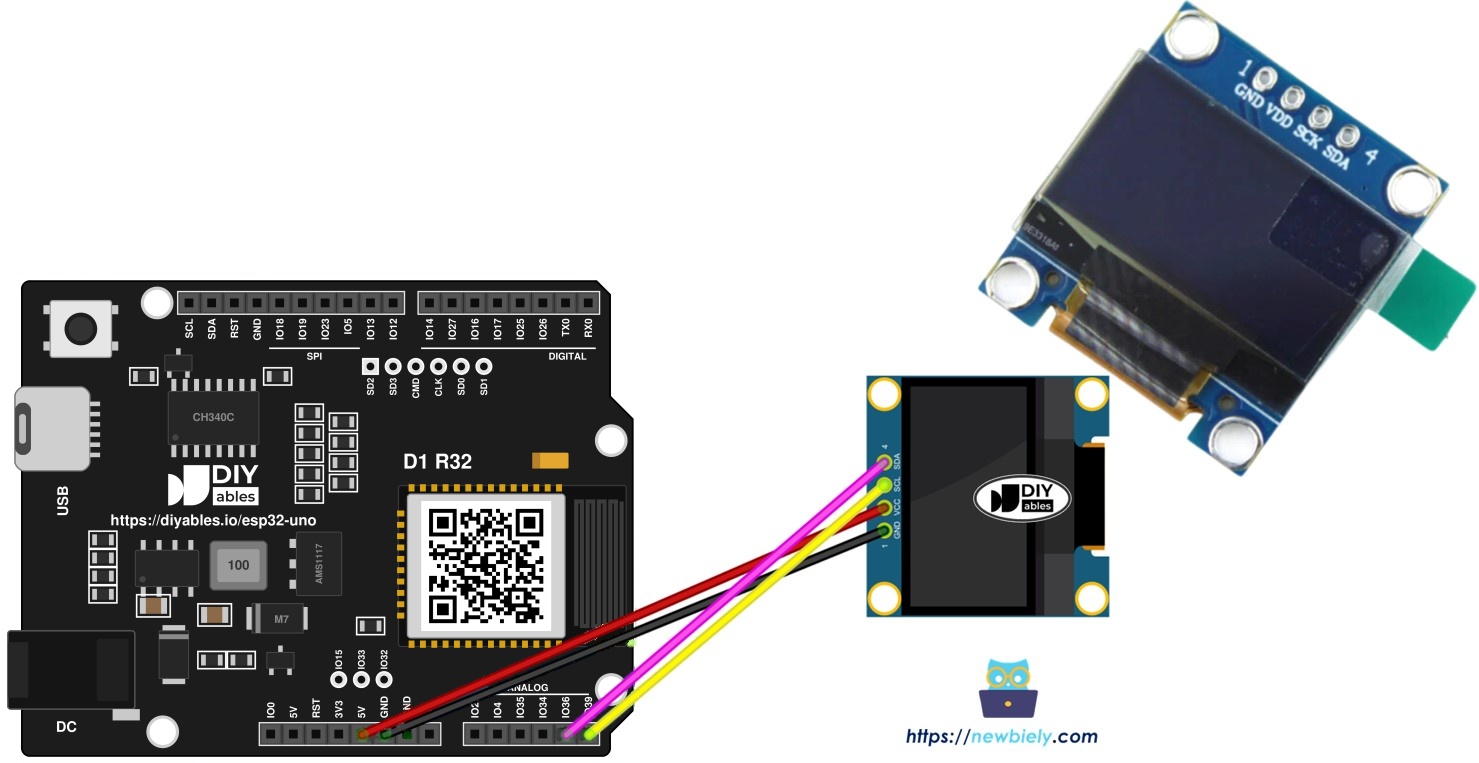
Components You Need
| 1 | × | ESP32 Uno-form Board | |
| 1 | × | USB Cable Type-A to Type-C (for USB-A PC) | |
| 1 | × | USB Cable Type-C to Type-C (for USB-C PC) | |
| 1 | × | SSD1306 I2C OLED Display 128x64 | |
| 1 | × | Jumper Wires |
Or you can buy the following kits:
| 1 | × | DIYables Sensor Kit (18 sensors/displays) |
Additionally, some of these links are for products from our own brand, DIYables .
Buy Note: If you want a bigger OLED display, use the 2.42 inch OLED Display 128x64 .
The OLED Module in Short
Read this part to pick the right module and driver before you plug anything in.
| Feature | Common Options | This Guide |
|---|---|---|
| Bus type | I2C or SPI | I2C |
| Resolution | 128x64, 128x32 and others | 128x64 |
| Pixel color | white, blue, yellow plus blue | any |
| Driver chip | SSD1306, SH1106 | SSD1306 |
| Default address | 0x3C or 0x3D | 0x3C |
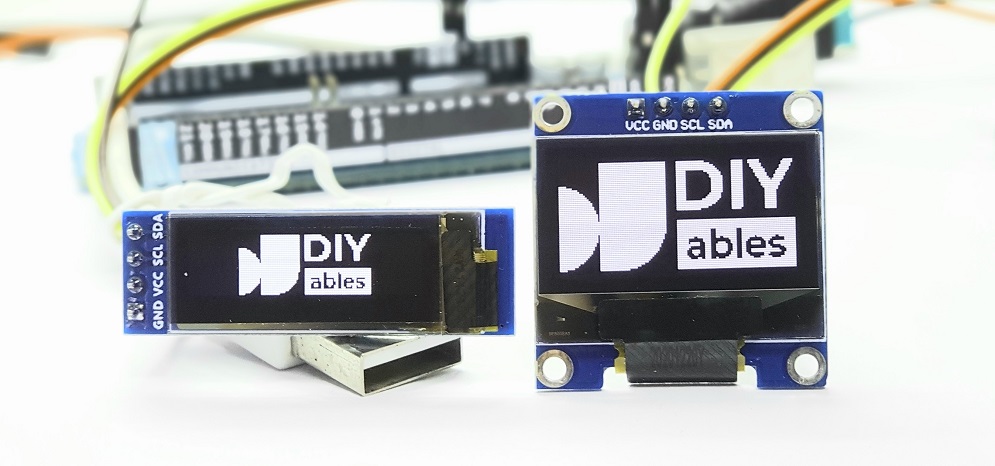
SPI moves pixels faster, but it takes four or more board pins. I2C uses only two lines, and those two lines can serve many other I2C parts at once. For text, small graphics and icons, the I2C speed is more than enough.
Good to know: SSD1306 and SH1106 boards look the same from the outside, but each chip needs its own library.
I2C OLED Display Pinout
Four pins, four jobs:
| OLED Pin | Job |
|---|---|
| GND | Common ground with the ESP32 Uno |
| VCC | Supply for the screen, 3.3V on this board |
| SCL | I2C clock line |
| SDA | I2C data line |
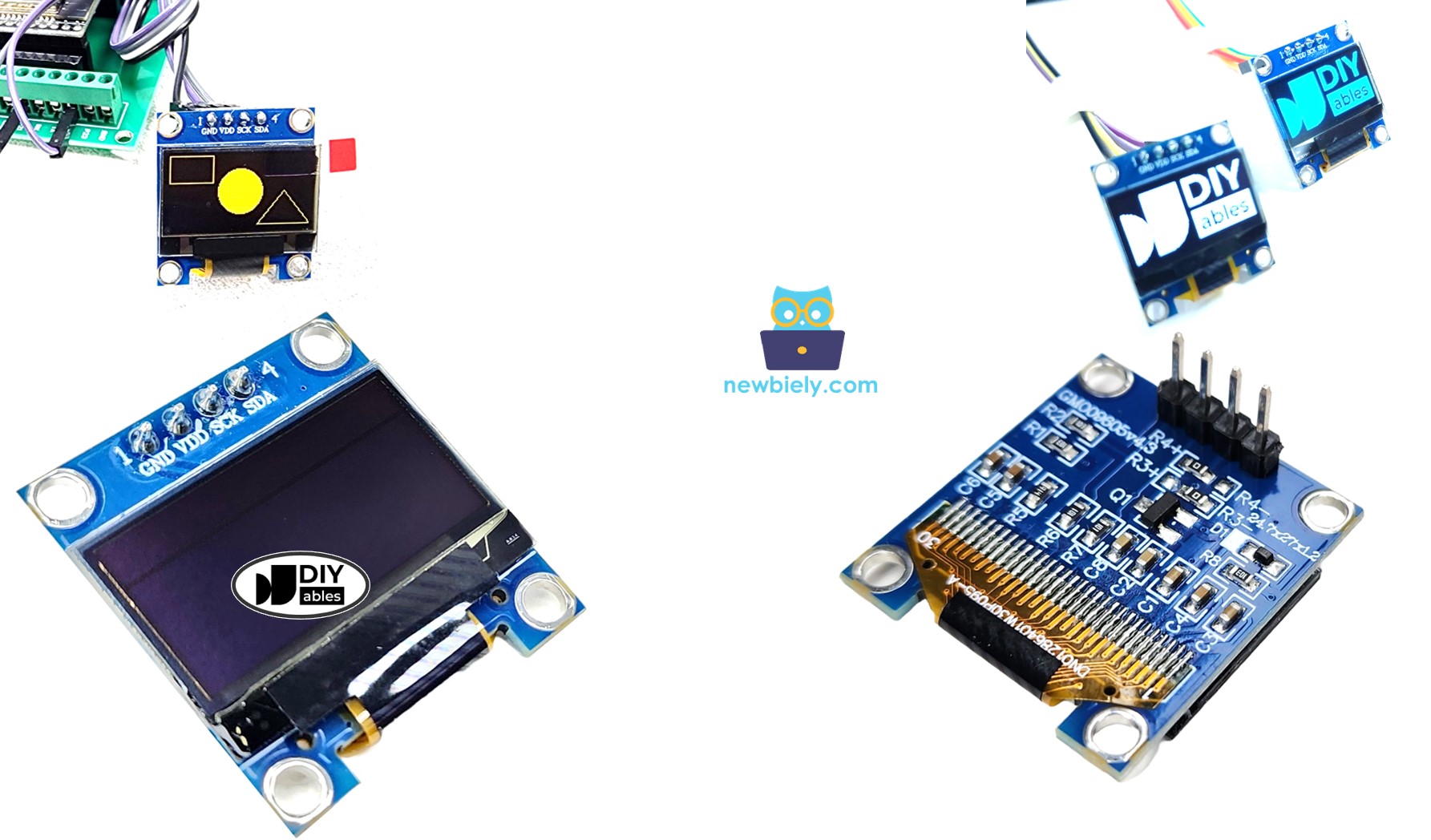
※ NOTE THAT:
Makers do not all use the same pin order. One module may start with GND, another with VCC. Read the print on your own board and wire by the labels, not by position.
The steps here target an SSD1306 I2C screen. A DIYables 128x64 OLED was used for every test, and it worked on the first try.
ESP32 Uno Pinout
Every Uno-style header hole on the ESP32 Uno form board has a GPIO number behind it, and sketches use that number. For this screen, find the two holes marked SDA and SCL on the diagram below.

How to Connect the OLED to the ESP32 Uno
When this step is done, the screen sits on the I2C bus and gets power from the board.
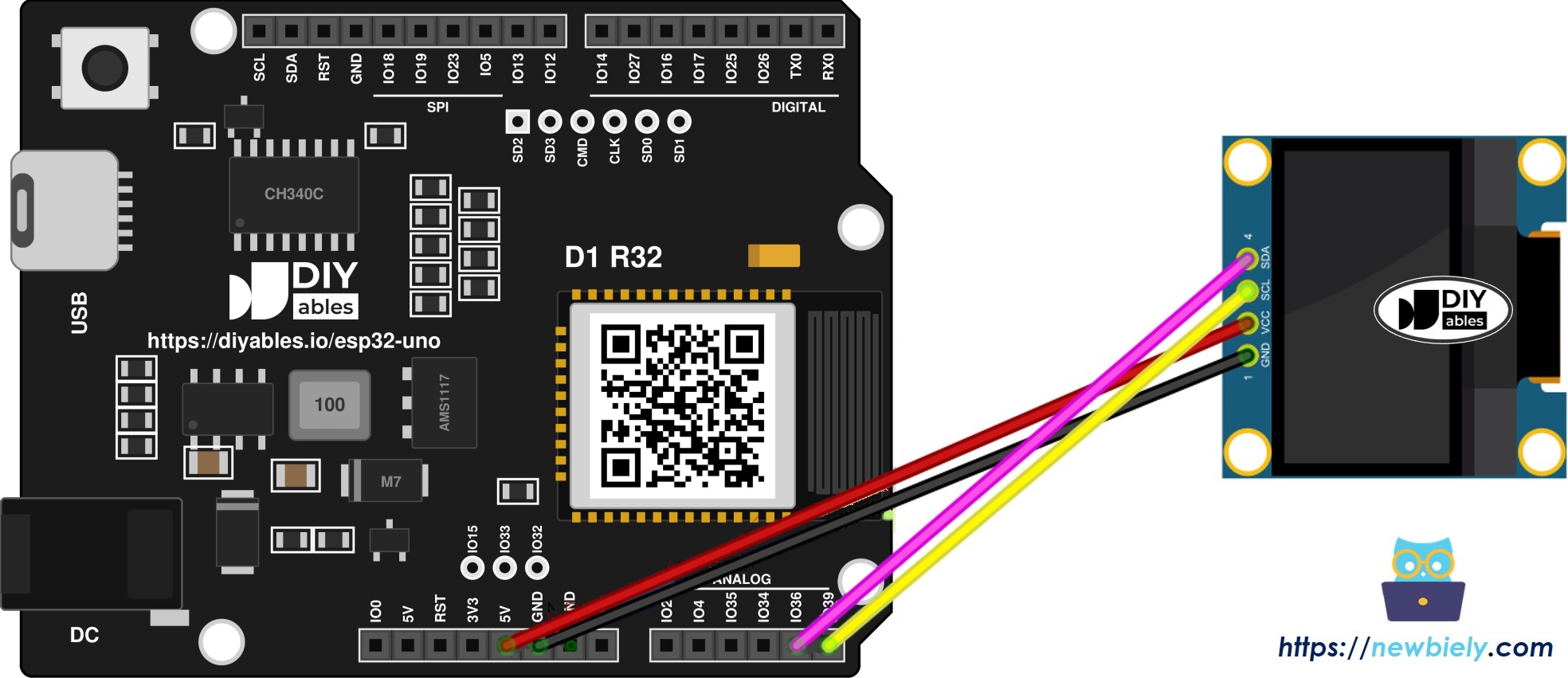
This image is created using Fritzing. Click to enlarge image
| OLED Module Pin | ESP32 Uno Pin |
|---|---|
| VCC | 3.3V |
| GND | GND |
| SDA | SDA (GPIO21) |
| SCL | SCL (GPIO22) |
Good to know: A4 (GPIO36) and A5 (GPIO39) on the ESP32 Uno are input-only analog holes. They carry no I2C signal, so the screen goes on the separate SDA and SCL header pins.
WARNING
ESP32 Uno pins work at 3.3V and are NOT 5V tolerant. Many OLED boards tie their SDA and SCL pull-up resistors to VCC. Feed the display from 3.3V, and the bus stays at a safe level. The SSD1306 runs fine at 3.3V.
Preparing the Arduino IDE and the Sketch
Finish this part, and your IDE has the driver and you know the four lines every OLED sketch starts with.
Step 1 — Add the SSD1306 library
- Click the Libraries icon in the left bar of the Arduino IDE.
- Type "SSD1306" and look for the entry by Adafruit.
- Press Install.
- Search for Adafruit SSD1306 created by Adafruit and click the Install button.
- A pop-up lists the extra libraries it depends on, such as Adafruit GFX. Press Install All to get them too.
- Search for Adafruit GFX Library created by Adafruit and click the Install button.
Step 2 — Learn the basic OLED code
Pull in the bus driver, the graphics core and the SSD1306 driver:
Tell the library how big the screen is (128 x 64 pixels):
Make the display object. It talks over Wire, which uses SDA (GPIO21) and SCL (GPIO22) on the ESP32 Uno by default. The -1 says the module has no reset wire.
Start the screen inside setup():
From this point you can write text, draw lines and shapes, and paint pictures.
ESP32 Uno OLED Code - Print Text
This sketch wakes up the display and writes "Hello World!" once, 10 pixels from the top.
Upload and Test
- First time with this board? Set it up with ESP32 Uno - Getting Started before you continue.
- Build the circuit by following the wiring table above.
- Plug in the USB Type-C cable between the ESP32 Uno and your computer.
- Select the board in Arduino IDE: pick ESP32 Dev Module and the COM port of the board (CH340).
- Check the libraries: Adafruit SSD1306 and Adafruit GFX must be installed (Step 1 above).
- Paste the sketch into a new Arduino IDE window.
- Press Upload and wait for "Done uploading".
- Look at the screen. After about two seconds, "Hello World!" shows up in the top left area.
- Pro tip: peel off the clear film that ships on top of most OLED glass. It is easy to miss, and the text looks much sharper without it.
Video Tutorial
See the ESP32 Uno build in action in the video below.
Code Explanation
The text sketch uses only a handful of calls:
| Code Part | What It Does |
|---|---|
| oled.begin(SSD1306_SWITCHCAPVCC, 0x3C) | Powers up the screen at address 0x3C |
| oled.clearDisplay() | Empties the pixel buffer |
| oled.setTextSize(1) | Picks the smallest font, 6 x 8 pixels per letter |
| oled.setCursor(0, 10) | Moves the text start to x 0, y 10 |
| oled.println("Hello World!") | Puts the words into the buffer |
| oled.display() | Copies the buffer to the glass |
The result is one line of white text that stays on the screen, because loop() is empty.
Good to know: every draw or print call only edits RAM. The glass changes only when oled.display() runs.
More text calls
Use these when you need more than one plain line:
| Call | Result on the Screen |
|---|---|
| oled.drawPixel(x, y, color) | Lights or clears one single dot |
| oled.setTextSize(n) | Scales letters from 1 (tiny) up to 8 (huge) |
| oled.setTextColor(WHITE) | Lit letters on a dark screen |
| oled.setTextColor(BLACK, WHITE) | Dark letters inside a lit band |
| oled.println(number) | Writes a value such as 3.3 or 42 |
| oled.println(number, HEX) | Writes a value in base 16, like 2A |
| oled.startscrollright(start, stop) | Slides rows start to stop toward the right side |
| oled.startscrollleft(start, stop) | Slides rows start to stop toward the left side |
| oled.startscrolldiagright(start, stop) | Slides up and to the right at an angle |
| oled.startscrolldiagleft(start, stop) | Slides up and to the left at an angle |
| oled.stopscroll() | Freezes any scroll in place |
Center Text and Numbers on the OLED
With this sketch, a word or a value lands in the true middle of the screen, whatever its length. getTextBounds() measures the string first. Then the cursor moves to half of the free space on each side. The screen swaps between "DIYables" and 21 every two seconds.
| Code Part | What It Does |
|---|---|
| oled.getTextBounds(text, 0, 0, ...) | Returns the pixel width and height of the string |
| (SCREEN_WIDTH - width) / 2 | Finds the left edge for a centered line |
| (SCREEN_HEIGHT - height) / 2 | Finds the top edge for a centered line |
| oledDisplayCenter(str) | Clears, places and shows any String |
To center a sensor value, turn it into a String first, for example String(23.5, 1), and pass it to oledDisplayCenter().
ESP32 Uno OLED Code - Draw Shapes
Run this one to see what the GFX core can draw. It cycles through eight frames, two seconds each.
| Frame | Function | Size Used |
|---|---|---|
| 1 and 2 | drawRect() then fillRect() | 60 x 40 box at x 0, y 15 |
| 3 and 4 | drawRoundRect() then fillRoundRect() | same box, corner radius 8 |
| 5 and 6 | drawCircle() then fillCircle() | radius 20, center at 20, 35 |
| 7 and 8 | drawTriangle() then fillTriangle() | corners 30,15 then 0,60 then 60,60 |
Each "draw" call makes an outline. Each "fill" call paints the inside too.
ESP32 Uno OLED Code - Show an Image
At the end of this part, your own logo or icon appears on the screen.
The SSD1306 cannot read a JPG or PNG. It needs a bitmap array, where each bit stands for one dot (1 = lit, 0 = dark). Make one in your browser with the free Image to Bitmap Converter: load a picture, set the size to 128 x 64, and copy the output. The screenshot shows the Arduino logo going through the tool.
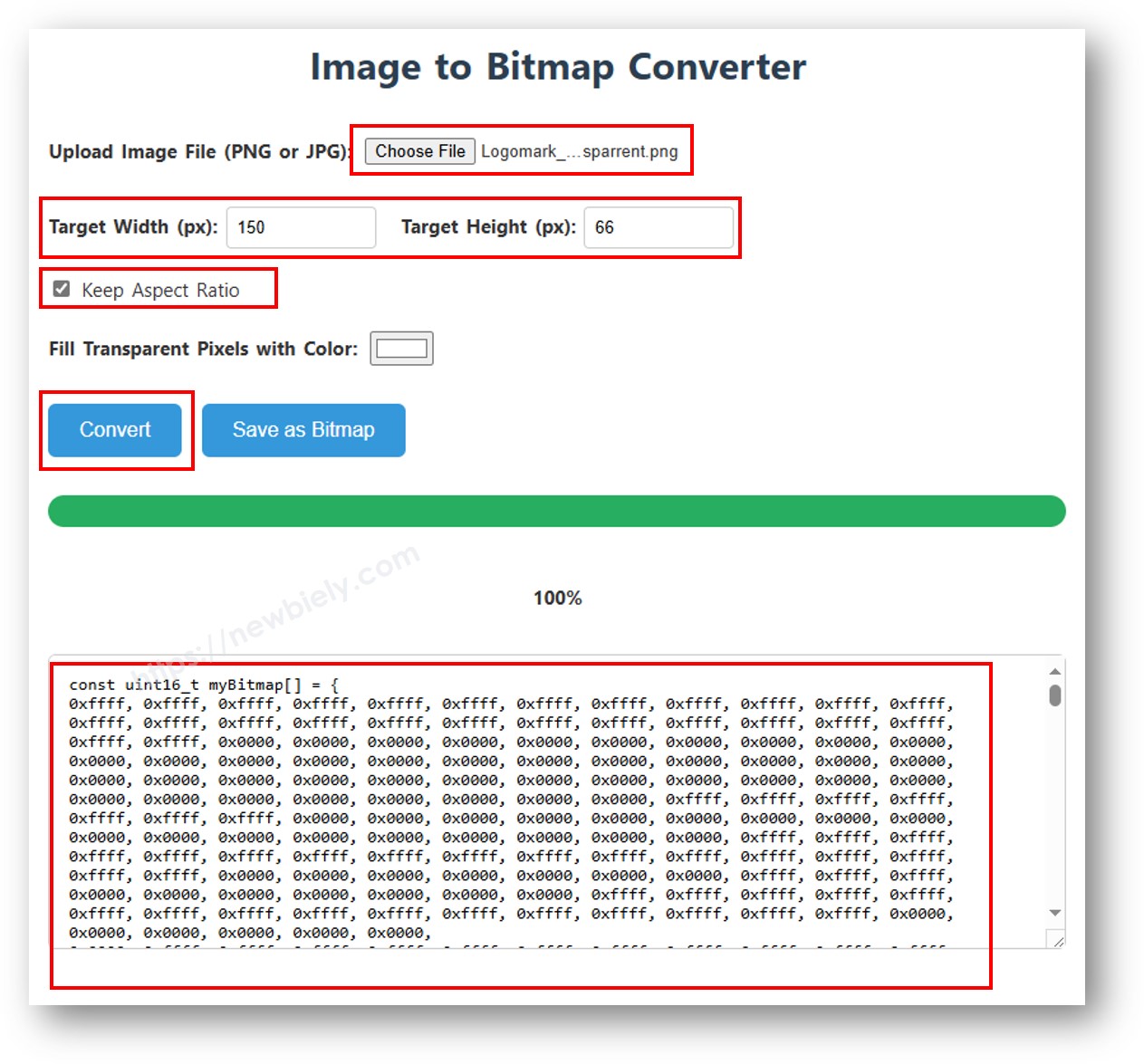
Replace the ArduinoIcon array in the sketch with the bytes you copied. The code paints the picture, holds it for two seconds, then flips every pixel.
※ NOTE THAT:
- Keep the picture no larger than the screen: 128 x 64 at most.
- On a 128x32 module, shrink the picture first, then set the new width and height inside oled.drawBitmap();.
Good to know: the ESP32 Uno has 4MB of flash, so you can keep many full-screen bitmaps in one sketch and switch between them.
ESP32 Uno vs UNO R4 for This Project
Moving this OLED project from the UNO R4 to the ESP32 Uno changes the I2C pins and the supply, not the sketches.
| Item | Arduino UNO R4 | ESP32 Uno |
|---|---|---|
| Logic voltage | 5V | 3.3V |
| OLED supply pin | 5V | 3.3V |
| I2C data line | A4 or SDA header | SDA header only (GPIO21) |
| I2C clock line | A5 or SCL header | SCL header only (GPIO22) |
| Libraries | Adafruit SSD1306 and GFX | same, no change |
| Board in Arduino IDE | Arduino UNO R4 WiFi or Minima | ESP32 Dev Module |
The four sketches compile on both boards with no code edits. Just keep the OLED on 3.3V and on the SDA and SCL header pins, never on A4 and A5.
Find the OLED I2C Address
Use this check when the screen stays dark and you are not sure the board can see it.
- Re-check the four wires against the wiring table.
- Make sure the module really has an SSD1306 chip (the seller page or the back print often says so).
- Upload the I2C address scanner below. It lists every address that answers on SDA (GPIO21) and SCL (GPIO22).
Open the Serial Monitor at 9600 baud. With one OLED on the bus, you get:
If a different value comes up, such as 0x3D, type it into oled.begin() in place of 0x3C. If you see "No I2C devices found", the problem is wiring or power, not code.
Go Wireless: Phone Messages on the OLED
Here you get an idea for turning the screen into a small message board.
The ESP32 Uno has WiFi and Bluetooth (Classic and BLE) on board. Type a line in a chat page on your phone, and the ESP32 Uno can print it on the OLED with oledDisplayCenter(). The same trick works for alerts, a shopping list or a door sign. The pages below show how to receive the text; then pass it to the display code from this guide.
Try These Next
- Show a counter that goes up once per second, centered with oledDisplayCenter().
- Put a logo on the screen at power-on, then switch to live text.
- Use setTextColor(BLACK, WHITE) to make a lit title bar over normal text.
- Scroll a long message with startscrollleft(0x00, 0x07).
Troubleshooting
| Problem | Possible Cause | Solution |
|---|---|---|
| Arduino IDE shows no COM port | CH340 driver missing or charge-only USB cable | Install the CH340 driver and use a USB cable that carries data |
| Upload stops at Waiting for download | Board did not enter flash mode | Hold the BOOT button while the upload starts, then let go |
| Screen is fully dark | No power or SDA and SCL on A4 and A5 | Check 3.3V and GND, and move the two data wires to the SDA and SCL header pins |
| SSD1306 allocation failed in the Serial Monitor | Address in begin() does not match the module | Run the scanner sketch and use the address it prints |
| Scanner says No I2C devices found | Loose jumper or swapped data lines | Push each wire in firmly and try swapping SDA and SCL |
| Picture looks like snow or sits 2 pixels off | Module uses an SH1106 chip | Switch to the Adafruit SH110X library |
| Text is very dim | Clear film still on the glass or low contrast | Remove the film, and keep the display out of direct sun |
| fatal error Adafruit_SSD1306.h not found | Library missing | Install Adafruit SSD1306 and press Install All for its helpers |
| Logo is cut off or broken | Array size and drawBitmap() size differ | Export the picture at 128 x 64 and use the same numbers in drawBitmap() |
FAQ
Which power pin should the 128x64 OLED use on the ESP32 Uno?
Use 3.3V. The SSD1306 works well at 3.3V, and most modules pull SDA and SCL up to VCC. At 5V, those lines would sit at 5V, which the ESP32 Uno pins cannot take.
Can I wire the OLED to A4 and A5 like on other Uno boards?
No. On the ESP32 Uno, A4 is GPIO36 and A5 is GPIO39. Both are input-only analog pins with no I2C hardware. Use the SDA (GPIO21) and SCL (GPIO22) header pins, which Wire.begin() picks by default.
Do the UNO R4 OLED sketches need changes for the ESP32 Uno?
No. The Adafruit SSD1306 and GFX libraries support the ESP32 core, so the same code compiles. Only the board choice in the IDE changes to ESP32 Dev Module.
How much memory does the 128x64 screen buffer use?
The library keeps 1 KB of RAM (128 x 64 / 8 bytes) for the frame. The ESP32 Uno has over 300 KB of RAM, so this is no problem, even with several images in flash.
Can two OLED screens share the same SDA and SCL wires?
Yes, when each one has its own address. Move the address jumper or resistor on the second module to get 0x3D, then create a second Adafruit_SSD1306 object and start it with that address.
Will an SH1106 1.3 inch OLED run with this code?
Not properly. The SH1106 has a 132-pixel wide memory, so the SSD1306 library draws a shifted or noisy image. Use the Adafruit SH110X library for that chip.
Why does my ESP32 Uno need a CH340 driver?
The board uses a CH340 chip to turn USB into serial. Windows and macOS do not always ship that driver. Without it, the board gets no COM port and you cannot upload.
Can I use bigger fonts than setTextSize(8)?
Yes. Adafruit GFX comes with FreeFonts, such as FreeSans12pt7b. Include the font header and call oled.setFont(&FreeSans12pt7b). These fonts look smoother than the scaled built-in font.
Can I send text to the OLED from my phone?
Yes. The ESP32 Uno has WiFi and Bluetooth, so a phone can send messages to the board. See the Go Wireless section above for chat and monitor pages you can combine with this display code.
What if my project needs more pins than the Uno headers give?
The ESP32 Uno has a few extra holes near the power header. GPIO32 and GPIO33 are I/O, PWM and analog pins on ADC1, so they also read analog values while WiFi is on. GPIO15 is I/O, PWM and analog on ADC2. Solder pin headers to them and write the GPIO number in code. For buttons or a sensor next to this OLED, start with GPIO32 and GPIO33. Two warnings: (1) GPIO15 and GPIO0 (the IO0 pin at the unused Uno NC spot) are boot strapping pins, and a wrong connection can stop the board from booting or uploading code, so use GPIO32/33 first. (2) Never use the six holes under the digital header (SD0 to SD3, CMD, CLK = GPIO6 to GPIO11). They connect to the flash chip, and using them crashes the board.