
ESP32 UNO - DIP Switch
Need a few settings you can change by hand, without new code? Wire an ESP32 Uno DIP switch and read each slide switch as one bit. On the ESP32 Uno form board, a 4-position DIP switch gives you 16 settings, from 0 to 15. The Arduino code below prints each position and the binary number they make.
By the end, you can:
- Connect a 4-position DIP switch to four Uno header pins
- Read every slide switch with digitalRead() and INPUT_PULLUP
- Combine the positions into one binary value with bit shifts
- Change the sketch for DIP switches with 2, 6, 8 or 10 positions
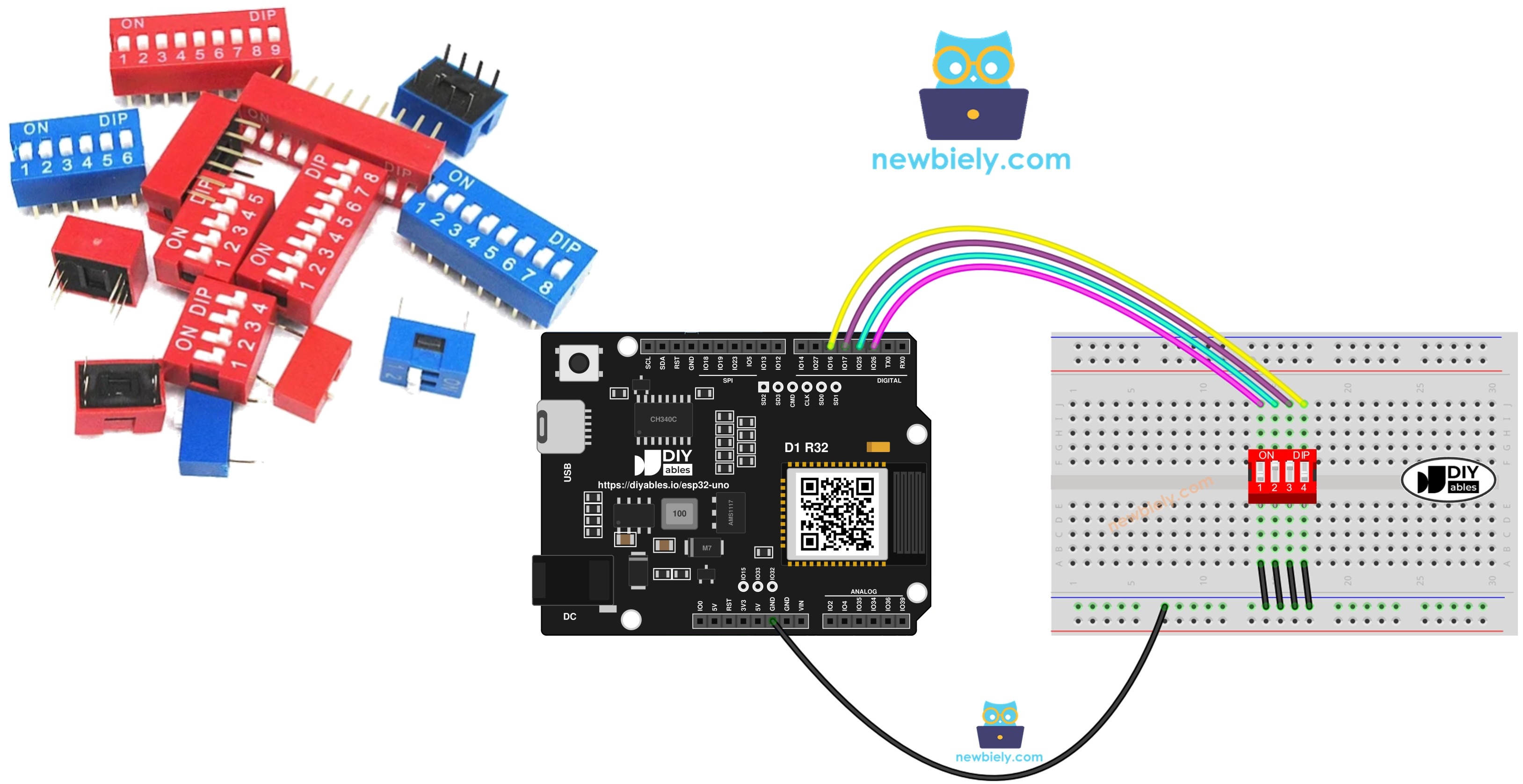
Components You Need
| 1 | × | ESP32 Uno-form Board | |
| 1 | × | USB Cable Type-A to Type-C (for USB-A PC) | |
| 1 | × | USB Cable Type-C to Type-C (for USB-C PC) | |
| 1 | × | DIP Switch | |
| 1 | × | Breadboard | |
| 1 | × | Jumper Wires |
Or you can buy the following kits:
| 1 | × | DIYables Sensor Kit (18 sensors/displays) |
Additionally, some of these links are for products from our own brand, DIYables .
Overview of DIP Switch
After this part, you know what each slide on the switch means to your code.
"DIP" stands for Dual In-line Package. The part is a row of tiny slide switches in one plastic body. Each slide is one "position". Products use them to store a setting that must survive a power cut.
| Feature | Details |
|---|---|
| Common sizes | 2, 4, 5, 6, 8 or 10 positions |
| Typical uses | device address, bus options, security code, run mode, user preferences |
| Value per position | one bit (ON = 1, OFF = 0) |
| Settings with 4 positions | 16 (0 to 15) |
| Settings with 8 positions | 256 (0 to 255) |
Pinout
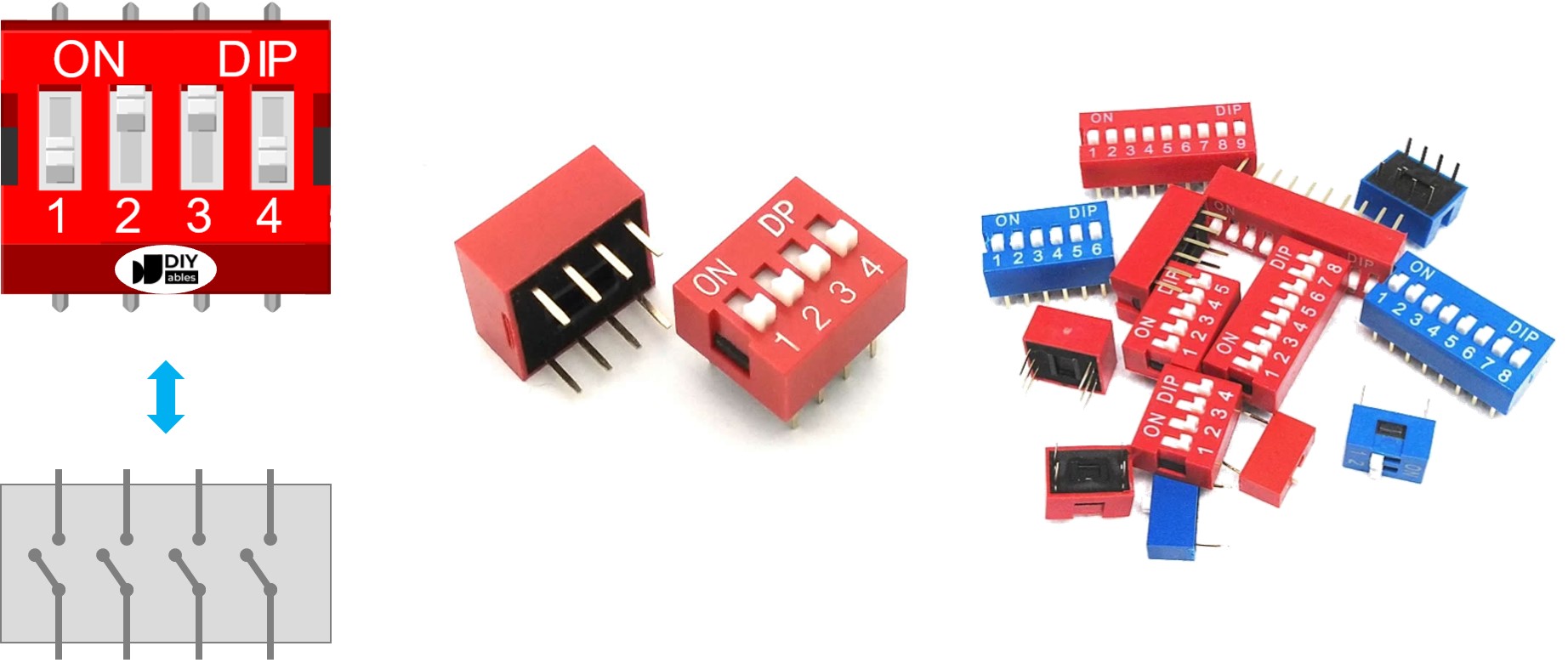
The pins sit in two rows, with one pin per position in each row. So a 4-position part has 8 pins in total. Two pins straight across from each other are the two ends of one slide switch. The rows are the same, so either row can go to the board.
How It Works
Here you see how a slide position turns into a HIGH or LOW reading.
Each position is a plain contact. ON closes it, so current can pass between its two pins. OFF opens it, so the path is broken.
In this build, one end of every switch goes to GND. The other end goes to an ESP32 Uno pin set as INPUT_PULLUP. The internal pull-up holds the pin HIGH while the switch is open. When you slide it ON, the pin is tied to GND and reads LOW.
| DIP switch position | Binary representation | Circuit state | ESP32 Uno pin state |
|---|---|---|---|
| ON | 1 | CLOSED | LOW |
| OFF | 0 | OPEN | HIGH |
Good to know: ESP32 Uno inputs work at 3.3V logic. Here the switches only connect pins to GND, so no outside voltage ever reaches the board.
The sketches use a 4-position part. The same idea works for 2, 3, 5, 6, 8 and 10 positions.
ESP32 Uno Pinout
Your sketch talks to GPIO numbers, while the board is printed with Uno labels such as D2 or D5. Use this diagram to find the GPIO behind each header pin before you place a wire.

How to Connect
When this step is done, the four switches sit between four digital pins and GND.
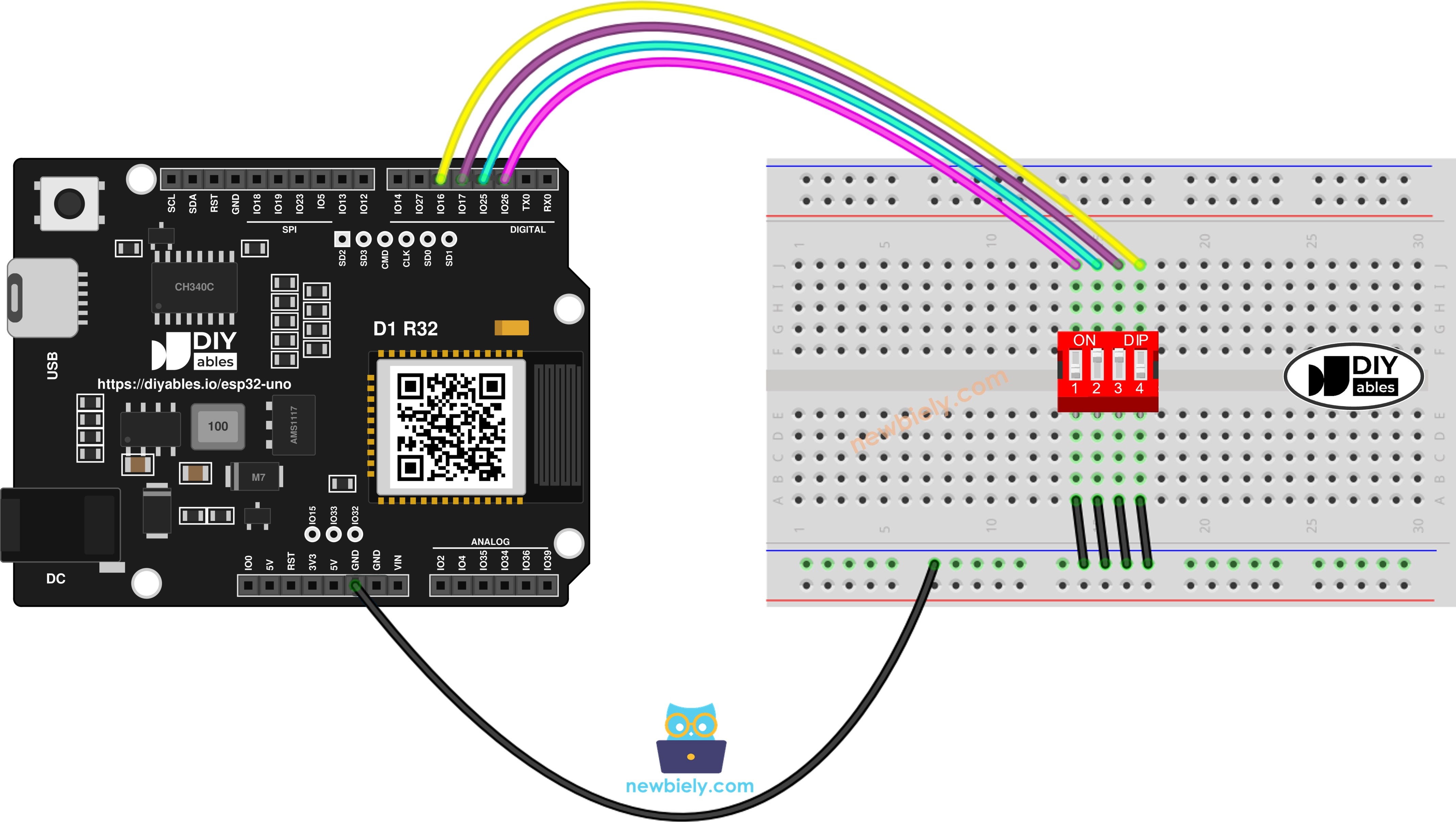
This image is created using Fritzing. Click to enlarge image
| DIP Switch Pin | ESP32 Uno Pin |
|---|---|
| Position 1 (first row) | D2 (GPIO26) |
| Position 2 (first row) | D3 (GPIO25) |
| Position 3 (first row) | D4 (GPIO17) |
| Position 4 (first row) | D5 (GPIO16) |
| Every pin of the second row | GND |
Good to know: You do not need resistors. The code turns on the pull-up inside each of the four GPIOs.
ESP32 Uno Code - DIP Switch
You get two sketches. One shows each slide as ON or OFF. The other turns the whole switch into one number, like a real device setting.
ESP32 Uno code - Show the ON/OFF state of each position
This sketch prints the state of all four positions twice per second.
| Code Part | What It Does |
|---|---|
| SWITCH_PINS[] = { 26, 25, 17, 16 } | GPIO numbers behind D2, D3, D4 and D5 |
| #define ON LOW | a closed switch pulls the pin to GND, so LOW means ON |
| pinMode(..., INPUT_PULLUP) | turns on the internal pull-up of every switch pin |
| for loop with digitalRead() | reads each position and prints ON or OFF |
| delay(500) | waits half a second before the next round |
The result is a block of four lines in the Serial Monitor that updates as you move the slides.
Upload and Test
- First time with this board? Set it up with ESP32 Uno - Getting Started before you continue.
- Build the circuit by following the wiring table above.
- Plug in the USB Type-C cable between the ESP32 Uno and your computer.
- Select the board in Arduino IDE: pick ESP32 Dev Module and the COM port of the board (CH340).
- Paste the sketch into a new Arduino IDE window.
- Press Upload (the Upload button) and wait for "Done uploading".
- Open the Serial Monitor at 9600 baud.
- Move the slides into a few different patterns and read the output.
- Pro tip: Label the switch body with a fine marker (1 to 4), so you never mix up the order on the breadboard.
ESP32 Uno code - Turn the positions into one number
This sketch reads all four slides and builds one value from 0 to 15.
| Code Part | What It Does |
|---|---|
| int encoded_state = 0 | starts every round from zero |
| digitalRead(SWITCH_PINS[i]) | checks one slide at a time |
| 1 << (POSITION_NUM - i - 1) | gives position 1 the weight 8 and position 4 the weight 1 |
| encoded_state |= ... | sets that bit when the slide is ON |
| Serial.println(encoded_state) | prints the final value in decimal |
You see one line per round, and the value changes the moment you move a slide.
Upload and Test
- First time with this board? Set it up with ESP32 Uno - Getting Started before you continue.
- Keep the same circuit from the first sketch.
- Plug in the USB Type-C cable between the ESP32 Uno and your computer.
- Select the board in Arduino IDE: pick ESP32 Dev Module and the COM port of the board (CH340).
- Upload this second sketch to the ESP32 Uno.
- Open the Serial Monitor at 9600 baud.
- Set a pattern on the slides and compare the printed value with the table below.
- Pro tip: Write the 16 settings and what each one does on a small card, and keep it next to your project.
Each slide adds its own weight to the total. Position 1 is the most significant bit and position 4 is the least significant bit. Here is the full map for a 4-position part:
| Position-1 | Position-2 | Position-3 | Position-4 | Binary Value | Decimal Value |
|---|---|---|---|---|---|
| OFF | OFF | OFF | OFF | 0000 | 0 |
| OFF | OFF | OFF | ON | 0001 | 1 |
| OFF | OFF | ON | OFF | 0010 | 2 |
| OFF | OFF | ON | ON | 0011 | 3 |
| OFF | ON | OFF | OFF | 0100 | 4 |
| OFF | ON | OFF | ON | 0101 | 5 |
| OFF | ON | ON | OFF | 0110 | 6 |
| OFF | ON | ON | ON | 0111 | 7 |
| ON | OFF | OFF | OFF | 1000 | 8 |
| ON | OFF | OFF | ON | 1001 | 9 |
| ON | OFF | ON | OFF | 1010 | 10 |
| ON | OFF | ON | ON | 1011 | 11 |
| ON | ON | OFF | OFF | 1100 | 12 |
| ON | ON | OFF | ON | 1101 | 13 |
| ON | ON | ON | OFF | 1110 | 14 |
| ON | ON | ON | ON | 1111 | 15 |
Video Tutorial
See the ESP32 Uno build in action in the video below.
ESP32 Uno vs UNO R4 for This Project
This table lists what changes when you move the DIP switch build from the UNO R4 to the ESP32 Uno.
| Item | Arduino UNO R4 | ESP32 Uno |
|---|---|---|
| Logic voltage | 5V | 3.3V |
| Switch pins in code | 2, 3, 4, 5 | 26, 25, 17, 16 |
| Header positions | D2 to D5 | D2 to D5 (same places) |
| Pull-up resistors | internal | internal |
| Arduino IDE board | Arduino UNO R4 WiFi or Minima | ESP32 Dev Module |
| WiFi and Bluetooth | WiFi only on the R4 WiFi | WiFi plus Bluetooth Classic and BLE |
The wiring stays exactly the same. Only the four numbers in SWITCH_PINS[] change, because the code must use GPIO numbers.
Go Wireless: Show the Switch Setting on Your Phone
With this idea, you can check the DIP switch setting without a USB cable.
The ESP32 Uno has WiFi and Bluetooth on board. Send the encoded value to a web page or a phone app. This helps when the board is inside a box and you cannot see the slides. A table view can show all four positions and the final number at once.
Try These Next
- Read the value only once in setup() and use it as a fixed device ID.
- Reverse the bit order, so position 4 becomes the highest bit.
- Use the value to pick one of several LED blink speeds.
- Print the value in binary with Serial.println(encoded_state, BIN).
Troubleshooting
| Problem | Possible Cause | Solution |
|---|---|---|
| Board has no COM port in Arduino IDE | CH340 driver not installed or a charge-only cable | Install the CH340 driver and use a USB cable that carries data |
| Upload stops at "Failed to connect" or "Waiting for download" | Board did not enter download mode | Hold the BOOT button while the upload starts, then release it |
| Every position stays OFF | Second row of the switch is not on GND | Run a jumper from that row to a GND pin and check the breadboard strip |
| Every position stays ON | First-row pins touch GND through a short or a bent leg | Check the breadboard for a solder bridge or a wire in the wrong strip |
| One position never moves | Loose jumper or wrong header pin | Press the jumper in and confirm D2, D3, D4 and D5 in that order |
| Printed number looks wrong | Positions are wired in a different order | Match position 1 to D2 and position 4 to D5, or swap the GPIOs in SWITCH_PINS |
| Readings flicker between ON and OFF | Pins set as INPUT with no pull-up | Keep pinMode as INPUT_PULLUP for all four pins |
| Serial Monitor prints garbage | Baud rate does not match the sketch | Set the Serial Monitor to 9600 baud |
FAQ
What is a DIP switch used for in an electronics project?
It holds a small setting that you change by hand, such as an address or a mode. The setting stays in place after a power cut. Your code reads it at start-up or in the loop.
How many settings can a 4-position DIP switch give?
Four bits give 2 x 2 x 2 x 2 = 16 settings, from 0 to 15. Each extra position doubles the count. An 8-position part gives 256 settings.
Does the ESP32 Uno need pull-up resistors for a DIP switch?
No. D2, D3, D4 and D5 have internal pull-ups, and the sketch turns them on with INPUT_PULLUP. Only add 10kΩ resistors to 3.3V if you use the input-only pins A2 to A5.
Should I connect the second row of the DIP switch to 3.3V or 5V?
Use GND, as in this guide. ESP32 Uno pins are not 5V tolerant, so never feed 5V into them. With the GND wiring, no voltage goes into the pins at all.
Why does my sketch use 26, 25, 17 and 16 and not 2, 3, 4 and 5?
On the ESP32 Uno, the Uno labels are not GPIO numbers. D2 is GPIO26, D3 is GPIO25, D4 is GPIO17 and D5 is GPIO16. If you write 2, 3, 4 and 5, the code reads other pins.
Can I wire the DIP switch to A2 to A5 on the ESP32 Uno?
Yes, but A2 to A5 (GPIO35, GPIO34, GPIO36, GPIO39) are input only and have no internal pull-up. INPUT_PULLUP does nothing there. Add a 10kΩ resistor from each pin to 3.3V.
Which pins should I avoid for an 8-position DIP switch?
Skip D0 and D1, because they are the USB serial pins. D8 (GPIO12), A0 (GPIO2) and D10 (GPIO5) are boot strapping pins, so a switch there can stop the board from booting or uploading. Good extra choices are D6 (GPIO27), D7 (GPIO14), D9 (GPIO13) and D11 (GPIO23).
Is the DIP switch code different from the UNO R4 code?
Only the pin numbers change. The logic, INPUT_PULLUP, digitalRead() and the bit shifts work the same on both boards. No extra library is needed.
What if my project needs more pins than the Uno headers give?
The ESP32 Uno has extra holes near the power header: GPIO32 and GPIO33 (I/O, PWM, analog on ADC1, so they also work while WiFi is on) and GPIO15 (I/O, PWM, analog on ADC2). Solder pin headers to them and write the GPIO number in code. For more DIP switch positions, use GPIO32 and GPIO33 first. Be careful: GPIO15 and GPIO0 (the IO0 pin at the unused Uno NC position) are boot strapping pins, and a wrong connection can stop the board from booting or uploading code. Never use the six holes under the digital header (SD0 to SD3, CMD, CLK = GPIO6 to GPIO11), because they go to the flash chip and using them crashes the board.
Can I show the DIP switch value on a web page with the ESP32 Uno?
Yes. The ESP32 Uno has WiFi, so you can send the encoded value to a browser with the DIYables Web Apps library. The Go Wireless section above links to ready-made examples.
How do I read the setting only once at power-up?
Move the read loop from loop() into setup() and store the result in a global variable. Then the device keeps that setting until the next reset, like many commercial products do.